Basic Fixes
- Restart PC: Restart your PC to fix temporary bugs and glitches.
- Close unused tabs: Closing unused tabs can free up the memory that Google Chrome is occupying on your PC.
- Close unwanted apps: Close unwanted apps on your PC to free up memory.
- Restart Chrome from Task Manager: Open the Task Manager on your PC, click on the End Task button to shut down Chrome, and open the app again.
- Update Google Chrome: Update Google Chrome to the latest version for a bug-free experience.
Fix 1: Turn Off Extensions
Turn off, and disable all the extensions that you do not want to use. Extensions are additional components of Google Chrome that consume memory on your Windows PC. Disabling a few of them can help you free up memory for the other active tasks.
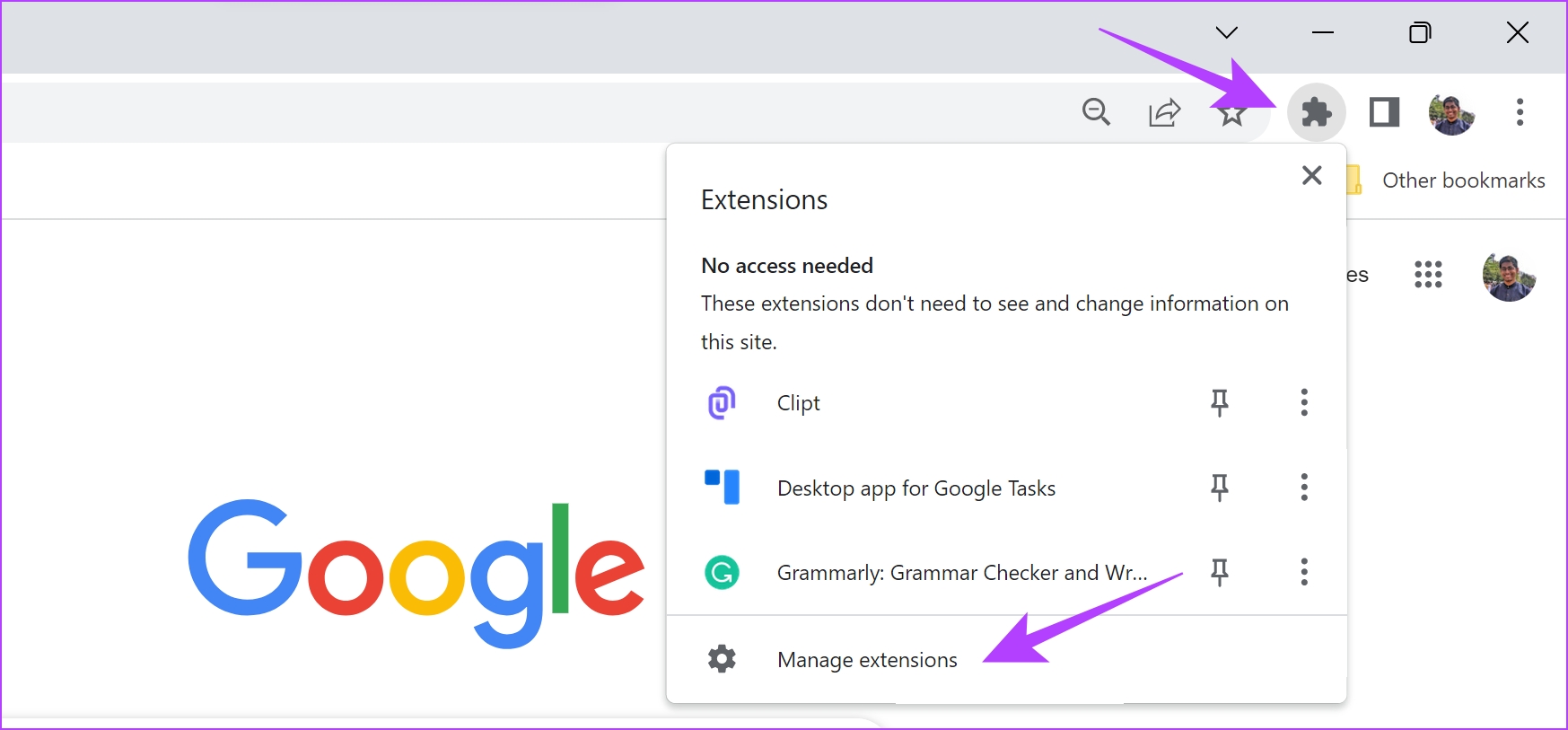
Step 1: Open Chrome, click on the extensions icon on the toolbar, and select Manage Extensions.
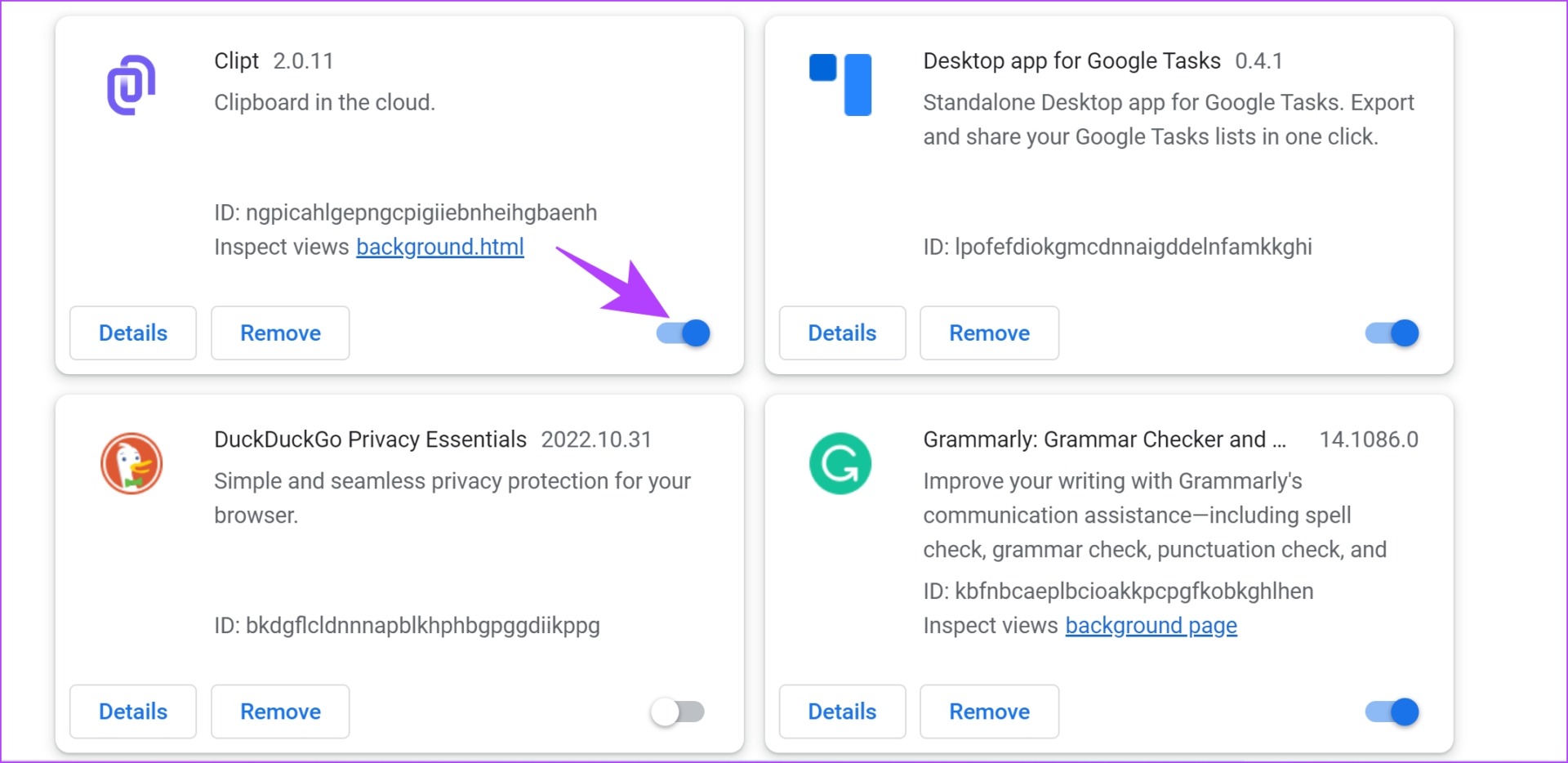
Step 2: You will now see a list of installed extensions. Turn off the toggle to disable an extension and check if it solves the issue. Repeat this for all the installed extensions.
Fix 2: Enable Memory Saver
The memory saver mode is a feature on Google Chrome that helps reduce the RAM usage by Google Chrome on your system.
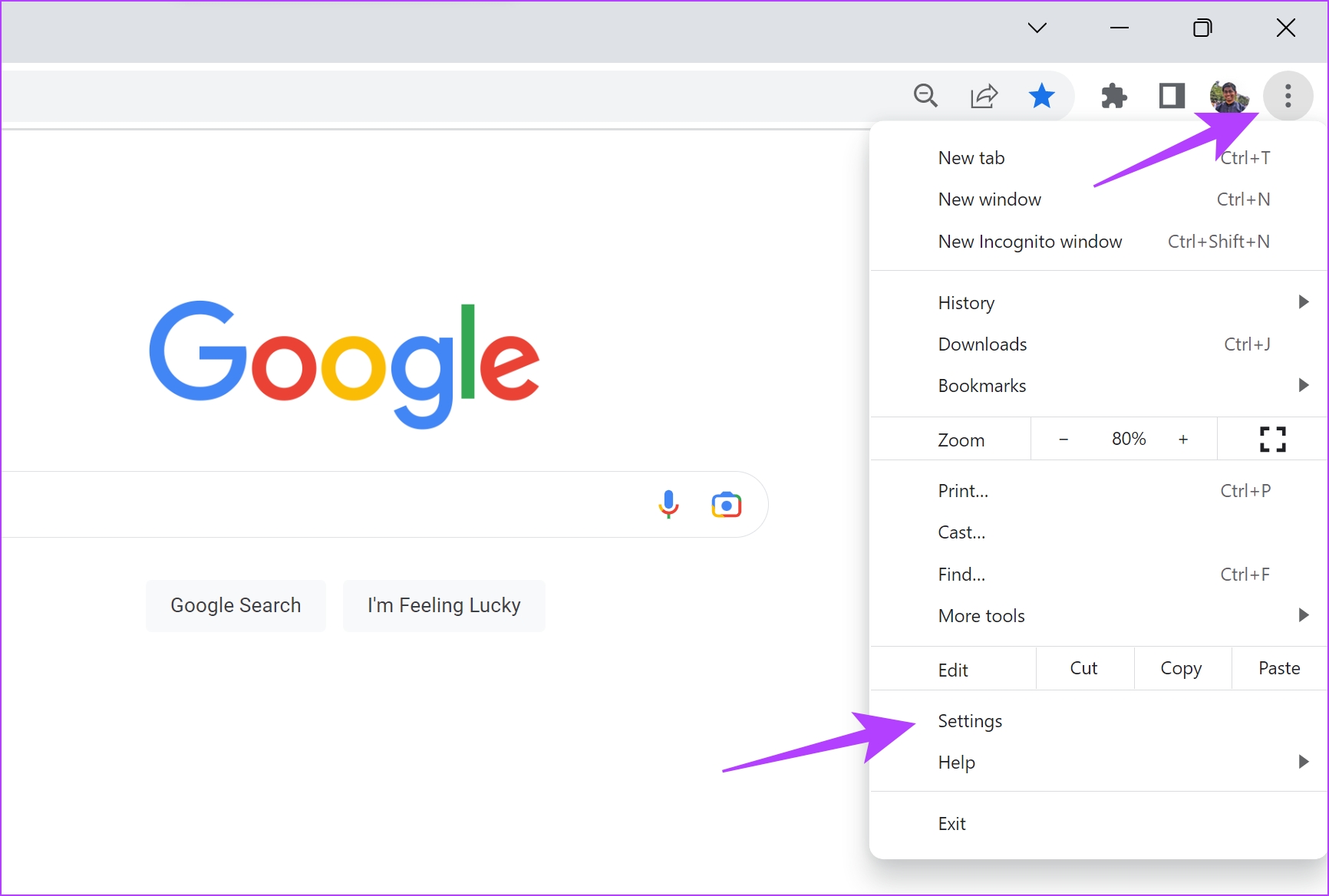
Step 1: Open Chrome, click on the three dots icon at the top right, and select Settings.
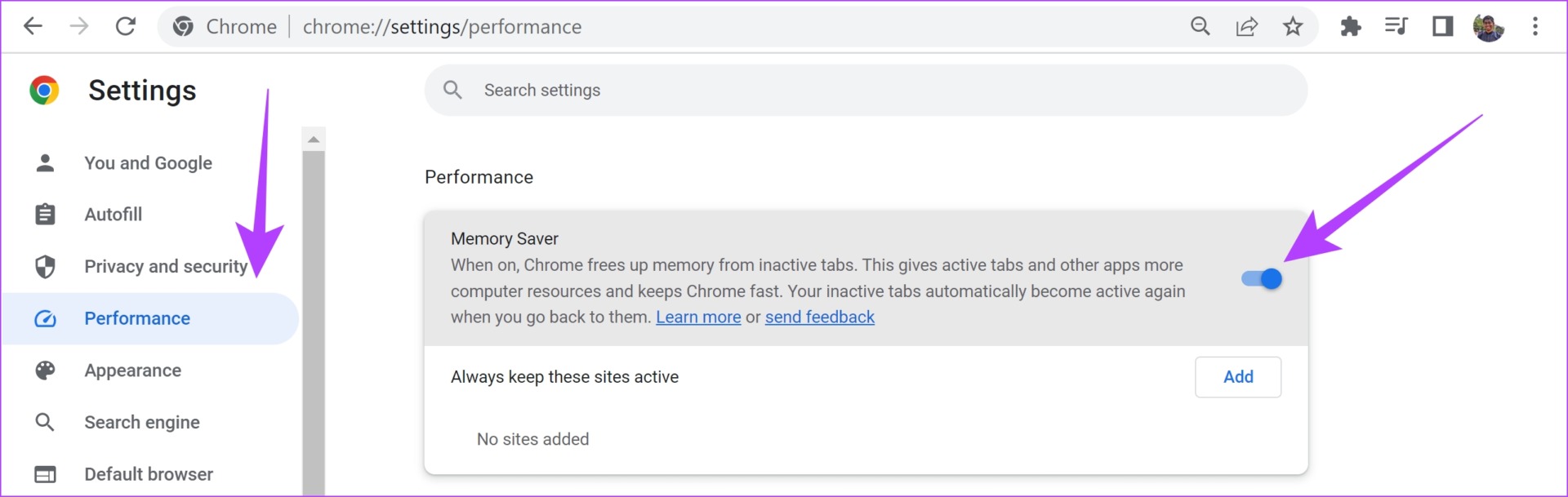
Step 2: Click on Performance in the sidebar.
Step 3: Turn on the toggle for Memory Saver.
Fix 3: Clear Chrome Cache and Cookies
Junk files on Google Chrome can increase the storage space and the resources that the browser occupies on your PC. Clearing these junk files can help speed up the performance of Chrome, by using lesser resources on your Windows PC.
Note: Your browsing and download history, cookies, and cache will be deleted from Google Chrome and unless selected, your passwords will not be deleted.
Step 1: Click on the three dots icon on the toolbar and select Settings.

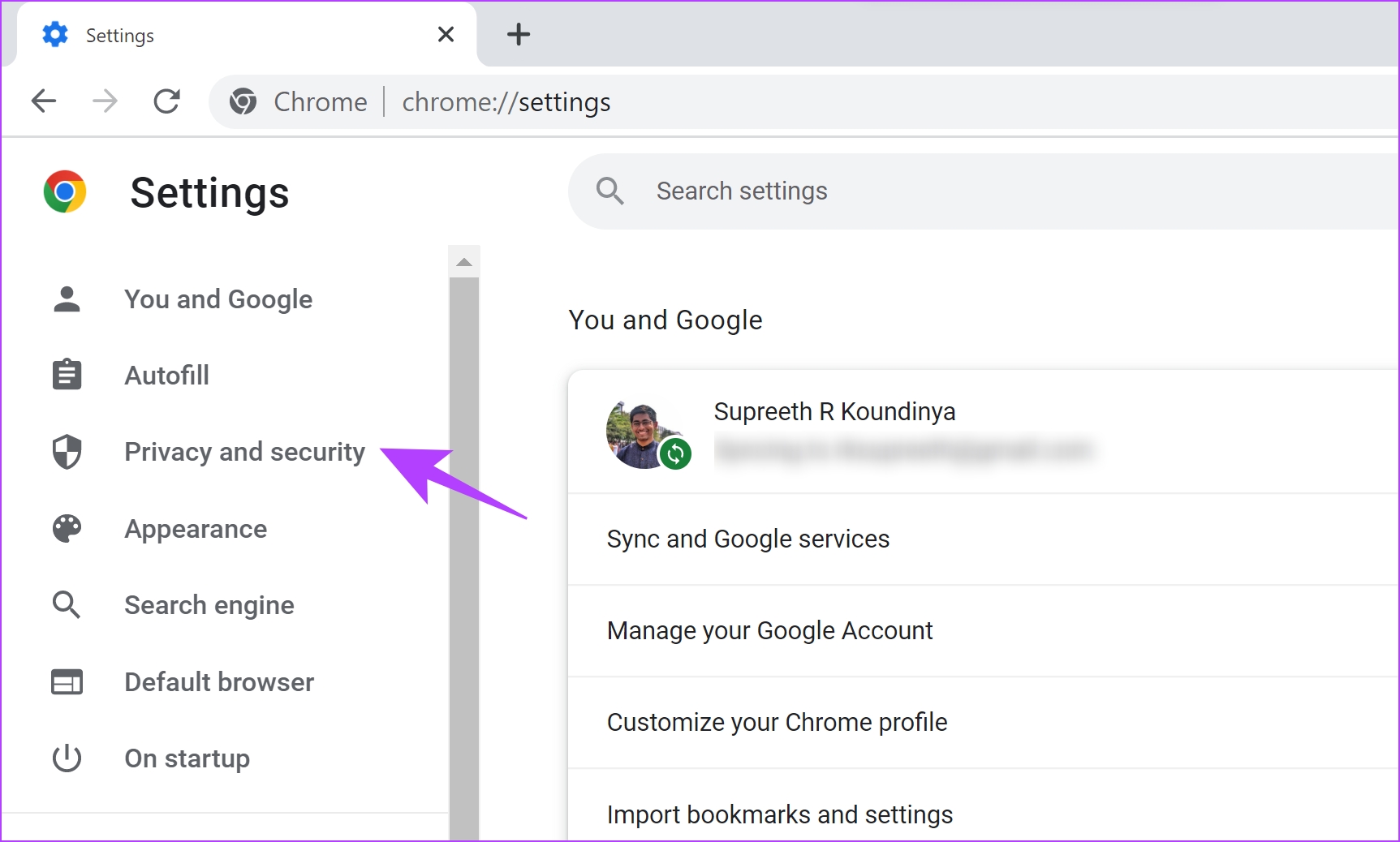
Step 2: Click on Privacy and security.
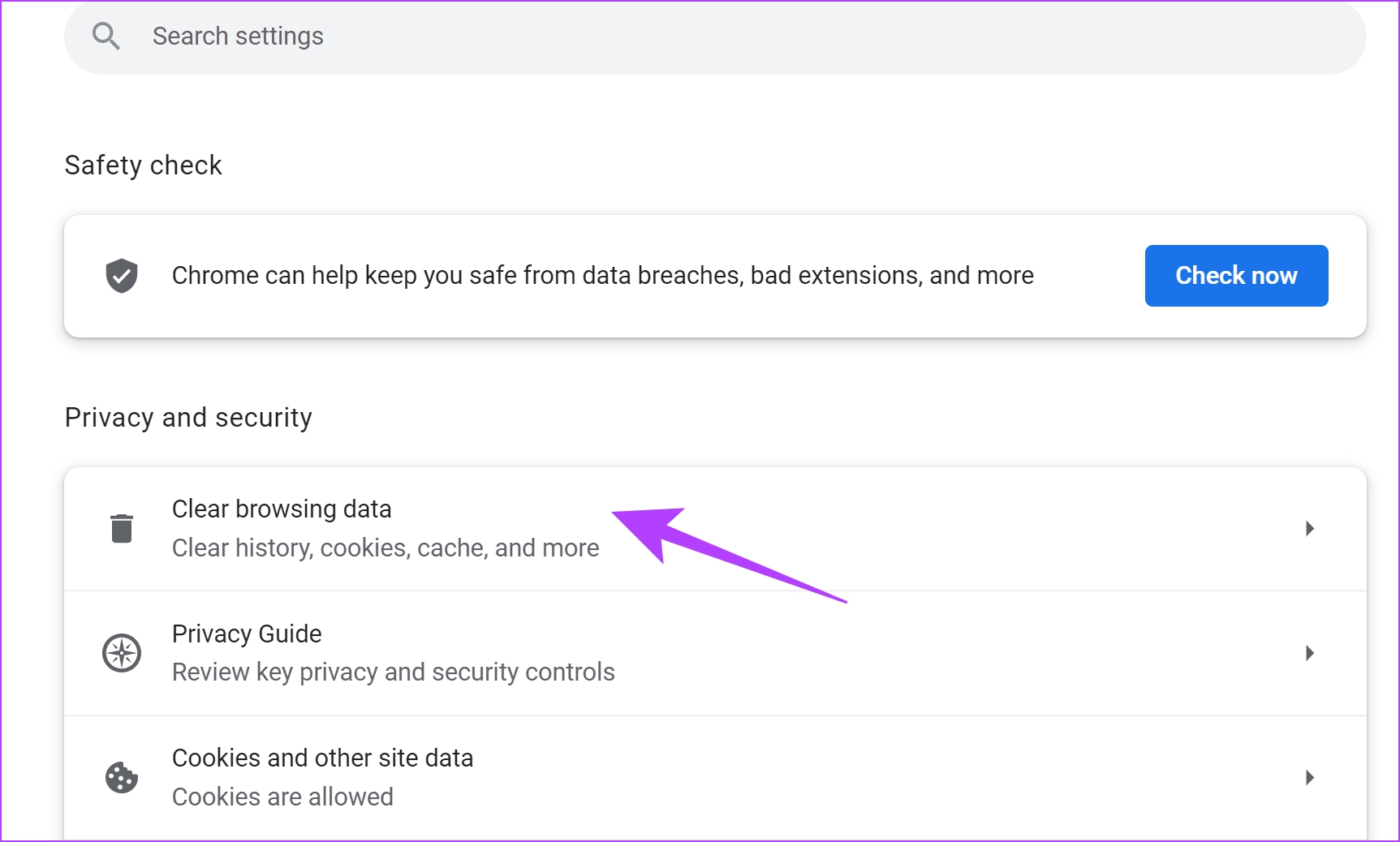
Step 3: Select Clear browsing data.
Step 4: Click on the dropdown menu for the Time range and select the period for which you want to delete the browsing data.
Step 5: Now, click on clear data.

Fix 4: Delete Temporary Files
Temporary files on your Windows PC may also be hogging up the memory. Deleting them can potentially free up your RAM for active apps and processes – like Google Chrome.
Step 1: Open Run from the start menu.
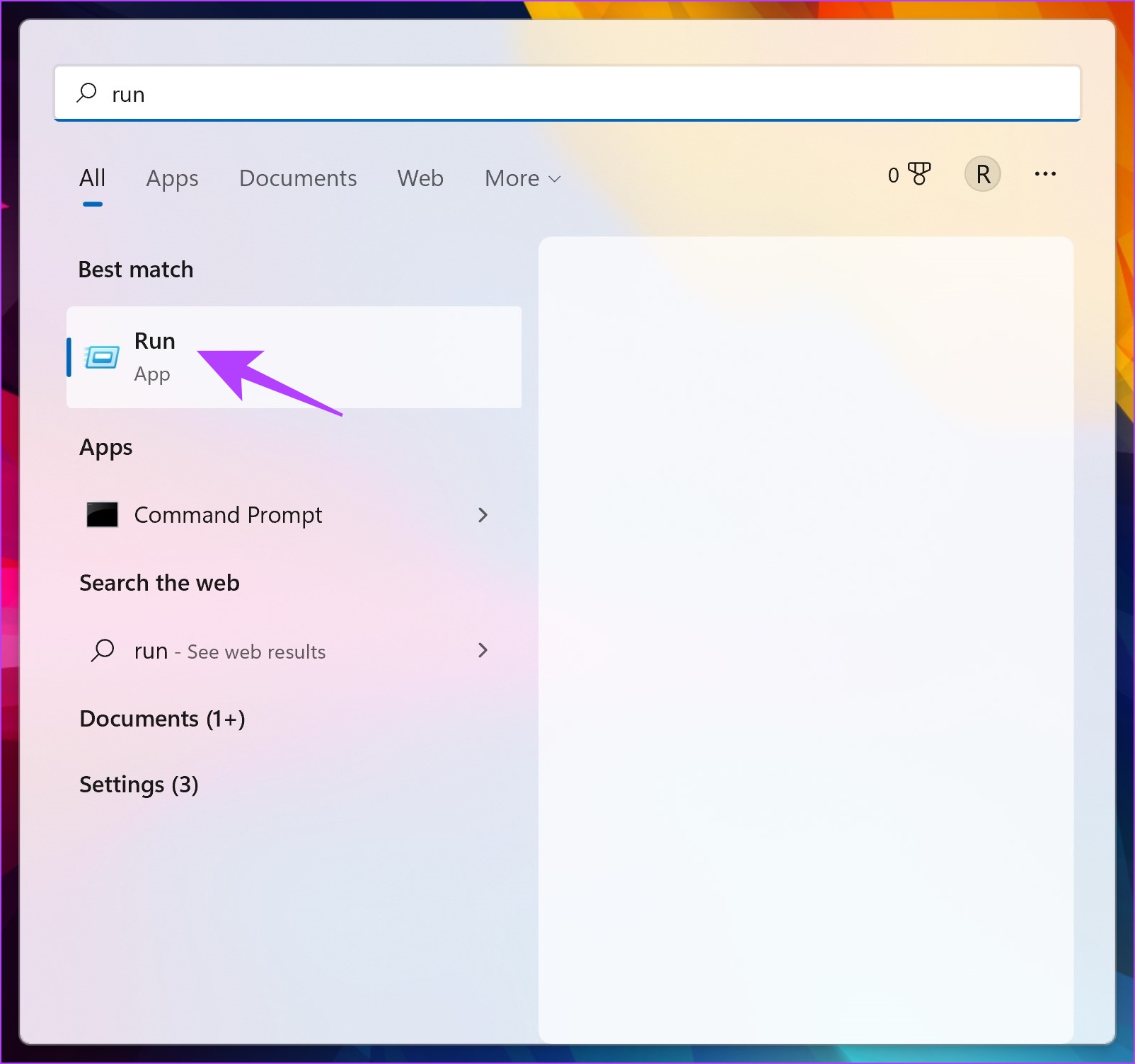
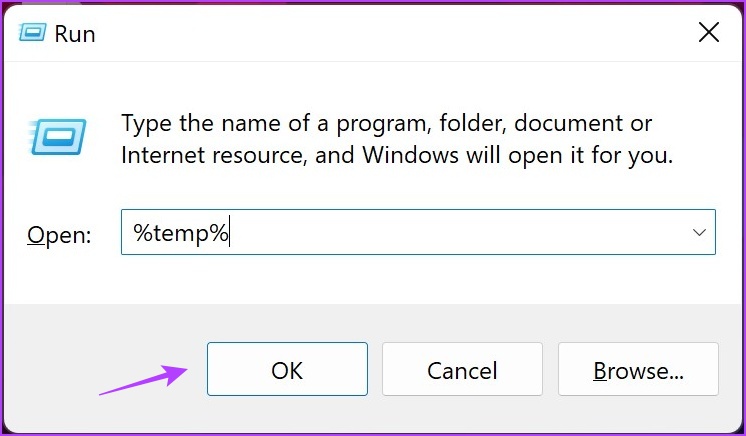
Step 2: Type in %temp% and hit OK.
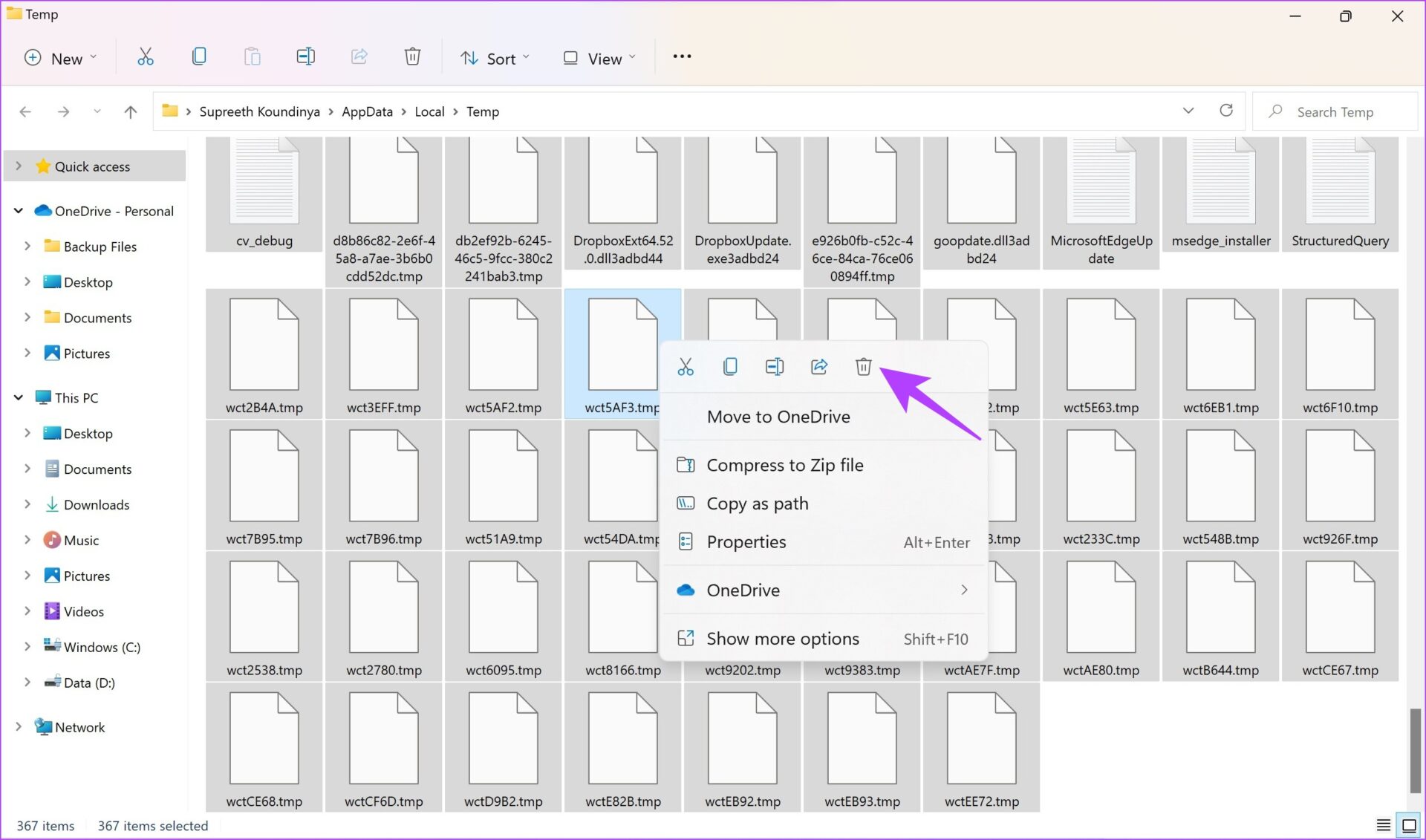
Step 3: This will open up the temporary folder. Use Ctrl + A to select all the files.

Step 4: Now, right-click and select the delete option. They will now be moved to the recycle bin.
Fix 5: Enable Virtual Memory
Your Windows PC may also have a virtual memory feature, that can allocate a portion of your disk as additional memory. This can help increase the available memory for Google Chrome, thereby fixing the issue.
You can read this guide to enable and increase the virtual memory on your Windows PC.
Fix 6: Reset Google Chrome
Resetting all the settings on Google Chrome returns all the settings to the default states. If the Google Chrome ‘Error Code: Out of Memory’ occurs due to any misconfigurations, doing this can help you fix it.
Step 1: Open Chrome and click on the three dots icon in the toolbar. Select Settings.

Step 2: Now select Reset and Clean up in the left pane.
Step 3: Select Restore settings to their original defaults.

Step 4: Now, click on Reset settings to reset all settings on Chrome.

Was this helpful?
Last updated on 23 July, 2024
Read Next
 Top 7 Ways to Fix Memory Leak In Google Chrome on Windows and Mac
Google Chrome continuous to top the browser popularity charts and is often the go-to browser for many users.
Top 7 Ways to Fix Memory Leak In Google Chrome on Windows and Mac
Google Chrome continuous to top the browser popularity charts and is often the go-to browser for many users.
 5 Ways to Fix “Your Computer Is Low on Memory” Error on Windows 10 and Windows 11
Try Basic Fixes Close unwanted apps and programs: Start by closing any unwanted apps and programs on your computer, especially the ones consuming a major chunk of your PC’s memory.
5 Ways to Fix “Your Computer Is Low on Memory” Error on Windows 10 and Windows 11
Try Basic Fixes Close unwanted apps and programs: Start by closing any unwanted apps and programs on your computer, especially the ones consuming a major chunk of your PC’s memory.
 4 Ways to Fix DirectX ‘Could Not Allocate Sufficient Memory’ Error on Windows 11
Common Fixes Launch the Windows Memory Diagnostic tool: Press the Windows key, search Windows Memory Diagnostic tool, and click to open it.
4 Ways to Fix DirectX ‘Could Not Allocate Sufficient Memory’ Error on Windows 11
Common Fixes Launch the Windows Memory Diagnostic tool: Press the Windows key, search Windows Memory Diagnostic tool, and click to open it.
 9 Ways to Fix Memory Integrity Is Off Error on Windows 11/10
Fix 1: Review Incompatible Drivers Step 1: Press the Windows key, type Windows Security, and hit Enter.
9 Ways to Fix Memory Integrity Is Off Error on Windows 11/10
Fix 1: Review Incompatible Drivers Step 1: Press the Windows key, type Windows Security, and hit Enter.
 6 Ways to Fix Firefox Using a Lot of Memory on Windows Device
Basic Fixes: Restart your Windows PC: Restarting the system can help fix several issues as it helps to close all system services and start them afresh.
6 Ways to Fix Firefox Using a Lot of Memory on Windows Device
Basic Fixes: Restart your Windows PC: Restarting the system can help fix several issues as it helps to close all system services and start them afresh.
 5 Fixes for Microsoft Outlook Out of Memory or System Resources Error on Windows
Fix 1: Run the Inbox Repair Tool Damaged or corrupted PST or OST files can cause Outlook to run out of memory on your Windows computer.
5 Fixes for Microsoft Outlook Out of Memory or System Resources Error on Windows
Fix 1: Run the Inbox Repair Tool Damaged or corrupted PST or OST files can cause Outlook to run out of memory on your Windows computer.
 4 Fixes for ‘Video Memory Management Internal’ Error on Windows
Basic Fixes Restart PC: Restart your PC to fix temporary bugs and glitches.
4 Fixes for ‘Video Memory Management Internal’ Error on Windows
Basic Fixes Restart PC: Restart your PC to fix temporary bugs and glitches.
 5 Ways to Fix Roblox Error Code 403
Preliminary Fixes Check internet stability: An unstable or weak connection can interrupt communication between your device and Roblox servers, causing access issues.
5 Ways to Fix Roblox Error Code 403
Preliminary Fixes Check internet stability: An unstable or weak connection can interrupt communication between your device and Roblox servers, causing access issues.
The article above may contain affiliate links which help support Guiding Tech. The content remains unbiased and authentic and will never affect our editorial integrity.