Try Basic Fixes
- Switch to a different network connection: If your network connection is faulty, you may encounter the “Something went wrong” error in Gmail. Try connecting your computer to a different network and see if the error goes away.
- Check if Gmail is down: Gmail may throw the “Something went wrong” error on your computer due to a server outage. You can check Gmail’s server status on a website like Downdetector to verify this possibility.
Fix 1: Disable Extensions
A faulty third-party extension could prevent websites like Gmail from loading or working correctly. So, you may get errors while creating a new Gmail account or signing into an existing one. To check, disable all browser extensions and use Gmail.
Type chrome://extensions (Google Chrome) or edge://extensions (Microsoft Edge) in the address bar at the top and press Enter. Turn off the toggles for all extensions.
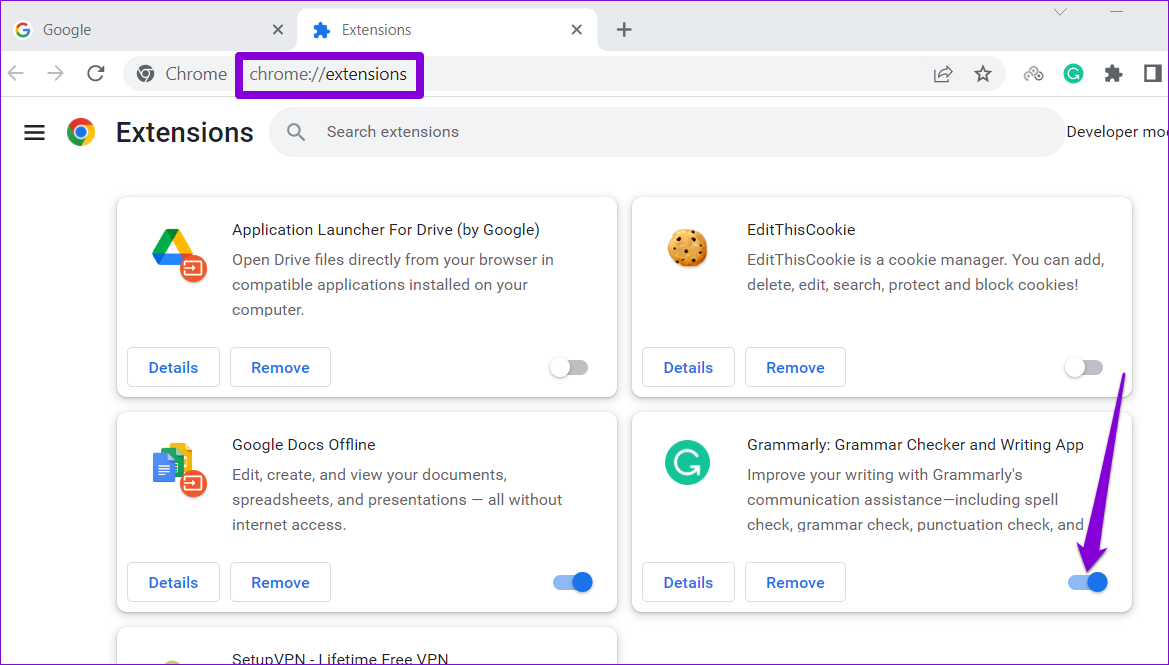
Restart your browser after disabling extensions, and try loading Gmail again. If it loads and works as expected, re-enable your extensions one at a time until the error appears again. After identifying the problematic extension, consider removing it for good.
Fix 2: Enable Automatic Date and Time
Having your computer set to an incorrect date or time can prevent Gmail from communicating with its servers and result in such errors. This is because Gmail uses timestamps to validate requests and ensure that it sends and receives emails at the correct time.
To avoid discrepancies, enable the automatic date and time feature on your computer.
Enable Automatic Date and Time on Windows
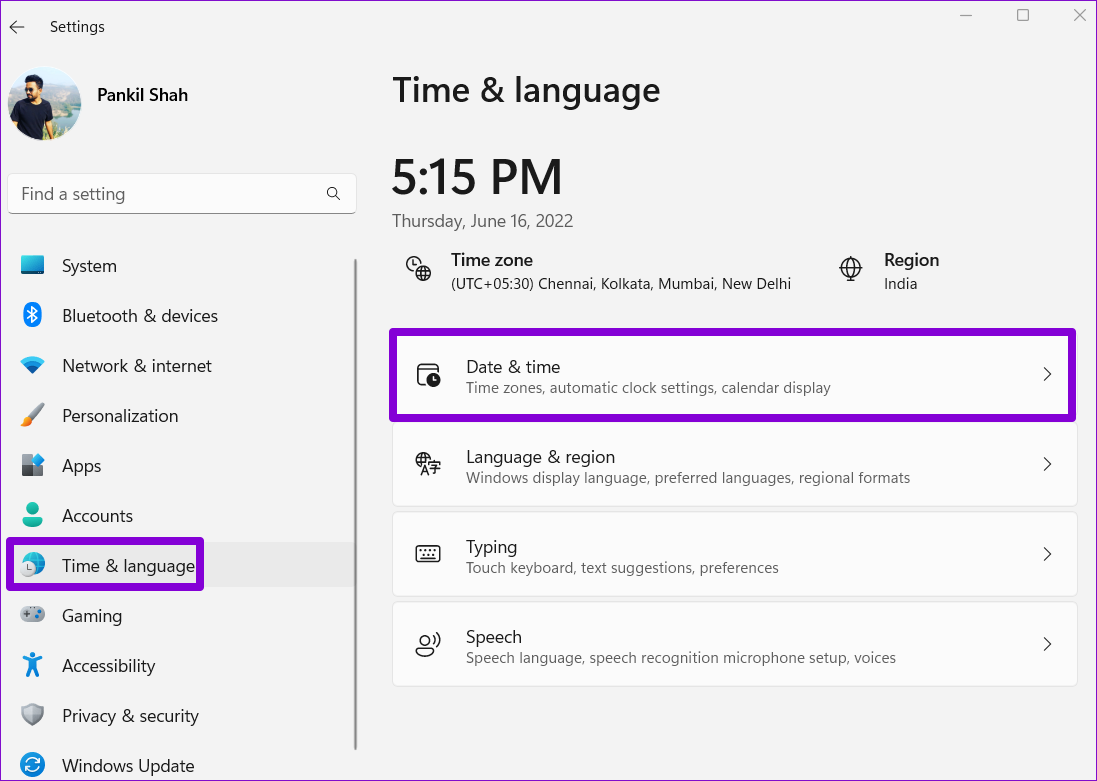
Step 1: Press the Windows key + I keyboard shortcut to open the Settings app. Switch to the Time & language tab > click on Date & time.
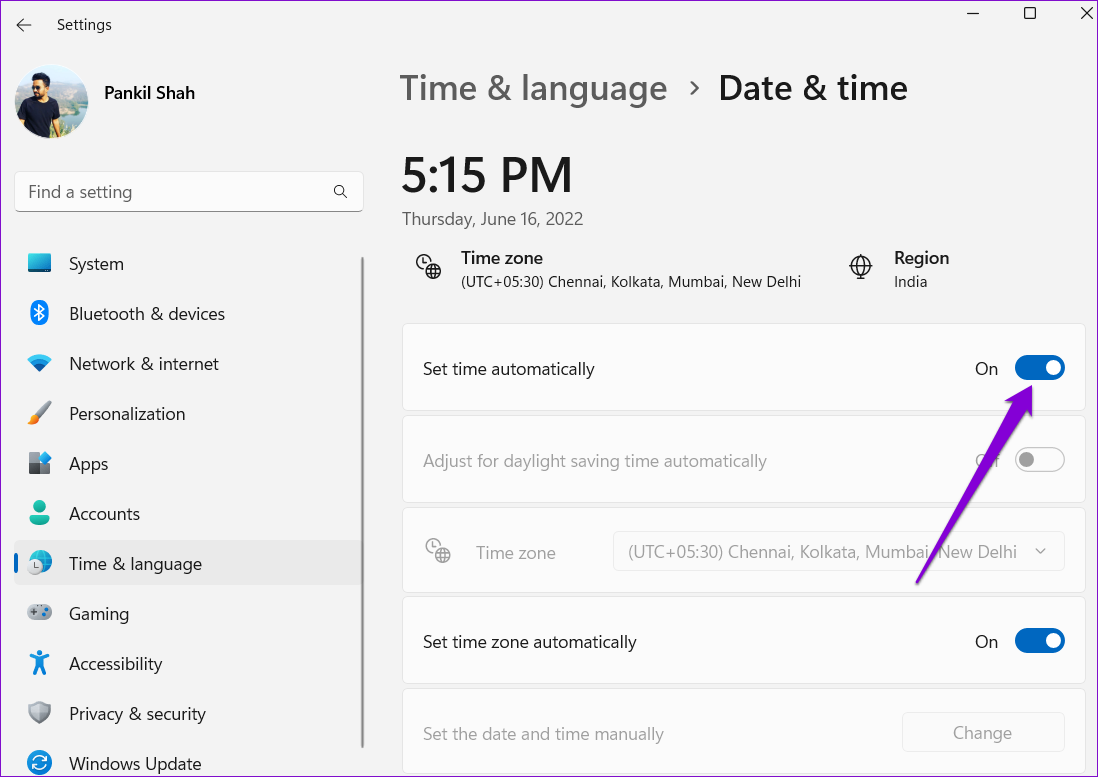
Step 2: Enable the toggle for Set time automatically.
Enable Automatic Date and Time on Mac
Step 1: Click the time indicator at the top right of the menu bar and select Open Date & Time Preferences.

Step 2: Under Date & Time, check the box for Set date and time automatically and use the drop-down menu to select the preferred time server.

Fix 3: Clear Browser Cache and Data
If you still can’t sign in to Gmail or experience errors while sending or receiving emails, the existing browser cache and cookies may have become corrupted. In that case, removing the problematic data will fix the issue.
To clear the browser cache in Chrome or Edge, press the Ctrl + Shift + Delete keyboard shortcut on your keyboard. Click the drop-down menu to select All time > check the boxes for Cookies and other site data and Cached images and files > click the Clear data button.

Similarly, you can clear cache and cookies data in Safari, Firefox, and other web browsers. Following that, Gmail will work fine.
Was this helpful?
Last updated on 30 July, 2024
Read Next
 Top 9 Fixes For ‘There Is Something Wrong With the Proxy Server’ Error in Chrome
Proxy servers are useful when you need to hide your internet traffic from your ISP or connect to blocked websites.
Top 9 Fixes For ‘There Is Something Wrong With the Proxy Server’ Error in Chrome
Proxy servers are useful when you need to hide your internet traffic from your ISP or connect to blocked websites.
 2 Fixes for Something Went Wrong Error on TikTok
Try Basic Fixes Check if TikTok is down: Servers-side glitches can also cause the TikTok app to repeatedly show the "Something went wrong" error on your Android or iPhone.
2 Fixes for Something Went Wrong Error on TikTok
Try Basic Fixes Check if TikTok is down: Servers-side glitches can also cause the TikTok app to repeatedly show the "Something went wrong" error on your Android or iPhone.
 6 Fixes for Windows Hello Something Went Wrong Error
Fix 1: Enable Camera Access If you have previously disabled camera access, Windows Hello may have trouble using your camera and display the "Sorry, something went wrong.
6 Fixes for Windows Hello Something Went Wrong Error
Fix 1: Enable Camera Access If you have previously disabled camera access, Windows Hello may have trouble using your camera and display the "Sorry, something went wrong.
 3 Ways to Fix Snapchat “Something Went Wrong” Error on Android and iPhone
https://youtu.be/qmKVtzAaayE Try Basic Fixes Avoid adding too many friends at once: If you've recently added too many friends, Snapchat may prevent you from adding more by displaying errors like "Something
3 Ways to Fix Snapchat “Something Went Wrong” Error on Android and iPhone
https://youtu.be/qmKVtzAaayE Try Basic Fixes Avoid adding too many friends at once: If you've recently added too many friends, Snapchat may prevent you from adding more by displaying errors like "Something
 3 Ways to Fix “Something Went Wrong” Error on Facebook Messenger
Try Basic Fixes Update the app: The Facebook Messenger app could malfunction if you haven't updated it in a while.
3 Ways to Fix “Something Went Wrong” Error on Facebook Messenger
Try Basic Fixes Update the app: The Facebook Messenger app could malfunction if you haven't updated it in a while.
 3 Ways to Fix Something Went Wrong Error in Spotify for Android and iPhone
Try Basic Fixes Update the app: Using an outdated version of the Spotify app can also trigger the "Something went wrong" error.
3 Ways to Fix Something Went Wrong Error in Spotify for Android and iPhone
Try Basic Fixes Update the app: Using an outdated version of the Spotify app can also trigger the "Something went wrong" error.
 Top 4 Ways to Fix ‘Something Went Wrong’ Error on X (Formerly Twitter)
Preliminary Fixes Check Network Connection: First, check the network connection on your phone and the desktop.
Top 4 Ways to Fix ‘Something Went Wrong’ Error on X (Formerly Twitter)
Preliminary Fixes Check Network Connection: First, check the network connection on your phone and the desktop.
 4 Ways to Fix Outlook Error 500 ‘Something Went Wrong’
Preliminary Fixes Troubleshoot your internet connection: Ensure you have a stable and reliable internet connection.
4 Ways to Fix Outlook Error 500 ‘Something Went Wrong’
Preliminary Fixes Troubleshoot your internet connection: Ensure you have a stable and reliable internet connection.
The article above may contain affiliate links which help support Guiding Tech. The content remains unbiased and authentic and will never affect our editorial integrity.