

Basic Fixes:
- Restart your Windows PC: Restarting the system can help fix several issues as it helps to close all system services and start them afresh. Once done, reopen Firefox and check again.
- Clear cache for Firefox: While cache helps Firefox load pages faster, it can also bog down the browser’s performance. To fix this, go to the Settings menu and clear the cache files for Firefox.
- Check for browser updates: Browser updates provide the necessary security patch updates and bug fixes that help in improving performance. This can, in turn, help you fix the issue of Firefox using too much memory. So, install the latest updates for Firefox and check again.
- Disable hardware acceleration: Firefox often uses your system’s hardware acceleration to help it perform faster and smoother. However, this might also consume too much of your system’s memory. So, check and disable hardware acceleration settings for Firefox.
Fix 1: End Task Using Firefox Task Manager
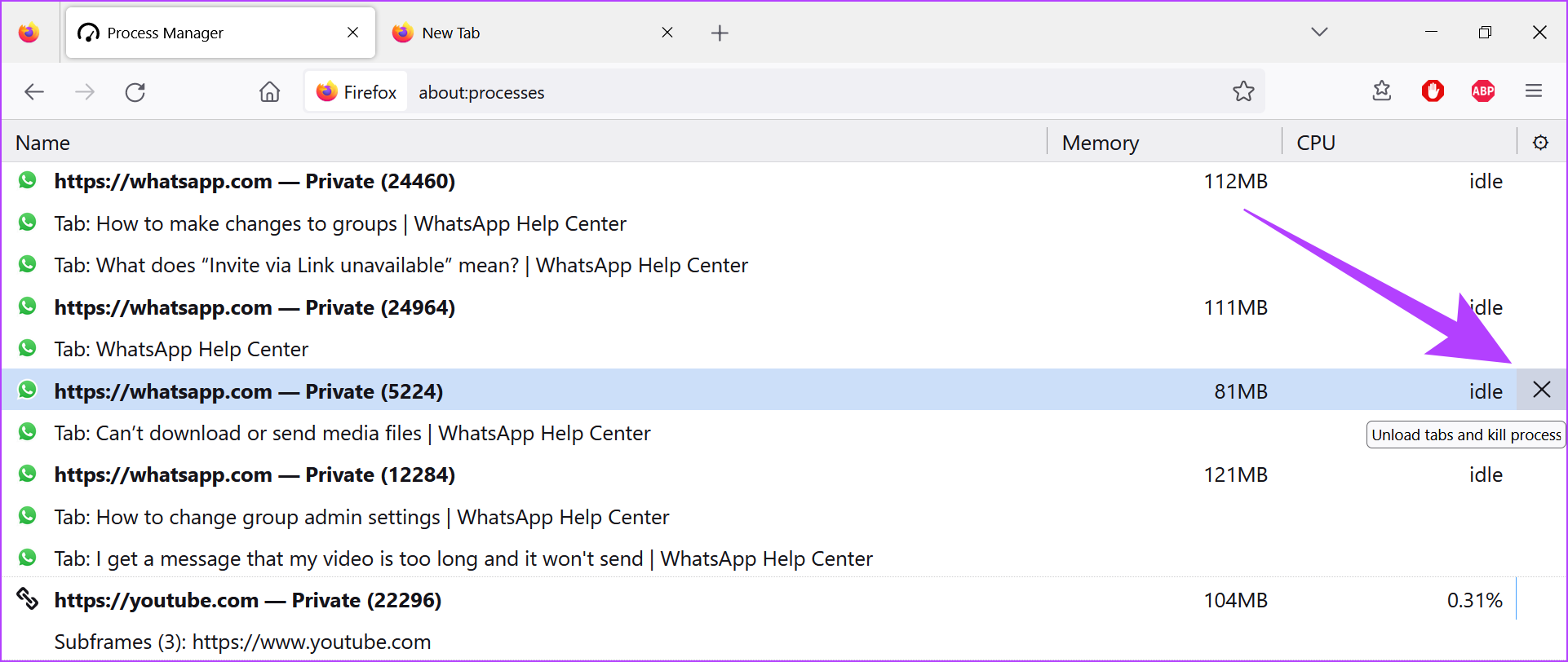
Some Firefox tabs might be using too much memory, spiking Firefox’s CPU usage. To fix that, open the Firefox Task Manager and check memory usage for all the open tabs. Then, terminate the ones using high memory or are currently not in use. Here’s how to do it.
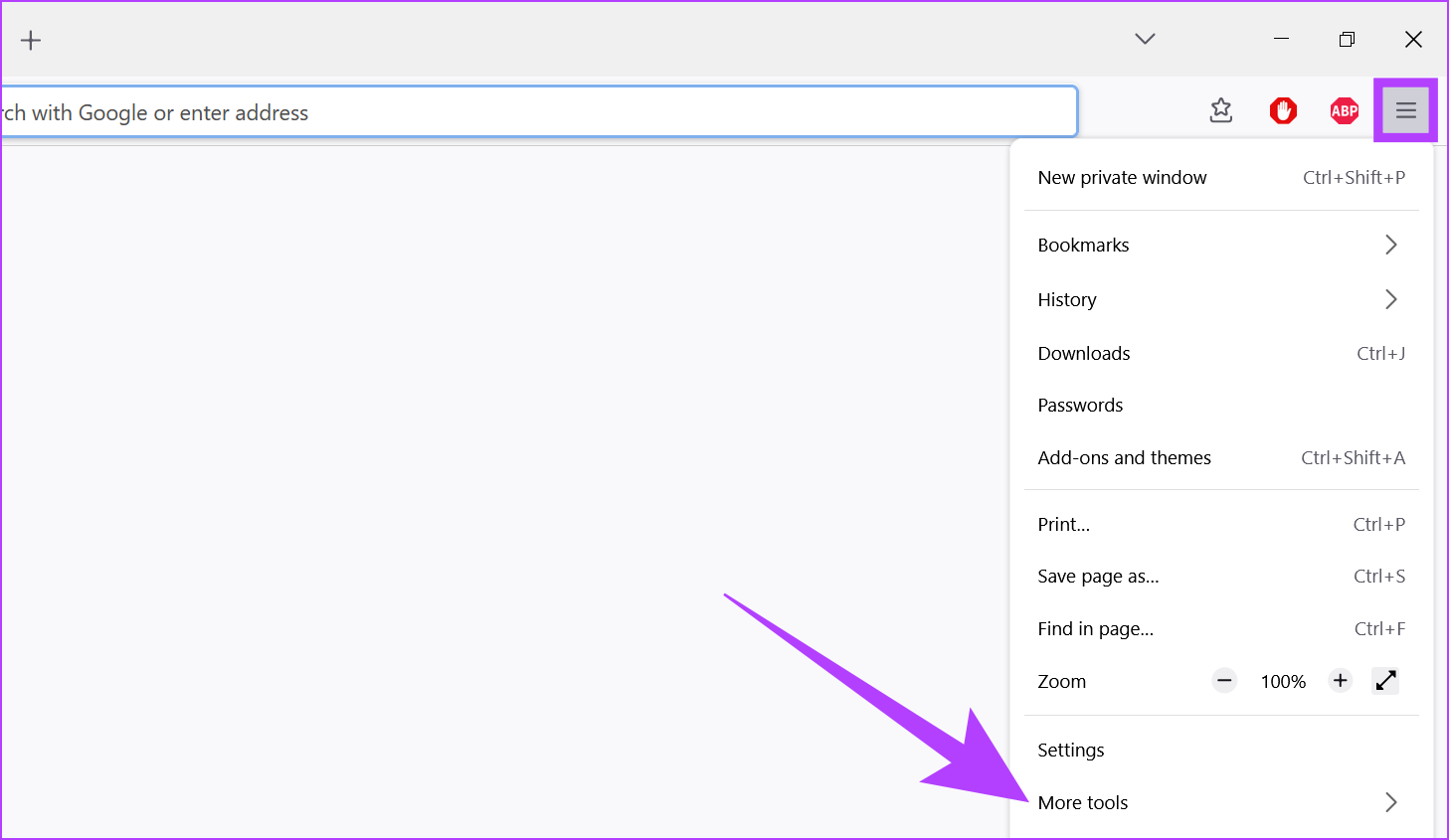
Step 1: Open Firefox and click on the Menu icon. Here, click on More tools.
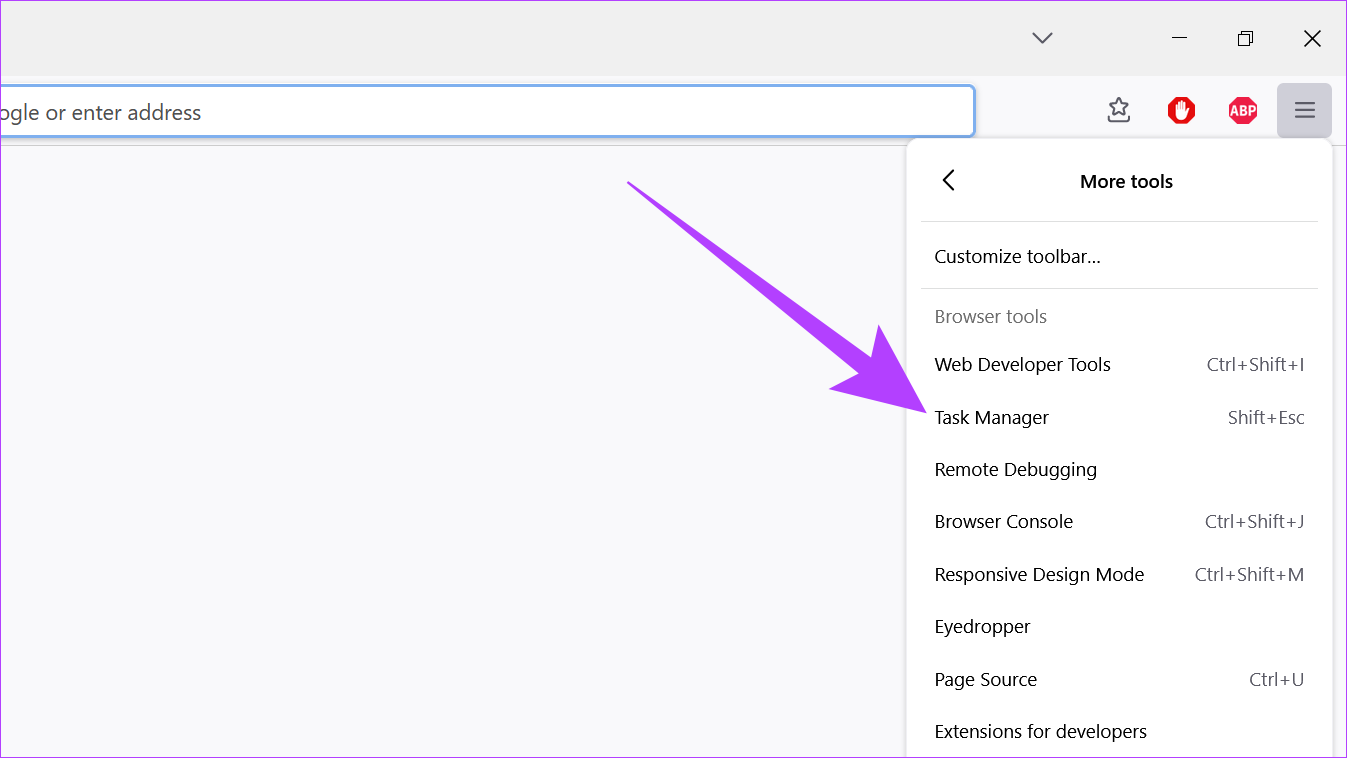
Step 2: Click on Task Manager.
Step 3: Check memory usage and close the relevant tabs by clicking the x icon.
Fix 2: Disable Extensions in Firefox
Extensions can help promote productivity and add features to your browser. However, they might sometimes increase the browser’s memory usage as well. So, here’s how to fix high memory usage in Firefox by disabling the extensions.
Step 1: Open the Firefox browser and click on the menu icon. Then, select Settings.

Step 2: Here, click on Extensions & Themes.
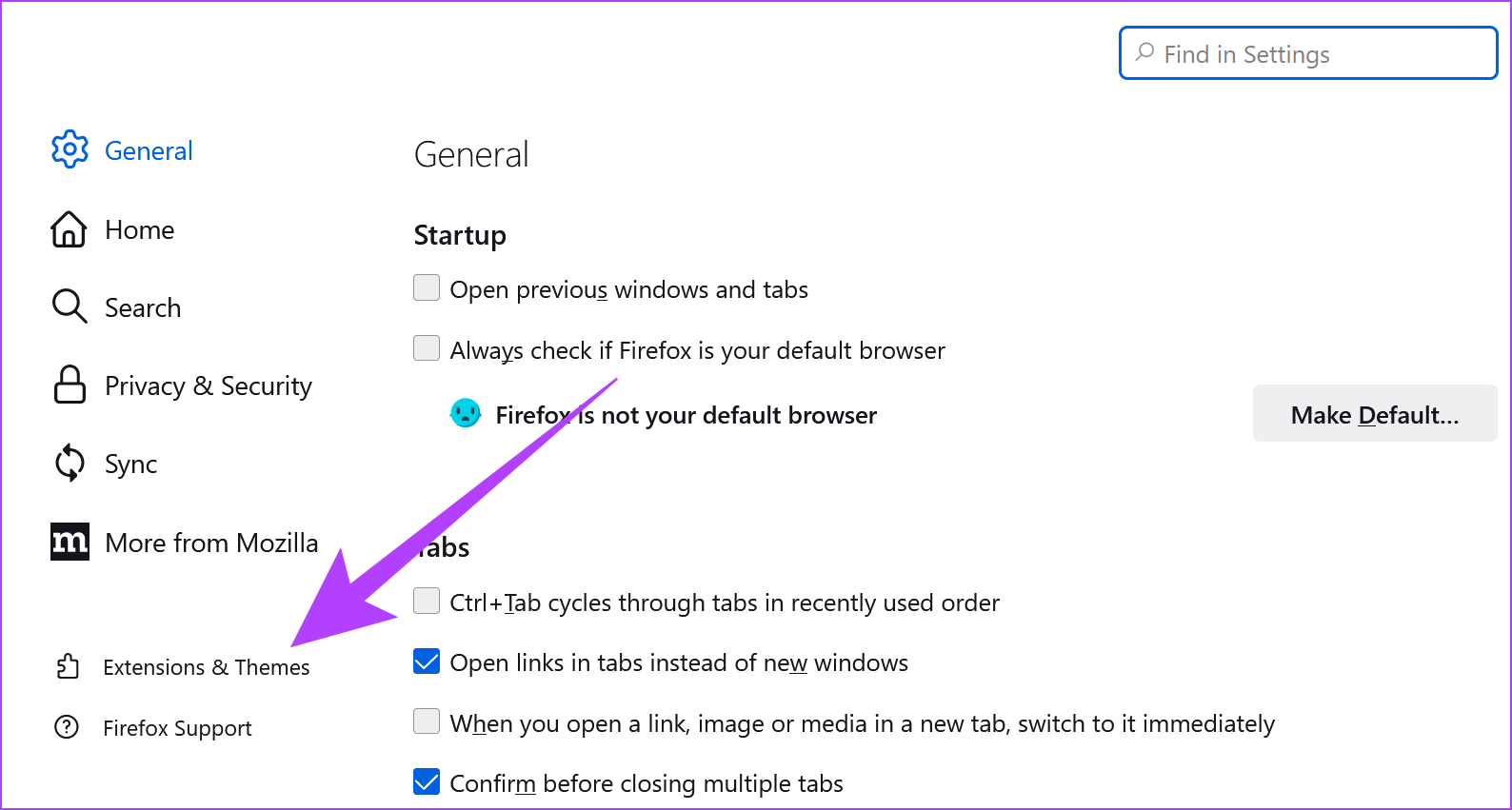
Step 3: Now, go to the extension you want to disable and turn off the toggle.

Now, check Firefox’s memory usage. If the issue is still not resolved, repeat the above steps and disable all Firefox extensions.
Also Read: How to fix Mozilla Firefox downloads failing on Windows 11
Fix 3: Disable Firefox Themes
While add-ons like themes help personalize Firefox, they can also add to the overall memory usage by increasing the browser load time. Here’s how to fix that by disabling themes for Firefox.
Step 1: Open Firefox > click on the menu icon > select Add-ons and themes.
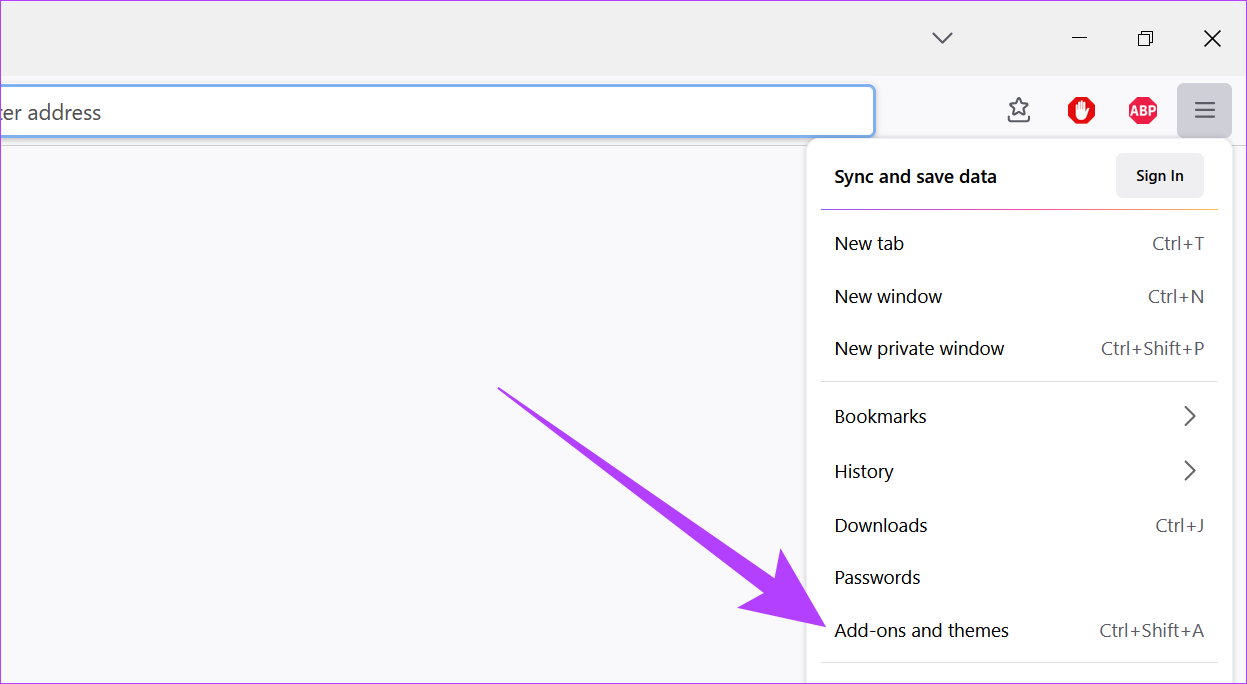
Step 2: Now, go to Themes and click on Disable. Your Firefox theme will now be disabled.
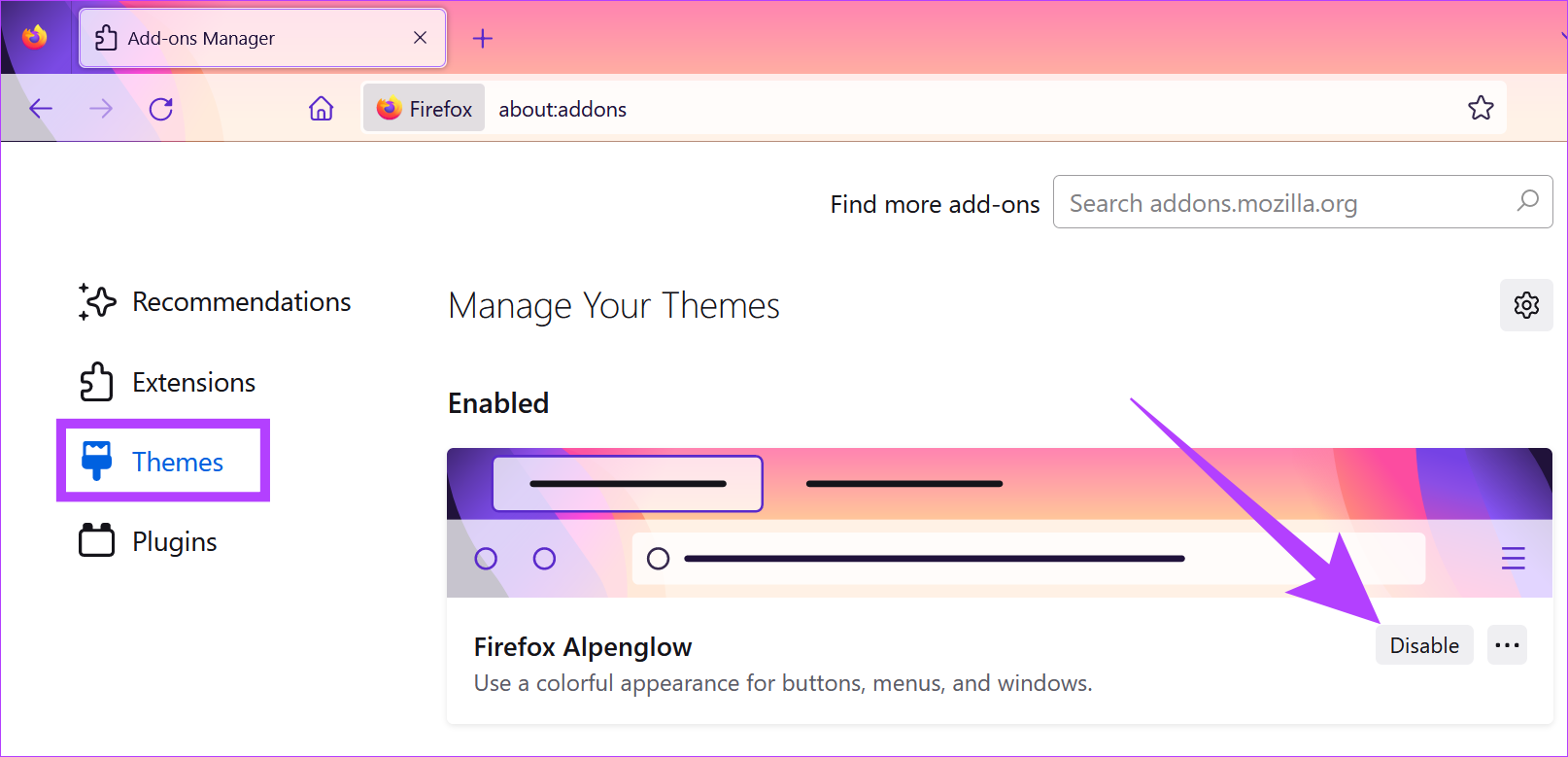
Fix 4: Use the Firefox Memory Tool
Mozilla Firefox has a built-in Memory Tool that helps give comprehensive reports about the browser’s memory usage for tabs, browser windows, and more. It can also clear usage memory to help fix Firefox’s high RAM utilization. Here’s how to do it.
Step 1: Open Firefox. In the search bar, type about:memory and press enter.

Step 2: Go to the Free Memory option and click Minimize memory usage. Then, click on GC and CC.

Now, close the tab and restart Firefox. Then, check the CPU usage to see if the issue has been fixed.
Also Read: How to fix Firefox not opening on Windows 10 and Windows 11
Fix 5: Run Firefox in Troubleshoot Mode
The Firefox browser has a Troubleshooting mode that allows you to load your browser without any extensions, themes, or other custom settings. So, if Firefox uses a lot of memory, this can help you determine if any of the aforementioned settings are interfering with regular functions. Here’s how.
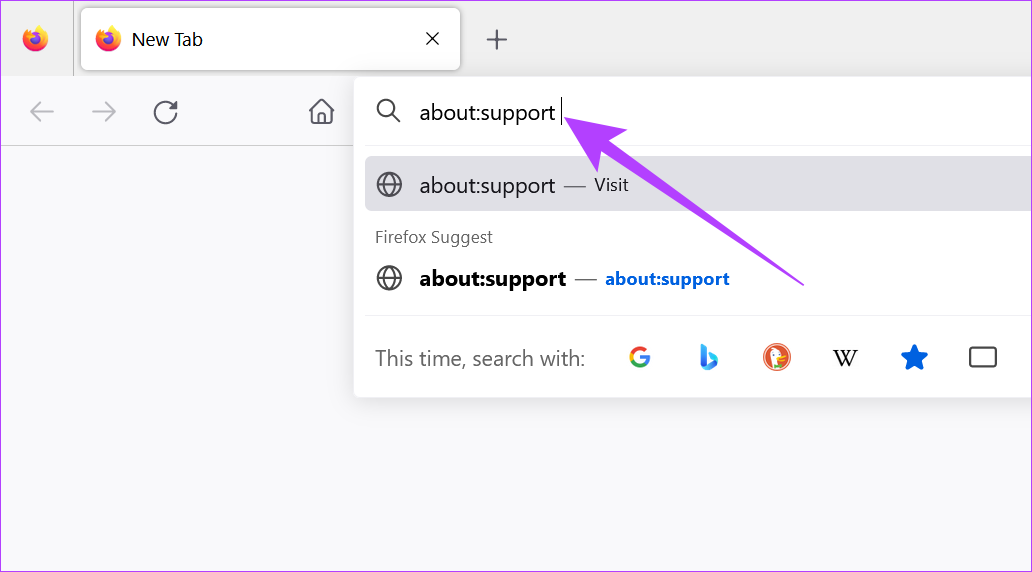
Step 1: Open Firefox > type about:support in the search bar > press enter.
Step 2: Here, click on Troubleshoot Mode.

Step 3: Now, click on Restart.
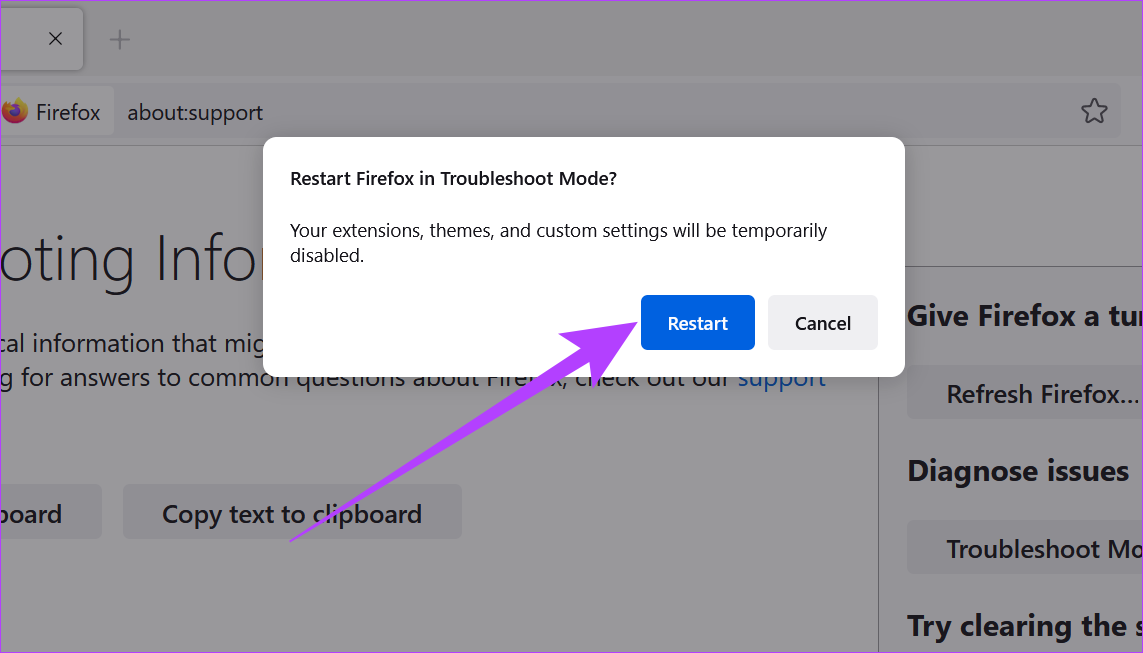
Once done, use your Firefox browser normally. If the memory usage is normal, disable or remove any remaining extensions, themes, or other custom settings from Firefox.
Fix 6: Use Firefox Refresh to Reset It
Unlike typical reset options, Firefox Refresh helps you refresh your browser by getting rid of non-essential data like browser customization settings, add-ons, permissions, etc., without affecting the actual user data. This way, you can easily reset your browser to solve recurring Firefox issues. Here’s how to do it.
Step 1: Open Firefox and type about:support in the search bar. Press enter to go to the troubleshooting page.

Step 2: Here, click on Refresh Firefox. Confirm your choice when prompted.

Wait for the reset process to finish. Then, try using Firefox and monitor the memory usage to see if the issue has been fixed on your Windows device.
Was this helpful?
Last updated on 26 June, 2024
1 Comment
Leave a Reply
Read Next
 Firefox vs Firefox Focus: Should You Switch
Firefox Focus is a strange name for a browser, and the fact that it’s developed by none other Mozilla is even weirder.
Firefox vs Firefox Focus: Should You Switch
Firefox Focus is a strange name for a browser, and the fact that it’s developed by none other Mozilla is even weirder.
 6 Ways to Fix Google Chrome Error Code: Out of Memory on Windows
Basic Fixes Restart PC: Restart your PC to fix temporary bugs and glitches.
6 Ways to Fix Google Chrome Error Code: Out of Memory on Windows
Basic Fixes Restart PC: Restart your PC to fix temporary bugs and glitches.
 Top 7 Ways to Fix Memory Leak In Google Chrome on Windows and Mac
Google Chrome continuous to top the browser popularity charts and is often the go-to browser for many users.
Top 7 Ways to Fix Memory Leak In Google Chrome on Windows and Mac
Google Chrome continuous to top the browser popularity charts and is often the go-to browser for many users.
 5 Ways to Fix “Your Computer Is Low on Memory” Error on Windows 10 and Windows 11
Try Basic Fixes Close unwanted apps and programs: Start by closing any unwanted apps and programs on your computer, especially the ones consuming a major chunk of your PC’s memory.
5 Ways to Fix “Your Computer Is Low on Memory” Error on Windows 10 and Windows 11
Try Basic Fixes Close unwanted apps and programs: Start by closing any unwanted apps and programs on your computer, especially the ones consuming a major chunk of your PC’s memory.
 4 Ways to Fix DirectX ‘Could Not Allocate Sufficient Memory’ Error on Windows 11
Common Fixes Launch the Windows Memory Diagnostic tool: Press the Windows key, search Windows Memory Diagnostic tool, and click to open it.
4 Ways to Fix DirectX ‘Could Not Allocate Sufficient Memory’ Error on Windows 11
Common Fixes Launch the Windows Memory Diagnostic tool: Press the Windows key, search Windows Memory Diagnostic tool, and click to open it.
 9 Ways to Fix Memory Integrity Is Off Error on Windows 11/10
Fix 1: Review Incompatible Drivers Step 1: Press the Windows key, type Windows Security, and hit Enter.
9 Ways to Fix Memory Integrity Is Off Error on Windows 11/10
Fix 1: Review Incompatible Drivers Step 1: Press the Windows key, type Windows Security, and hit Enter.
 5 Ways to Fix Firefox Not Responding on Windows 10 and Windows 11
Fix 1: Force Close Firefox Processes Sometimes, Firefox processes may become unresponsive on your PC due to temporary issues.
5 Ways to Fix Firefox Not Responding on Windows 10 and Windows 11
Fix 1: Force Close Firefox Processes Sometimes, Firefox processes may become unresponsive on your PC due to temporary issues.
 6 Ways to Reduce Microsoft Teams Memory Usage in Windows 10 or 11
Fix 1: Disable GPU Hardware Acceleration in Teams GPU hardware acceleration is enabled by default in Microsoft Teams for smooth performance.
6 Ways to Reduce Microsoft Teams Memory Usage in Windows 10 or 11
Fix 1: Disable GPU Hardware Acceleration in Teams GPU hardware acceleration is enabled by default in Microsoft Teams for smooth performance.
The article above may contain affiliate links which help support Guiding Tech. The content remains unbiased and authentic and will never affect our editorial integrity.

Your instructions in Section 2 were particularly helpful for me. I was not aware of the Firefox task manager. It helped me identify my mysterious problem, which was the McAfee WebAdvisor extension. This extension, after updating on 10/5/2023, would eat up 2-3 GB of memory. I was able to identify this offending extension by trial and error, and after disabling the extension I no longer have memory issues.