Basic Fixes:
- Restart Fire TV Stick: Temporary device glitches can cause your Fire TV Stick to not show the picture when using any app or service. Use the menu options to restart your Fire TV Stick when this happens. If you can’t see the menu options, unplug and re-plug the device to do the same.
- Check the HDMI connection: If the HDMI cable or HDMI connector connecting your Fire TV Stick to your TV is loose or damaged, it can cause the picture to not show up even when the device is powered on. So, check and ensure the HDMI connection is secured.
- Tweak your TV’s display settings: If your TV’s display settings are set to an unsupported format or resolution, it might cause the Fire TV Stick to not display the picture. So, open your TV’s display settings and tweak them accordingly.
- Update FireOS: Software-related bugs can cause issues when using certain Fire TV Stick apps or features. When this happens, check and ensure the FireOS is updated to the latest version.
Fix 1: Clear the App Cache
If you’re facing issues while using a certain app, clearing the app cache might help. This will do away with any app error that might be causing display issues on your Fire TV Stick. Here’s how to do it.
Step 1: Scroll down to Settings and open Applications.

Step 2: Select Manage Installed Applications.
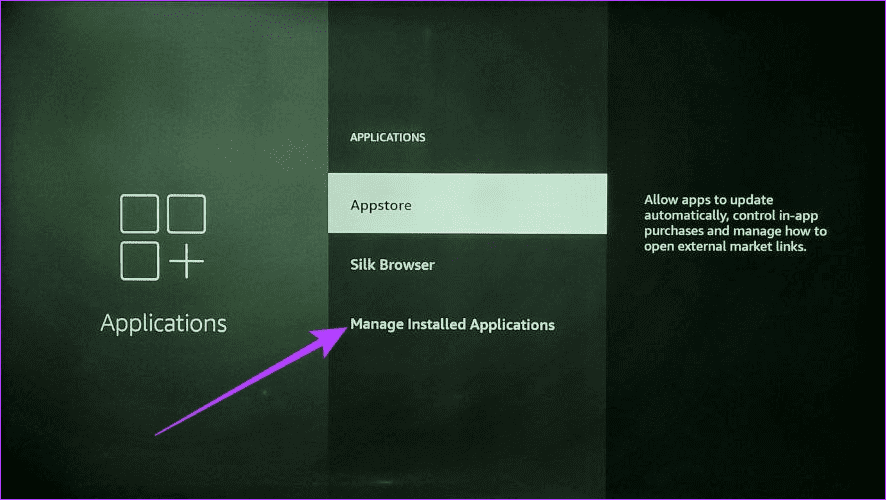
Step 3: From the list, select the relevant app.
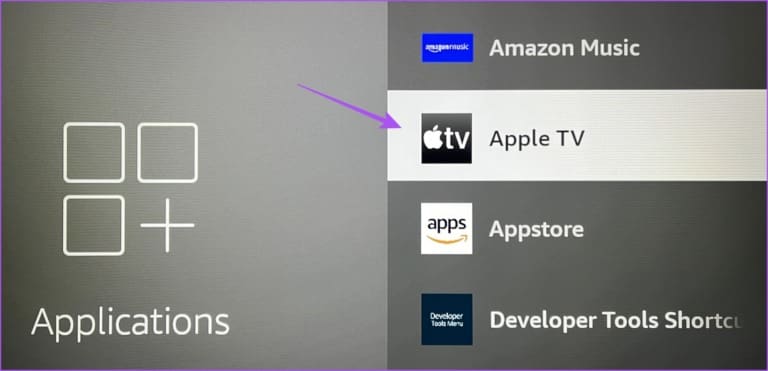
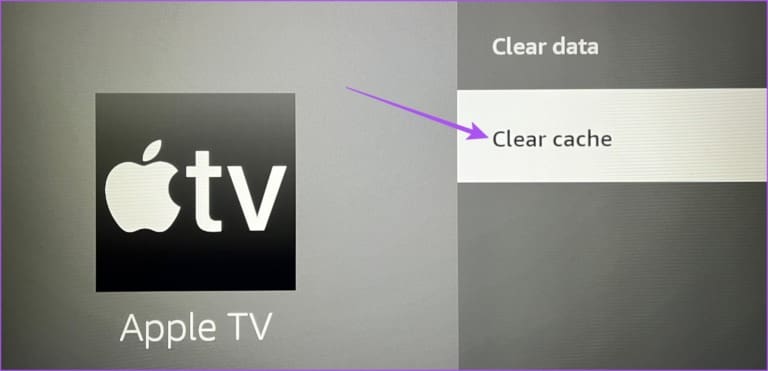
Step 4: Select Clear cache. Repeat these steps for any other app.
Also Read: How to fix Fire TV Stick not loading apps
Fix 2: Try Changing Video Resolution
If your Fire TV Stick’s current display resolution is a mismatch with your TV, it might not be able to display the picture for certain apps or content. To ensure this is not the case, try changing the video resolution for your Fire TV Stick and see if this fixes the issue. Here’s how.
Step 1: Go to Settings and select Display & Sounds.
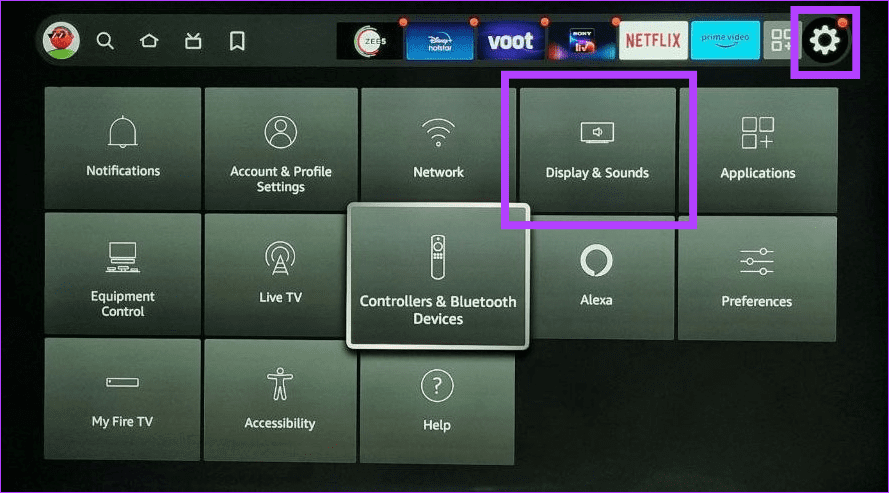
Step 2: Here, select Video Resolution.

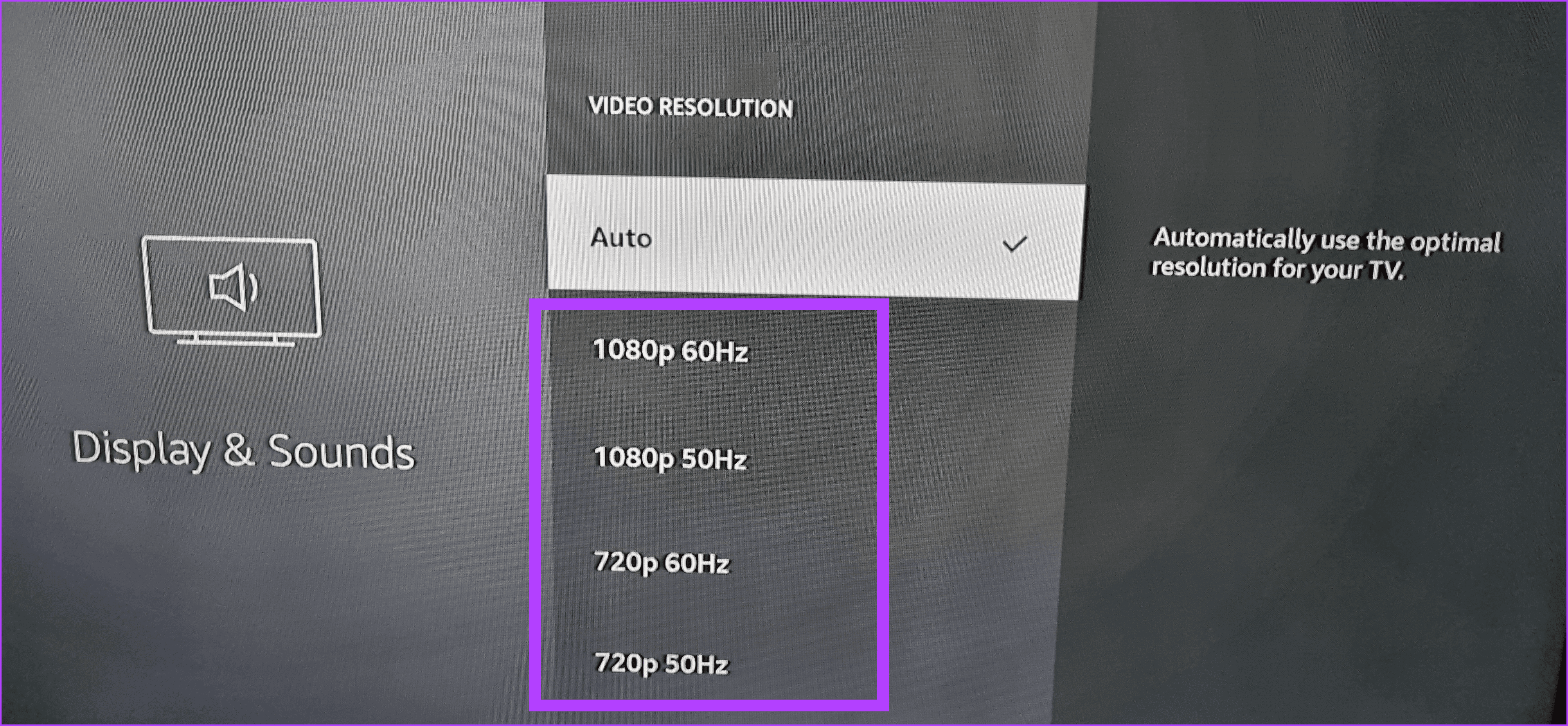
Step 3: From the options, try selecting a different video resolution.
Fix 3: Calibrate Fire TV Stick Display
If your Fire TV Stick’s current display is not properly calibrated, it might cause certain pictures to go off-screen, giving the illusion that nothing is being displayed in that section. So, open the display calibration settings and check your Fire TV Stick’s calibration using the below steps.
Step 1: Go to Settings and select Display & Sounds.
Step 2: Select Calibrate Display.
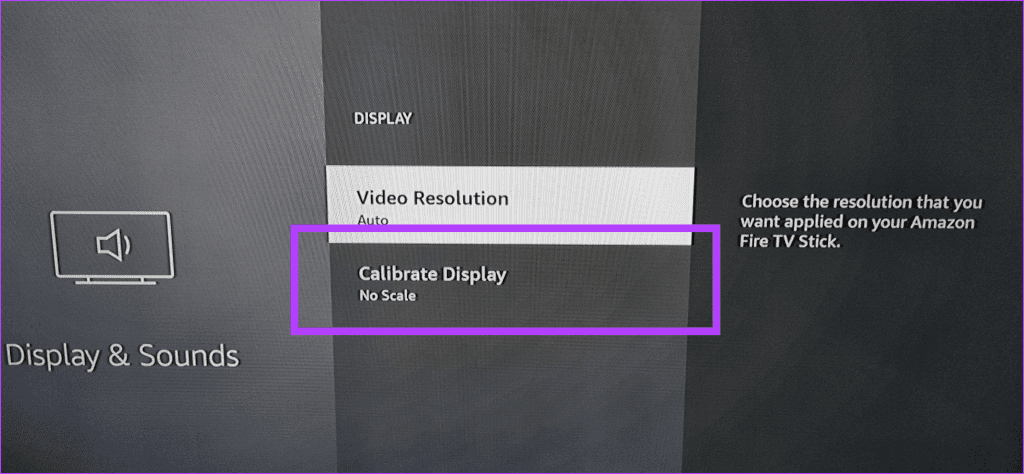
Step 3: Here, check the current calibration.
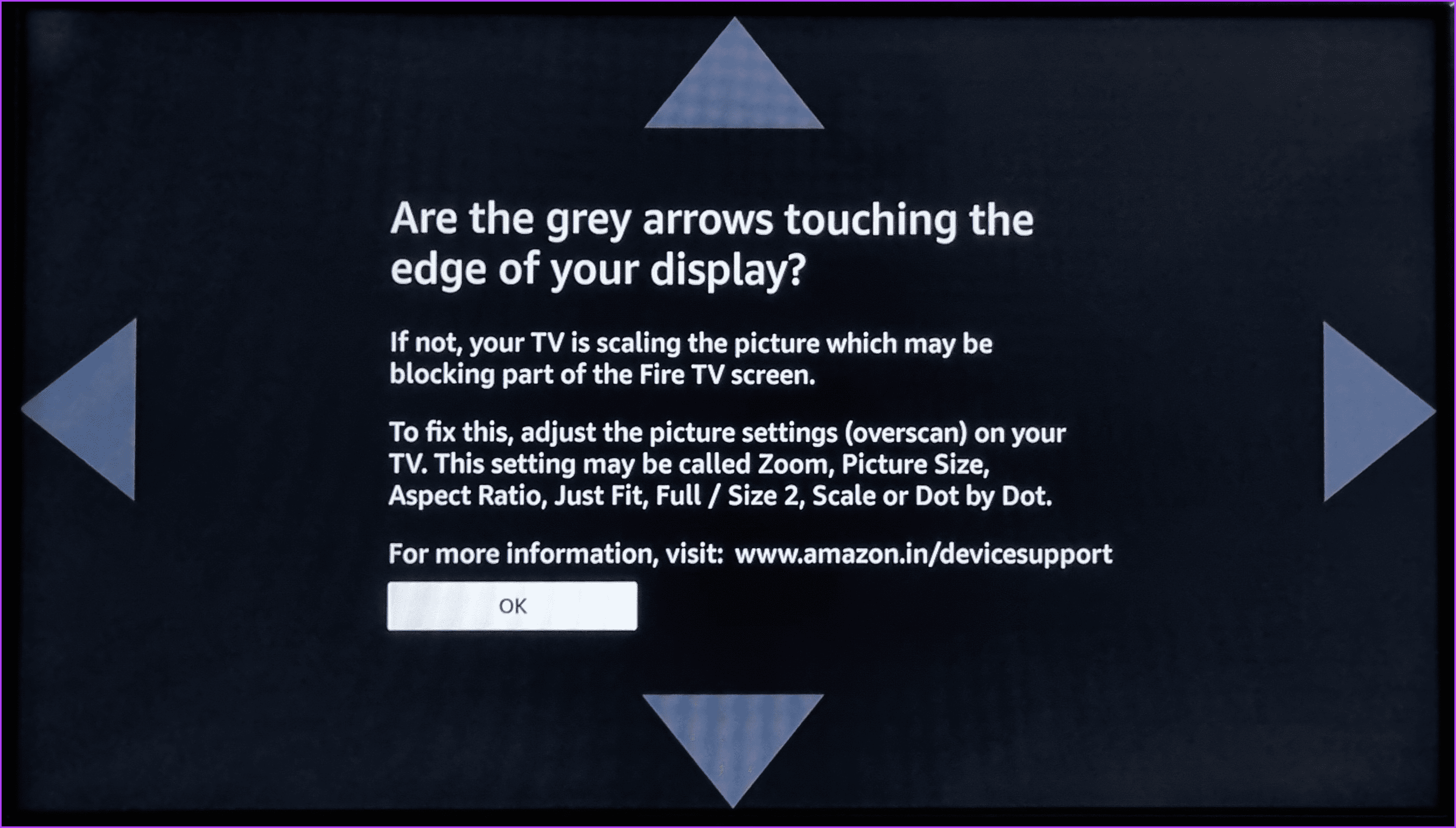
If the arrow appears to go off-screen, open your TV’s settings and try changing the picture mode or size until the arrows are touching the edge of your TV’s display.
Fix 4: Disable – Enable HDMI CEC Device Control
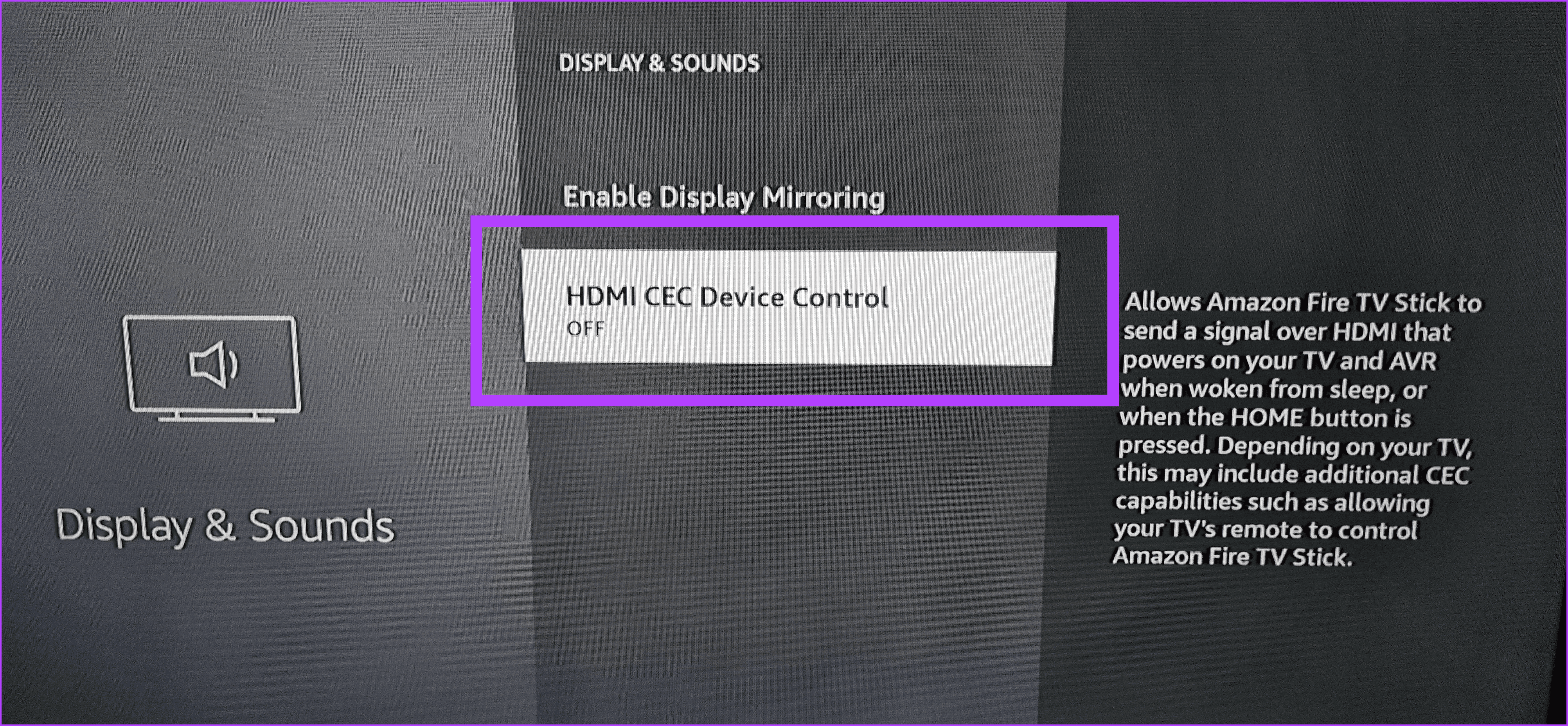
HDMI CEC Device Control lets your Fire TV Stick wake your TV up once you press the Power button. If there’s an issue with this setting, your TV’s screen might not wake up properly, causing the picture to not show. To fix this, disable and enable this setting on your Fire TV Stick using the below steps.
Step 1: Go to Settings and select Display & Sounds. Select HDMI CEC Device Control.
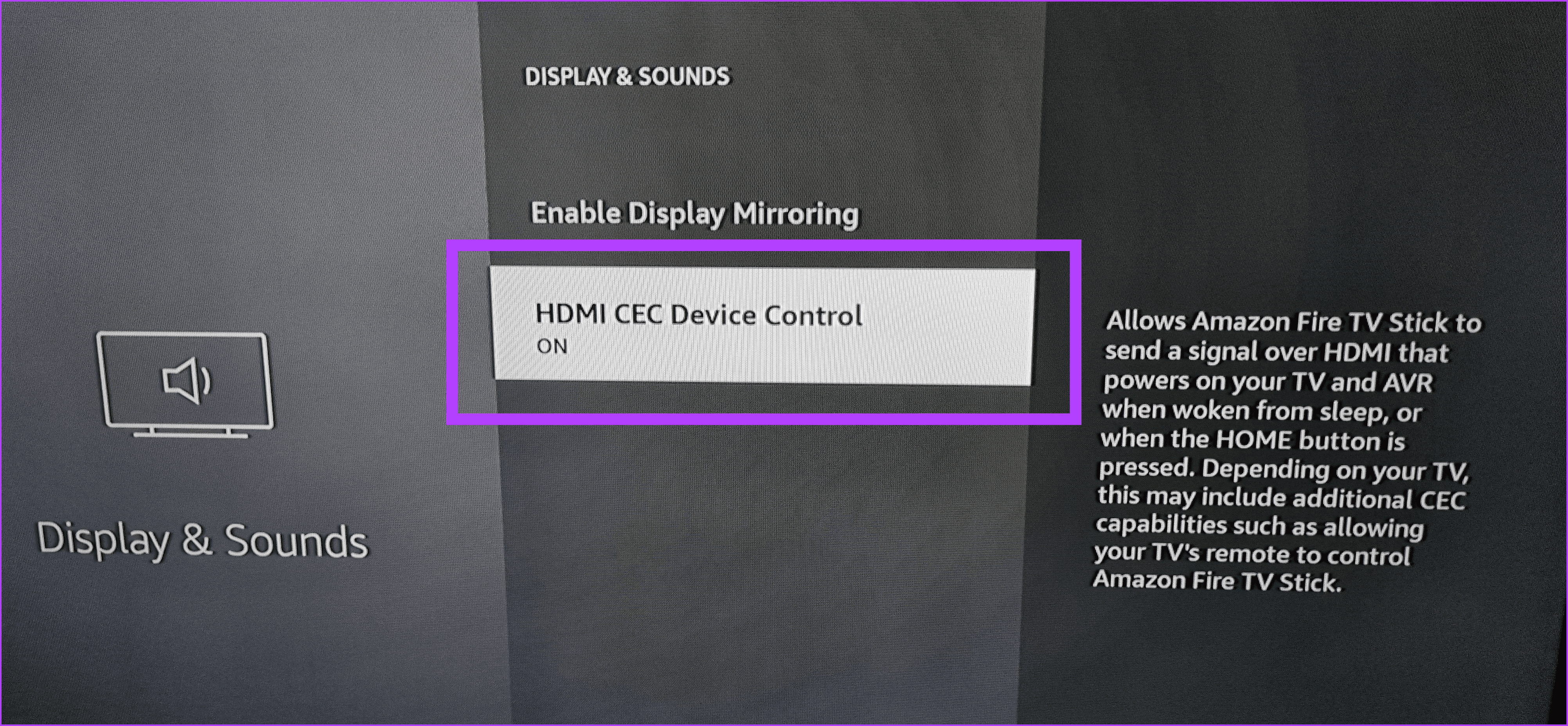
Step 2: Once you see OFF, again select HDMI CEC Device Control to turn it back on.
Fix 5: Reset Fire TV Stick
If you’re still having picture troubles with your Fire TV Stick, resetting it to default might help. This will delete any errant setting or app that might be causing your Fire TV Stick to not show the picture. Here’s how to do it.
Step 1: Go to Settings and select My Fire TV.
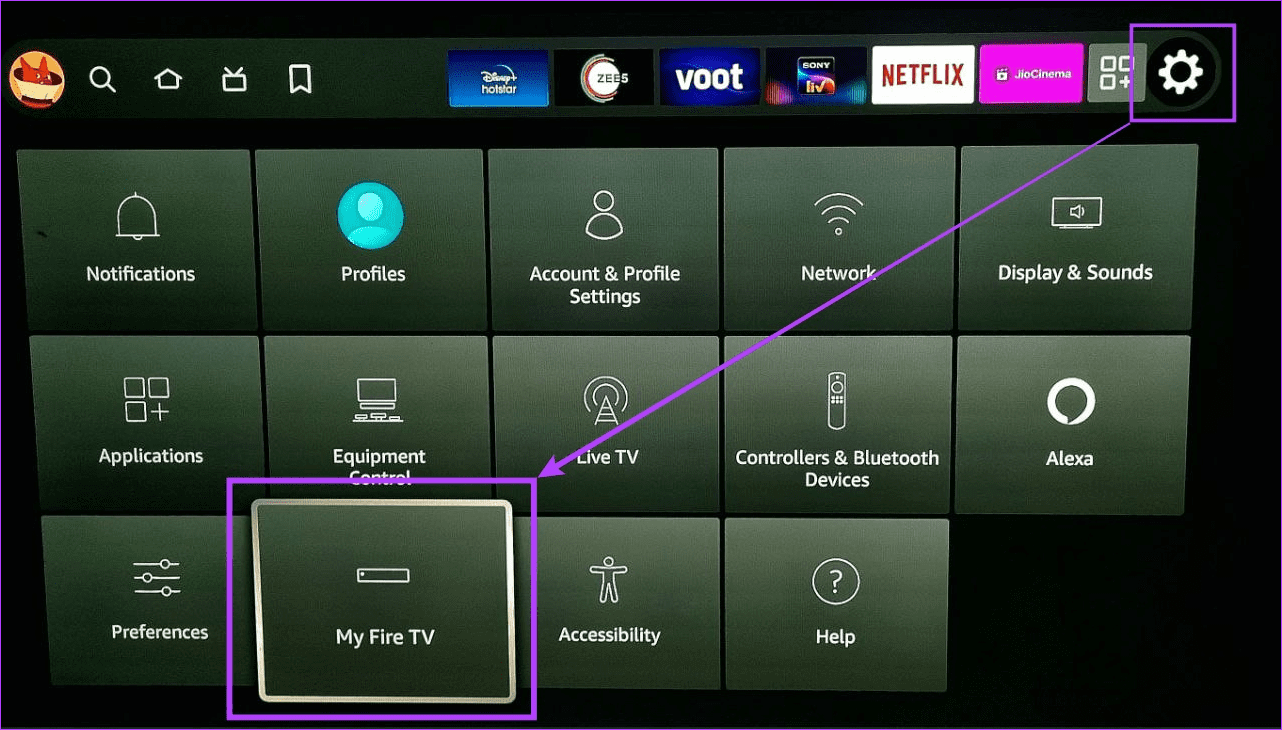
Step 2: Scroll down and select Reset to Factory Defaults.
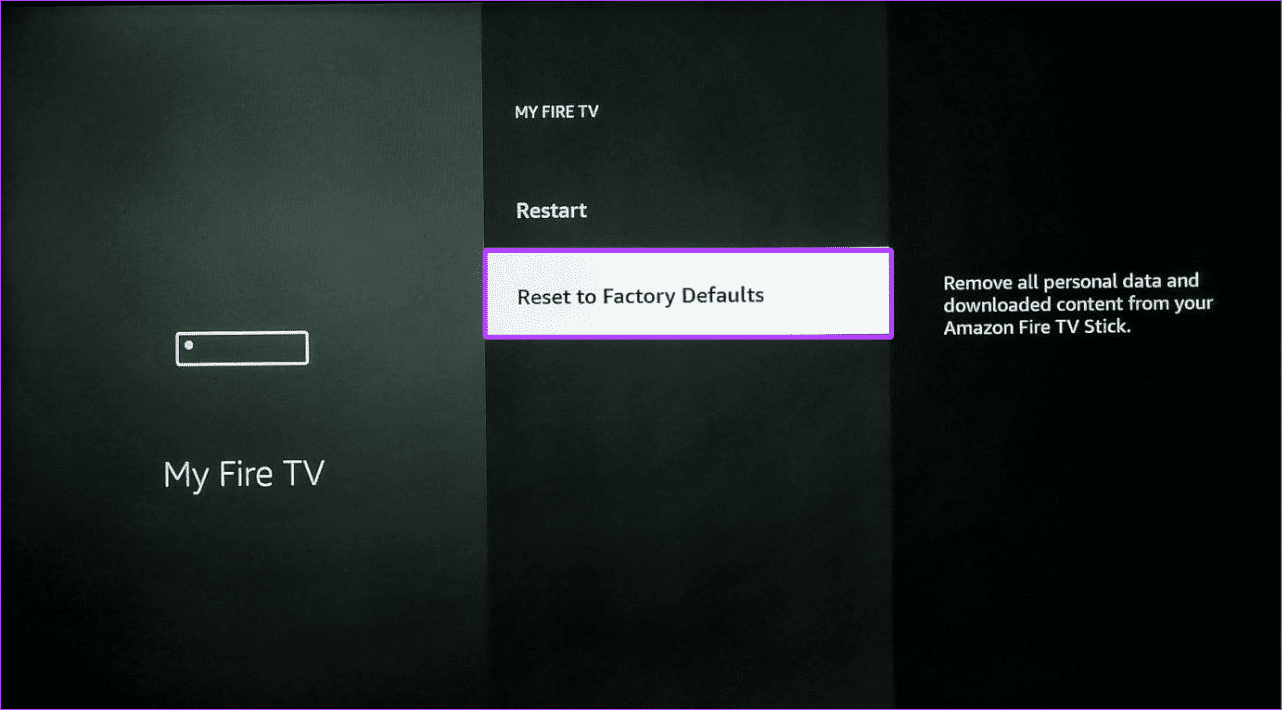
Step 3: Select Reset to confirm.
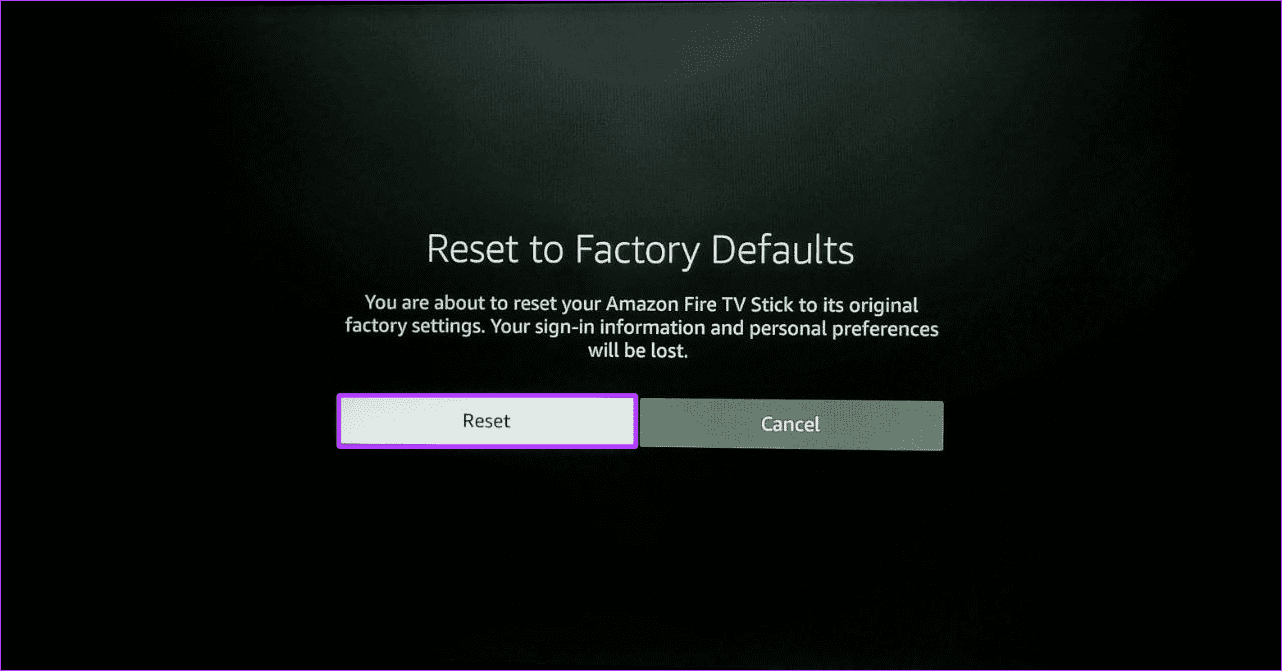
Wait for your Fire TV Stick to finish resetting. Then, set it up and try using the relevant app or services again to check if the picture is working properly.
Was this helpful?
Last updated on 05 August, 2024
Read Next
 How to Fix “Fire TV Stick Connected With Problems” Error
Basic Fixes: Restart the Fire TV Stick and router: Temporary connection problems can cause internet issues on your Fire TV Stick.
How to Fix “Fire TV Stick Connected With Problems” Error
Basic Fixes: Restart the Fire TV Stick and router: Temporary connection problems can cause internet issues on your Fire TV Stick.
 3 Ways to Fix Menu Button Not Working on Fire TV Stick
Basic Fixes: Restart the Fire TV Stick: The menu button on the Fire TV Stick remote may malfunction due to a temporary glitch.
3 Ways to Fix Menu Button Not Working on Fire TV Stick
Basic Fixes: Restart the Fire TV Stick: The menu button on the Fire TV Stick remote may malfunction due to a temporary glitch.
 4 Ways to Fix Fire TV Stick Not Connecting to Wi-Fi
Basic Fixes Check your router and reboot it: Sometimes you just need to reboot your router and reconnect to the Wi-Fi network.
4 Ways to Fix Fire TV Stick Not Connecting to Wi-Fi
Basic Fixes Check your router and reboot it: Sometimes you just need to reboot your router and reconnect to the Wi-Fi network.
 3 Best Ways to Free Storage on Fire TV Stick
By default, the new Fire TV Stick or Fire TV Stick 4K comes with 8GB of internal storage.
3 Best Ways to Free Storage on Fire TV Stick
By default, the new Fire TV Stick or Fire TV Stick 4K comes with 8GB of internal storage.
 4 Ways to Fix the iPhone Picture-in-Picture Not Working
Before you begin, try restarting your iPhone, and update the app you are trying to use picture-in-picture with, to the latest version.
3 Ways to Fix Prime Video Picture-in-Picture Not Working on Android and iPhone
Basic Fixes Restart Prime Video: Restart the Prime Video app and your smartphone to eliminate bugs and glitches.
4 Ways to Fix the iPhone Picture-in-Picture Not Working
Before you begin, try restarting your iPhone, and update the app you are trying to use picture-in-picture with, to the latest version.
3 Ways to Fix Prime Video Picture-in-Picture Not Working on Android and iPhone
Basic Fixes Restart Prime Video: Restart the Prime Video app and your smartphone to eliminate bugs and glitches.
 4 Ways to Fix WhatsApp Picture-In-Picture Not Working
Basic Fixes Update WhatsApp: Open the Google Play Store or Apple App Store, search WhatsApp, and tap Update (if available).
4 Ways to Fix WhatsApp Picture-In-Picture Not Working
Basic Fixes Update WhatsApp: Open the Google Play Store or Apple App Store, search WhatsApp, and tap Update (if available).
 4 Ways to Fix Picture-In-Picture Mode Not Working on Android
Try Basic Fixes Update the problematic app: If the picture-in-picture mode is not working due to a buggy app build, you should be able to fix it by updating the
4 Ways to Fix Picture-In-Picture Mode Not Working on Android
Try Basic Fixes Update the problematic app: If the picture-in-picture mode is not working due to a buggy app build, you should be able to fix it by updating the
The article above may contain affiliate links which help support Guiding Tech. The content remains unbiased and authentic and will never affect our editorial integrity.