Basic Fixes
- Avoid using largely sized USB drives: You need to avoid using USB drives that are larger than 128GB in size.
- Check the USB Adapter: Amazon recommends using a USB 3.0 storage with the adapter for connecting to your Fire TV Stick 4K.
- Update and restart Fire TV Stick 4K: Install the latest software version on your Fire TV Stick 4K model to get rid of bugs or glitches that may be causing the issue.
Fix 1: Format USB to FAT32
The first solution we recommend is checking whether your USB drive is in FAT32 disk format. Every model of Amazon Fire TV Stick supports only the FAT32 disk format for USB drives or external hard drives. In this case, we suggest checking and formatting your USB to FAT32. Refer to the following posts to learn how to format a USB drive on your Windows PC.
On Mac, connect your UBS > Open Disk Utility > Select your USB Drive name > Click on Erase.

Fix 2: Disable USB Debugging
This solution was suggested on the official Amazon Community forum by a user. If you have USB Debugging enabled on your Fire TV Stick 4K, it might not recognize your USB device. Here’s how to check and disable the same.
Step 1: Open Settings > My Fire TV > About.
Step 2: Select the model name of your Fire TV and then keep pressing the Select button on your remote to enable Developer Options.
Step 3: Go back and then select Developer Options.

Step 4: Select ADB Debugging to turn off the feature.

Fix 3: Reset Your Fire TV Stick 4K
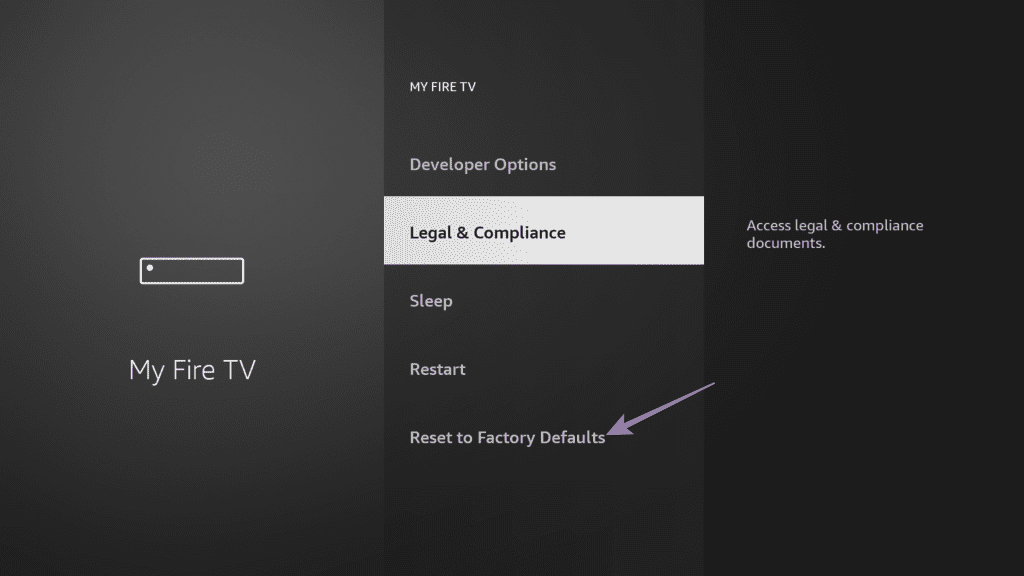
Do note that following this solution will erase all apps and preferences from your Fire TV Stick 4K. You should follow this only if none of the solutions mentioned above have worked so far.
Open Settings > My Fire TV > Reset to Factory Defaults.
Tip: You can also read our post if your Fire TV Stick 4K is not playing 4K content.
Was this helpful?
Last updated on 12 August, 2024
Read Next
 6 Fixes if Windows 11 Is Not Recognizing USB Devices
Fix 1: Unlock and Trust the Device Some devices, like iPhones or Androids, have an added layer of authentication to verify user identity.
6 Fixes if Windows 11 Is Not Recognizing USB Devices
Fix 1: Unlock and Trust the Device Some devices, like iPhones or Androids, have an added layer of authentication to verify user identity.
 3 Fixes for Amazon Fire TV Stick 4K Not Playing 4K Content
Basic Fixes Check internet speed: You need at least 15 MBps of internet speed on your Wireless network to work with your Fire TV Stick 4K for streaming content in
3 Fixes for Amazon Fire TV Stick 4K Not Playing 4K Content
Basic Fixes Check internet speed: You need at least 15 MBps of internet speed on your Wireless network to work with your Fire TV Stick 4K for streaming content in
 3 Fixes for Alexa Not Responding to Voice Commands on Amazon Fire TV Stick 4K
Basic Fixes Bring the remote closer: According to the instruction manual for the Amazon Fire TV Stick 4K, the distance between the Fire TV remote and Fire TV Stick 4K
3 Fixes for Alexa Not Responding to Voice Commands on Amazon Fire TV Stick 4K
Basic Fixes Bring the remote closer: According to the instruction manual for the Amazon Fire TV Stick 4K, the distance between the Fire TV remote and Fire TV Stick 4K
 3 Fixes for Dolby Vision Not Working on Amazon Fire TV Stick 4K
Basic Fixes Use HDMI 2.1 cable: This cable supports higher frame rates, improved bandwidth, and eARC (Audio Return Channel).
3 Fixes for Dolby Vision Not Working on Amazon Fire TV Stick 4K
Basic Fixes Use HDMI 2.1 cable: This cable supports higher frame rates, improved bandwidth, and eARC (Audio Return Channel).
 4 Fixes for Amazon Fire TV Stick Keeps Buffering Issue
Basic Fixes Downgrade streaming quality: You can start by reducing the streaming quality of whichever platform you are facing issues with.
4 Fixes for Amazon Fire TV Stick Keeps Buffering Issue
Basic Fixes Downgrade streaming quality: You can start by reducing the streaming quality of whichever platform you are facing issues with.
 3 Ways to Fix Amazon Fire TV Stick Keeps Restarting
Basic Fixes Use official accessories: If you aren't using the original accessories with your Firestick, you might use an incompatible USB cable or adapter.
3 Ways to Fix Amazon Fire TV Stick Keeps Restarting
Basic Fixes Use official accessories: If you aren't using the original accessories with your Firestick, you might use an incompatible USB cable or adapter.
 How to Get and Customize Subtitles on Amazon Fire TV Stick
How to Turn on Subtitles on Fire TV Stick You can turn on subtitles on your Fire TV Stick to breach the language gap and enjoy your favorite content.
How to Get and Customize Subtitles on Amazon Fire TV Stick
How to Turn on Subtitles on Fire TV Stick You can turn on subtitles on your Fire TV Stick to breach the language gap and enjoy your favorite content.
 5 Ways to Fix Amazon Silk Browser Not Working on Fire TV Stick
Basic Fixes Check your network connection: Open Fire OS settings via the Gear icon at the top right.
5 Ways to Fix Amazon Silk Browser Not Working on Fire TV Stick
Basic Fixes Check your network connection: Open Fire OS settings via the Gear icon at the top right.
The article above may contain affiliate links which help support Guiding Tech. The content remains unbiased and authentic and will never affect our editorial integrity.