Basic Fixes
- Check your router and reboot it: Sometimes you just need to reboot your router and reconnect to the Wi-Fi network.
- Change the HDMI extender cable: Every version/generation of Fire TV Stick comes with an HDMI Extender. You can try buying a new one and see if that solves the problem.
- Contact Amazon support: Get in touch with Amazon Customer Support if the issue persists.
Fix 1: Unhide Wi-Fi SSID
You also want to make sure that the Wi-Fi network you’re trying to connect your Fire TV stick to isn’t hidden. Otherwise, it will not appear on the list of available networks on your Fire TV stick. So, you have two choices: unhide the network or connect to the hidden Wi-Fi via the method below.
Step 1: Navigate to the Fire TV stick Settings menu.
Step 2: Select Network and then tap on Join Other Network
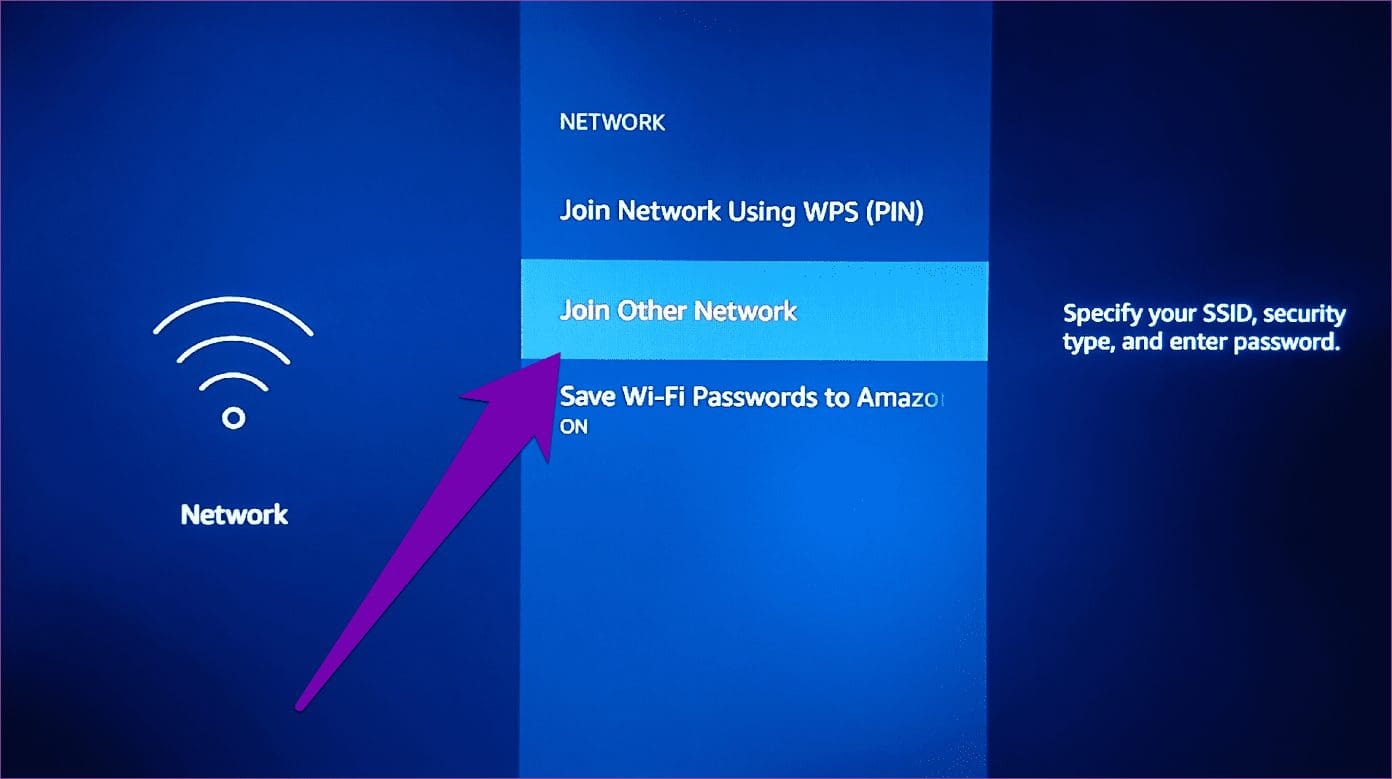
Step 3: Enter the SSID (read: name) of the Wi-FI network and then tap the Play/Pause button to proceed.
Step 4: Next, select the network’s security type and then tap the Play/Pause button to proceed.
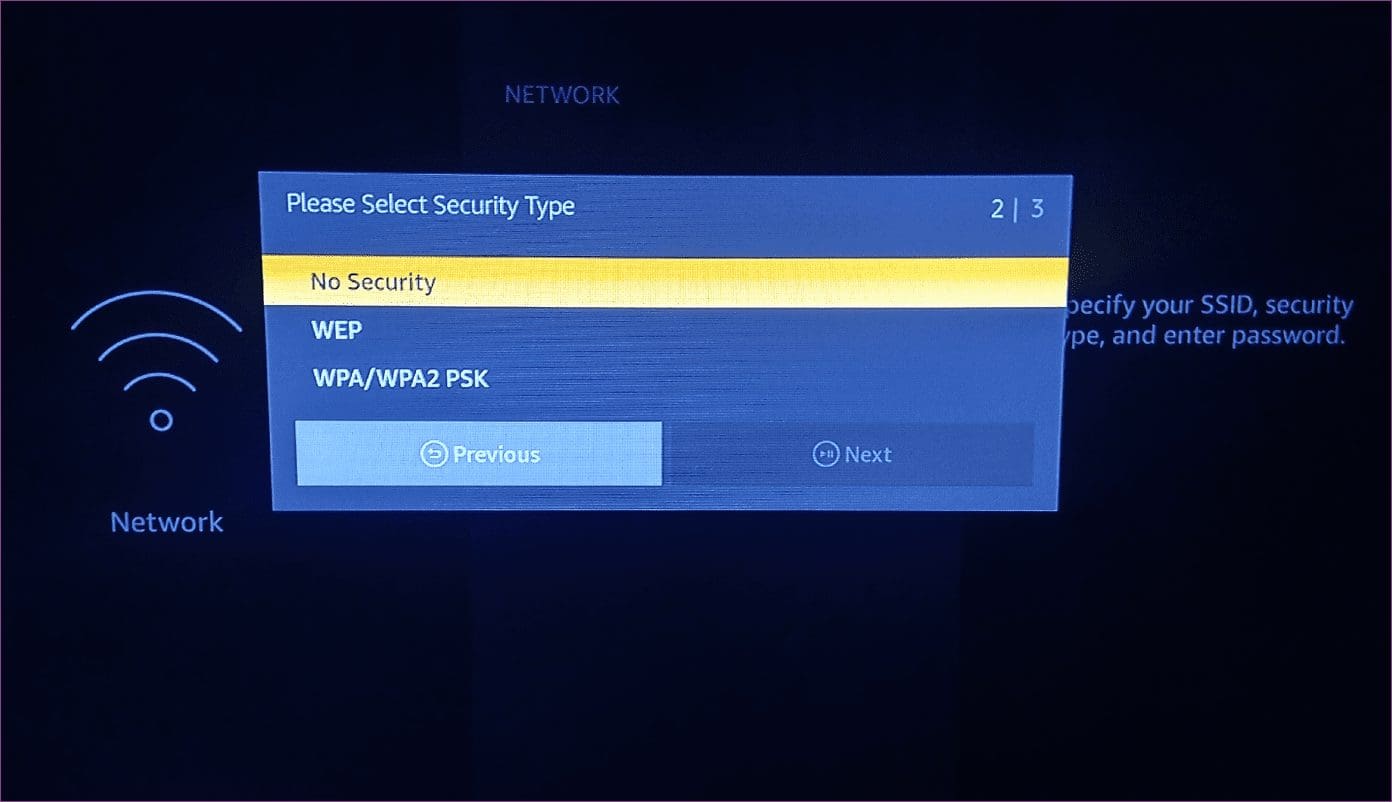
Note: Check the router’s connection settings to confirm the network security type.
Step 5: Enter the network’s password or security code and then tap the Play/Pause button to proceed.
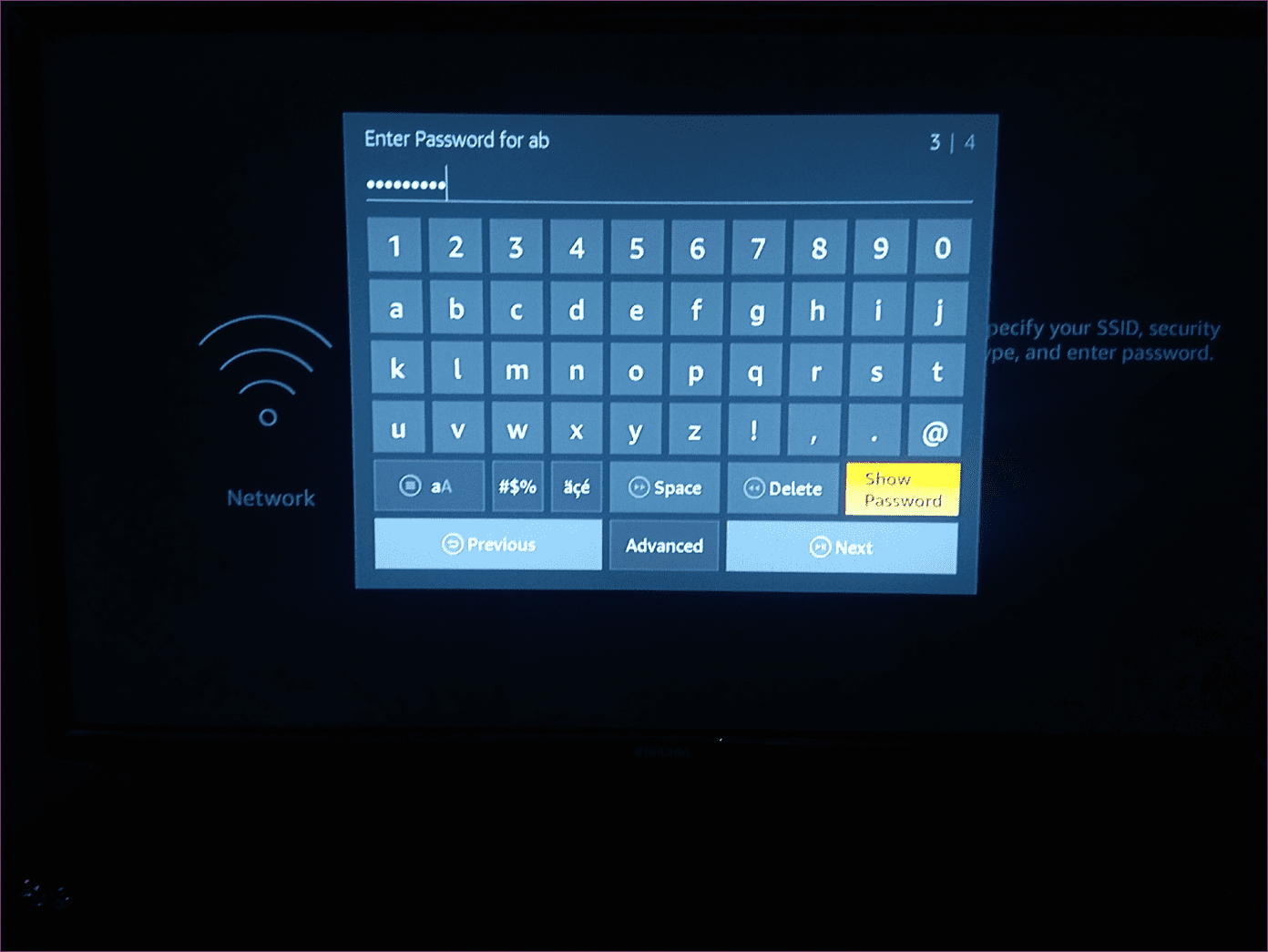
Step 6: Confirm the network details and then tap CONNECT (Play/Pause button on the remote) to connect to the hidden Wi-Fi network.
Fix 2: Adjust Wi-Fi Router Settings
Next you should try tinkering a little with the Wi-Fi router settings. You can try changing the channel, band, and encryption method. We also suggest keeping separate names for your 2.4GHz and 5GHz network, if you have a dual-band router. Visit your router’s IP address using your desktop web browser and then make the changes.
Fix 3: Forget and Reconnect to Wi-Fi Network
If you are trying to connect to a Wi-Fi network you had previously used on the Fire TV stick, but you are facing authentication problems, or perhaps the Fire TV stick just refuses to connect to the network, you should forget the network and reconnect to it. Here’s how.
Step 1: Navigate to the Fire TV Stick Settings section.
Step 2: Select Network.
Step 3: Move the cursor to the Network having connection issues and then tap the Menu button on the Fire TV stick remote.
Step 4: Tap the Select button (circular middle button) to confirm forgetting the network.

This would delete the network from your Fire TV stick database. Now try reconnecting to the network.
Still not connecting? Time to try a different hack.
Fix 4: Reset Fire TV Stick
If your Fire TV stick isn’t connecting to your (or any) Wi-Fi network after trying all methods listed above, you should do a factory reset. That option should be considered a last resort if all other solutions fail. That’s because restoring your Fire TV stick to factory default would delete all the downloaded content and data on the device. So you’ll have to set it up as a new one.
The upside is that a factory reset could help fix the Fire TV stick connectivity issues. We wrote a detailed tutorial containing five (5) different ways to restore a Fire TV Stick to factory settings. You should check it out.
Was this helpful?
Last updated on 22 July, 2024
Read Next
 4 Fixes for Bluetooth Headphones Not Connecting to Fire TV Stick 4K
Basic Fixes Disconnect Bluetooth headphones from other devices: It sounds obvious and is one of the biggest reasons behind the issue.
4 Fixes for Bluetooth Headphones Not Connecting to Fire TV Stick 4K
Basic Fixes Disconnect Bluetooth headphones from other devices: It sounds obvious and is one of the biggest reasons behind the issue.
 How to Fix “Fire TV Stick Connected With Problems” Error
Basic Fixes: Restart the Fire TV Stick and router: Temporary connection problems can cause internet issues on your Fire TV Stick.
How to Fix “Fire TV Stick Connected With Problems” Error
Basic Fixes: Restart the Fire TV Stick and router: Temporary connection problems can cause internet issues on your Fire TV Stick.
 3 Ways to Fix Menu Button Not Working on Fire TV Stick
Basic Fixes: Restart the Fire TV Stick: The menu button on the Fire TV Stick remote may malfunction due to a temporary glitch.
3 Ways to Fix Menu Button Not Working on Fire TV Stick
Basic Fixes: Restart the Fire TV Stick: The menu button on the Fire TV Stick remote may malfunction due to a temporary glitch.
 5 Ways to Fix Fire TV Stick Not Showing Picture
Basic Fixes: Restart Fire TV Stick: Temporary device glitches can cause your Fire TV Stick to not show the picture when using any app or service.
5 Ways to Fix Fire TV Stick Not Showing Picture
Basic Fixes: Restart Fire TV Stick: Temporary device glitches can cause your Fire TV Stick to not show the picture when using any app or service.
 3 Best Ways to Free Storage on Fire TV Stick
By default, the new Fire TV Stick or Fire TV Stick 4K comes with 8GB of internal storage.
3 Best Ways to Free Storage on Fire TV Stick
By default, the new Fire TV Stick or Fire TV Stick 4K comes with 8GB of internal storage.
 3 Ways to Fix Fire TV Stick Mirroring Not Working or Freezing
Screen Mirroring Requirements and Limitations for Fire TV Stick Before starting, let us look at certain conditions that you might need to meet when screen mirroring your device to your
3 Ways to Fix Fire TV Stick Mirroring Not Working or Freezing
Screen Mirroring Requirements and Limitations for Fire TV Stick Before starting, let us look at certain conditions that you might need to meet when screen mirroring your device to your
 Top 6 Ways to Fix No Signal on Amazon Fire TV Stick
Preliminary Fixes Check Power Source: A common reason for the No Signal error on your Amazon Fire TV Stick is an inadequate power supply.
Top 6 Ways to Fix No Signal on Amazon Fire TV Stick
Preliminary Fixes Check Power Source: A common reason for the No Signal error on your Amazon Fire TV Stick is an inadequate power supply.
 5 Ways to Fix Amazon Silk Browser Not Working on Fire TV Stick
Basic Fixes Check your network connection: Open Fire OS settings via the Gear icon at the top right.
5 Ways to Fix Amazon Silk Browser Not Working on Fire TV Stick
Basic Fixes Check your network connection: Open Fire OS settings via the Gear icon at the top right.
The article above may contain affiliate links which help support Guiding Tech. The content remains unbiased and authentic and will never affect our editorial integrity.