Try Basic Fixes
- Ensure Twitch servers are working: Before trying anything, it’s a good idea to ensure that the Twitch servers are working. You can check the server status by visiting Downdetector.
- Update the Twitch app: Using an outdated version of the Twitch app can also result in such errors. Hence, it’s a good idea to update the app from the Play Store (Android) or App Store (iPhone).
Fix 1: Change Stream Video Quality
If you encounter the “Failed to Load Module” error on Twitch while loading a video, try adjusting the video quality. Start by selecting the lowest quality setting, then gradually increase it until the error reappears. Once you identify the quality level that triggers the issue, keep the setting just below that point to avoid the error.
On Desktop
Step 1: Open Twitch on your browser and go to the stream where you are facing the error.
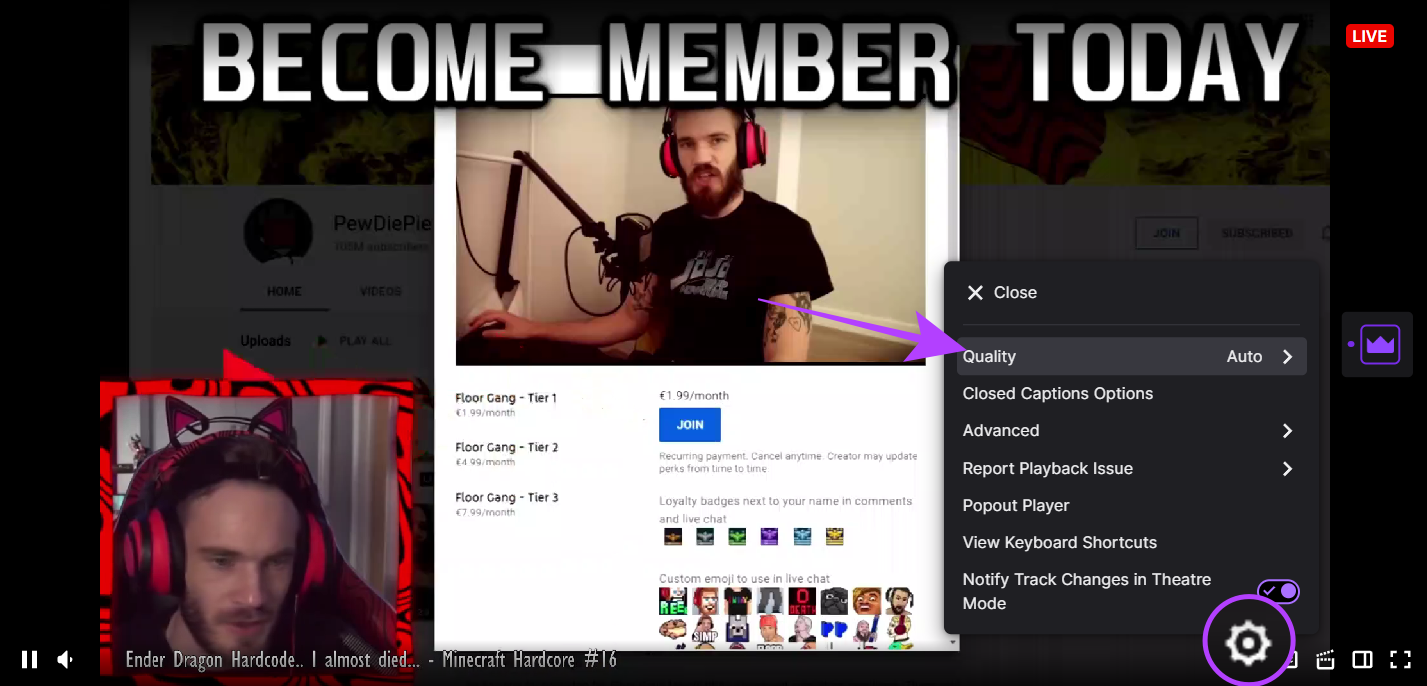
Step 2: Click the settings icon on the video player and select Quality.
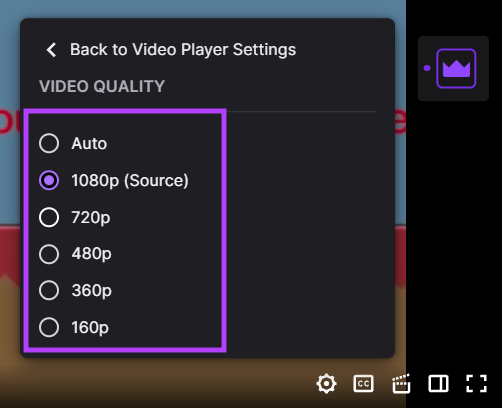
Step 3: Now, choose the video quality of your choice.
On Mobile
Step 1: Open Twitch and the stream where you are facing the issue.
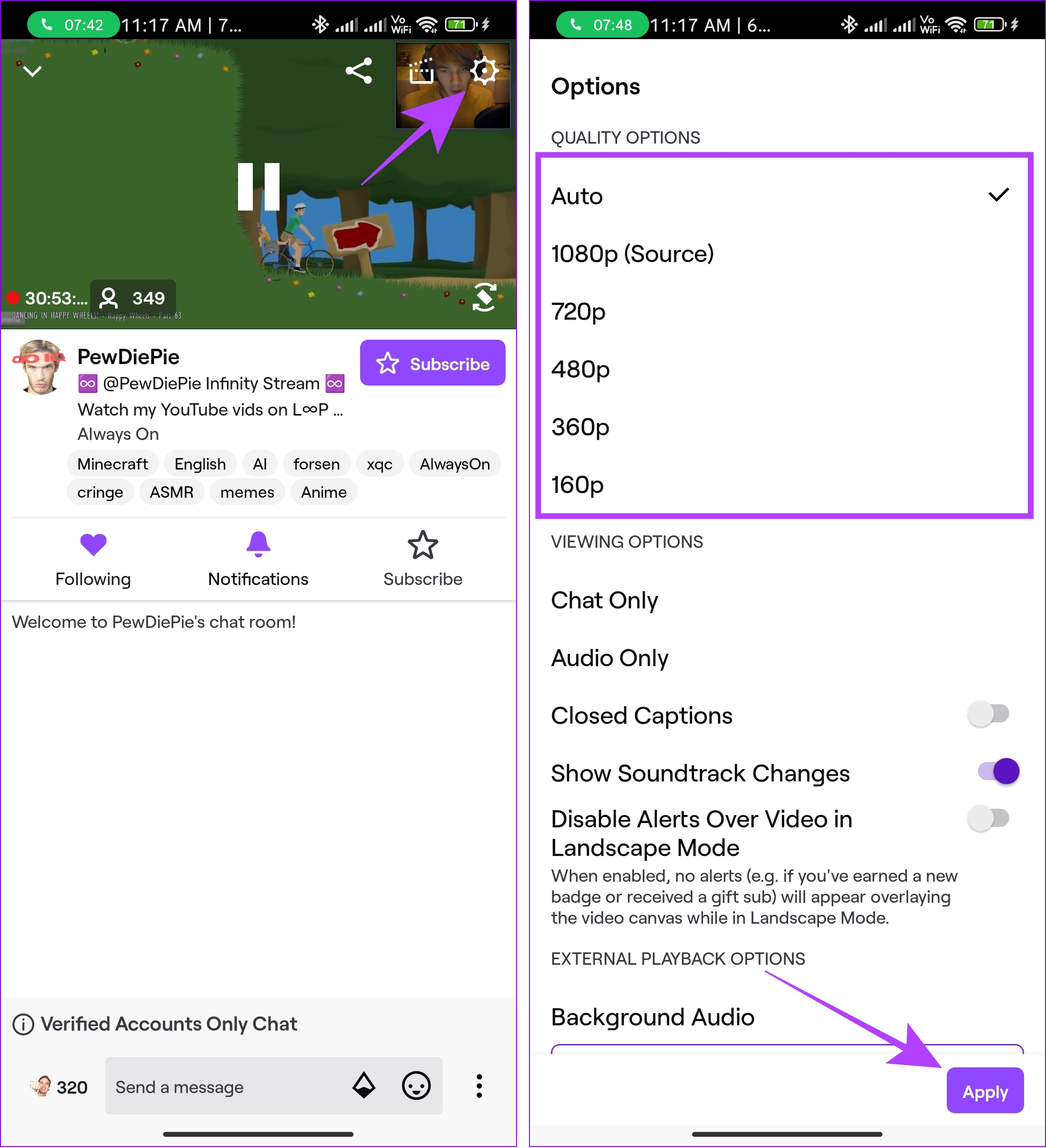
Step 2: Tap the settings icon on the video player.
Step 3: Tap Quality, choose a different video quality, and hit Apply.
Fix 2: Disable the Browser Extensions
One of your browser extensions might be interfering with Twitch and causing the “Failed to Load Module” error. To check for this, temporarily disable all your extensions and see if the error persists.
Type chrome://extensions (Chrome) or edge://extensions (Edge) in your browser and hit Enter. Then, disable all the extensions using the toggles. You can also get rid of unwanted extensions by clicking the Remove button.
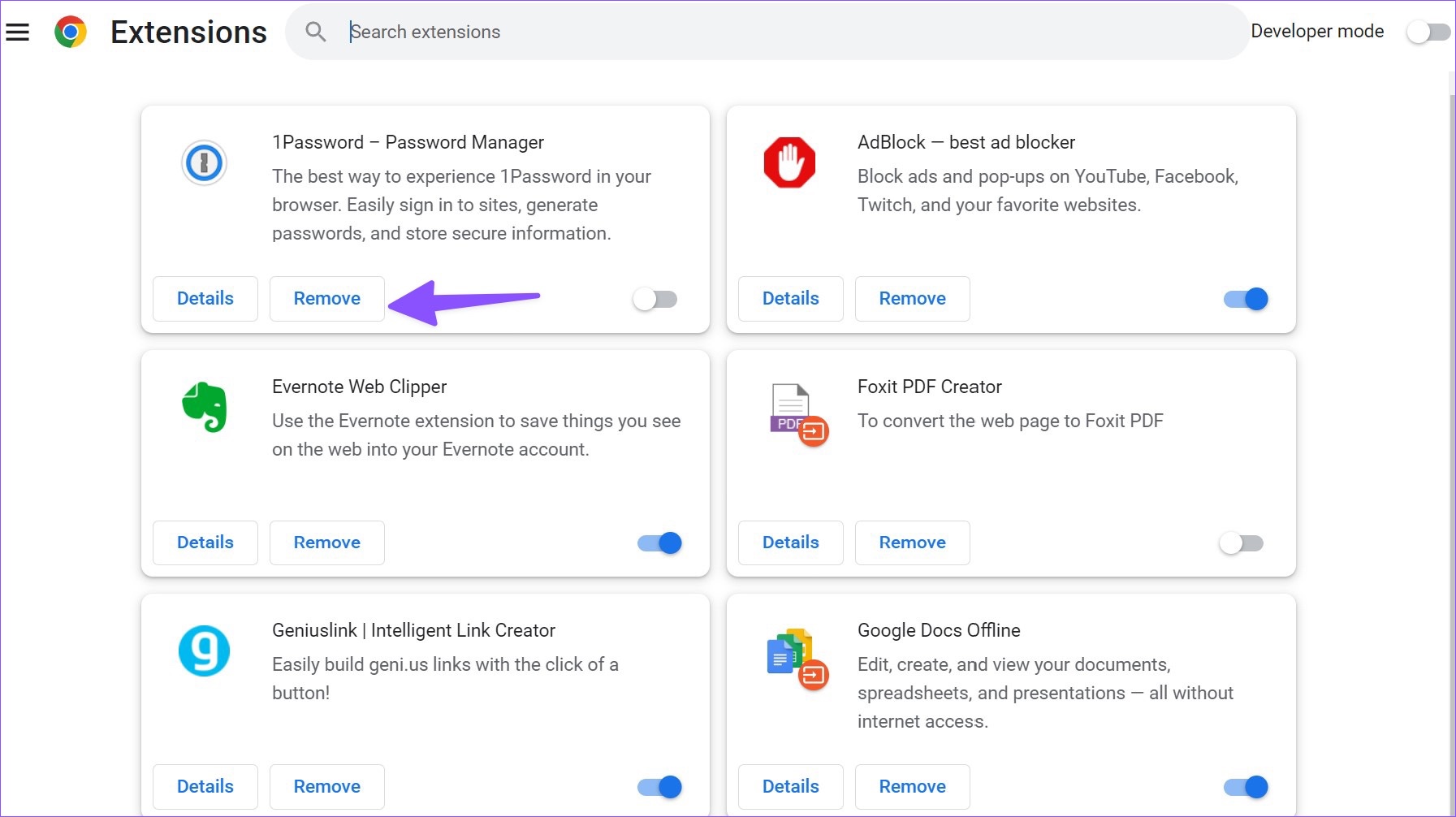
Restart your browser and check if the “Failed to Load Module” issue on Twitch is resolved. If the issue is gone, re-enable each extension one by one to identify which one is causing the problem. Once you find the problematic extension, remove it to avoid any issues.
Fix 3: Clear Browser or App Cache
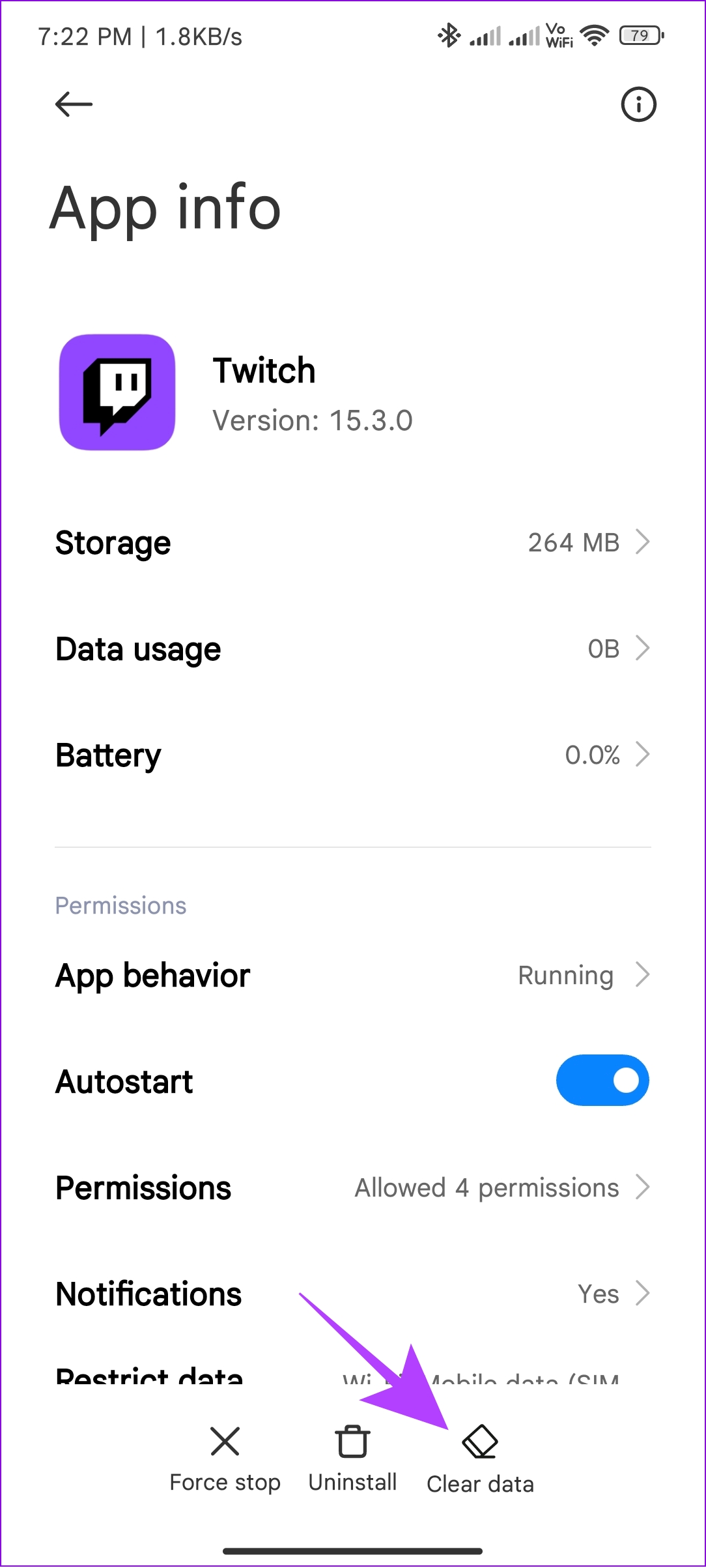
Certain modules may fail to load on Twitch if the existing app cache has become corrupted. Here’s how to fix it.
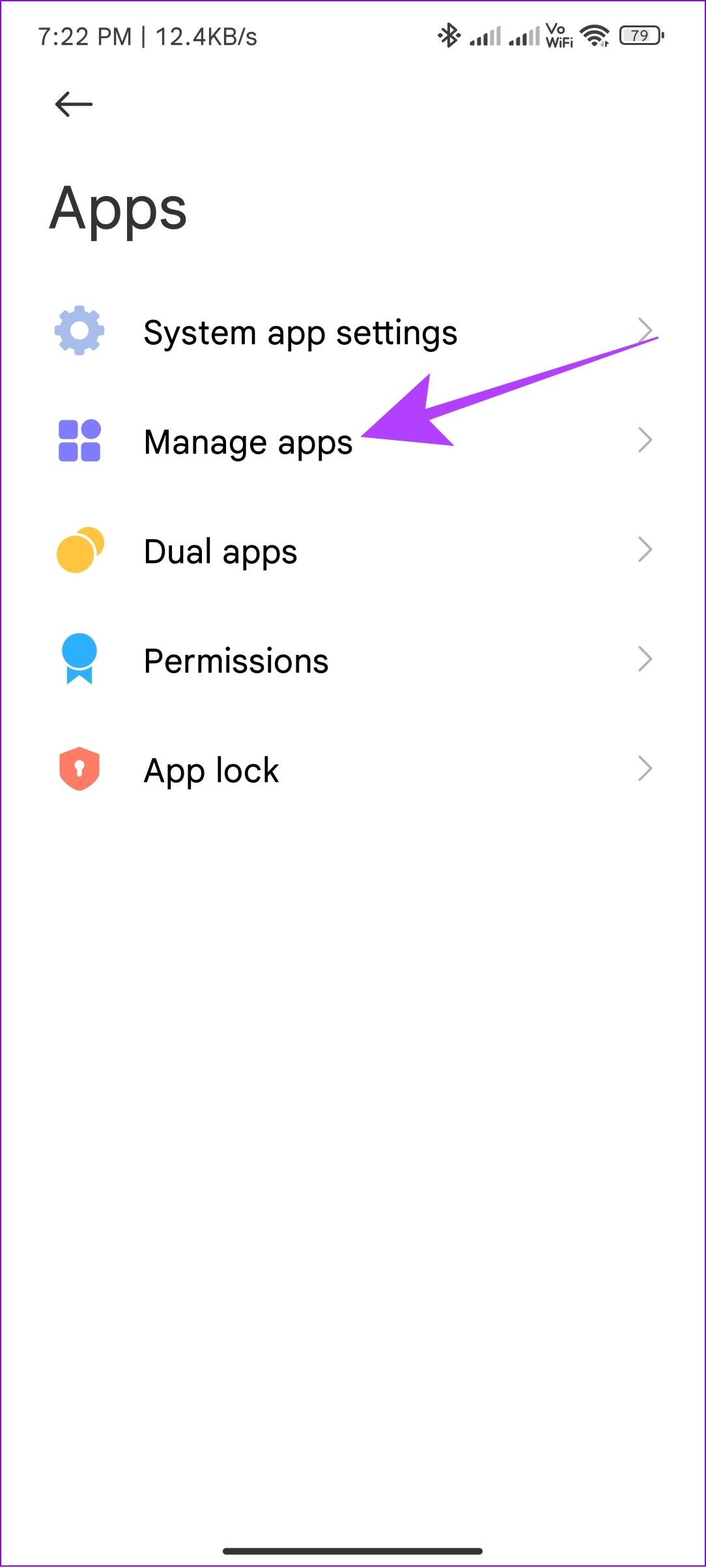
Step 1: Open the Settings app and head to Apps > Manage apps > Twitch.

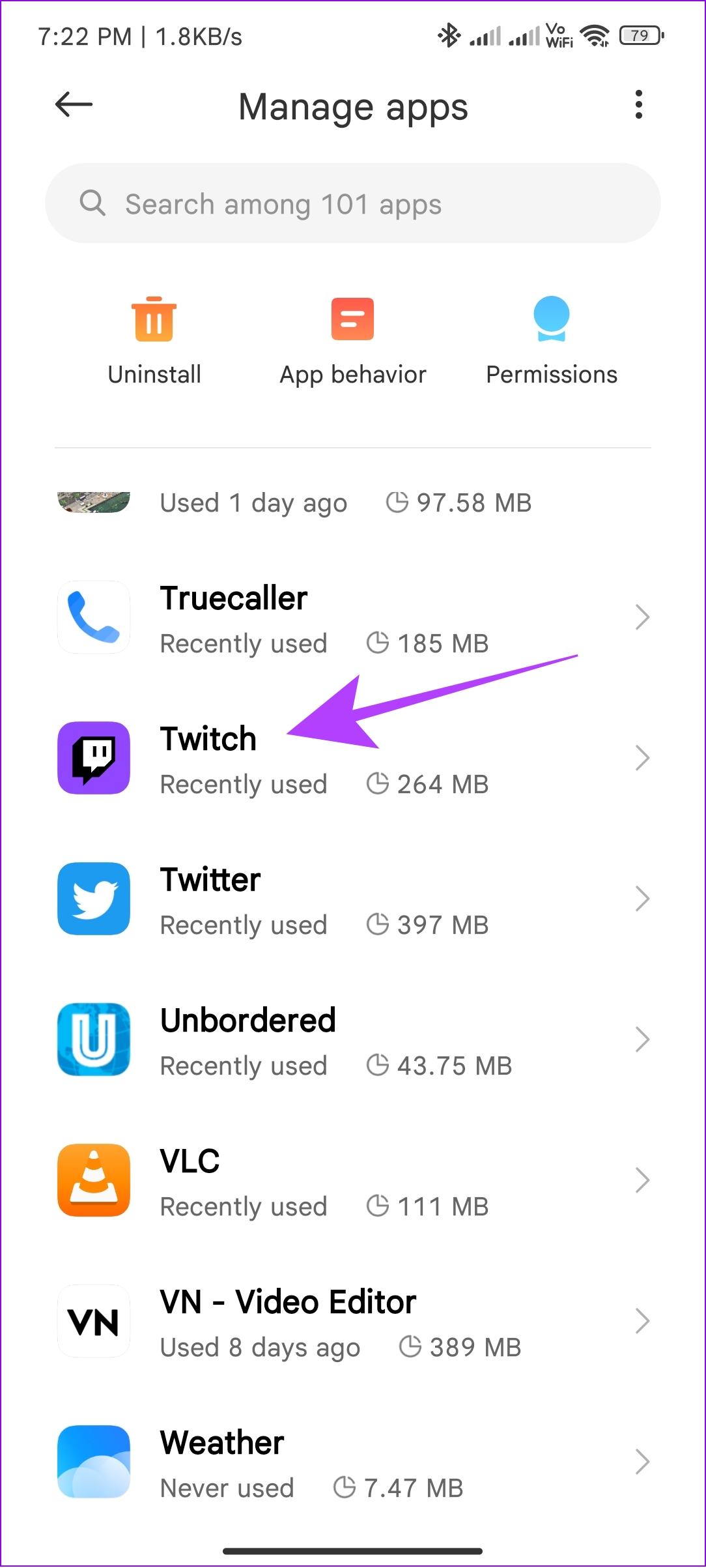
Step 3: Tap Clear data and choose Clear cache.
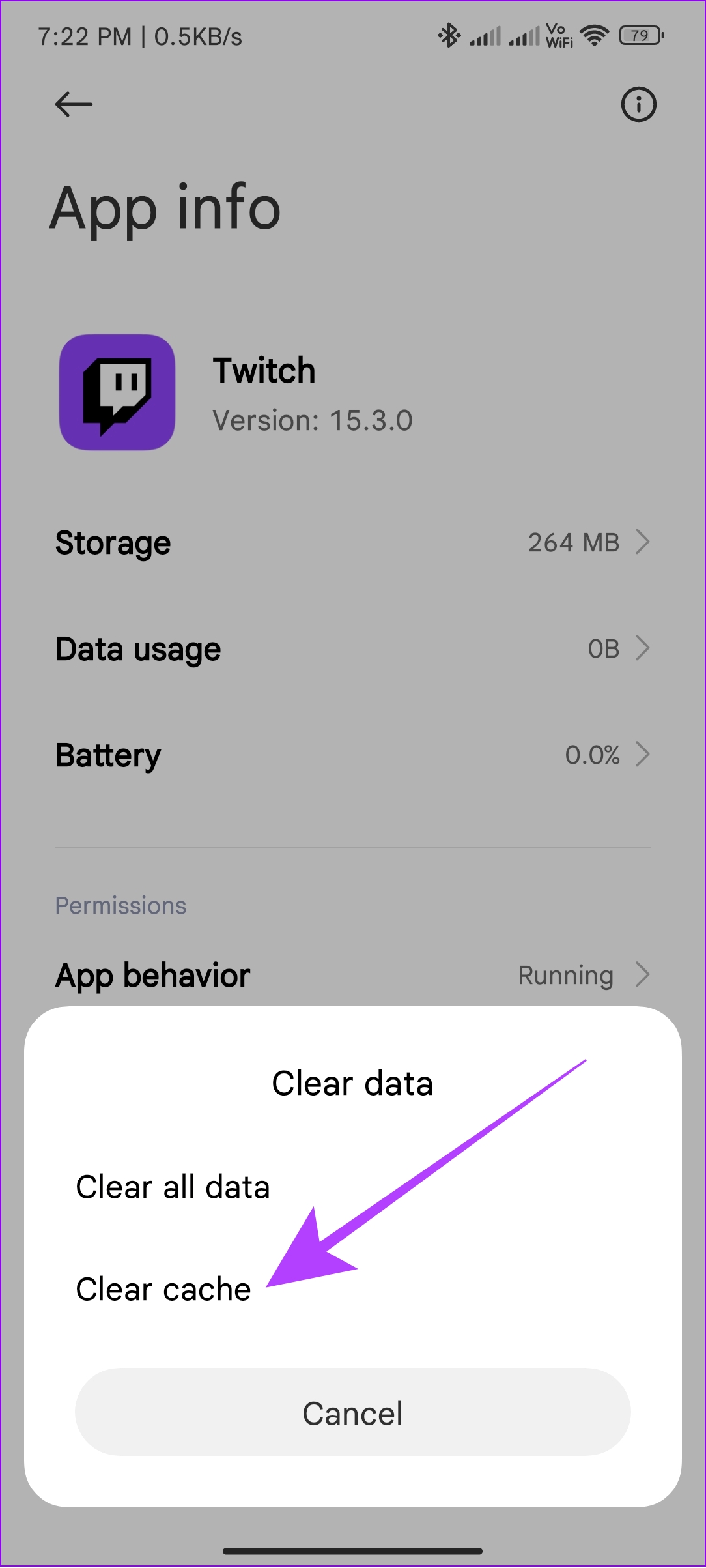
Similarly, if you are experiencing this error on a PC, you will need to clear the cache on Chrome, Edge, or any other browser you may be using.
Fix 4: Enable Hardware Acceleration
Another thing you can do to fix this particular error is enable hardware acceleration. Here’s how to do it.
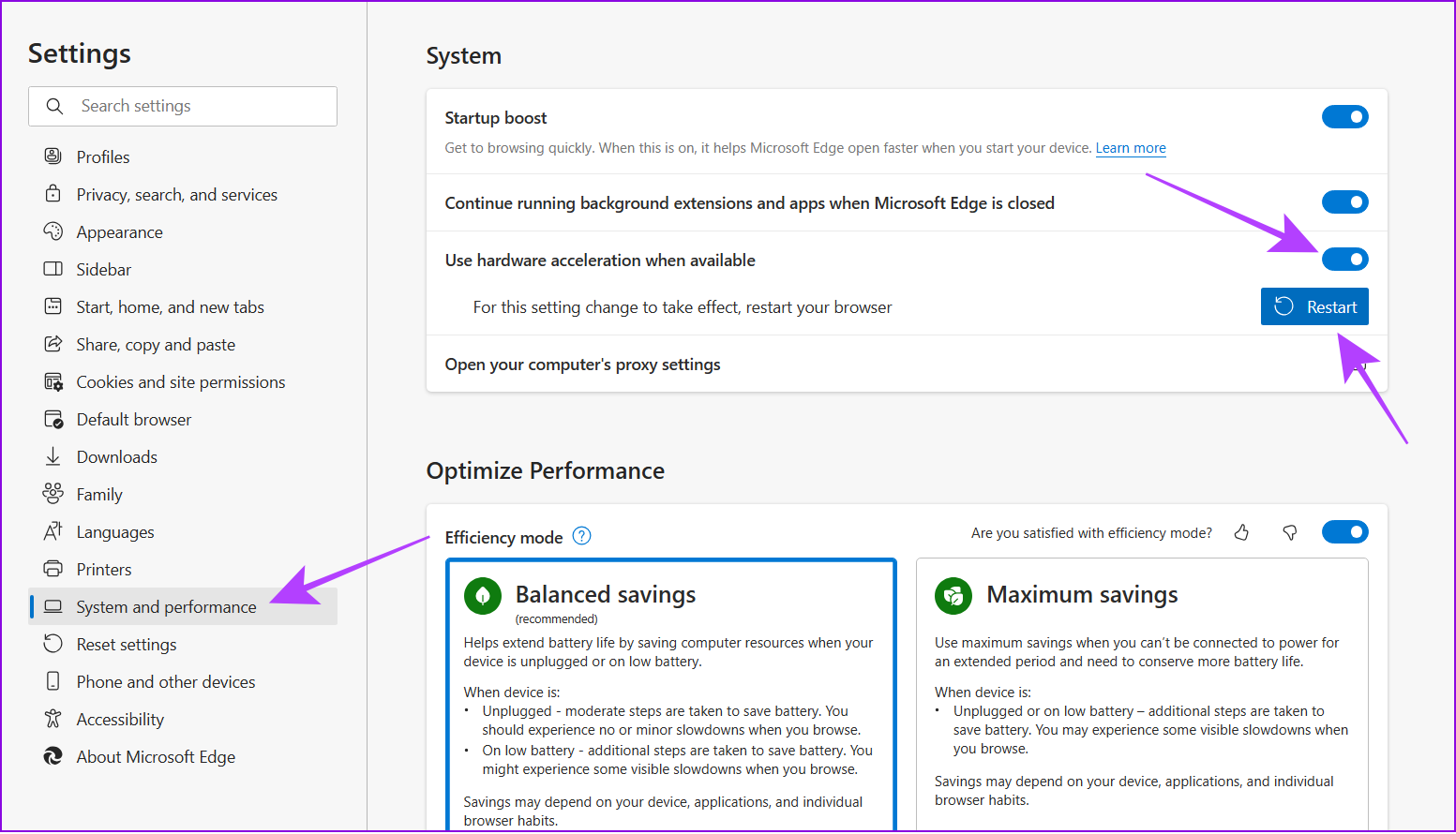
Step 1: Open Edge, click the three-dot menu icon in the top right corner and select Settings.

Step 2: Go to the System and performance tab.
Step 3: Turn on the Use hardware acceleration when available option and click Restart.
Was this helpful?
Last updated on 03 September, 2024
Read Next
 3 Ways to Fix Discord Messages Failed to Load Error
Basic Fixes Force Restart Discord: You can force quit Discord on your PC or Mac using Task Manager or Activity Monitor.
3 Ways to Fix Discord Messages Failed to Load Error
Basic Fixes Force Restart Discord: You can force quit Discord on your PC or Mac using Task Manager or Activity Monitor.
 6 Ways to Fix Failed to Load Web Page Error in Steam for Windows
Fix 1: Terminate Steam Processes and Reopen the App The "Failed to load web page" error in Steam can occur if one of the app processes is experiencing issues.
6 Ways to Fix Failed to Load Web Page Error in Steam for Windows
Fix 1: Terminate Steam Processes and Reopen the App The "Failed to load web page" error in Steam can occur if one of the app processes is experiencing issues.
 Top 7 Ways to Fix Google Chrome Failed to Load Extension
Extensions play an important role in the Chrome ecosystem.
Top 7 Ways to Fix Google Chrome Failed to Load Extension
Extensions play an important role in the Chrome ecosystem.
 4 Fixes for Bad Module Info Has Stopped Working Error on Windows
Fix 1: Turn off Fullscreen Optimizations Full-screen optimizations in Windows can enhance the performance of your games and programs while they're in full-screen mode.
4 Fixes for Bad Module Info Has Stopped Working Error on Windows
Fix 1: Turn off Fullscreen Optimizations Full-screen optimizations in Windows can enhance the performance of your games and programs while they're in full-screen mode.
 5 Ways to Fix “Unable to Load Photo” Error on iPhone
Try Basic Fixes Free up storage space: A lack of storage space could prevent your iPhone from loading photos from the cloud.
5 Ways to Fix “Unable to Load Photo” Error on iPhone
Try Basic Fixes Free up storage space: A lack of storage space could prevent your iPhone from loading photos from the cloud.
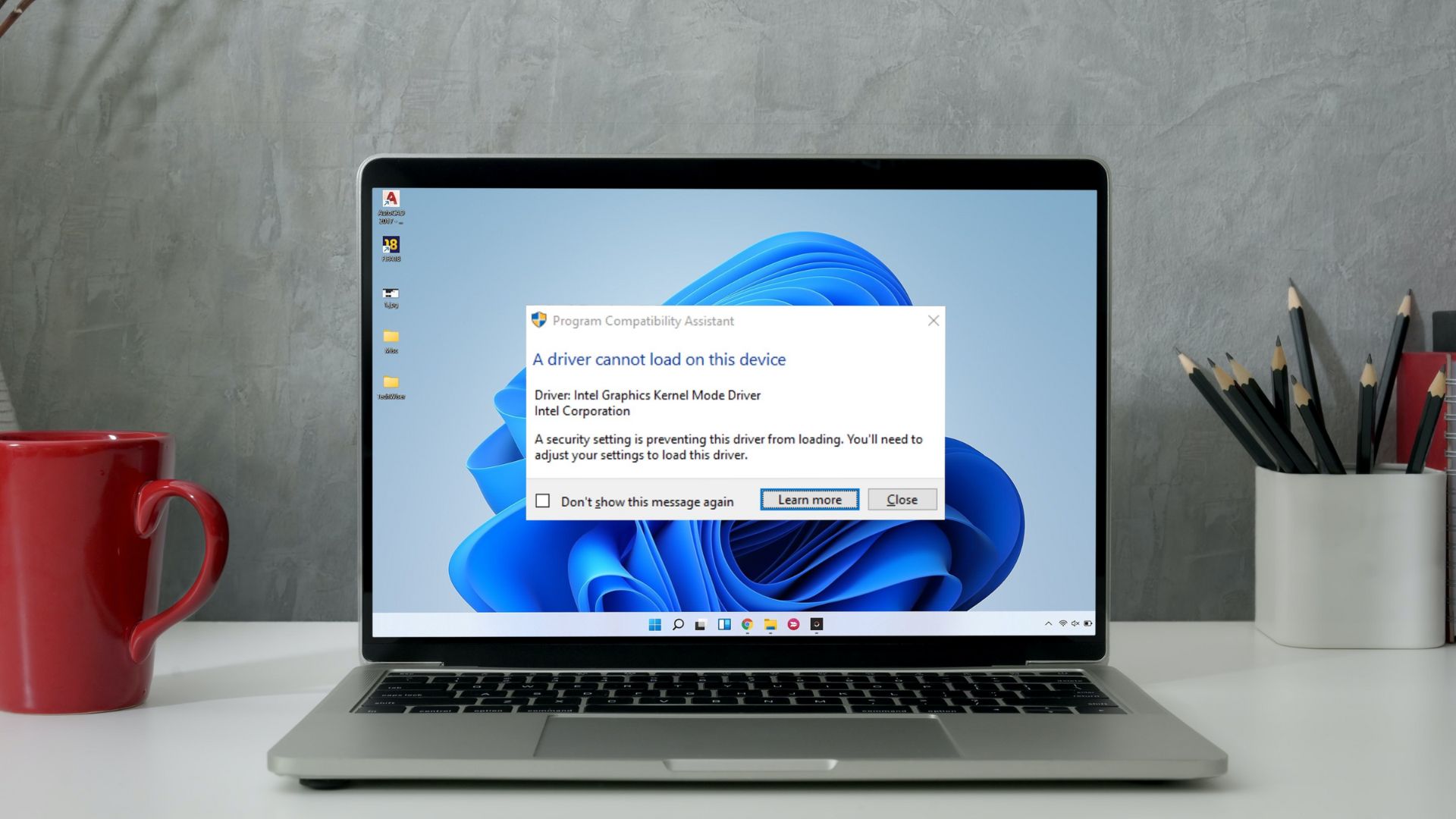 5 Ways to Fix “A Driver Cannot Load on This Device” Error on Windows 11
Fix 1: Update the Problematic Driver If a driver is incompatible, Windows may fail to load it.
5 Ways to Fix “A Driver Cannot Load on This Device” Error on Windows 11
Fix 1: Update the Problematic Driver If a driver is incompatible, Windows may fail to load it.
 4 Ways to Fix Unable to Load Video or Photo Error on iPhone
Basic Fixes Turn off Low Power Mode: Unless your iPhone is running really low on battery, it's best to turn off Low Power Mode since it limits background activities like
4 Ways to Fix Unable to Load Video or Photo Error on iPhone
Basic Fixes Turn off Low Power Mode: Unless your iPhone is running really low on battery, it's best to turn off Low Power Mode since it limits background activities like
 Top 7 Ways to Fix Google Docs Unable to Load File Issue
Google Docs is one of the popular word-processing software out there.
Top 7 Ways to Fix Google Docs Unable to Load File Issue
Google Docs is one of the popular word-processing software out there.
The article above may contain affiliate links which help support Guiding Tech. The content remains unbiased and authentic and will never affect our editorial integrity.