Basic Fixes
- Log in again to your Facebook account: This will load all your chats and preferences again in the Facebook Messenger app.
- Force quit and relaunch: Depending on your device, we suggest force quitting and relaunching the app to give it a fresh start.
- Update Messenger app: Install the latest version of the app to get rid of bugs.
Fix 1: Check Privacy and Security Settings
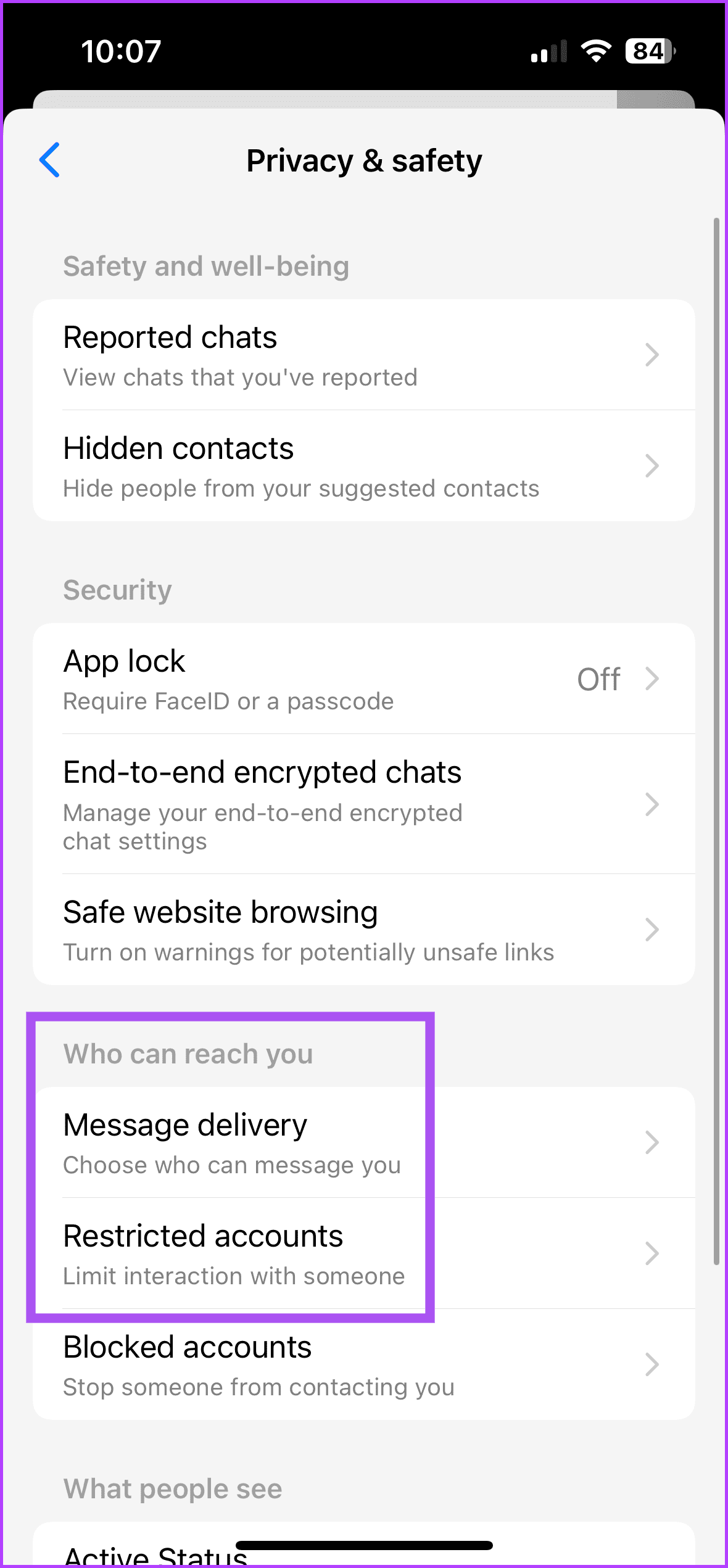
You can first start by checking the account privacy settings in the Facebook Messenger app. You may have selected a preference that is leading to Messenger Reactions not working. Here’s how to check the same.
Open the Messenger app > Settings > Privacy and Security > check all settings for your account.

Fix 2: Reset Custom Emoji
Facebook Messenger lets you select your custom emoji for reacting to messages. You can reset your custom emoji.
Step 1: Open Facebook Messenger on your iPhone or Android.
Step 2: Open a chat with your friend and then long-press on any message to access message reactions.
Step 3: Tap the Plus icon next to the emoji reactions.
Step 4: Tap on Customize > Reset.

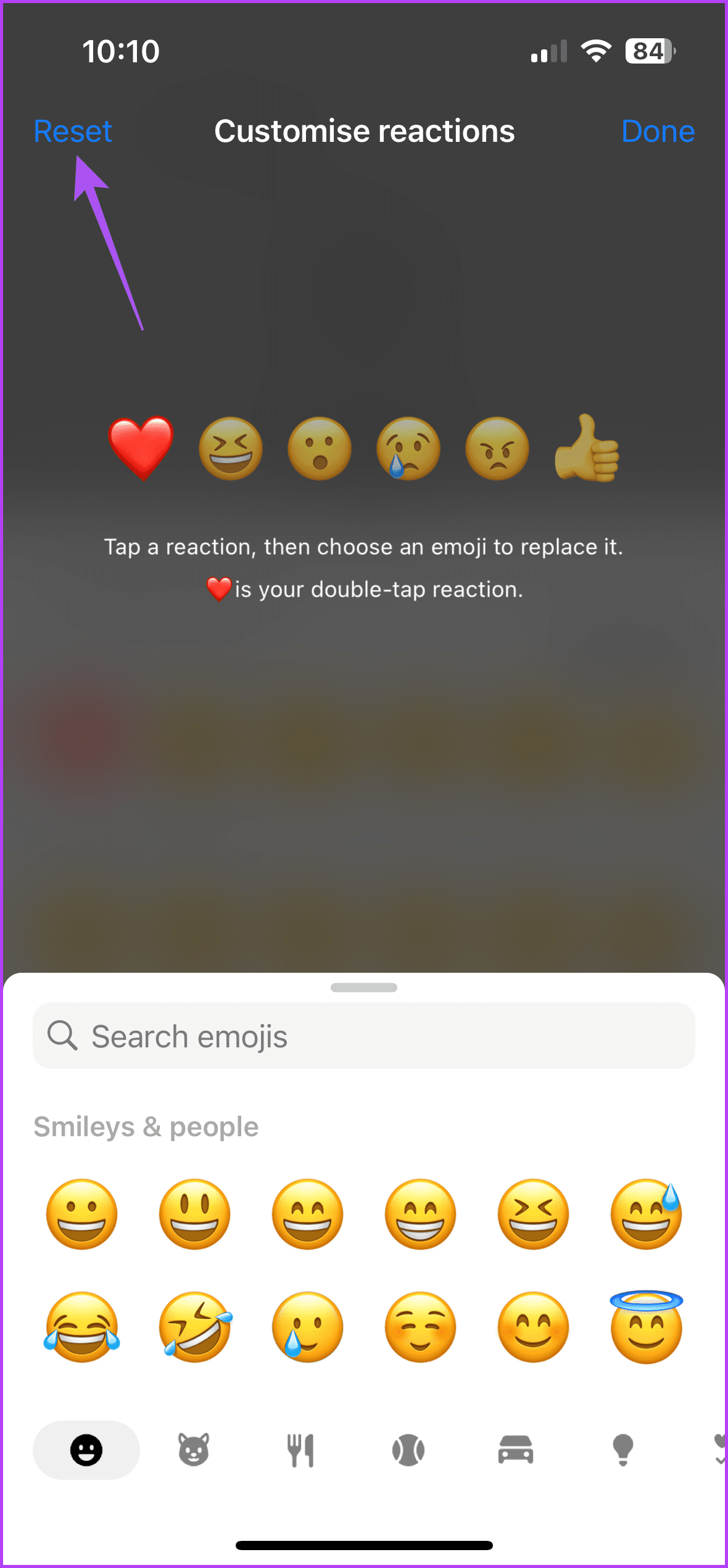
For Android, tap the Reset icon at the top.
Fix 3: Clear Facebook Messenger App Cache
You can clear the Facebook Messenger app cache that gets stored over some time to maximize your user experience. An outdated app cache can lead to such issues.
On iPhone
Open Settings > General > iPhone Storage > Messenger > Offload App > tap to confirm.


On Android
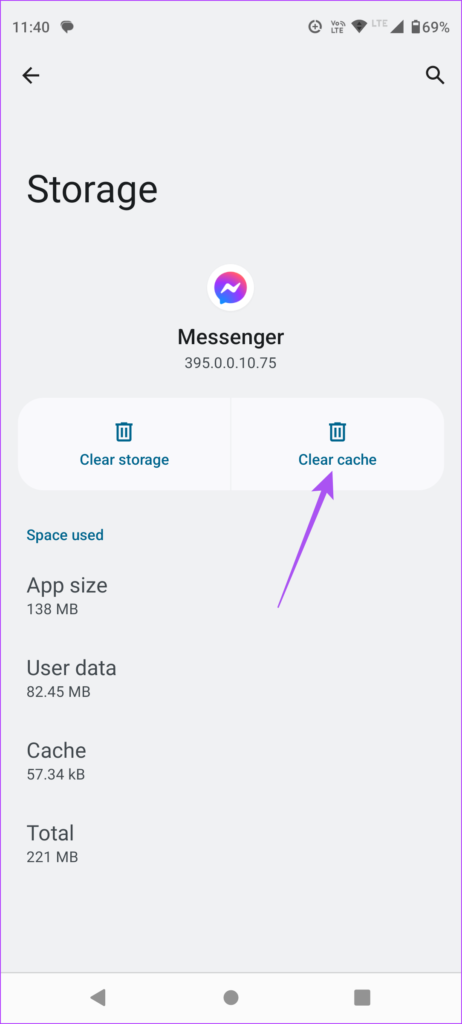
Open Messenger app info > Storage and cache > Clear cache.

Tip: The app also allows you to check Stories posted by your Facebook friends. But if that’s not the case, you can follow some troubleshooting methods to fix this issue.
Was this helpful?
Last updated on 05 September, 2024
Read Next
 How to Change Quick and Double-tap Reactions on Messenger
How to React to Messages on Facebook Messager With Any Emoji It's very easy to react to messages on Facebook Messenger with any emoji.
How to Change Quick and Double-tap Reactions on Messenger
How to React to Messages on Facebook Messager With Any Emoji It's very easy to react to messages on Facebook Messenger with any emoji.
 3 Fixes for Message Reactions Not Working on Instagram
Basic Fixes Log in again to your profile: If you cannot react to messages on Instagram, you can log out and sign in again on your iPhone or Android.
3 Fixes for Message Reactions Not Working on Instagram
Basic Fixes Log in again to your profile: If you cannot react to messages on Instagram, you can log out and sign in again on your iPhone or Android.
 3 Fixes if Reactions Are Not Working on Google Messages
Basic Fixes Force quit and relaunch Google Messages: This will give the app a fresh start.
3 Fixes if Reactions Are Not Working on Google Messages
Basic Fixes Force quit and relaunch Google Messages: This will give the app a fresh start.
 3 Fixes for Facebook Messenger Not Working on Mac
Basic Fixes to Try If Facebook's Messenger is glitching on your MacBook, try the following basic fixes: Check your network connection.
3 Fixes for Facebook Messenger Not Working on Mac
Basic Fixes to Try If Facebook's Messenger is glitching on your MacBook, try the following basic fixes: Check your network connection.
 3 Fixes for Facebook Messenger Working Only on Wi-Fi
Basic Fixes Disable data saver: Depending on your device software, check and then disable data saver option.
3 Fixes for Facebook Messenger Working Only on Wi-Fi
Basic Fixes Disable data saver: Depending on your device software, check and then disable data saver option.
 4 Ways to Fix FaceTime Reactions (Gestures) Not Working
Basic Fixes Update iOS: Ensure your device is running on iOS 17 and above.
4 Ways to Fix FaceTime Reactions (Gestures) Not Working
Basic Fixes Update iOS: Ensure your device is running on iOS 17 and above.
 How to Use Animated Reactions in Zoom
Enable and Use Animated Reactions in Zoom on Desktop To start using Animated Reactions during Zoom calls, you must enable the feature in the Zoom app on your computer.
How to Use Animated Reactions in Zoom
Enable and Use Animated Reactions in Zoom on Desktop To start using Animated Reactions during Zoom calls, you must enable the feature in the Zoom app on your computer.
 How to Use Message Reactions in Telegram
https://youtu.be/_tWPPbvEwvI Use Message Reactions in Telegram on Mobile or Desktop Here's how to add emoji reactions to messages in the Telegram app on your mobile or desktop.
How to Use Message Reactions in Telegram
https://youtu.be/_tWPPbvEwvI Use Message Reactions in Telegram on Mobile or Desktop Here's how to add emoji reactions to messages in the Telegram app on your mobile or desktop.
The article above may contain affiliate links which help support Guiding Tech. The content remains unbiased and authentic and will never affect our editorial integrity.