

Try Basic Fixes
- Close and reopen the game: Sometimes, temporary glitches can cause your Facebook games to become unresponsive and stop working. Most of the time, you can fix such issues by closing the game and reopening it.
- Restart the browser: If closing and reopening the game doesn’t help, you can try restarting Chrome to fix any temporary issues with the browser. To do so, type chrome://restart in the URL box and press Enter. Wait for Chrome to reopen and check if your Facebook games are working.
Fix 1: Make Sure JavaScript Is Enabled
JavaScript is a popular programming language that allows websites to display interactive and dynamic content. If you have previously disabled JavaScript in Chrome, your Facebook games won’t load.
To enable JavaScript in Chrome:
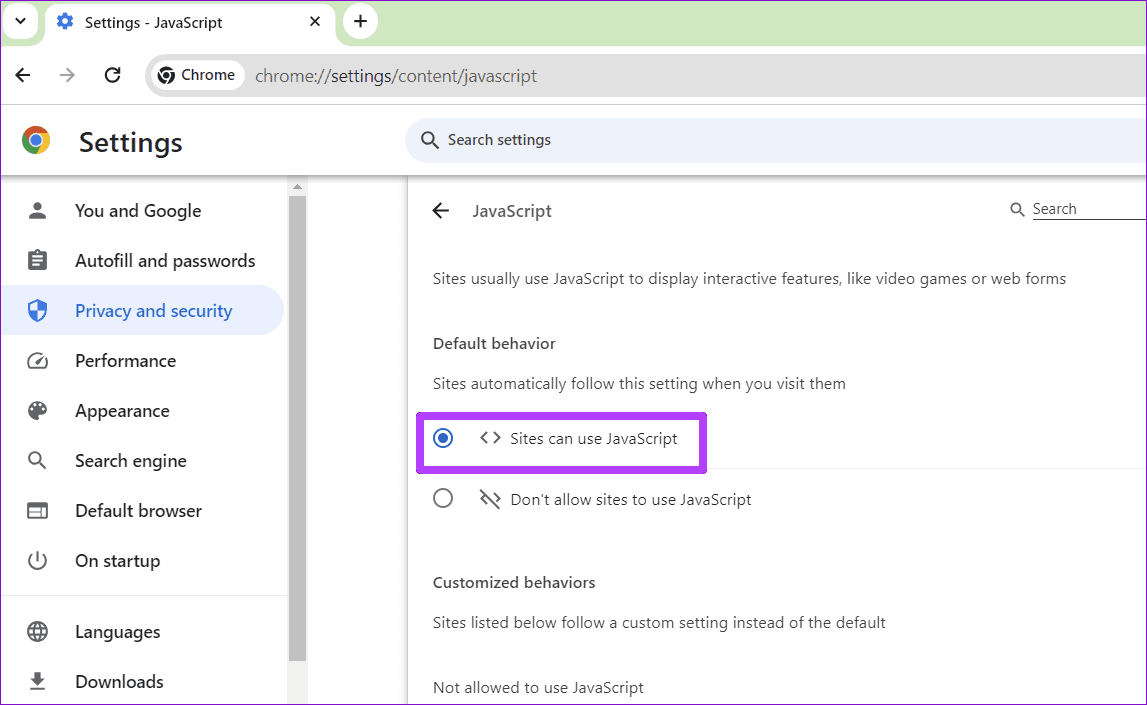
Step 1: In Google Chrome, type chrome://settings/content/javascript in the URL box at the top and hit Enter.
Step 2: Under Default behavior, select the Sites can use JavaScript option.
Fix 2: Disable Browser Extensions
Third-party browser extensions can sometimes interfere with Chrome processes and prevent it from loading content. For instance, using an extension to block ads or enhance your Facebook experience in any way, it may lead to problems. You can try disabling all the extensions in Chrome to see if that solves the problem.
In Chrome, type chrome://extensions in the address bar and press Enter. Then, use the toggles to turn off all the extensions one by one.
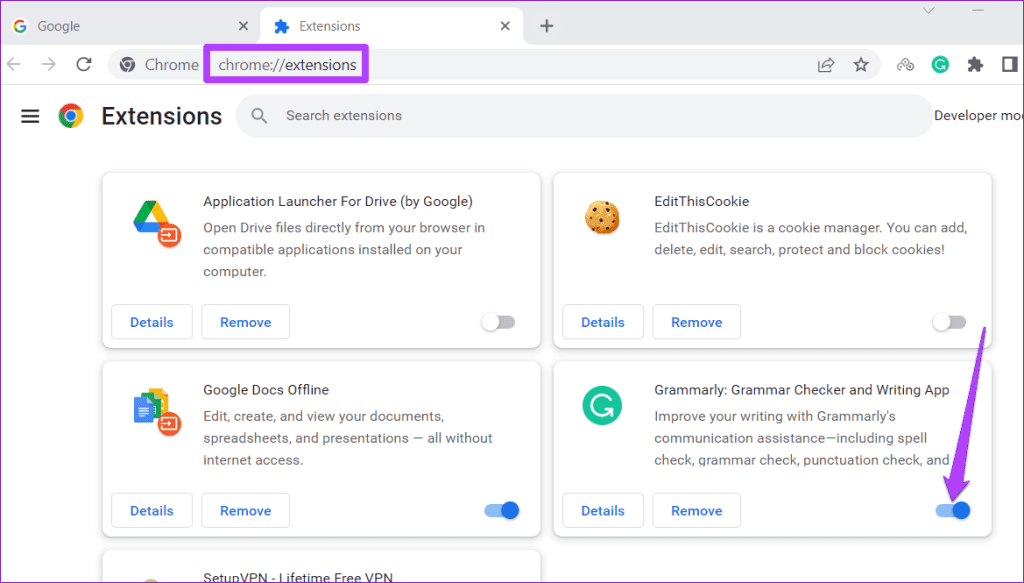
Restart Chrome one more time and try to load a game on Facebook. If this solves your problem, one of your extensions may be to blame. You will need to re-enable all the extensions one by one to isolate the one causing the problem. After that, consider removing the problematic extension.
Fix 3: Clear Browsing Data
Another reason why your Facebook games may not load or work in Chrome is if the existing browsing data has become corrupted. You can try purging the existing cache and cookies in Chrome to see if that gets things going again. Here’s how to do it.
Step 1: Open Google Chrome and press Ctrl + Shift + Delete to open the Clear browsing data panel.
Step 2: Tick the Cookies and other site data and Cached images and files options. Then, click the Clear data button.

Was this helpful?
Last updated on 04 July, 2024
1 Comment
Leave a Reply
Read Next
 How to Fix Facebook Not Loading in Google Chrome
Basic Fixes Try using Incognito Mode: This is a quick hack that enables faster loading of websites that don't launch in the standard browsing window.
How to Fix Facebook Not Loading in Google Chrome
Basic Fixes Try using Incognito Mode: This is a quick hack that enables faster loading of websites that don't launch in the standard browsing window.
 9 Best Ways to Fix Google Chrome Not Loading Pages in Windows 10
Google Chrome is one of the most used browsers in the world, no doubt.
9 Best Ways to Fix Google Chrome Not Loading Pages in Windows 10
Google Chrome is one of the most used browsers in the world, no doubt.
 7 Ways to Fix Images Not Loading in Google Chrome
Fix 1: Verify Site Settings To start, verify the content settings in Chrome and ensure websites are allowed to load images on your computer.
7 Ways to Fix Images Not Loading in Google Chrome
Fix 1: Verify Site Settings To start, verify the content settings in Chrome and ensure websites are allowed to load images on your computer.
 6 Ways to Fix Google Slides Not Loading in Chrome
Fix 1: Free Up Google Drive Storage Space Google Slides may fail to open a file and display errors like "Something went wrong" or "Sorry, the file you have requested
6 Ways to Fix Google Slides Not Loading in Chrome
Fix 1: Free Up Google Drive Storage Space Google Slides may fail to open a file and display errors like "Something went wrong" or "Sorry, the file you have requested
 How to Fix Epic Games Library Not Showing Games
Basic Fixes: Refresh Epic Games launcher library: A quick refresh can help fix any glitches keeping you from accessing your Epic Games Library.
How to Fix Epic Games Library Not Showing Games
Basic Fixes: Refresh Epic Games launcher library: A quick refresh can help fix any glitches keeping you from accessing your Epic Games Library.
 Top 4 Ways to Fix Facebook Not Loading in Safari
https://youtu.be/rIpRwwjzGtQ Basic Fixes Check Facebook server status - When facing server issues, Facebook won't load properly no matter the browser.
Top 4 Ways to Fix Facebook Not Loading in Safari
https://youtu.be/rIpRwwjzGtQ Basic Fixes Check Facebook server status - When facing server issues, Facebook won't load properly no matter the browser.
 3 Ways to Fix Facebook Comments Not Loading on Android and iPhone
Try Basic Fixes Check Facebook's server status: It’s not uncommon for Facebook servers to experience problems.
3 Ways to Fix Facebook Comments Not Loading on Android and iPhone
Try Basic Fixes Check Facebook's server status: It’s not uncommon for Facebook servers to experience problems.
 How to Uninstall Epic Games Launcher and Its Games
Things to Consider Before Uninstalling Games or Epic Games Launcher Before uninstalling Epic Games Launcher or the games in it, consider the following things: Backup game files: If you have
How to Uninstall Epic Games Launcher and Its Games
Things to Consider Before Uninstalling Games or Epic Games Launcher Before uninstalling Epic Games Launcher or the games in it, consider the following things: Backup game files: If you have
The article above may contain affiliate links which help support Guiding Tech. The content remains unbiased and authentic and will never affect our editorial integrity.

only 1 game in facebook doesnt work for me and others which I believe must be their problem I have played the game for 10 years and it hasnt loaded for 4 days now in the address bar it says not secure why??