Find the Facebook Dating Option
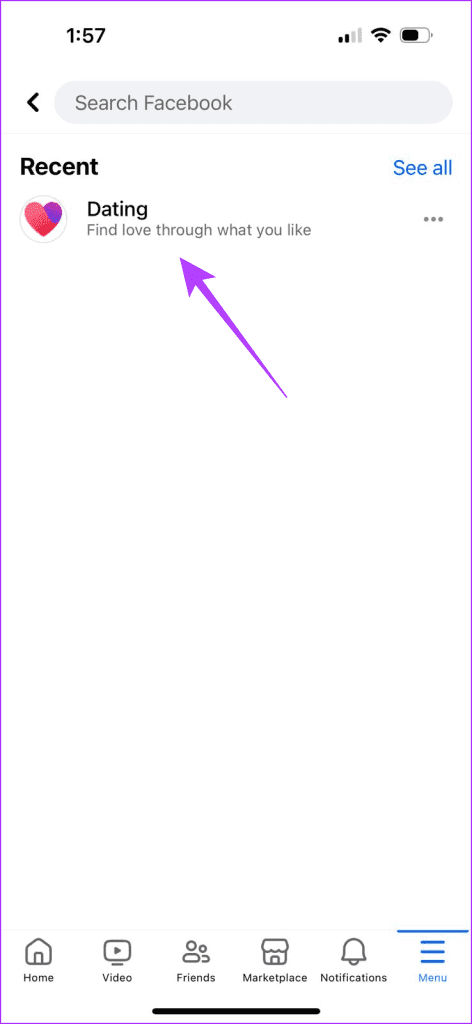
You can access Facebook Dating on your phone in a couple of ways. Start by searching ‘Facebook Dating’ in the search bar or tap its dedicated shortcut to access it.
Note: Facebook Dating isn’t available on the desktop and you can only access it in the Facebook app on your smartphone.
Open the Facebook app on your phone, select the Hamburger menu, and tap Dating. Create your dating profile to find a suitable match.

Requirements for Facebook Dating
You can use Facebook Dating to meet and match people with the same interests, adhering to the following requirements:
- You must be over 18 years of age and legally permitted to use Facebook services.
- Your Facebook account must be active and at least 30 days old.
- Ensure Facebook Dating is available in your country.
- Your Facebook Dating profile must follow Community Standards and can’t be promotional or contain commercial offers.
Fix Facebook Dating Not Working or Showing Up
If Facebook Dating isn’t working or showing up despite its availability in your region, use the following fixes to restore and use it seamlessly.
Basic Fixes
- Disable VPN: Disconnect your active connection from the VPN app and reload Facebook to find the Dating option.
- Force close and reopen Facebook: An existing glitch in the Facebook app might prevent you from using its Dating feature. Swipe up from the bottom screen of your phone to switch apps and slide up the Facebook card to force close it. Reopen the Facebook app.
- Update or reinstall the Facebook app: Open the Google Play Store or Apple App Store, search Facebook, and tap Update (if available). Alternatively, uninstall the app and install it afresh.
Fix 1: Enable Location Permissions for Facebook
You should enable location permissions to let the Facebook app detect your whereabouts and show its Dating feature.
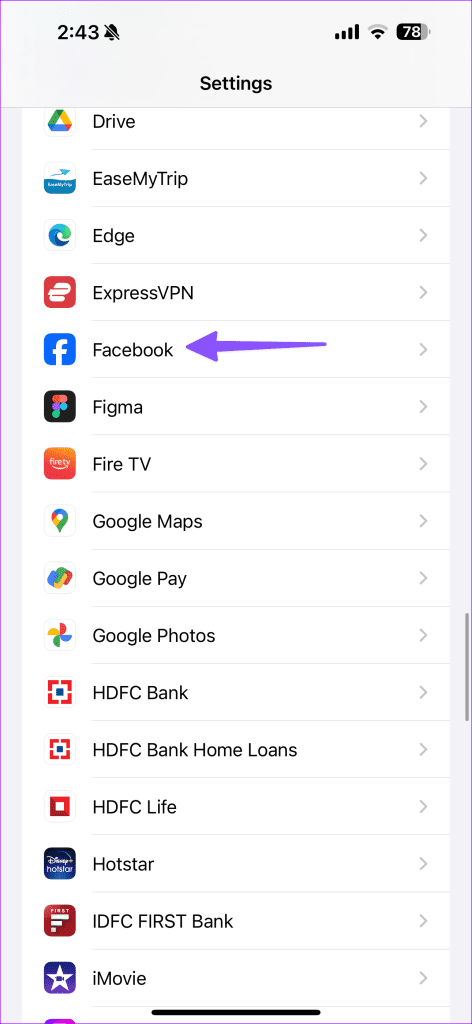
On iOS: Open iPhone Settings, select Apps > Facebook, tap Location, and enable the Precise Location toggle along with ‘While Using the App‘.


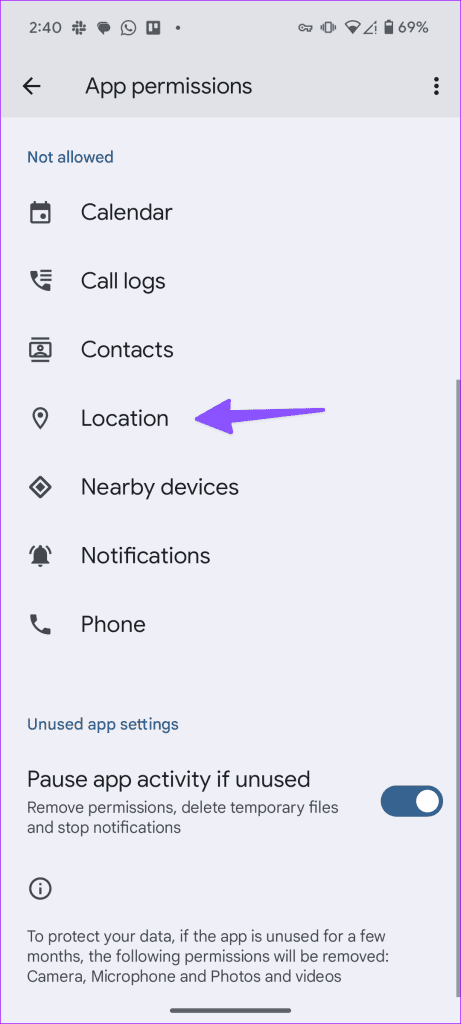
On Android: Long-tap the Facebook app icon to open its App info, select Permissions, tap Location, and set it to ‘Allow only while using the app‘.


Fix 2: Clear the Facebook Cache (Android)
A corrupt app cache can malfunction the Facebook app creating issues in viewing its Dating option. Clear the Facebook app cache manually and retry locating Facebook Dating.
Long-tap the Facebook app icon to open its App info, select Storage and cache, and tap Clear cache.


Fix 3: Offload the Facebook App (iOS)
Unlike Android, iOS doesn’t allow clearing the Facebook app cache manually. Instead, you can offload and reinstall the Facebook app to find its Dating feature.
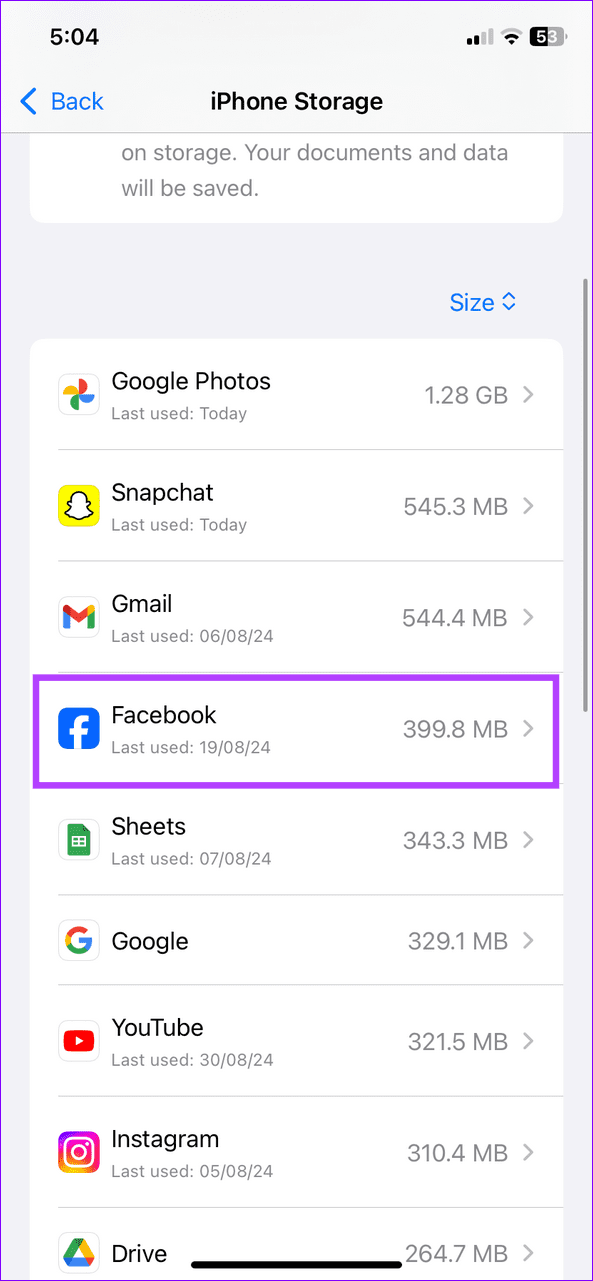
Step 1: Open the Settings app, select General, and tap iPhone Storage.


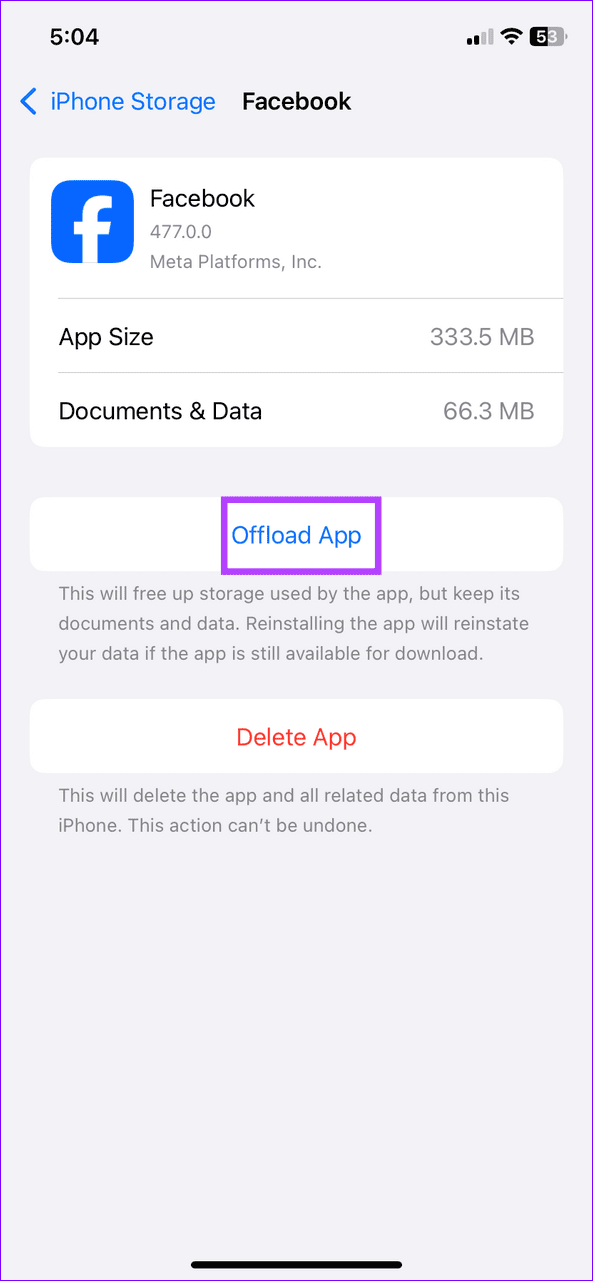
Step 2: Select Facebook and tap Offload App. Reinstall it from the Apple App Store and search Dating in the Facebook app.
Fix 4: Log Out and Sign Back In
Lastly, Facebook Dating may not work or show up due to account authentication issues. Log out from your Facebook account and sign back in to restore the Dating feature.
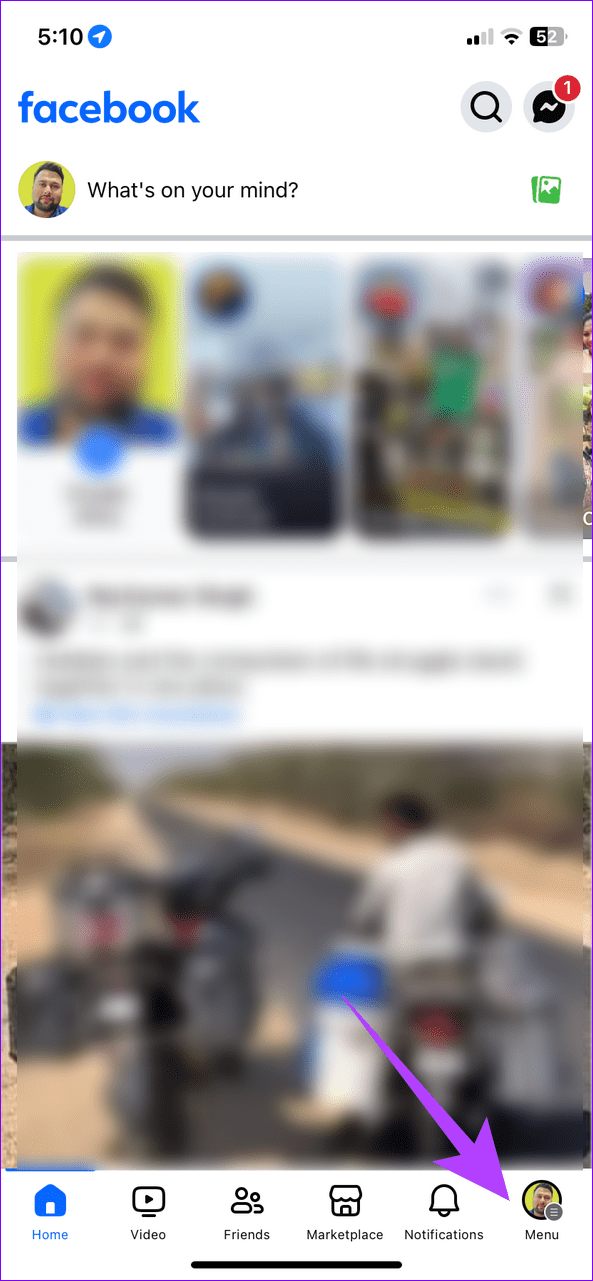
Step 1: Open the Facebook app on your iPhone and tap the Hamburger menu at the bottom right (top right on Android).
Step 2: Scroll down and select Log out. Once signed out, use your Facebook account credentials to log back in.

Was this helpful?
Last updated on 03 September, 2024
Read Next
 Top 4 Ways to Fix Facebook Messenger Not Showing Messages
Preliminary Fixes Check Messages Requests in Hidden Inbox: Sometimes, messages from people who are not on your friends list may not appear in your main inbox.
Top 4 Ways to Fix Facebook Messenger Not Showing Messages
Preliminary Fixes Check Messages Requests in Hidden Inbox: Sometimes, messages from people who are not on your friends list may not appear in your main inbox.
 How to Fix Facebook Messenger Story Not Showing on iPhone and Android
Why Can't I See Stories on Facebook Messenger Several factors can affect your story experience in Facebook Messenger.
How to Fix Facebook Messenger Story Not Showing on iPhone and Android
Why Can't I See Stories on Facebook Messenger Several factors can affect your story experience in Facebook Messenger.
 Top 4 Ways to Fix Facebook Marketplace Not Showing All Listings
Preliminary Fixes Check the Network Connection: A stable and reliable internet connection is crucial for loading all content on Facebook Marketplace.
Top 4 Ways to Fix Facebook Marketplace Not Showing All Listings
Preliminary Fixes Check the Network Connection: A stable and reliable internet connection is crucial for loading all content on Facebook Marketplace.
 Top 4 Ways to Fix Facebook Messenger Not Showing Active Status
https://youtu.be/BQ7VyEtSDlI Preliminary Fixes The Person Has Disabled Active Status: If the person whose active status you’re trying to see has disabled their active status, you won't be able to see
Top 4 Ways to Fix Facebook Messenger Not Showing Active Status
https://youtu.be/BQ7VyEtSDlI Preliminary Fixes The Person Has Disabled Active Status: If the person whose active status you’re trying to see has disabled their active status, you won't be able to see
 Top 5 Ways to Fix Facebook Not Showing Reels on Mobile
https://youtu.be/Jgtj4Z-2Dzs Preliminary Fixes Check the Network Connection: Ensuring a stable network connection is crucial for loading content on Facebook, including Reels.
Top 5 Ways to Fix Facebook Not Showing Reels on Mobile
https://youtu.be/Jgtj4Z-2Dzs Preliminary Fixes Check the Network Connection: Ensuring a stable network connection is crucial for loading content on Facebook, including Reels.
 Top 4 Ways to Fix Facebook Not Showing Friends Post
Why Am I Not Seeing Friend's Posts in My Facebook Feed Let's first understand how the Facebook feed algorithm works.
Top 4 Ways to Fix Facebook Not Showing Friends Post
Why Am I Not Seeing Friend's Posts in My Facebook Feed Let's first understand how the Facebook feed algorithm works.
 How to Fix Facebook Memories Not Showing
Basic Fixes Force stop the Facebook app and reopen: Swipe up from your phone's screen bottom to switch apps and slide up the Facebook card to force close it.
How to Fix Facebook Memories Not Showing
Basic Fixes Force stop the Facebook app and reopen: Swipe up from your phone's screen bottom to switch apps and slide up the Facebook card to force close it.
 4 Ways to Fix Facebook Marketplace Messages Not Showing up in Messenger
Basic Fixes Check your network connection: Ensure your device has a good internet connection.
4 Ways to Fix Facebook Marketplace Messages Not Showing up in Messenger
Basic Fixes Check your network connection: Ensure your device has a good internet connection.
The article above may contain affiliate links which help support Guiding Tech. The content remains unbiased and authentic and will never affect our editorial integrity.