Fix 1: Disable Extensions
A misbehaving or poorly optimized extension can prevent Chrome or Edge from loading websites at times, triggering the Err_Empty_Response error. To check for this possibility, you can temporarily disable all browser extensions.
Type chrome://extensions/ (Chrome) or edge://extensions/ (Edge) in your browser’s address bar at the top and press Enter. Then, turn off the toggles to disable various extensions.
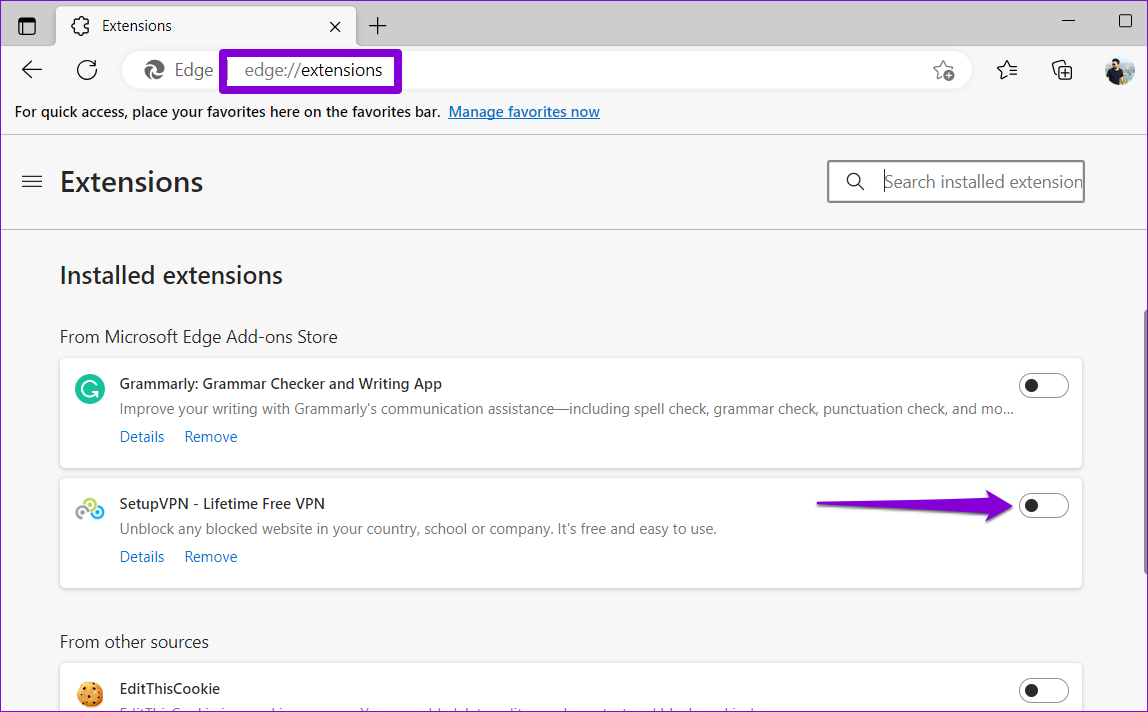
Once done, restart Chrome or Edge and check if the websites load fine. If they do, it means one of the extensions you disabled was the culprit. To find out which extension was causing the problem, you can re-enable your extensions one by one. Once you find the problematic extension, remove it from your browser.
Fix 2: Clear Browsing Data
Clearing cache and cookies is an effective way to fix most browser-related errors, including this one. Doing so will help you get rid of old or corrupt browser files that may be causing the problem.
Open the Clear browsing data panel in Chrome or Edge by pressing Ctrl + Shift + Delete on your keyboard. Click the drop-down menu to select All time. Tick the Cookies and other site data and Cached images and files checkboxes before clicking the Clear data button.

Fix 3: Clear DNS Cache
Chrome and Edge, like most browsers, store DNS cache to enhance performance and reduce the time it takes to access websites. If this data has become inaccessible for some reason, you could experience problems. To fix this, you can try clearing the existing DNS cache in Chrome or Edge using these steps:
Step 1: Launch Google Chrome or Edge, type the address given below, and press Enter.
chrome://net-internals/#dns
edge://net-internals/#dns
Step 2: Click the Clear host cache button.

Restart your browser and try loading websites again. If the error persists, you can consider clearing the DNS cache on your Windows PC.
Fix 4: Switch to a Different DNS Server
Issues with the default DNS server provided by your ISP (Internet Service Provider) can also cause such errors. If that’s the case, switching to a different DNS server should help.
Change DNS Server in Google Chrome
Step 1: Open Google Chrome, type chrome://settings/security in the URL bar at the top, and press Enter.
Step 2: Under Advanced, enable the Use secure DNS option. Select the With option, then select a custom DNS server from the drop-down menu.

Change DNS Server in Microsoft Edge
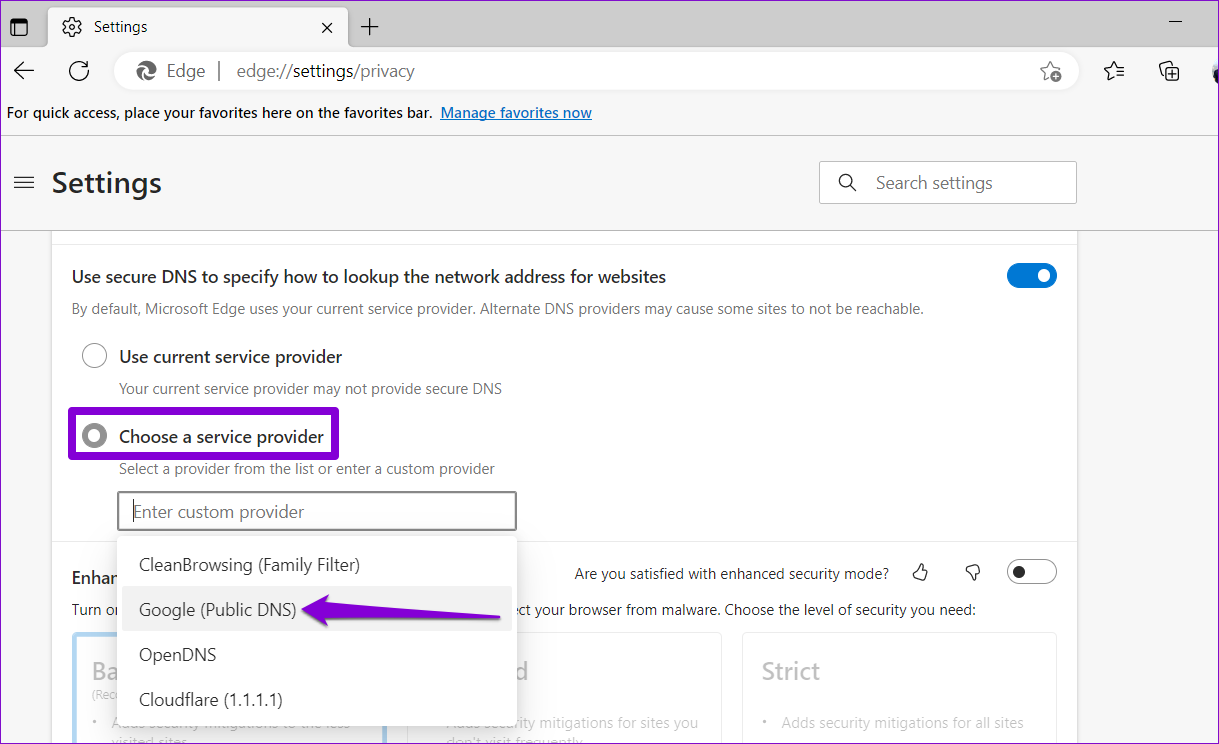
Step 1: Open Microsoft Edge, type edge://settings/privacy in the URL bar at the top, and press Enter. Then, scroll down to the Security section.
Step 2: Select the Choose a service provider option and pick any DNS of your liking.
Fix 5: Reset TCP/IP Configuration
The Internet Protocol (or TCP/IP) is a core component that helps Windows connect to the Internet. Naturally, if there’s an issue with it, browsers like Chrome and Edge won’t be able to load pages. To fix this, try resetting TCP/IP on Windows using these steps:
Step 1: Click the search icon on the taskbar, type in cmd, and click on Run as administrator.
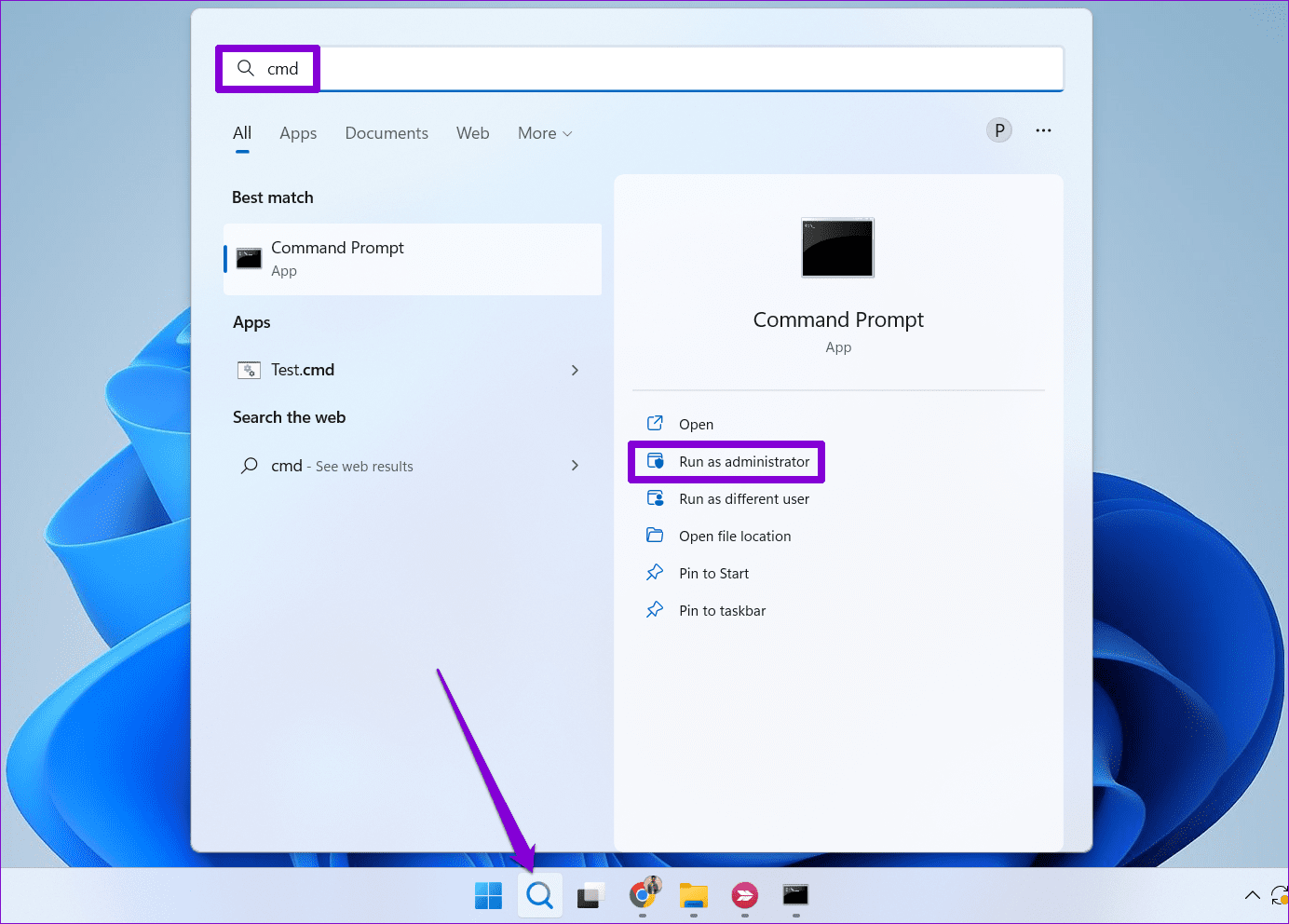
Step 2: Run the following commands one by one and press Enter after each.
netsh winsock reset
netsh int ip reset

Was this helpful?
Last updated on 14 August, 2024
Read Next
 How to Use the Edge Bar in Microsoft Edge on Windows 11
How to Enable Edge Bar in Microsoft Edge Step 1: Launch Microsoft Edge on your PC > click the three-dot menu icon at the top right > select Settings.
How to Use the Edge Bar in Microsoft Edge on Windows 11
How to Enable Edge Bar in Microsoft Edge Step 1: Launch Microsoft Edge on your PC > click the three-dot menu icon at the top right > select Settings.
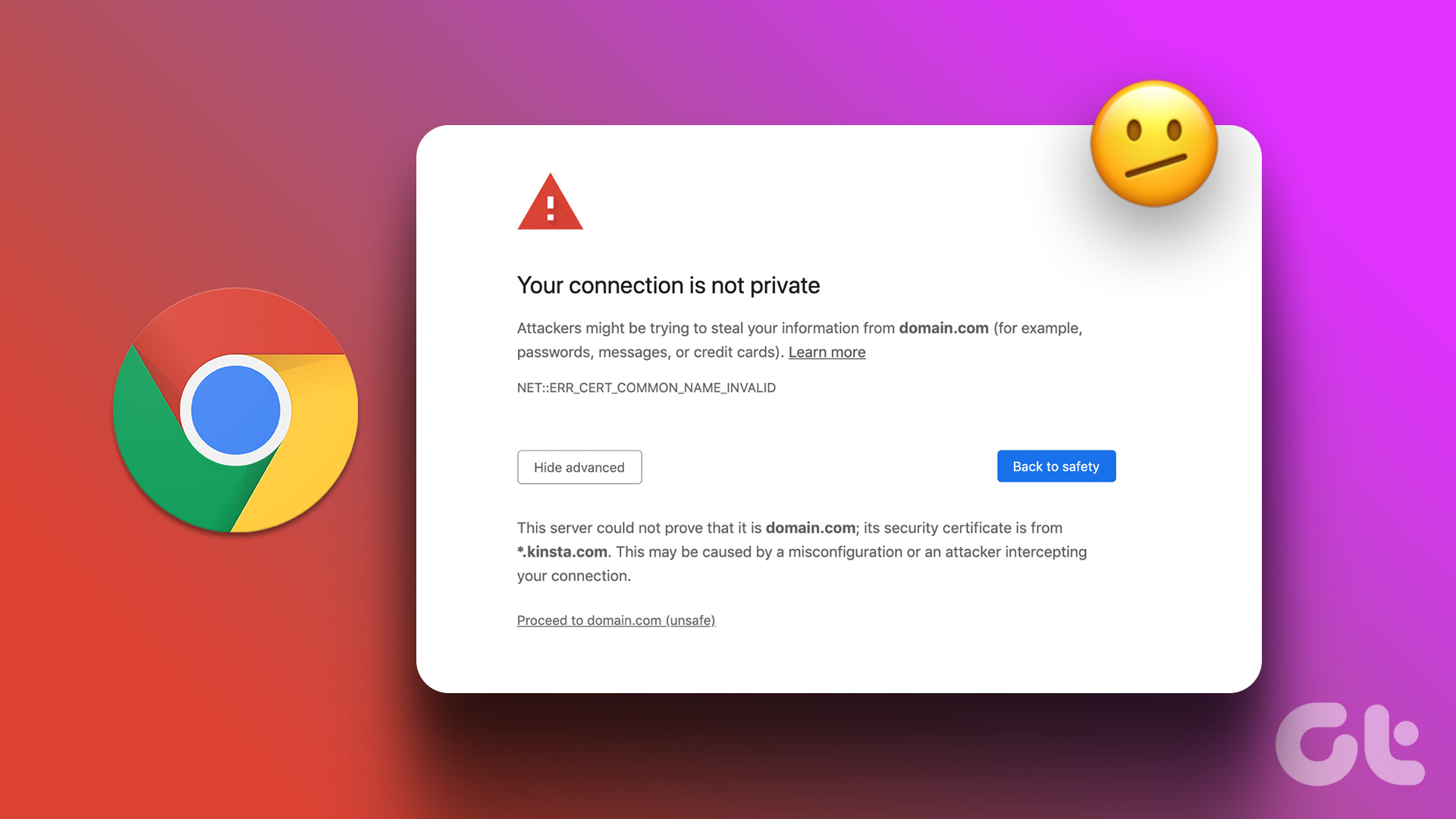 5 Fixes for “Your Connection Is Not Private” Error in Google Chrome
Try Basic Fixes Switch to a different network: If you use a public Wi-Fi connection at a restaurant, mall, or airport that runs on the HTTP protocol instead of HTTPS,
5 Fixes for “Your Connection Is Not Private” Error in Google Chrome
Try Basic Fixes Switch to a different network: If you use a public Wi-Fi connection at a restaurant, mall, or airport that runs on the HTTP protocol instead of HTTPS,
 Top 9 Fixes For ‘There Is Something Wrong With the Proxy Server’ Error in Chrome
Proxy servers are useful when you need to hide your internet traffic from your ISP or connect to blocked websites.
Top 9 Fixes For ‘There Is Something Wrong With the Proxy Server’ Error in Chrome
Proxy servers are useful when you need to hide your internet traffic from your ISP or connect to blocked websites.
 What Is Caret Browsing in Chrome, Firefox, and Edge and How to Use It
You can highlight and copy text from browser pages using several ways besides using your mouse or trackpad.
What Is Caret Browsing in Chrome, Firefox, and Edge and How to Use It
You can highlight and copy text from browser pages using several ways besides using your mouse or trackpad.
 How to Install Chrome Extensions in Microsoft Edge
Method 1: Getting Extensions Straight From the Chrome Store You may install extensions straight from the Chrome Store after installing Microsoft Edge on your computer.
How to Install Chrome Extensions in Microsoft Edge
Method 1: Getting Extensions Straight From the Chrome Store You may install extensions straight from the Chrome Store after installing Microsoft Edge on your computer.
 How to Change or Fake Location in Chrome, Edge, and Firefox
Method 1: Use a VPN to Fake Your Location in Chrome, Edge, and Firefox VPN makes your private network truly private when you connect to its servers.
How to Change or Fake Location in Chrome, Edge, and Firefox
Method 1: Use a VPN to Fake Your Location in Chrome, Edge, and Firefox VPN makes your private network truly private when you connect to its servers.
 4 Ways to Fix Profile Error in Microsoft Edge
Fix 1: Delete the Web Data File Such errors in Microsoft Edge can also occur if the "Web Data" file stored on your PC becomes corrupted.
4 Ways to Fix Profile Error in Microsoft Edge
Fix 1: Delete the Web Data File Such errors in Microsoft Edge can also occur if the "Web Data" file stored on your PC becomes corrupted.
 5 Fixes for the Connection for This Site Is Not Secure on Edge on Windows
Basic Fixes Use the InPrivate window: Click on the three-dots icon at the top right, and open an InPrivate window.
5 Fixes for the Connection for This Site Is Not Secure on Edge on Windows
Basic Fixes Use the InPrivate window: Click on the three-dots icon at the top right, and open an InPrivate window.
The article above may contain affiliate links which help support Guiding Tech. The content remains unbiased and authentic and will never affect our editorial integrity.