


Fix 1: Check the Do Not Disturb Schedule
Step 1: Swipe up from the home screen to open the app drawer menu.
Step 2: Open the Settings app and tap Notifications.
Step 3: Tap Do Not Disturb under the General section.
Step 4: Tap Schedules.


Step 5: Check your schedules from the following menu. Tap on one of the active or unwanted schedules.
Step 6: You can edit days, start time, end time, or even delete the schedule.


Fix 2: Disable Do Not Disturb During Bedtime
Step 1: Open Settings on your Android phone.
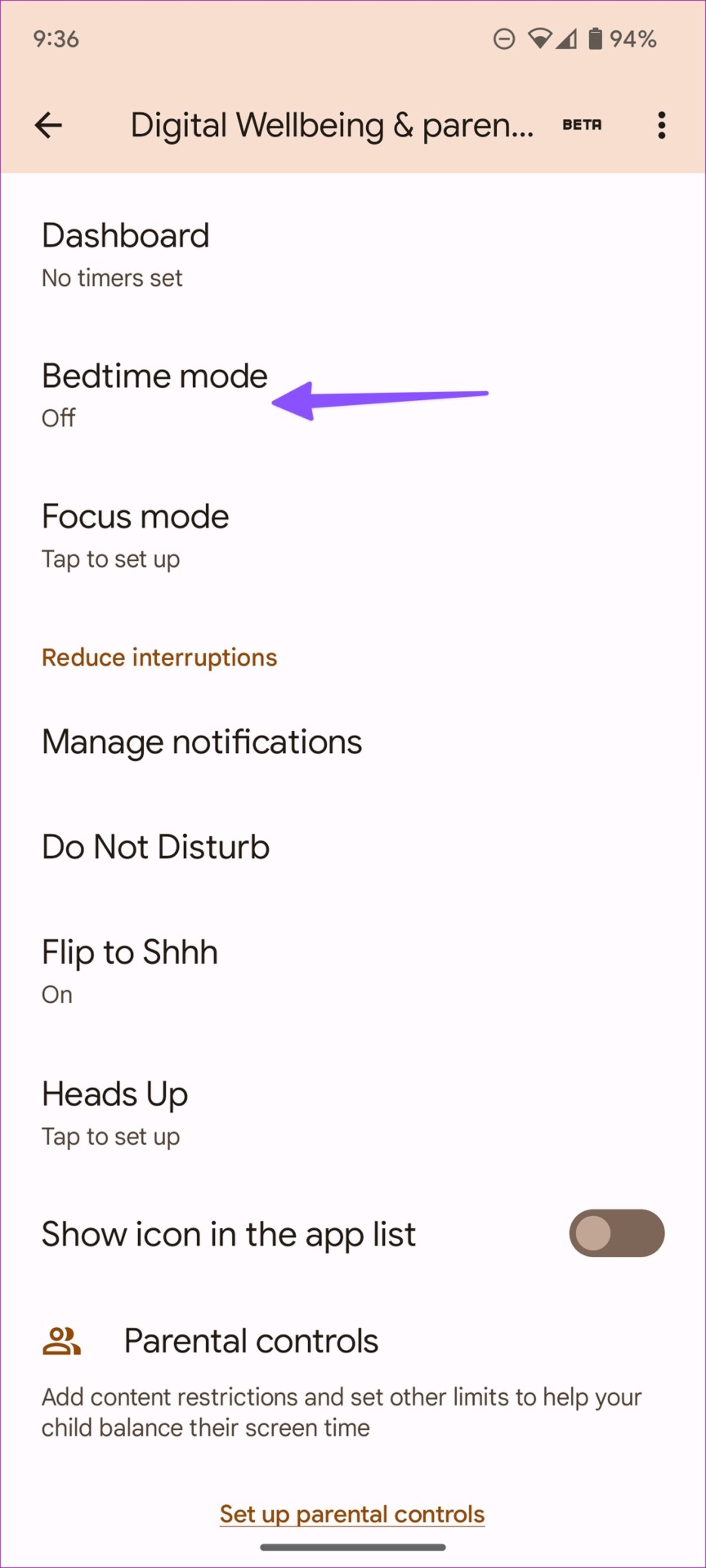
Step 2: Scroll down and tap on Digital Wellbeing & parental controls.
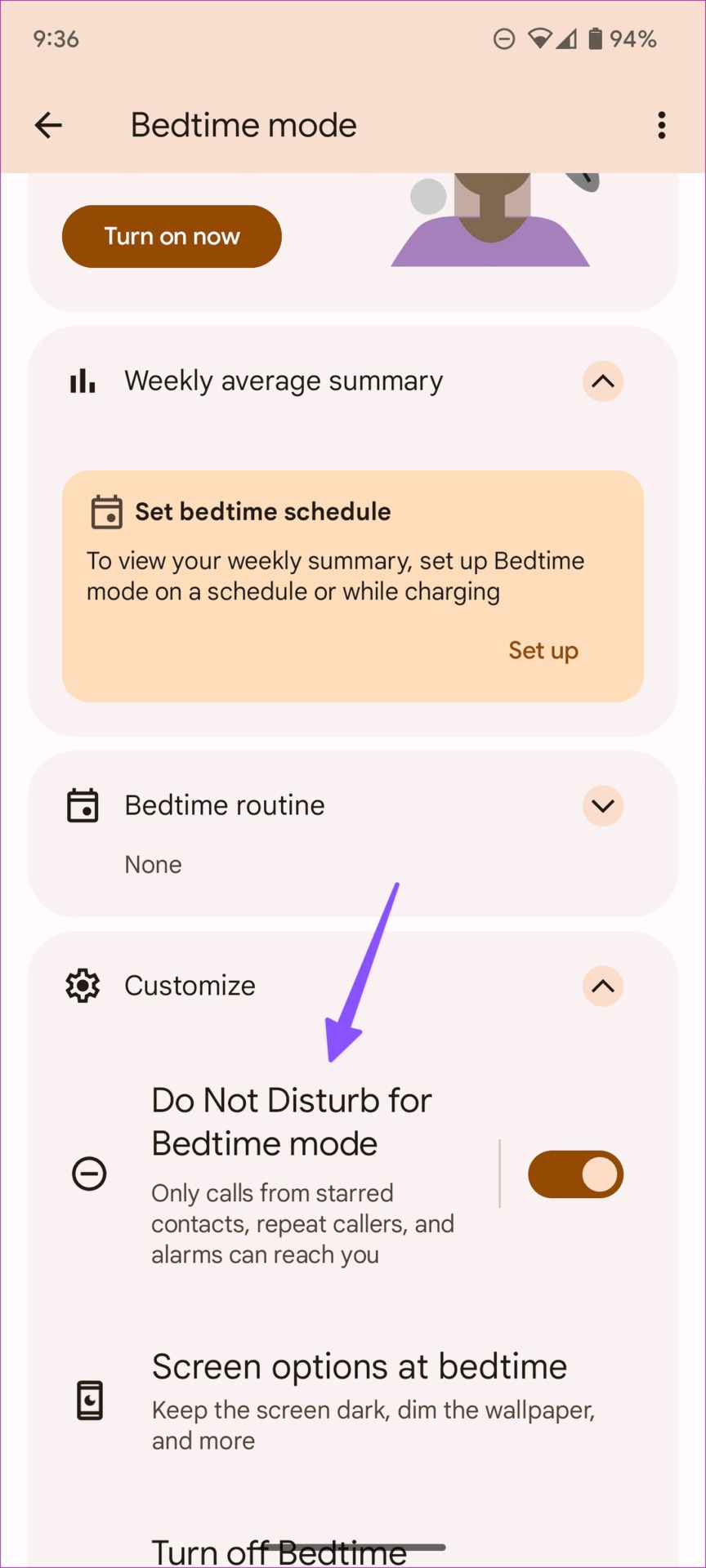
Step 3: Tap Bedtime mode and expand the Customize menu.
Step 4: Turn off the toggle next to disable the Do Not Disturb for Bedtime mode.
Fix 3: Turn off Focus Mode
Step 1: Open Digital Wellbeing & parental controls in the Settings (refer to the steps above).
Step 2: Tap Focus mode.
Step 3: Disable Focus mode or exclude relevant apps from it.


Fix 4: Disable Flip to Shhh (Pixel Phones)
Flip to Shhh is a neat Android add-on for Pixel phones that automatically enables Do Not Disturb when you put your phone face down. While the features come in handy, you may accidentally trigger it.
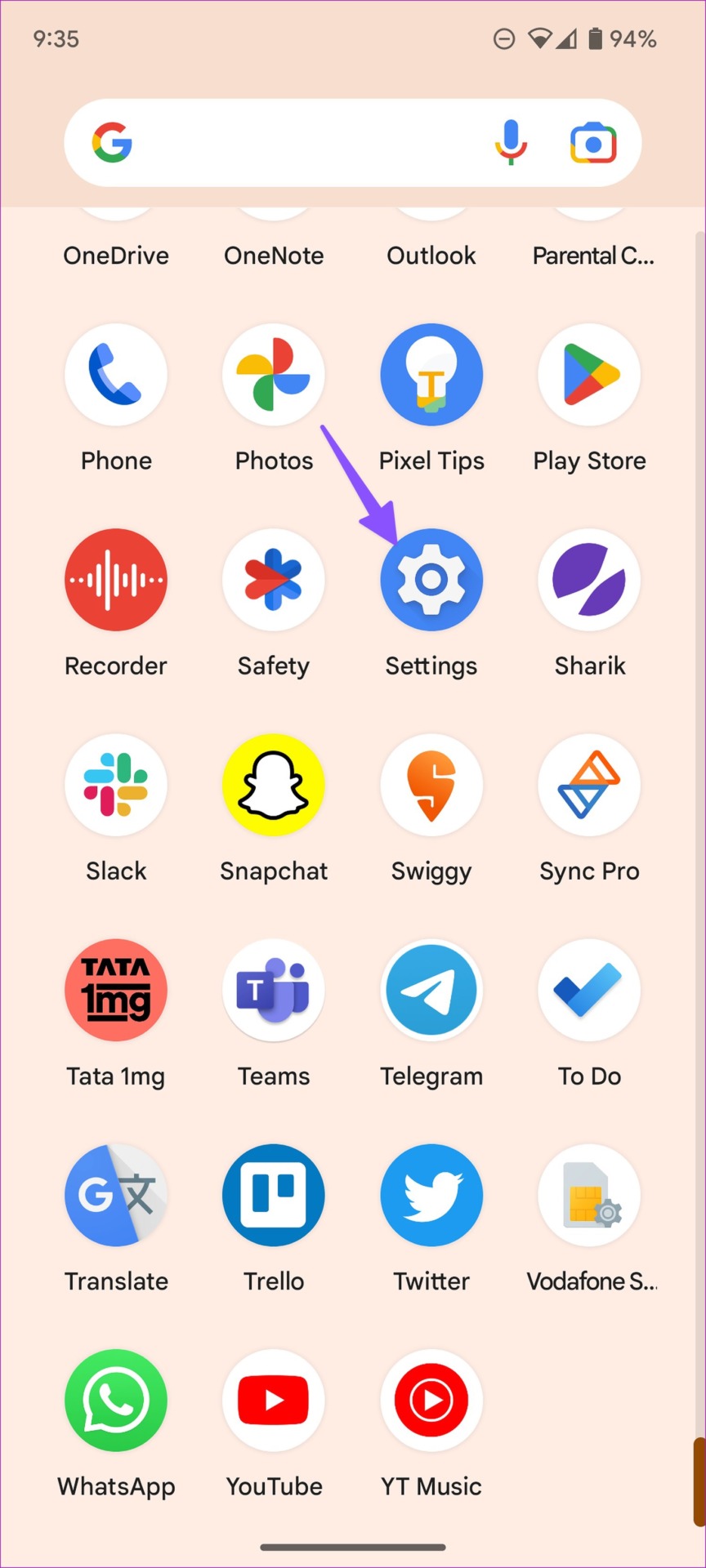
Step 1: Open the Settings app with a familiar gear icon.
Step 2: Tap Notifications.

Step 3: Tap Do Not Disturb under the General section.
Step 4: Tap Schedules.
Step 4: Tap on Flip to Shhh and turn off the toggle for the feature.


Fix 5: Disable Do Not Disturb While Gaming or Driving
Most users don’t prefer to be disturbed by constant alerts while playing their favorite games or driving. The system automatically enables Do Not Disturb while gaming on Android or when connected to your car Bluetooth. Follow the steps below to disable such behavior.
Step 1: Open the Settings app with a familiar gear icon.
Step 2: Tap Notifications.
Step 3: Tap Do Not Disturb under the General section.
Step 4: Tap Schedules.
Step 5: Turn off the toggle next to Gaming or Driving.

After this, Do Not Disturb won’t turn on itself while you play games on Android or while driving.
While the Do Not Disturb option works well for specific activities, it need not be turned on automatically. You may follow the solutions above to prevent that from happening.
Was this helpful?
Last updated on 26 July, 2024
3 Comments
Leave a Reply
Read Next
 5 Ways to Fix Do Not Disturb Turning on Itself on Windows 11
Common Fixes Disable Do Not Disturb from the Notification Shade: Select the Notification bell at the rightmost end of the Windows Taskbar and click the blue Do Not Disturb button
5 Ways to Fix Do Not Disturb Turning on Itself on Windows 11
Common Fixes Disable Do Not Disturb from the Notification Shade: Select the Notification bell at the rightmost end of the Windows Taskbar and click the blue Do Not Disturb button
 4 Ways to Fix Do Not Disturb Turning on Automatically on iPhone
Fix 1.
4 Ways to Fix Do Not Disturb Turning on Automatically on iPhone
Fix 1.
 5 Fixes if Spotify Starts Playing by Itself on Android and iPhone
Basic Fixes Update the Spotify app: Using an outdated version may lead to such unusual behavior.
5 Fixes if Spotify Starts Playing by Itself on Android and iPhone
Basic Fixes Update the Spotify app: Using an outdated version may lead to such unusual behavior.
 Top 7 Fixes for Apple Music Starts Playing by Itself on iPhone
Picture this: you're in an important meeting or a quiet library, and your iPhone is lying nearby.
Top 7 Fixes for Apple Music Starts Playing by Itself on iPhone
Picture this: you're in an important meeting or a quiet library, and your iPhone is lying nearby.
 3 Ways to Fix Android Hotspot Keeps Turning Off
Basic Fixes Disable Wi-Fi: The personal hotspot on your Android device will not work when Wi-Fi is enabled.
3 Ways to Fix Android Hotspot Keeps Turning Off
Basic Fixes Disable Wi-Fi: The personal hotspot on your Android device will not work when Wi-Fi is enabled.
 4 Ways to Fix Android Wi-Fi Not Turning on Issue
Basic Fixes: Enable and disable Airplane mode: Once enabled, Airplane mode disables all radio communications for your device.
4 Ways to Fix Android Wi-Fi Not Turning on Issue
Basic Fixes: Enable and disable Airplane mode: Once enabled, Airplane mode disables all radio communications for your device.
 5 Ways to Fix Android Phone Automatically Turning Down Volume
https://youtu.be/c3evW3GIp5w Basic Fixes Restart device: Restart your Android device to get rid of temporary bugs and glitches.
5 Ways to Fix Android Phone Automatically Turning Down Volume
https://youtu.be/c3evW3GIp5w Basic Fixes Restart device: Restart your Android device to get rid of temporary bugs and glitches.
 Why Is My iPhone and Android Phone Screen Turning Green and How to Fix It
Your iPhone or Android screen may sometimes turn green after installing a new OS version.
Why Is My iPhone and Android Phone Screen Turning Green and How to Fix It
Your iPhone or Android screen may sometimes turn green after installing a new OS version.
The article above may contain affiliate links which help support Guiding Tech. The content remains unbiased and authentic and will never affect our editorial integrity.

My do not disturb mode automatically turns on.
My phone tell me I have scheduled do not disturb timer but when I enter to see what timers are on it’s all empty.
Please help ????
Yes, I’m having the same problem with nothing scheduled on my do not disturb schedule. The do not disturb turns itself on. I didn’t realize the Android had so many flaws.
Please help!
How do I keep the Do Not Disturb from coming on randomly