Basic Fixes
- Minimize the full-screen mode via interaction keys: Click the Minimize or Fullscreen buttons at the top right of the Discord app window to disable its full-screen mode.
- Reconnect the gaming mouse: An issue with your connected gaming mouse can malfunction the Discord app, causing an indefinite full-screen mode. Disconnect it from your PC and plug it back in.
- Restart Windows Explorer: Restarting the Windows Explorer fixes most Discord app glitches, preventing you from exiting its full-screen mode.
- Update or reinstall the Discord app: Open the Microsoft Store, search Discord, and click Update (if available). Alternatively, uninstall the Discord app from Windows Settings > Apps > Installed apps, and install it afresh.
Fix 1: Force Close the Discord App and Reopen
If the Discord app is stuck in full-screen mode and isn’t responding to mouse or keyboard inputs, force closing the app should restore its normal functioning.
Step 1: Open the Task Manager app using the Ctrl + Shift + Esc shortcut, and select Processes from the left sidebar.
Step 2: Right-click the Discord app and select End task. Wait a few seconds and reopen Discord.

Fix 2: Use Windows Shortcuts
If the Minimize, Resize, or Close buttons are missing from the top-right corner of the full-sized Discord window, you can quickly exit full-screen mode using Windows keyboard shortcuts. Press the following keys simultaneously:
- Windows + Up arrow key: Switches the active window to the full-screen mode.
- Windows + Down arrow key: Minimizes the active window.
- Windows + Left/Right arrow key: Moves the active window to the left or right direction, respectively.
Fix 3: Change the Mouse DPI
Lastly, if you’re using a gaming mouse with the Discord app and can’t exit its full-screen mode, try adjusting the mouse DPI settings. If your mouse doesn’t support DPI adjustments, access Windows settings to change the mouse sensitivity.
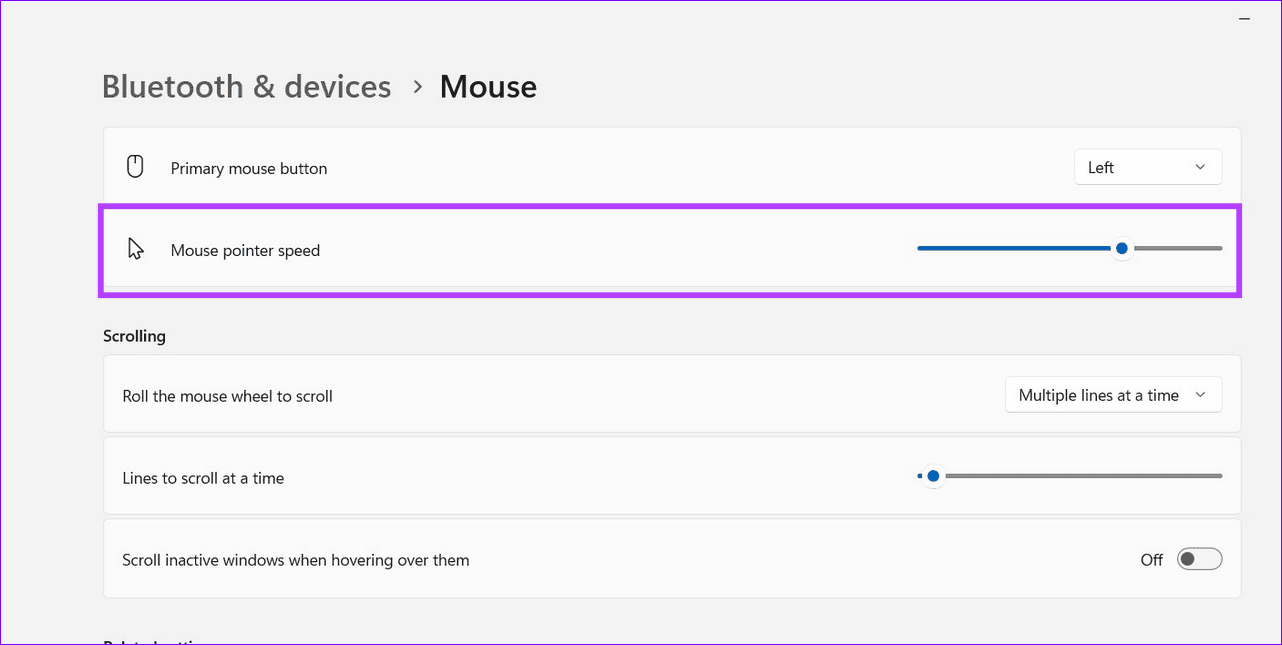
Step 1: Press the Windows + I shortcut to open Settings, select Bluetooth & devices from the left sidebar, and click Mouse.

Step 2: Drag the Mouse pointer speed bar to adjust it and reopen the Discord app.
Was this helpful?
Last updated on 12 August, 2024
Read Next
 5 Ways to Fix Windows Stuck in Airplane Mode
Try Basic Fixes Restart Windows: Restarting any device can fix most temporary issues where a process gets stuck.
5 Ways to Fix Windows Stuck in Airplane Mode
Try Basic Fixes Restart Windows: Restarting any device can fix most temporary issues where a process gets stuck.
 3 Fixes for Windows 11 Stuck in Safe Mode
Fix 1: Use System Configuration System Configuration is a utility used to define how your PC starts up and which programs and services run with it.
3 Fixes for Windows 11 Stuck in Safe Mode
Fix 1: Use System Configuration System Configuration is a utility used to define how your PC starts up and which programs and services run with it.
 8 Ways to Fix Windows 11 Stuck in Airplane Mode
Basic Fixes: Restart Windows 11: Restarting your device regularly can help keep it running smoothly.
8 Ways to Fix Windows 11 Stuck in Airplane Mode
Basic Fixes: Restart Windows 11: Restarting your device regularly can help keep it running smoothly.
 3 Ways to Fix Discord Stuck on Checking for Updates
Preliminary Fixes Restart your PC: This will stop all the running background processes in Discord from working properly and allow you to check again.
3 Ways to Fix Discord Stuck on Checking for Updates
Preliminary Fixes Restart your PC: This will stop all the running background processes in Discord from working properly and allow you to check again.
 3 Ways to Fix iPad Stuck in Headphone Mode
Basic Fixes: Turn Bluetooth off: Your iPad may be connected to some Bluetooth device, which can cause it to show that headphones are connected.
3 Ways to Fix iPad Stuck in Headphone Mode
Basic Fixes: Turn Bluetooth off: Your iPad may be connected to some Bluetooth device, which can cause it to show that headphones are connected.
 5 Fixes for Android Phone Stuck in Safe Mode
Try Basic Fixes Restart your phone: Restarting your Android is the most straightforward method for disabling Safe Mode.
5 Fixes for Android Phone Stuck in Safe Mode
Try Basic Fixes Restart your phone: Restarting your Android is the most straightforward method for disabling Safe Mode.
 How to Play Discord Games Using Discord Activities
What Are Discord Games?
How to Play Discord Games Using Discord Activities
What Are Discord Games?
 10 Ways to Fix Windows Update Stuck at 100% Issue
Keeping your Windows device up-to-date ensures you get access to the latest features and bug fixes.
10 Ways to Fix Windows Update Stuck at 100% Issue
Keeping your Windows device up-to-date ensures you get access to the latest features and bug fixes.
The article above may contain affiliate links which help support Guiding Tech. The content remains unbiased and authentic and will never affect our editorial integrity.