Basic Fixes
- Force restart your iPhone: Press and quickly release the Volume Up button followed by Volume Down. Press and hold the Side button and release when the Apple logo shows up.
- Check for screen damage: Ensure your iPhone screen is intact and responding to your touch inputs.
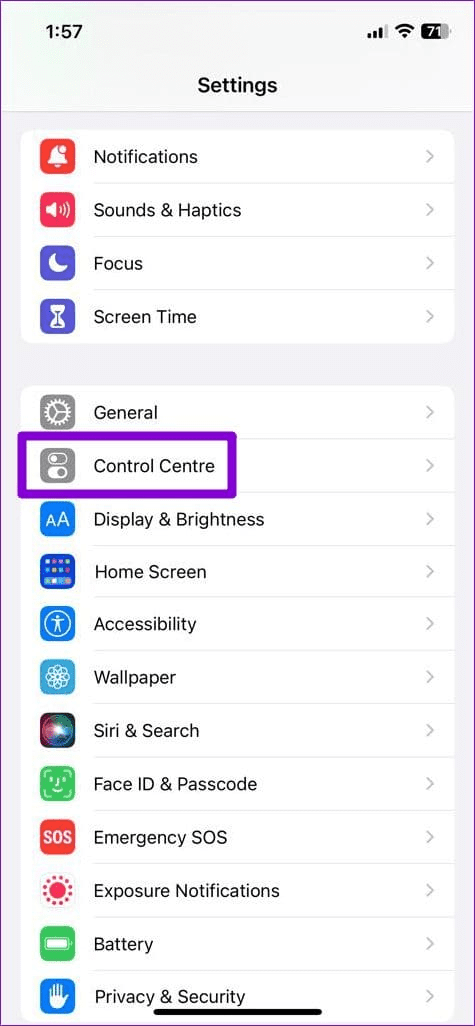
- Remove and add the Control Centre items: Open iPhone Settings, select Control Center, and tap the red minus button to remove each control. To add them back, tap the green plus button.
- Update iOS: Head to Settings > General > Software Update, and tap Install (if available) to update iOS.
Fix 1: Enable Control Center When the iPhone Is Locked
If you’ve disabled Control Center from your iPhone’s lock screen for security reasons, you can’t access it when your iPhone is locked. Turn it off to restore its normal functioning.
Step 1: Open the Settings app > select Face ID & Passcode > type your device passcode when prompted.
Step 2: Scroll down and enable the Control Center toggle under Allow Access When Locked section.



Fix 2: Enable the Control Center Access Within Apps
Are you unable to open Control Center while using apps on your iPhone? If so, its access within apps is likely disabled. Here’s how to turn it on:
Open iPhone settings, select Control Center, and toggle on Access Within Apps.

Fix 3: Disable VoiceOver
The VoiceOver feature on iPhone modifies on-screen gestures for visually impaired users. When active, the swipe-down gesture for opening the Control Center won’t work. Turn it off to restore the Control Center access.
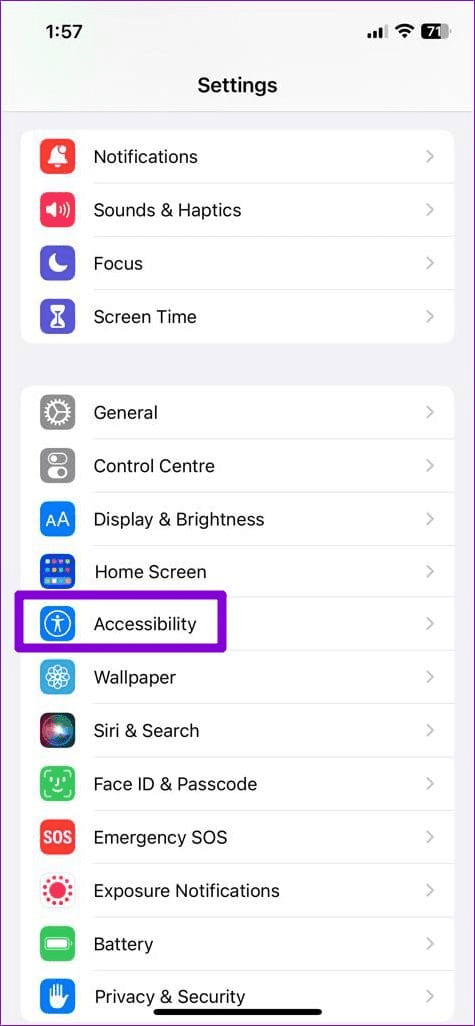
Step 1: Open the Settings app, select Accessibility, and tap VoiceOver.
Step 2: Toggle off VoiceOver to disable it.


Fix 4: Reset All Settings
Lastly, reset all settings on your iPhone to fix anomalies, creating issues opening the Control Center.
Step 1: Open iPhone Settings, select General, and tap Transfer or Reset iPhone.
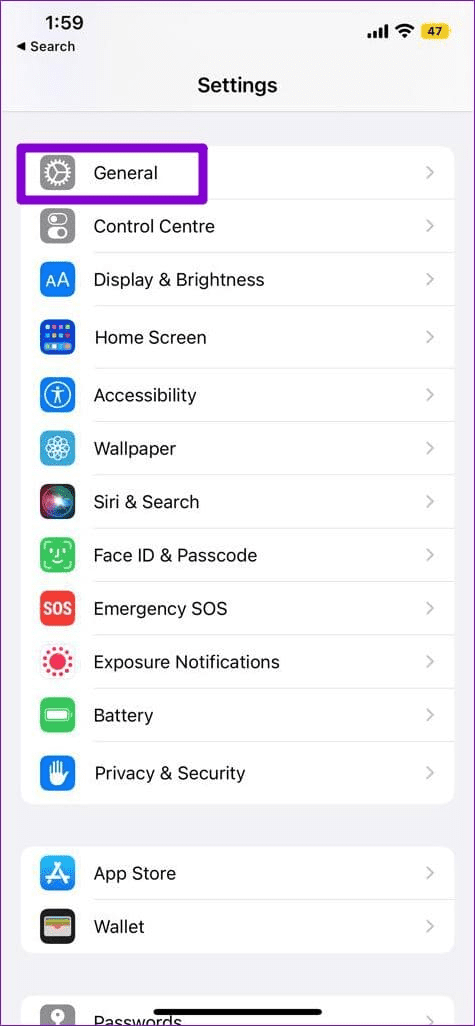

Step 2: Select Reset > tap on Reset All Settings. Confirm by typing your device passcode when prompted.


Was this helpful?
Last updated on 12 July, 2024
Read Next
 How to Disable Control Center on iPhone Lock Screen and Why
How to Disable Control Center on a Locked iPhone or iPad Deactivating the Control Center from the iPhone or iPad Lock Screen only requires a brief visit to the Settings
How to Disable Control Center on iPhone Lock Screen and Why
How to Disable Control Center on a Locked iPhone or iPad Deactivating the Control Center from the iPhone or iPad Lock Screen only requires a brief visit to the Settings
 10 Ways to Fix Action Center Not Visible or Showing on Taskbar in Windows 10
The Action Center is a notification center where you can view, interact with, and dismiss all Windows 10 notifications.
10 Ways to Fix Action Center Not Visible or Showing on Taskbar in Windows 10
The Action Center is a notification center where you can view, interact with, and dismiss all Windows 10 notifications.
 Top 7 Ways to Fix Bluetooth Missing From Action Center in Windows 10
In Windows 10, the Action Center offers a quick way to enable or disable Bluetooth.
Top 7 Ways to Fix Bluetooth Missing From Action Center in Windows 10
In Windows 10, the Action Center offers a quick way to enable or disable Bluetooth.
 3 Ways to Open Ease of Access Center on Windows 11
Method 1: Open Ease of Access Center Using Settings The Settings app incorporates the new Accessibility section, which neatly organizes all the features into categories.
3 Ways to Open Ease of Access Center on Windows 11
Method 1: Open Ease of Access Center Using Settings The Settings app incorporates the new Accessibility section, which neatly organizes all the features into categories.
 How to Fix Windows Security Center Is Turned off Error
The Windows Security Center comes preinstalled with all versions of Windows 10 computers.
How to Fix Windows Security Center Is Turned off Error
The Windows Security Center comes preinstalled with all versions of Windows 10 computers.
 What Is Action Center in Windows 10 and How to Use It
Have you been told to open the Action Center on your Windows 10 PC while troubleshooting it?
What Is Action Center in Windows 10 and How to Use It
Have you been told to open the Action Center on your Windows 10 PC while troubleshooting it?
 5 Ways to Fix Microsoft Authenticator Not Working on Android and iPhone
https://youtu.be/C7W_ykgaBOI Try Basic Fixes Update the app: The Microsoft Authenticator may not work properly if you are using an outdated version of the app.
5 Ways to Fix Microsoft Authenticator Not Working on Android and iPhone
https://youtu.be/C7W_ykgaBOI Try Basic Fixes Update the app: The Microsoft Authenticator may not work properly if you are using an outdated version of the app.
 4 Ways to Fix StandBy Mode Not Working on iPhone
https://youtu.be/yTncPBoavL0 Basic Fixes Restart iPhone: Restarting your iPhone closes all running services and can even squash temporary bugs.
4 Ways to Fix StandBy Mode Not Working on iPhone
https://youtu.be/yTncPBoavL0 Basic Fixes Restart iPhone: Restarting your iPhone closes all running services and can even squash temporary bugs.
The article above may contain affiliate links which help support Guiding Tech. The content remains unbiased and authentic and will never affect our editorial integrity.