Basic Fixes
- Check cellular data plan: Ensure your cellular plan is active and it allows you to use the internet on your iPhone.
- Turn on and off Airplane mode: This will help refresh the network and should fix cellular data problems. Alternatively, disable Wi-Fi, VPN, or mobile hotspot to see if it fixes the issue
- Check the date and time: If your iPhone has an incorrect date and time, you may experience issues accessing websites due to a mismatch between the site’s security certificate date and your device’s date, preventing internet connectivity.
- Check if your device is compatible with 5G: You can use 5G on an iPhone 12 or a newer model.
- Eject the SIM card: Consider ejecting and reinserting the SIM card to establish fresh network connectivity. This may help you fix problems with cellular data.
Fix 1: Select the Right Network
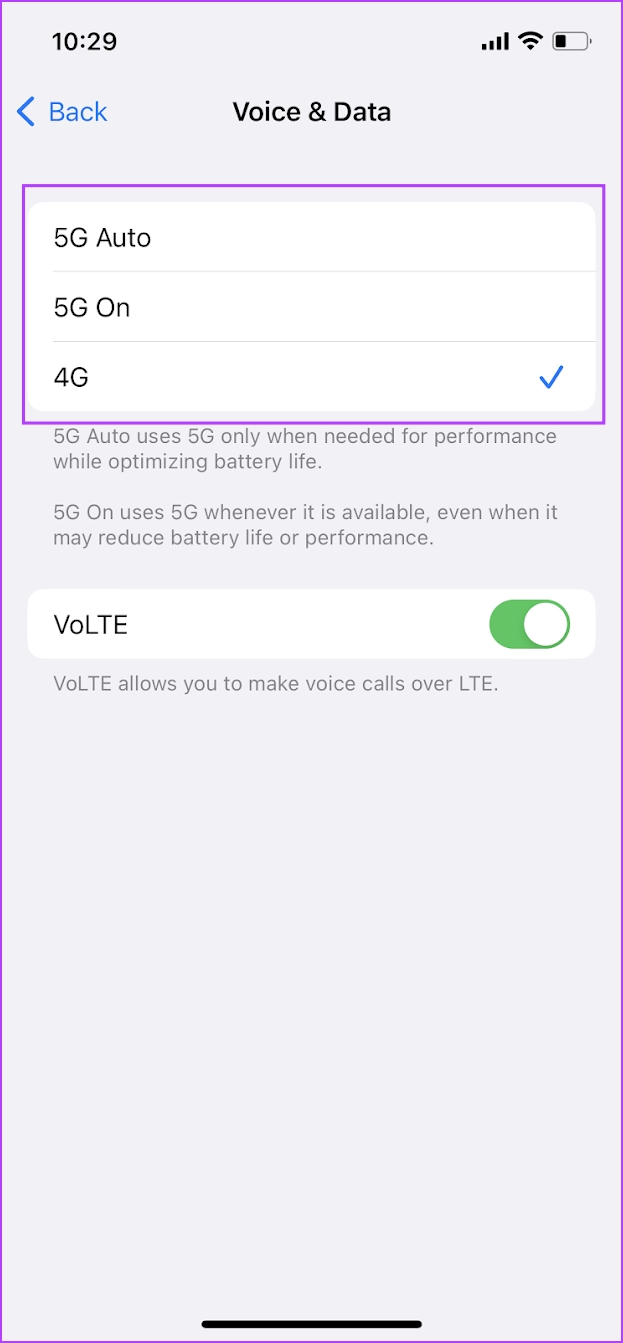
It is also possible that you are in a zone that usually does not have good network coverage. So, 5G on your iPhone or 4G LTE may not work as expected. Try switching to a lower-tier network.
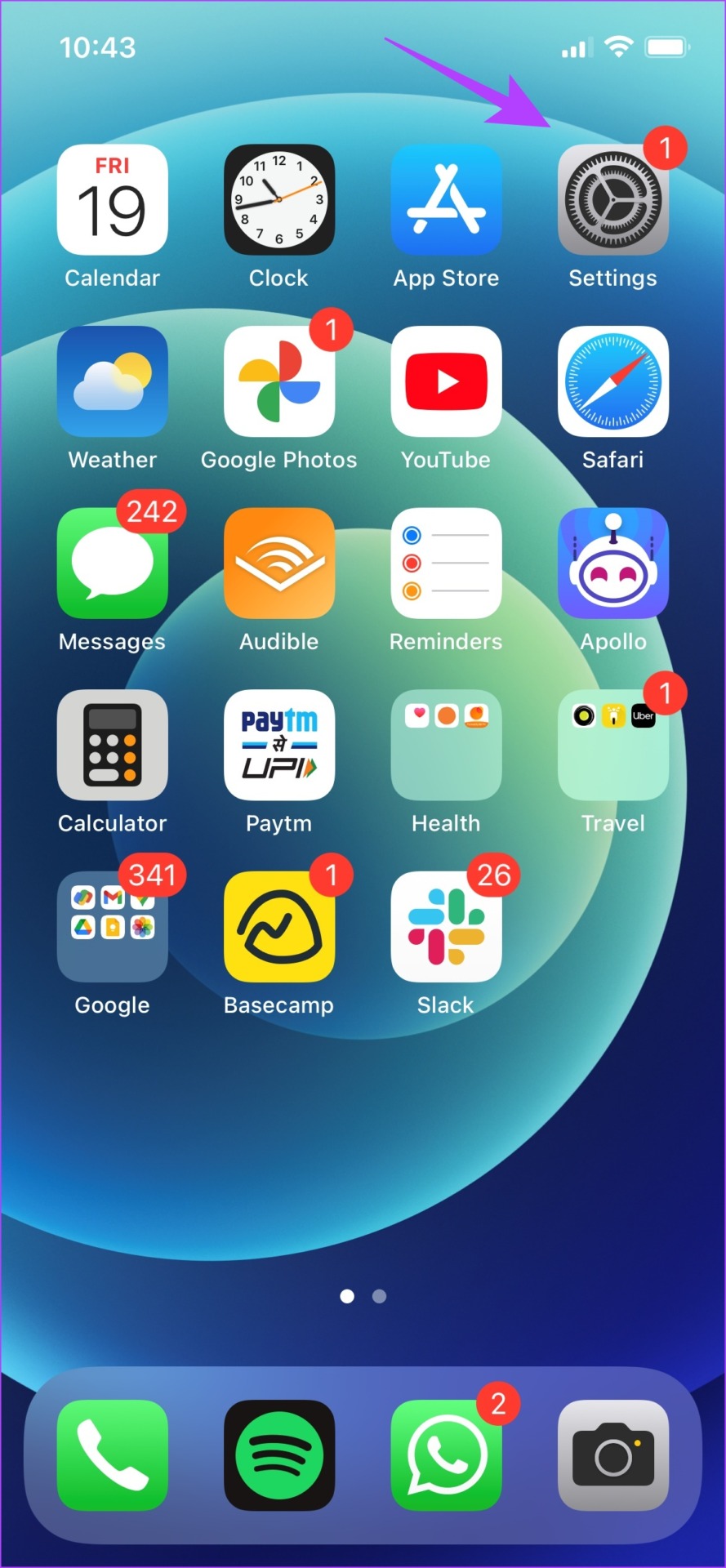
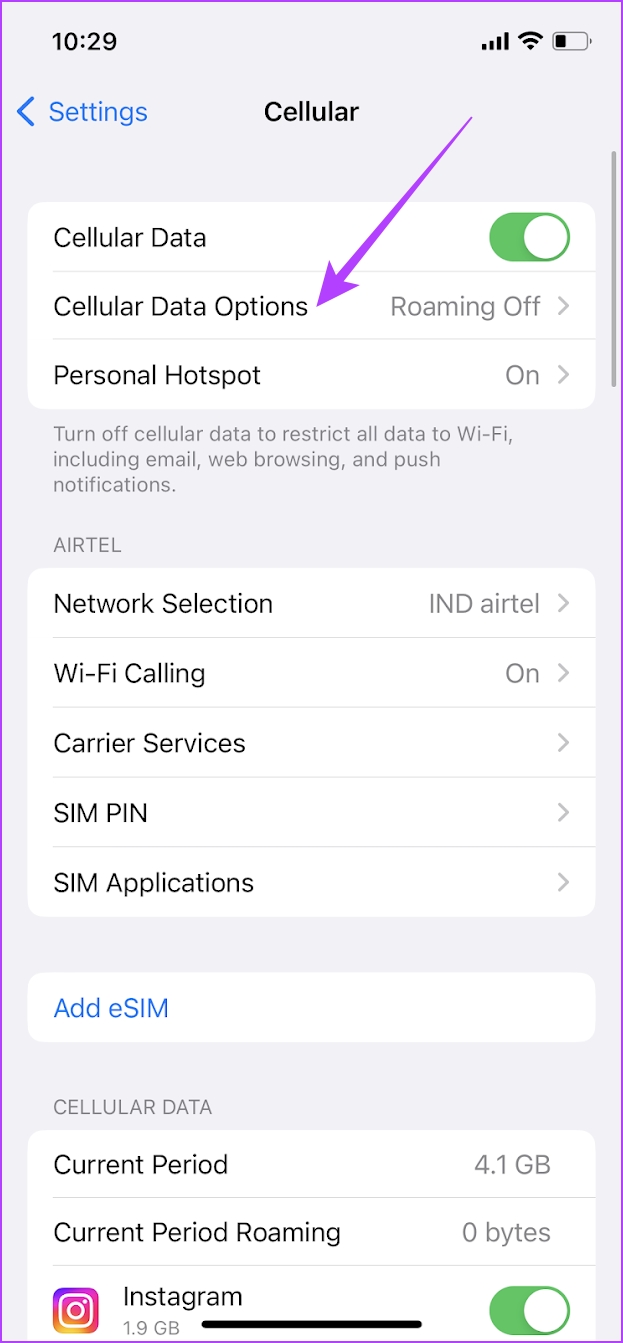
Step 1: Open the Settings app. Tap on Cellular > Cellular Data Options.
Step 2: Try changing the default cellular data mode.


Fix 2: Use the Right SIM/eSIM for Cellular Data
Ensure to use the right SIM card for cellular data on your iPhone.
Open the Settings app > go to Mobile Network/Cellular > select Mobile Data. Select the SIM on which you want to use mobile data.


Fix 3: Check Cellular Data for Apps
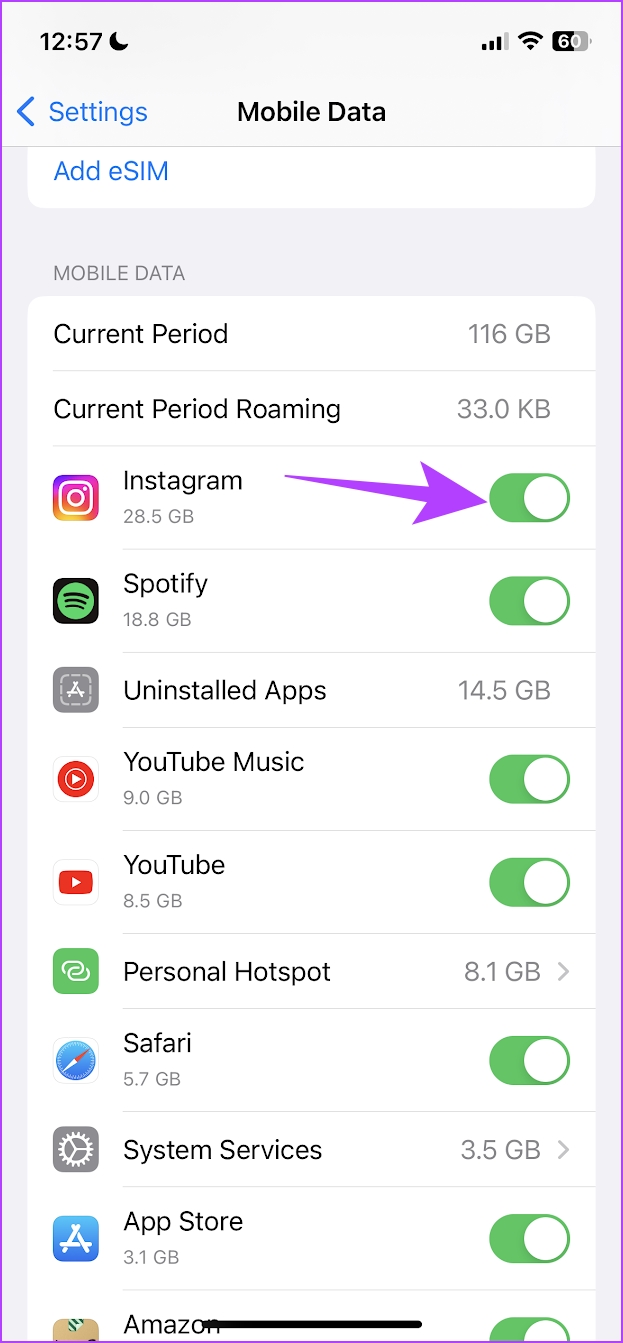
If mobile data is not working on a particular app, the app probably does not have permission to connect to the internet via cellular data.
Open the Settings app > tap on Mobile/Cellular Data. You will now find a list of apps. Check if the toggle for cellular data is enabled for the app you’re accessing.

Fix 4: Enable Data Roaming
If you are out of your native network region, you might have to turn on data roaming. However, ensure you have an active roaming plan so that you do not incur extra charges.
Step 1: Open the Settings app. Tap on Cellular (or Mobile Data).
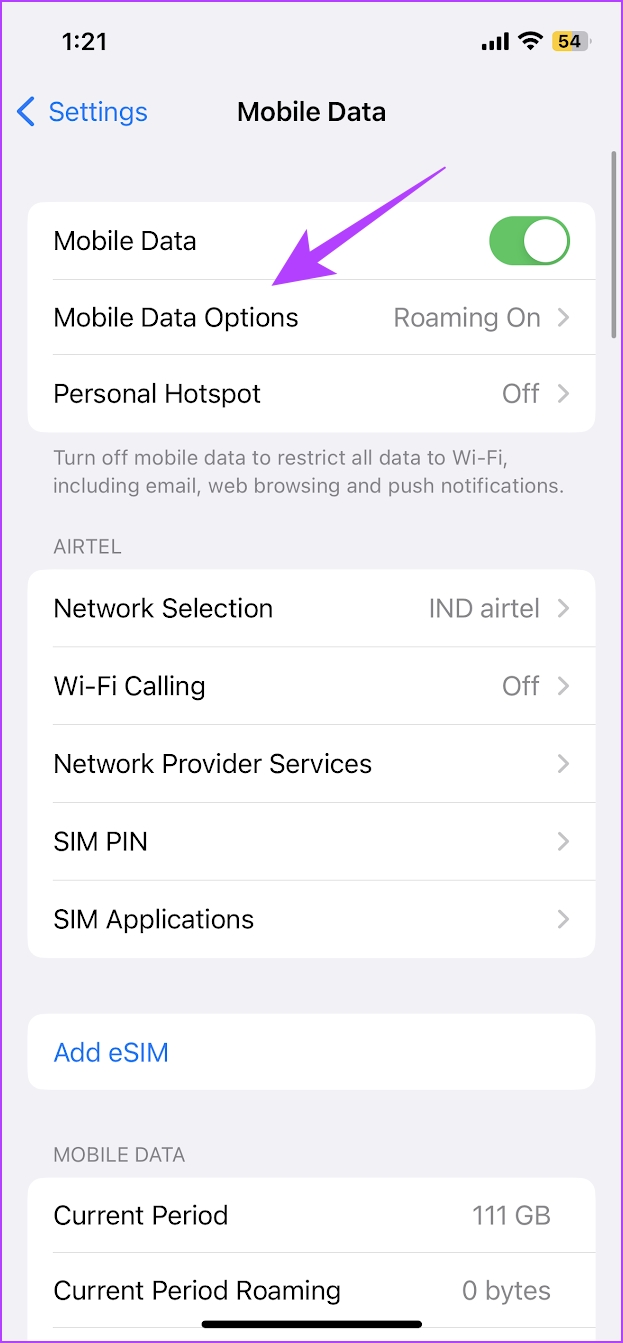
Step 2: Tap on Mobile/Cellular Data Options. Turn on the toggle for Data Roaming.

Fix 5: Disable Low Data Mode
Enabling low data mode will reduce the download speeds on cellular data.
Step 1: Open the Settings app > tap on Cellular Data/Mobile data.
Step 2: Tap on Mobile Data Options (or Cellular Data Options).
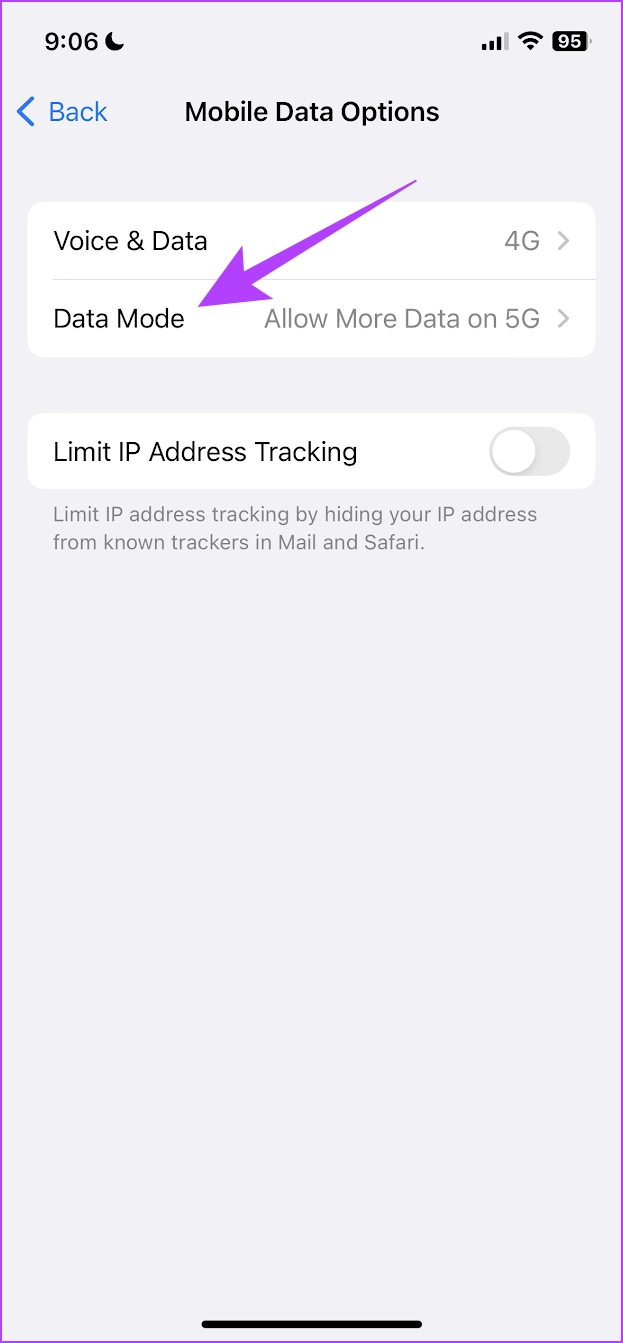
Step 3: Tap on Data Mode. Ensure you haven’t selected the Low Data Mode option. Select Allow More Data on 5G or Standard.

Also Read: How to fix iPhone keeps switching from Wi-Fi to mobile data
Fix 6: Select Network Manually
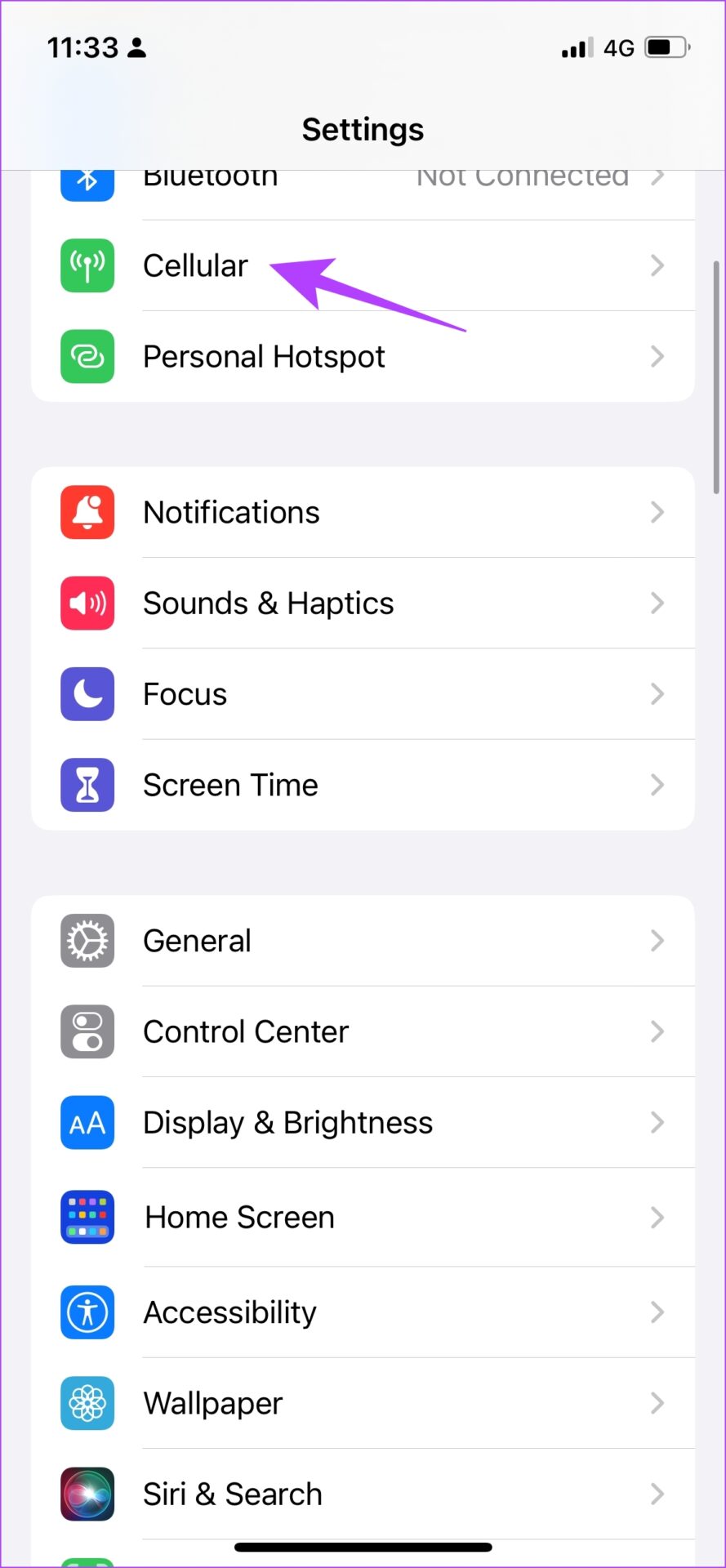
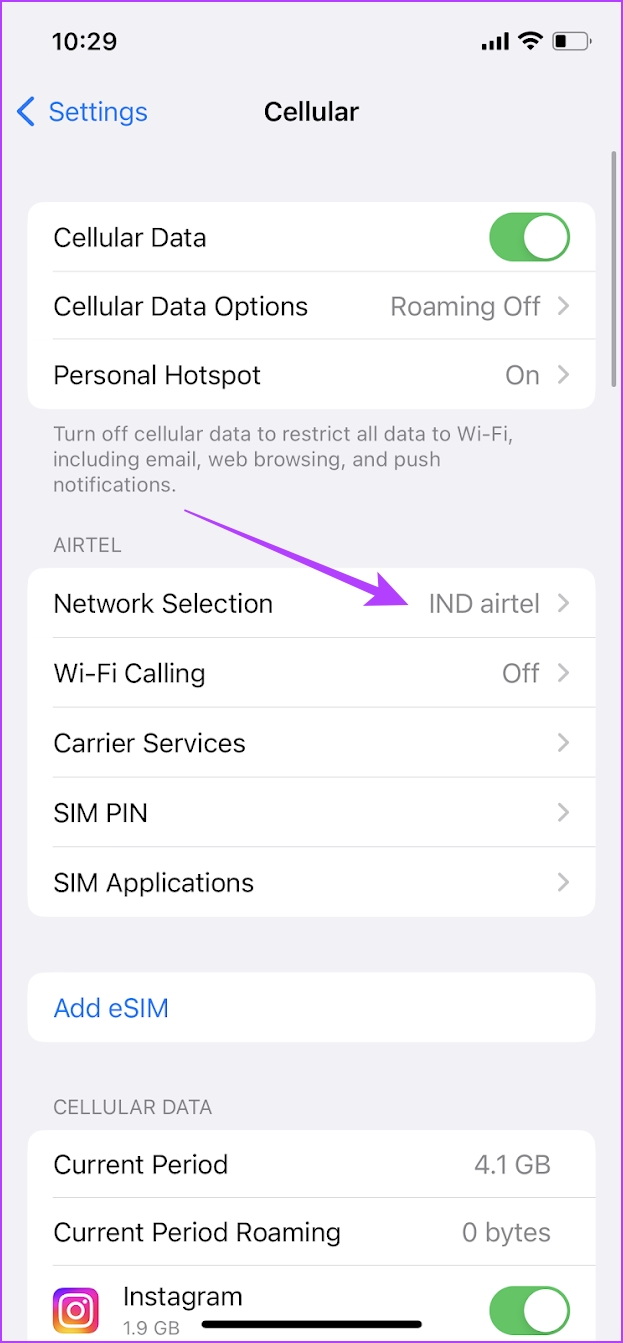
By default, your iPhone will automatically search for and register on the network when you insert your SIM card. However, if your cellular data is not working on your iPhone, you must manually select the network.
Step 1: Open the Settings app. Tap on Cellular.
Step 2: Tap on Network Selection. Turn off the toggle for Automatic and select your carrier network manually.

Fix 7: Disable Wi-Fi Calling
Wi-Fi calling may interfere with cellular data and can affect your internet connectivity.
Step 1: Open the Settings app. Tap on Cellular > Wi-FI Calling.
Step 2: Turn off the toggle for Wi-Fi Calling on This iPhone.


If none of the above methods work:
- Reset the network settings on your iPhone.
- Contact your carrier service provider for assistance in diagnosing and resolving potential issues such as maintenance downtime, expired plan, or damaged SIM card.
- If the issue persists after consulting your carrier, seek help from Apple customer support. The problem may require repairing or replacing the iPhone’s cellular connectivity components.
Was this helpful?
Last updated on 15 May, 2024
Read Next
 10 Ways to Limit Cellular Data Usage on iPhone
Method 1: Uninstall Apps Consuming Excessive Cellular Data iOS offers a detailed breakdown of mobile data consumption to track apps demanding excessive data.
10 Ways to Limit Cellular Data Usage on iPhone
Method 1: Uninstall Apps Consuming Excessive Cellular Data iOS offers a detailed breakdown of mobile data consumption to track apps demanding excessive data.
 5 Fixes for Cellular Data Grayed Out Issue on iPhone and iPad
Fix 1: Turn off and Back on Cellular Service Turning off and on the cellular service can re-establish connectivity free from bugs and glitches.
5 Fixes for Cellular Data Grayed Out Issue on iPhone and iPad
Fix 1: Turn off and Back on Cellular Service Turning off and on the cellular service can re-establish connectivity free from bugs and glitches.
 5 Fixes for “Could Not Activate Cellular Data Network” Error on iPhone
Try Basic Fixes Make sure airplane mode is off: A common reason why your iPhone may not be able to activate or use cellular data is if Airplane mode is
5 Fixes for “Could Not Activate Cellular Data Network” Error on iPhone
Try Basic Fixes Make sure airplane mode is off: A common reason why your iPhone may not be able to activate or use cellular data is if Airplane mode is
 10 Fixes for “Cellular Network Not Available for Voice Calls” on Phone
The ability to make calls is a basic requirement for any phone.
10 Fixes for “Cellular Network Not Available for Voice Calls” on Phone
The ability to make calls is a basic requirement for any phone.
 4 Ways to Fix Screen Time Not Showing Data on iPhone
Common Fixes Check service status - Use the Apple System Status page to verify Screen Time availability.
4 Ways to Fix Screen Time Not Showing Data on iPhone
Common Fixes Check service status - Use the Apple System Status page to verify Screen Time availability.
 4 Ways to Fix iPhone Keeps Switching to Mobile Data From Wi-Fi
Basic Fixes Move close to your router: Poor Wi-Fi signal can force your iPhone to switch to mobile data instead of Wi-Fi.
4 Ways to Fix iPhone Keeps Switching to Mobile Data From Wi-Fi
Basic Fixes Move close to your router: Poor Wi-Fi signal can force your iPhone to switch to mobile data instead of Wi-Fi.
 4 Ways to Fix WhatsApp Not Working on Mobile Data
Before you begin, ensure you have no problems with using the internet via mobile data on your smartphone.
4 Ways to Fix WhatsApp Not Working on Mobile Data
Before you begin, ensure you have no problems with using the internet via mobile data on your smartphone.
 4 Ways to Fix Google Chrome Not Working on Mobile Data
Basic Fixes Restart device: Restart your device to fix temporary bugs and glitches.
4 Ways to Fix Google Chrome Not Working on Mobile Data
Basic Fixes Restart device: Restart your device to fix temporary bugs and glitches.
The article above may contain affiliate links which help support Guiding Tech. The content remains unbiased and authentic and will never affect our editorial integrity.