Basic Fixes
- Launch CCleaner as administrator: Right-click the CCleaner desktop shortcut and select ‘Run as administrator’. Alternatively, press the Windows key, search CCleaner, and click ‘Run as Administrator’.
- Run CCleaner from the installation directory: Press the Windows + E shortcut to open the File Explorer, paste ‘C:\Program Files\CCleaner’ in the address bar, and hit Enter. Double-click the CCleaner64.exe file to launch CCleaner.
- Update or reinstall CCleaner: Head to the Microsoft Store, search CCleaner, and click Update (if available). Alternatively, uninstall the app from Windows Settings > Apps > Installed apps, and install it afresh from the Microsoft Store.
Fix 1: Exclude CCleaner in Windows Security
CCleaner may not work properly on Windows 11 if the Windows Security app flags it as a potential threat. To fix it, exclude the CCleaner app manually in Windows Security settings and retry opening it.
Step 1: Press the Windows key, search Virus & threat protection, and click to open it.
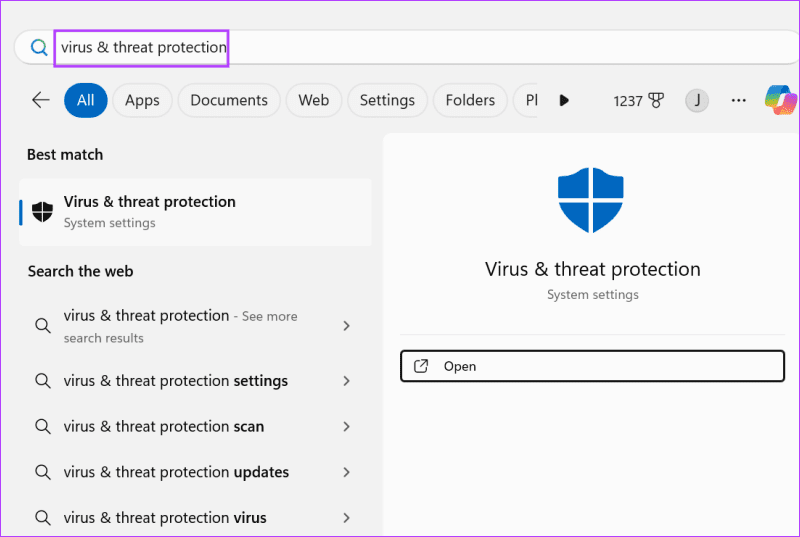
Step 2: Click Manage settings under ‘Virus & threat protection settings’.

Step 3: Select Add or remove exclusions under the Exclusions section.

Step 4: Click Add an exclusion and select File from the subsequent menu.

Step 5: Navigate to the programs folder and double-click the CCleaner64.exe file to add and exclude CCleaner in the Windows Security app.

Fix 2: Permit CCleaner Through Windows Firewall
CCleaner needs internet access to check for app and driver updates. If the Windows Firewall blocks it, the app may not work as expected. To avoid the situation, permit the CCleaner app through the Windows 11 firewall.
Step 1: Press the Windows key, search ‘Allow an app through Windows Firewall‘, and click to open the associated Control Panel app setting.
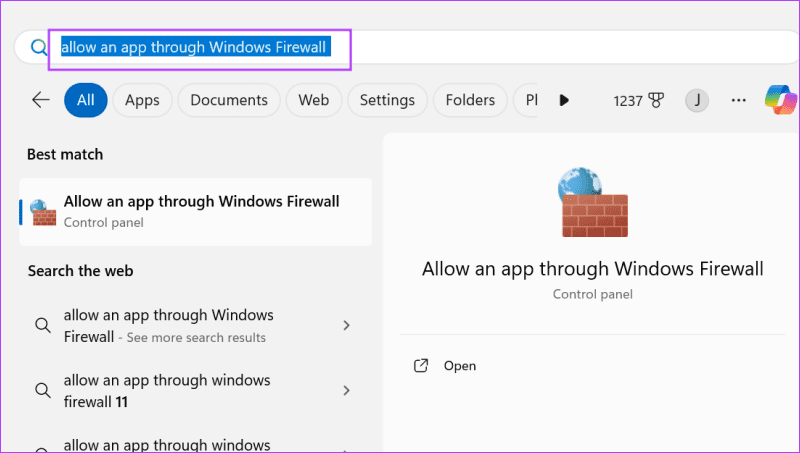
Step 2: Click Change settings, approve the UAC prompt, select CCleaner from the list, and hit OK.

Fix 3: Tweak the Windows Registry
The 64-bit CCleaner version fails to launch or work properly on certain Windows 11 systems. If you’re experiencing it, delete some old registry associations and retry opening the app.
Note: Create a backup of your Windows 11 registry using File > Export, before making any changes.
Step 1: Press the Windows key, search regedit, and click Run as administrator.

Step 2: Approve the UAC prompt, paste the following path in the address bar, and hit Enter.
Computer\HKEY_LOCAL_MACHINE\SOFTWARE\Microsoft\Windows NT\CurrentVersion\Image File Execution Options
Step 3: Right-click the CCleaner64.exe key and select Delete.

Step 4: Click Yes when prompted to confirm deletion and retry opening the CCleaner app.

Was this helpful?
Last updated on 01 August, 2024
Read Next
 Top 7 Ways to Fix Windows Key Not Working on Windows 10
Windows 10 operating system is full of keyboard shortcuts.
Top 7 Ways to Fix Windows Key Not Working on Windows 10
Windows 10 operating system is full of keyboard shortcuts.
 6 Ways to Fix Windows Security Not Opening or Working on Windows 11
Try Basic Fixes Uninstall any third-party antivirus program: Third-party antivirus programs can sometimes interfere with the Windows Security app and prevent it from opening on your Windows 11 PC.
6 Ways to Fix Windows Security Not Opening or Working on Windows 11
Try Basic Fixes Uninstall any third-party antivirus program: Third-party antivirus programs can sometimes interfere with the Windows Security app and prevent it from opening on your Windows 11 PC.
 7 Ways to Fix Windows Key Not Working in Windows 11
Basic Fixes Check for physical damage: There might be physical damage or dirt buildup on your keyboard.
7 Ways to Fix Windows Key Not Working in Windows 11
Basic Fixes Check for physical damage: There might be physical damage or dirt buildup on your keyboard.
 4 Ways to Fix Telegram Notifications Not Working on Windows 10 and Windows 11
Try Basic Fixes Disable Do Not Disturb mode: The Telegram app may not be showing notifications due to the Do Not Disturb mode on your Windows PC.
4 Ways to Fix Telegram Notifications Not Working on Windows 10 and Windows 11
Try Basic Fixes Disable Do Not Disturb mode: The Telegram app may not be showing notifications due to the Do Not Disturb mode on your Windows PC.
 3 Best Ways to Fix Keyboard Backlight Not Working on Windows 10 and Windows 11
Try Basic Fixes Toggle the keyboard backlight using the hotkey: You can use a key combination to quickly enable or disable the keyboard backlight on your Windows 11 PC.
3 Best Ways to Fix Keyboard Backlight Not Working on Windows 10 and Windows 11
Try Basic Fixes Toggle the keyboard backlight using the hotkey: You can use a key combination to quickly enable or disable the keyboard backlight on your Windows 11 PC.
 5 Ways to Fix Windows 10 Keyboard Special Characters Not Working
Have you struggled to enter an email ID on your Windows 10 computer?
5 Ways to Fix Windows 10 Keyboard Special Characters Not Working
Have you struggled to enter an email ID on your Windows 10 computer?
 5 Ways to Fix DisplayPort Not Working on Windows
Basic Fixes: Replug both the DP and the monitor cables.
5 Ways to Fix DisplayPort Not Working on Windows
Basic Fixes: Replug both the DP and the monitor cables.
 5 Ways to Fix Microsoft Solitaire Collection Not Working on Windows 11
Fix 1: Run Windows Store Apps Troubleshooter Running the Windows Store Apps troubleshooter is a hassle-free way to resolve any common issues with Microsoft Store apps.
5 Ways to Fix Microsoft Solitaire Collection Not Working on Windows 11
Fix 1: Run Windows Store Apps Troubleshooter Running the Windows Store Apps troubleshooter is a hassle-free way to resolve any common issues with Microsoft Store apps.
The article above may contain affiliate links which help support Guiding Tech. The content remains unbiased and authentic and will never affect our editorial integrity.