Try Basic Fixes
- Rule out issues with your mouse or touchpad: A malfunctioning mouse or touchpad might fail to register clicks and drag motions. Try selecting text in a PDF or webpage and see if it works. If can’t select text in any app, you may need to troubleshoot your mouse or touchpad to solve the problem.
- Ensure you have editing permissions: Another reason why you can’t select or highlight text in a Word document is if the file is protected or has restricted editing permissions. In that case, you will need to remove the read-only restriction from the Word document to solve the problem. If it’s a shared document, request editing permissions from the document owner.
Fix 1: Turn Off Protected View
Microsoft Word includes a Protected View feature that lets you open any suspicious files without putting your computer at risk of malware. However, this feature can sometimes end up blocking files that are perfectly safe.
If you’re confident about the legitimacy of your Word document, you can temporarily disable the Protected View feature to see if that helps.
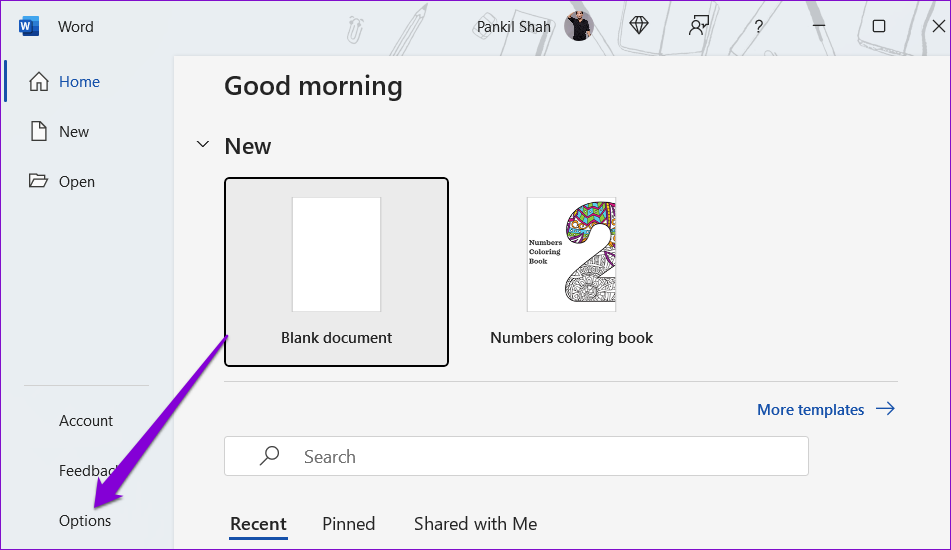
Step 1: Open your Microsoft Word document and click the File menu at the top-left corner.

Step 2: Select Options from the left pane.
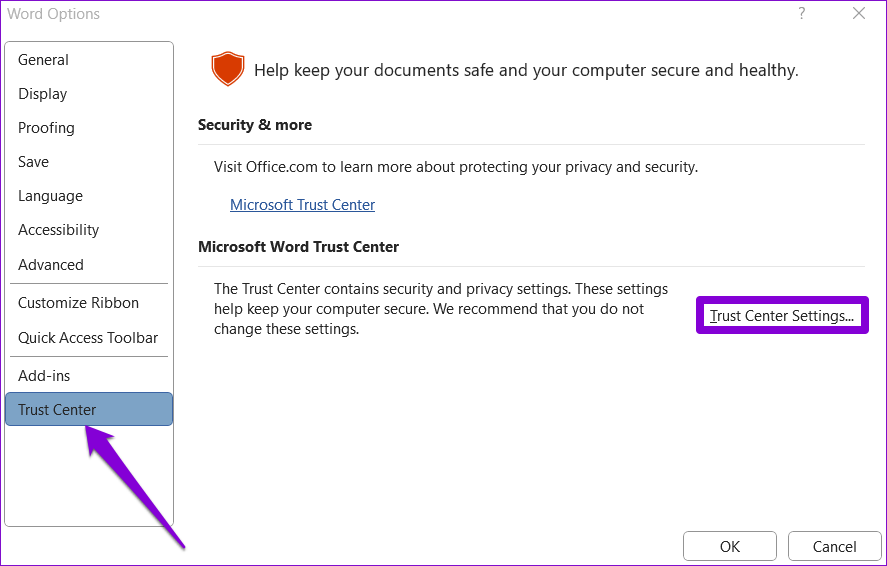
Step 3: Switch to the Trust Center tab and click the Trust Center Settings button on the right pane.
Step 4: Uncheck all three checkboxes and click OK to save changes.
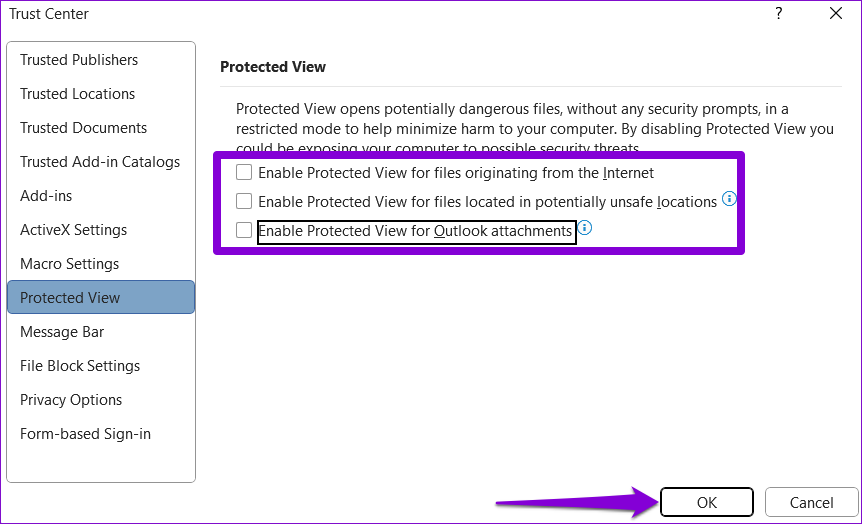
After disabling the Protected View, you should be able to select or highlight text in Word.
Fix 2: Avoid Running Word in Compatibility Mode
While the compatibility mode feature in Windows can help you run old software and games on your PC, it is not suitable for modern-day apps like Microsoft Word. Hence, it’s best to ensure Word is not running in compatibility mode.
To do so, select the app shortcut and press Alt + Enter to open its properties. Switch to the Compatibility tab and uncheck the Run this program in compatibility mode for option. Then, click Apply followed by OK.

Reopen your Word document to check if you can select the text.
Fix 3: Repair the Problematic Word Document
If you can’t select or highlight text with your mouse only in a specific document, there may be an issue with that Word file. In that case, you can use these steps to repair the Word document.
Step 1: Open Microsoft Word on your PC.
Step 2: Select Open from the left sidebar and click the Browse option.
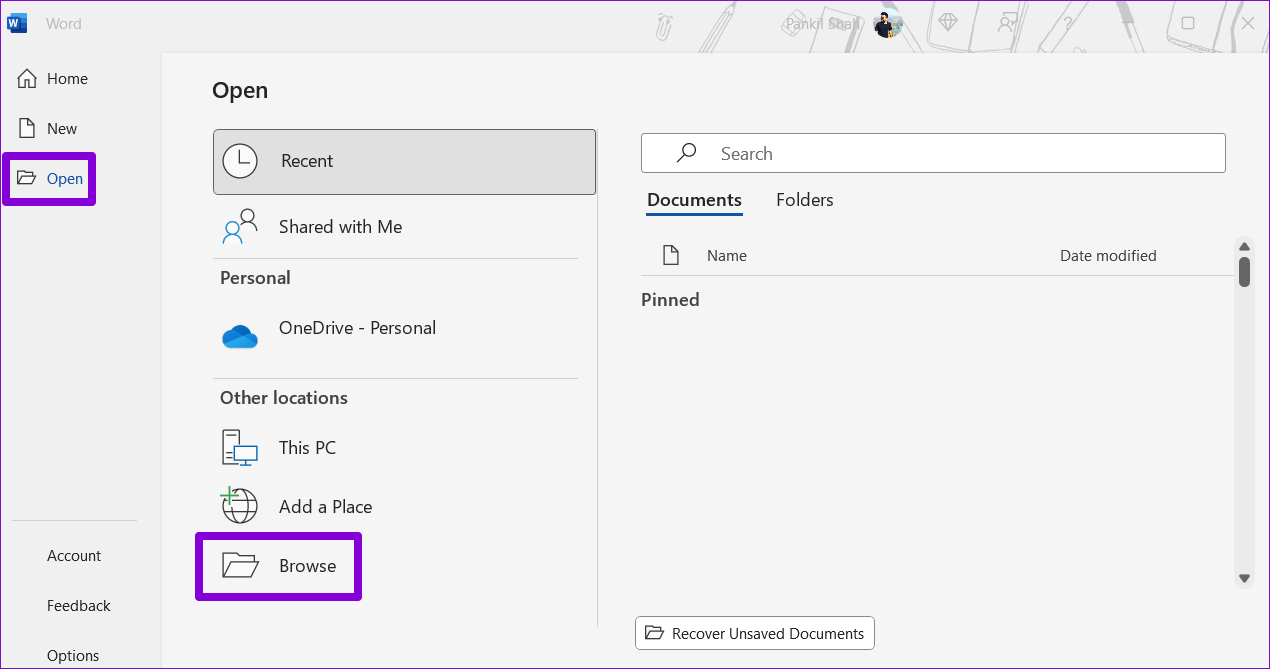
Step 3: Locate and select your Word file. Then, click the downward arrow next to Open to select Open and Repair.

Fix 4: Run the Office Repair Tool
Microsoft offers a dedicated repair tool for fixing issues with Office apps like Word. Running this tool can help fix any damaged files associated with Word that may be preventing you from selecting or highlighting text. Here’s how to run it.
Step 1: Press the Windows key + R to open the Run dialog box. Type appwiz.cpl in the box and press Enter.
Step 2: In the Programs and Features window, locate and select the Microsoft Office product on the list. Then, click the Change button at the top.
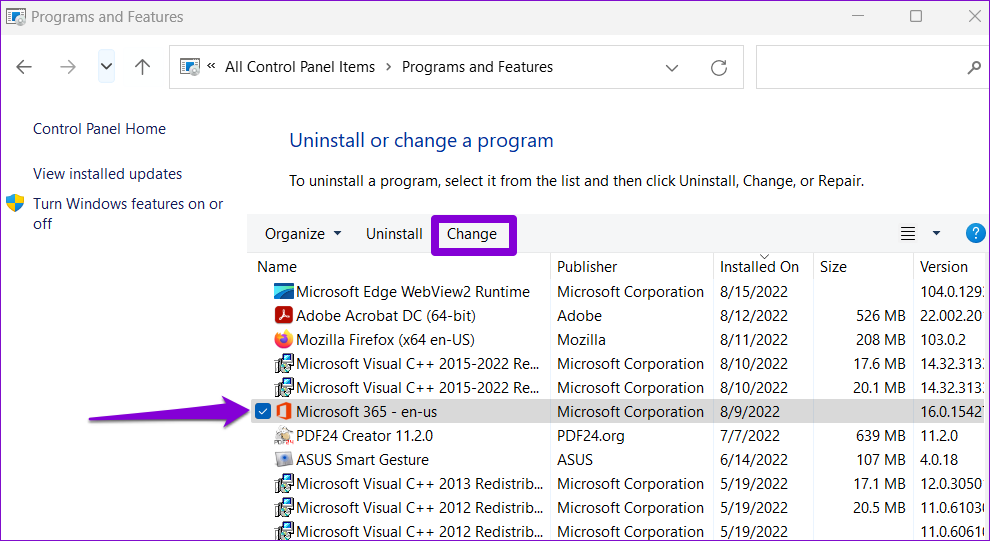
Step 3: Select the Online Repair option and click Repair.

Was this helpful?
Last updated on 10 August, 2024
Read Next
 3 Ways to Underline Text in Microsoft Word
Underline Text and the Spaces Between The default setting in Microsoft Word allows you to underline both text and spaces.
3 Ways to Underline Text in Microsoft Word
Underline Text and the Spaces Between The default setting in Microsoft Word allows you to underline both text and spaces.
 4 Fixes for Microsoft Word Dictation Tool Not Working on Windows 11 and 10
Fix 1: Check Microphone Permission Windows lets you enable or disable microphone permissions for each app and program individually.
4 Fixes for Microsoft Word Dictation Tool Not Working on Windows 11 and 10
Fix 1: Check Microphone Permission Windows lets you enable or disable microphone permissions for each app and program individually.
 5 Fixes When Read Aloud Is Not Working in Microsoft Word for Windows
Fix 1: Add the Read Aloud Option Is the Read Aloud option missing from Microsoft Word?
5 Fixes When Read Aloud Is Not Working in Microsoft Word for Windows
Fix 1: Add the Read Aloud Option Is the Read Aloud option missing from Microsoft Word?
 Apple Pages vs Microsoft Word: Which Word Processing Software Is Better
Every major tech company out there is offering their version of the productivity suite.
Apple Pages vs Microsoft Word: Which Word Processing Software Is Better
Every major tech company out there is offering their version of the productivity suite.
 Google Docs vs. Microsoft Word Online: Which Word Processor Is Better
Google Docs vs.
Google Docs vs. Microsoft Word Online: Which Word Processor Is Better
Google Docs vs.
 How to Highlight Duplicates in Excel: 2 Easy Ways
When working with a large spreadsheet in Excel, it can be challenging to spot duplicate entries.
How to Highlight Duplicates in Excel: 2 Easy Ways
When working with a large spreadsheet in Excel, it can be challenging to spot duplicate entries.
 How to Add, Customize and Delete a Text Box in Microsoft Word
Like in Microsoft PowerPoint, you can add a text box to a Microsoft Word document.
How to Add, Customize and Delete a Text Box in Microsoft Word
Like in Microsoft PowerPoint, you can add a text box to a Microsoft Word document.
 4 Ways to Clear All Text Formatting in Microsoft Word
Method 1: Using Keyboard Shortcuts With keyboard shortcuts, you can clear the text formatting within a Microsoft Word document.
4 Ways to Clear All Text Formatting in Microsoft Word
Method 1: Using Keyboard Shortcuts With keyboard shortcuts, you can clear the text formatting within a Microsoft Word document.
The article above may contain affiliate links which help support Guiding Tech. The content remains unbiased and authentic and will never affect our editorial integrity.