Fix 1: Try Changing IP Settings From the Control Panel
Using the Settings app isn’t the only way to change the IP settings on Windows. So, if you keep encountering the “Can’t save IP settings, check one or more settings and try again” error, try changing the IP settings from the Control Panel.
Step 1: Click the magnifying icon on the taskbar to open the search menu. Type control in the box and press Enter.

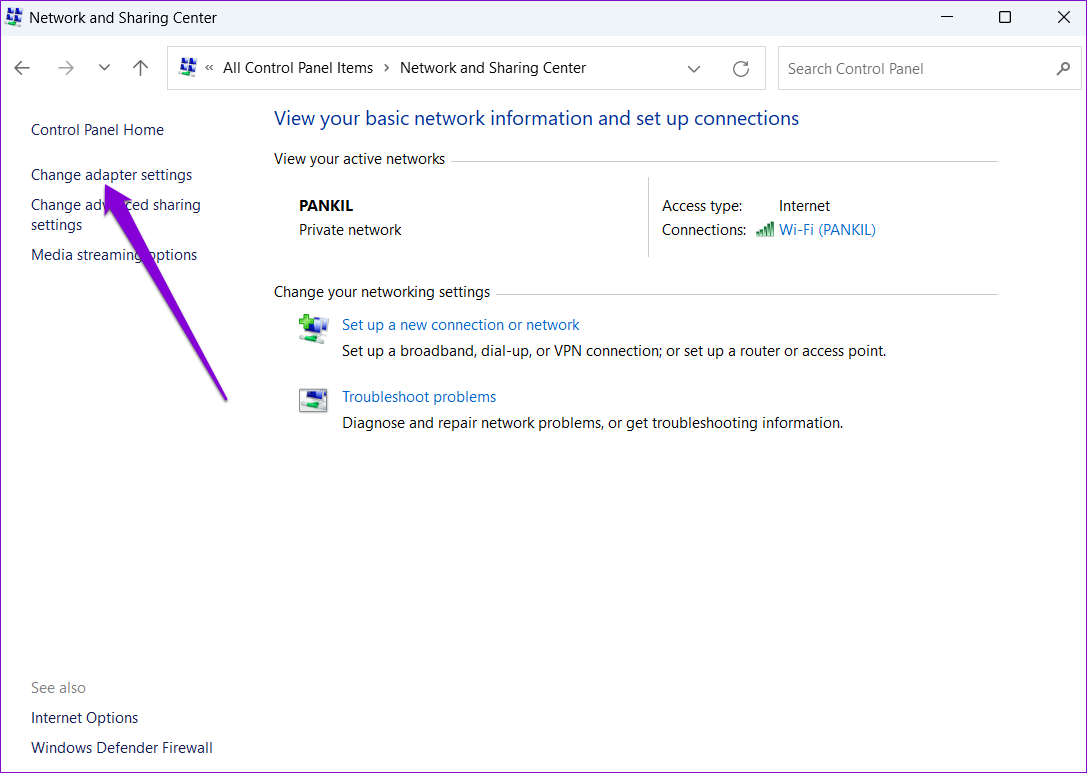
Step 2: Change the view type to Large icons and select Network and Sharing Center.

Step 3: Click Change adapter settings in the left pane.
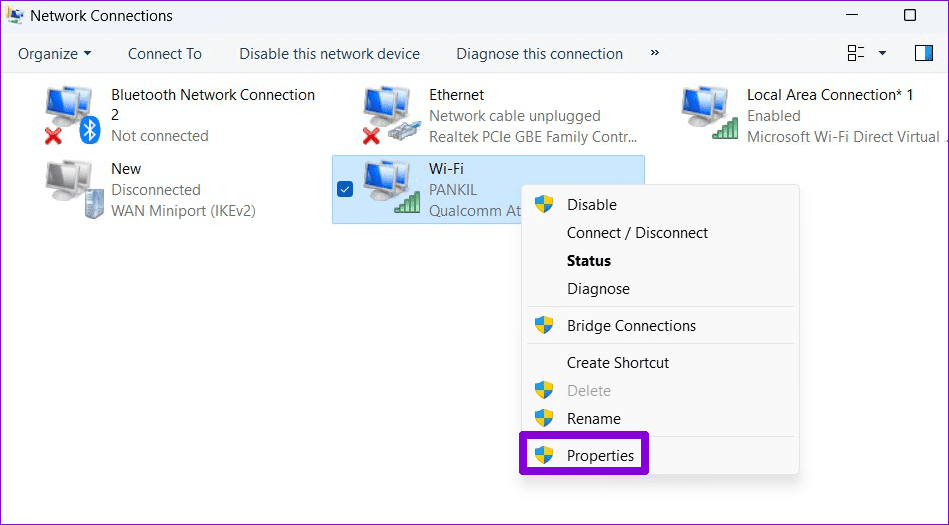
Step 4: Right-click on your network connection and select Properties.
Step 5: Under the Networking tab, double-click the Internet Protocol Version 4 (TCP/IPv4) option.

Step 6: Select the Use the following IP address option. Then, enter the IP address, subnet mask, and default gateway. Enter preferred and alternate DNS servers, or leave them empty and click OK.

Fix 2: Reset TCP/IP
Your Windows PC relies on the Transmission Control Protocol and Internet Protocol (TCP/IP) to transmit and receive digital data from other machines on the network. If there’s a problem with the TCP/IP, you may have trouble changing the IP settings.
So, if you can’t save IP or DNS settings, even from the Control Panel, you may need to reset the TCP/IP stack.
Step 1: Right-click on the Start icon and select Terminal (Admin) from the list.

Step 2: Run the following commands in the console and press Enter after each one:
netsh winsock reset
netsh int ip reset

Restart your PC after running the above commands and check if the issue is still there.
Fix 3: Disable Proxy Server or VPN
Using a proxy server on Windows can also result in the ‘Can’t save IP settings’ error on your Windows 10 or 11 PC. Turning off the proxy server should solve the problem if that’s the case.
Step 1: Press the Windows + I keyboard shortcut to launch the Settings app. Switch to the Network & internet tab and select Proxy.

Step 2: Make sure proxy settings are turned off.

Similarly, if you are using a VPN service on Windows, try turning it off and then try changing IP settings.
Fix 4: Flush DNS Cache
Another reason you may be unable to change the IP settings is due to corrupt or inaccessible DNS cache data. You can try clearing the existing DNS cache on Windows to see if that helps. Here are the steps for the same.
Step 1: Right-click on the Start icon and select Terminal (Admin) from the list.
Step 2: In the console, type the command shown below and press Enter.
ipconfig /flushdns

Fix 5: Reset Network Settings
If none of the previous solutions work, resetting the network settings on Windows may be your best option. Note that this will erase all of your saved Wi-Fi networks, paired Bluetooth devices, and other network settings. If you are okay with that, use these steps to reset network settings on Windows:
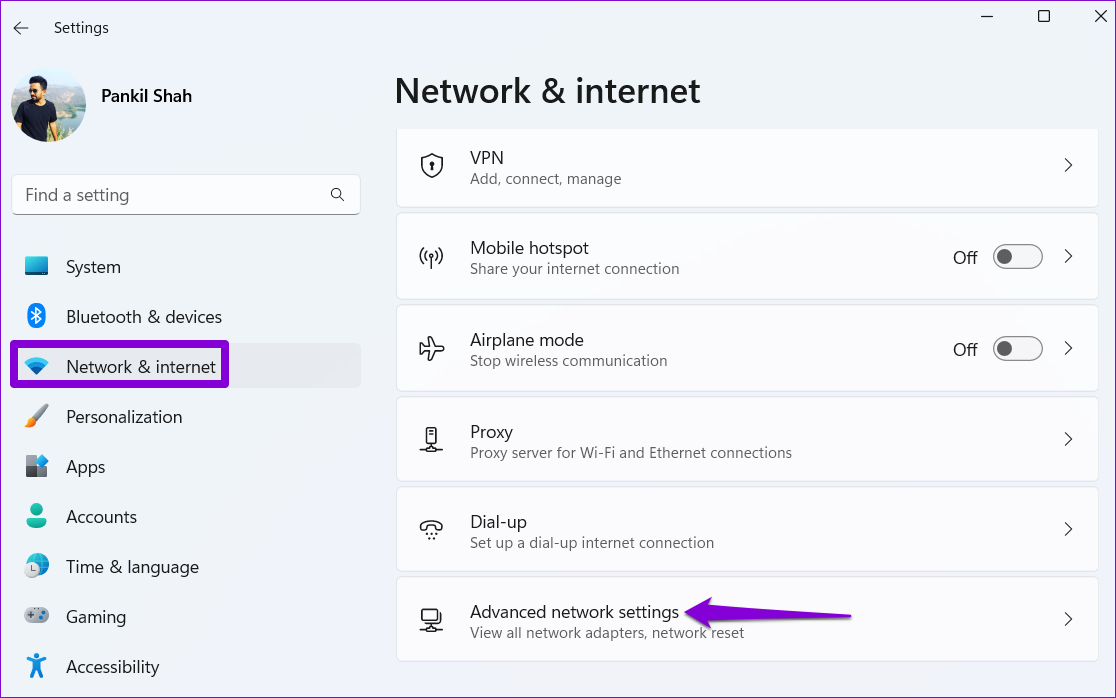
Step 1: Press the Windows key + I to open the Settings app. Select the Network & internet tab on your left and click on Advanced network settings.
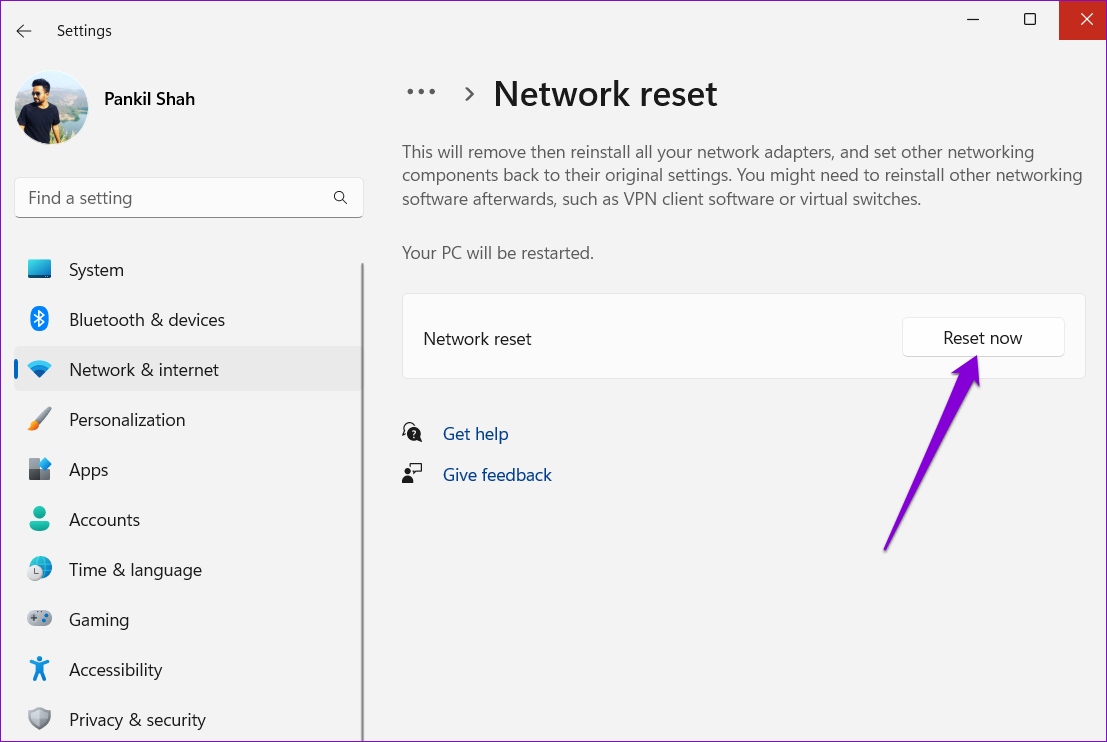
Step 2: Under More settings, click on Network reset.

Step 3: Click the Reset now button next to Network reset.
Was this helpful?
Last updated on 10 August, 2024
Read Next
 4 Fixes for Google Photos Unable to Save Changes Error
Basic Fixes Clear cache for Google Photos: Open Google Photos app info > tap on Storage and cache > Clear cache.
4 Fixes for Google Photos Unable to Save Changes Error
Basic Fixes Clear cache for Google Photos: Open Google Photos app info > tap on Storage and cache > Clear cache.
 5 Fixes for “Word Experienced an Error Trying to Open the File” Error in Windows
Fix 1: Unblock Your Word File Microsoft Word may fail to open a document if it has been altered by third-party software.
5 Fixes for “Word Experienced an Error Trying to Open the File” Error in Windows
Fix 1: Unblock Your Word File Microsoft Word may fail to open a document if it has been altered by third-party software.
 7 Best Fixes for Windows Update Error 0x800f081f in Windows 11
Microsoft regularly releases Windows updates to introduce new features and fix known issues.
7 Best Fixes for Windows Update Error 0x800f081f in Windows 11
Microsoft regularly releases Windows updates to introduce new features and fix known issues.
 4 Ways to Fix Airdrop Failed to Save Item Error on iPhone
Basic Fixes: Ensure AirDrop is enabled: If the relevant AirDrop settings haven’t been enabled, it can cause issues like the AirDrop keeps failing error.
4 Ways to Fix Airdrop Failed to Save Item Error on iPhone
Basic Fixes: Ensure AirDrop is enabled: If the relevant AirDrop settings haven’t been enabled, it can cause issues like the AirDrop keeps failing error.
 2 Fixes if you Cannot Save Images From Google on iPhone, iPad, and Android
Basic Troubleshooting Check for Storage error - Your phone or tablet should have free space to store downloaded images from Google.
2 Fixes if you Cannot Save Images From Google on iPhone, iPad, and Android
Basic Troubleshooting Check for Storage error - Your phone or tablet should have free space to store downloaded images from Google.
 Can’t Save Excel Files on Mac? Try These 3 Fixes
Basic Fixes Check internet connectivity. If your Mac experiences internet issues, Microsoft Excel will remain stuck in the ‘Saving’ status.
Can’t Save Excel Files on Mac? Try These 3 Fixes
Basic Fixes Check internet connectivity. If your Mac experiences internet issues, Microsoft Excel will remain stuck in the ‘Saving’ status.
 6 Fixes for “The Operation Failed” Error in Microsoft Outlook for Windows
Fix 1: Open Outlook in Safe Mode Running Office apps like Outlook in safe mode can help you determine if one of the add-ins is responsible for the issue.
6 Fixes for “The Operation Failed” Error in Microsoft Outlook for Windows
Fix 1: Open Outlook in Safe Mode Running Office apps like Outlook in safe mode can help you determine if one of the add-ins is responsible for the issue.
 4 Fixes for “Reference Isn’t Valid” Error in Microsoft Excel for Windows
Try Basic Fixes Close and reopen Excel: Microsoft Excel sometimes gets stuck with the "Reference isn’t valid" error due to temporary issues with one of its app processes.
4 Fixes for “Reference Isn’t Valid” Error in Microsoft Excel for Windows
Try Basic Fixes Close and reopen Excel: Microsoft Excel sometimes gets stuck with the "Reference isn’t valid" error due to temporary issues with one of its app processes.
The article above may contain affiliate links which help support Guiding Tech. The content remains unbiased and authentic and will never affect our editorial integrity.