

Why Can’t I Log Out of Facebook on Mobile and Desktop
Before we start fixing, here are some reasons that could cause this issue.
- Facebook is currently down due to a server outage.
- The Facebook app is out-of-date.
- An issue with a previous Facebook app update.
- The browser or the app cache is corrupted.
- Browser extensions are interfering with Facebook.
- The Facebook app can’t connect to the internet.
Basic Fixes:
- Check if Facebook is down: If there is an issue with Facebook’s servers, the Facebook desktop or mobile app will not work properly. To check this, go to Downdetector’s Facebook Server Status page and see if any outages have been recently reported.
- Log out of all devices: Unlike logging out of one device at a time, you can bulk sign out of all your devices with Facebook. Open Facebook on a device different from your current device and use the app settings to log out of all the selected devices.
- Update the Facebook app: App updates help introduce new features, keep the app compatible with your device, fix bugs, and more. So, manually check and install any pending updates for the Facebook app on your device.
- Reinstall the Facebook app: You can also uninstall the Facebook app from your phone. Once you reinstall the app, it should have logged you out of your previous session.
Fix 1: Clear Facebook App Cache
The app cache stored on your device helps to ensure app functions are faster and smoother. However, if this cache gets too big or corrupted, it can interfere with app functions. In this case, clear the cache for Facebook on your Android device. If you’re an iPhone user, offload and reinstall the Facebook app.
Fix 2: Clear Browser Cache and Cookies
Like mobile apps collect cache, browsers also collect and store cache files on your PC to load websites faster. This also means that if you’ve been facing issues using any website, like Facebook, you can clear the cache for your browser to try and fix it. Follow the below steps to do it.
On Chrome
Step 1: Open Chrome and click on the three-dot icon. Here, click on Settings.
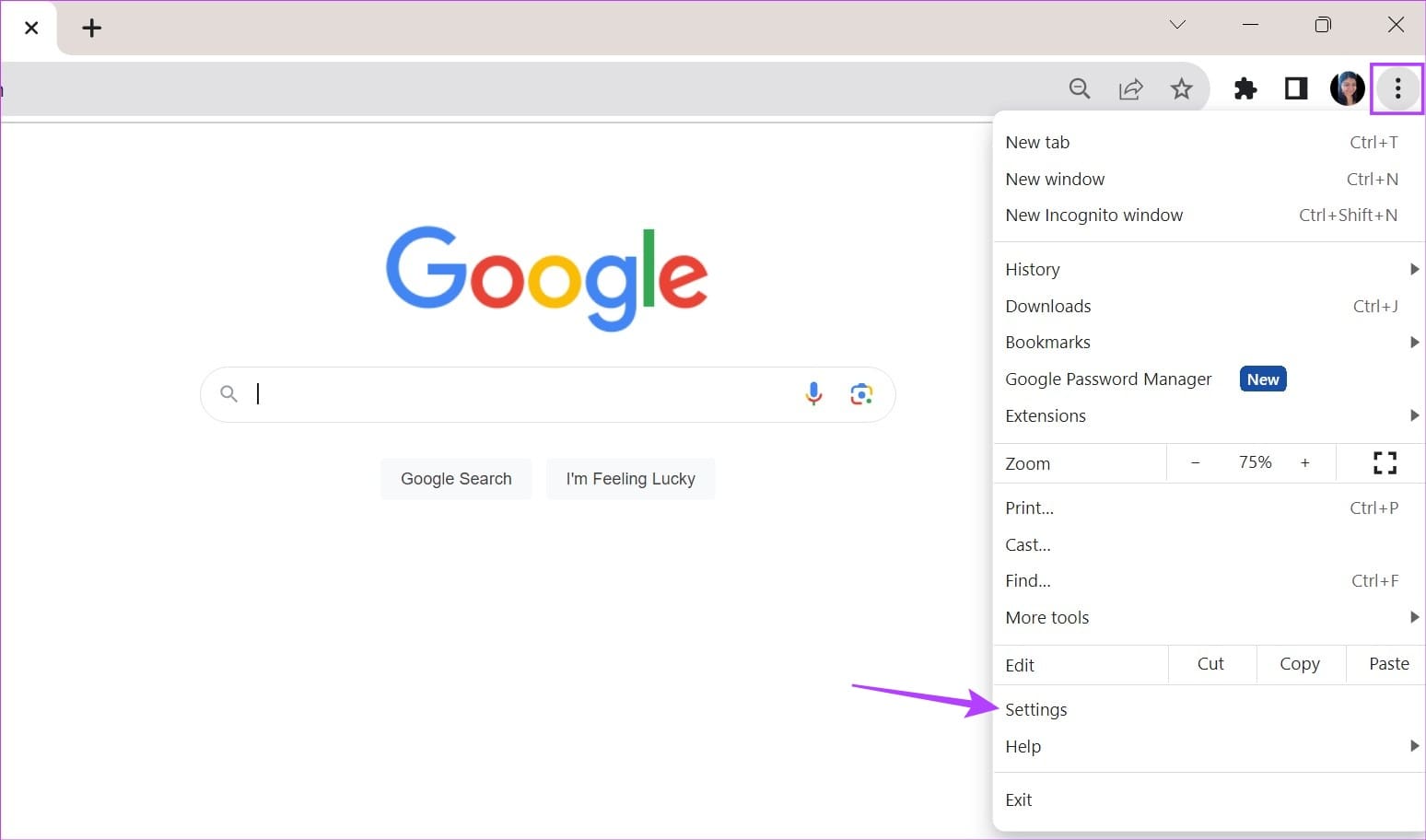
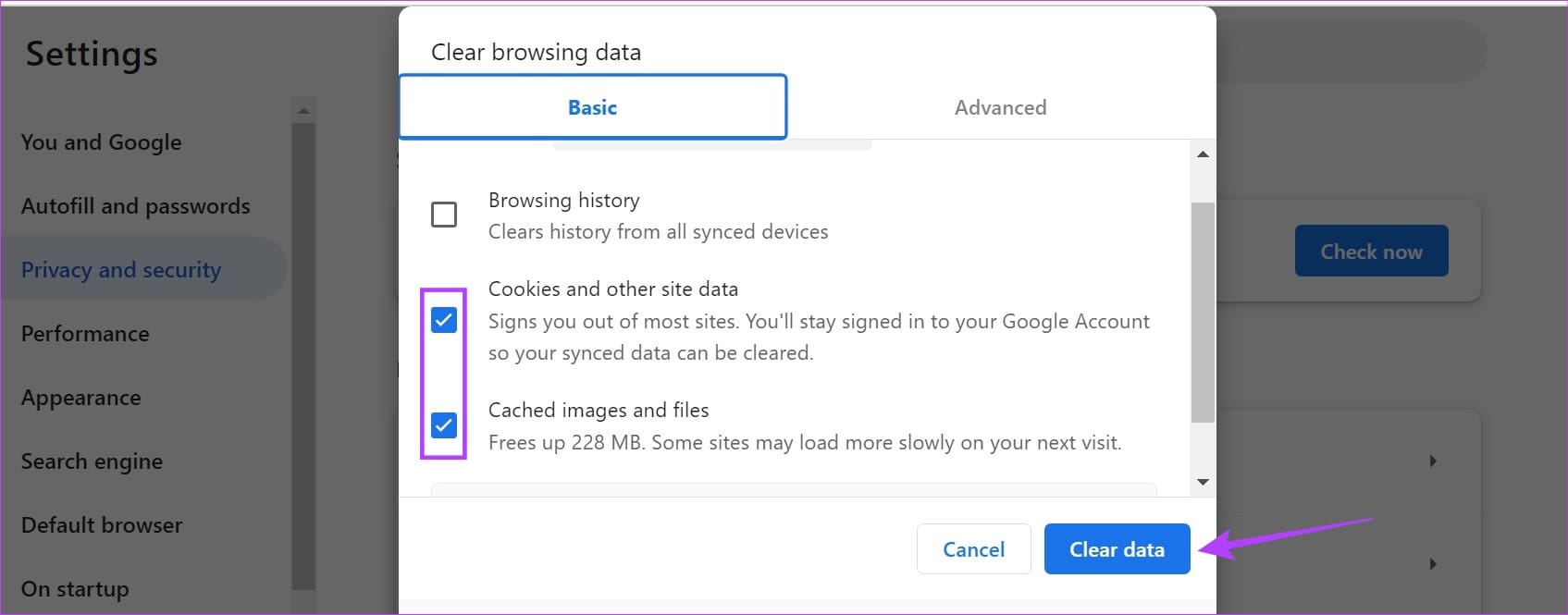
Step 2: Click on Privacy and security from the menu options. Then, click on Clear browsing data.

Step 3: Select Cookies and other site data and Cached images and files. Then, click on Clear data.
On Firefox
Step 1: Open Facebook in Firefox. Then, click on the lock icon. Here, click on Clear cookies and site data.

Step 2: Click on Remove to confirm.

This will delete Facebook’s cookies and cache on Firefox. You can also check out our guide to learn more about clearing browser cache on Edge.
Fix 3: Disable Third-Party Browser Extensions
While extensions are beneficial, certain third-party extensions with access to your browser’s features can prevent apps from working as expected. This can also be why Facebook is not logging out. To fix this, disable all extensions temporarily. Here’s how.
On Edge
Step 1: Open Edge and click on the extension icon. Click on Manage extension.

Step 2: Turn off the toggle for the relevant extensions.

On Firefox
Step 1: Open Firefox and use the Ctrl + Shift + A shortcut to go to Firefox’s Add-ons Manager page.
Step 2: Scroll through this page and turn off the toggle for the desired extensions.

On Chrome
Step 1: Open Chrome and click the three-dot icon. Go to Extensions and click on Manage Extensions.
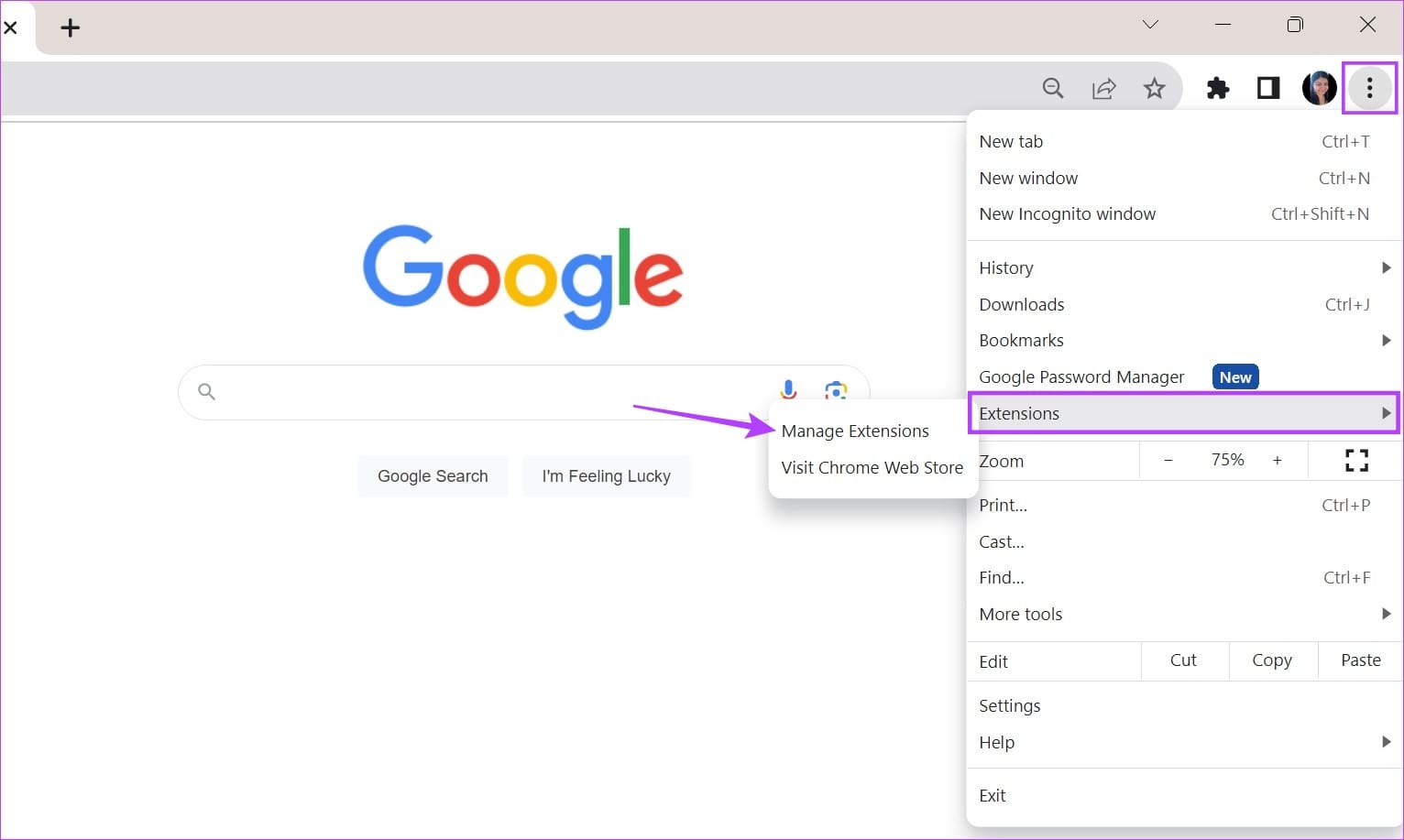
Step 2: Turn off the toggle for the relevant extension.
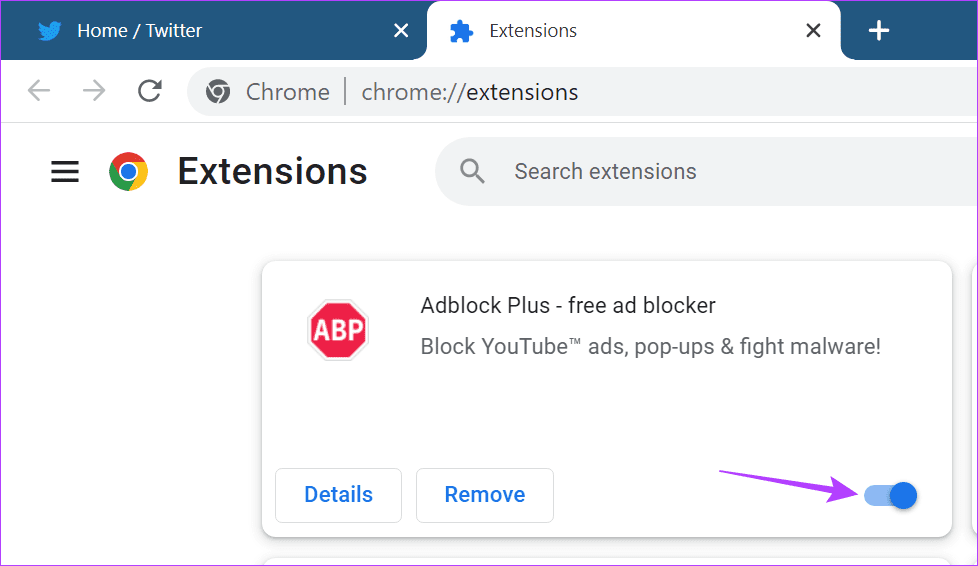
Repeat this process and turn off all the recently installed or updated extensions. Then, try logging out of Facebook again.
Was this helpful?
Last updated on 27 June, 2024
Read Next
 2 Ways to Fix Facebook Messenger Won’t Let Me Log In on Android and iPhone
Try Basic Fixes Update the Messenger app: The Messenger app may not let you sign in if you’re using an outdated version of the app.
2 Ways to Fix Facebook Messenger Won’t Let Me Log In on Android and iPhone
Try Basic Fixes Update the Messenger app: The Messenger app may not let you sign in if you’re using an outdated version of the app.
 How to Fix Cannot Log in to Facebook Account Problem
Basic Fixes Check if Facebook is down - Sometimes, Facebook experiences outages or technical issues that can stop you from logging in.
How to Fix Cannot Log in to Facebook Account Problem
Basic Fixes Check if Facebook is down - Sometimes, Facebook experiences outages or technical issues that can stop you from logging in.
 How to Log Out of Facebook and Messenger on All Devices
How to Log Out of Messenger From All Devices at Once You can use the Messenger mobile app to open Meta's Accounts Center.
How to Log Out of Facebook and Messenger on All Devices
How to Log Out of Messenger From All Devices at Once You can use the Messenger mobile app to open Meta's Accounts Center.
 3 Ways to Fix Unable to Log In to Instagram on Android and iPhone
Try Basic Fixes Temporarily disable VPN connection: Instagram might flag your login attempts as suspicious if it detects unusual network activity.
3 Ways to Fix Unable to Log In to Instagram on Android and iPhone
Try Basic Fixes Temporarily disable VPN connection: Instagram might flag your login attempts as suspicious if it detects unusual network activity.
 3 Ways to Fix YouTube Won’t Let Me Log In on Android and iPhone
Try Basic Fixes Temporarily disable VPN connection: A Virtual Private Network (VPN) connection may cause issues with the YouTube app's sign-in process, especially if you switch servers frequently.
3 Ways to Fix YouTube Won’t Let Me Log In on Android and iPhone
Try Basic Fixes Temporarily disable VPN connection: A Virtual Private Network (VPN) connection may cause issues with the YouTube app's sign-in process, especially if you switch servers frequently.
 3 Ways to Fix Unable to Log In to Spotify on Android and iPhone
Try Basic Fixes Update the app: The Spotify app on your phone may be outdated or buggy.
3 Ways to Fix Unable to Log In to Spotify on Android and iPhone
Try Basic Fixes Update the app: The Spotify app on your phone may be outdated or buggy.
 3 Ways to Fix Unable to Log in to Snapchat on Android and iPhone
Try Basic Fixes Check Snapchat's server status: It’s not uncommon for popular social media services like Snapchat to experience server outages.
3 Ways to Fix Unable to Log in to Snapchat on Android and iPhone
Try Basic Fixes Check Snapchat's server status: It’s not uncommon for popular social media services like Snapchat to experience server outages.
 2 Ways to Fix Can’t Log in to Telegram on Android and iPhone
Try Basic Fixes Authenticate login via phone call: Occasionally, Telegram may be unable to deliver an authentication code to your phone for various reasons.
2 Ways to Fix Can’t Log in to Telegram on Android and iPhone
Try Basic Fixes Authenticate login via phone call: Occasionally, Telegram may be unable to deliver an authentication code to your phone for various reasons.
The article above may contain affiliate links which help support Guiding Tech. The content remains unbiased and authentic and will never affect our editorial integrity.

