Try Basic Fixes
- Check your Apple ID and password: Accidentally entering an incorrect Apple ID or password in the Apple Music app might be causing the failure to sign in on Android. Check your login credentials for any typos and try again.
- Check Apple Music server status: It is not unusual for streaming services like Apple Music to experience technical difficulties from time to time. When this happens, you may be unable to log into the Apple Music app on your Android. You can visit Apple’s System Status page to see if there’s an outage.
- Update the app: Running an outdated version of the Apple Music app can also cause such anomalies. Update the Apple Music app from the Play Store as a last resort.
Fix 1: Get the Verification Code From Your Trusted Device
Several users on the Apple forums reported not receiving the verification code while signing into the Apple Music app on Android. If you face the same issue, try getting a verification code from one of your trusted devices to sign in.
iPhone
Step 1: Open the Settings app, tap your name at the top, and select Sign-In & Security.

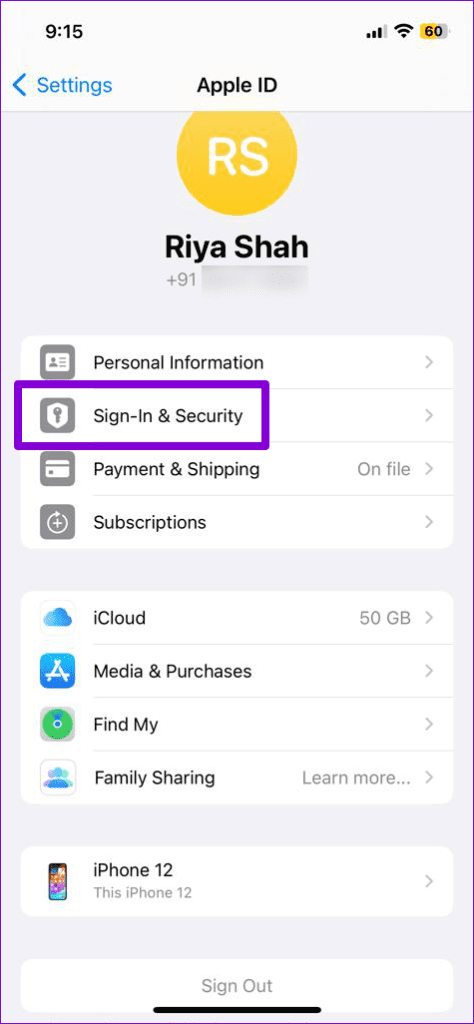
Step 2: Tap Two-Factor Authentication and select the Get Verification Code option in the following menu.


Mac
Step 1: Click the Apple menu at the top and select System Settings.

Step 2: Click Apple ID in the top left corner and click on Password & Security.
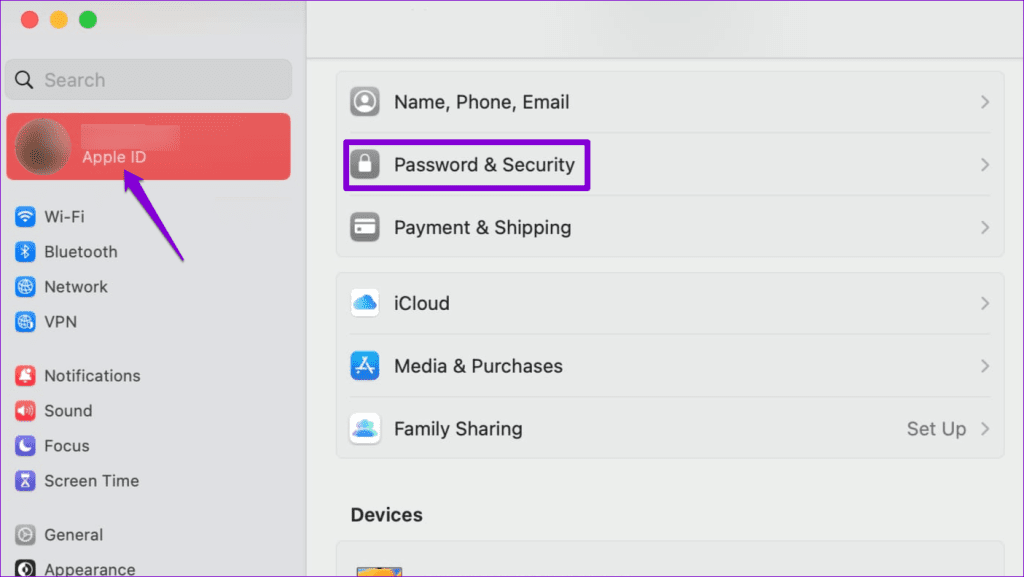
Step 3: Click the Get a Verification Code button at the bottom.

Enter the verification code from your trusted devices into the Apple Music app to log in.
Fix 2: Enable Automatic Date and Time
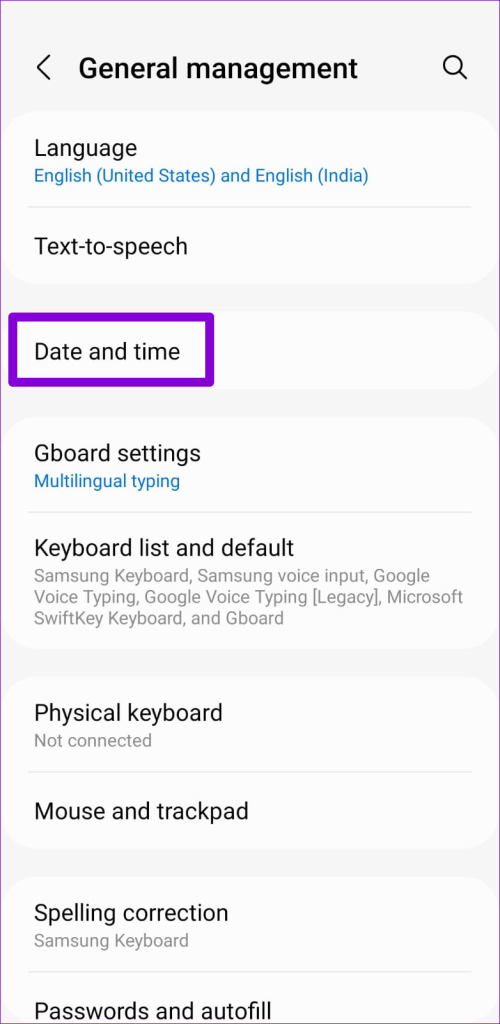
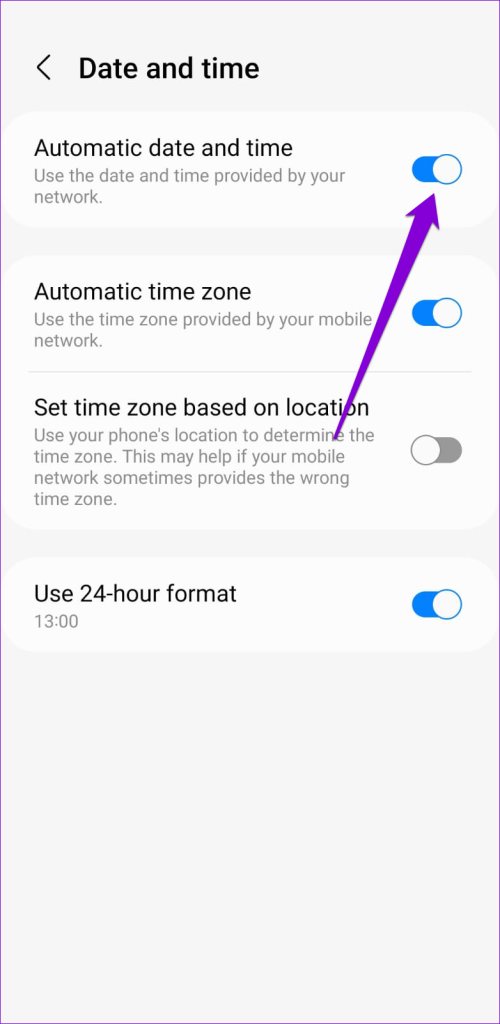
Is your Android phone set to an incorrect time or date? If so, the Apple Music app may fail to communicate with the server and won’t log you in. To fix this, you will need to enable the automatic date and time feature on your phone.
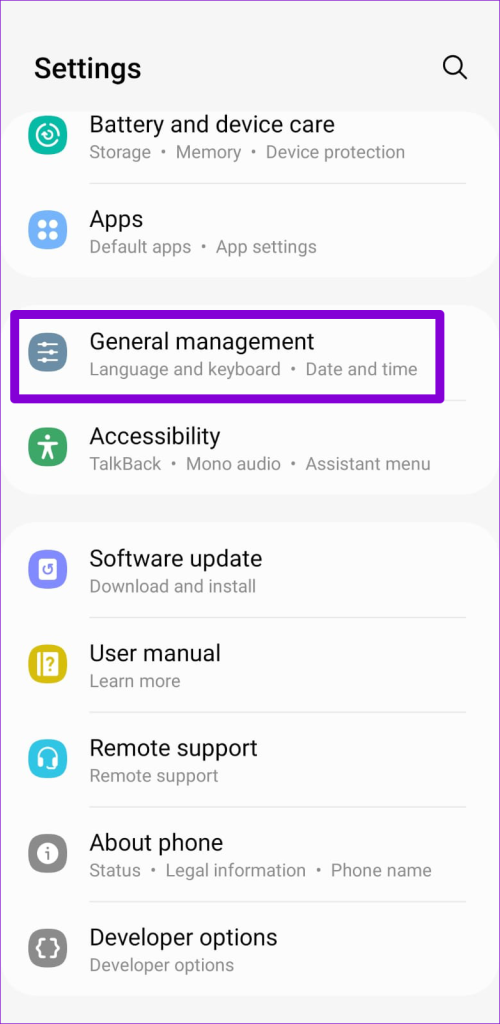
Step 1: Open the Settings app on your Android and tap General management.
Step 2: Tap on Date and time and enable the toggle next to Automatic date and time.
Fix 3: Reset Your Password
Resetting your Apple ID password is another effective way to resolve login issues in the Apple Music app. To do so, you will need to follow these steps on your trusted device.
Note: If you don’t have a trusted device handy, you can reset your Apple ID password on a web browser, but the process may take longer.
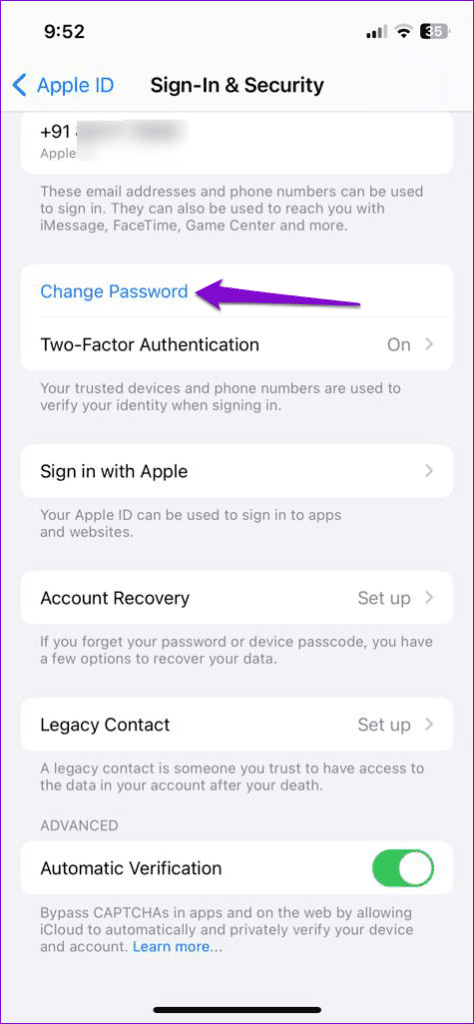
Step 1: Open the Settings app on your iPhone and tap on your account name at the top. Next, select Sign-in & Security.
Step 2: Tap on Change Password and follow the on-screen prompts to finish resetting the password.
Following this, you can log in using the new password.
Fix 4: Clear App Cache
Such login issues can also occur if the existing cache data associated with the Apple Music app has become corrupted. To fix this, you will need to clear the existing Apple Music app cache using these steps:
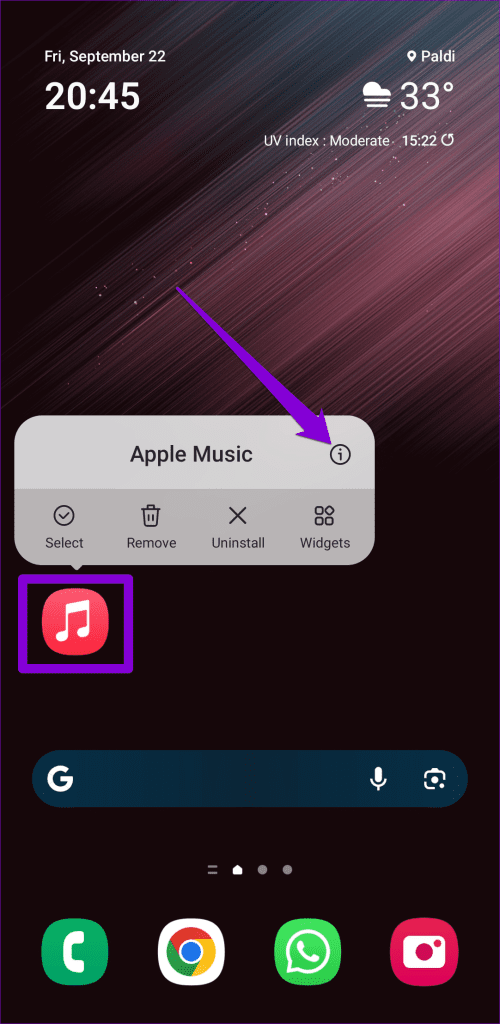
Step 1: Long-press on the Apple Music app icon and tap the info icon from the resulting menu.
Step 2: Go to Storage and tap the Clear cache option.


Was this helpful?
Last updated on 29 July, 2024
Read Next
 3 Ways to Fix Unable to Log In to Instagram on Android and iPhone
Try Basic Fixes Temporarily disable VPN connection: Instagram might flag your login attempts as suspicious if it detects unusual network activity.
3 Ways to Fix Unable to Log In to Instagram on Android and iPhone
Try Basic Fixes Temporarily disable VPN connection: Instagram might flag your login attempts as suspicious if it detects unusual network activity.
 3 Ways to Fix Unable to Log In to Spotify on Android and iPhone
Try Basic Fixes Update the app: The Spotify app on your phone may be outdated or buggy.
3 Ways to Fix Unable to Log In to Spotify on Android and iPhone
Try Basic Fixes Update the app: The Spotify app on your phone may be outdated or buggy.
 3 Ways to Fix Unable to Log in to Snapchat on Android and iPhone
Try Basic Fixes Check Snapchat's server status: It’s not uncommon for popular social media services like Snapchat to experience server outages.
3 Ways to Fix Unable to Log in to Snapchat on Android and iPhone
Try Basic Fixes Check Snapchat's server status: It’s not uncommon for popular social media services like Snapchat to experience server outages.
 4 Fixes for Android Auto Not Playing Music From Spotify or YouTube Music
Fix 1: Change the Default Music Streaming Service Say you have a Spotify subscription.
4 Fixes for Android Auto Not Playing Music From Spotify or YouTube Music
Fix 1: Change the Default Music Streaming Service Say you have a Spotify subscription.
 4 Fixes for Google Photos Unable to Save Changes Error
Basic Fixes Clear cache for Google Photos: Open Google Photos app info > tap on Storage and cache > Clear cache.
4 Fixes for Google Photos Unable to Save Changes Error
Basic Fixes Clear cache for Google Photos: Open Google Photos app info > tap on Storage and cache > Clear cache.
 5 Fixes for Unable to Open Attachments in Microsoft Outlook on Windows
Fix 1: Check Attachment Handling Settings If Outlook is unable to open your email attachments, it may be because the file previewer option is disabled.
5 Fixes for Unable to Open Attachments in Microsoft Outlook on Windows
Fix 1: Check Attachment Handling Settings If Outlook is unable to open your email attachments, it may be because the file previewer option is disabled.
 5 Fixes for Unable to Change Desktop Background on Windows
Fix 1: Ensure Windows Is Activated Although you can use an unactivated version of Windows 10 or 11, there are a few limitations.
5 Fixes for Unable to Change Desktop Background on Windows
Fix 1: Ensure Windows Is Activated Although you can use an unactivated version of Windows 10 or 11, there are a few limitations.
 5 Fixes for “Application Was Unable to Start Correctly (0xc0000142)” Error for Office Apps
Fix 1: Run the Office App as Administrator Lack of relevant permissions can prevent Office apps from accessing essential files, triggering the "The application was unable to start correctly (0xc0000142)"
5 Fixes for “Application Was Unable to Start Correctly (0xc0000142)” Error for Office Apps
Fix 1: Run the Office App as Administrator Lack of relevant permissions can prevent Office apps from accessing essential files, triggering the "The application was unable to start correctly (0xc0000142)"
The article above may contain affiliate links which help support Guiding Tech. The content remains unbiased and authentic and will never affect our editorial integrity.