


Basic Fixes
- Eject and re-insert SIM: Eject the SIM card from your phone, and insert it again – doing this can refresh the network connection.
- Move to a different surrounding: You might be trying to place a call in an area with less network coverage, or the problem is localized due to the presence of network jammers
- Restart device: Restart your Android device to fix temporary bugs and glitches with the network.
- Check the caller’s network connection: Sometimes, it may not be the problem with your phone or network.
- Update device: Update your device to the latest available Android version for a bug-free experience.
Fix 1: Fix Issues With Dialer App
If the Phone app is facing issues on your Android device – it may not let you place phone calls. Here’s how you can fix it.
Tap and hold the Phone app icon, and select app info.
- You can Force Stop the app, and restart it to resolve temporary glitches.
- You can also try clearing the cache to remove junk files that may cause issues.
- A recent update to the app may be causing issues – tap on the three-dots icon, and select Uninstall Updates.


Fix 2: Check Default SIM for Calls
Ensure the preferred SIM selected for making calls has an active plan and supports outgoing calls.
Open Settings, go to Mobile Network > SIM preferences, and check the preferred SIM for Voice Calls.


Fix 3: Change Preffered Network
Try changing the preferred network on your SIM to improve the phone call quality. You may not reciev good 5G signal strength in all areas.
Open Settings > Network and Internet > SIMs > Preferred network type and select LTE or 3G.


Fix 4: Disable and Enable SIM
Re-activating SIM cards can establish a fresh connection, thereby removing any bugs that is prevent you from making phone calls.
Open Settings > Mobile network, select the SIM card, and turn it off and turn it on.


Fix 5: Reset Network Settings
Resetting network settings can help erase any bugs that are affecting phone calls on your Android device. Therefore, doing so can also fix the problem.
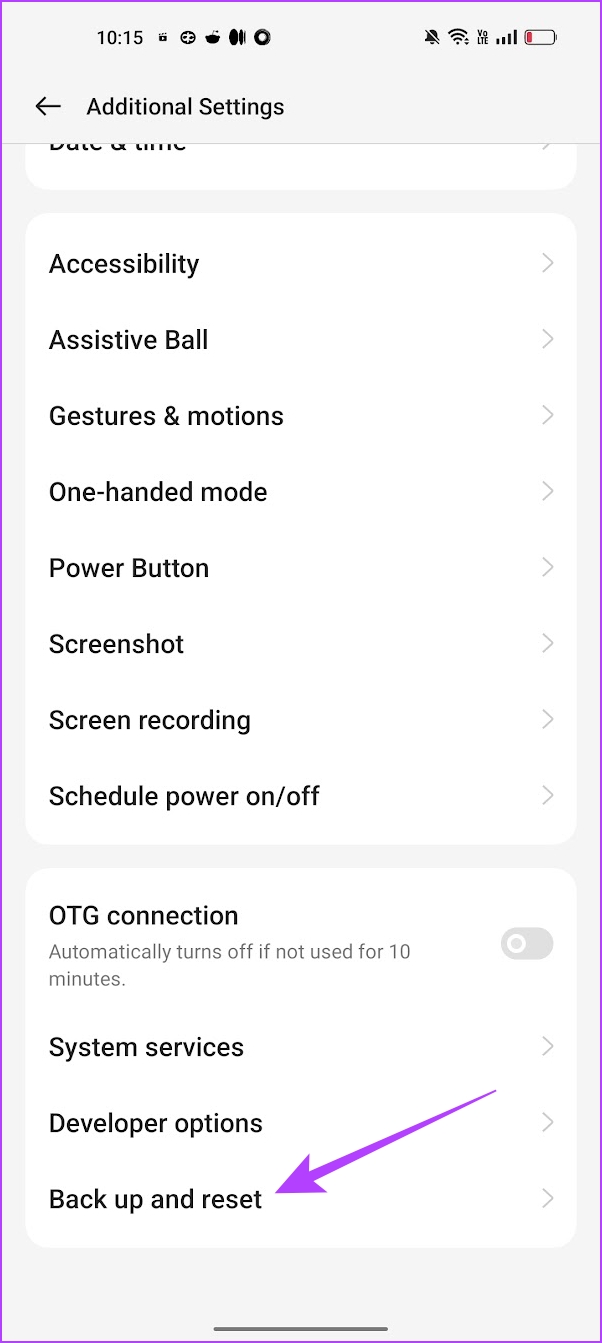
Open the Settings app, go to Back up and Reset > Reset Phone > Reset network settings.


Was this helpful?
Last updated on 08 August, 2024
11 Comments
Leave a Reply
Read Next
 4 Ways to Fix iPhone Not Making Calls but Can Text
Basic Fixes: Use Airplane Mode: Enabling and disabling Airplane Mode helps reset the network connectivity on your iPhone.
4 Ways to Fix iPhone Not Making Calls but Can Text
Basic Fixes: Use Airplane Mode: Enabling and disabling Airplane Mode helps reset the network connectivity on your iPhone.
 5 Fixes for Android Not Making or Receiving Calls
Before you begin, restart your Android device and ensure you have an active plan that supports outgoing calls.
5 Fixes for Android Not Making or Receiving Calls
Before you begin, restart your Android device and ensure you have an active plan that supports outgoing calls.
 How to Fix iPhone Making Calls Randomly on Its Own
Basic Fixes Disconnect Bluetooth devices: If you accidentally press the dedicated call button on your Bluetooth accessory, your iPhone may place random calls.
How to Fix iPhone Making Calls Randomly on Its Own
Basic Fixes Disconnect Bluetooth devices: If you accidentally press the dedicated call button on your Bluetooth accessory, your iPhone may place random calls.
 3 Ways to Fix iPad Making Static Noise or Buzzing Sound
Why Is My iPad Making Buzzing Sound?
3 Ways to Fix iPad Making Static Noise or Buzzing Sound
Why Is My iPad Making Buzzing Sound?
 4 Ways to Fix Android Phone Keeps Cutting Out During Calls
Basic Fixes Eject and re-insert SIM: Eject the SIM card from your phone, and insert it again.
4 Ways to Fix Android Phone Keeps Cutting Out During Calls
Basic Fixes Eject and re-insert SIM: Eject the SIM card from your phone, and insert it again.
 How to Find and Fix Windows 10 Making Random Sounds
Recently, when I was working on my Windows 10 laptop, I heard some random ding sounds coming from the speaker.
How to Find and Fix Windows 10 Making Random Sounds
Recently, when I was working on my Windows 10 laptop, I heard some random ding sounds coming from the speaker.
 4 Ways to Fix WhatsApp Calls Not Ringing When Phone is Locked
Basic Fixes Restart device: Restart your smartphone to fix any temporary bugs and glitches.
4 Ways to Fix WhatsApp Calls Not Ringing When Phone is Locked
Basic Fixes Restart device: Restart your smartphone to fix any temporary bugs and glitches.
 5 Ways to Fix Samsung Galaxy Phone Not Receiving Calls
https://youtu.be/oL3QSdMsT3o Basic Fixes: Restart your phone: Long-press the power button and select Restart.
5 Ways to Fix Samsung Galaxy Phone Not Receiving Calls
https://youtu.be/oL3QSdMsT3o Basic Fixes: Restart your phone: Long-press the power button and select Restart.
The article above may contain affiliate links which help support Guiding Tech. The content remains unbiased and authentic and will never affect our editorial integrity.

Didn’t work for me. My phone can text and receive calls, but oddly can’t make them.
What was your phone problem? I am having same situation. TIA
My phone don’t have R12 minutes for 3 days and if I call some numbers on my phone just hung itself up
I tryed everything and still can’t get it to work I don’t know what to do now
I’m having same issue with Moto 5g 2022
I can’t call or text all of the sudden
Not a fix for me either. Call receive calls and can text out but can’t call out.
I tried all the tricks and nothing change. So sad.
How can I use the internet and can’t make call nor receive and text message is working ????????????????????
I’m having the same issue – can text and receive calls (sometimes) but not make them! So frustrating. It feels like a system bug as so many of us seem to have it in early 2023
installed google voice and got new number … it works with cell data enabled… if i call my old number from another phone it says my number has been discontinued or changed… not true… lol i can still text with old number
Galaxy A-50 can receive and send text msgs and sometimes receive calls but cannot make calls Sometimes when calling to A-50 I get voice mail. I’m using MintMobile and switched on July 27 from T-Mobile. Worked ok with T-mobile. My other phone an LG switched immediately with no issues.
A-50 is using Android version 11. I checked for updates and indicated I was up to date.