Basic Fixes
- Disable Wi-Fi: The personal hotspot on your Android device will not work when Wi-Fi is enabled.
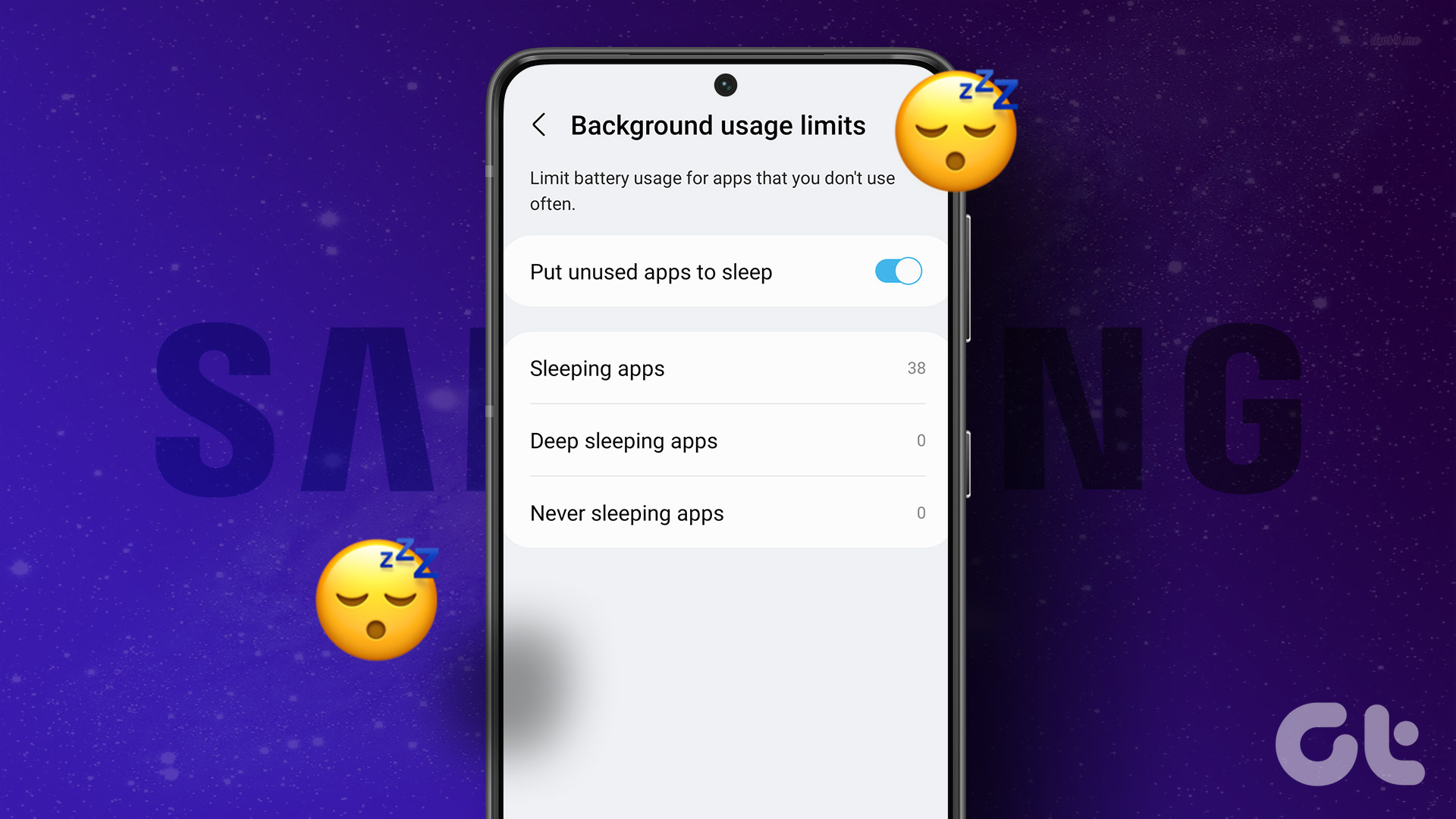
- Disable battery saver: Disable any battery-saving features in the settings app that may restrict the hotspot.
- Restart device: Restart your device to fix any temporary bugs and glitches.
- Check cellular data connectivity: Ensure you have an active cellular data plan, and there’s enough network strength to provide a good connection speed for the hotspot.
Fix 1: Modify Hotspot Timeout Settings
A few Android phones have timeout settings to turn off internet tethering automatically if no devices are connected. So check your phone’s Mobile Hotspot setup for any timeout configuration.
Step 1: Go to Settings > Network & Internet > Hotspot & Tethering > Wi-Fi Hotspot.
Note: Depending on your device’s brand and model, this option could be labeled Mobile Hotspot or Internet Hotspot.
Step 2: Tap the Advanced drop-down button.


Step 3: Toggle off the Turn off hotspot automatically option.
On some Android smartphones — Samsung devices, for example — you’ll find the option to remove hotspot timeout branded as Never timeout, ‘Always Keep Wi-Fi hotspot on,’ or Unlimited.

Also Read: How to fix Android mobile hotspot not working
Fix 2: Check and Remove Hotspot Data Usage Limit
Your Android phone has the option to set a limit for the data usage for the shared internet connection via hotspot. If the data usage exceeds this limit, then your hotspot may turn off automatically. Here’s how you can remove the data usage limit for your hotspot.
Step 1: Open the Settings app > Connection and Sharing > Personal Hotspot.
Step 2: Select Connection Management and select Data Usage Limit.
Make sure to remove any limits or use the Unrestricted option.


Fix 3: Reset Network Settings
If you are facing any problems with Bluetooth connections, Wi-Fi network, and GPS connectivity on your Android device – your best bet is to reset network settings.
Therefore, if there is any misconfiguration that is affecting the personal hotspot, the network settings reset will restore all of the configurations to their default states. Therefore, providing a good chance to solve the issue.
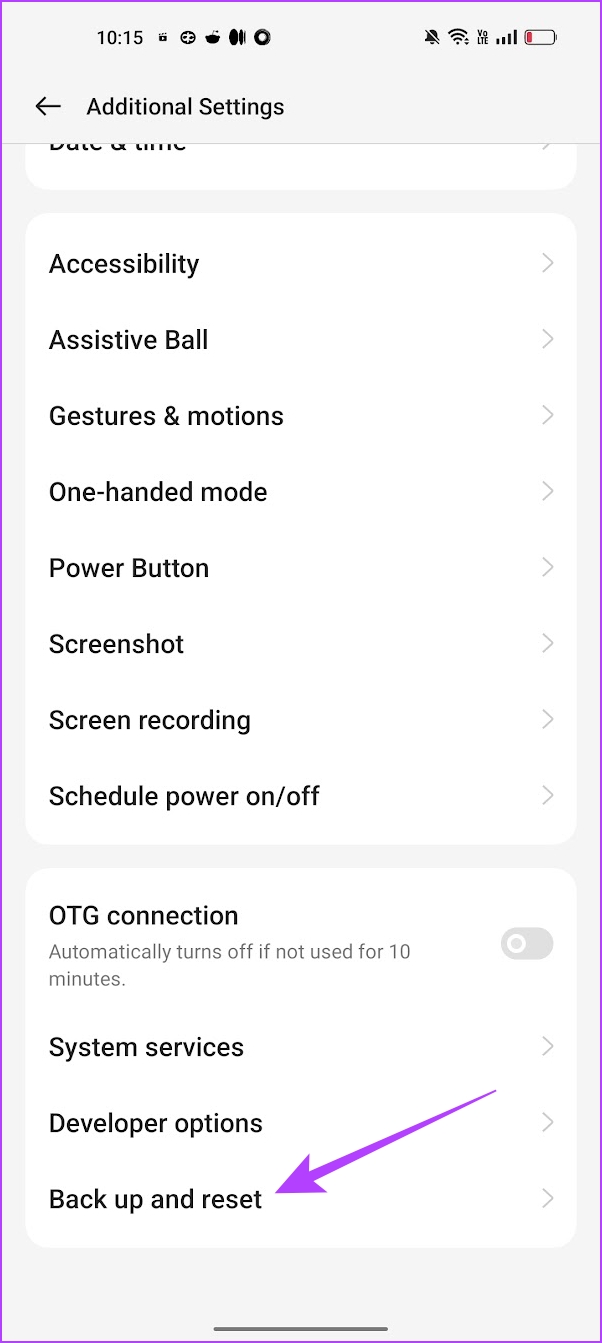
Open the Settings > Back up and Reset > Reset Phone and select Reset network settings.


Was this helpful?
Last updated on 24 July, 2024
Read Next
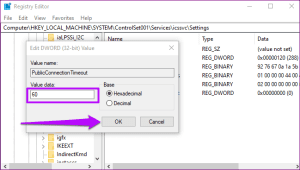 4 Ways to Fix Windows Mobile Hotspot Keeps Turning off
Fix 1: Disable Mobile Hotspot Power Saving Disable the power saving feature to prevent Windows from automatically turning off the hotspot when not in use.
4 Ways to Fix Windows Mobile Hotspot Keeps Turning off
Fix 1: Disable Mobile Hotspot Power Saving Disable the power saving feature to prevent Windows from automatically turning off the hotspot when not in use.
 How to Stop iPhone Personal Hotspot From Turning On Automatically
https://youtu.be/RIBOWbQOnMU Fix 1.
How to Stop iPhone Personal Hotspot From Turning On Automatically
https://youtu.be/RIBOWbQOnMU Fix 1.
 6 Ways to Fix Bluetooth Keeps Turning Off on Windows 11
Fix 1: Toggle the Airplane Mode Toggling the airplane mode in Windows is a neat way to refresh your PC’s wireless connections, including Bluetooth.
6 Ways to Fix Bluetooth Keeps Turning Off on Windows 11
Fix 1: Toggle the Airplane Mode Toggling the airplane mode in Windows is a neat way to refresh your PC’s wireless connections, including Bluetooth.
 How to Fix iPhone Hotspot Keeps Disconnecting on Windows and Mac
Why Does My iPhone Hotspot Keeps Disconnecting Before we show you step-by-step instructions to fix the hotspot issue on your iPhone, let's quickly go over some of the possible reasons
How to Fix iPhone Hotspot Keeps Disconnecting on Windows and Mac
Why Does My iPhone Hotspot Keeps Disconnecting Before we show you step-by-step instructions to fix the hotspot issue on your iPhone, let's quickly go over some of the possible reasons
 Top 7 Ways to Fix Android Mobile Hotspot Not Working
We are relying on mobile hotspot more than ever in the work from home situation.
Top 7 Ways to Fix Android Mobile Hotspot Not Working
We are relying on mobile hotspot more than ever in the work from home situation.
 4 Ways to Fix Android Wi-Fi Not Turning on Issue
Basic Fixes: Enable and disable Airplane mode: Once enabled, Airplane mode disables all radio communications for your device.
4 Ways to Fix Android Wi-Fi Not Turning on Issue
Basic Fixes: Enable and disable Airplane mode: Once enabled, Airplane mode disables all radio communications for your device.
 5 Best Ways to Fix Do Not Disturb Turning on Itself on Android
https://youtu.be/KPSTdO-aMpo Fix 1: Check the Do Not Disturb Schedule Step 1: Swipe up from the home screen to open the app drawer menu.
5 Best Ways to Fix Do Not Disturb Turning on Itself on Android
https://youtu.be/KPSTdO-aMpo Fix 1: Check the Do Not Disturb Schedule Step 1: Swipe up from the home screen to open the app drawer menu.
 5 Ways to Fix Android Phone Automatically Turning Down Volume
https://youtu.be/c3evW3GIp5w Basic Fixes Restart device: Restart your Android device to get rid of temporary bugs and glitches.
5 Ways to Fix Android Phone Automatically Turning Down Volume
https://youtu.be/c3evW3GIp5w Basic Fixes Restart device: Restart your Android device to get rid of temporary bugs and glitches.
The article above may contain affiliate links which help support Guiding Tech. The content remains unbiased and authentic and will never affect our editorial integrity.