What Does Amazon Prime Video Error 5004 or 5005 Mean?
The Error 5004 or 5005 in Amazon Prime Video occurs due to one of the following reasons:
- You’ve used incorrect account details (e.g. email and password) to sign in.
- Amazon Prime Video is facing a temporary connection issue creating an error while logging in.
- Your Amazon Prime membership has expired, halting your access to the content.
Basic Fixes
- Verify your network connection: Ensure your device has a good internet connection. I recommend 10-15 Mbps internet speed to stream content in Amazon Prime Video without errors.
- Check the Amazon Prime Video server: Visit Downdetector to check an active Amazon Prime Video server outage.
- Inspect your Amazon Prime membership: Open Amazon in your browser, select ‘Account & Lists’ from the top right, and click ‘Your Prime Membership’. Check the ‘Membership ending date’ to verify your subscription. Alternatively, open the Amazon app on your phone, select Menu at the bottom-right, and tap Account. Scroll down and select ‘Manage Prime membership’ to check the status.
- Disable VPN: Open the VPN app, and tap Disconnect to disable the active connection. Reload Amazon Prime Video in your browser or reopen its app to continue streaming online.
- Update or reinstall the Prime Video app: Head to the Google Play Store or Apple App Store, search Amazon Prime Video, and tap Update (if available). If the error persists, uninstall the app, and install it afresh from your device’s app store.
Fix 1: Sign out and Log Into Amazon Prime Video
Account authentication issues are a common reason behind Error Codes 5004 or 5005 in Amazon Prime Video. Sign out and log in again to continue streaming your content.
Step 1: Open the Prime Video app, tap your profile icon at the top-right, and select the Gear icon.

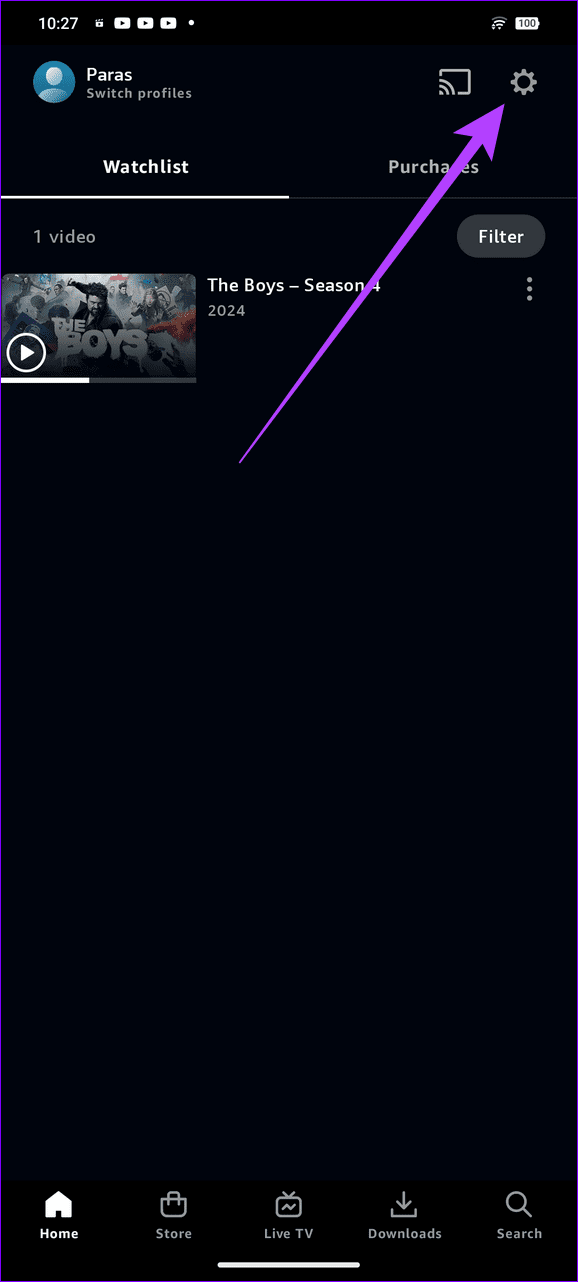
Step 2: Scroll down, tap My Account, and select Sign out. Once logged out, reopen the app and enter your Amazon account credentials to log back in.


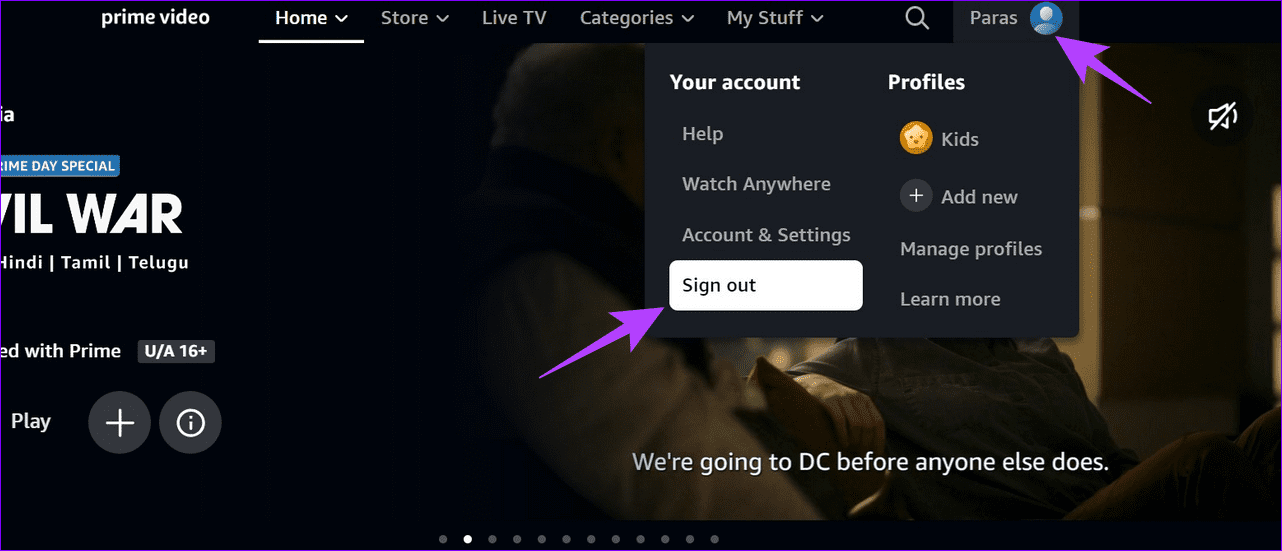
Step 3: On PC, click your profile icon at the top-right of Amazon Prime Video, and select Sign out. Type your account credentials, and click Sign in to log in again.
Fix 2: Clear the Prime Video App Cache and Data (Android)
A corrupt app cache can cripple the Prime Video app showing the Error code 5004 or 5005. Head to its app settings to clear the cache and app data.
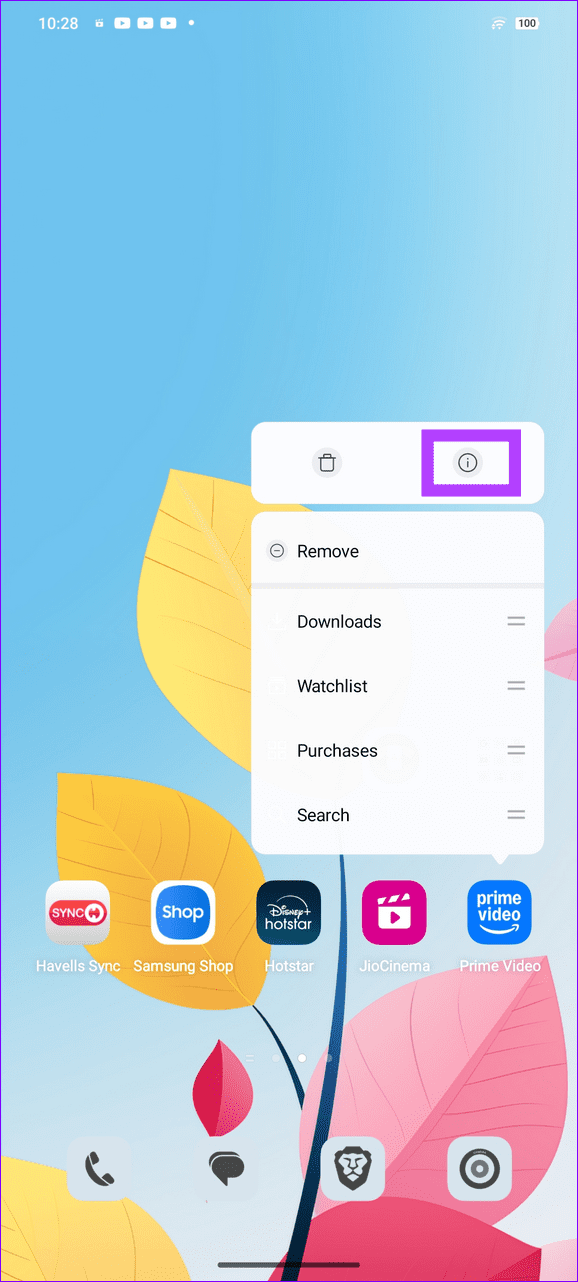
Step 1: Long-tap the Prime Video app icon to open the App info.
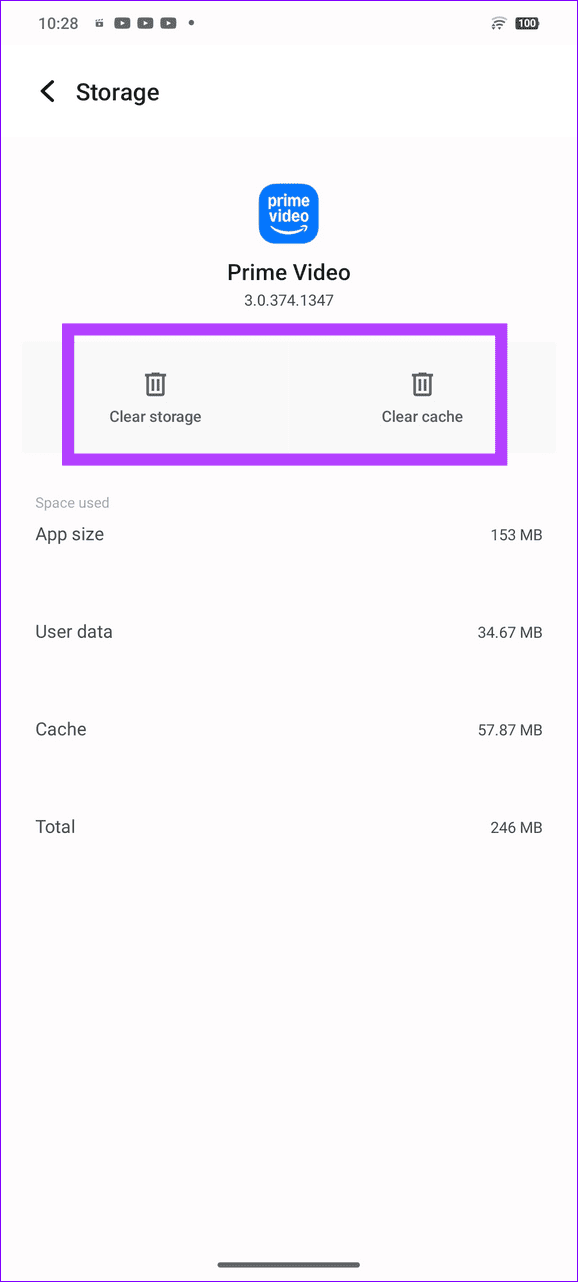
Step 2: Select Storage and cache, and tap Clear cache, followed by Clear storage. Reopen the Prime Video app to continue streaming your content.

Fix 3: Remove Your Browser Cache and Cookies (Web)
If you’re browsing Amazon Prime Video in your PC’s browser and consistently getting the Error Code 5004 or 5005, delete the browser cache/cookies and reload Amazon Prime Video. Let’s take Google Chrome for instance.
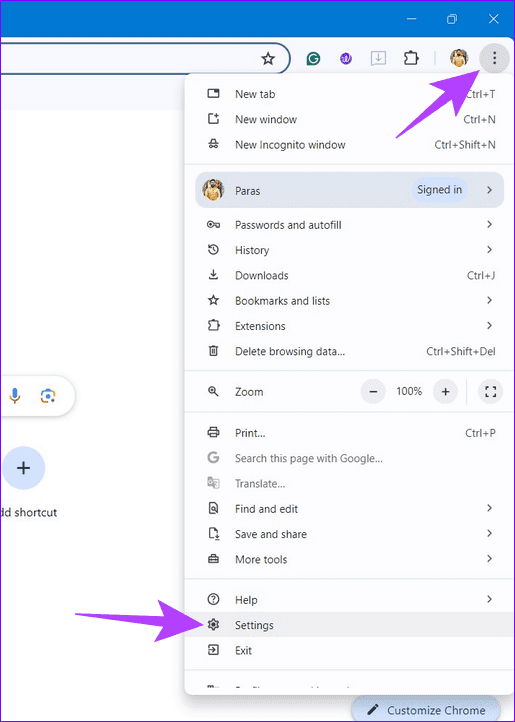
Step 1: Click the vertical three-dot menu at the top right of Google Chrome, and select Settings.
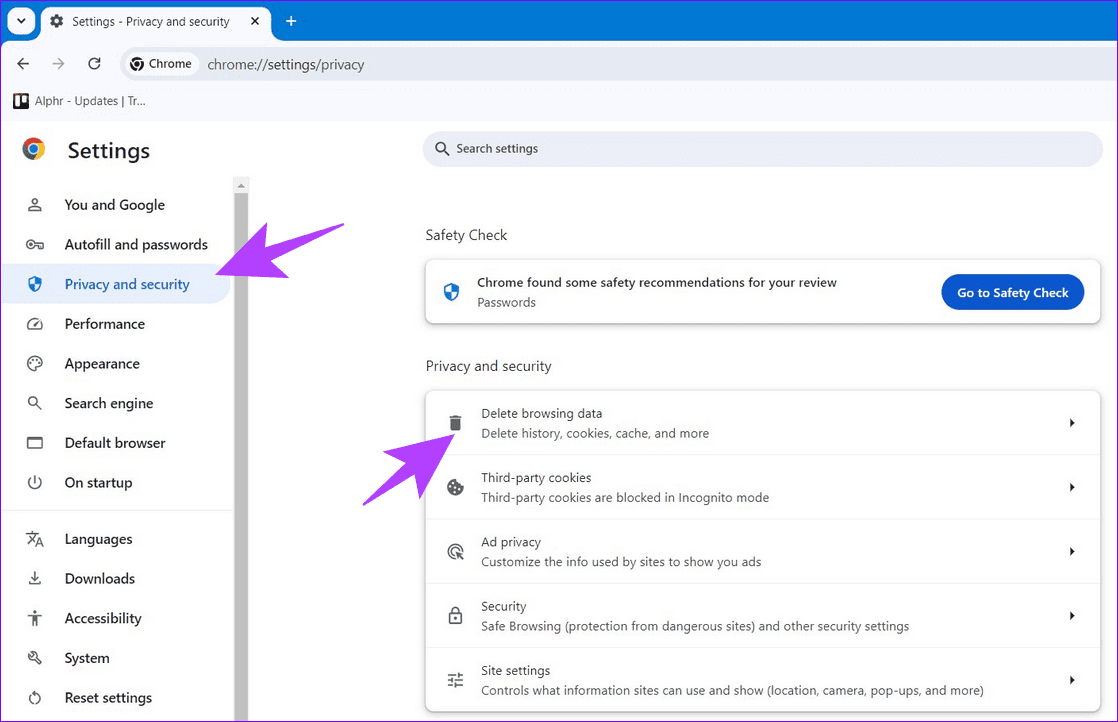
Step 2: Select Privacy and security from the left sidebar, and click Delete browsing data.
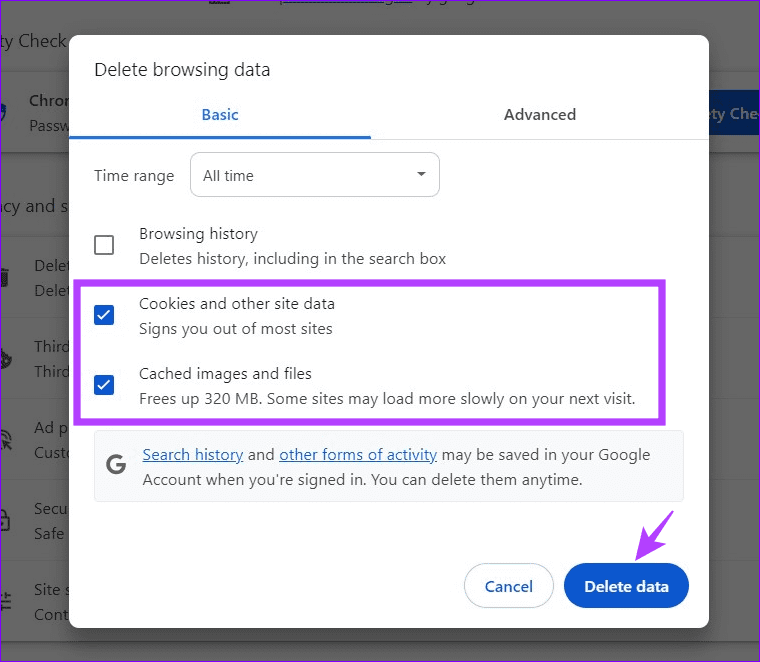
Step 3: Mark ‘Cookies and other site data‘, ‘Cached images and files‘, and click Delete data.
Fix 4: Offload the Prime Video App (iOS)
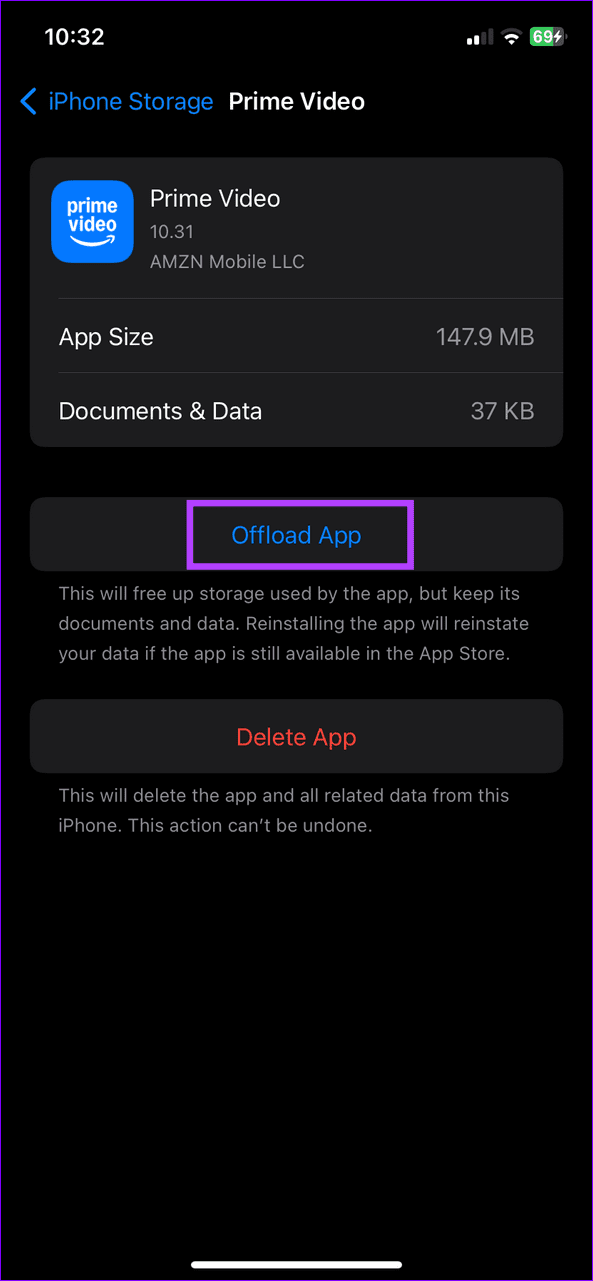
Unlike Android, iOS doesn’t allow clearing the Prime Video app cache manually. Instead, you can offload the app and reinstall it to restore its normal functioning.
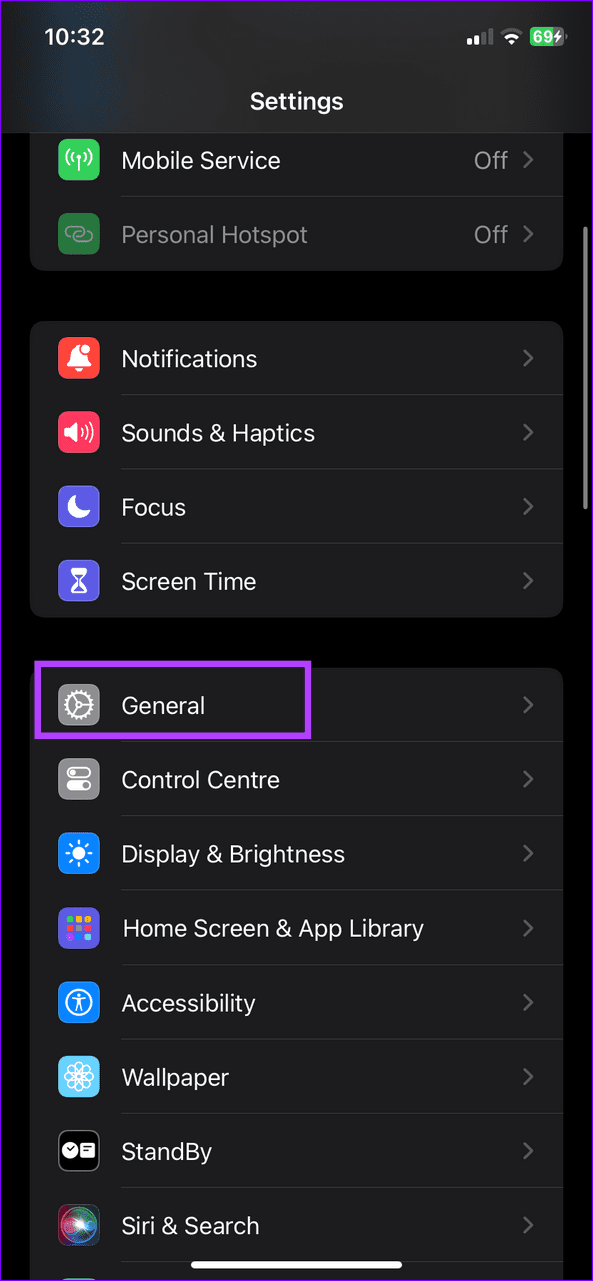
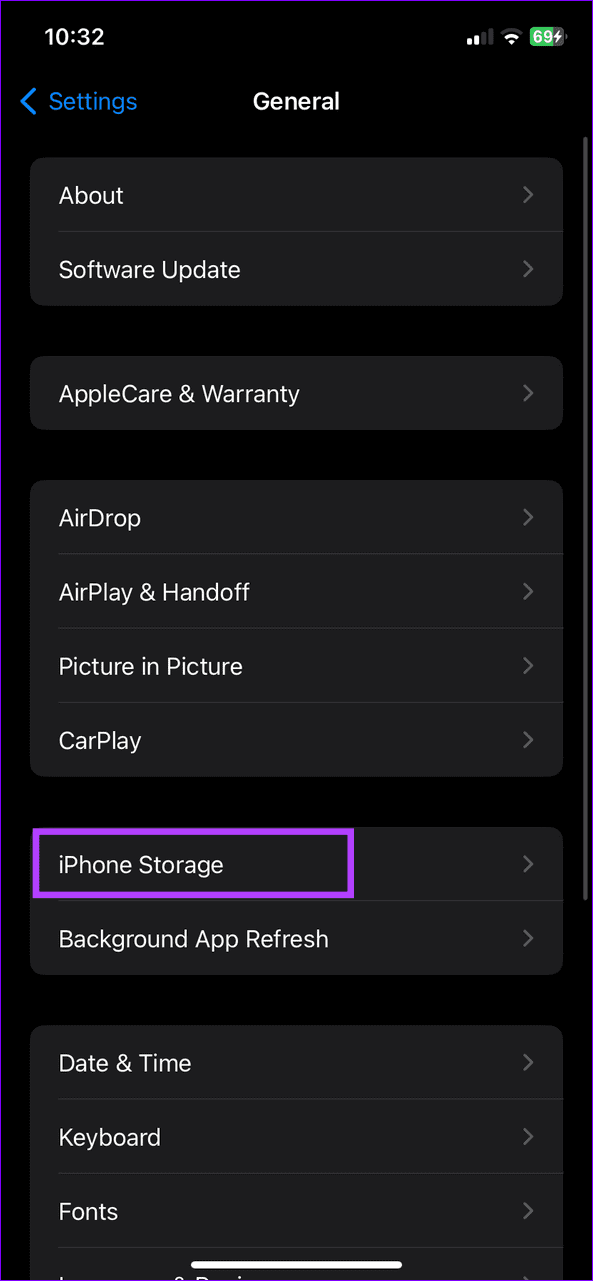
Step 1: Open iPhone Settings, select General, and tap iPhone Storage.
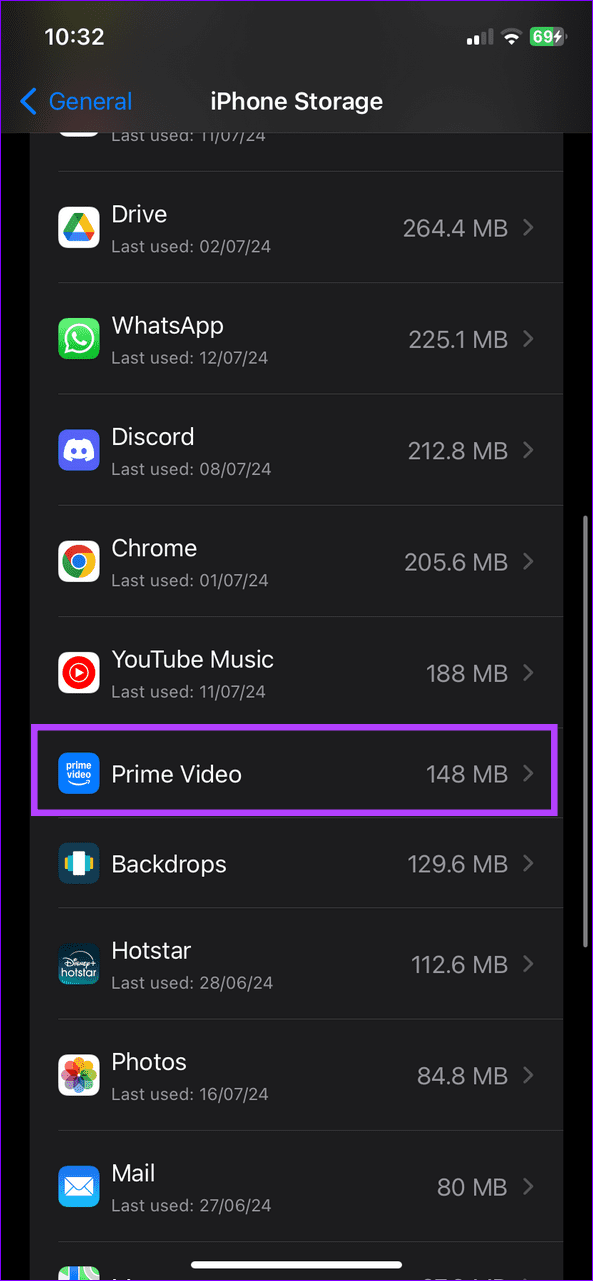
Step 2: Select Prime Video from the list, and tap Offload App. Reinstall it from the Apple App Store.
Fix 5: Reset Your Account Password
Lastly, if nothing works, reset your Amazon account password and reauthenticate it to fix the Error Code 5004 or 5005 in Amazon Prime Video. You can also contact Amazon Support to request assistance as a last resort.
On Phone
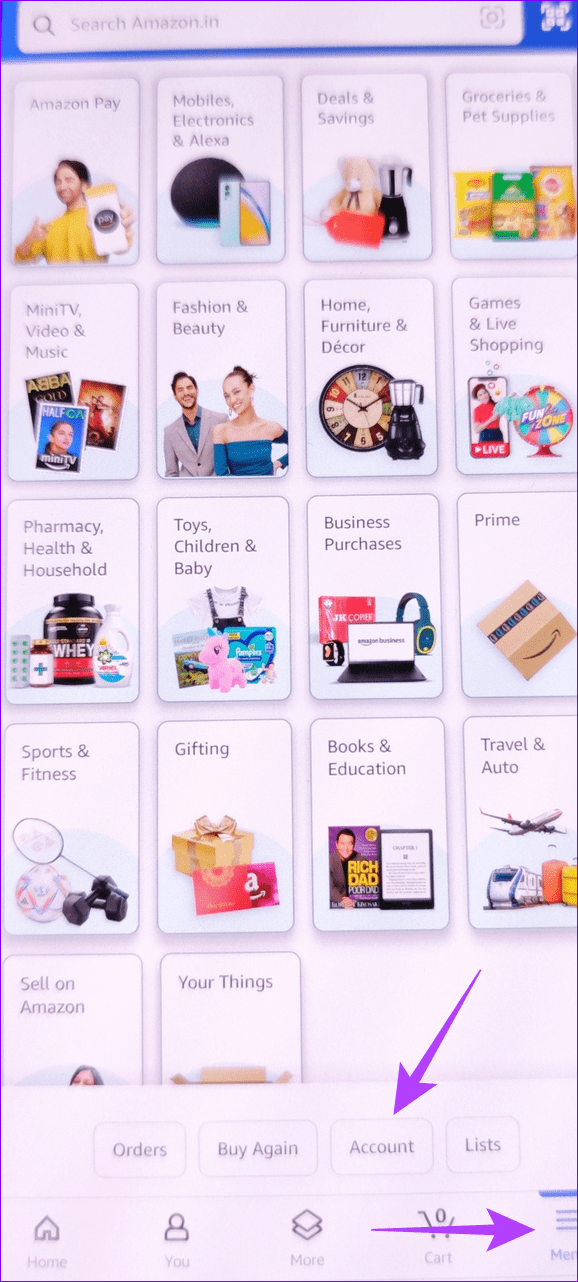
Step 1: Open the Amazon app, select Menu from the bottom right, and tap Account.
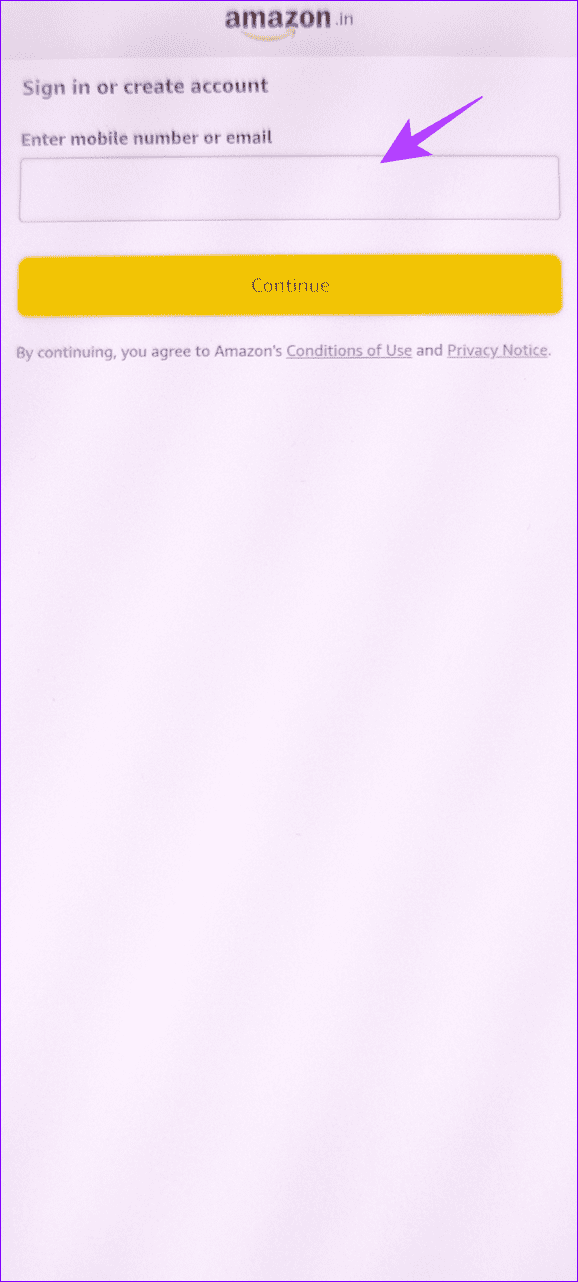
Step 2: Enter your email address or mobile number, and tap Continue.
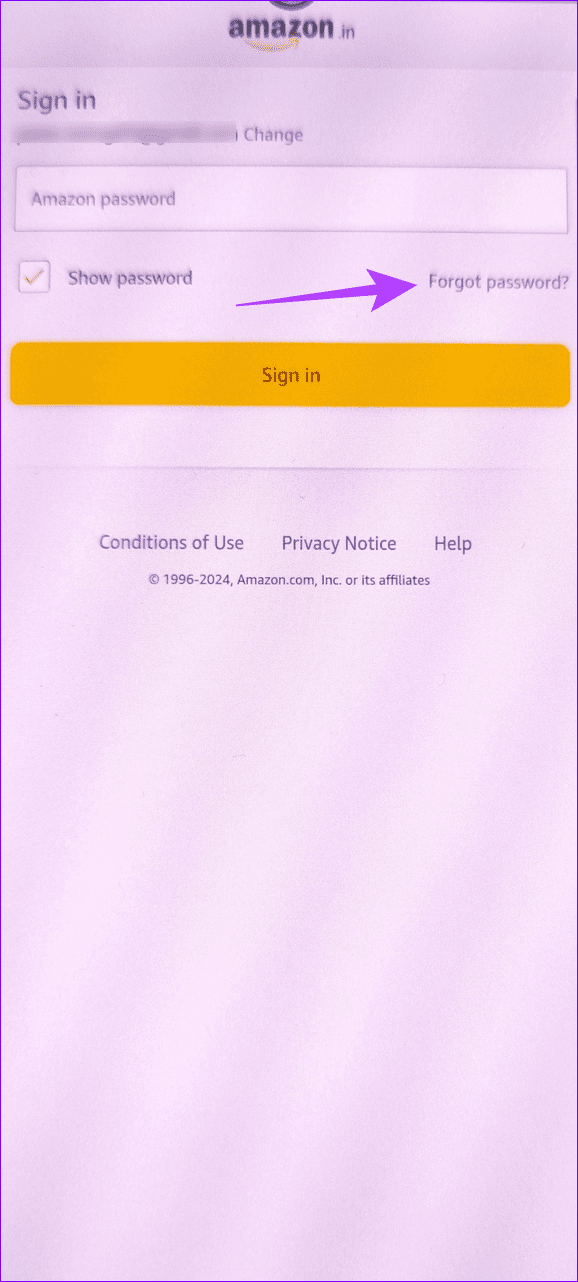
Step 3: Tap Forgot password and follow the on-screen instructions to verify and reset your Amazon account password. Once reset, sign into the Prime Video app using your new account credentials.

On PC
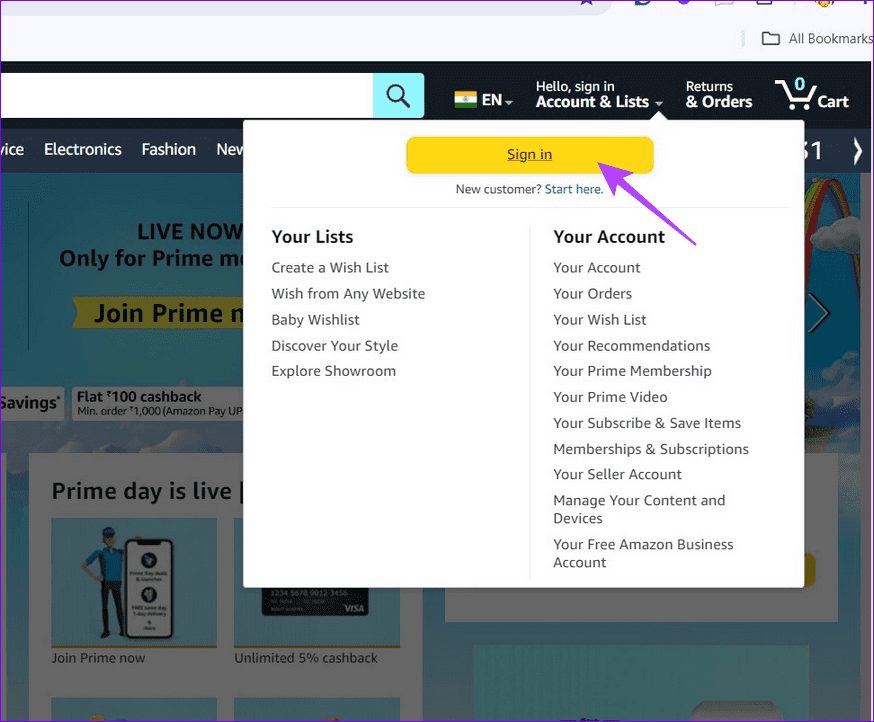
Step 1: Visit Amazon in your browser, select Account & Lists from the top right corner, and click Sign in.
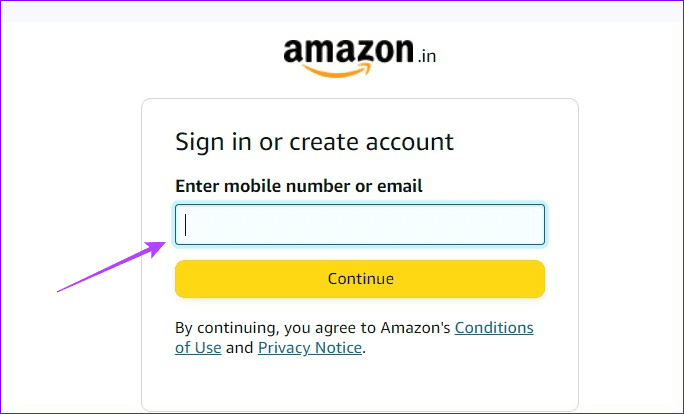
Step 2: Enter your mobile number or email address and click Continue.
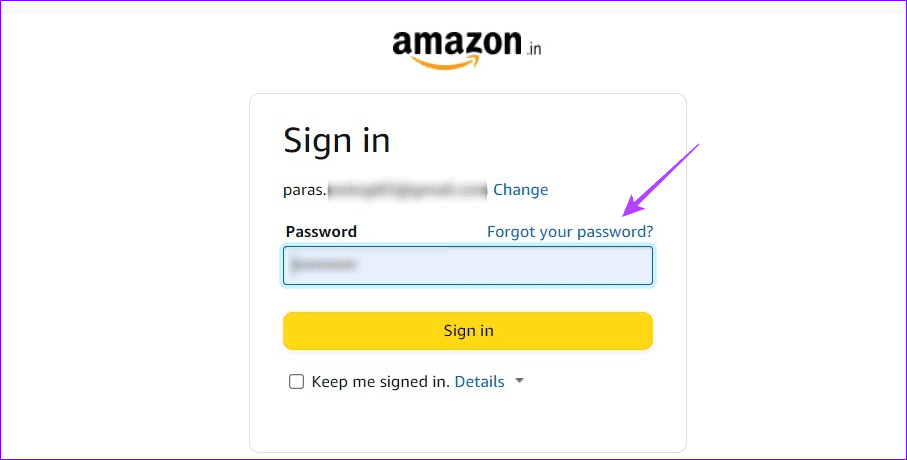
Step 3: Click Forgot your password, and follow the on-screen instructions to reset your Amazon account password.
Was this helpful?
Last updated on 22 July, 2024
Read Next
 5 Ways to Fix Video Unavailable in Amazon Prime Video
Basic Fixes Check network connection: Playing Prime without any problems requires an optimum internet speed.
5 Ways to Fix Video Unavailable in Amazon Prime Video
Basic Fixes Check network connection: Playing Prime without any problems requires an optimum internet speed.
 3 Ways to Fix Amazon Prime Video App Not Working on Mac
Basic Fixes Check internet connection: The speed of the internet connection should be optimal to watch content of the highest quality on Prime Video.
3 Ways to Fix Amazon Prime Video App Not Working on Mac
Basic Fixes Check internet connection: The speed of the internet connection should be optimal to watch content of the highest quality on Prime Video.
 5 Ways to Fix Amazon Prime Video Doesn’t Play in HD on Browser
Basic Fixes Check network connection: Playing Prime Video in high definition or the best resolution requires an optimum internet speed.
5 Ways to Fix Amazon Prime Video Doesn’t Play in HD on Browser
Basic Fixes Check network connection: Playing Prime Video in high definition or the best resolution requires an optimum internet speed.
 What is the Download Limit For Amazon Prime Video
Amazon’s relatively successful venture into the video streaming business alongwith few Original releases from their own production has found an audience across the globe and thanks to its Download and
What is the Download Limit For Amazon Prime Video
Amazon’s relatively successful venture into the video streaming business alongwith few Original releases from their own production has found an audience across the globe and thanks to its Download and
 How to Remove Registered Devices From Amazon Prime Video
Method 1: Deregister Device Using Mobile The Prime Video App on iPhone or Android will let you enjoy your favorite content on the move or from the porch.
How to Remove Registered Devices From Amazon Prime Video
Method 1: Deregister Device Using Mobile The Prime Video App on iPhone or Android will let you enjoy your favorite content on the move or from the porch.
 How to Turn Off Auto Play on Amazon Prime Video
Method 1: How to Turn Off Auto Play on Prime Video on the Web Step 1: Open Prime Video in a browser on your computer and sign in with your Amazon
How to Turn Off Auto Play on Amazon Prime Video
Method 1: How to Turn Off Auto Play on Prime Video on the Web Step 1: Open Prime Video in a browser on your computer and sign in with your Amazon
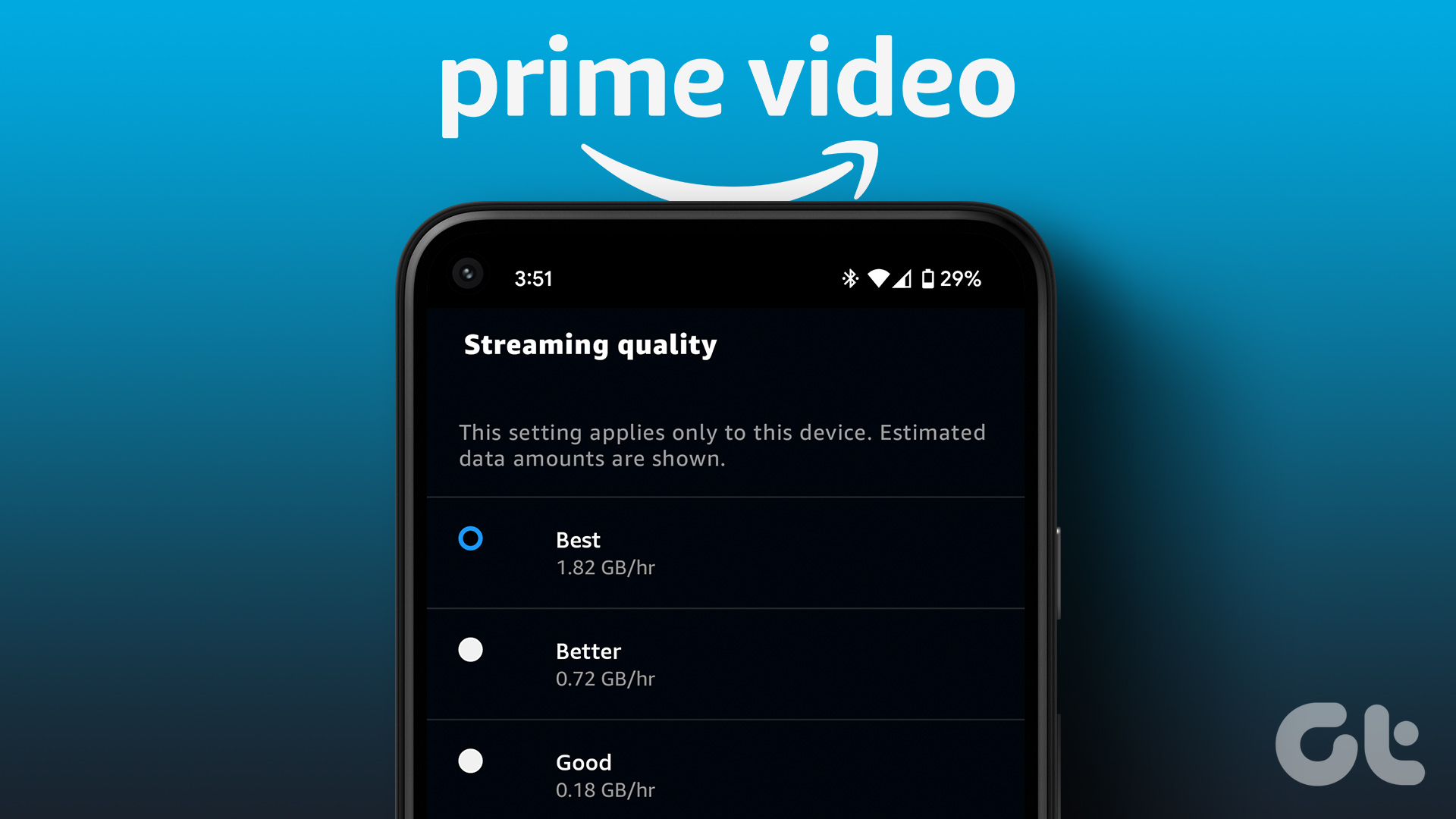 How to Change Amazon Prime Video Streaming Quality on Any Device
Most streaming services these days offer the best quality possible.
How to Change Amazon Prime Video Streaming Quality on Any Device
Most streaming services these days offer the best quality possible.
 5 Ways to Fix Amazon Prime Video Not Working on Apple TV
Basic Fixes Check Amazon Prime subscription status: You can visit your Amazon account on a desktop browser to check your subscription status.
5 Ways to Fix Amazon Prime Video Not Working on Apple TV
Basic Fixes Check Amazon Prime subscription status: You can visit your Amazon account on a desktop browser to check your subscription status.
The article above may contain affiliate links which help support Guiding Tech. The content remains unbiased and authentic and will never affect our editorial integrity.