


Basic Fixes
- Check your internet connection and restart devices: Ensure the Alexa-enabled Echo device has an active internet connection and restart your device.
- Increase the Echo volume: Alexa might be playing the music, but you might not hear it due to low sound
- Rename your Spotify playlist and make it public: Avoid adding punctuations, difficult titles, or acronyms in the name. Also, refrain from keeping similar names for playlists such as Super Nova 1, Super Nova 2, etc.
- Update Spotify and Amazon Echo app: Install the latest versions of the app.
Fix 1: Disable ‘Show Local Devices Only’ on Spotify
Let’s say the Alexa speaker is not connected to your Wi-Fi network; you should still be able to play Spotify music on it. So, we suggest disabling the option of showing local devices only.
Step 1: Open Spotify, tap on your profile icon, and select Settings and privacy.
Step 2: Tap on Devices and turn off the toggle for Show local devices only.

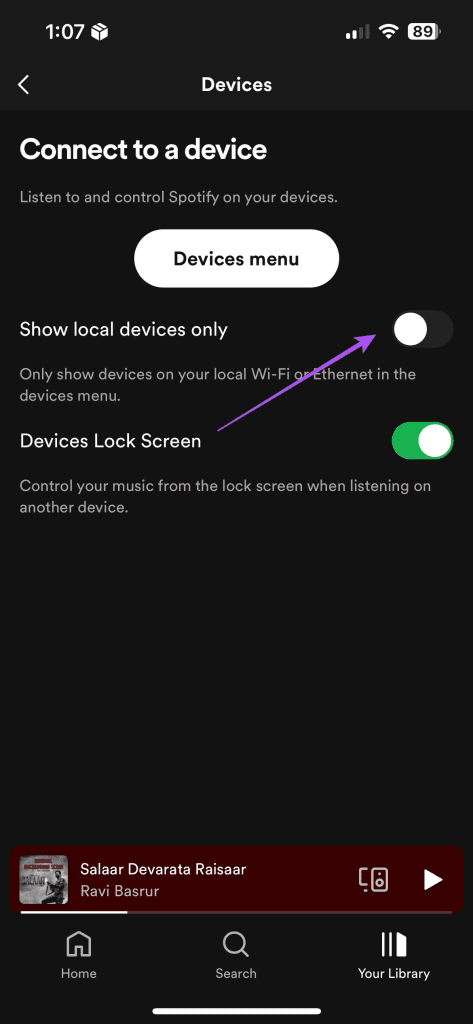
Fix 2: Remove Alexa Access From Spotify Account Settings
Doing this will remove all the device preferences associated with your Spotify account.
Step 1: Open Spotify and go to Settings and privacy.
Step 2: Select Voice Assistants and Apps and tap on Linked to remove access to the Alexa app.
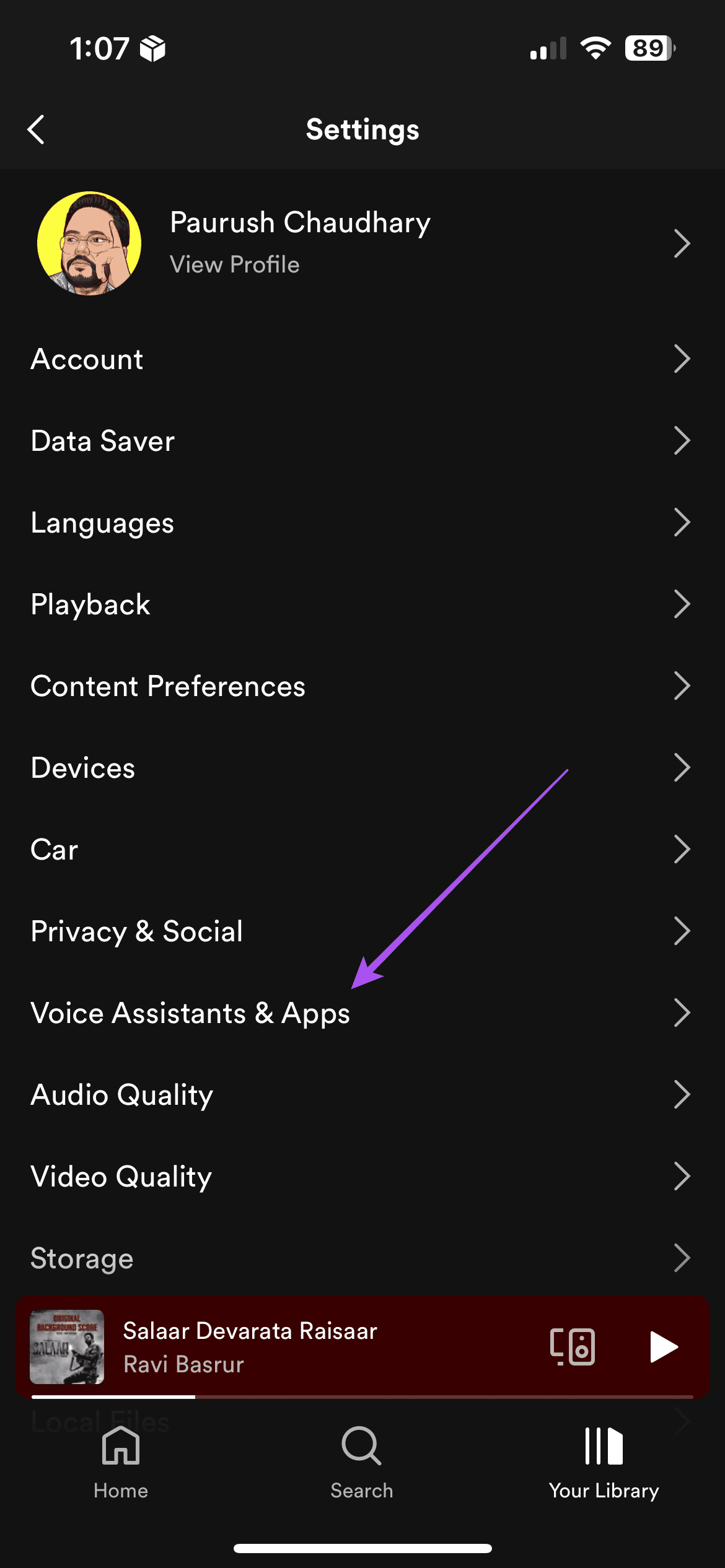
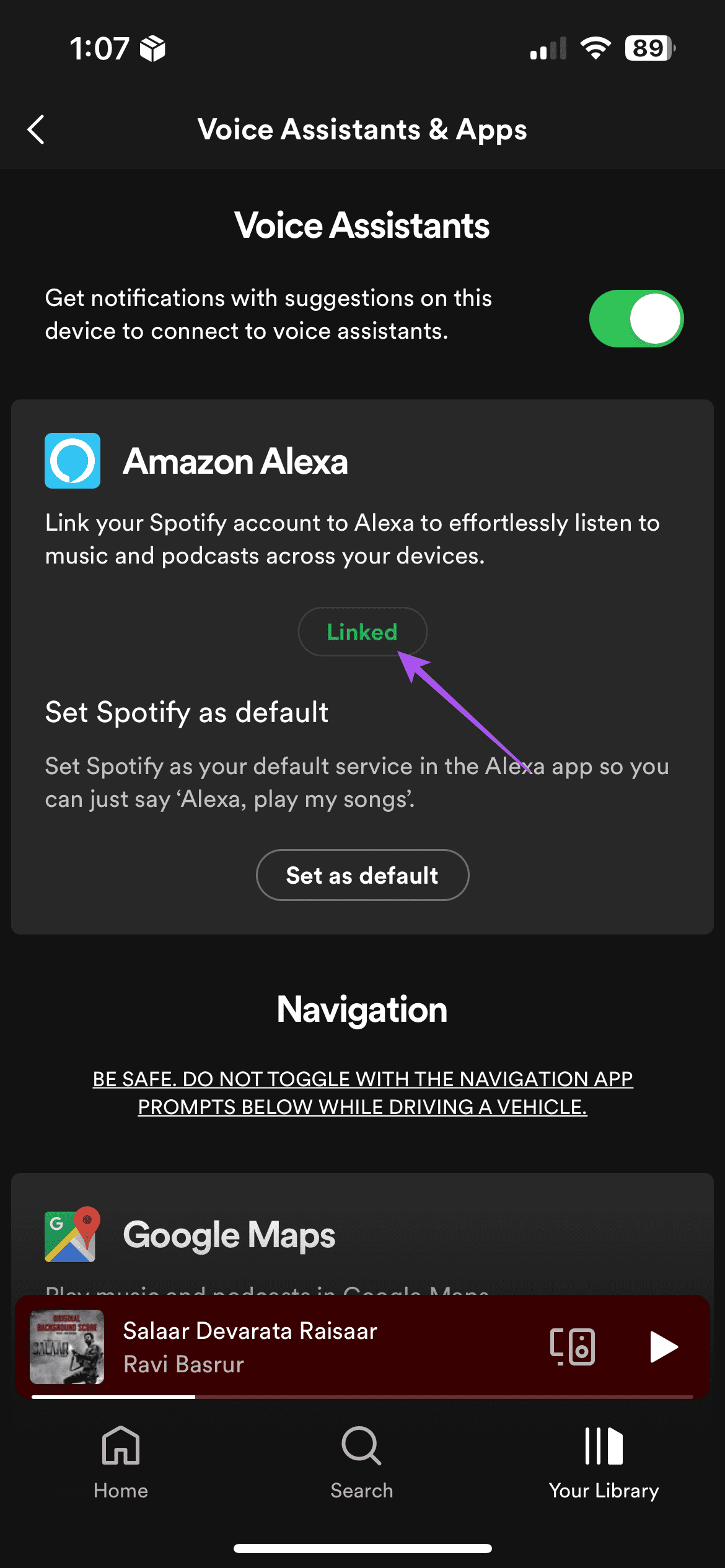
You can also do this using your desktop by visiting the connected apps page.
Fix 3: Link Spotify to Alexa and Set As Default
Once you have unlinked Alexa on Spotify, link your Spotify account to Alexa and set it as the default music player.
Step 1: Open the Alexa app, tap on More at the bottom-right corner, and select Settings.
Step 2: Choose Music and Podcasts and tap on Spotify.
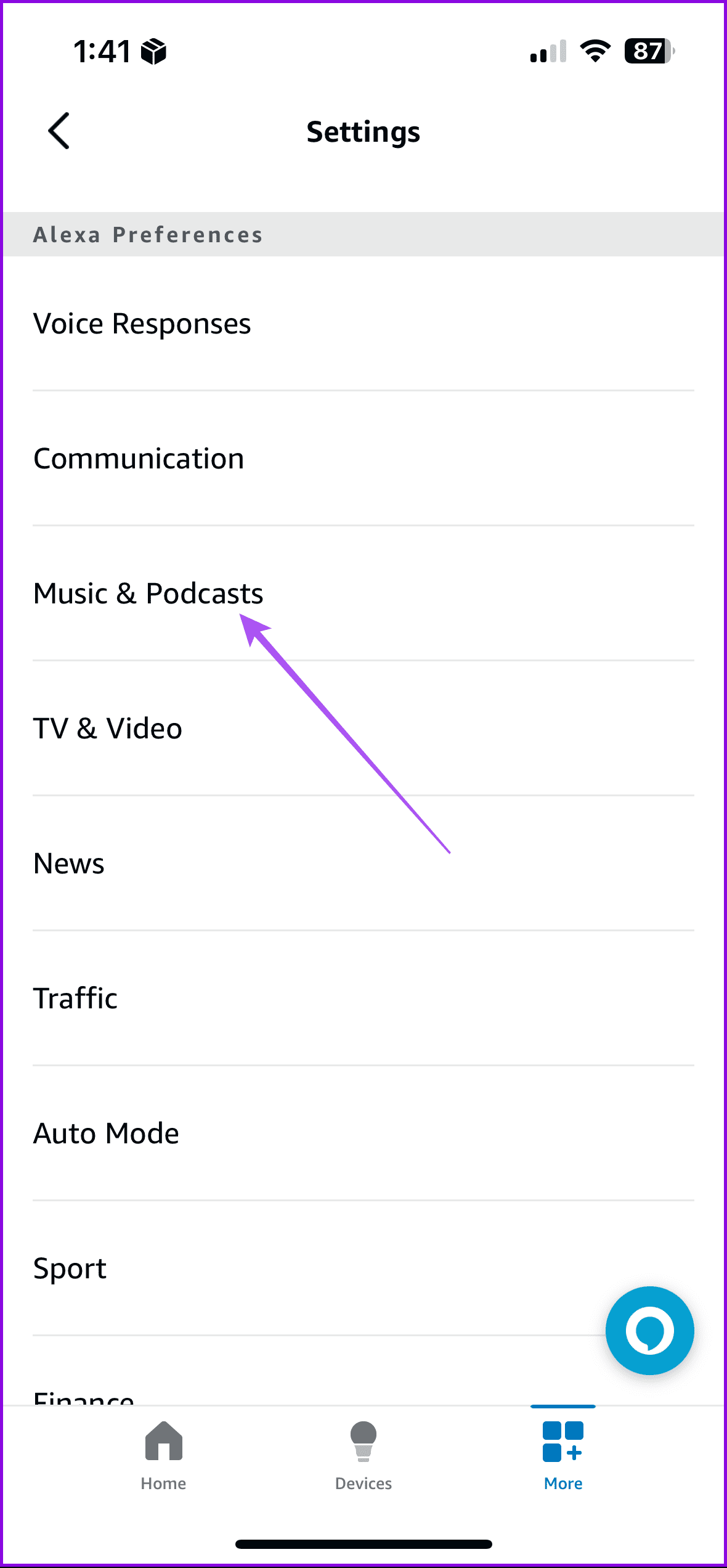

Step 3: Tap on Disable Skill. Then, link your account again and set Spotify as default.
Tip: If Alexa tells you to connect to your Spotify account, but it’s already linked, unlink Spotify and Alexa from the web. For that, go to your Spotify account settings on the web. Click on Manage Apps. Then, click on Remove Access next to Alexa. Then, try linking your Spotify account to the Alexa app.
Fix 4: Make Spotify Forget Your Echo Device
You can try removing your connected Amazon Echo device with your Spotify account. Then, reconnect the device and see if the problem is solved.
Step 1: Open the Spotify app on your phone and go to Settings and privacy.
Step 2: Tap on Devices > select Device Menu.

Step 3: You will find your Echo device. Tap on the three-dot icon next to the speaker and select Forget this device.
Add your device again and check if the problem is solved.
Fix 5: Use Right Commands to Play Spotify
You must use relevant commands to play music from Spotify on your Alexa device. For instance, say, Alexa, play [Song name].
Here are some tips to play music from Spotify on Alexa without any issues:
- If Spotify isn’t set as the default music app, you must add Spotify at the end of your command.
- If you have multiple Alexa devices in your name, tell Alexa the device name on which you want to play the sound.
- After issuing the right commands, if Echo doesn’t play your playlist, try adding the word My to your command. For instance, ‘Alexa, play my Super Nova playlist.’
Fix 6: Use the Right Account to Play Spotify
If you own an Amazon household account, Alexa might have switched to a different user. That will cause issues with your Spotify. To check the currently active profile, ask her, ‘Alexa, which account is this?’ or ‘Alexa, which profile am I using.’ If it’s a different user, say, ‘Alexa, change user.’
Fix 7: Clear App Cache
An outdated app cache can cause issues with the functioning of apps like Spotify. Clear the Spotify app cache, log in again to your account, and check if it helped solve the problem.
Step 1: Open Spotify and go to Settings and privacy.
Step 2: Tap on Clear cache > confirm your choice.


Fix 8: Reset Amazon Echo
Lastly, you must take the harsh step of factory resetting your Echo device. Doing so will fix any temporary issue that could be causing Spotify to not work on Alexa. Please note that resetting Echo will delete your personal information and connected devices from your Echo device. You will have to set up Amazon Echo from scratch again.
Note: If you face any problem while setting up Echo, learn how to fix Echo setup issues.
Was this helpful?
Last updated on 12 June, 2024
2 Comments
Leave a Reply
Read Next
 4 Fixes for Android Auto Not Playing Music From Spotify or YouTube Music
Fix 1: Change the Default Music Streaming Service Say you have a Spotify subscription.
4 Fixes for Android Auto Not Playing Music From Spotify or YouTube Music
Fix 1: Change the Default Music Streaming Service Say you have a Spotify subscription.
 8 Ways to Fix Alexa Not Playing Amazon Music
Some Basic Fixes Restart your Echo device: You should start the troubleshooting process of Alexa not playing Amazon Music by restarting your Echo.
8 Ways to Fix Alexa Not Playing Amazon Music
Some Basic Fixes Restart your Echo device: You should start the troubleshooting process of Alexa not playing Amazon Music by restarting your Echo.
 4 Ways to Fix Alexa Not Playing Apple Music
Basic Fixes Make playlists public on Apple Music: Go to Apple Music > profile icon > Edit > enable your playlists to make them public.
4 Ways to Fix Alexa Not Playing Apple Music
Basic Fixes Make playlists public on Apple Music: Go to Apple Music > profile icon > Edit > enable your playlists to make them public.
 5 Fixes if Spotify Starts Playing by Itself on Android and iPhone
Basic Fixes Update the Spotify app: Using an outdated version may lead to such unusual behavior.
5 Fixes if Spotify Starts Playing by Itself on Android and iPhone
Basic Fixes Update the Spotify app: Using an outdated version may lead to such unusual behavior.
 Top 7 Ways to Fix Siri Not Playing Music from Apple Music
Siri not recognizing your voice and not playing music from Apple Music can lead to an undesirable experience.
Top 7 Ways to Fix Siri Not Playing Music from Apple Music
Siri not recognizing your voice and not playing music from Apple Music can lead to an undesirable experience.
 4 Fixes if Samsung Phone Stops Playing Music When Screen Turns Off
Basic Fixes: Restart your phone: Restarting your phone can help solve temporary system glitches.
4 Fixes if Samsung Phone Stops Playing Music When Screen Turns Off
Basic Fixes: Restart your phone: Restarting your phone can help solve temporary system glitches.
 Top 7 Fixes for Apple Music Starts Playing by Itself on iPhone
Picture this: you're in an important meeting or a quiet library, and your iPhone is lying nearby.
Top 7 Fixes for Apple Music Starts Playing by Itself on iPhone
Picture this: you're in an important meeting or a quiet library, and your iPhone is lying nearby.
 11 Ways to Fix Spotify Not Playing Songs on Mobile or PC
The second most annoying thing after Spotify ads is Spotify struggling to play songs.
11 Ways to Fix Spotify Not Playing Songs on Mobile or PC
The second most annoying thing after Spotify ads is Spotify struggling to play songs.
The article above may contain affiliate links which help support Guiding Tech. The content remains unbiased and authentic and will never affect our editorial integrity.
Spotify will play on verbal command. When I open the app on my computer it shows my Echo device but will not connect when I try to send music from my library to my Echo.
Many people are posting about Alexa saying it is unable to link to Spotify as of June, 2024. Nothing works to fix it b