Basic Fixes
- Use the same Amazon account and Wi-Fi network: As suggested, you need to do the same to allow the devices contact with each other.
- Switch to the main account from the household: If you are part of the Amazon Household account, you might not be able to view your Fire TV on the Alexa app. You need to switch to the main Amazon account to link them.
- Update Fire TV Stick and Alexa app: Installing the latest versions of both should fix the issue.
Fix 1: Link Fire TV and Alexa App Properly
We hope you are following the right steps to link Fire TV or Fire TV Stick to the Alexa app. There’s no harm in verifying whether the steps are correct or not. Here’s what you need to do to link Fire TV with Echo or Alexa app.
Step 1: Power on the TV with your Fire TV Plugged in.
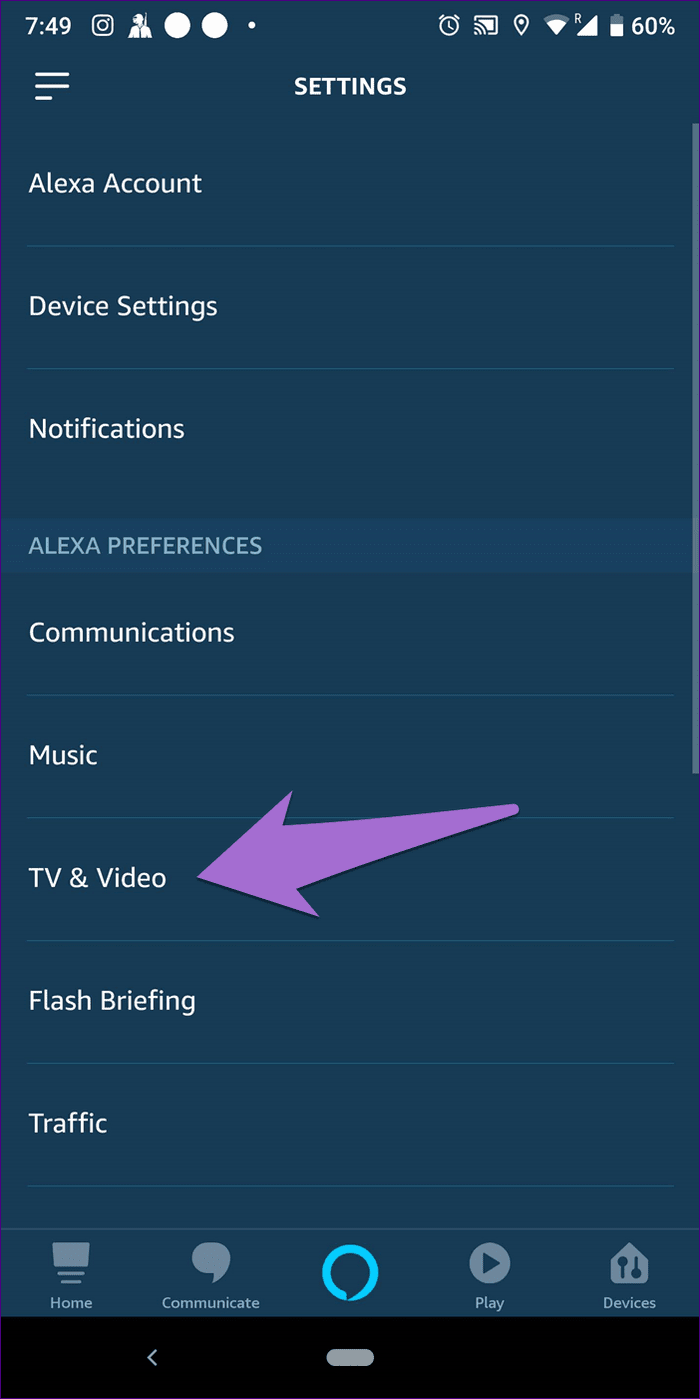
Step 2: Open the Alexa app > Go to Settings.
Step 3: Tap on TV & Video followed by Fire TV.
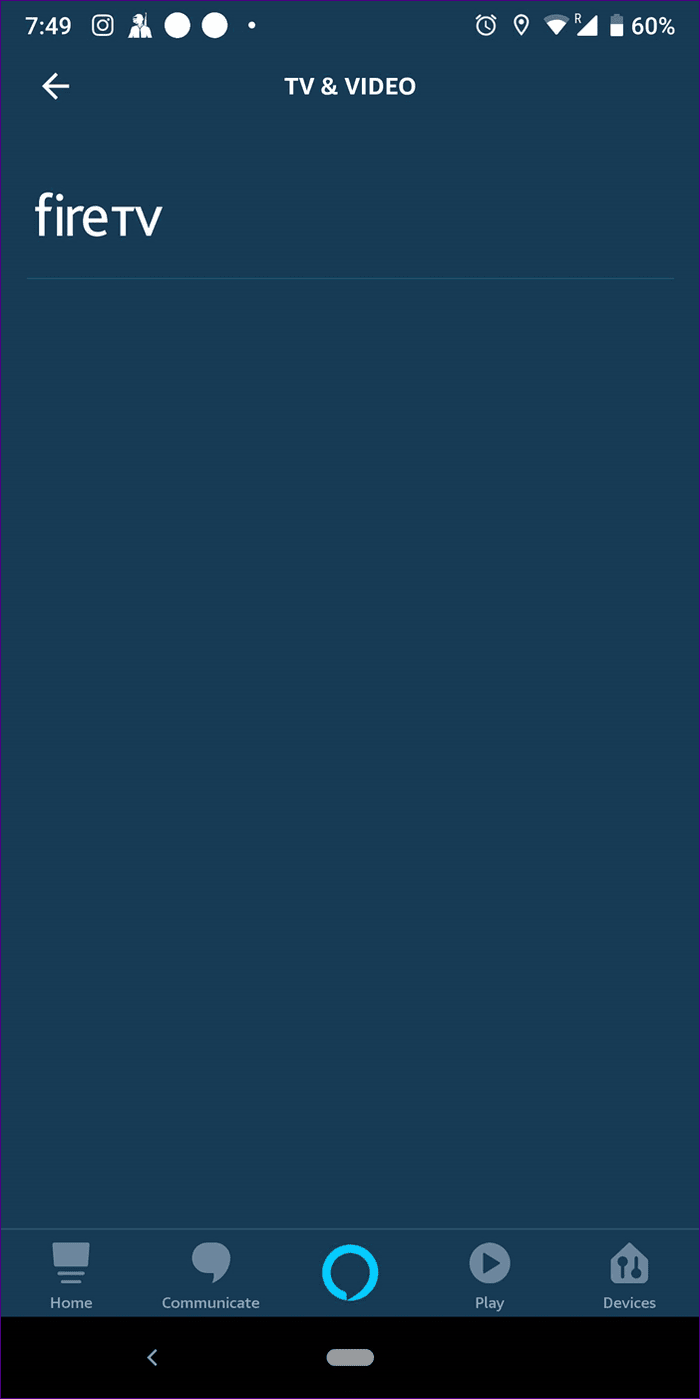
Step 4: Your Fire TV name should appear. Tap on it to link them.
Tip: Learn how to fix the issue of Fire TV Stick stuck on updating.
Fix 2: Keep Fire TV and Alexa App on Same Time Zone
Many times the issue crops up because Fire TV and your Alexa app are to different time zones. You need to keep them on same time zone.
To change the time zone of the Alexa app, follow these steps:
Step 1: Open the app and then tap the Devices option at the bottom. Tap on Echo & Alexa.
Step 2: Tap on the Alexa on this Phone option followed by Time Zone. Here keep it same as that of your Fire TV.

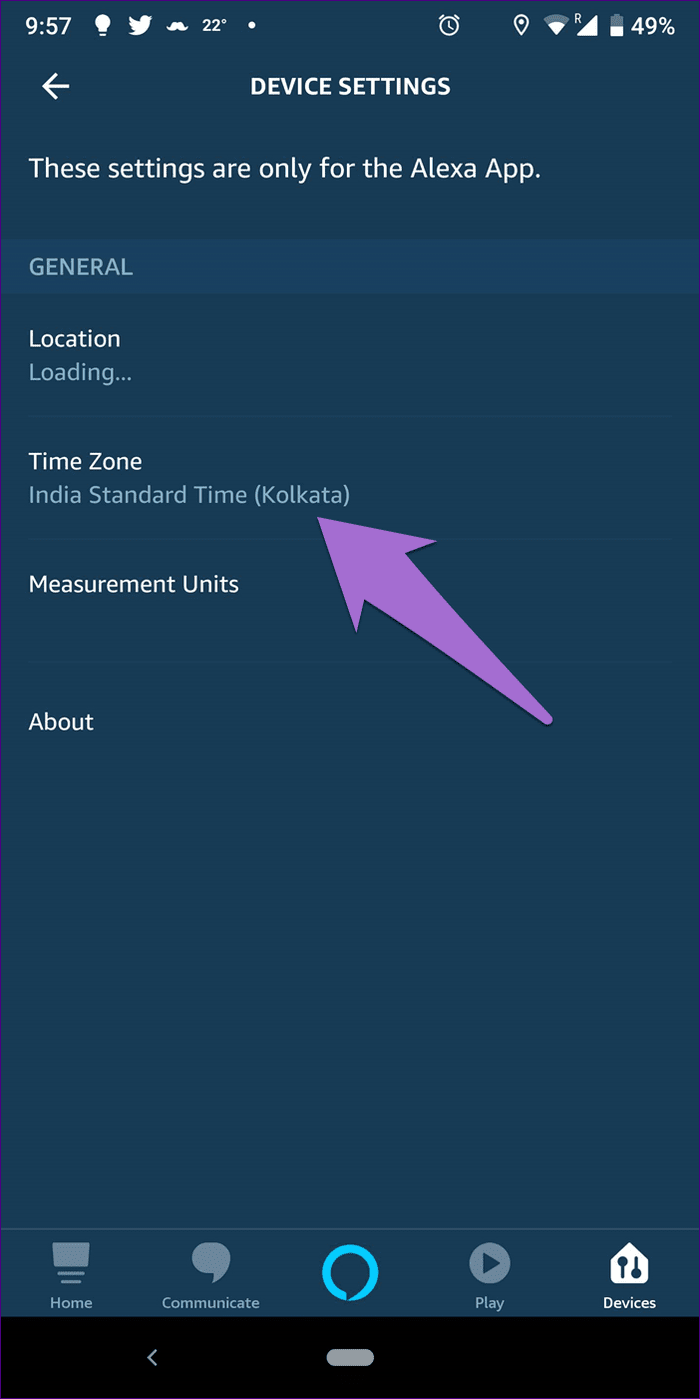
To change Fire TV’s time, follow these steps:
Open Settings > Preferences > Time Zone > Choose the time zone same as the one in Alexa app.

Fix 3: Unlink and Relink Fire TV
If you have already linked your Fire TV and it’s not working properly with either the Alexa app or the Echo speaker, you should unlink the TV and then connect it again.
For that, follow these steps:
Step 1: Open the Alexa app and then go to Settings from the sidebar.
Step 2: Tap on TV & Video followed by Fire TV.
Step 3: Tap on Manage devices. On the next screen, hit the Unlink Devices option next to the Alexa app or Echo option (whichever is giving you trouble).

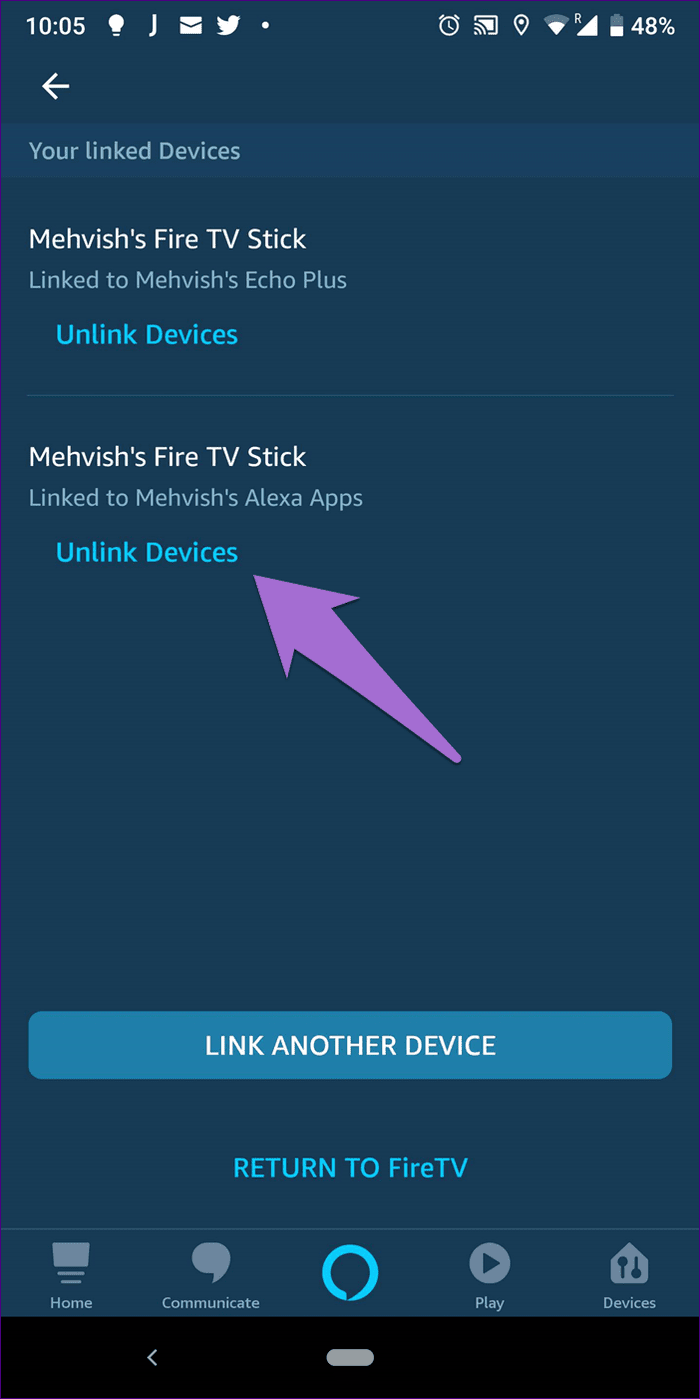
Once they are unlinked, you will have to link them back as mentioned in the first solution.
Was this helpful?
Last updated on 19 July, 2024
Read Next
 3 Fixes for Alexa Not Responding to Voice Commands on Amazon Fire TV Stick 4K
Basic Fixes Bring the remote closer: According to the instruction manual for the Amazon Fire TV Stick 4K, the distance between the Fire TV remote and Fire TV Stick 4K
3 Fixes for Alexa Not Responding to Voice Commands on Amazon Fire TV Stick 4K
Basic Fixes Bring the remote closer: According to the instruction manual for the Amazon Fire TV Stick 4K, the distance between the Fire TV remote and Fire TV Stick 4K
 5 Ways to Fix Fire TV Stick Not Showing Picture
Basic Fixes: Restart Fire TV Stick: Temporary device glitches can cause your Fire TV Stick to not show the picture when using any app or service.
5 Ways to Fix Fire TV Stick Not Showing Picture
Basic Fixes: Restart Fire TV Stick: Temporary device glitches can cause your Fire TV Stick to not show the picture when using any app or service.
 Top 15 Ways to Fix Amazon Echo and Alexa Setup Problems
If you've landed on this page, it means that the Amazon Echo setup process is giving you a hard time too.
Top 15 Ways to Fix Amazon Echo and Alexa Setup Problems
If you've landed on this page, it means that the Amazon Echo setup process is giving you a hard time too.
 8 Ways to Fix Alexa Not Playing Amazon Music
Some Basic Fixes Restart your Echo device: You should start the troubleshooting process of Alexa not playing Amazon Music by restarting your Echo.
8 Ways to Fix Alexa Not Playing Amazon Music
Some Basic Fixes Restart your Echo device: You should start the troubleshooting process of Alexa not playing Amazon Music by restarting your Echo.
 7 Ways to Fix Alexa Responding But Not Talking on Amazon Echo
Fix 1: Check or Change Wake Word for Alexa The wake word is the name used for calling Alexa.
7 Ways to Fix Alexa Responding But Not Talking on Amazon Echo
Fix 1: Check or Change Wake Word for Alexa The wake word is the name used for calling Alexa.
 2 Ways to Fix Alexa Not Responding to Voice Commands
Basic Troubleshoot Ensure Wi-Fi is working: If the network connection is unstable, Alexa may not respond to your question or process a request.
2 Ways to Fix Alexa Not Responding to Voice Commands
Basic Troubleshoot Ensure Wi-Fi is working: If the network connection is unstable, Alexa may not respond to your question or process a request.
 4 Ways to Fix Alexa Not Playing Apple Music
Basic Fixes Make playlists public on Apple Music: Go to Apple Music > profile icon > Edit > enable your playlists to make them public.
4 Ways to Fix Alexa Not Playing Apple Music
Basic Fixes Make playlists public on Apple Music: Go to Apple Music > profile icon > Edit > enable your playlists to make them public.
 3 Ways to Fix Prime Video App Not Working on Fire TV Stick
Common Fixes Restart the Fire TV Stick: Select the gear icon at the top right of the Fire OS home screen to expand Settings.
3 Ways to Fix Prime Video App Not Working on Fire TV Stick
Common Fixes Restart the Fire TV Stick: Select the gear icon at the top right of the Fire OS home screen to expand Settings.
The article above may contain affiliate links which help support Guiding Tech. The content remains unbiased and authentic and will never affect our editorial integrity.