1. Find Your WhatsApp Number on Android
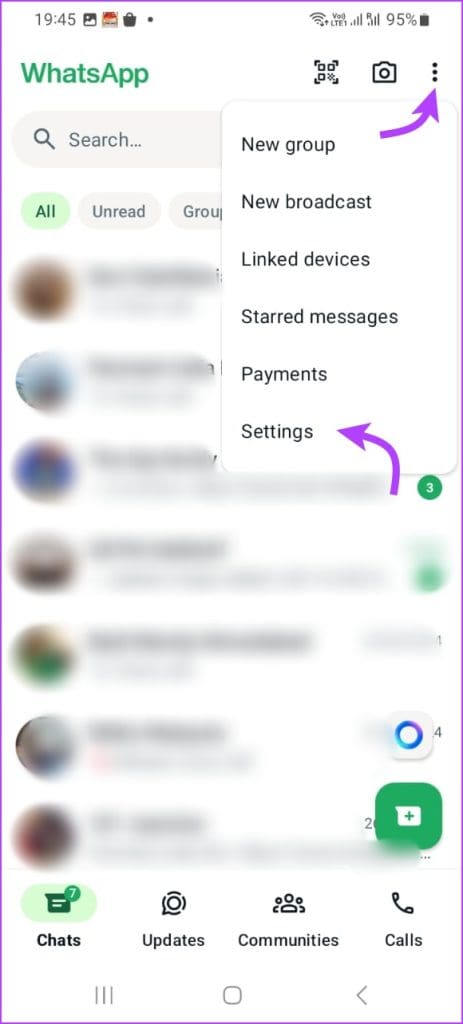
Step 1: Launch WhatsApp and tap the three-dot menu. Select Settings from here.
Step 2: Tap your name at the top with your profile picture. Here, you’ll see your name and registered mobile number in WhatsApp.

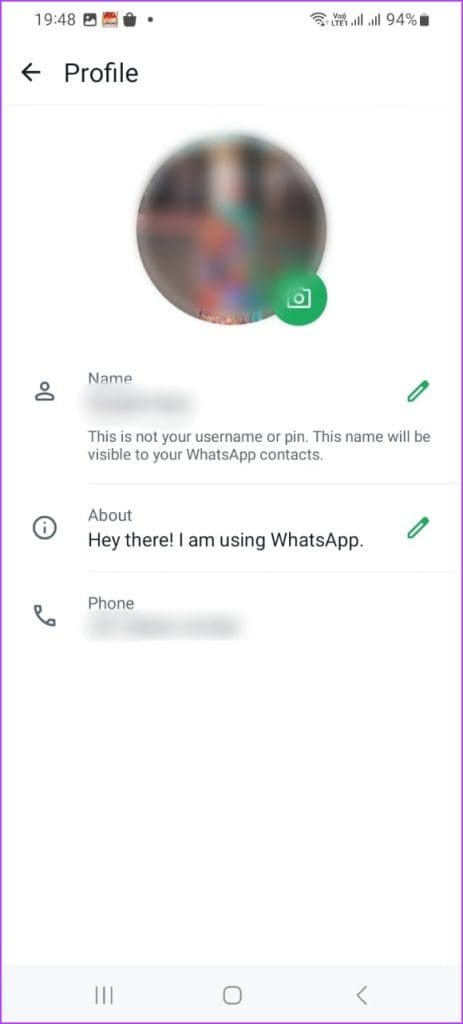
To change your name or about info: Click the edit icon next to it. For example, tap your name, and your keyboard app should launch automatically. Enter your desired name and tap on Save.


To change your WhatsApp number: Go to Settings → Accounts → select Change number.

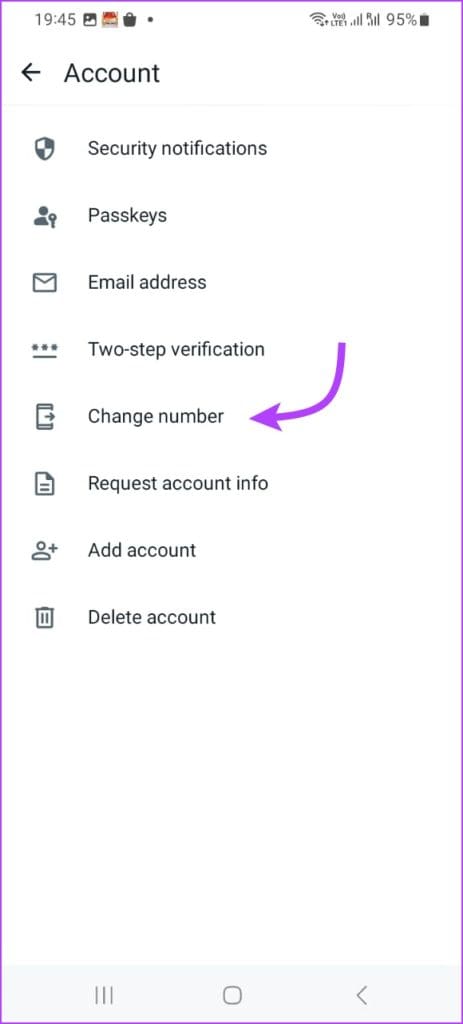
Note: When you switch your WhatsApp number, you’ll be migrating your account, along with all its data, to this new number. The number should be active, and the SIM should be on your smartphone.
In the next window, tap Next. WhatsApp will detect your country code automatically but check it for errors, if any. Enter your current WhatsApp number first and then, enter the new WhatsApp number. Tap on Next.


You will now receive an OTP on your new WhatsApp number to verify ownership. If the app can’t detect the OTP automatically, enter it manually and continue. You will now see three options to notify your contacts of your new WhatsApp number.
Note: Your chat history will not be deleted if you use the same phone to change your WhatsApp number. That is possible on a dual SIM Android phone where you are changing the number, not the smartphone itself. If you are changing phones, too, take a backup.
2. Find My WhatsApp Number on iOS and Change It
Android and iOS smartphones function differently, but WhatsApp remains essentially the same. Here is a complete breakdown of how to find and change your user name and number on WhatsApp.
Open WhatsApp on your iPhone or iPad. Under Settings, tap on your name next to the profile pic. Your name and mobile number will be listed here.
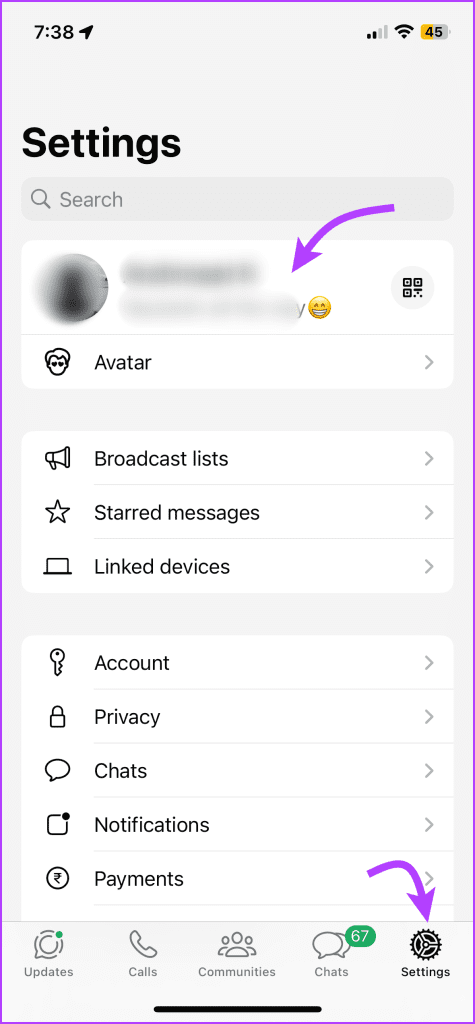

To change the name: Tap it and your default or chosen keyboard app will launch automatically upon selecting the name. Notably, you can also change your profile picture (tap Edit) and About from this section.
To change your mobile number: Go to Settings > select Account. Here, tap Change number.

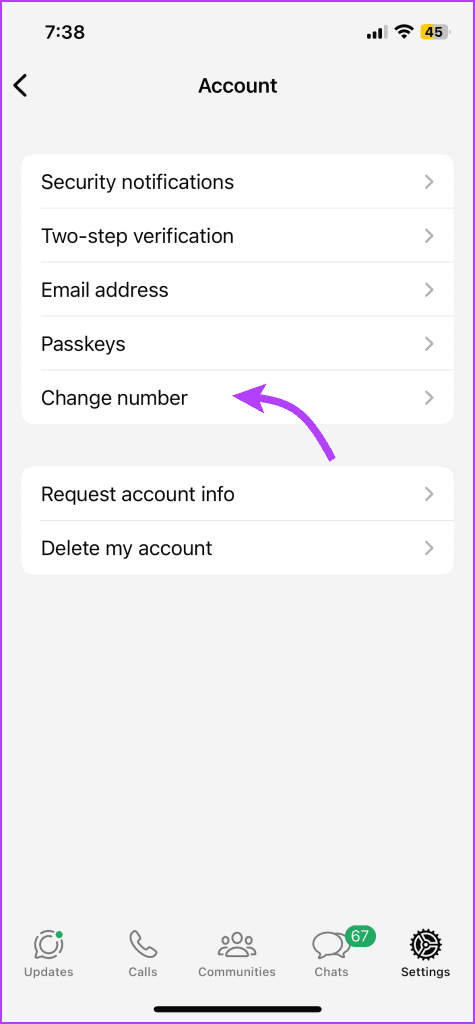
Next, you will see a notification screen where they will explain what happens if you change your WhatsApp number. Tap Next when ready → enter your old/current WhatsApp mobile number and then your new mobile number.
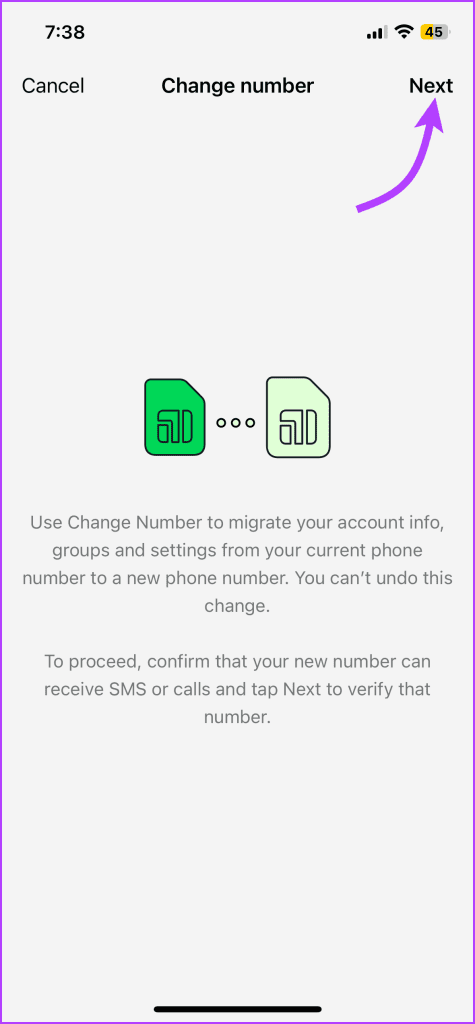

Once done, tap Next to proceed. An OTP will be sent to the new number to verify the process. Enter the OTP if the SIM is on a different iPhone or not detected automatically.
Depending on your internet speed, the transfer process may take some time. You should now see all your WhatsApp data on the new number. Like in Android, you will see three options to notify your contacts about your mobile number change. Choose one that meets your needs.
Was this helpful?
Last updated on 31 July, 2024
Read Next
 How to Change Typing Language in WhatsApp on Android and iPhone
On iPhone Method 1: On Apple Keyboard Follow these steps to type in another language in WhatsApp on iPhone using the Apple keyboard: Step 1: Open a WhatsApp chat so
How to Change Typing Language in WhatsApp on Android and iPhone
On iPhone Method 1: On Apple Keyboard Follow these steps to type in another language in WhatsApp on iPhone using the Apple keyboard: Step 1: Open a WhatsApp chat so
 What Happens When You Change WhatsApp Number
There are two situations for changing your WhatsApp number, Changing the number on the same phone Switching numbers to a different phone.
What Happens When You Change WhatsApp Number
There are two situations for changing your WhatsApp number, Changing the number on the same phone Switching numbers to a different phone.
 What Happens to WhatsApp When You Change Phone or SIM Card
What Happens to WhatsApp When You Remove SIM Card?
What Happens to WhatsApp When You Change Phone or SIM Card
What Happens to WhatsApp When You Remove SIM Card?
 How to Change WhatsApp Audio Speed on Mobile and Desktop
Change Playback Speed for Audio Messages on WhatsApp WhatsApp allows you to change the playback speed of audio messages in three levels : 1x – 1x means WhatsApp will play
How to Change WhatsApp Audio Speed on Mobile and Desktop
Change Playback Speed for Audio Messages on WhatsApp WhatsApp allows you to change the playback speed of audio messages in three levels : 1x – 1x means WhatsApp will play
 How to Change or Remove Reactions in WhatsApp Messages
How to Remove WhatsApp Emoji Reaction Let's say you have reacted to a message on WhatsApp using an emoji.
How to Change or Remove Reactions in WhatsApp Messages
How to Remove WhatsApp Emoji Reaction Let's say you have reacted to a message on WhatsApp using an emoji.
 How to Add New Contacts via WhatsApp Web
Use InTouch App to Add New Contacts Using WhatsApp Web InTouchApp is a contacts manager app that lets you add contacts directly via WhatsApp Web.
How to Add New Contacts via WhatsApp Web
Use InTouch App to Add New Contacts Using WhatsApp Web InTouchApp is a contacts manager app that lets you add contacts directly via WhatsApp Web.
 WhatsApp Proxy: How to Use WhatsApp Without Internet
What Is WhatsApp Proxy You may have experienced several times that WhatsApp is not working on Wi-Fi or a mobile data connection.
WhatsApp Proxy: How to Use WhatsApp Without Internet
What Is WhatsApp Proxy You may have experienced several times that WhatsApp is not working on Wi-Fi or a mobile data connection.
 How to Change Instagram Notification Sound (iPhone and Android)
Change Instagram Notification Sound on iPhone Unfortunately, iOS doesn't allow you to change the notification sound for individual apps.
How to Change Instagram Notification Sound (iPhone and Android)
Change Instagram Notification Sound on iPhone Unfortunately, iOS doesn't allow you to change the notification sound for individual apps.
The article above may contain affiliate links which help support Guiding Tech. The content remains unbiased and authentic and will never affect our editorial integrity.