Can I Find Out What Email I Used for Facebook Without Logging In
Unfortunately, you cannot find the email associated with your Facebook account without logging in. Facebook prioritizes user privacy, and sensitive information like email addresses is protected behind the login credentials for security reasons.
The most you can do is search your multiple email address for any notifications or emails from Facebook. It can be anything from an update email to an alert message for password change. If you find an email from Facebook in a certain inbox, that’s your registered or alternate email ID used for Facebook.
Method 1. How to Find Your Facebook Email on the Phone App
Whether you use an Android or iPhone app, the method is almost the same. Moreover, you can use these steps to find the email used for Facebook from the Facebook Lite app and mobile web.
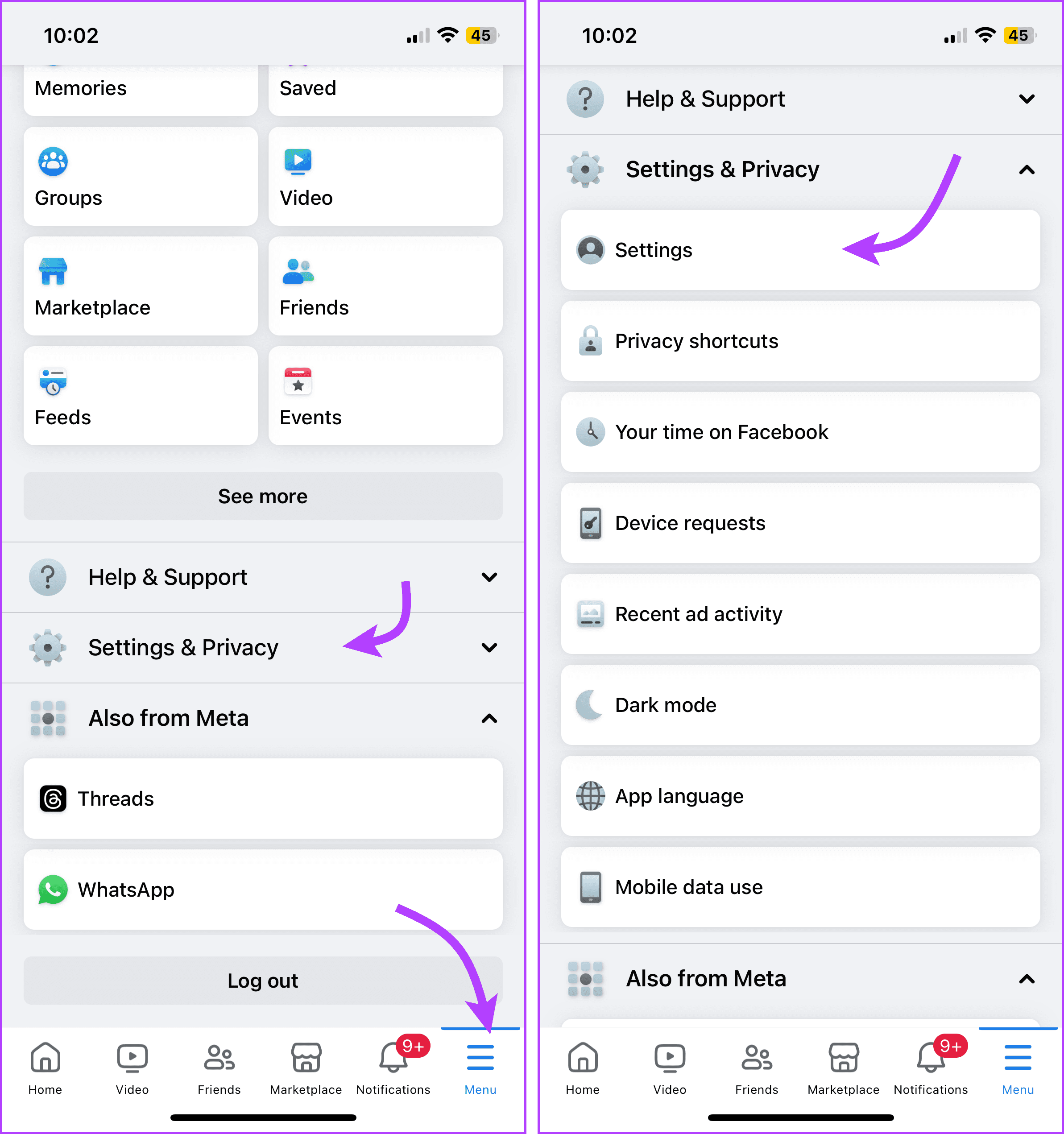
Step 1: Open the Facebook app. Tap the three-line icon from the bottom-right corner (iOS) or top-right corner (Android, Facebook Lite, and mobile web).
Step 2: Scroll down and tap Settings & Privacy, followed by Settings.
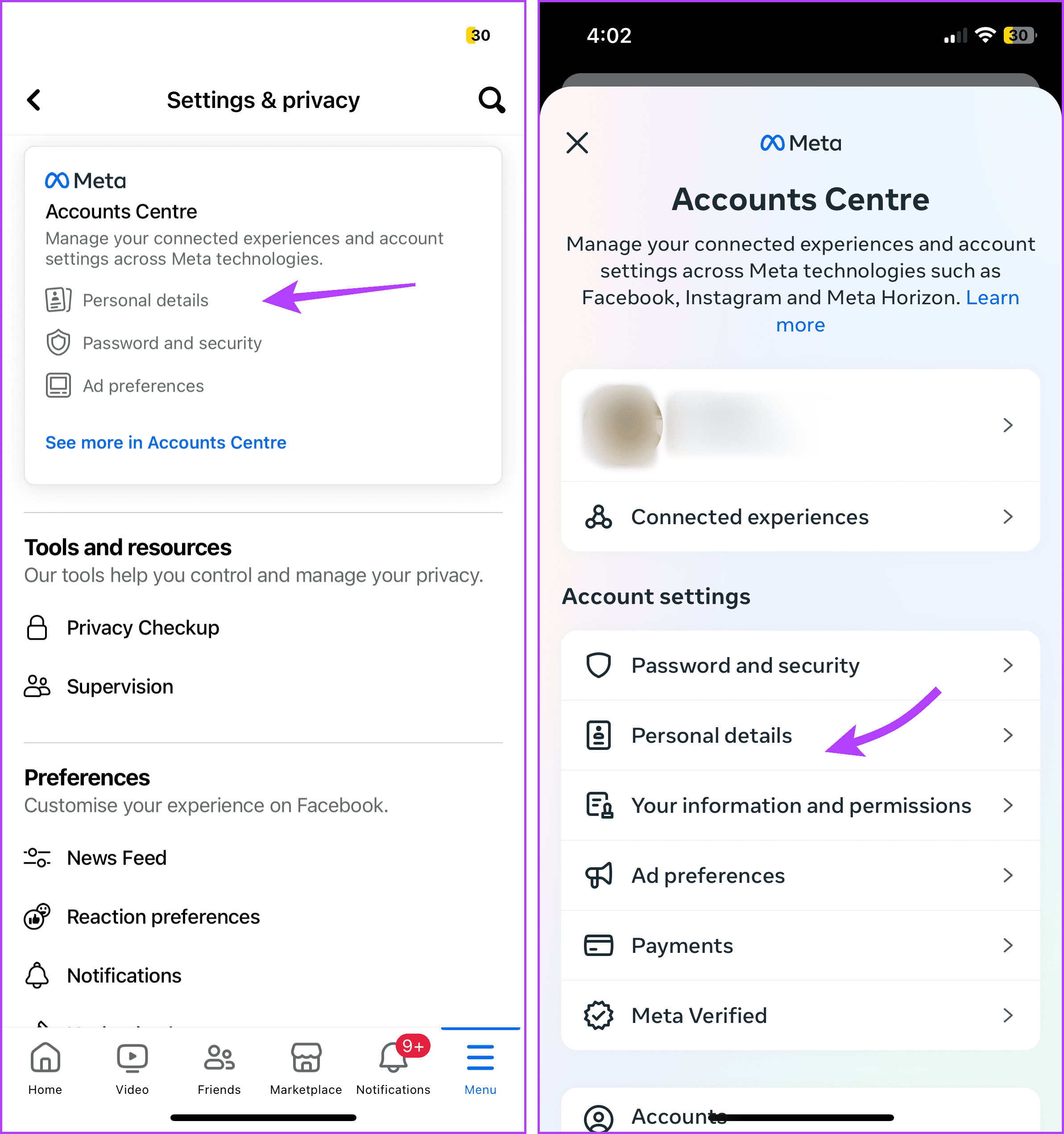
Step 3: Tap Personal details from under the Account Center. Next, tap Personal details again.
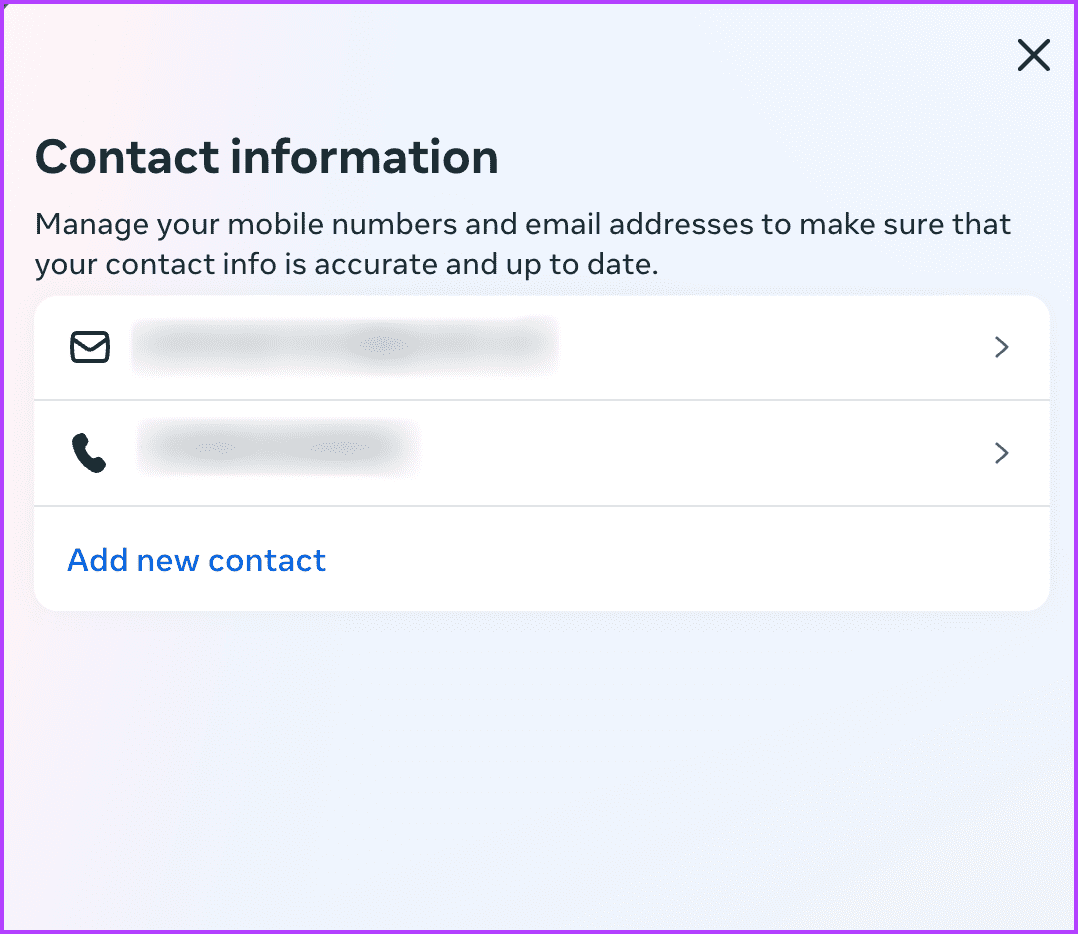
Step 4: You’ll find your primary email address under the Contact info section. For more details, click Contact info.
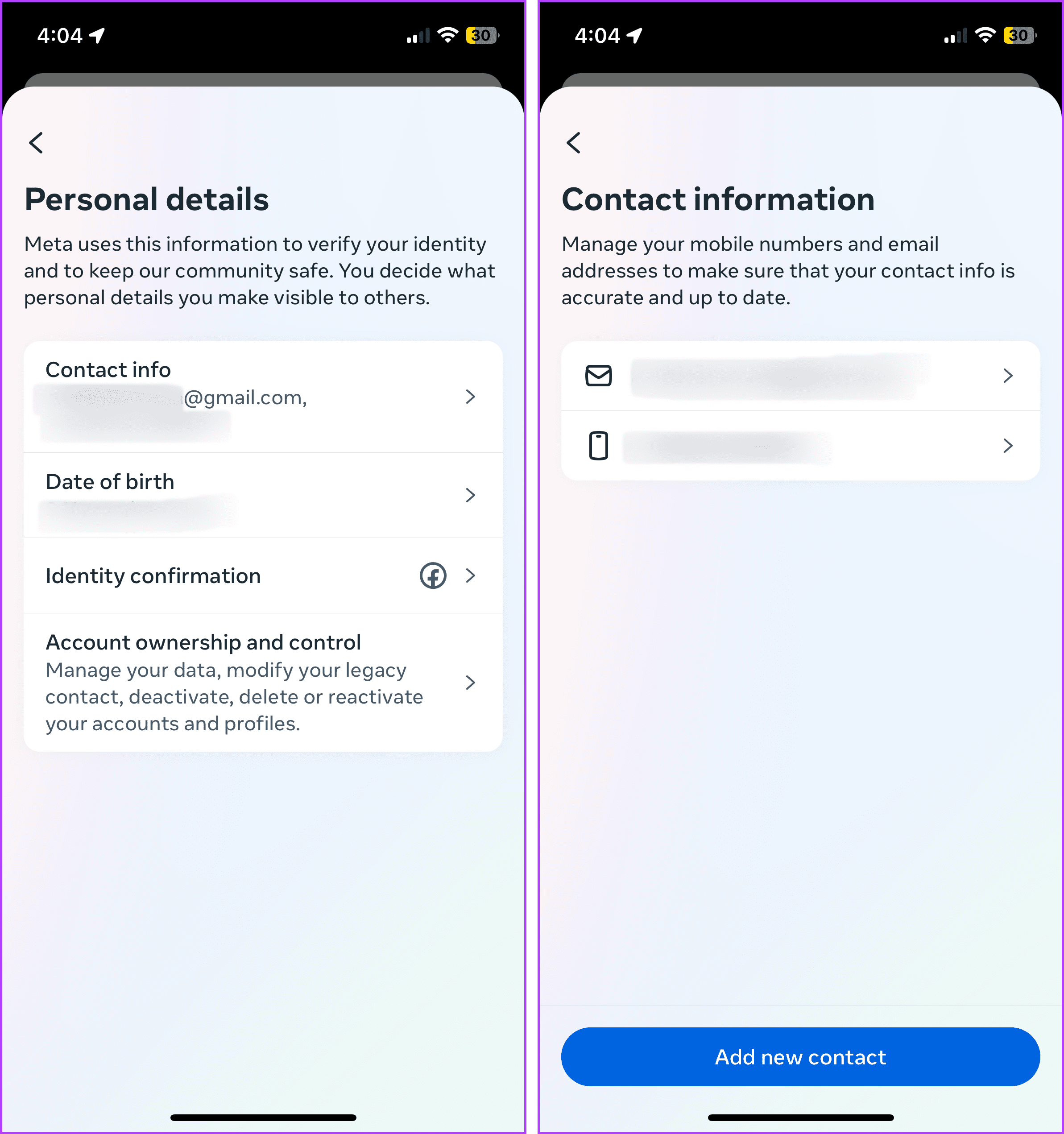
Note: If it’s blank, the account must have been registered through a mobile number shown under the Phone Number. You can add your email address using the steps mentioned in the bonus tips section below.
Method 2. How to Find Your Email on Facebook Website
Whether you’re using your default browser or any browser of your choice, the steps to see what email you used for Facebook, remain almost the same.
Step 1: Open Facebook and log in to your account. Click your Profile picture.
Step 2: Here, select Settings & Privacy and then Settings.

Step 3: Click Personal details from under Accounts Center, from the left sidebar. Select Personal Details again.
Step 4: Here, you can see your email address (if provided) under Contact info.

Step 5: For more details, click Contact info.
Bonus: Tips To Manage Email Address Used For Facebook
Add A Primary Or Secondary Or Remove An Email Address
Via mobile app
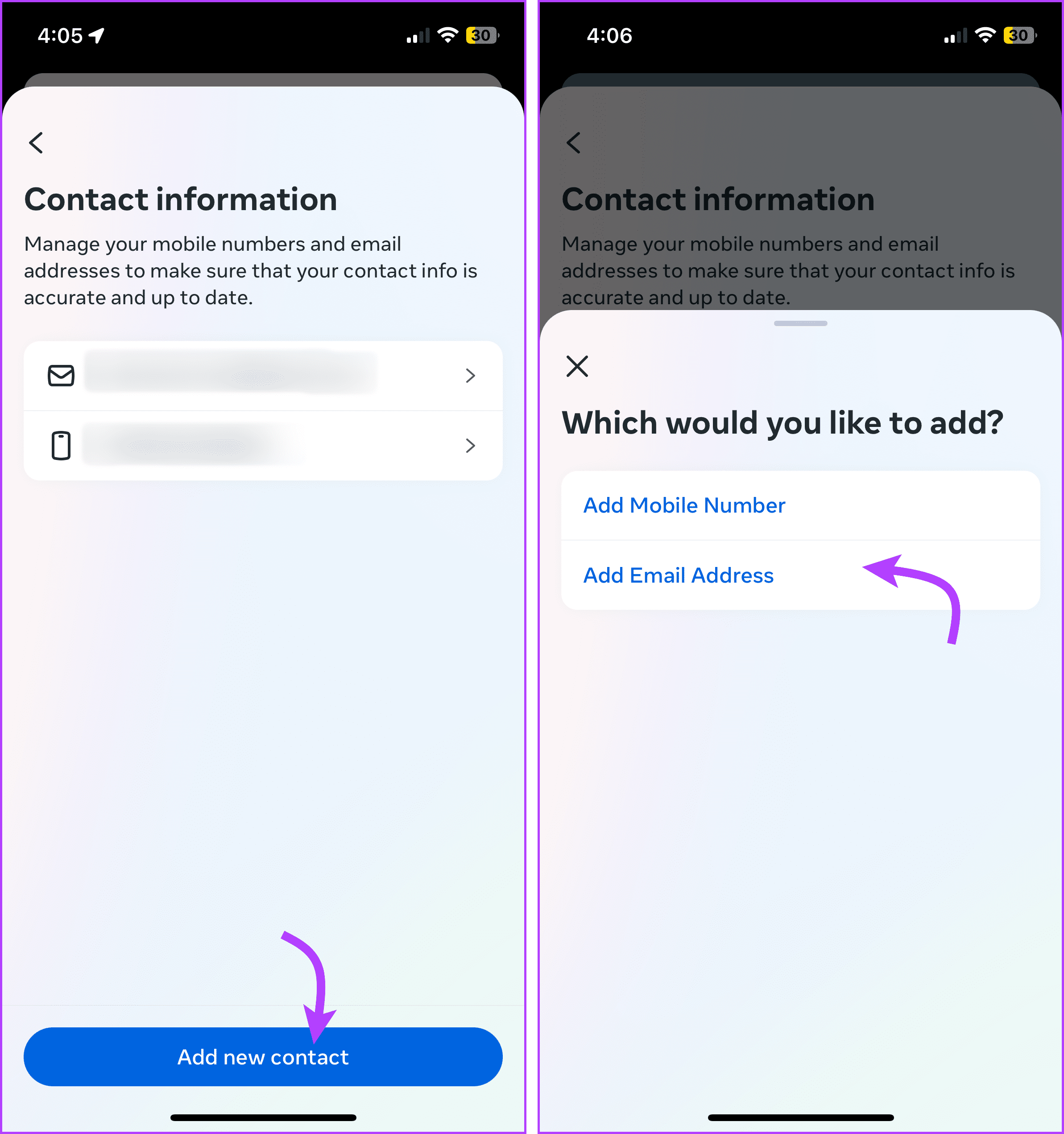
Open the Facebook app → tap the three-line icon → Settings & privacy → Settings → Personal details → Personal details → Contact info.
- To add a primary or secondary email address – Tap Add new contact → Add Email Address and add the account details.
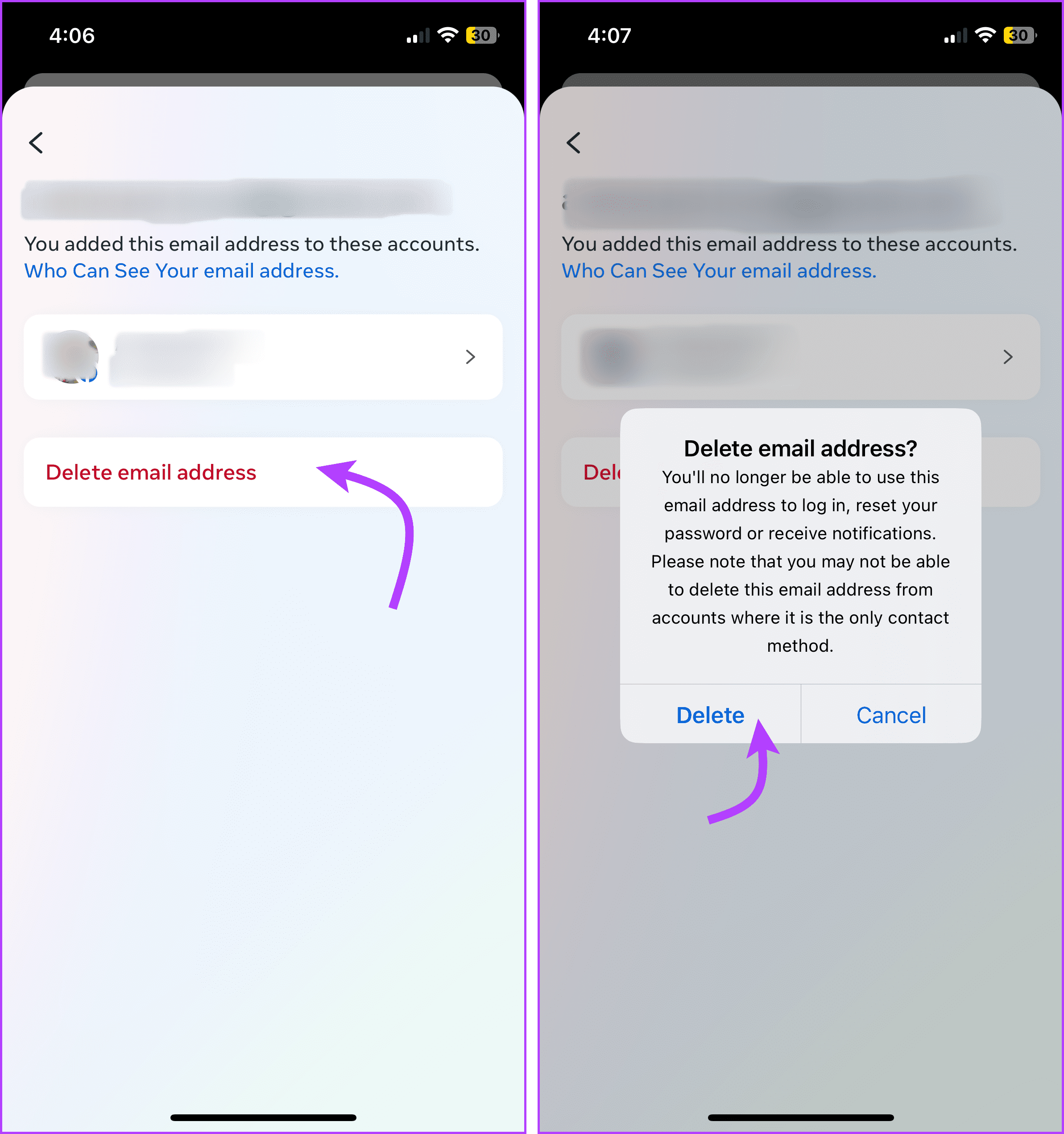
- To remove an email address – Tap the email address → Delete email address → Delete to confirm.
Via Facebook web
Open Facebook → click your Profile picture → Settings & Privacy and then Settings →Personal details → Personal details → Contact info.
- To add a primary or secondary email address – Click Add new contact → Add Email Address and add the account details.
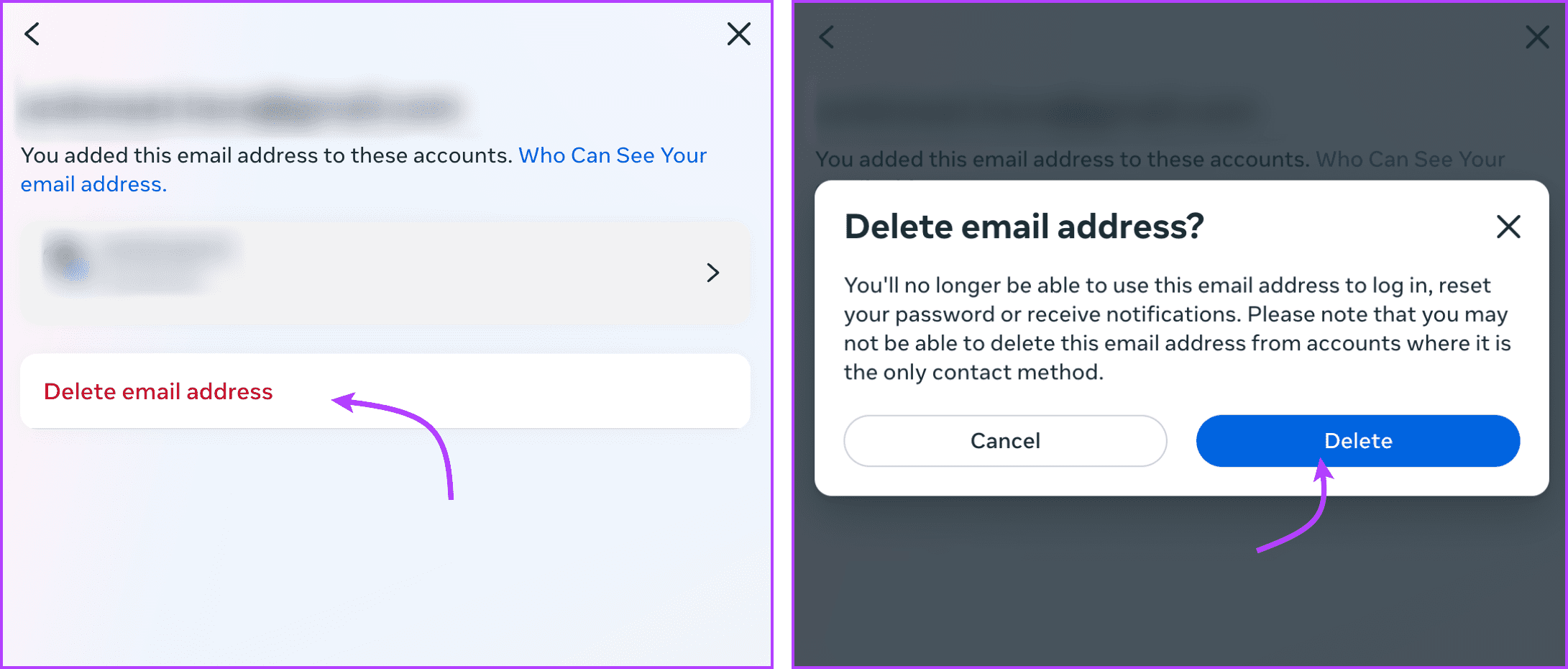
- To remove an email address – Click the email address → Delete email address → Delete to confirm.
Change Who Can Find You on Facebook With Email
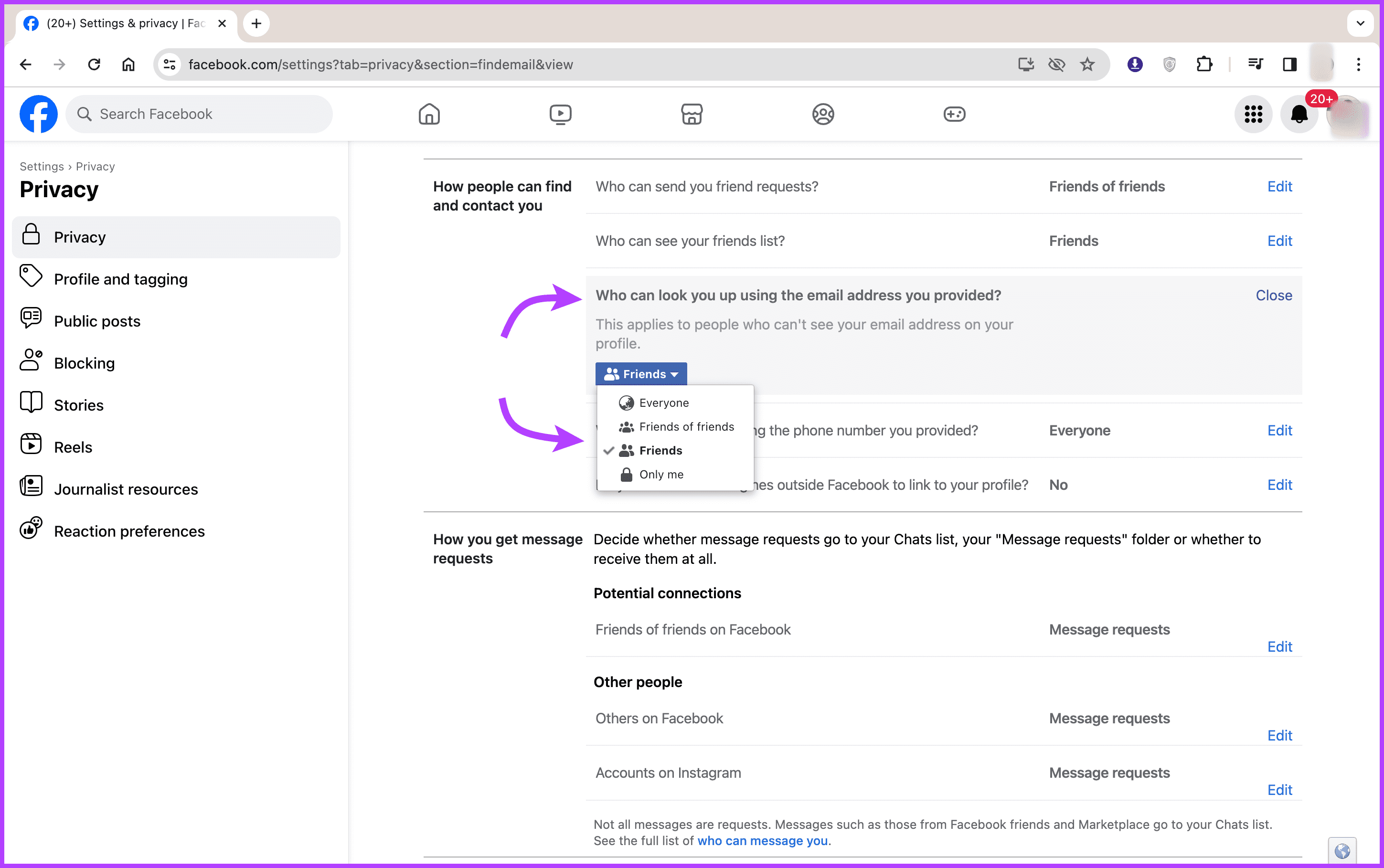
People who aren’t on your friends list can find you on Facebook using the primary address of your account. Fortunately, you can change this privacy setting and limit it to your friends or only you.
Via mobile app
Open the Facebook app → tap the three-line icon → Settings & privacy → Settings. Select ‘How people find and contact you’ → scroll down to ‘Who can look you up using the email address you provided?’. Here, you can select a suitable option,
- Everyone
- Friends of friends
- Friends
- Only me

Via Facebook web
Open Facebook → click your Profile picture → Settings & Privacy and then Settings. Next, click Privacy from the left-sidebar → scroll down to ‘How people can find and contact you’ → click Edit next to ‘Who can look you up using the email address you provided?’ and select a suitable option.
Was this helpful?
Last updated on 26 July, 2024
Read Next
 How to Save a Microsoft Outlook Email as a PDF (Desktop and Mobile)
1.
How to Save a Microsoft Outlook Email as a PDF (Desktop and Mobile)
1.
 How to Leave a Facebook Group on Mobile or Desktop
Facebook is a hub for community connection.
How to Leave a Facebook Group on Mobile or Desktop
Facebook is a hub for community connection.
 How to Hide Reels on Facebook on Desktop or Mobile
How to Remove Reels on Facebook Note: For demonstration, we will go with a desktop.
How to Hide Reels on Facebook on Desktop or Mobile
How to Remove Reels on Facebook Note: For demonstration, we will go with a desktop.
 3 Ways to Fix Facebook “No Data Available” Error on Desktop and Mobile
Try Basic Fixes Check if Facebook is down: Facebook is not immune to occasional server-level hiccups.
3 Ways to Fix Facebook “No Data Available” Error on Desktop and Mobile
Try Basic Fixes Check if Facebook is down: Facebook is not immune to occasional server-level hiccups.
 How to Get Facebook Birthday Notifications on Desktop and Mobile
Facebook is not just about sharing updates and connecting with friends; it's also a platform for celebrating special moments, like birthdays.
How to Get Facebook Birthday Notifications on Desktop and Mobile
Facebook is not just about sharing updates and connecting with friends; it's also a platform for celebrating special moments, like birthdays.
 How to Find Drafts on Facebook on Mobile and Desktop
How to Find Saved Drafts on the Facebook Mobile App When you save a draft on the Facebook app on Android, you will instantly receive a notification (both as a
How to Find Drafts on Facebook on Mobile and Desktop
How to Find Saved Drafts on the Facebook Mobile App When you save a draft on the Facebook app on Android, you will instantly receive a notification (both as a
 How to Delete Facebook Watch History on Mobile and Desktop
Delete Entire Facebook Watch History on Mobile For the most part, the majority of folks use their phone to browse through Facebook.
How to Delete Facebook Watch History on Mobile and Desktop
Delete Entire Facebook Watch History on Mobile For the most part, the majority of folks use their phone to browse through Facebook.
 How to Recall an Email on Microsoft Outlook for Desktop and Web
Have you experienced panic after sending an email because you noticed an error or you forgot to include an important attachment?
How to Recall an Email on Microsoft Outlook for Desktop and Web
Have you experienced panic after sending an email because you noticed an error or you forgot to include an important attachment?
The article above may contain affiliate links which help support Guiding Tech. The content remains unbiased and authentic and will never affect our editorial integrity.