When working on large data sets, it’s not uncommon for Excel to look like it’s doing nothing when it’s actually performing a massive operation across a column, row, or the entire table. You’ll likely see nothing being done until the process is completed fully, and when deleting rows, that “nothing” means Excel looks like it has completely frozen. Here’s what to do when Excel freezing when deleting rows.
Fix 1 – Sort Values to Stop Excel Freezing When Deleting Rows or Columns
One of the main reasons Excel freezes when deleting rows or columns is that you’ve applied a “Delete” command on a filtered range. The reason this is problematic is that Excel deletes rows or columns in “areas,” meaning contiguous stretches or cells across rows or columns. With a filtered set, those areas are likely interspersed with other content, which means Excel is running multiple delete commands sequentially and slows down to a crawl. You can avoid this by sorting the dataset first.
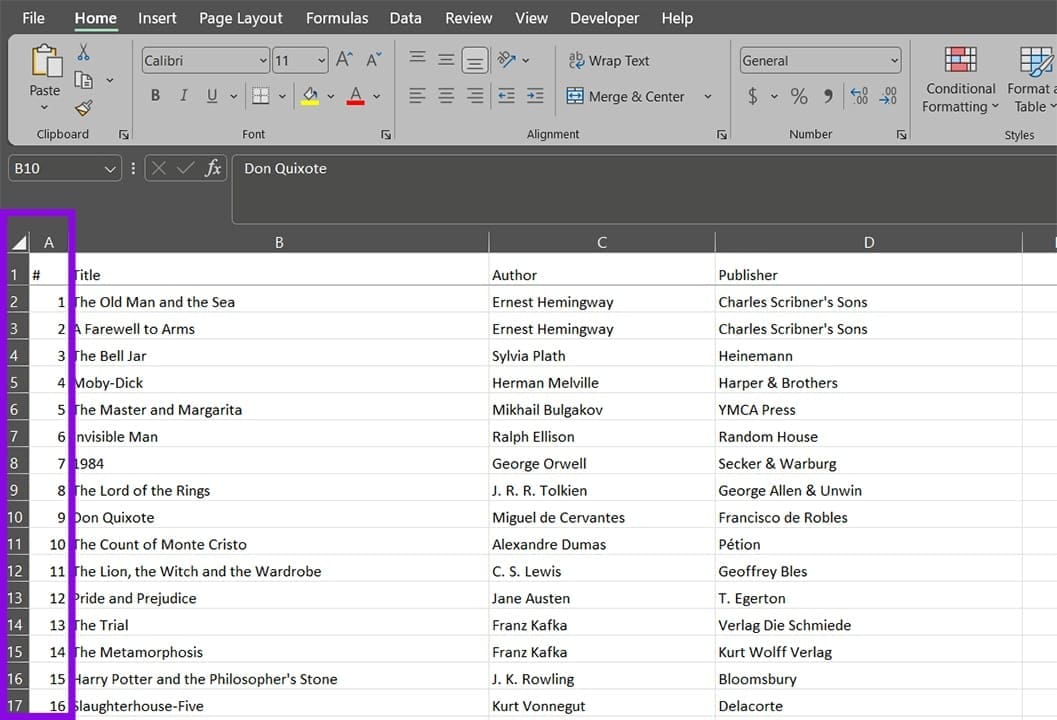
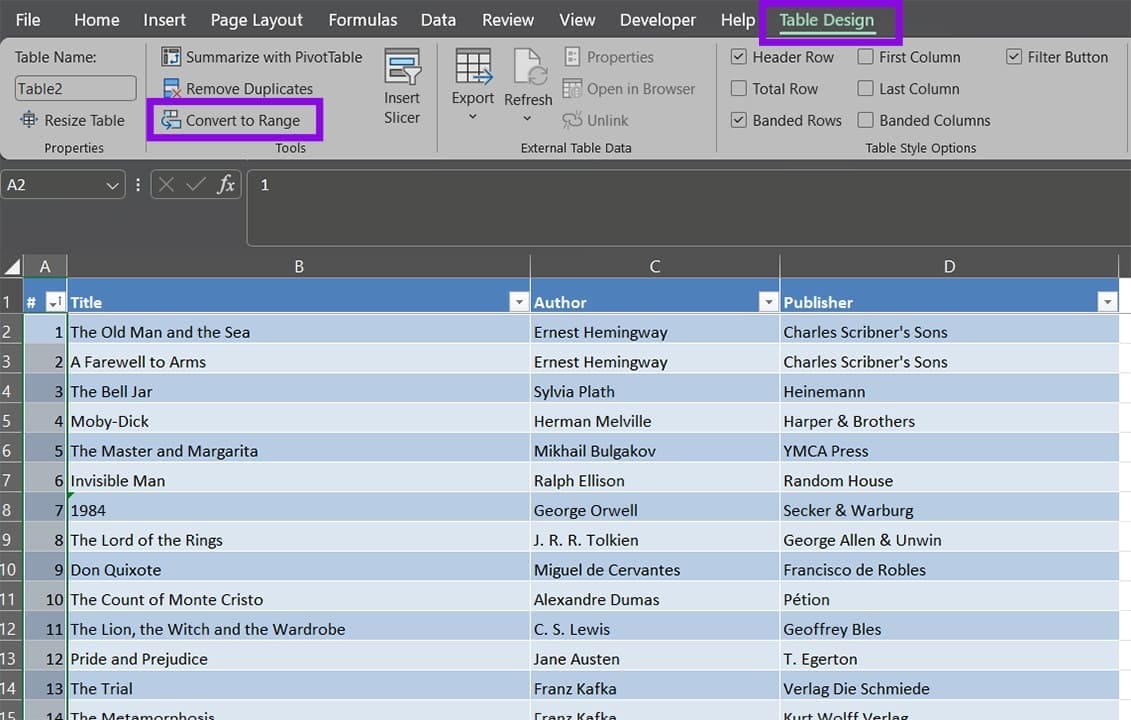
Step 1. If you lack an obvious row or column indicator, make a dummy column or row to input the row number. This is so you can re-sort the data after deleting it. For example, we’ve made a new column A to have the “#” identifier for a list of random books.
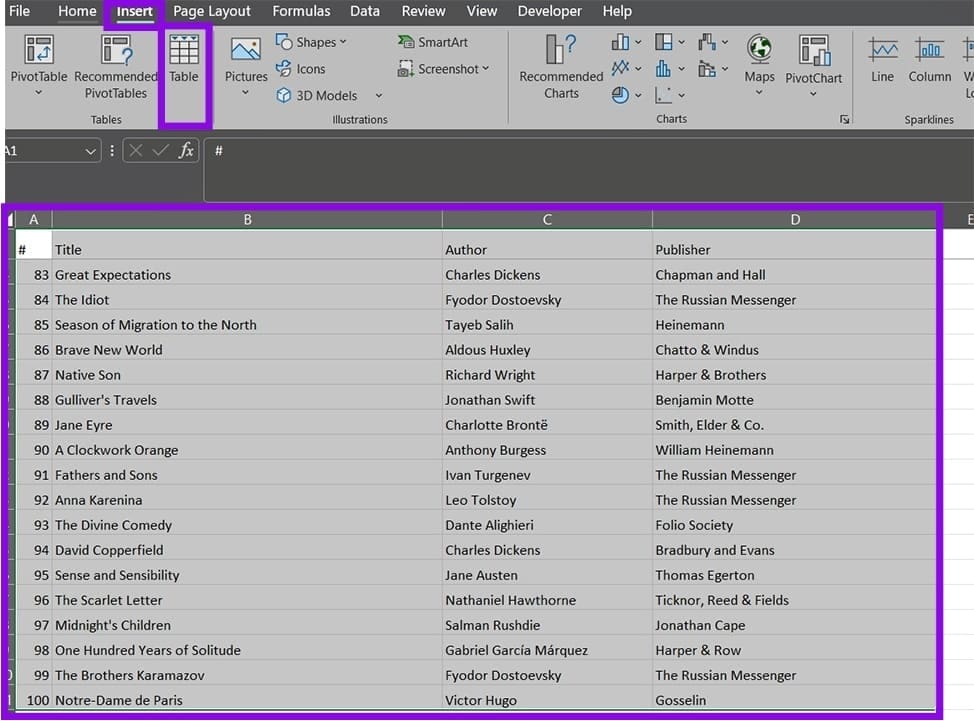
Step 2. If you haven’t already, you can convert the entire range into a table, but this is optional. Select the entire range, then go to “Insert” and “Table.” You’ll get a prompt that lists the bounds of the range.
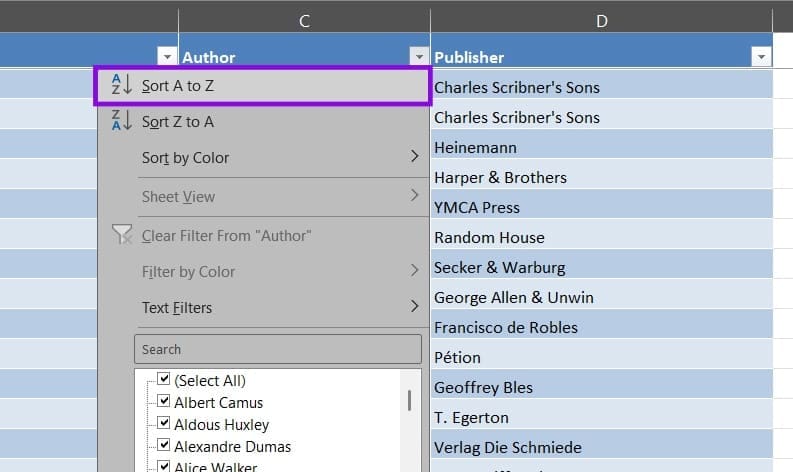
Step 3. Sort the table according to how you filtered it before. For example, we’ll sort by author name to eliminate the rows containing “Charles Dickens.”
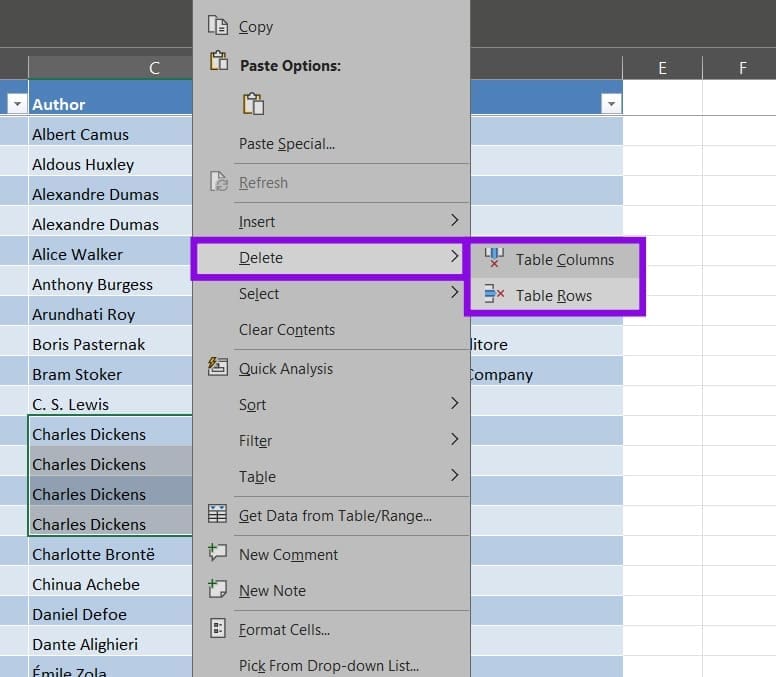
Step 4. Delete the rows you don’t need. Right-click on the cells, then select “Delete” and choose “Table rows” or “Table columns” as needed.
Step 5. Once the rows are deleted, click on the identifier column and sort it from smallest to largest.

Step 6. Revert the table to a range by going to the “Table Design” tab and selecting “Convert to Range,” then remove the extra column or row.
Fix 2 – Run Excel in Safe Mode if Excel Freezes When Deleting Columns or Rows
If Excel freezes when deleting relatively small chunks of data, it might be running advanced calculations, or an add-on is using up resources to slow it down. While you can’t stop the former apart from reducing the complexity of the dataset, you can remove the add-ins by using Safe Mode.
Step 1. Save your work and close Excel.
Step 2. Hit “Win + R” to open the Run dialog.
Step 3. Type in or paste “excel.exe /safe” and hit “Enter.”

Step 4. Excel will run in Safe Mode, which disables add-ons. You can then try to delete rows or columns normally.
Fix 3 – Disable AutoSave
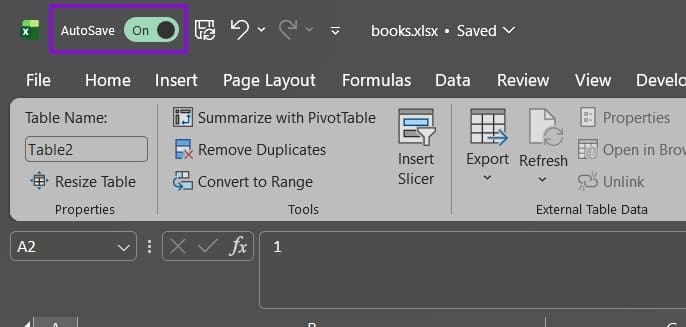
If you’ve connected Excel to One Drive and are automatically saving your progress, this might interfere with large-scale modifications. You can toggle the AutoSave option off, then delete the changes and turn it back on again. Excel will save your file again after the next change.
Fix 4 – Repair Excel (Or Office)
If Excel keeps freezing even for minor modifications, you can try to repair the installation.
Step 1. Go to Settings and select “Apps.”
Step 2. Click on “Installed apps.”
Step 3. Search for “Microsoft Office” in the bar at the top.
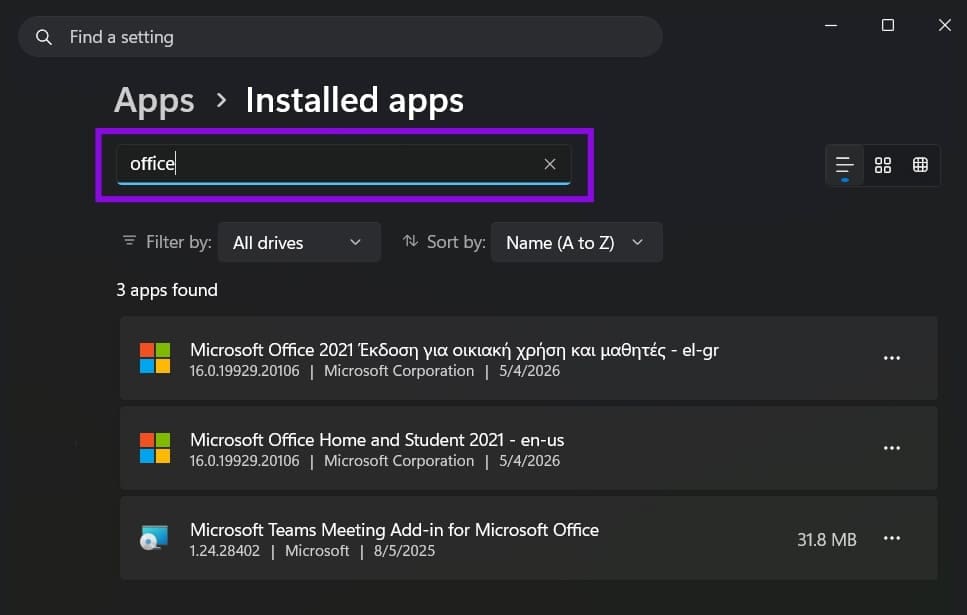
Step 4. Select the version of Office you’re using, then click on the three dots on the right and select “Modify.”
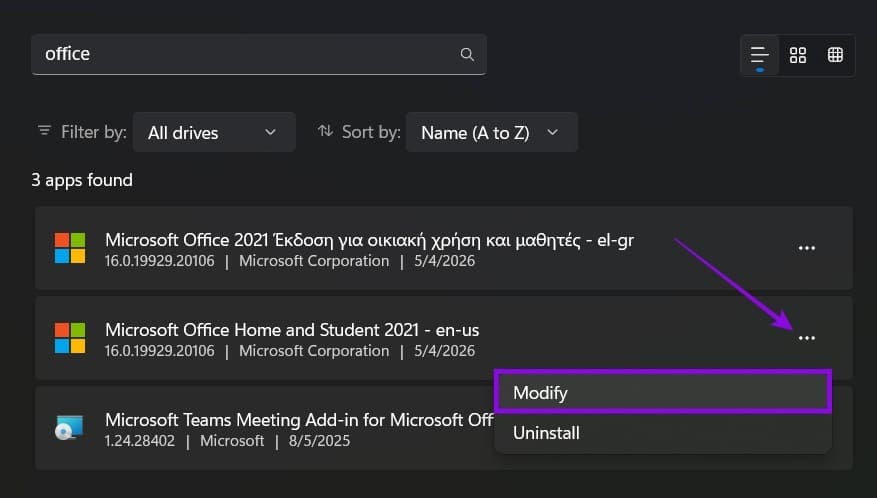
Step 5. Select “Quick Repair” from the prompt and follow the instructions.
This should reinstall or repair the app and allow you to start fresh.
Was this helpful?
Last updated on 10 May, 2026
Read Next
 How to Remove Empty Rows in Excel
When you’re working with large datasets in Excel, chances are you’re going to end up with blank cells or entire rows one way or the other.
How to Remove Empty Rows in Excel
When you’re working with large datasets in Excel, chances are you’re going to end up with blank cells or entire rows one way or the other.
 How to Make Excel Tables With Multiple Header Rows Easier to Use
Sometimes we complicate our lives, and that includes Excel spreadsheets.
How to Make Excel Tables With Multiple Header Rows Easier to Use
Sometimes we complicate our lives, and that includes Excel spreadsheets.
 3 Ways to Compare Columns in Excel for Matches
Method 1.
3 Ways to Compare Columns in Excel for Matches
Method 1.
 How to Add Columns Permanently to All Folders in Windows 10 File Explorer
File Explorer in Windows usually shows just a few columns such as name, date, and type.
How to Add Columns Permanently to All Folders in Windows 10 File Explorer
File Explorer in Windows usually shows just a few columns such as name, date, and type.
 How to Create Columns in Microsoft Word
Create Columns in Microsoft Word Microsoft allows you to create columns on different devices.
How to Create Columns in Microsoft Word
Create Columns in Microsoft Word Microsoft allows you to create columns on different devices.
 Top 3 Ways to Fix Windows Temporary Files Not Deleting
Fix 1: Use Disk Cleanup Disk Cleanup is a disk maintenance utility built into the Windows operating system to help users clear unwanted system files from their PC's hard drive.
Top 3 Ways to Fix Windows Temporary Files Not Deleting
Fix 1: Use Disk Cleanup Disk Cleanup is a disk maintenance utility built into the Windows operating system to help users clear unwanted system files from their PC's hard drive.
 6 Ways to Free Up Space on Windows 11 Without Deleting Apps
Method 1.
6 Ways to Free Up Space on Windows 11 Without Deleting Apps
Method 1.
 3 Ways to Stop OneDrive From Deleting Files Automatically on Windows 11
Basic Fixes: Check for Windows updates: An out-of-date Windows version can also cause issues, such as OneDrive moving files to the recycle bin by itself. So, install the latest software updates
3 Ways to Stop OneDrive From Deleting Files Automatically on Windows 11
Basic Fixes: Check for Windows updates: An out-of-date Windows version can also cause issues, such as OneDrive moving files to the recycle bin by itself. So, install the latest software updates
The article above may contain affiliate links which help support Guiding Tech. The content remains unbiased and authentic and will never affect our editorial integrity.