Enable the Mouse Click Sound on Windows 11
If you’re tired of your default mouse or trackpad click sound, setting a custom sound will enhance your navigation experience. Open the Control Panel app to configure it.
Step 1: Open the Run dialog using the Windows + R shortcut, type control, and hit Enter.

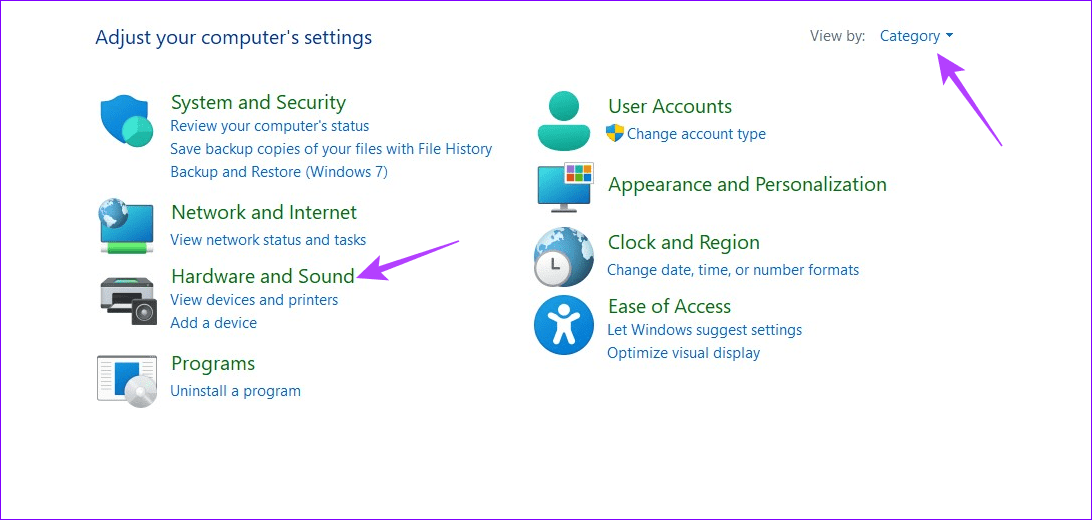
Step 2: Switch View by to Category, and select Hardware and Sound.
Step 3: Click Sound to adjust its settings.

Step 4: Open the Sounds tab and click Select under Program Events.
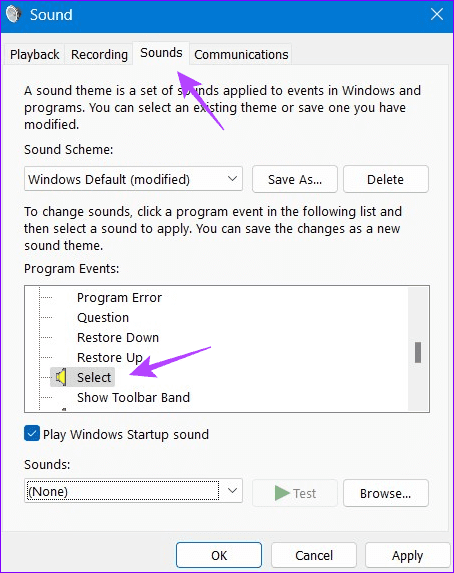
Step 5: Assign your desired sound to the ‘Select’ program event, and click Test to preview it. Select Apply followed by OK to save changes.
Tip: You can also assign a custom sound to other mouse-click events such as ‘Start Navigation’, ‘Open Program’, ‘Close Program’, ‘Maximize’, and ‘Minimize’, to personalize it on Windows 11.

Disable the Mouse Click Sound on Windows 11
If you’ve had your fill personalizing the mouse click sound or find it distracting, follow these easy steps to turn it off:
Step 1: Open Hardware and Sound in the Control Panel app (check the above steps).

Step 2: Select Sound to configure its settings.

Step 3: Open the Sounds tab, select the Program Event (e.g. Select, Start Navigation, etc.) you’ve configured earlier, and assign its Sounds to (None). Click Apply followed by OK to save changes.

Was this helpful?
Last updated on 25 July, 2024
Read Next
 Top 3 Touch Mouse Alternatives to Apple’s Magic Mouse
The Magic Mouse is useful for plenty of people, but some can get annoyed by its poor ergonomics.
Top 3 Touch Mouse Alternatives to Apple’s Magic Mouse
The Magic Mouse is useful for plenty of people, but some can get annoyed by its poor ergonomics.
 How to Fix Mouse Left Click (Button) Not Working on Windows
Basic Fixes: Check for hardware issues: Most mouse-related problems are associated with hardware failures.
How to Fix Mouse Left Click (Button) Not Working on Windows
Basic Fixes: Check for hardware issues: Most mouse-related problems are associated with hardware failures.
 How to Disable Mouse Acceleration in Windows
What Is Mouse Acceleration?
How to Disable Mouse Acceleration in Windows
What Is Mouse Acceleration?
 How to Disable Mouse and Keyboard From Waking Up Your Windows 11 PC
Method 1: Disable Option to Wakeup From Power Management We can use the Windows Device Manager to prevent the keyboard, mouse, and touchpad from waking up your laptop or PC.
How to Disable Mouse and Keyboard From Waking Up Your Windows 11 PC
Method 1: Disable Option to Wakeup From Power Management We can use the Windows Device Manager to prevent the keyboard, mouse, and touchpad from waking up your laptop or PC.
 3 Ways to Enable Single Click in Windows 11 and Earlier Versions
Method 1: Use the File Explorer Options Step 1: Open File Explorer Options from the Start menu.
3 Ways to Enable Single Click in Windows 11 and Earlier Versions
Method 1: Use the File Explorer Options Step 1: Open File Explorer Options from the Start menu.
 3 Ways to Disable or Enable Search Highlights in Windows 10 and Windows 11
Method 1: Disable or Enable Search Highlights From the Settings App The Settings app on Windows allows you to control most things on your PC.
3 Ways to Disable or Enable Search Highlights in Windows 10 and Windows 11
Method 1: Disable or Enable Search Highlights From the Settings App The Settings app on Windows allows you to control most things on your PC.
 3 Ways to Fix Mouse Keeps Scrolling Automatically Windows 10 and Windows 11
https://youtu.be/1UZ3PWNr-lE Try Basic Fixes Disconnect and reconnect the mouse: Unplug your mouse cable or wireless adapter from your computer and reconnect it to a different port.
3 Ways to Fix Mouse Keeps Scrolling Automatically Windows 10 and Windows 11
https://youtu.be/1UZ3PWNr-lE Try Basic Fixes Disconnect and reconnect the mouse: Unplug your mouse cable or wireless adapter from your computer and reconnect it to a different port.
 How to Enable or Disable Smart App Control in Windows 11
Have you ever downloaded an app that was more trouble than it's worth?
How to Enable or Disable Smart App Control in Windows 11
Have you ever downloaded an app that was more trouble than it's worth?
The article above may contain affiliate links which help support Guiding Tech. The content remains unbiased and authentic and will never affect our editorial integrity.