Basic Fixes:
- Close and restart Chrome: You can open all background apps and close Chrome. This will stop the app from running in the background. Then, tap on the app icon to reopen Chrome and try downloading the file again to check.
- Ensure your device has storage available: Your Android device can’t save your Chrome downloads without enough storage space. To ensure this is not the case, open storage settings and check. If it’s more than 90% full, delete some files or photos and try again.
- Clear Chrome app cache: Caches help speed up app functions. However, corrupt cache files can cause certain app functions not to work properly. When this happens, open the app settings for Chrome and clear the app cache on your Android phone.
- Check for app updates: Updating the app is known to fix many issues that may arise due to bugs in the app. So, check and install the latest app updates for Chrome and try downloading the file again.
Fix 1: Turn off Data Saver
Data savers can restrict app functions to save on mobile data usage. While this is helpful if you’re on a limited data plan, it can also pause your Chrome downloads. In this case, turn off the Data saver on your Android phone and allow Chrome’s data usage at all times. Here’s how.
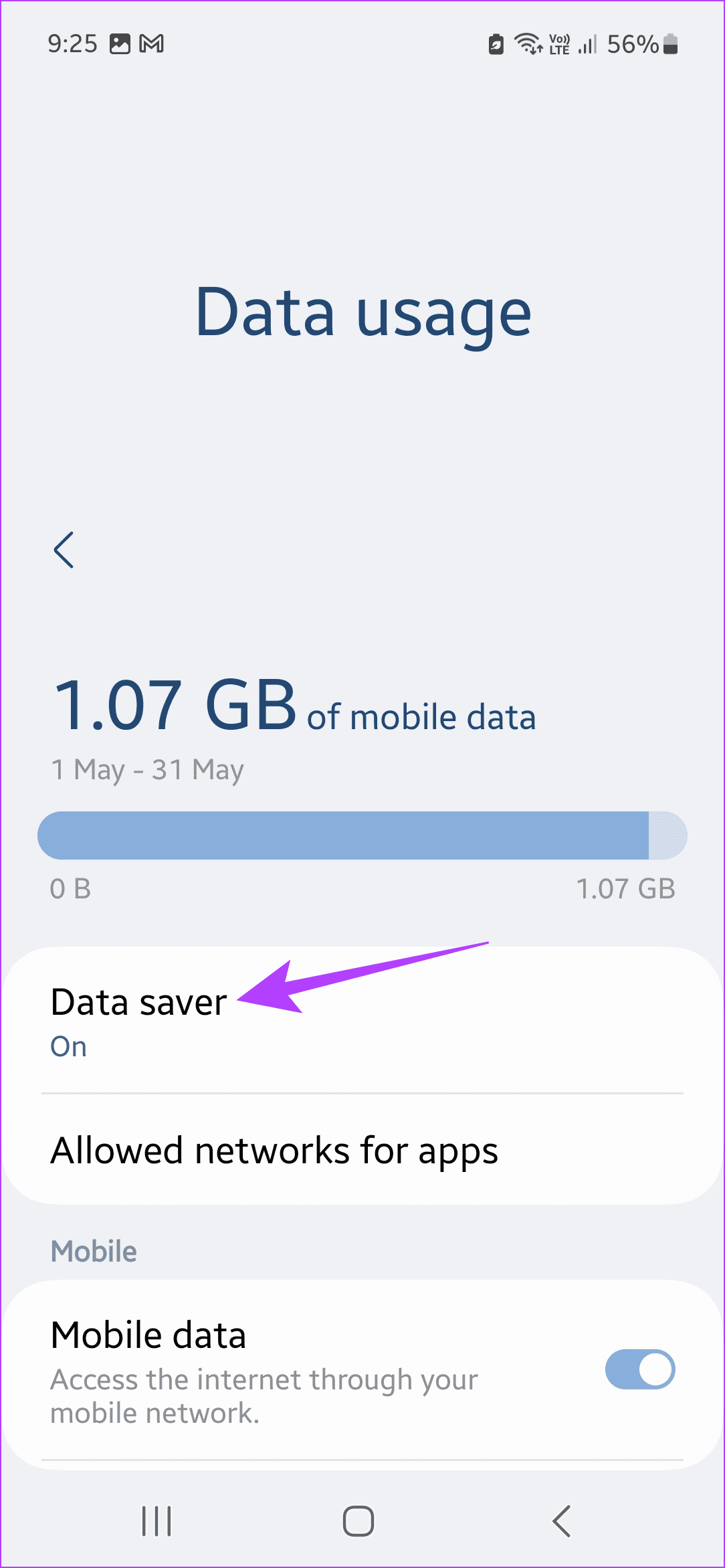
Step 1: Open Settings > tap on Connections > Data usage.

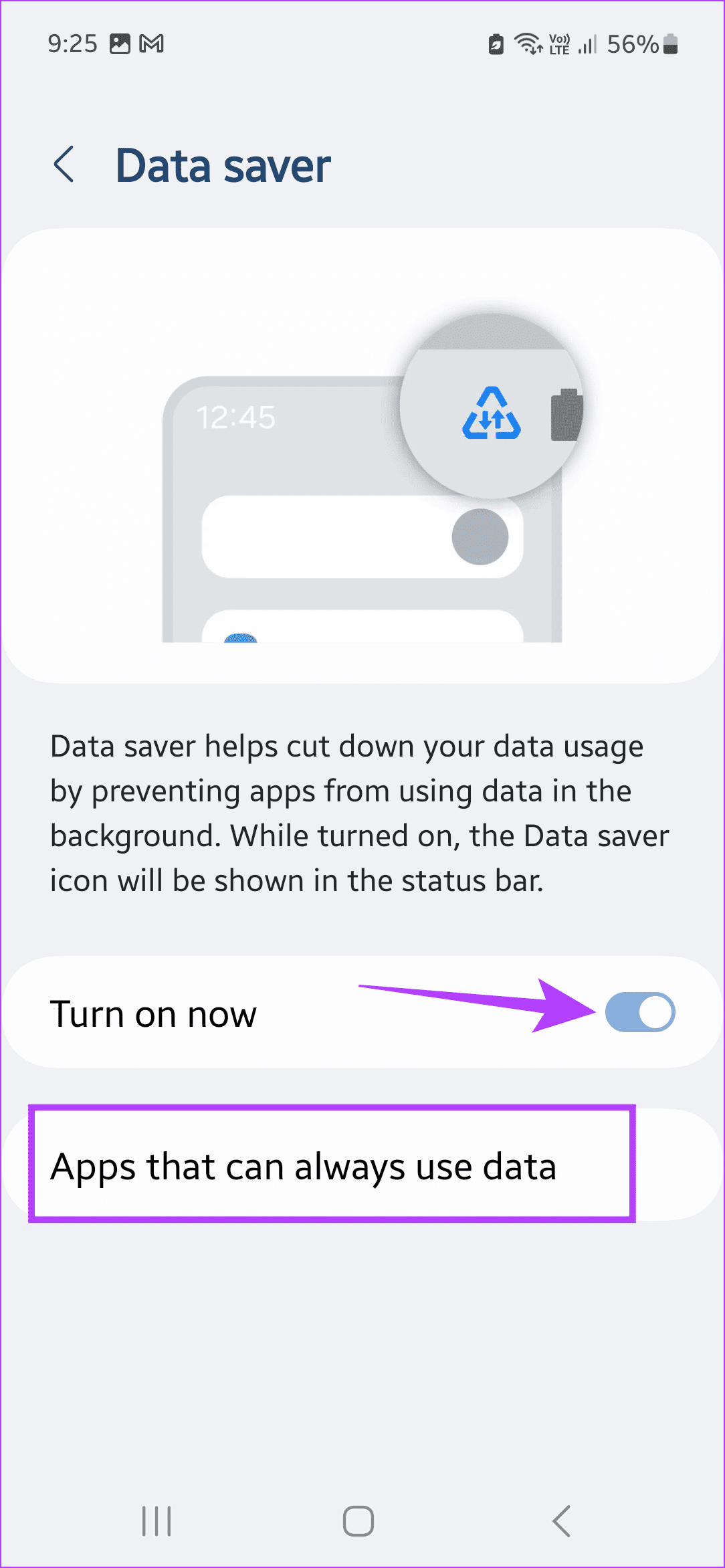
Step 2: Here, tap on Data saver. First, turn off the Turn on now toggle.
Step 3: Then, tap on Apps that can always use data. Scroll through the apps and turn on the toggle for Chrome.

Tip: You can also check the data usage on your Android device to ensure you never exceed your set monthly limits.
Fix 2: Unrestrict Google Chrome
Your Android phone can restrict the Chrome app to save on battery life. This can, in turn, affect your downloads. When this happens, allow Chrome to run unrestricted on your Android phone. Here’s how to do it.
Step 1: Open Settings and tap on Apps. Scroll down and tap on Chrome.


Step 2: Tap on Battery. From the options, select Unrestricted.


Fix 3: Clear the Download Folder
If your Downloads folder is cluttered with too many old downloads, it might stop new items from being downloaded. When this happens, open your current download folder and delete the items you no longer want. Then, try downloading the file again on Chrome. Follow the below steps to do it.
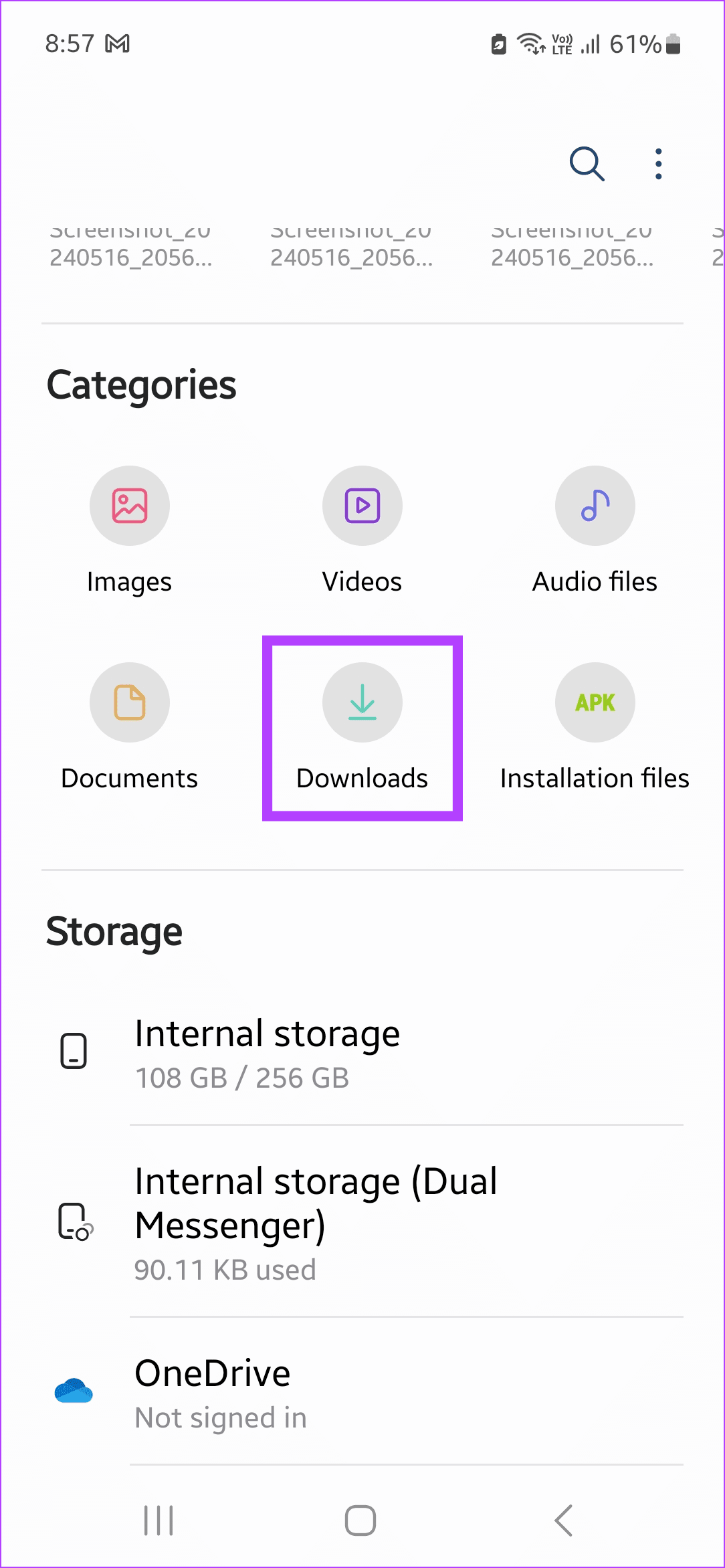
Step 1: Open the relevant Files app and tap on Downloads. Select the files you wish to delete and tap on Delete all.
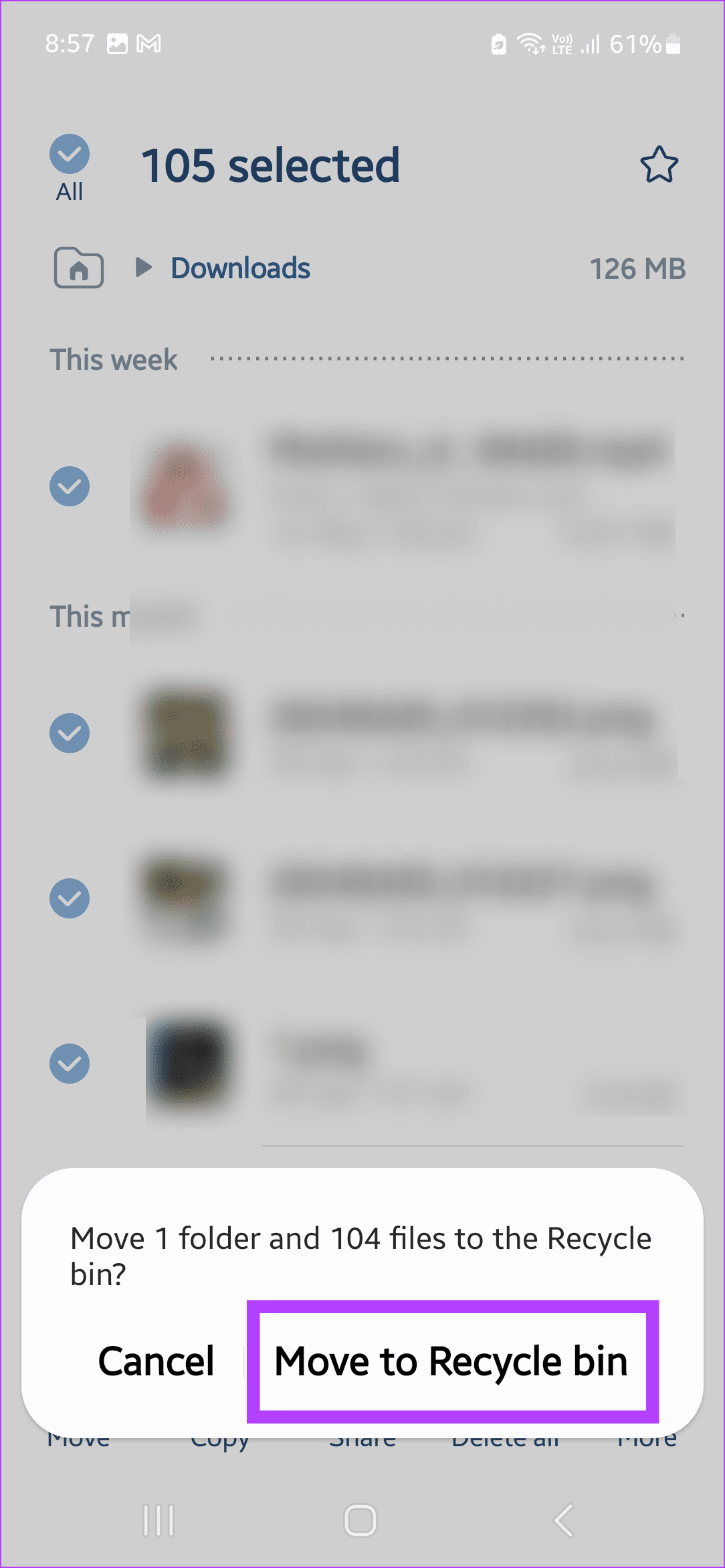
Step 2: Tap on Move to recycle bin when prompted. This will delete these files from the Downloads folder.

Tip: You can open the trash folder on Android and delete these files forever immediately.
Fix 4: Change the Download Location
If your phone supports a microSD card, you can change the download location from your phone to the microSD card. Do this if Chrome downloads are still pausing on your Android phone. Here’s how.
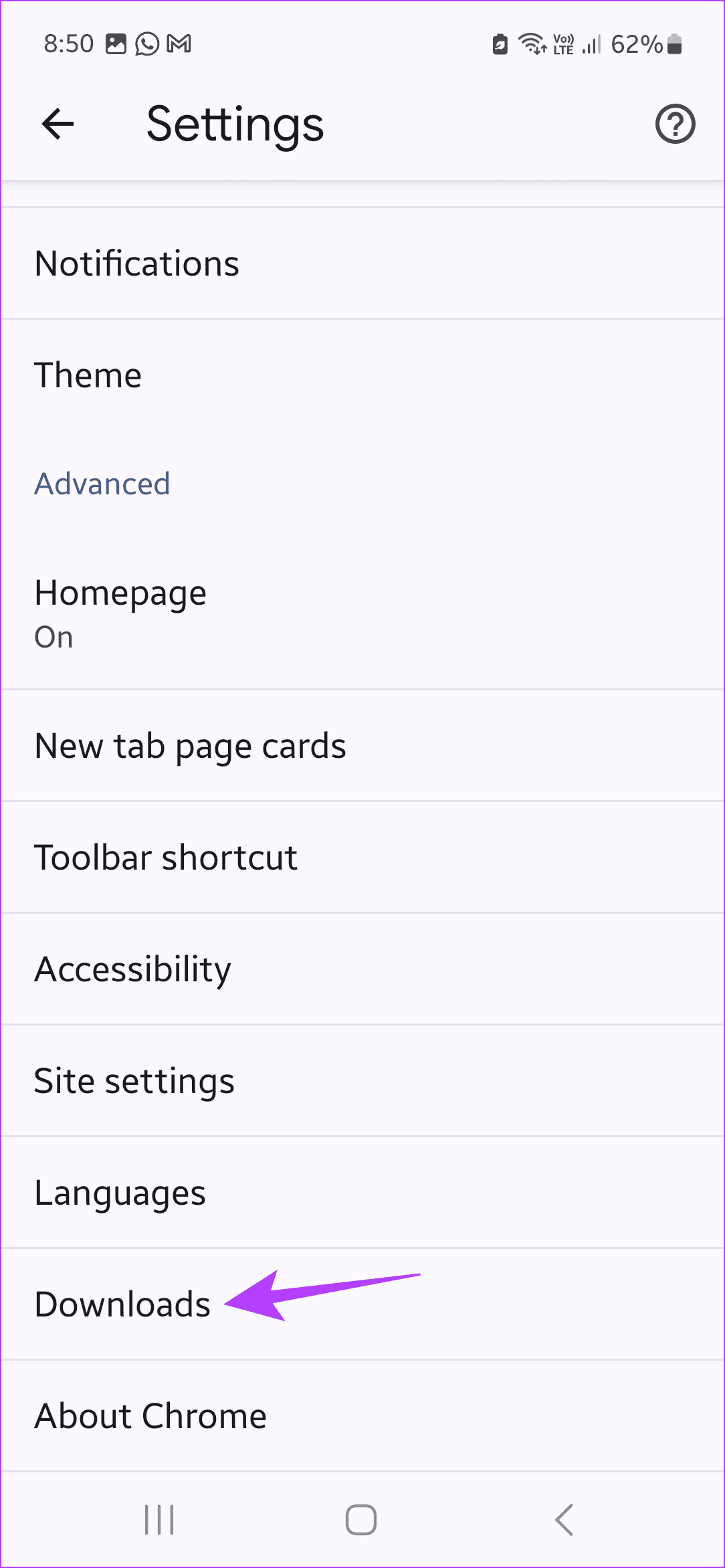
Step 1: Open Chrome > tap the three-dot icon at the top-right corner > Settings > scroll down and tap on Downloads.
Step 2: Tap on Download location > select the relevant location. Or, turn on the Ask where to save files toggle.

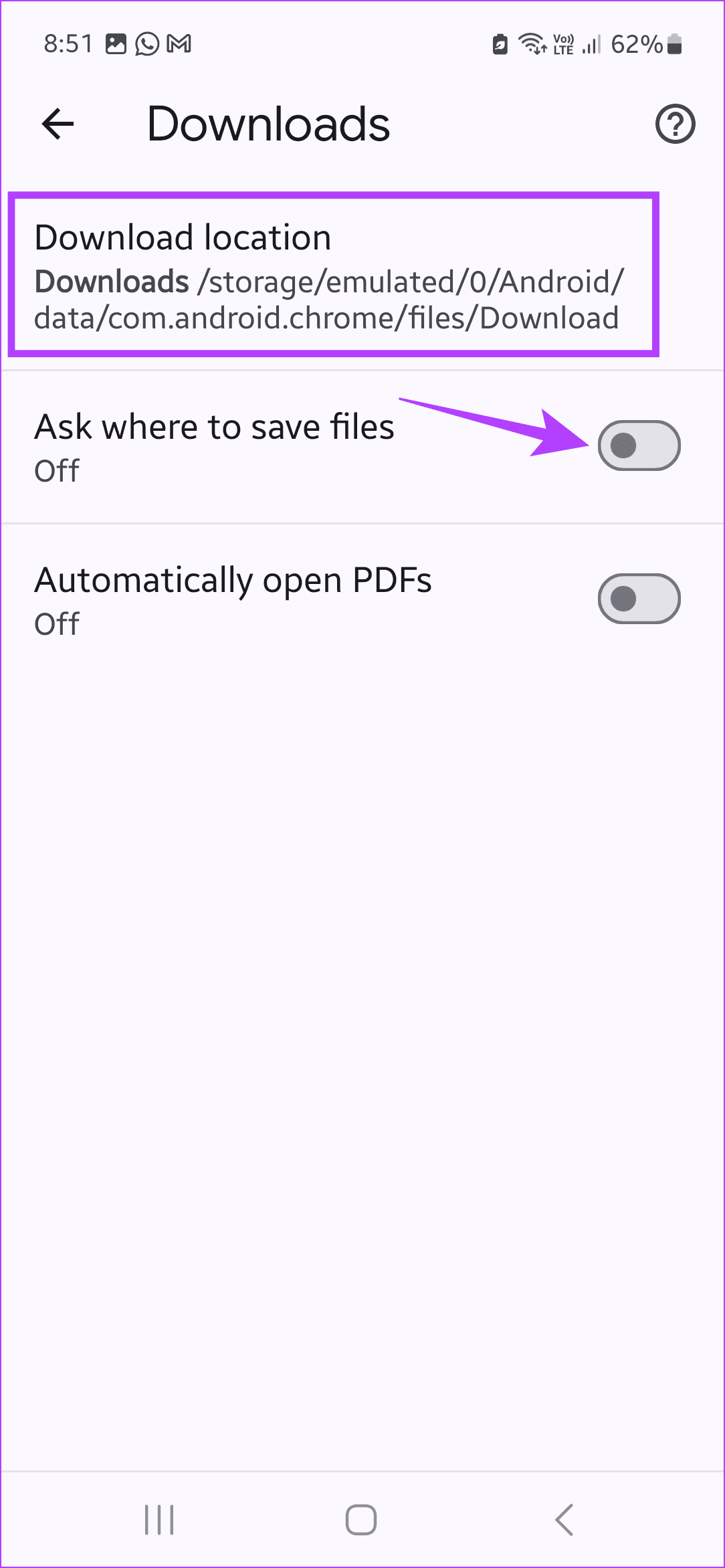
This will allow you to select the download location manually whenever you download files using the Chrome browser on your Android phone. Now, try downloading the file again to check.
Was this helpful?
Last updated on 20 May, 2024
Read Next
 6 Ways to Fix YouTube Videos Keeps Pausing
Try Basic Fixes Update the app: An outdated or buggy YouTube app could give you problems.
6 Ways to Fix YouTube Videos Keeps Pausing
Try Basic Fixes Update the app: An outdated or buggy YouTube app could give you problems.
 How to Stop YouTube From Pausing and Asking if You Want to “Continue Watching”
If you’re watching a YouTube playlist or listening to it in the background, you may occasionally find the video automatically paused.
How to Stop YouTube From Pausing and Asking if You Want to “Continue Watching”
If you’re watching a YouTube playlist or listening to it in the background, you may occasionally find the video automatically paused.
 2 Ways to Stop Downloads From Opening Automatically in Chrome
Method 1: Uncheck Always Open This File Option Chrome lets you automatically launch certain file types as soon as they've finished downloading locally.
2 Ways to Stop Downloads From Opening Automatically in Chrome
Method 1: Uncheck Always Open This File Option Chrome lets you automatically launch certain file types as soon as they've finished downloading locally.
 How to Find Google Chrome Downloads on Mobile and Desktop
Find Google Chrome Downloads on Mac Step 1: Open Google Chrome and wait for the download process to complete.
How to Find Google Chrome Downloads on Mobile and Desktop
Find Google Chrome Downloads on Mac Step 1: Open Google Chrome and wait for the download process to complete.
 7 Ways to Fix Mozilla Firefox Downloads Failing on Windows 11
Basic Fixes: Pause and resume the download: After restarting a failed download, it can get stuck and fail again.
7 Ways to Fix Mozilla Firefox Downloads Failing on Windows 11
Basic Fixes: Pause and resume the download: After restarting a failed download, it can get stuck and fail again.
 Where to Find Downloads on Samsung Galaxy Phones
Where to Find Downloaded Files on Samsung Galaxy Phone If you're new to Samsung Galaxy phones, you may wonder where your downloaded files are.
Where to Find Downloads on Samsung Galaxy Phones
Where to Find Downloaded Files on Samsung Galaxy Phone If you're new to Samsung Galaxy phones, you may wonder where your downloaded files are.
 How to Fix Chrome If It Doesn’t Keep You Logged in Windows
Chrome's ability to keep you logged into sites that offer to remember you saves a ton of time otherwise spent on manual logins.
How to Fix Chrome If It Doesn’t Keep You Logged in Windows
Chrome's ability to keep you logged into sites that offer to remember you saves a ton of time otherwise spent on manual logins.
 4 Ways To Keep Screen On for Android Apps
Method 1: Keep Screen On Using the Android System The most basic method involves adjusting your phone's screen timeout settings.
4 Ways To Keep Screen On for Android Apps
Method 1: Keep Screen On Using the Android System The most basic method involves adjusting your phone's screen timeout settings.
The article above may contain affiliate links which help support Guiding Tech. The content remains unbiased and authentic and will never affect our editorial integrity.