Basic Fixes
- Use HDMI 2.1 cable: This cable supports higher frame rates, improved bandwidth, and eARC (Audio Return Channel).
- Check your streaming subscription status: Check whether the payment was processed for your account.
- Update the streaming app: Install the latest version of the streaming app in question.
- Update Fire TV OS version: Go to Settings > My Fire TV > About > Check for System Updates.
Fix 1: Check if the Title Supports Dolby Vision
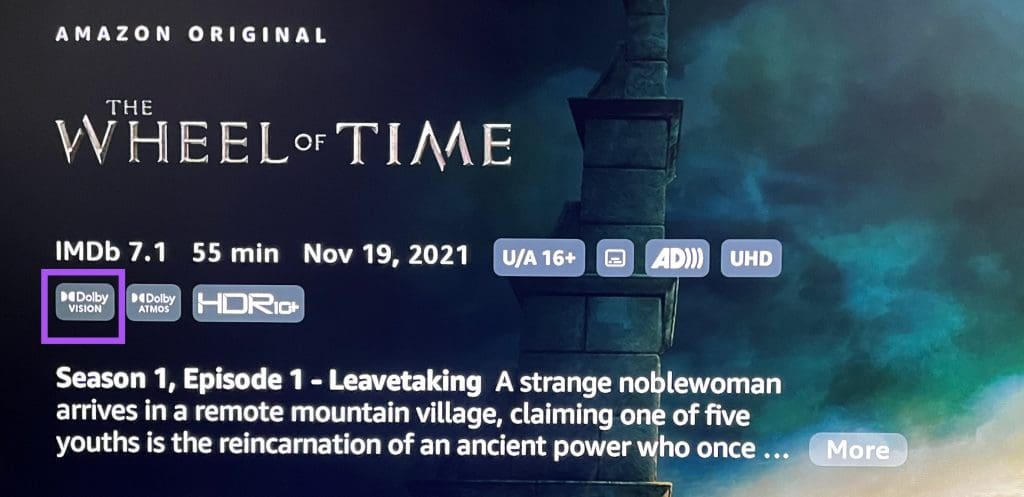
Many streaming platforms like Netflix, Apple TV+, Prime Video, and more have started offering much content in Dolby Vision format. But it is also possible that the current title that you want to watch is not available in Dolby Vision. While scrolling for what to watch in streaming apps, you need to look for the Dolby Vision logo next to the title name. If it is not there, that movie or TV show is not streaming in Dolby Vision.
Fix 2: Check the Video Resolution Settings
If the title selected by you is indeed streaming in Dolby Vision, you need to check the display settings of your Fire TV Stick 4K. There’s automatic switching to Dolby Vision by your Fire TV Stick 4K when you start playing the respective content.
Step 1: Go to Settings on the home screen of your Fire TV Stick 4K.
Step 2: Select Display and Audio > Display.
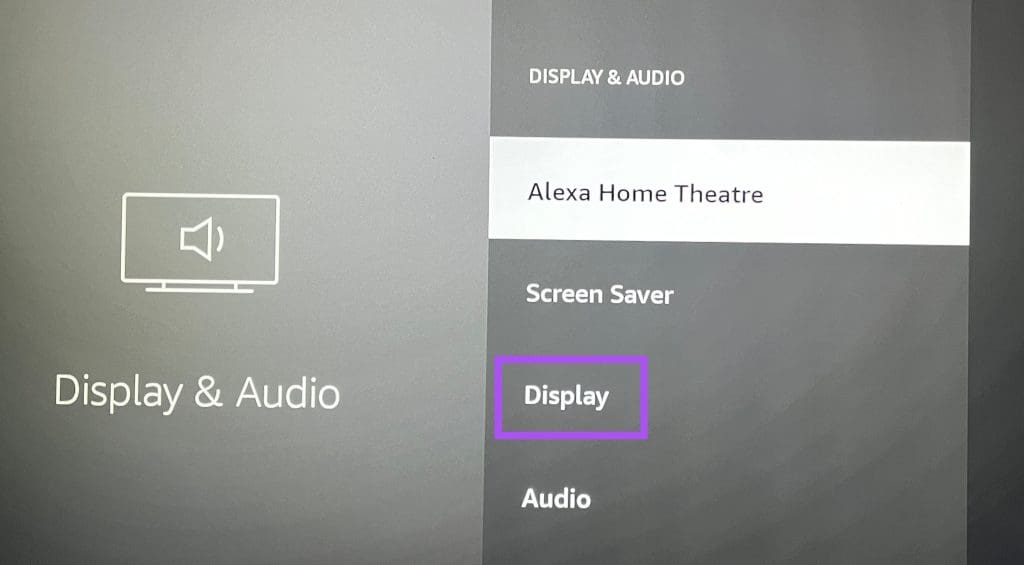
Step 3: Check your video resolution set for your TV.
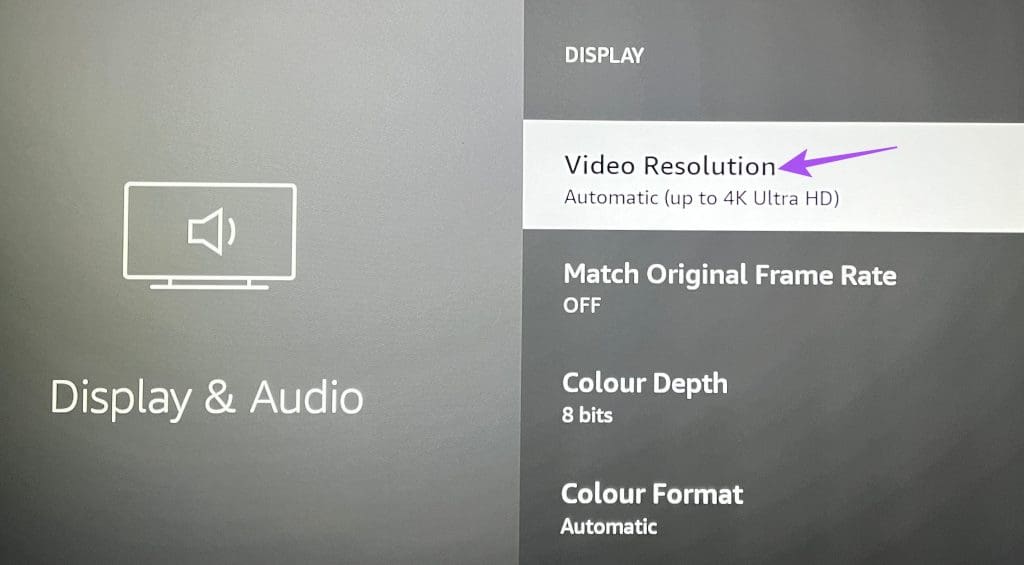
Sometimes, the content will stream at 1080p 60Hz for smoother playback if your TV supports Dolby Vision playback at 4K 30Hz. You can set your playback resolution to 4K 60Hz from the list of video resolutions.

Step 4: Go back, scroll down, and then select Dynamic Range Settings.

Step 5: Select Always HDR.
Fix 3: Reset Fire TV Stick 4K
You can try resetting your Fire TV Stick model to see if the problem gets solved. This step will remove all apps and settings from your Fire TV Stick 4K model.
Was this helpful?
Last updated on 22 July, 2024
Read Next
 3 Fixes for Amazon Fire TV Stick 4K Not Playing 4K Content
Basic Fixes Check internet speed: You need at least 15 MBps of internet speed on your Wireless network to work with your Fire TV Stick 4K for streaming content in
3 Fixes for Amazon Fire TV Stick 4K Not Playing 4K Content
Basic Fixes Check internet speed: You need at least 15 MBps of internet speed on your Wireless network to work with your Fire TV Stick 4K for streaming content in
 3 Fixes for Alexa Not Responding to Voice Commands on Amazon Fire TV Stick 4K
Basic Fixes Bring the remote closer: According to the instruction manual for the Amazon Fire TV Stick 4K, the distance between the Fire TV remote and Fire TV Stick 4K
3 Fixes for Alexa Not Responding to Voice Commands on Amazon Fire TV Stick 4K
Basic Fixes Bring the remote closer: According to the instruction manual for the Amazon Fire TV Stick 4K, the distance between the Fire TV remote and Fire TV Stick 4K
 3 Fixes for Amazon Fire TV Stick 4K Not Recognizing USB Drive
Basic Fixes Avoid using largely sized USB drives: You need to avoid using USB drives that are larger than 128GB in size.
3 Fixes for Amazon Fire TV Stick 4K Not Recognizing USB Drive
Basic Fixes Avoid using largely sized USB drives: You need to avoid using USB drives that are larger than 128GB in size.
 How to Fix Netflix Not Working on Amazon Fire TV Stick
Basic Fixes Check Netflix server status: You can visit DownDetector to see if the Netflix servers are working for your area.
How to Fix Netflix Not Working on Amazon Fire TV Stick
Basic Fixes Check Netflix server status: You can visit DownDetector to see if the Netflix servers are working for your area.
 3 Ways to Fix Apple TV App Not Working on Amazon Fire TV Stick
Basic Fixes Force quit and relaunch Apple TV app: This will give the app a fresh start on your Firestick.
3 Ways to Fix Apple TV App Not Working on Amazon Fire TV Stick
Basic Fixes Force quit and relaunch Apple TV app: This will give the app a fresh start on your Firestick.
 5 Ways to Fix Amazon Silk Browser Not Working on Fire TV Stick
Basic Fixes Check your network connection: Open Fire OS settings via the Gear icon at the top right.
5 Ways to Fix Amazon Silk Browser Not Working on Fire TV Stick
Basic Fixes Check your network connection: Open Fire OS settings via the Gear icon at the top right.
 3 Ways to Fix YouTube TV Not Working on Amazon Fire TV Stick
Basic Fixes Check the YouTube server status: Visit Downdetector to check an active YouTube TV server outage.
3 Ways to Fix YouTube TV Not Working on Amazon Fire TV Stick
Basic Fixes Check the YouTube server status: Visit Downdetector to check an active YouTube TV server outage.
 4 Fixes for Amazon Fire TV Stick Keeps Buffering Issue
Basic Fixes Downgrade streaming quality: You can start by reducing the streaming quality of whichever platform you are facing issues with.
4 Fixes for Amazon Fire TV Stick Keeps Buffering Issue
Basic Fixes Downgrade streaming quality: You can start by reducing the streaming quality of whichever platform you are facing issues with.
The article above may contain affiliate links which help support Guiding Tech. The content remains unbiased and authentic and will never affect our editorial integrity.