How to Show CPU Temperature on Windows Desktop
Open Hardware Monitor is a free open-source software that makes it easy to monitor a number of hardware statistics for your computer. Here’s how to use it to get a CPU temperature monitor widget on your Windows desktop.
Step 1: Download and install the Open Hardware Monitor on your PC.
Step 2: Launch the Open Hardware Monitor app and locate the Temperatures section under your CPU.
Step 3: Right-click on the entry that you want to see on your desktop and select the Show in Gadget option. You can repeat this step for more entries if you want.

Note: You may see multiple temperature readings for your CPU as each CPU core has its temperature sensor and an independently positioned package sensor. Your motherboard may also have a number of CPU temperature sensors.
Step 4: Click the View menu at the top and select Show Gadget from the resulting menu.
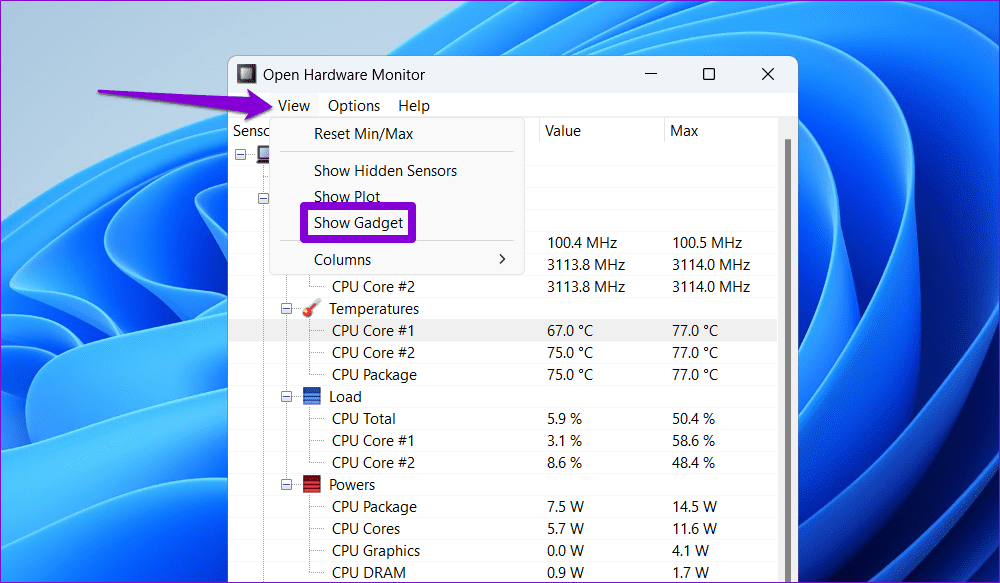
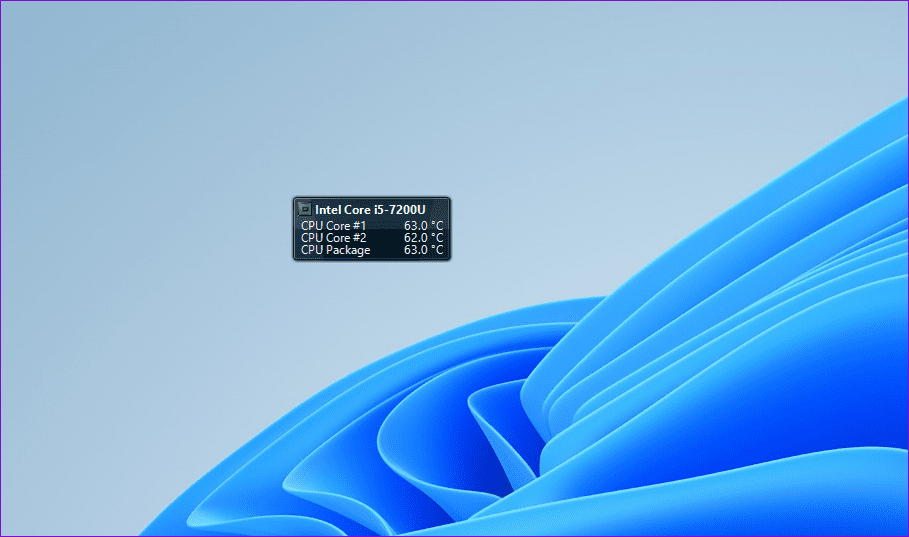
Once you complete the above steps, you should see a small widget on your desktop that will display your PC’s CPU temperature. You can click and drag the widget to move it to your preferred location.
How to Get CPU Temperature Monitor Widget on Taskbar
While a desktop widget that shows CPU temperature is handy, Open Hardware Monitor can also show this information on the Windows taskbar. Here’s how:
Step 1: Launch the Open Hardware Monitor app and locate the Temperatures section under your CPU.
Step 2: Right-click the entry you want to see on the taskbar and select Show in Tray.

Step 3: Right-click on your taskbar and select Taskbar settings.

Step 4: Expand Other system tray icons and enable the toggle for Open Hardware Monitor.

And that’s it. You should now see the temperature of the CPU on the Windows taskbar.

How to Check CPU Temperature Without a Third-Party App
Prefer not to rely on a third-party tool to check the CPU temperature? No worries; you can also check your CPU temperature without these tools. However, it requires you to enter your PC’s BIOS/UEFI menu, which is not as quick as the methods mentioned above.
Step 1: Press the Windows + S keyboard shortcut to open the search menu. Type recovery options in the box and press Enter.

Step 2: Click the Restart now button next to Advanced startup.
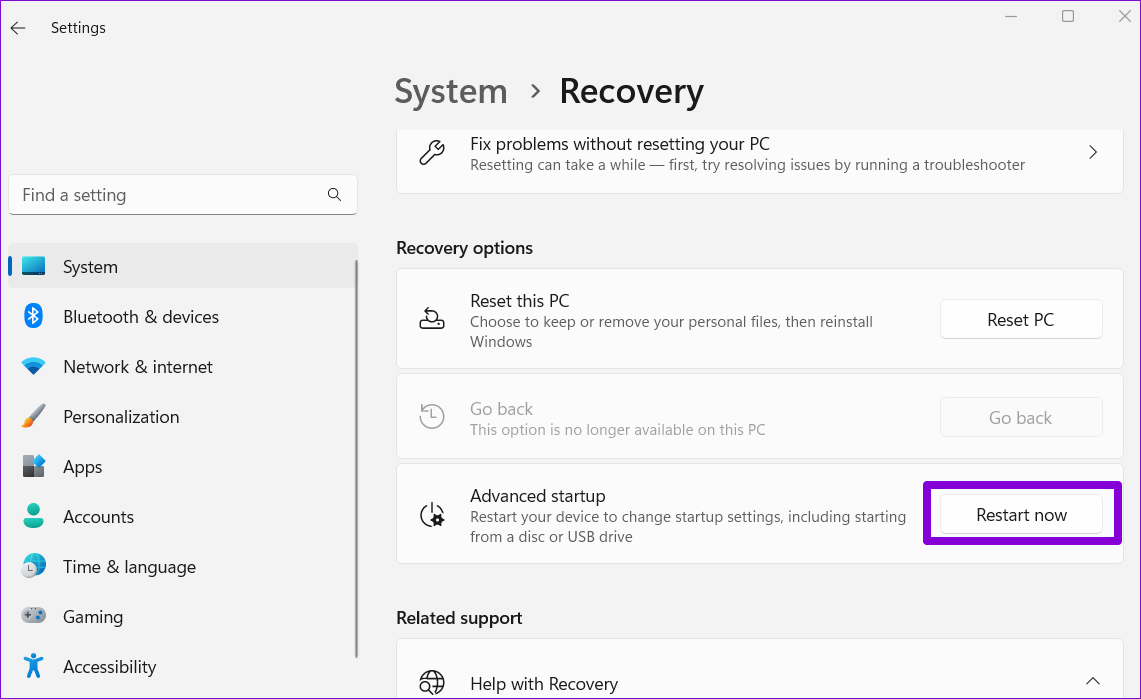
Step 3: Click the Restart now button.

Step 4: Wait for your PC to reboot, and a blue screen should appear. Select the Troubleshoot option to continue.
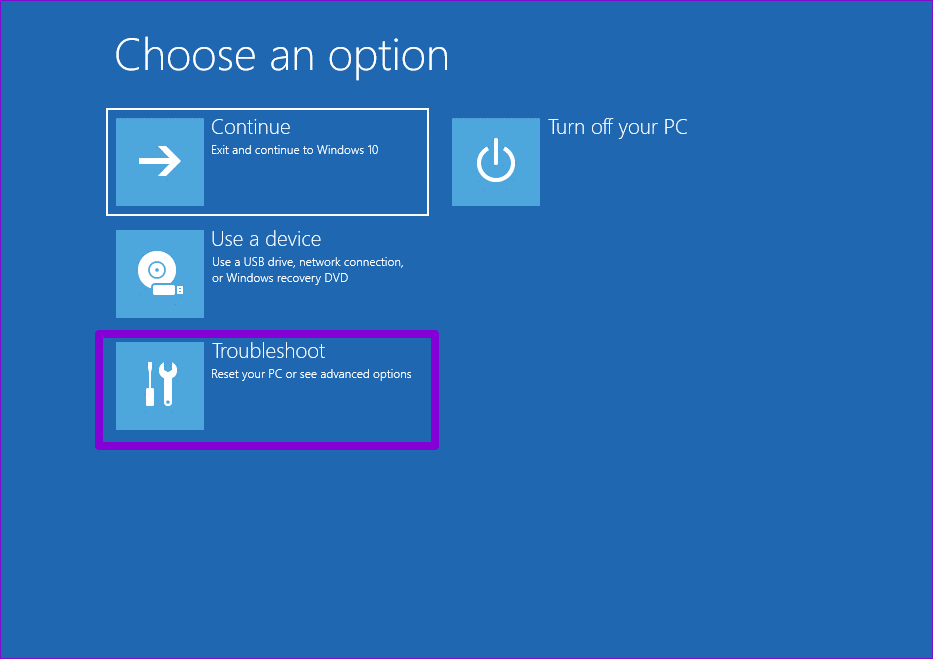
Step 5: Go to Advanced options.
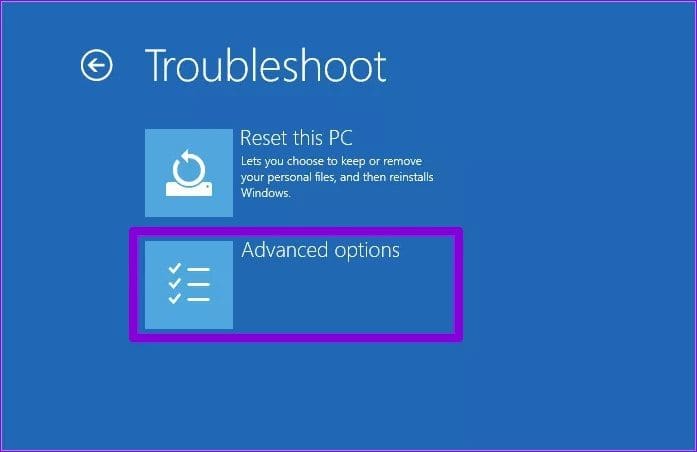
Step 6: Select the UEFI Firmware Settings option and then select Restart in the following menu.

Step 7: Once you’re in BIOS, head to the H/W Monitor section and look for the CPU Temperature entry.
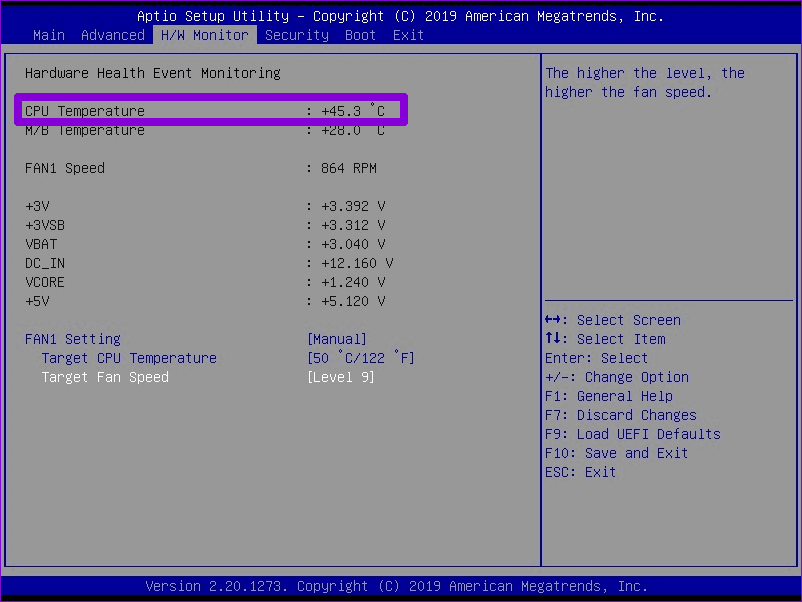
It is important to note that checking the CPU temperature in the BIOS or UEFI menu only shows the temperature when your computer is idle. The actual temperature when you boot up your PC and run applications will be much higher.
FAQs on CPU Temperature on Windows
While a good CPU temperature varies depending on your CPU’s specifications and current load, anything between 35-65°C (or 95-149°F) is acceptable when your PC is idle or under normal load. That said, temperatures around 70-85°C (158-185°F) are safe if you are gaming or performing other demanding tasks.
Cleaning the dust inside your CPU, using a cooling pad, updating drivers, and disabling unnecessary startup programs can help reduce the CPU temperature significantly on Windows.
Was this helpful?
Last updated on 09 July, 2024
Read Next
 8 Windows Temperature Monitor and Control Software
1.
8 Windows Temperature Monitor and Control Software
1.
 3 Ways to Check the Temperature of Your iPhone
Method 1: Using an Infrared Thermometer An infrared thermometer gives precise measurements and doesn't require bringing the thermometer in contact with your iPhone.
3 Ways to Check the Temperature of Your iPhone
Method 1: Using an Infrared Thermometer An infrared thermometer gives precise measurements and doesn't require bringing the thermometer in contact with your iPhone.
 5 Ways to Fix Windows Explorer High CPU Usage on Windows 11
Try Basic Fixes Restart the Windows Explorer process: There's a chance that Windows Explorer's high CPU usage is a one-time glitch.
5 Ways to Fix Windows Explorer High CPU Usage on Windows 11
Try Basic Fixes Restart the Windows Explorer process: There's a chance that Windows Explorer's high CPU usage is a one-time glitch.
 5 Ways to Fix High CPU Usage on Windows 11
Try Basic Fixes Wait for Windows to finish updates: If Windows is in the process of checking, downloading, or installing any updates in the background, CPU usage may increase during
5 Ways to Fix High CPU Usage on Windows 11
Try Basic Fixes Wait for Windows to finish updates: If Windows is in the process of checking, downloading, or installing any updates in the background, CPU usage may increase during
 Windows Audio Device Graph Isolation: Fix High CPU Usage
What is Windows Audio Device Graph Isolation Windows Audio Device Graph Isolation, also known as audiodg.exe, is a process that handles digital signal processing, including advanced sound enhancement effects, on
Windows Audio Device Graph Isolation: Fix High CPU Usage
What is Windows Audio Device Graph Isolation Windows Audio Device Graph Isolation, also known as audiodg.exe, is a process that handles digital signal processing, including advanced sound enhancement effects, on
 Which Browser Uses the Least RAM and CPU on Windows
How We Tested the Web Browsers We tested all four web browsers on a Windows machine with a quad-core CPU and 8GB of RAM.
Which Browser Uses the Least RAM and CPU on Windows
How We Tested the Web Browsers We tested all four web browsers on a Windows machine with a quad-core CPU and 8GB of RAM.
 6 Fixes for Discord’s High CPU Usage on Windows
Fix 1: Turn Off Hardware Acceleration The Hardware Acceleration in Discord allows the app to use your GPU instead of your CPU for graphics-intensive tasks.
6 Fixes for Discord’s High CPU Usage on Windows
Fix 1: Turn Off Hardware Acceleration The Hardware Acceleration in Discord allows the app to use your GPU instead of your CPU for graphics-intensive tasks.
 6 Ways to Fix Windows Modules Installer Worker High CPU Usage
If you've ever found your computer's fan working overtime and the CPU usage going sky-high, you're not alone.
6 Ways to Fix Windows Modules Installer Worker High CPU Usage
If you've ever found your computer's fan working overtime and the CPU usage going sky-high, you're not alone.
The article above may contain affiliate links which help support Guiding Tech. The content remains unbiased and authentic and will never affect our editorial integrity.