We have covered the following things here:
- How to delete multiple chats on WhatsApp.
- How to delete all chats from WhatsApp
- How to delete multiple messages within a WhatsApp chat.
- How to delete all messages within a WhatsApp chat.
We have also covered two bonus tips. So, read the post till the end. Let’s begin.
How to Delete Multiple Chats on WhatsApp
To delete multiple WhatsApp chats at once on your Android phone or iPhone, follow these step-by-step instructions.
On Android
Step 1: Open WhatsApp > Long-press one of the chats you want to delete > Select more chats in a similar way.
Step 2: Tap on the Delete icon at the top > Delete chats.


Tip: Learn how to use WhatsApp without internet
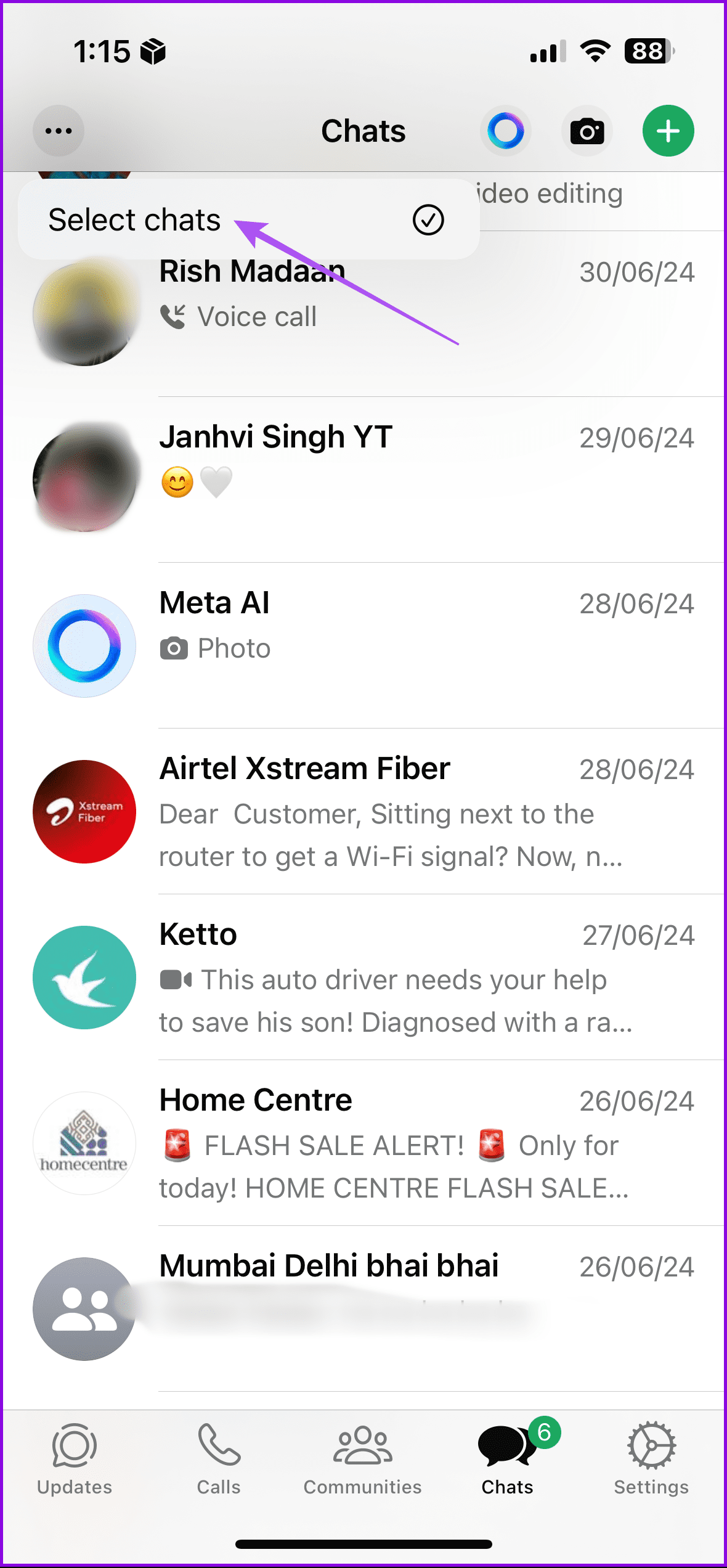
Delete Multiple WhatsApp Chats at Once on iPhone
Step 1: Open WhatsApp > Three dots in the top-left corner > Select Chats.
Step 3: Tap the chats you want to delete and then press the Delete button at the bottom. Confirm on the next screen.

A few things to note while deleting multiple WhatsApp chats:
- You cannot delete multiple WhatsApp chat threads on a PC.
- Groups cannot be deleted until you exit them first.
Tip: How to mute WhatsApp group notifications forever.
How to Delete All WhatsApp Chats at Once
To delete all chats at once from your WhatsApp, follow these steps. However, note that deleting all chats will not delete group chats. You must exit the group first to delete it.
On Android
Open WhatsApp > Settings > Chats > Chat history > Delete all chats.


Tip: Know what happens if you use Clear chats instead of Delete chat on WhatsApp.
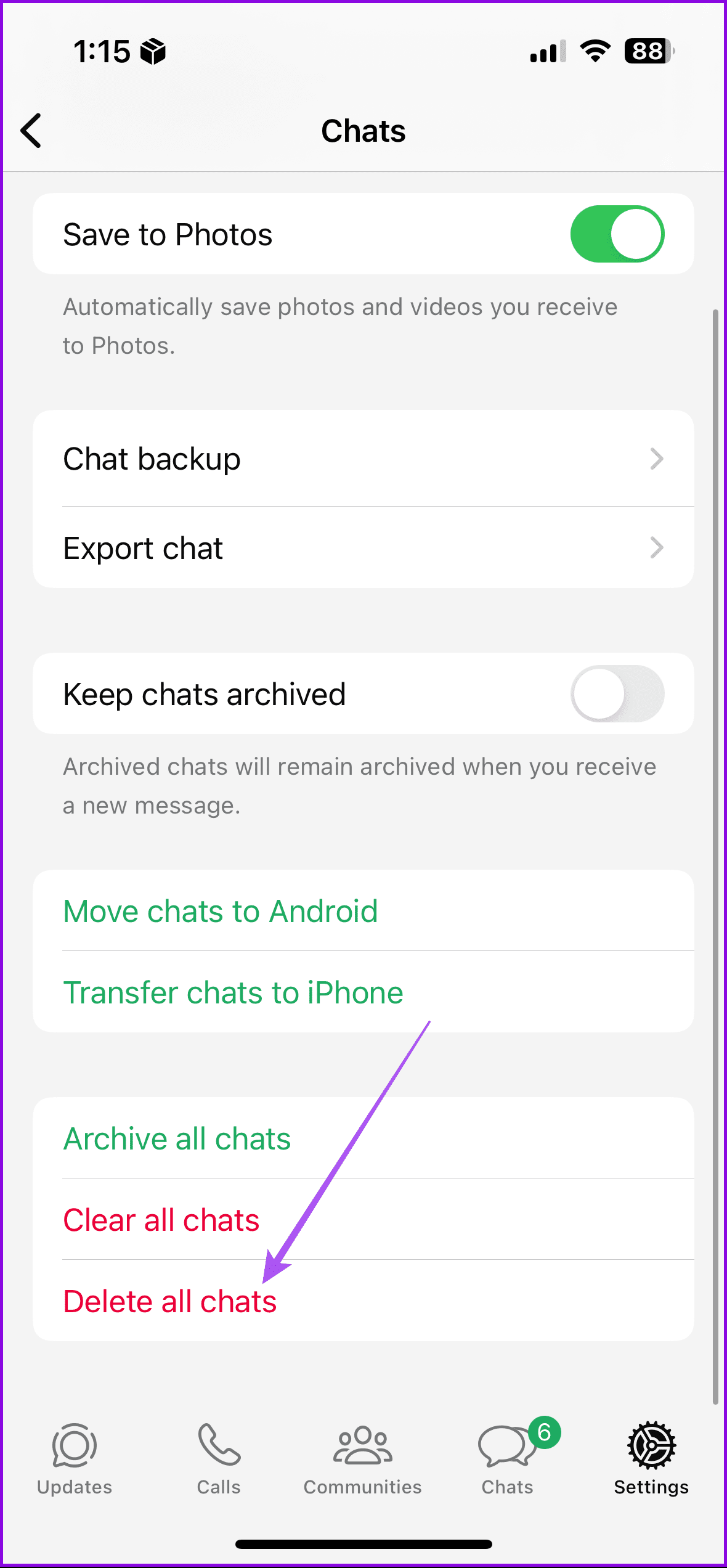
On iPhone
Open WhatsApp > Settings > Chats > Delete all chats.

Tip: Know how to hide WhatsApp chats.
How to Delete Multiple Messages Within a WhatsApp Chat
Use these steps to delete more than one message within a WhatsApp chat on Android, iPhone, and PC.
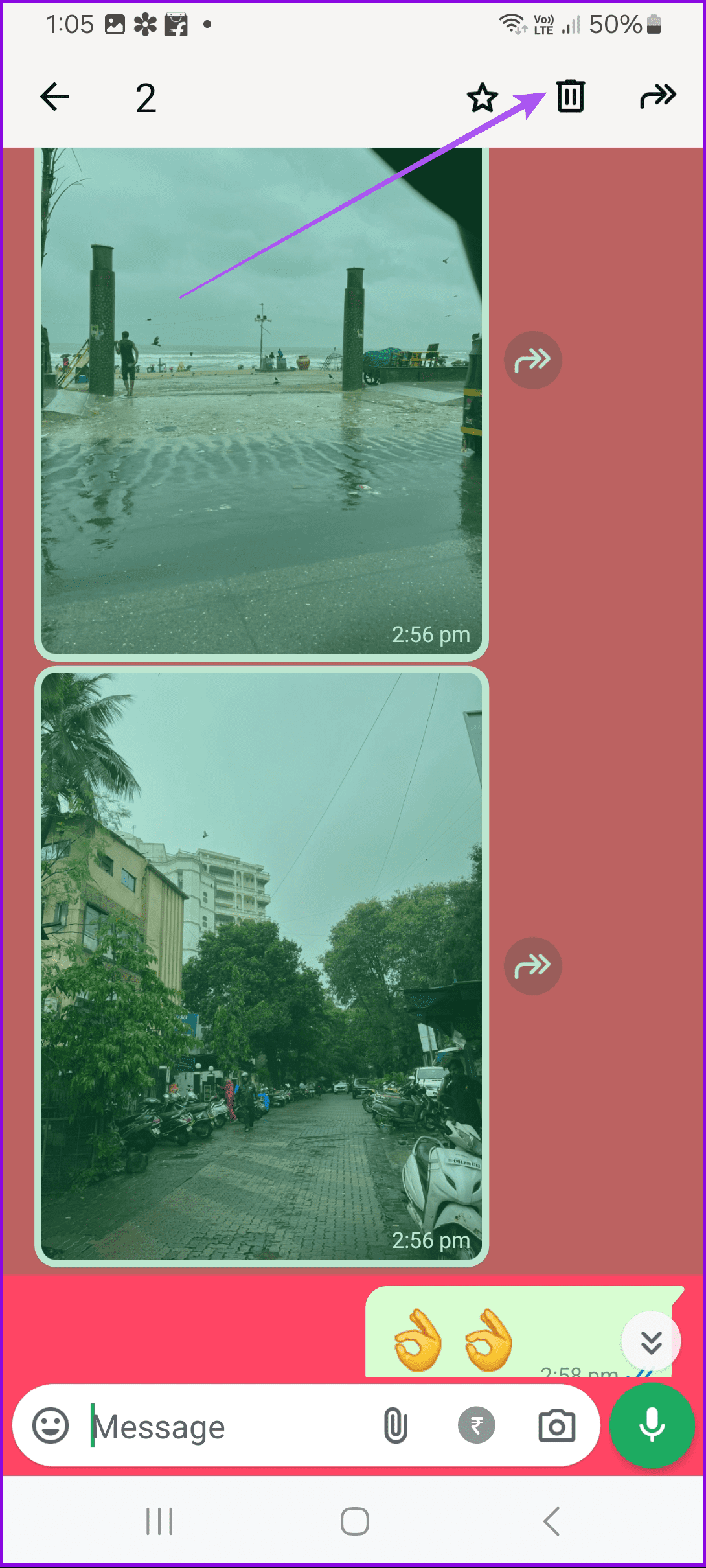
On Android
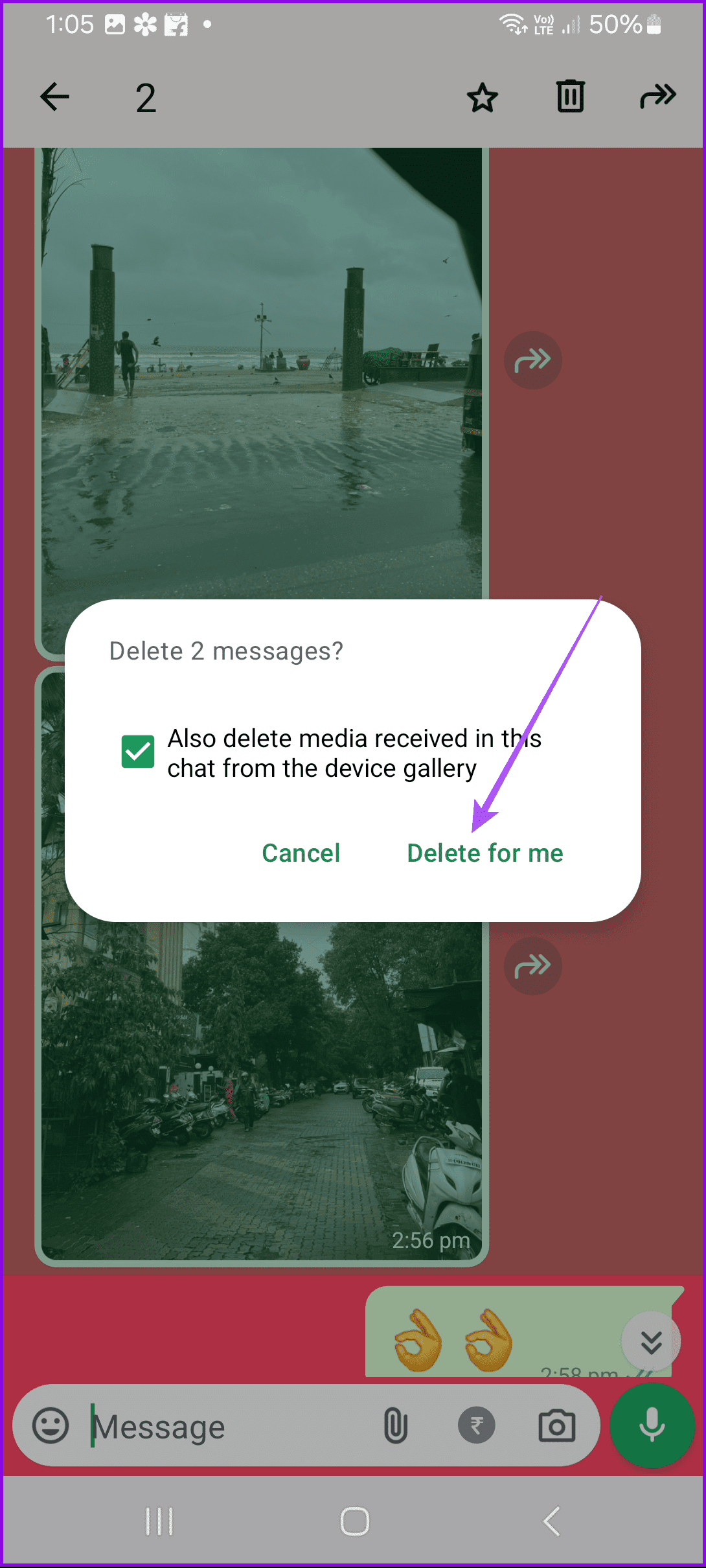
Step 1: Open the WhatsApp chat > Long-press on a message to select it > Tap on other messages within the chat to select them > Tap on Delete > Delete for me.
Tip: Know how to edit a sent WhatsApp message.
On iPhone
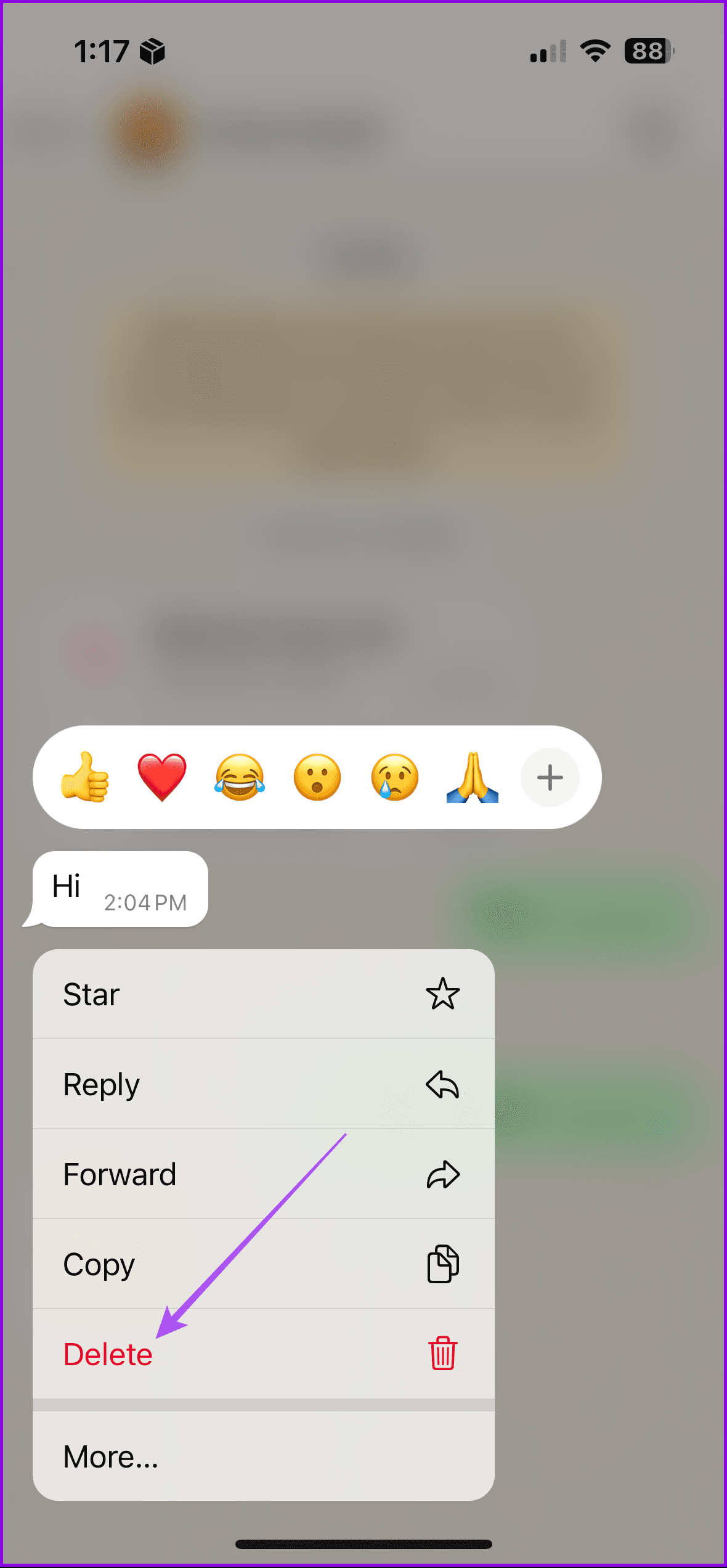
Open WhatsApp > Go to your chat > Long-press on the message you wish to delete > Tap on Delete > Select more messages > Tap the Delete option below.

Tip: Learn how to get back deleted messages on WhatsApp
On PC
The steps apply to both WhatsApp Web and WhatsApp Desktop app users.
Step 1: Open WhatsApp > Right-click on any message > Select.

Step 2: Click on the messages you want to delete and then select the Delete icon.

Tip: Know how to delete a WhatsApp message without opening it.
How to Clear All Messages in One WhatsApp Conversation
If you want to clear all messages within a WhatsApp conversation without manually selecting each message, follow the below instructions.
On Android
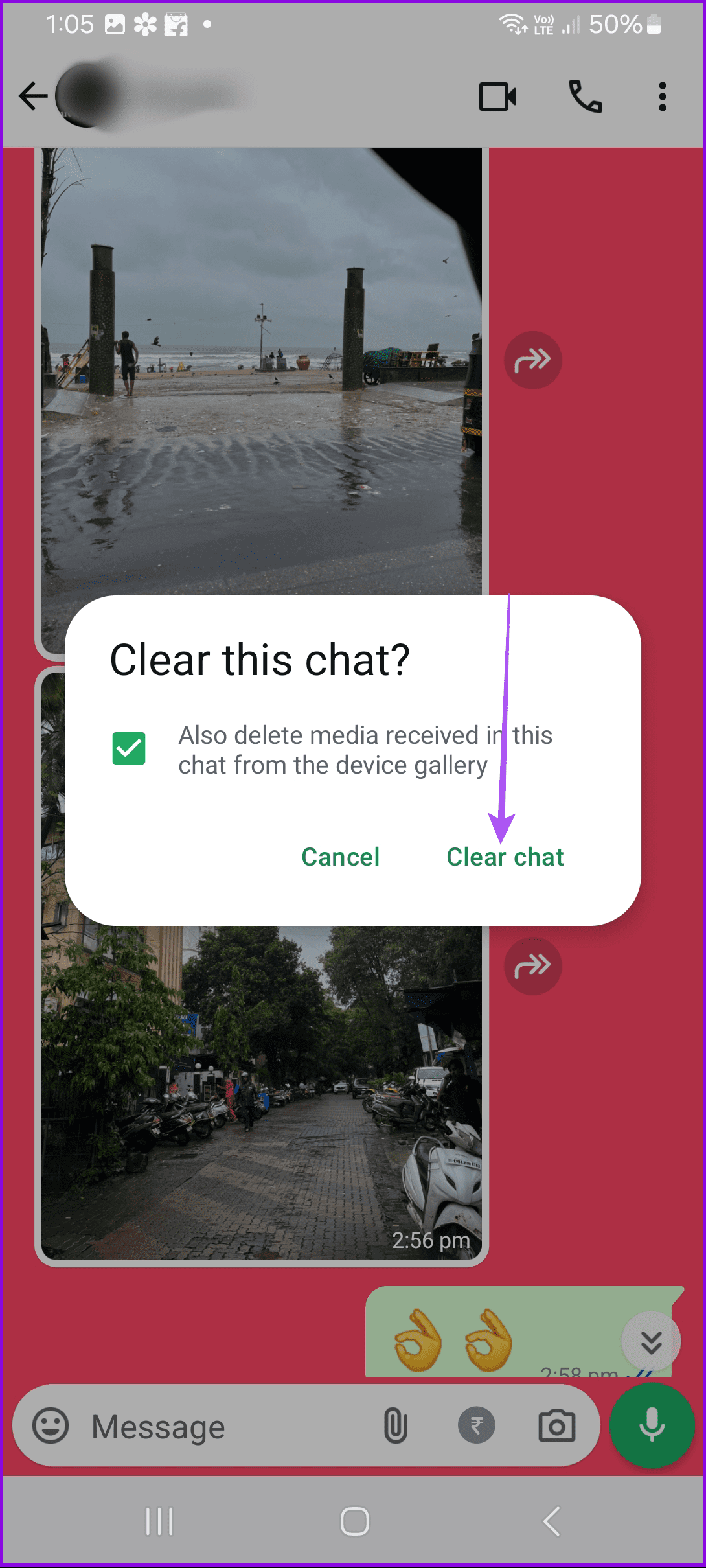
Open WhatsApp > Go to the chat > Three dots > More > Clear chat > Clear chat to confirm.

On iPhone
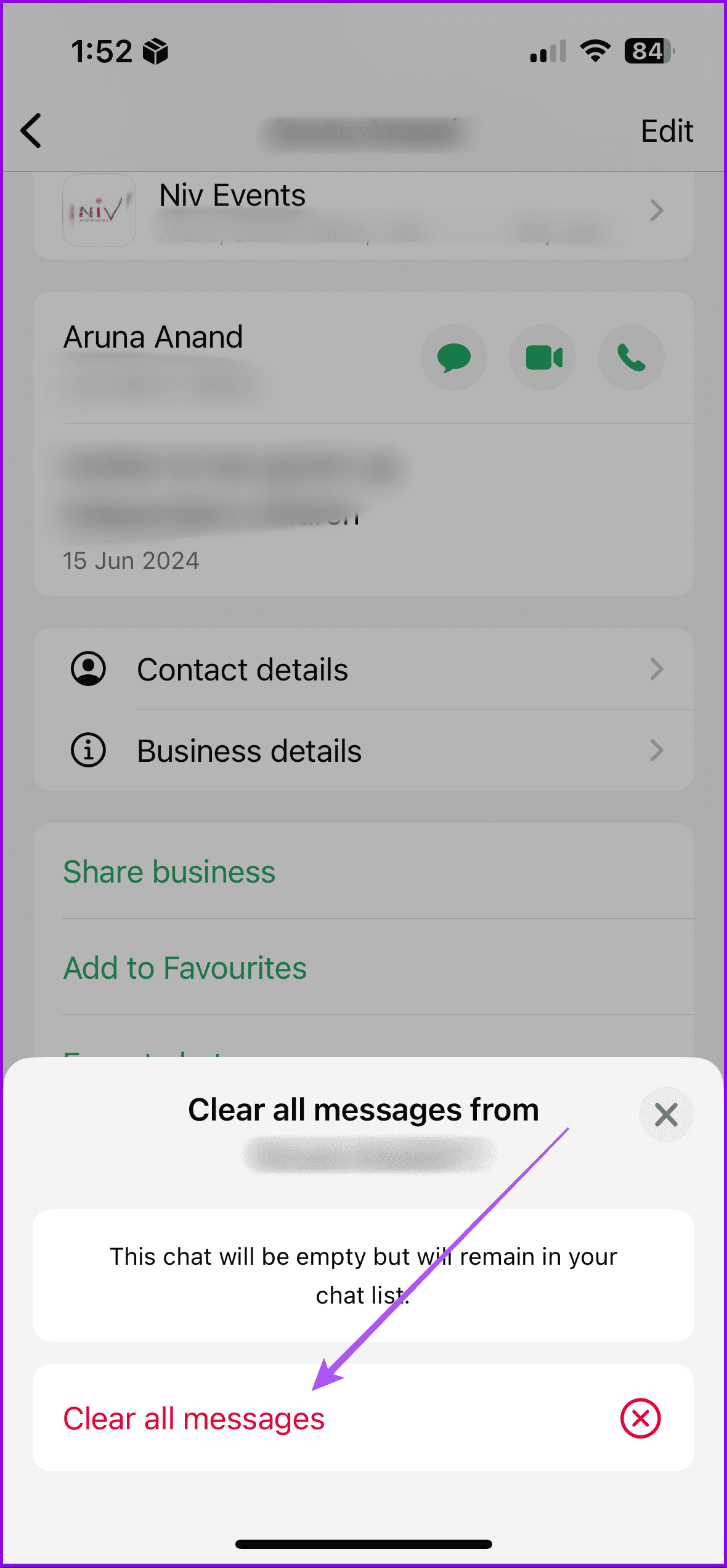
Open WhatsApp > Go to the chat > Tap the contact name > Clear Chat > Clear All Messages.

Tip: Know how to reduce WhatsApp storage on iPhone
How to Delete Archived Chats in WhatsApp
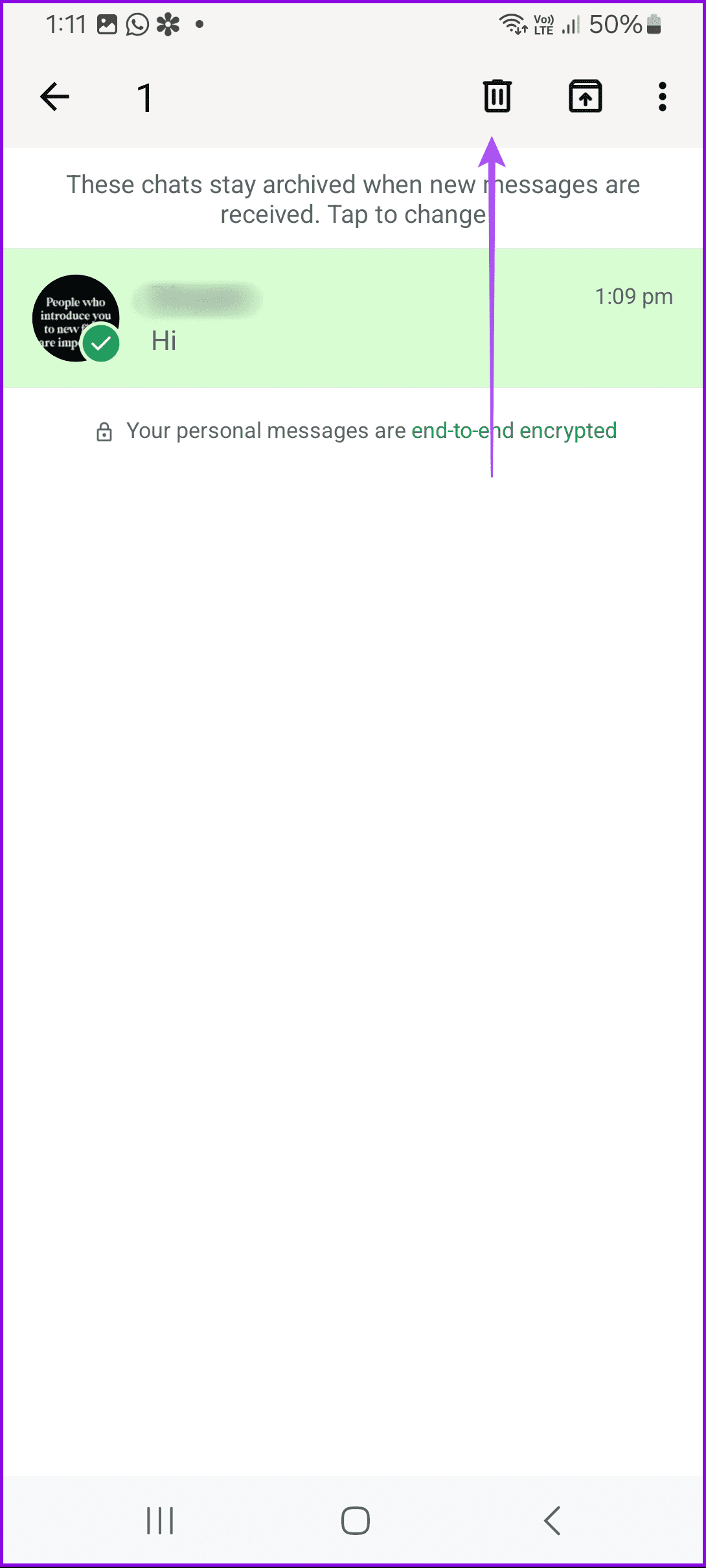
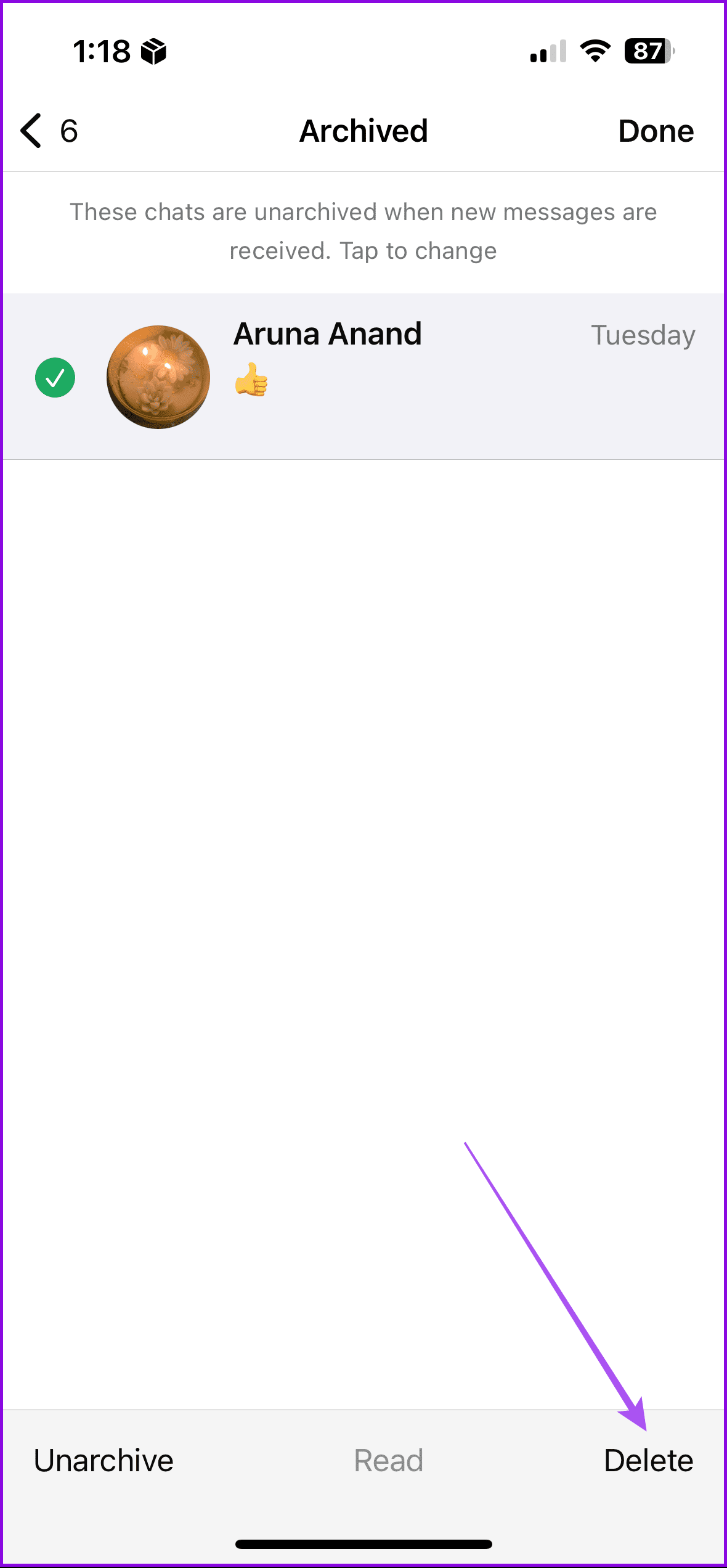
Follow these steps to delete one or multiple archived chats in WhatsApp:
On Android
Open WhatsApp > Archived > Long-press the chat to select it > Select more chats > Delete.

On iPhone
Open WhatsApp > Archived > Edit > Select chats > Delete.

Was this helpful?
Last updated on 22 August, 2024
Read Next
 5 Ways to Hide WhatsApp Chats
Method 1: Hide WhatsApp Chat of One Person WhatsApp has a native feature known as Chat Lock that lets you hide individual chats by locking them using a fingerprint, Face
5 Ways to Hide WhatsApp Chats
Method 1: Hide WhatsApp Chat of One Person WhatsApp has a native feature known as Chat Lock that lets you hide individual chats by locking them using a fingerprint, Face
 How to Lock Individual and Group Chats in WhatsApp on iPhone
Things to Remember Before proceeding with the steps, we want to highlight some important aspects.
How to Lock Individual and Group Chats in WhatsApp on iPhone
Things to Remember Before proceeding with the steps, we want to highlight some important aspects.
 6 Ways to Fix Twitch Chats Not Loading Issue
Basic Fixes Check your network connection: Ensure your device has good internet.
6 Ways to Fix Twitch Chats Not Loading Issue
Basic Fixes Check your network connection: Ensure your device has good internet.
 How to Enable or Disable End-to-End Encryption for Instagram Chats
What Is End-to-End Encryption on Instagram With End-to-End encryption, Instagram will secure chats with under an extra layer of protection.
How to Enable or Disable End-to-End Encryption for Instagram Chats
What Is End-to-End Encryption on Instagram With End-to-End encryption, Instagram will secure chats with under an extra layer of protection.
 How to Hide and Unhide Viber Chats on Mobile
How to Hide Viber Chats You can hide individual chats or group conversations on Viber to protect your privacy.
How to Hide and Unhide Viber Chats on Mobile
How to Hide Viber Chats You can hide individual chats or group conversations on Viber to protect your privacy.
 How to View Old Chats on ChatGPT Without Sharing Data
Accessing ChatGPT Chat History Wasn’t Available With Data Sharing Turned Off OpenAI used to provide the option to disable data sharing, which meant losing access to your chat history altogether.
How to View Old Chats on ChatGPT Without Sharing Data
Accessing ChatGPT Chat History Wasn’t Available With Data Sharing Turned Off OpenAI used to provide the option to disable data sharing, which meant losing access to your chat history altogether.
 How to Delete Multiple Emails in Outlook on Mobile and Web
How to Delete Multiple Outlook Emails on Mobile Let's first start with how you can mass delete emails from the Microsoft Outlook app on your mobile.
How to Delete Multiple Emails in Outlook on Mobile and Web
How to Delete Multiple Outlook Emails on Mobile Let's first start with how you can mass delete emails from the Microsoft Outlook app on your mobile.
 How to Delete Multiple (Or All) Photos on Facebook
Method 1: Remove All Your Pictures From Facebook Facebook allows users to delete up to 50 photos uploaded by them.
How to Delete Multiple (Or All) Photos on Facebook
Method 1: Remove All Your Pictures From Facebook Facebook allows users to delete up to 50 photos uploaded by them.
The article above may contain affiliate links which help support Guiding Tech. The content remains unbiased and authentic and will never affect our editorial integrity.