Clear Continue Watching on Amazon Prime Video
The new Prime Video interface lacks an Edit button for managing its Continue Watching section. However, you can still manage and clear unwanted titles by hiding them individually.
On Web
Step 1: Open Amazon Prime Video and hover the mouse cursor over your desired title under Continue Watching.
Step 2: Click its three-dot menu and select Hide this movie/season. Repeat the step with all other titles you wish to remove and refresh the webpage to clear them.

On Mobile
Step 1: Open the Prime Video app, long-tap a title under Continue watching, and select Hide this video.
Step 2: Repeat the step to hide other titles, close the app, and reopen it to view the updated Continue Watching section.


Clear Your Watch History on Amazon Prime Video (Web)
If you don’t wish to disclose your Prime Video watch history with other shared account members, you can clear it manually using its web interface.
Note: You can’t clear your watch history in the Prime Video app.
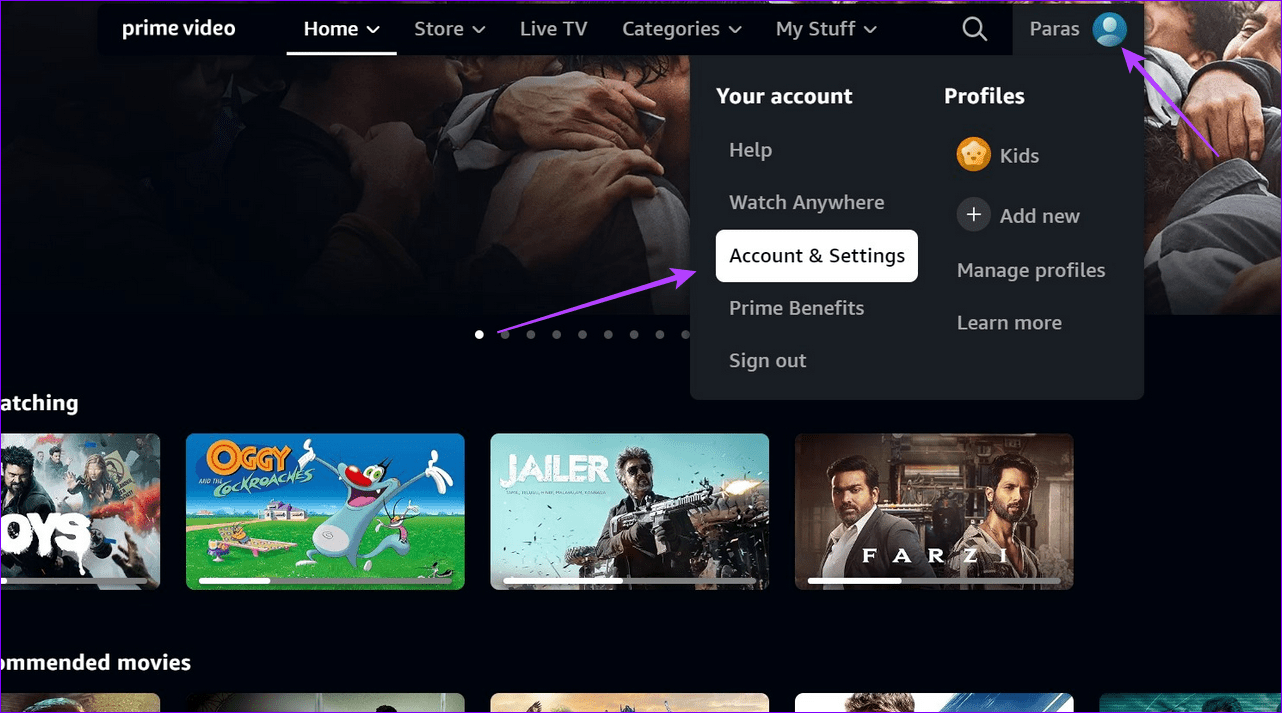
Step 1: Open Prime Video in your browser, select your profile icon at the top right, and click Account & Settings.
Step 2: Type your account credentials and click Continue to sign into Amazon Prime Video.

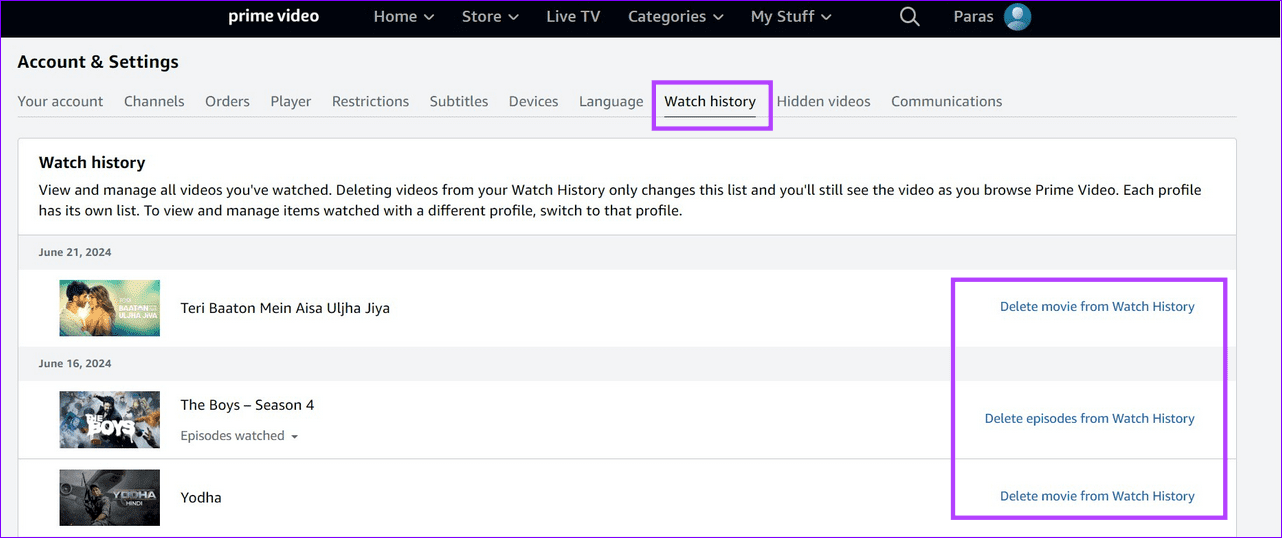
Step 3: Select the Watch history tab and click Delete from Watch History next to the movie/season you want to clear.
Clear Search History in the Prime Video App
Irrelevant searches in the Prime Video app can lower the accuracy of its recommendations. To clear your search history, go to the Prime Video app settings.
Note: Prime Video doesn’t offer the Clear Search History feature in its web interface.
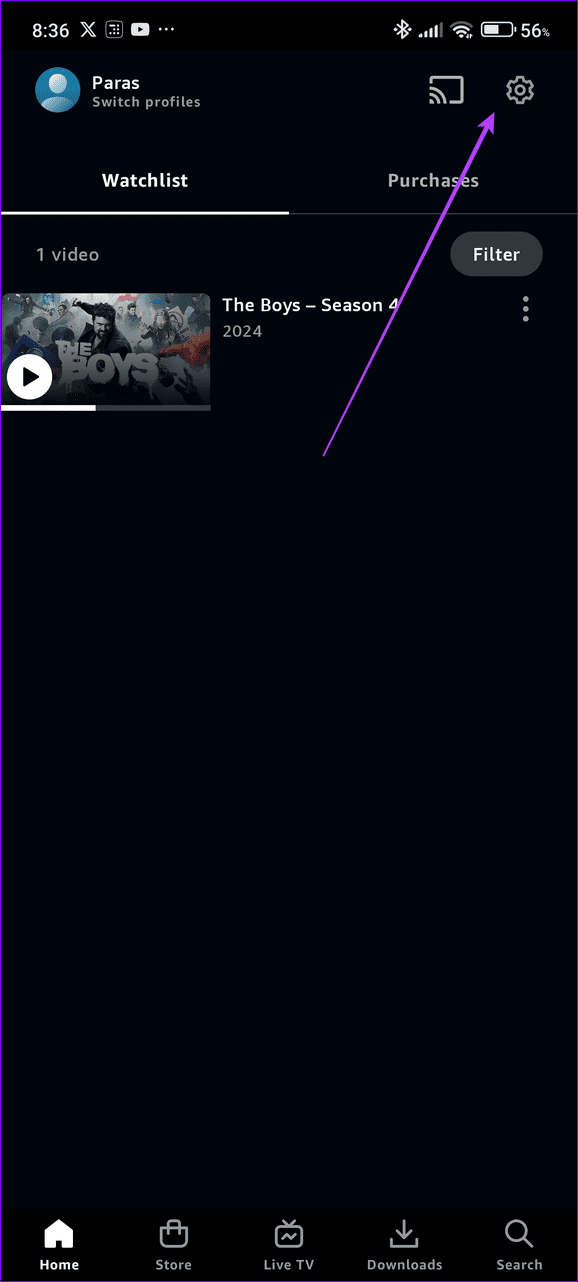
Step 1: Open the Prime Video app, select your profile icon at the top right, and tap the Gear icon.
Step 2: Tap Clear video search history to remove it.


Was this helpful?
Last updated on 12 July, 2024
Read Next
 How to Stop YouTube From Pausing and Asking if You Want to “Continue Watching”
If you’re watching a YouTube playlist or listening to it in the background, you may occasionally find the video automatically paused.
How to Stop YouTube From Pausing and Asking if You Want to “Continue Watching”
If you’re watching a YouTube playlist or listening to it in the background, you may occasionally find the video automatically paused.
 3 Ways to Fix Continue Watching Not Showing on Netflix
Basic Fix: Scroll through the Netflix homepage: In all the other content Netflix pushes you to watch, it may happen so that the continue-watching pane may have been shifted underneath.
3 Ways to Fix Continue Watching Not Showing on Netflix
Basic Fix: Scroll through the Netflix homepage: In all the other content Netflix pushes you to watch, it may happen so that the continue-watching pane may have been shifted underneath.
 How to Clear Song History on Amazon Prime Music
While Amazon Music allows you to remove music from recently played history, they are still considered from recommendations.
How to Clear Song History on Amazon Prime Music
While Amazon Music allows you to remove music from recently played history, they are still considered from recommendations.
 5 Ways to Fix Video Unavailable in Amazon Prime Video
Basic Fixes Check network connection: Playing Prime without any problems requires an optimum internet speed.
5 Ways to Fix Video Unavailable in Amazon Prime Video
Basic Fixes Check network connection: Playing Prime without any problems requires an optimum internet speed.
 How to Clear Your Amazon Search History
Delete Amazon Search and Browsing History From Web Search history is different from the browsing history.
How to Clear Your Amazon Search History
Delete Amazon Search and Browsing History From Web Search history is different from the browsing history.
 How to Clear File Explorer Search History in Windows 10
File Explorer on Windows 10 keeps track of all your searches to make it easy for you to search for the same files again.
How to Clear File Explorer Search History in Windows 10
File Explorer on Windows 10 keeps track of all your searches to make it easy for you to search for the same files again.
 3 Ways to Fix Monitor Goes Black While Watching Netflix
Basic Fixes Disable G-SYNC in NVIDIA Control Panel: If your monitor is flickering or the screen goes black, disable G-SYNC in NVIDIA Control Panel.
3 Ways to Fix Monitor Goes Black While Watching Netflix
Basic Fixes Disable G-SYNC in NVIDIA Control Panel: If your monitor is flickering or the screen goes black, disable G-SYNC in NVIDIA Control Panel.
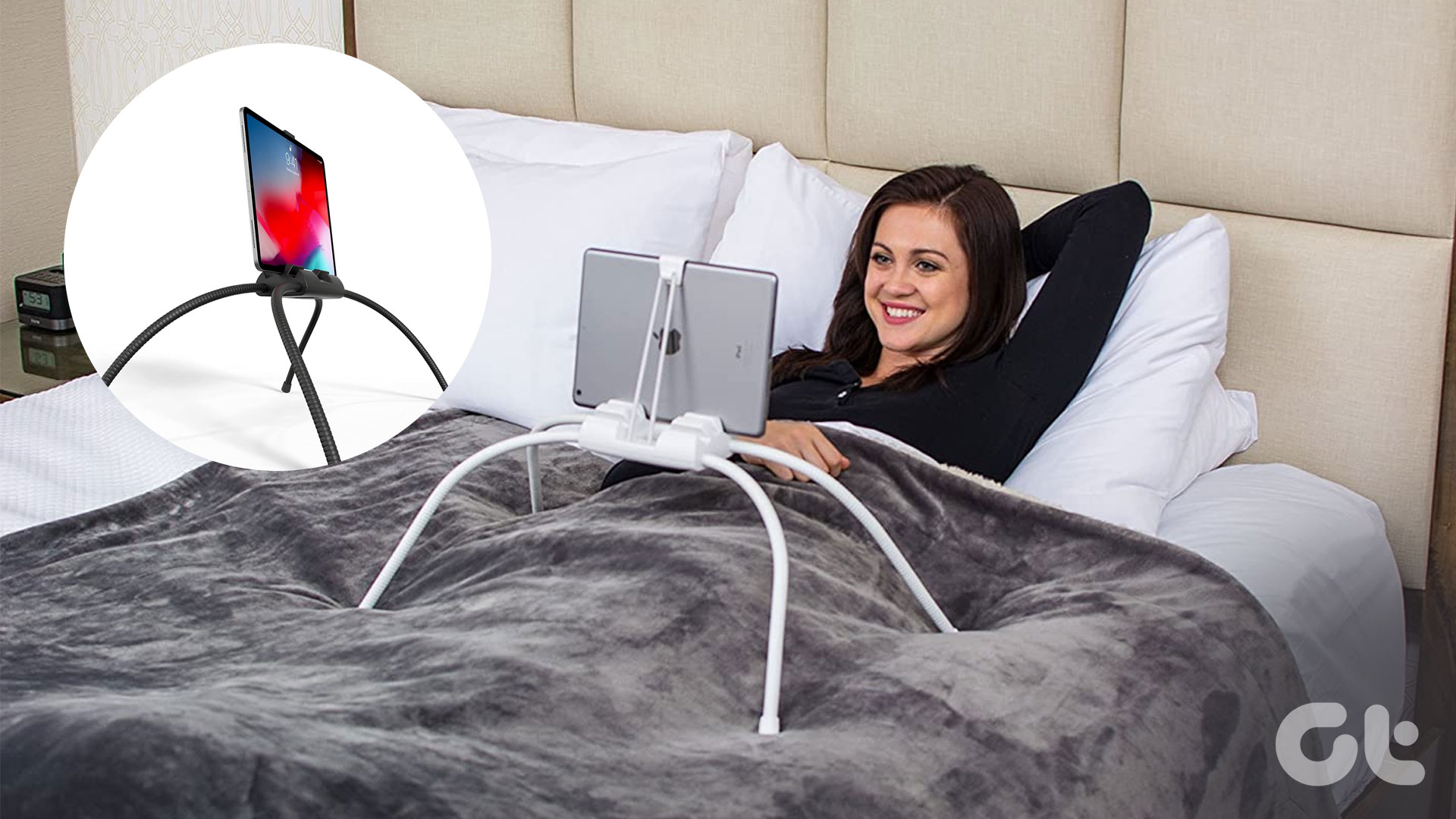 5 Best iPad Holders for Bed for Reading, Watching Movies, and More
Are you tired of holding your iPad awkwardly while trying to watch your favorite shows in bed?
5 Best iPad Holders for Bed for Reading, Watching Movies, and More
Are you tired of holding your iPad awkwardly while trying to watch your favorite shows in bed?
The article above may contain affiliate links which help support Guiding Tech. The content remains unbiased and authentic and will never affect our editorial integrity.