Also Read: How to eject water from iPhone
How Can Water Get Into Your iPhone
Water resistance on your iPhone is tested for specific conditions, such as being submerged in water for a limited time and at a specific depth. When these limits are exceeded, and if your device is exposed to water for prolonged periods, the water resistance can be compromised.
Further, your iPhone has seals and gaskets around the openings (such as the charging port, buttons, and SIM card tray) to prevent water from entering. However, these seals can degrade over time or be compromised by physical damage, potentially allowing water to seep in.
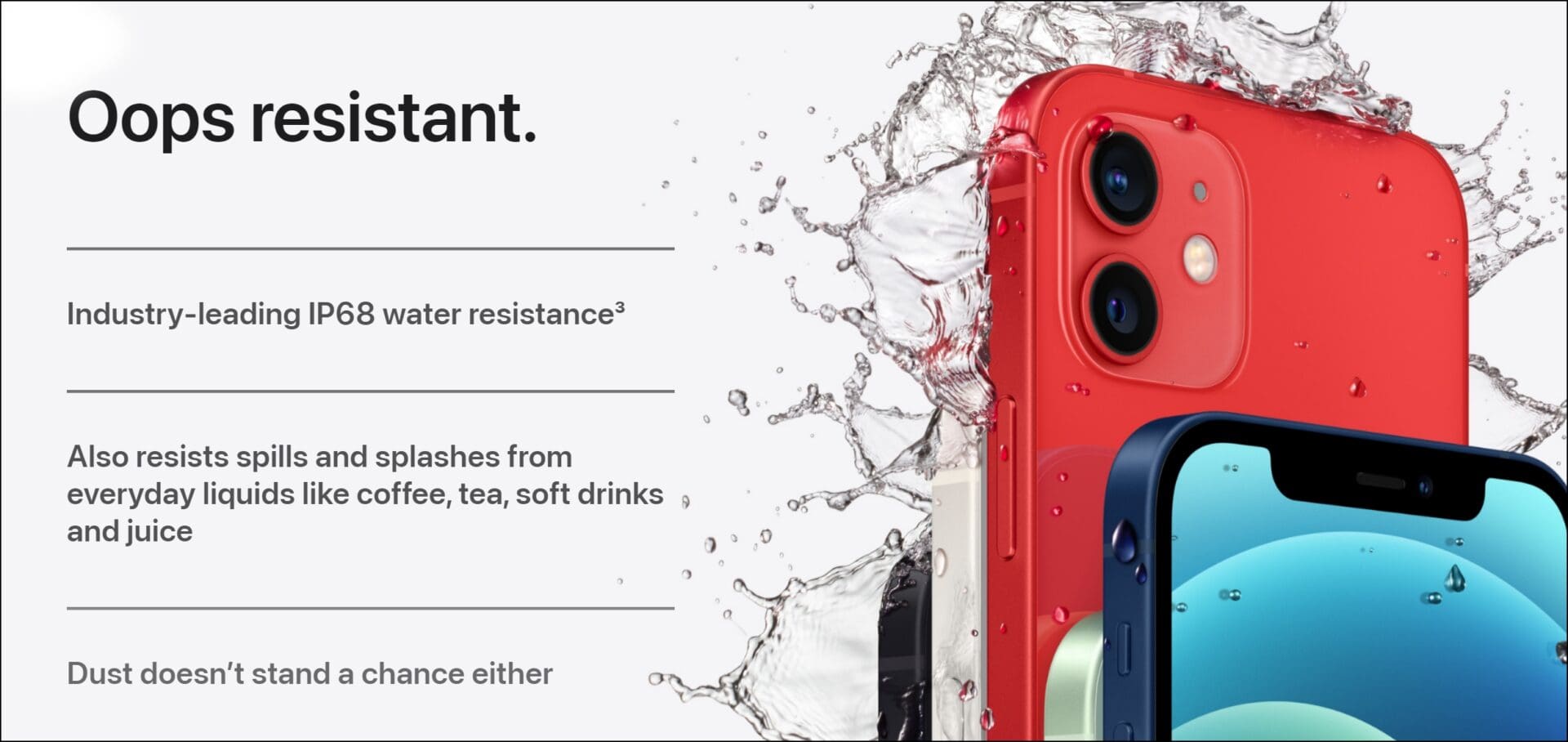
Image Source: Apple
Another possibility of water resistance being compromised is when your iPhone is opened up during servicing and repair and it isn’t sealed back properly. This can expose a few gaps between the display and the body panel, allowing water droplets and moisture to seep in.
If you suspect an unfortunate event among the ones mentioned above, look at the below methods to check if your iPhone is damaged by water. Let’s begin by checking the liquid contact indicator on your iPhone.
Sign 1: Check the Liquid Contact Indicator (LCI) for Water Damage
Here’s a definitive way to check if your iPhone is affected by water. Remove the SIM tray on your iPhone and hold the device with the screen facing downwards. Use a flashlight and project the light inside the SIM slot.
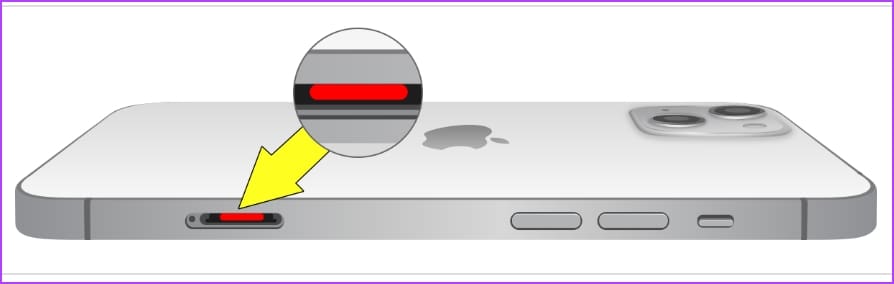
If the LCI is red, the iPhone has been damaged by water. However, if the LCI shows a white or silver color, the iPhone is not affected by water.
While most iPhones have built-in Liquid Contact Indicators, the iPhone 14 and 15 models in the United States do not have an LCI since there isn’t any SIM card slot. Therefore, you can check a few other parameters in the following list.
Sign 2: Power Issues
If your iPhone turns off on its own or restarts randomly, there might be water damage. If water has reached the internals, it might interfere with circuitry and connections, leading to power supply issues. Further, you may also notice issues while trying to charge your iPhone, as the power supply may get interrupted.
Sign 3: Issues With Display and Touch Screen
Water damage can interfere with the connection between the display and the internal components, leading to problems and irregularities in the display. Water can damage the display panels, causing pixels to malfunction or creating permanent discoloration.
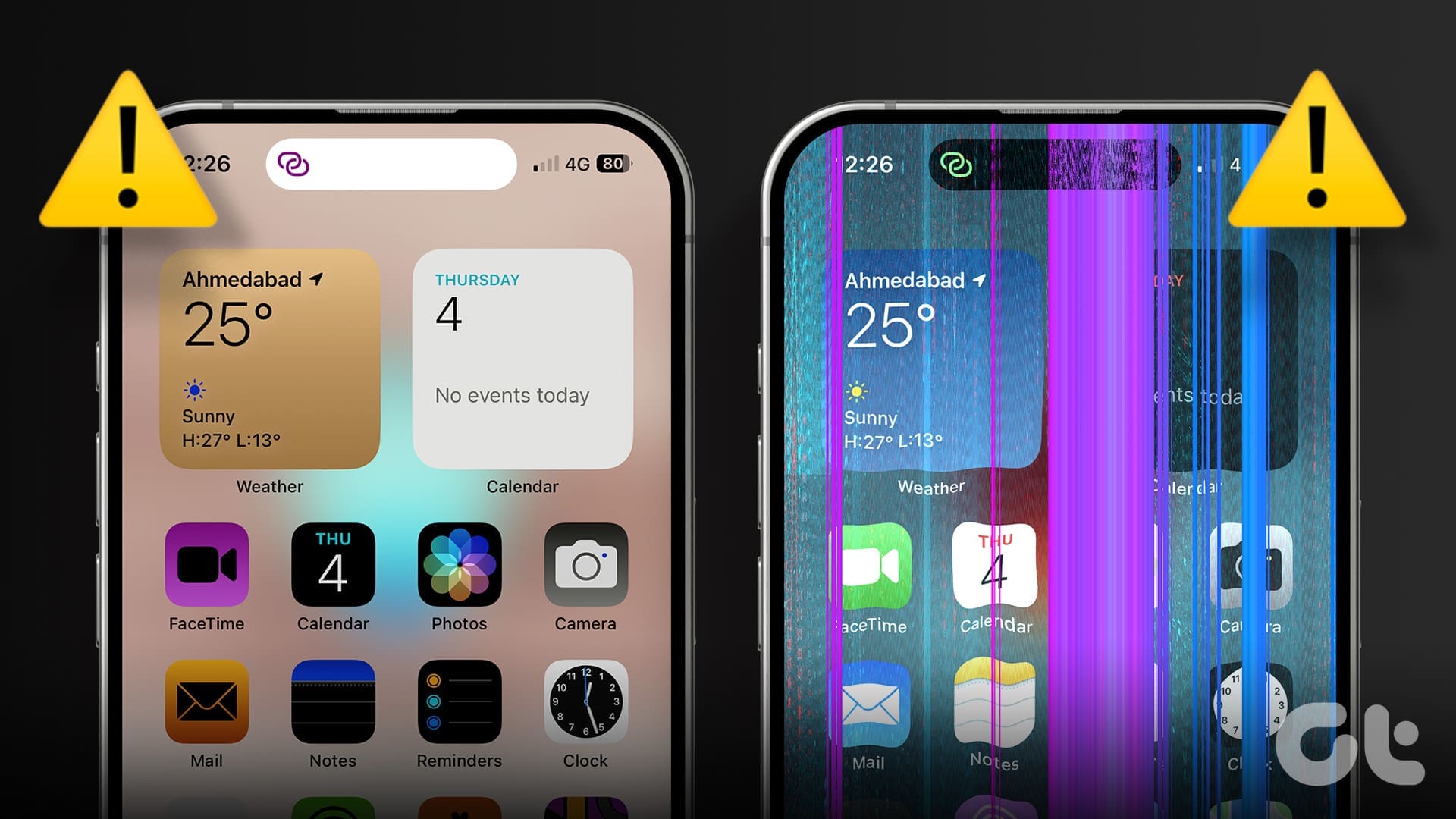
Water damage can corrode the components responsible for backlighting, causing the screen to appear dimmer than usual. Furthermore, water damage may affect the touchscreen functionality, resulting in unresponsive areas on the screen along with erratic behavior like false or ghost touches.
Sign 4: Damaged Cameras
If water gets inside the camera sensors, you will observe images to be softer than usual resulting in foggy output. Water can enter the camera modules if the external components aren’t glued properly during service or repair. If you closely look into the camera lens of your iPhone, you may also find water droplets or visible moisture.
Sign 5: Distorted Audio Output
When water gets inside the speaker grille, you may hear an audio output with distortion and crackling sounds. If you can recognize any irregularity with the audio output on your iPhone, it may be a sign that water has seeped inside the internals, causing some damage.
Sign 6: Sensor Malfunctions
Water can also damage your iPhone’s sensors. When it seeps into the internals of your iPhone, water can block and obstruct sensors, thereby affecting the functionality. For example, Face ID on your iPhone may stop working when water droplets on the camera lens or sensors distort the optical signals, leading to failed recognition attempts.
Further, water can also affect the proximity sensor and ambient light sensor, leading to issues such as the screen not turning off during phone calls or incorrect brightness adjustments.
Sign 7: Faulty or Unresponsive Buttons
If you can’t press the side button, volume button, or the Touch ID home button on your iPhone, chances are that water particles or moisture is stuck and has blocked these buttons. Water seeping into certain areas can disrupt the proper movement of the buttons, making them sticky or difficult to press.
Was this helpful?
Last updated on 03 September, 2024
Read Next
 7 Signs Your Phone is Tapped and How to Secure It
Method 1: Unusual Battery Drainage If your battery runs out quicker than usual or gets unusually warm during usage, your phone might be secretly running tapping software in the background.
7 Signs Your Phone is Tapped and How to Secure It
Method 1: Unusual Battery Drainage If your battery runs out quicker than usual or gets unusually warm during usage, your phone might be secretly running tapping software in the background.
 How to Eject Water From iPhone
Method 1: Use the Water Eject Shortcut Shortcuts on iPhone are an excellent utility.
How to Eject Water From iPhone
Method 1: Use the Water Eject Shortcut Shortcuts on iPhone are an excellent utility.
 6 Best Automatic Dog Water Dispensers and Fountains
If you often miss out on filling your dog’s water bowls, then an automatic water dispenser for dogs might be just what you are looking for.
6 Best Automatic Dog Water Dispensers and Fountains
If you often miss out on filling your dog’s water bowls, then an automatic water dispenser for dogs might be just what you are looking for.
 How to Check Location History on iPhone, iPad, and Mac
How to Check Location History on iPhone and iPad iPhone and iPad are usually the only Apple device that gets carried everywhere we go.
How to Check Location History on iPhone, iPad, and Mac
How to Check Location History on iPhone and iPad iPhone and iPad are usually the only Apple device that gets carried everywhere we go.
 3 Fixes for iPhone Check In Feature Not Working or Unavailable
Basic Fixes: Ensure both devices are running iOS 17: Because the Check In feature is exclusive to iOS 17, to use it, both you and your contact must have iOS
3 Fixes for iPhone Check In Feature Not Working or Unavailable
Basic Fixes: Ensure both devices are running iOS 17: Because the Check In feature is exclusive to iOS 17, to use it, both you and your contact must have iOS
 3 Ways to Check the Temperature of Your iPhone
Method 1: Using an Infrared Thermometer An infrared thermometer gives precise measurements and doesn't require bringing the thermometer in contact with your iPhone.
3 Ways to Check the Temperature of Your iPhone
Method 1: Using an Infrared Thermometer An infrared thermometer gives precise measurements and doesn't require bringing the thermometer in contact with your iPhone.
 3 Ways to Check Monthly or Daily Data Usage on iPhone
Method 1: Check Cellular Data Usage in the Settings App Here's how you can easily check mobile data usage on your iPhone within the Settings app.
3 Ways to Check Monthly or Daily Data Usage on iPhone
Method 1: Check Cellular Data Usage in the Settings App Here's how you can easily check mobile data usage on your iPhone within the Settings app.
 8 Methods to Check If an iPhone Is Original or Fake
https://youtu.be/zLp5RAEeHUE Method 1: Check the Hologram on the iPhone 15 Series Box Can I check if the iPhone is original without opening the box?
8 Methods to Check If an iPhone Is Original or Fake
https://youtu.be/zLp5RAEeHUE Method 1: Check the Hologram on the iPhone 15 Series Box Can I check if the iPhone is original without opening the box?
The article above may contain affiliate links which help support Guiding Tech. The content remains unbiased and authentic and will never affect our editorial integrity.