

What Are the Facebook Username Requirements?
- For personal profiles: Your Facebook username cannot have symbols, numbers, strange capitalizations, repeated characters, punctuation, characters from multiple languages, words or phrases, or (most importantly) the name of another person.
- For business/brand pages: The page’s admin can change its username to something unique and at least five characters in length. The username can only have numbers, letters, and period punctuation, and most importantly, it must follow Facebook’s terms of service.
How to Change Your Name on Facebook
On Desktop
Step 1: Open Facebook on your preferred browser and log in with your credentials.
Step 2: Click on your profile picture at the top right.
Step 3: Select Settings & Privacy from the drop-down menu and select Settings.

Step 4: Under General profile settings, click Edit next to the Name.
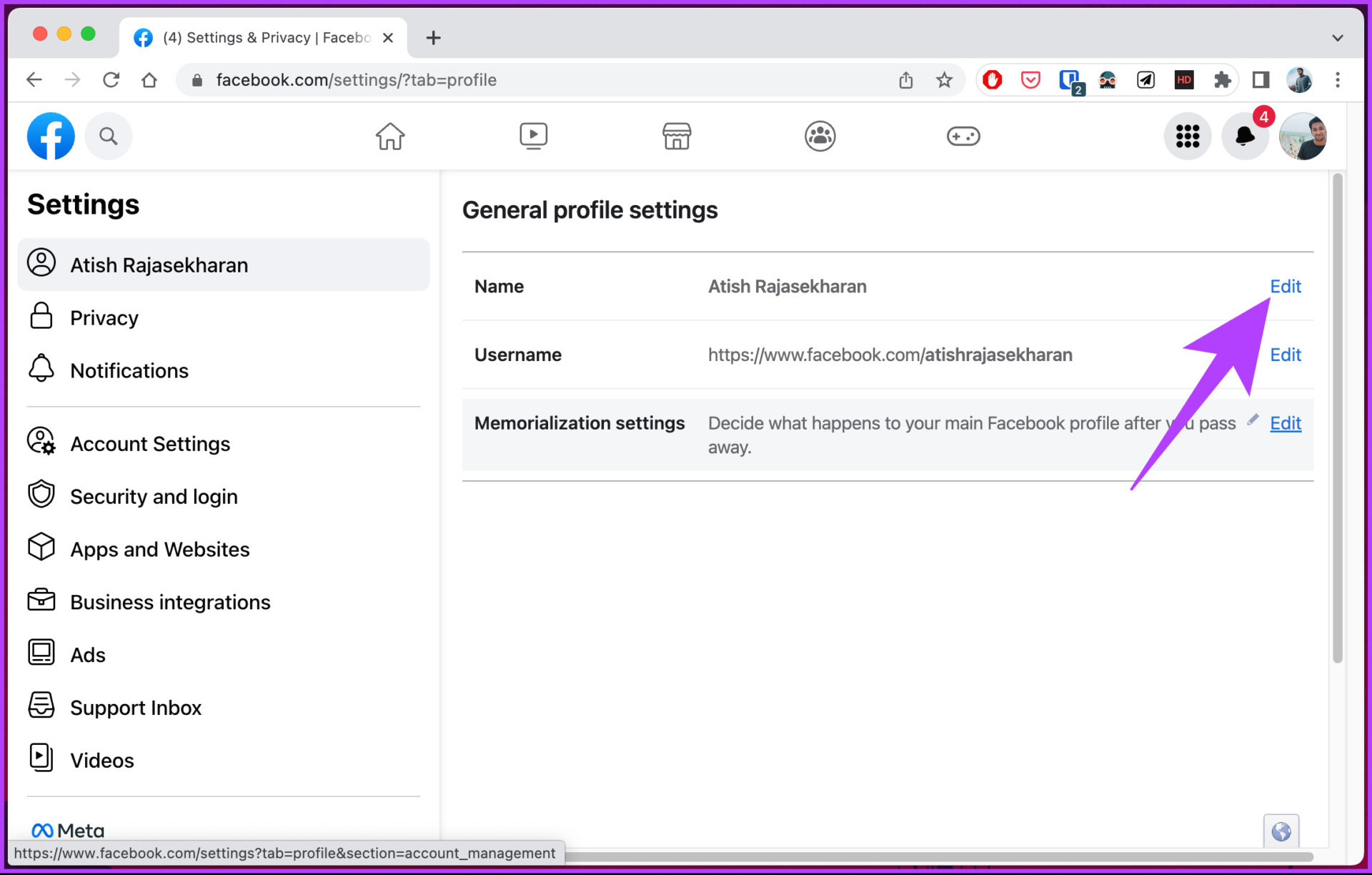
Step 5: Type your name or make necessary changes to your Facebook name and click Review Change.
Step 6: Finally, enter your password in the text field and select Save changes.

That’s it. Once reviewed, your Facebook display name gets changed, and your new or modified name will appear everywhere. The change may sometimes take time to take effect, so be patient.
Tip: Also, learn how to find saved and liked Reels on Facebook.
On Phone
The steps are the same for Android or iOS devices. However, depending on your demographics, the options may change.
Step 1: Launch the Facebook app on your Android or iOS device.
Step 2: Tap on the three horizontal lines icon at the top.
Step 3: In the Menu screen, scroll to the bottom and select Settings & privacy.
Step 4: From the drop-down menu, select Settings.
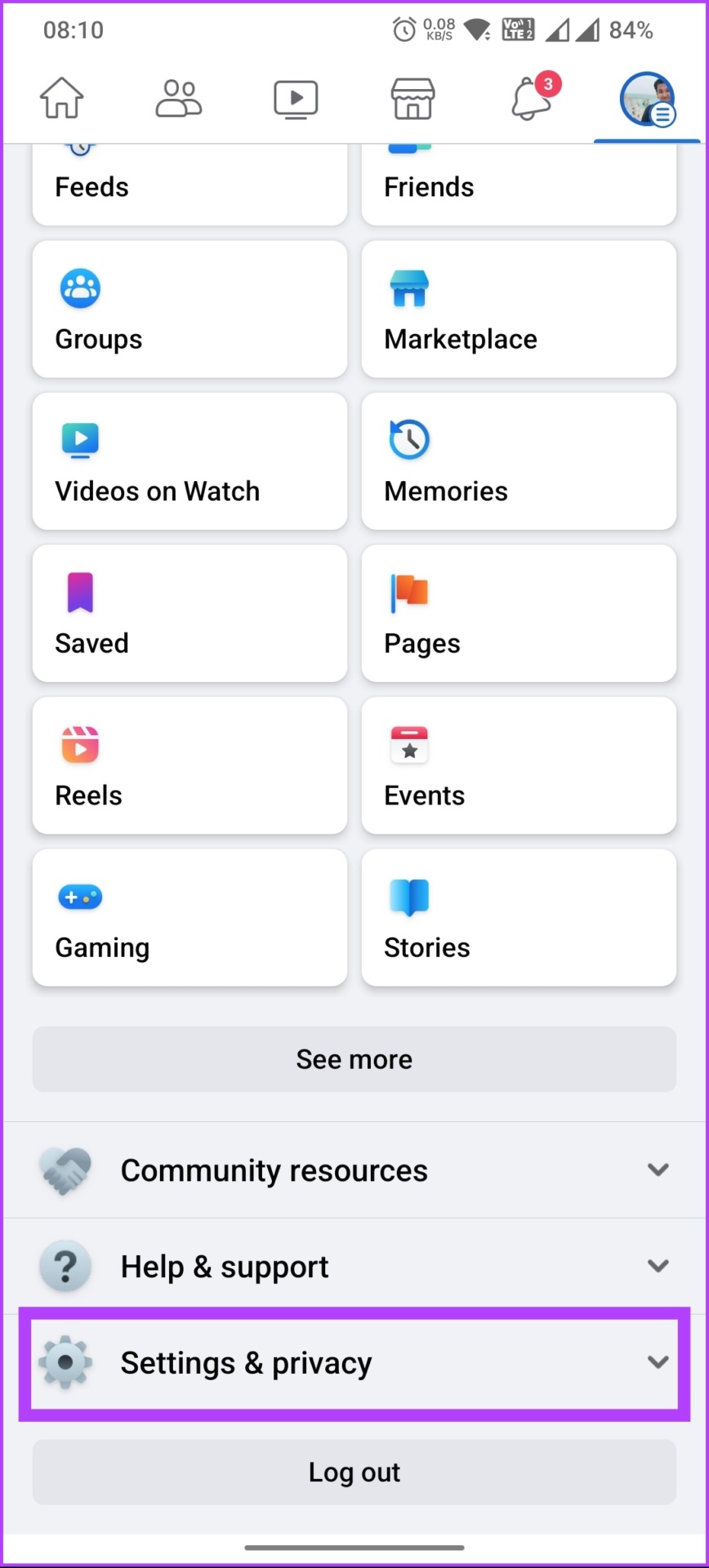
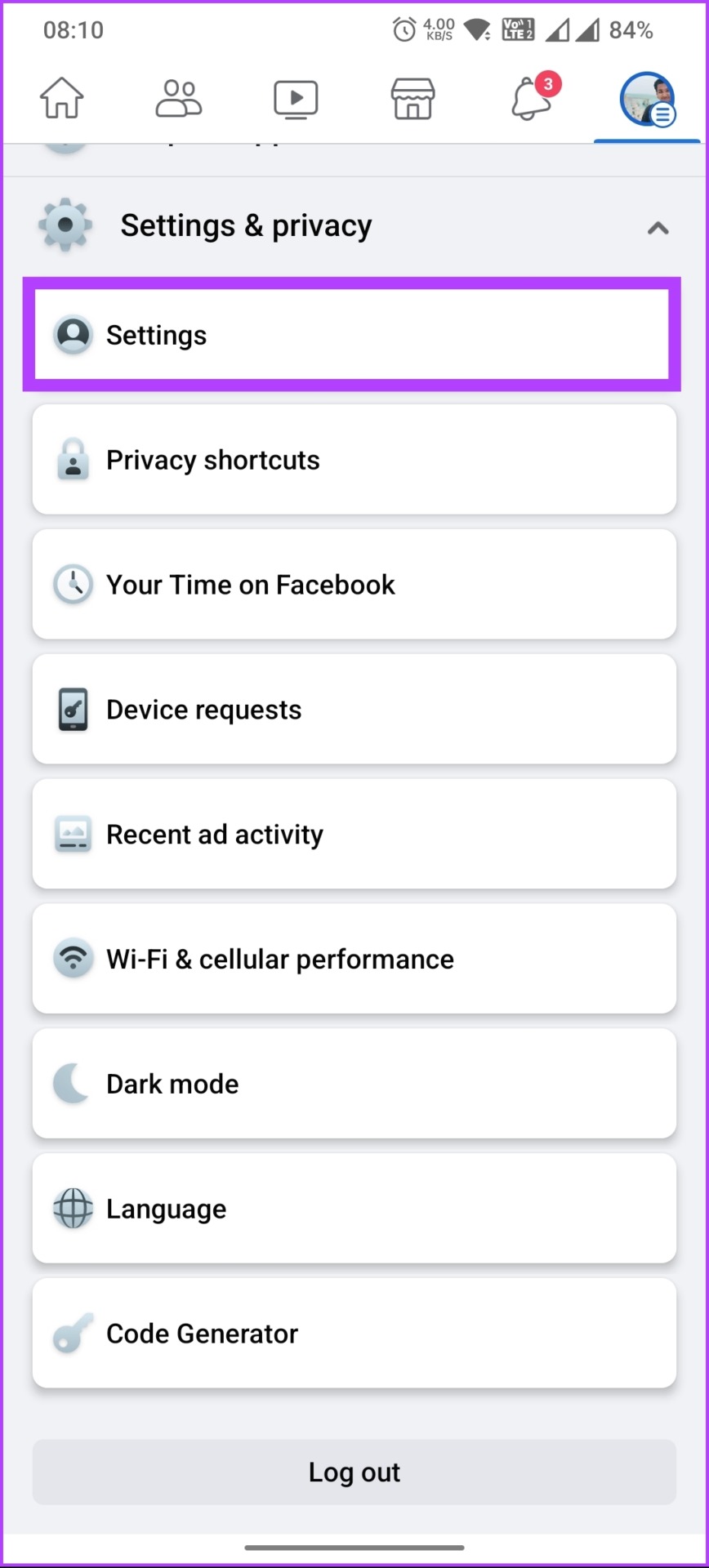
Step 5: On the new screen, under Account, tap on Personal information > Name.


Step 6: Now, type or modify your name and select Review Change.
Step 7: Choose how you want your name to appear, enter your password, and tap Save Changes.
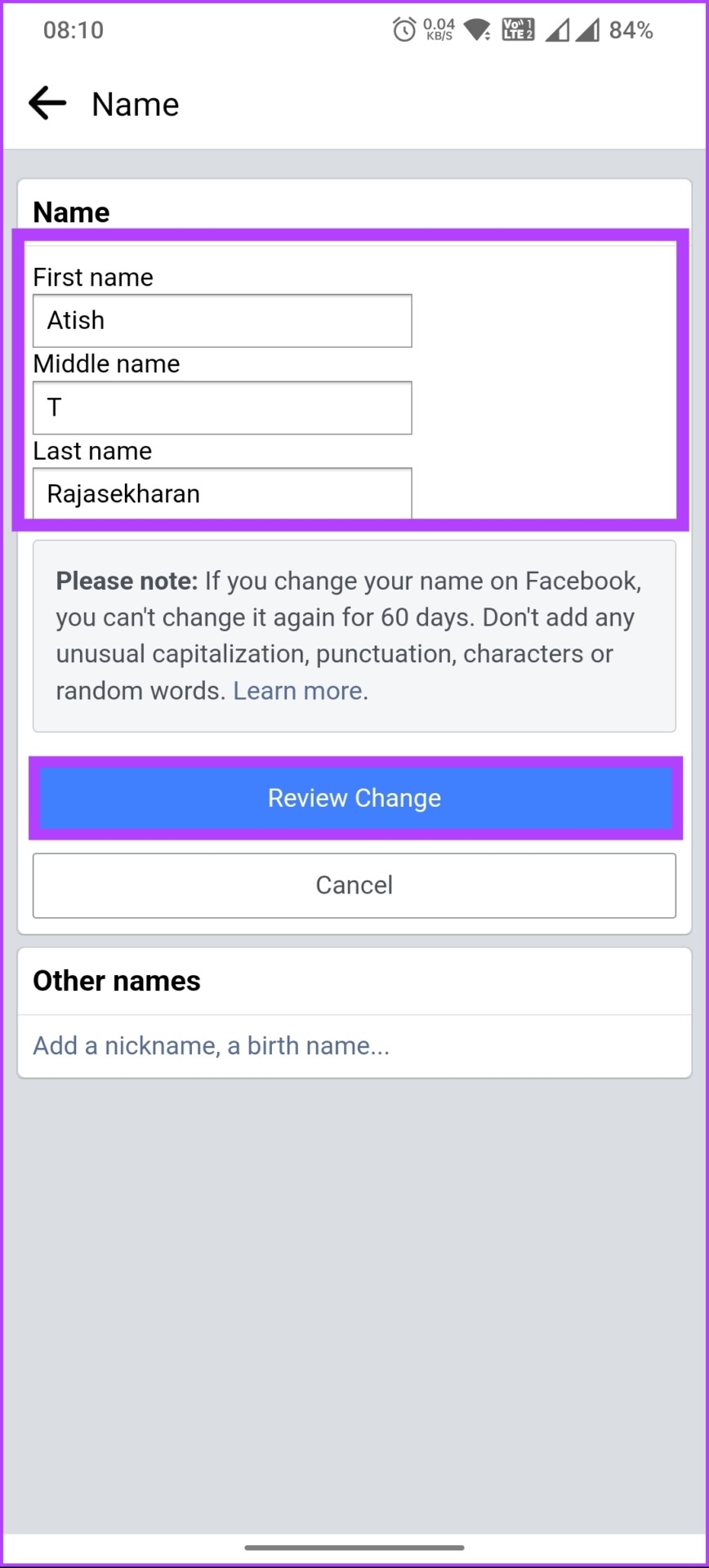

There you go. You have successfully and easily changed your Facebook name. Once it is reviewed and approved, you will see the change across all devices.
Also read: How to link Instagram to Facebook page and profile
How to Edit Your Facebook Page’s Name
Facebook also lets you change your business page name. However, changing the page name doesn’t affect its username.
Note: Once your requested name change is approved, you cannot change it again for 7 days, and you can’t unpublish the page during that time.
On Desktop
Step 1: Open Facebook in your preferred browser and log in with your credentials.
Step 2: Click on your profile picture at the top right.
Step 3: From the drop-down menu, click on See all profiles.

Step 4: Now, select the page you want to change the name of.
You will see a screen that says, “Switching to [Facebook Name].” Once switched, follow the below steps.
Step 5: Click on your profile picture at the top right.
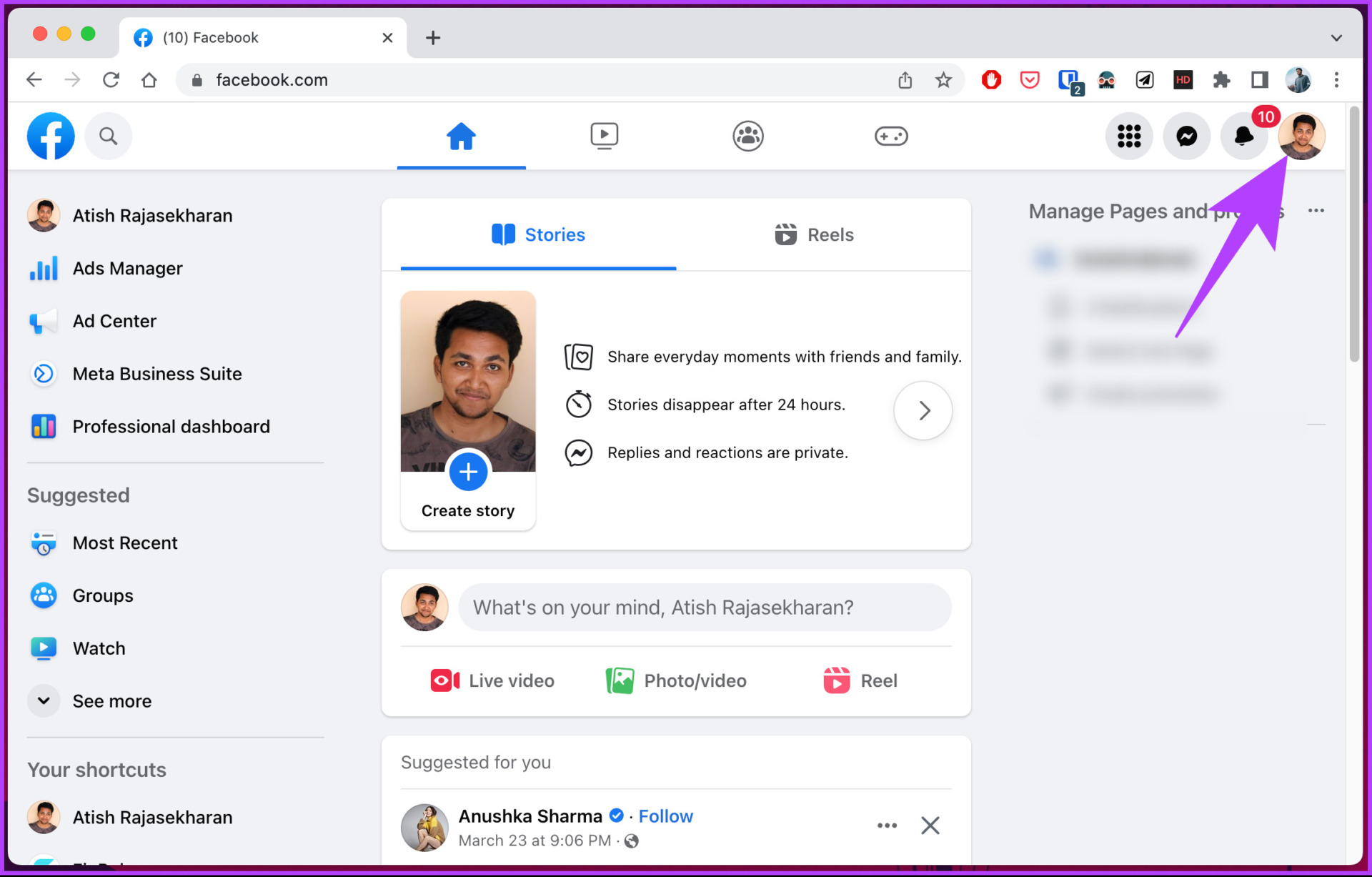
Step 6: Select Settings & Privacy from the drop-down menu.
Step 7: Select Settings.

Step 8: Under General profile settings, click Edit next to the Name.

Step 9: Type your name or make necessary changes to your Facebook name, and click Review Change.
Step 10: Finally, enter your password in the text field and select Request Change.

On Facebook Mobile App
Step 1: Launch the Facebook app and tap on the three horizontal lines icon at the top.
Step 2: In the Menu screen, tap on the displayed profiles next to your profile name and, from the bottom sheet, choose the page you want to change the display name.

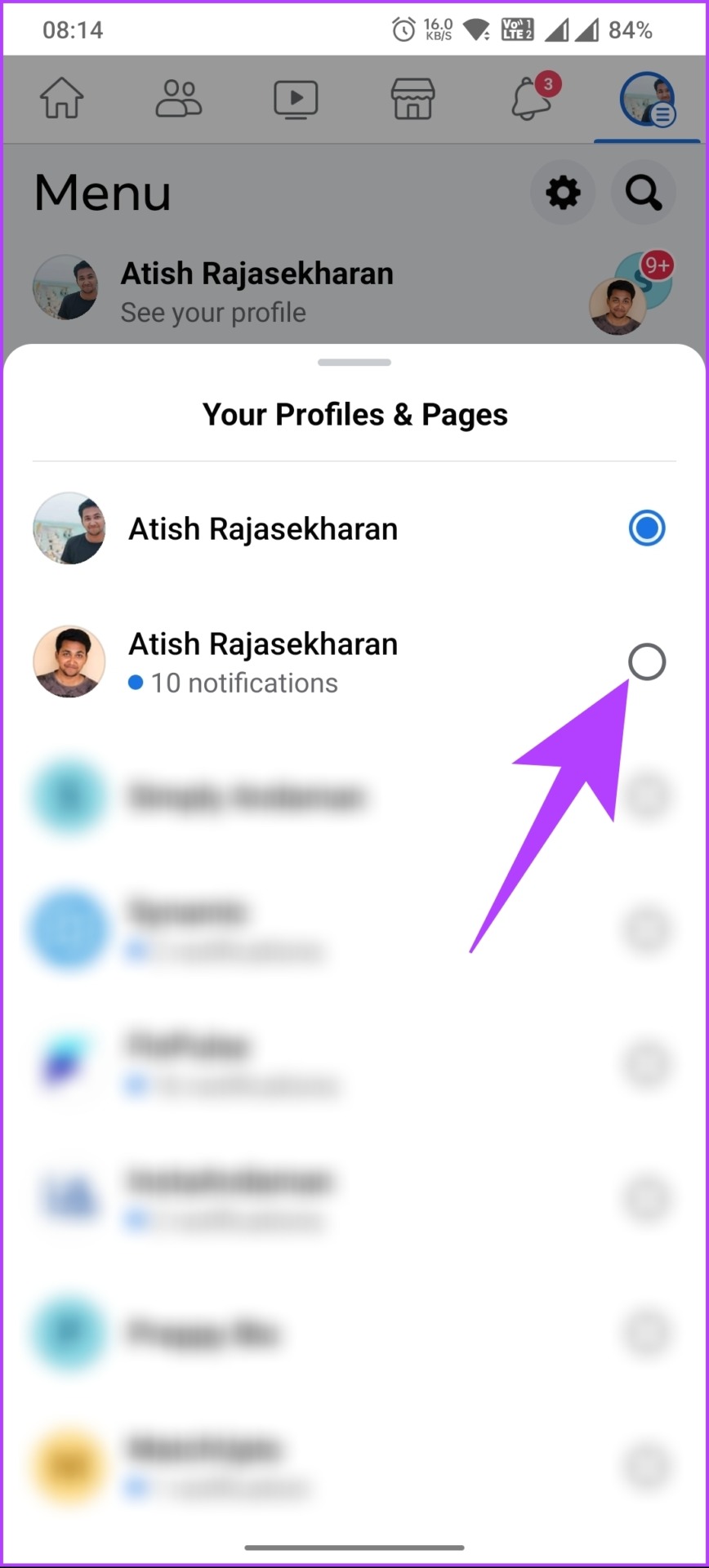
You will see a screen that says, “Switching to [Facebook Name].” Once switched, follow the below steps.
Step 3: Tap on the three horizontal lines icon at the top.
Step 4: In the Menu screen, scroll to the bottom and select Settings & privacy.
Step 5: From the drop-down menu, select Settings.

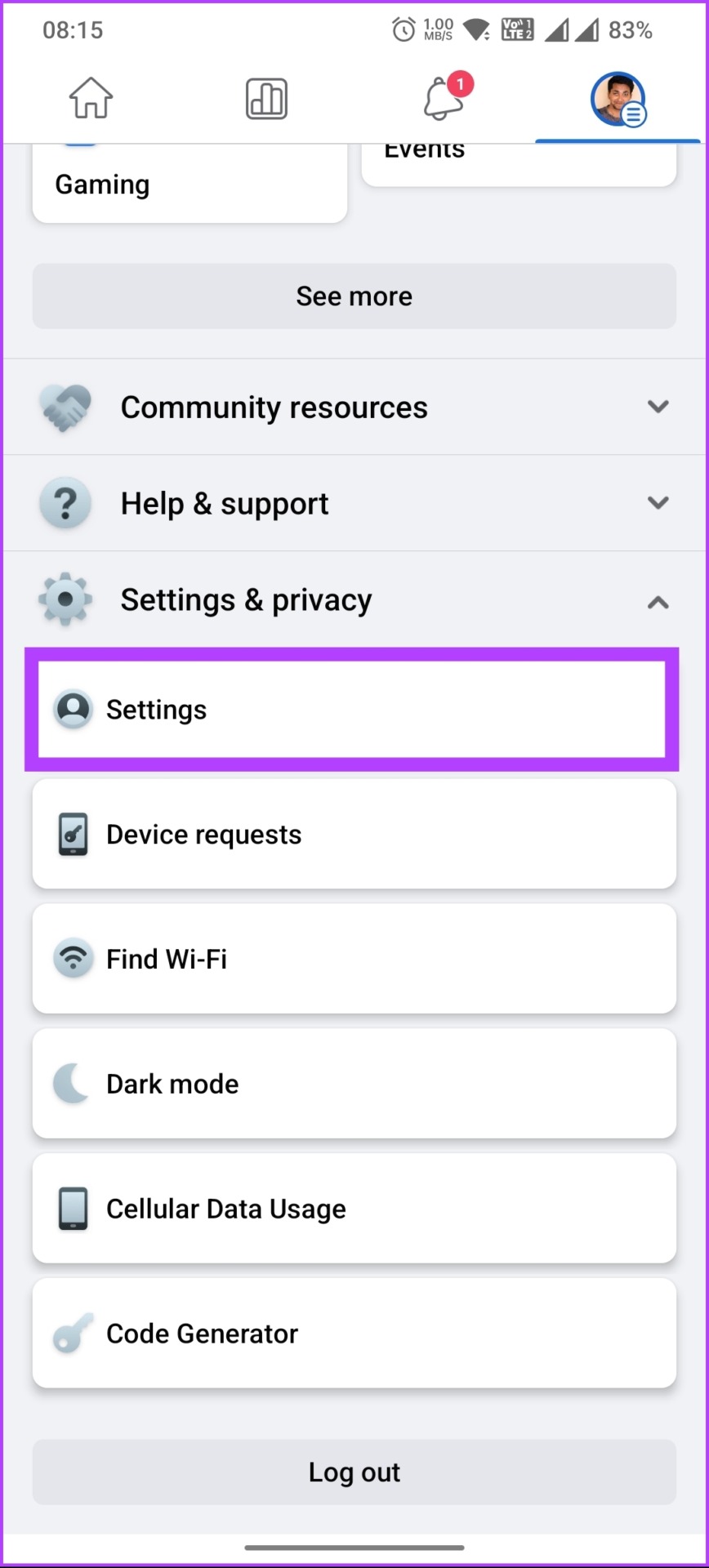
Step 6: On the new screen, tap on Page settings > Name.
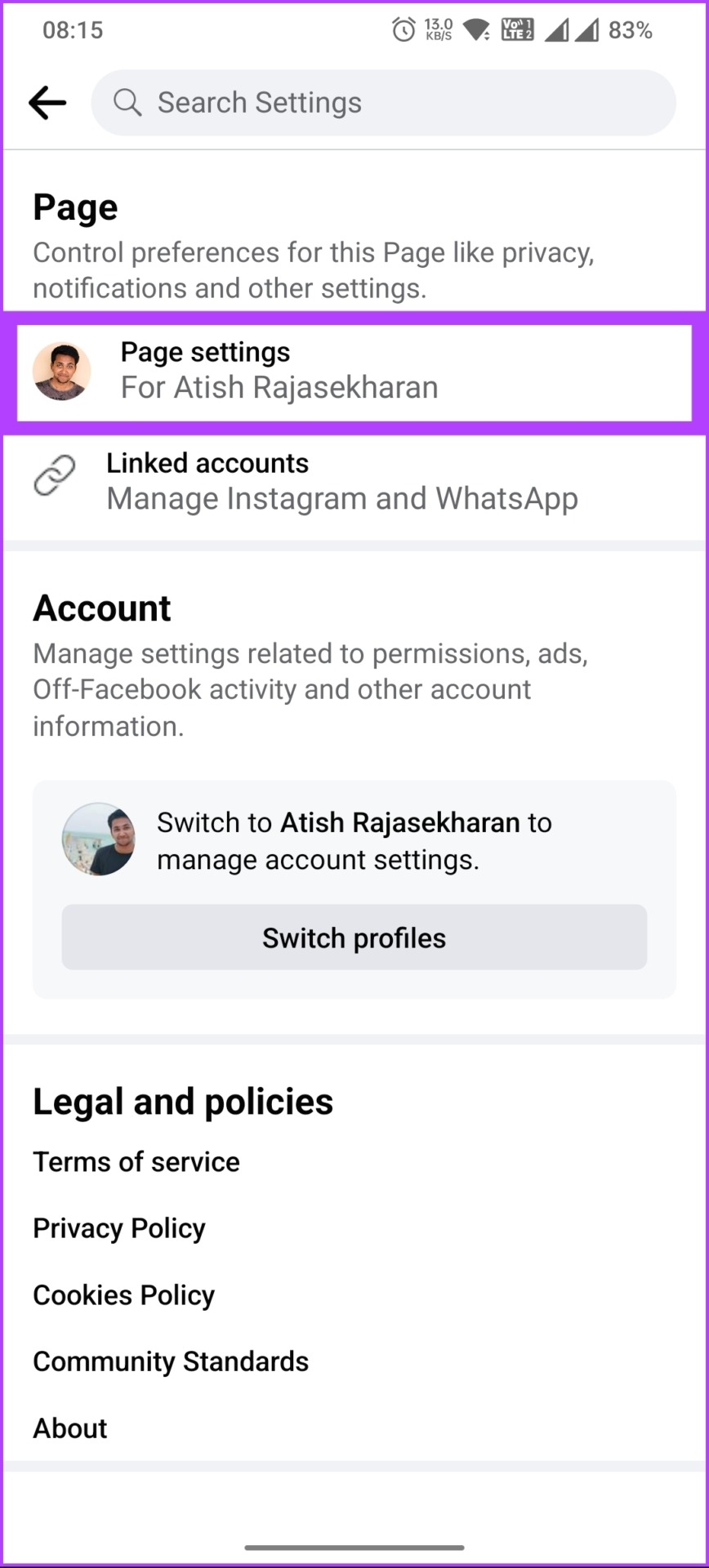

Step 7: Now, type or modify your name and select Review Change.
Step 8: Finally, enter your password and tap Save changes.


There you go. Once the name gets approved by the Facebook team, the changes will take effect.
How to Change Facebook Username for a Personal Account
Facebook lets you set your username, however, only once. And, unlike changing names, you cannot change your Facebook username from the Facebook mobile app. So, if you are new or haven’t set up your username yet, follow the below instructions.
Note: Facebook may not allow you to create or set a username for a new Page if you have recently created several new pages.
Step 1: Open Facebook in your preferred browser and log in with your credentials.
Step 2: Click on your profile picture at the top right.
Step 3: Select Settings & Privacy from the drop-down menu.
Step 4: Select Settings.
Step 5: Under General profile settings, click Edit next to the Username.

Step 6: Enter your preferred username, and if it says Username is available, click on Save changes.
Note: If it says Username is not available, you must change or tweak your username and check again. There’s no way to bypass this mandatory barrier.
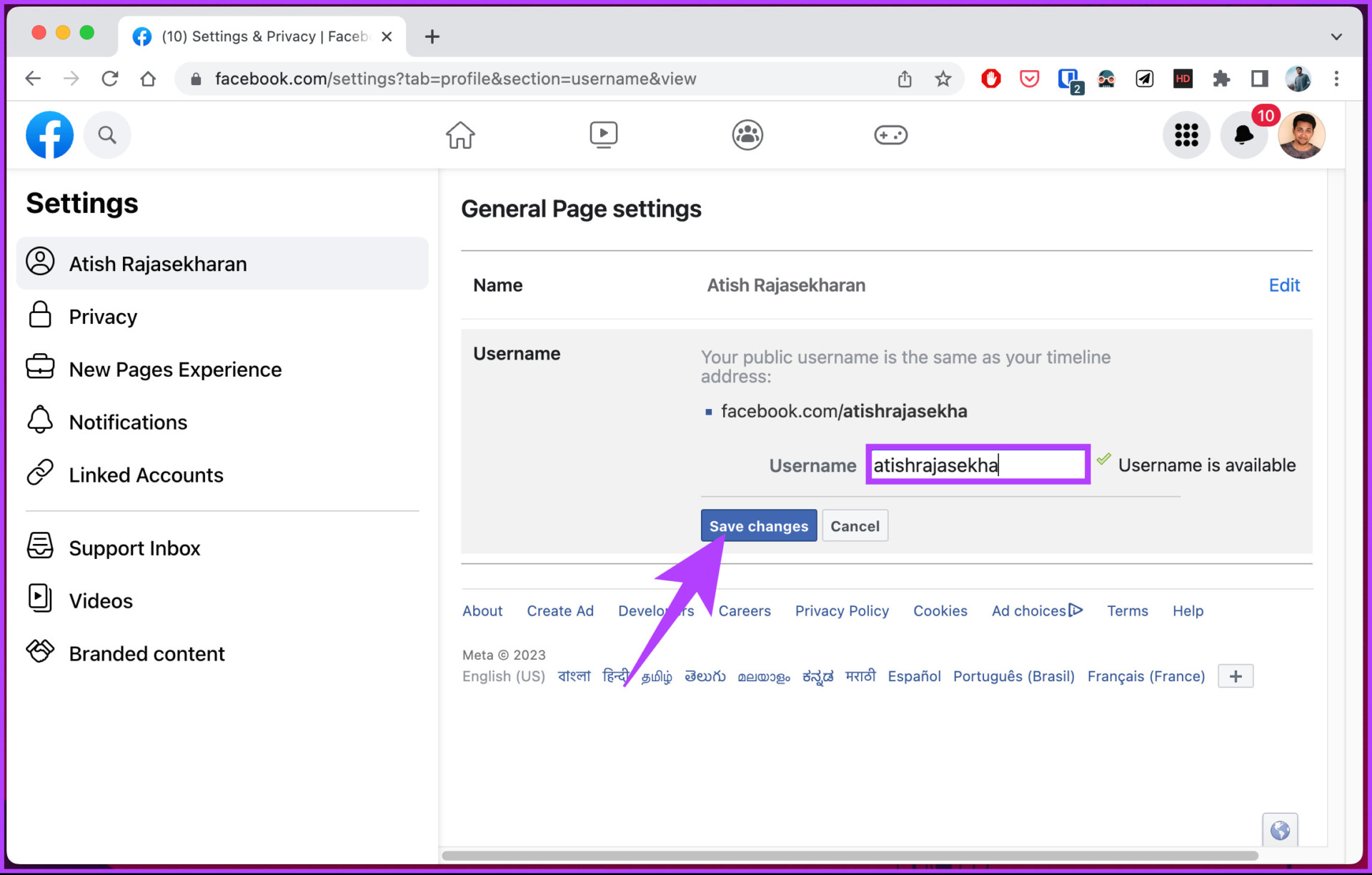
That’s it. Your account will be identified by this unique username from now on.
How to Change Facebook Username for a Business Account
Changing your Facebook username for a business account is no different than changing your personal profile’s username. Follow the below-mentioned instructions.
Step 1: Open Facebook in your preferred browser and log in with your credentials.
Step 2: Click on your profile picture at the top right.
Step 3: From the drop-down menu, click on See all profiles.
Step 4: Select the page you want to change the name of.
You will see a screen that says, “Switching to [Facebook Name].” Once switched, follow the below steps.
Step 5: Click on your profile picture at the top right.
Step 6: Select Settings & Privacy from the drop-down menu.
Step 7: Select Settings.
Step 8: Under General profile settings, click Edit next to the Username.
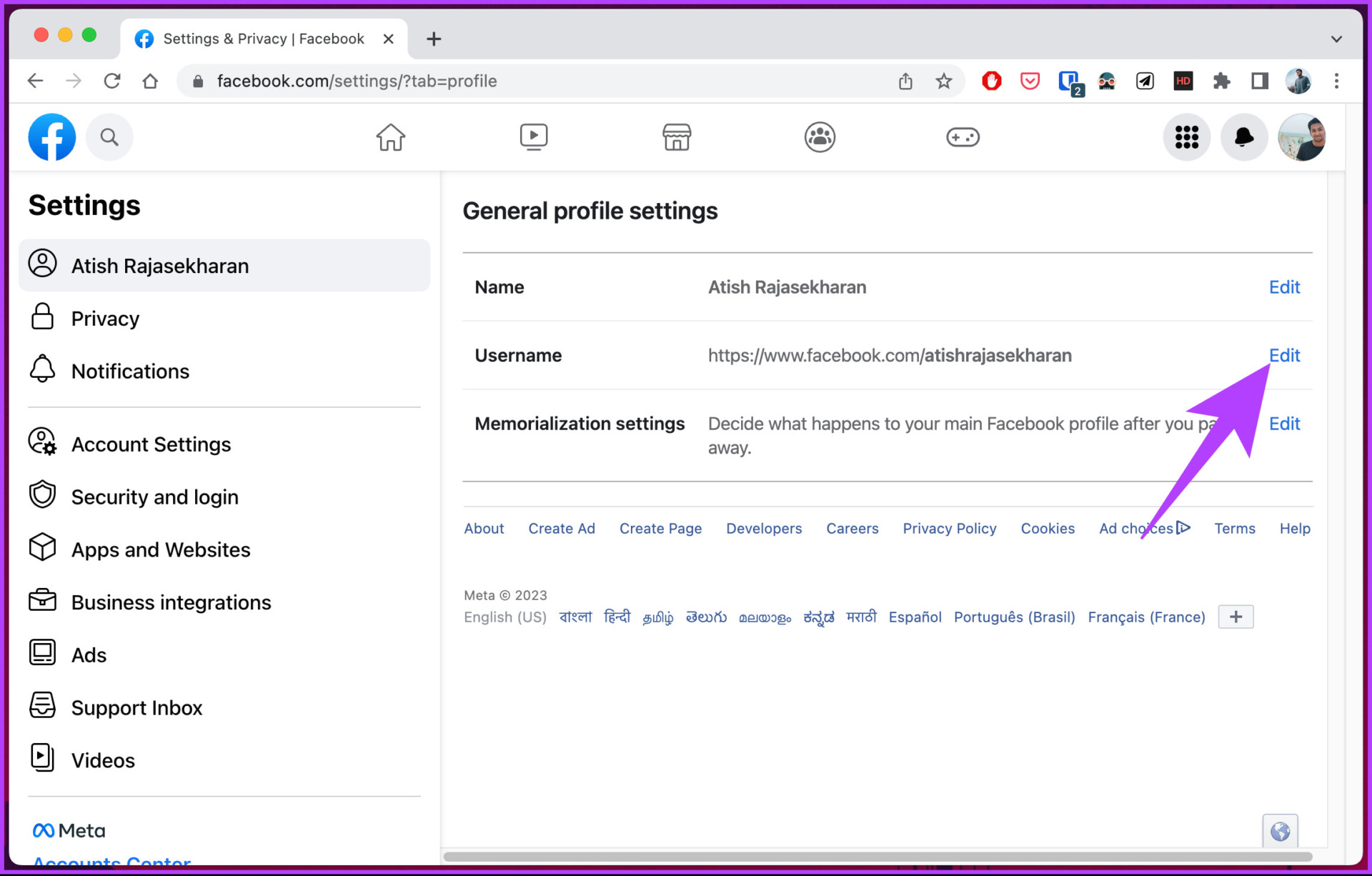
Step 9: Enter your preferred username, and if it says Username is available, click on Save changes.
Note: If it says Username is not available, change or tweak your username and check again. There’s no way to bypass this error.

FAQs
One of the most common reasons you can’t change your Facebook name is that Facebook allows you to change your username only once every 60 days. So, if you’ve already changed your username within this timeframe, you’ll have to wait out that period.
In addition, if your desired name violates Facebook’s guidelines, you can’t use the new name.
Unfortunately, if you’ve previously set a username for your Facebook account, there’s no official way to change it. While you can try contacting Facebook support for assistance, the likelihood of changing your username again is low.
Yes, Facebook allows multiple users to have the same name. However, each user must have a unique username, which is a personalized URL that appears in the address bar of your web browser after ‘facebook.com/’. So while two users can have the same name, they will have different usernames.
Was this helpful?
Last updated on 23 August, 2024
Read Next
 How to Change Your Username on Instagram
Are you tired of your old and outdated username on Instagram?
How to Change Your Username on Instagram
Are you tired of your old and outdated username on Instagram?
 How to Change Your Username and Nickname on Discord
How to Change Your Username on Discord Your Discord username consists of two parts: the name you enter and the numerical tag that Discord assigns to you.
How to Change Your Username and Nickname on Discord
How to Change Your Username on Discord Your Discord username consists of two parts: the name you enter and the numerical tag that Discord assigns to you.
 How to Change Username and Display Name on Snapchat
Snapchat has given users more control by allowing them to customize their profiles.
How to Change Username and Display Name on Snapchat
Snapchat has given users more control by allowing them to customize their profiles.
 How to Change Twitch Username and Display Name
Are you looking to revamp your Twitch presence and get a fresh online identity?
How to Change Twitch Username and Display Name
Are you looking to revamp your Twitch presence and get a fresh online identity?
 How to Change or Remove Themes in Facebook Messenger
Things to Know About Messenger Chat Themes Any participant in the chat can change the Messenger theme.
How to Change or Remove Themes in Facebook Messenger
Things to Know About Messenger Chat Themes Any participant in the chat can change the Messenger theme.
 How to Change Facebook Language Back to English
How to Change Language on Facebook Notably, if you change the language settings on one device, it will not automatically update on another device.
How to Change Facebook Language Back to English
How to Change Language on Facebook Notably, if you change the language settings on one device, it will not automatically update on another device.
 How to Change Profile Picture on Facebook Without Anyone Knowing
Note: We will use Google Chrome and Android phone to demonstrate the steps in this guide.
How to Change Profile Picture on Facebook Without Anyone Knowing
Note: We will use Google Chrome and Android phone to demonstrate the steps in this guide.
 How to Change or Remove Your Last Name on Facebook
Note: Before proceeding, just keep in mind that removing your last name from your profile might make it hard for people to find you on Facebook.
How to Change or Remove Your Last Name on Facebook
Note: Before proceeding, just keep in mind that removing your last name from your profile might make it hard for people to find you on Facebook.
The article above may contain affiliate links which help support Guiding Tech. The content remains unbiased and authentic and will never affect our editorial integrity.

