Have things gone a little quiet in your games? Audio troubles on PC can have a hundred possible causes, but we’ve got some fixes for you to try to get things audible again. So when you can’t hear audio, Steam games has several ways to let you fix things, as you’ll find out in this article.
What Causes This Issue?
Steam games audio problems can have several causes, and might be related to the app, the game itself, or your PC. Some major offenders include:
- Audio trouble or settings with your computer or Steam
- Corrupted cache or files for Steam or a certain game
- A particular problem with Realtek Audio Drivers
What’s more important, though, are the fixes. Let’s take a look:
Can’t Hear Audio, Steam Games – Fixes to Try
We’ve got a few troubleshooting tips below that will hopefully fix your particular audio issue:
Make the Obvious Checks
They might seem too obvious to check, but it’s amazing how often a simple, common-sense fix can solve the problem. Before trying any other fixes, check the following:
- Your PC is unmuted.
- Your headphones or speakers are on and connected.
- The Sound mixer (accessible from the Search Bar) has Steam and your game’s volume unmuted and set to max.
Run as Admin
Improper access permissions can cause a whole range of app issues, let alone audio issues. It’s a quick check, but try running the Steam client as an Admin. Here’s how:
Step 1. Right-click the Steam app.
Step 2. Choose “Run as administrator.”
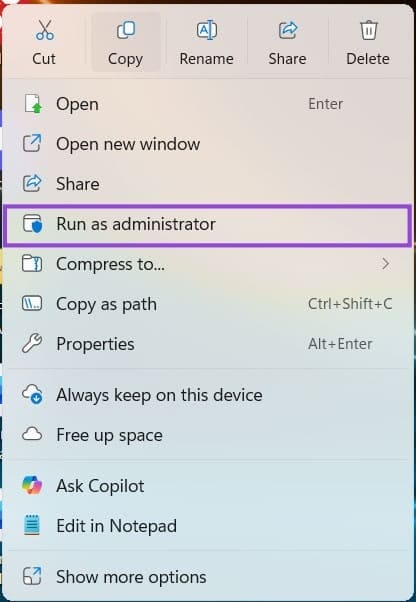
Step 3. The client will open. Try running your problematic game again and see if the issue’s resolved.
Check for Cache Corruption
If only one game is not operating correctly, then there may be a corruption of the cache. Here’s how to check for issues and repair if necessary:
Step 1. In your Steam client, head to the “Library” tab and right-click your problematic game.
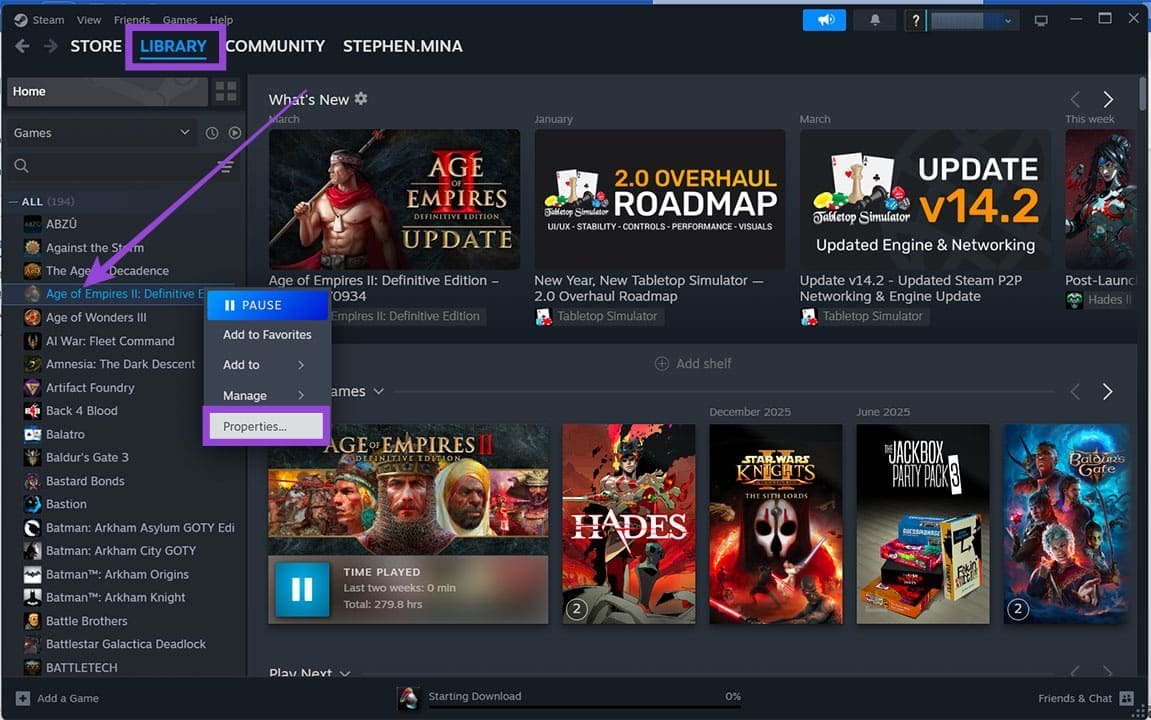
Step 2. Choose “Properties” from the context menu.
Step 3. Click the “Installed Files” tab and then click “Verify integrity of game files.”
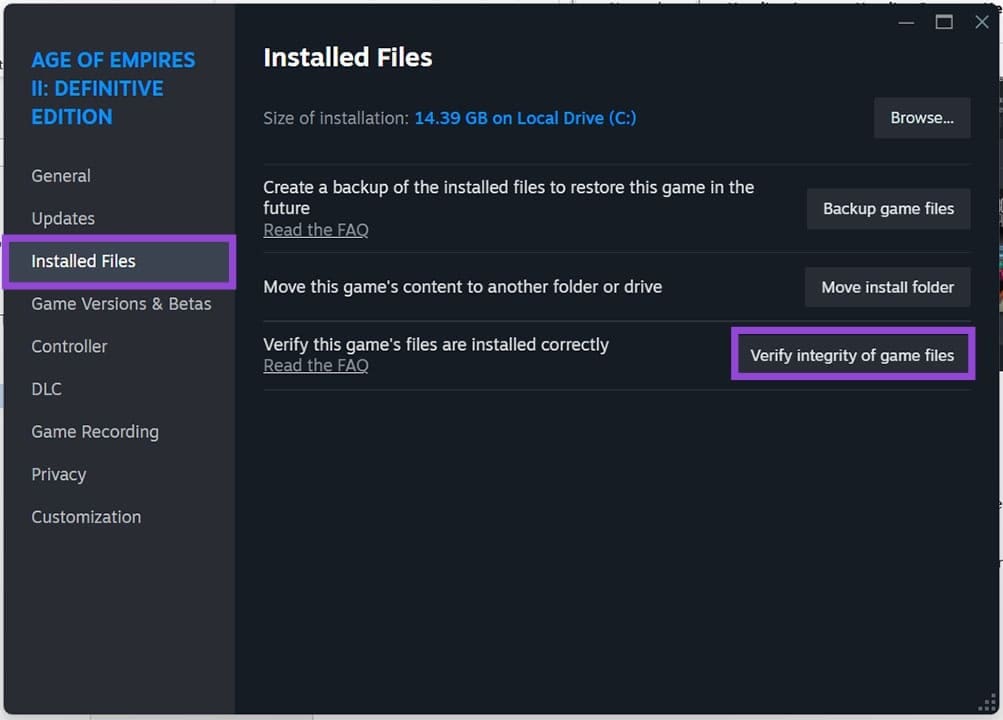
Step 4. Allow Steam to scan. If there’s any corruption, it’ll download files to fix the issue.
Disable Exclusive Mode
Exclusive Mode can be a way to improve game sound performance, but it can also hinder it. Try disabling it to see if it solves your problem:
Step 1. Right-click the Sound icon in your System tray and click “Sound Settings.”
Step 2. Navigate down to “More sound settings” and click it.
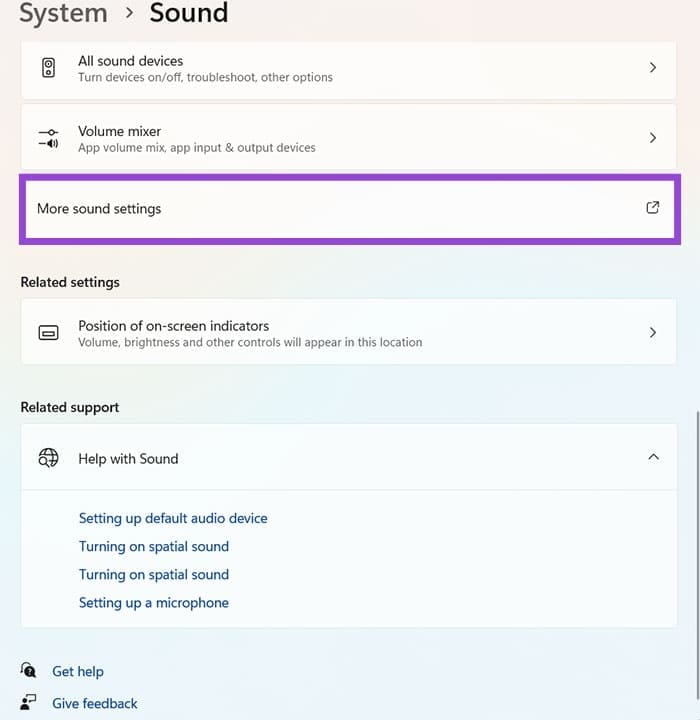
Step 3. Choose your playback device and double-click it.
Step 4. Head to the “Advanced” tab and uncheck “Allow applications to take exclusive control of this device.”
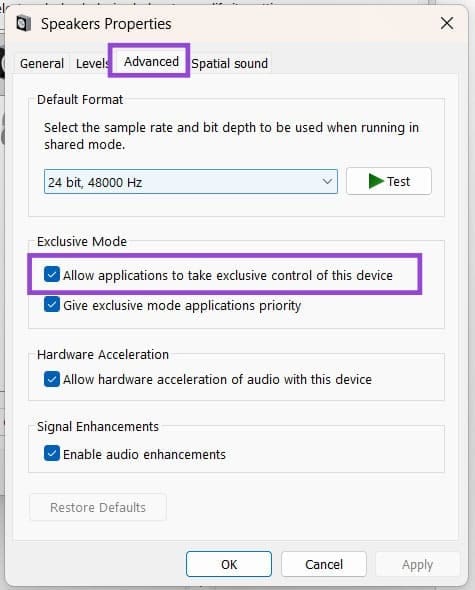
Step 5. Click “OK” to finalize.
Use the Default Audio Driver
Certain audio drivers like Realtek HD have been reported to cause audio issues with Windows and its apps. Try reverting to the standard audio driver to resolve the issue:
Step 1. Open the Run dialog (Win + R) and type “devmgmt.msc” and hit “Enter.”
Step 2. Head to “Audio inputs and outputs” and right-click your audio device.
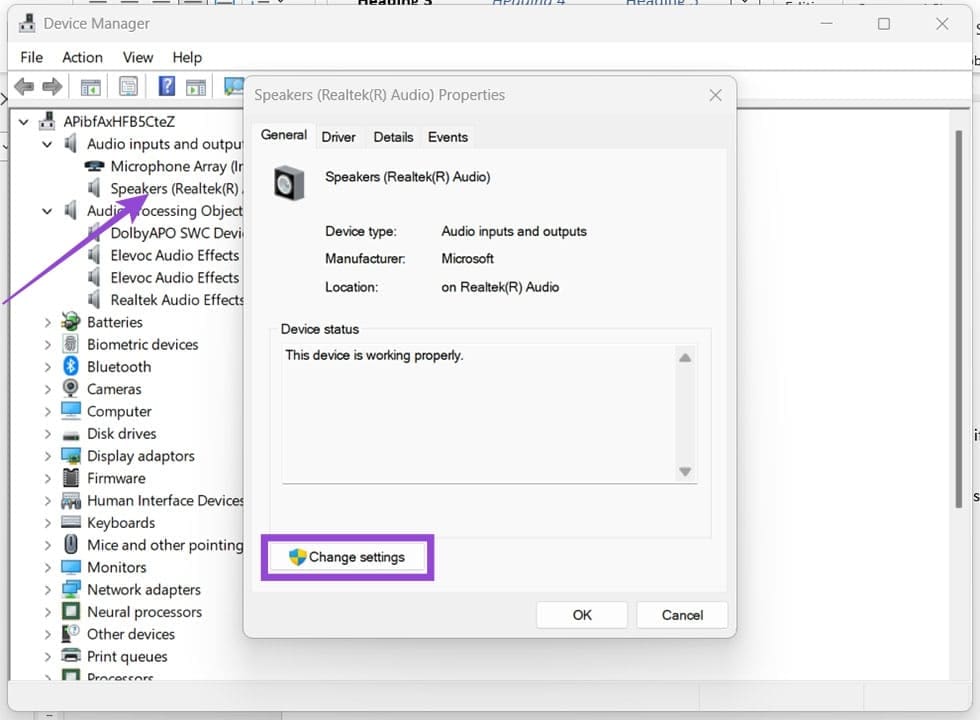
Step 3. Click “Change Settings.” If this isn’t available, click the “Driver” tab and “Update Drivers.”
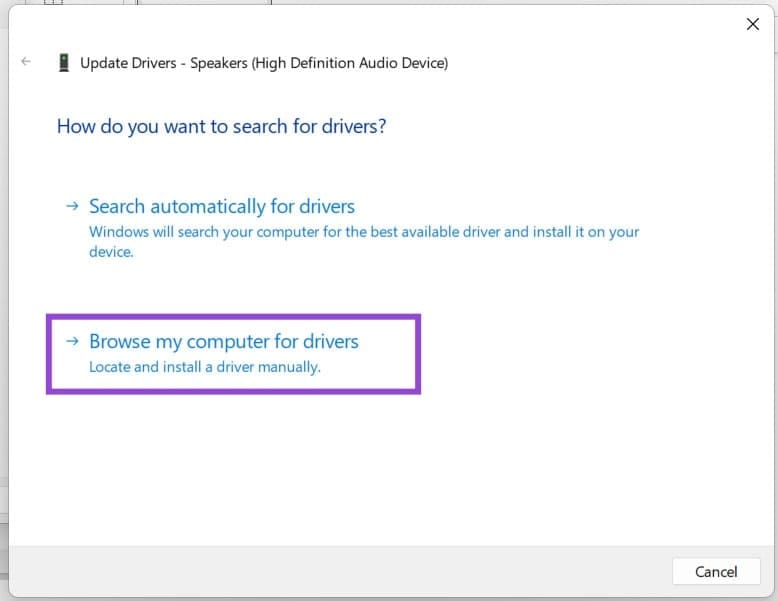
Step 4. Click “Browse my computer for drivers.”
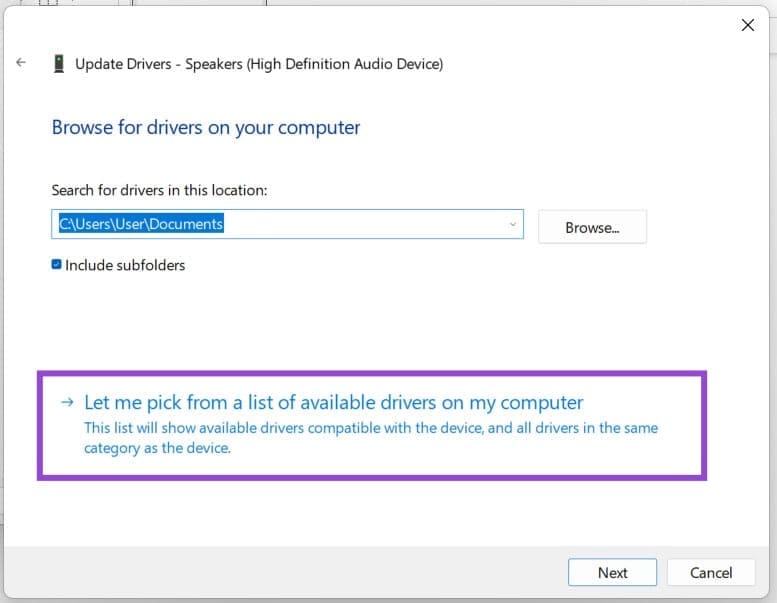
Step 5. Choose “Let me pick from a list of available drivers on my computer.”
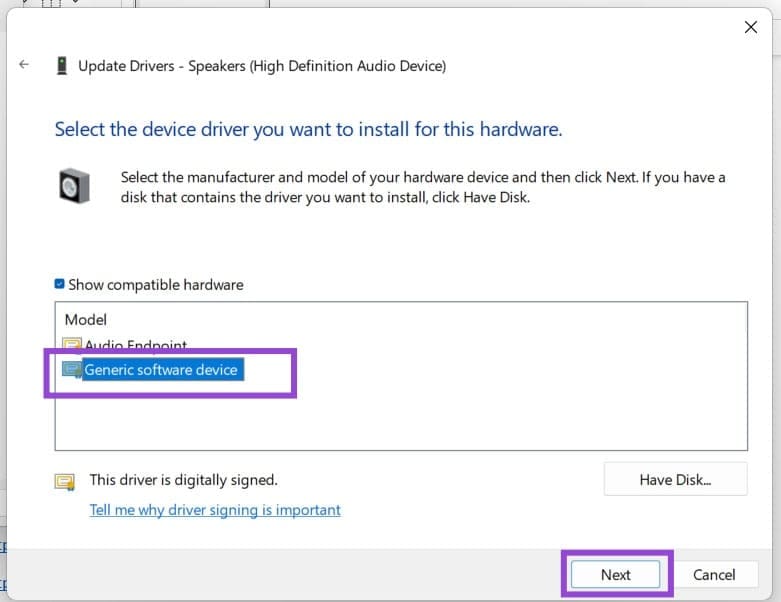
Step 6. Choose “Generic software device” and click “Next.” Device Manager will install the High Definition Audio Device.
Was this helpful?
Last updated on 27 April, 2026
Read Next
 How to Fix Audio Problems in VirtualBox
VirtualBox is a fantastic tool in Windows 11 for running a virtual sandbox for testing and playing around in.
How to Fix Audio Problems in VirtualBox
VirtualBox is a fantastic tool in Windows 11 for running a virtual sandbox for testing and playing around in.
 How to Fix Audio Sync Problems on the Samsung Galaxy Buds 3
Try Basic Fixes Restart your phone and earbuds: Temporary issues with your Galaxy Buds 3 or phone can cause audio sync problems.
How to Fix Audio Sync Problems on the Samsung Galaxy Buds 3
Try Basic Fixes Restart your phone and earbuds: Temporary issues with your Galaxy Buds 3 or phone can cause audio sync problems.
 5 Ways to Fix Some Update Files are Missing or Have Problems Error on Windows 11
Fix 1: Run the Windows Update Troubleshooter Windows 11 includes a dedicated troubleshooter to automatically identify and resolve any common issues with the Windows Update process.
5 Ways to Fix Some Update Files are Missing or Have Problems Error on Windows 11
Fix 1: Run the Windows Update Troubleshooter Windows 11 includes a dedicated troubleshooter to automatically identify and resolve any common issues with the Windows Update process.
 6 Ways to Fix Steam Games Not Launching on Windows 11
Basic Fixes Restart the Steam Client: Before starting the Steam client, close it using the Task Manager.
6 Ways to Fix Steam Games Not Launching on Windows 11
Basic Fixes Restart the Steam Client: Before starting the Steam client, close it using the Task Manager.
 How to Update Epic Games Launcher and Its Games on Windows
How to Check and Update Epic Games Launcher Epic Games Launcher auto-updates along with its games.
How to Update Epic Games Launcher and Its Games on Windows
How to Check and Update Epic Games Launcher Epic Games Launcher auto-updates along with its games.
 How to Fix Epic Games Library Not Showing Games
Basic Fixes: Refresh Epic Games launcher library: A quick refresh can help fix any glitches keeping you from accessing your Epic Games Library.
How to Fix Epic Games Library Not Showing Games
Basic Fixes: Refresh Epic Games launcher library: A quick refresh can help fix any glitches keeping you from accessing your Epic Games Library.
 Top 15 Ways to Fix Amazon Echo and Alexa Setup Problems
If you've landed on this page, it means that the Amazon Echo setup process is giving you a hard time too.
Top 15 Ways to Fix Amazon Echo and Alexa Setup Problems
If you've landed on this page, it means that the Amazon Echo setup process is giving you a hard time too.
 How to Fix “Fire TV Stick Connected With Problems” Error
Basic Fixes: Restart the Fire TV Stick and router: Temporary connection problems can cause internet issues on your Fire TV Stick.
How to Fix “Fire TV Stick Connected With Problems” Error
Basic Fixes: Restart the Fire TV Stick and router: Temporary connection problems can cause internet issues on your Fire TV Stick.
The article above may contain affiliate links which help support Guiding Tech. The content remains unbiased and authentic and will never affect our editorial integrity.