1. Time Limit for Deleting WhatsApp Messages
Unlike the normal delete that works all the time, even after 3 months or so, there is a time limit in using Delete for everyone. You can unsend messages within 2 days of sending them only. After that, you will not see the Delete for Everyone option. So, if it’s missing when you press the Delete icon, you might be trying to delete it after two days of sending a message.
Tip: Know how to delete a message on WhatsApp without opening it.
2. Works for Sent Messages Only
The Delete for everyone feature works for the sent messages only in personal chats. This means you can only unsend messages that you have sent and not the ones that you receive, unless it’s a group.
3. Only Group Admin Can Use Delete for Everyone
If you are a group admin and someone sends an inappropriate message in the group, you can delete that message using the Delete for everyone feature. The message will be deleted from all the group participant’s phones. That’s one of the powers of WhatsApp admins.
This feature is only limited to the group admin. So if you are trying to delete someone else’s messages in a group, if you are not the group admin, you will not see the Delete for everyone option. You will only see it for your own sent messages.
Also Read: Know how to mute WhatsApp groups forever.
4. Doesn’t Work for Quoted Texts
Strangely, Delete for everyone doesn’t work for quoted texts. Picture this — you send a message, and someone sends a response quoting that message. Now, if you unsend the original message that you sent, technically, your quoted message should also get deleted. But that doesn’t happen. Only the message that you sent will be removed, and the quoted message will stay.

Fortunately, if you delete the message first and later someone quotes it, then the text will not be visible.
5. Participants Should be Using the Latest Version of WhatsApp
Both you and the recipient must be using the latest versions of WhatsApp, i.e., the versions that support the Delete for everyone feature. If any one of you is using an old version that doesn’t support it, this feature will not work.
Also Read: Learn how to check if apps need an update.
6. Use the Same Device to Delete Messages
Generally, the Delete for everyone option will show up from linked devices as well. That is, if you send a message from WhatsApp on Android, you can use the Delete for everyone feature on the same message from your computer. But if that’s not happening in a rare situation, i.e., Delete for everyone option is missing, then you should use the same device that you used for sending the message to delete the message.
FAQs on WhatsApp’s Delete for Everyone Not Showing or Working
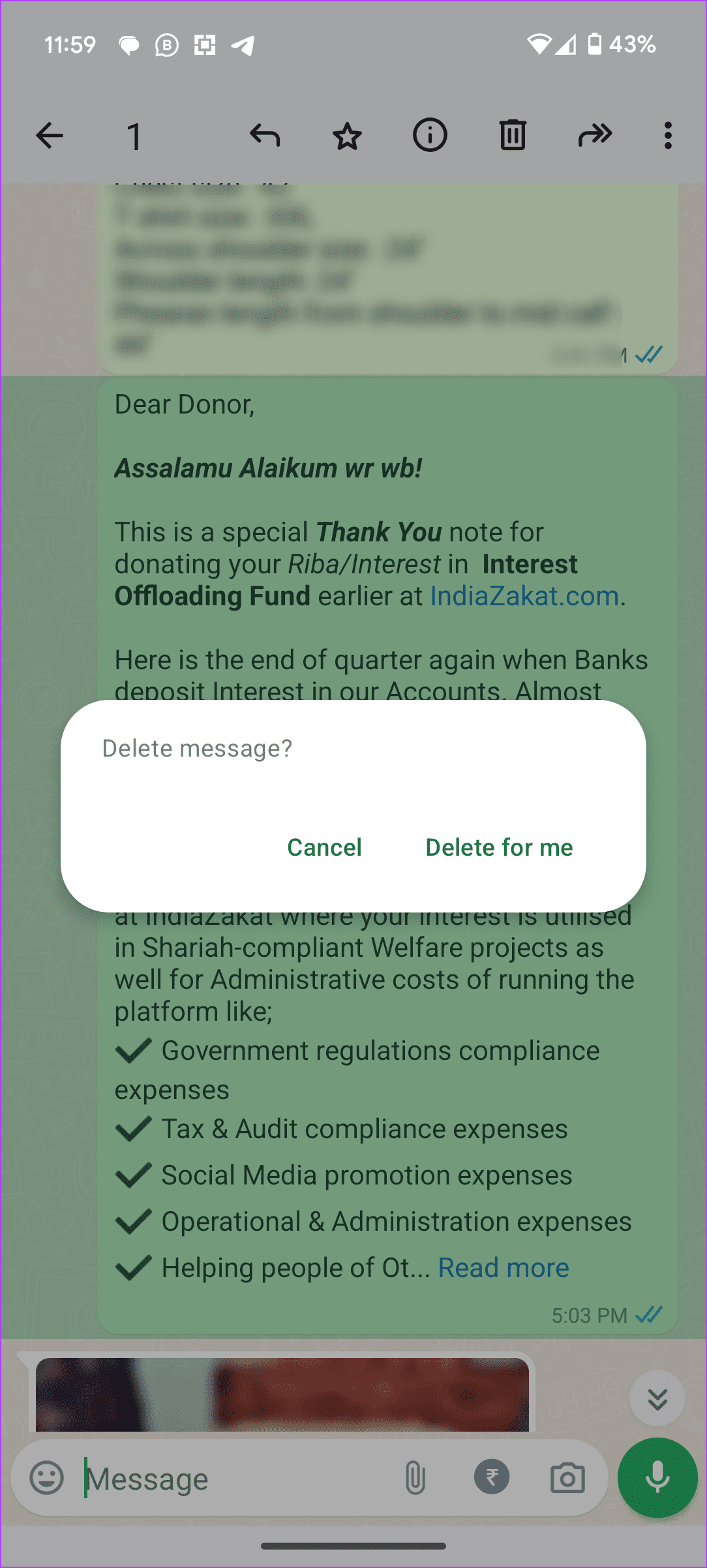
If you delete a message on WhatsApp, you get two options — Delete for me and Delete for everyone. The first one is your regular delete button, which will only delete the message on your phone. Hence, the name Delete for me. It will not unsend or delete messages from the recipient’s phone. On the other hand, the Delete for everyone will magically delete the message from your own and the recipient’s phone. It works in personal and group conversations.
When you press the Delete for everyone button, the message gets deleted instantly from all the phones that had it. No confirmation box will appear. So be careful when you use it.
Once you delete it, you will not get a notification whether the message was deleted successfully or not. Instead, the message will be replaced by deleted text. While the sender will see the text ‘You deleted this message’, the recipient will see ‘This message was deleted’ at the place of the deleted message
No. Clearing chat will only remove WhatsApp messages on your phone. It will not have any impact on the messages on the receiver’s phone.
That depends. If the person has already seen your message, then deleting it will only remove it from their phone and not the person’s memory. However, if they haven’t seen it, there are tricks to view the deleted message on WhatsApp.
If you accidentally used the Delete for me button, you will see an undo message for 5 seconds. Tap on it to restore the message. Then use the Delete for everyone button.
Was this helpful?
Last updated on 22 July, 2024
Read Next
 How to Hide Instagram Story From Everyone Except One Person
https://www.youtube.com/embed/SgnBlWR97EY Method 1: Use the Close Friends List You can hide your story from all except one by using the close friends list.
How to Hide Instagram Story From Everyone Except One Person
https://www.youtube.com/embed/SgnBlWR97EY Method 1: Use the Close Friends List You can hide your story from all except one by using the close friends list.
 How to Send a Snap to Everyone at Once on Snapchat
If you're a regular Snapchatter, your Snaps sometimes become your calling card.
How to Send a Snap to Everyone at Once on Snapchat
If you're a regular Snapchatter, your Snaps sometimes become your calling card.
 Google Photos Explained: Should Everyone Switch to It?
It was always surprising that Google didn’t have a strong product for photo management.
Google Photos Explained: Should Everyone Switch to It?
It was always surprising that Google didn’t have a strong product for photo management.
 Why Do WhatsApp Messages Disappear and Can You Recover Them?
Why Do WhatsApp Messages Disappear?
Why Do WhatsApp Messages Disappear and Can You Recover Them?
Why Do WhatsApp Messages Disappear?
 Why Do My WhatsApp Messages Get Deleted Automatically
Disable Disappearing Messages When the Disappearing Messages option is enabled, WhatsApp will disappear new messages from the selected chat after a certain duration.
Why Do My WhatsApp Messages Get Deleted Automatically
Disable Disappearing Messages When the Disappearing Messages option is enabled, WhatsApp will disappear new messages from the selected chat after a certain duration.
 Why Can’t I Forward Messages on WhatsApp
WhatsApp allows you to forward messages from one conversation to all contacts or groups.
Why Can’t I Forward Messages on WhatsApp
WhatsApp allows you to forward messages from one conversation to all contacts or groups.
 Why Can’t I See “Last Seen” or “Online” on WhatsApp
Basic Fixes Check Network Connectivity: If you use WhatsApp without an internet connection, the app can't fetch the Last Seen or Online status of a user.
Why Can’t I See “Last Seen” or “Online” on WhatsApp
Basic Fixes Check Network Connectivity: If you use WhatsApp without an internet connection, the app can't fetch the Last Seen or Online status of a user.
 Why Do Photos Get Blurry on WhatsApp Status: 3 Ways to Fix This
https://youtu.be/k2MGRKNamFQ Basic Fixes Switch to the stable version of WhatsApp: While beta versions give you early access to new features and cool tricks, they may also introduce several bugs and
Why Do Photos Get Blurry on WhatsApp Status: 3 Ways to Fix This
https://youtu.be/k2MGRKNamFQ Basic Fixes Switch to the stable version of WhatsApp: While beta versions give you early access to new features and cool tricks, they may also introduce several bugs and
The article above may contain affiliate links which help support Guiding Tech. The content remains unbiased and authentic and will never affect our editorial integrity.