It’s often the case that a new Windows update will update and improve parts of your operating system, while systematically breaking others. Today, we’re looking at one such case where the update will cause BitLocker to ask for a recovery key on booting up.
If you’re one of the unhappy few that this, in this article, we’ll be showing you how to address a BitLocker recovery key requested after update.
Blame It on Update KB5083769
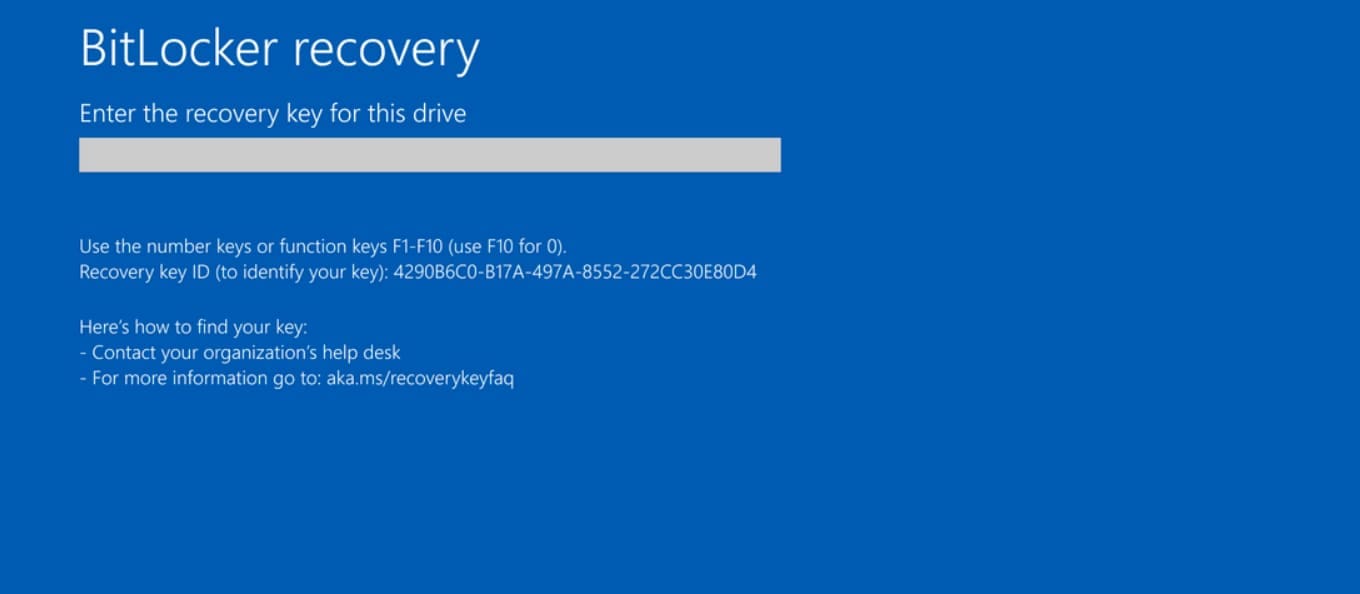
Microsoft has confirmed that the BitLocker recovery key issue stems from update KB5083769. An unrecommended configuration will prompt BitLocker to ask for a recovery key on the first startup after the update, a rather nasty surprise for the purportedly small number of users that this affects.
Your PC has a higher chance of being impacted if you meet the following criteria:
- BitLocker is enabled.
- The TPM validation platform for UEFI must be configured with PCR7.
- Secure Boot State PCR7 must not be possible, according to System Information.
- Your PC can’t be running the 2023-signed Windows Boot Manager.
- Your version of Windows is Enterprise and not installed on a personal computer (there’s a much higher probability).
That’s a lot of specific hoops, but if you’re affected, we’ve got the fixes.
Fixing the BitLocker Key Requested After Update
This is not the first update to trigger the BitLocker recovery key after Windows update. In fact, KB5012170 in 2022 caused the same issue on PCs. So, it’s good to know what to do should this issue pop up again:
Wait for the Fix
While we’d normally advise you to wait for an official patch by Microsoft to fix this issue, thankfully, at the time of writing this article, Microsoft has just supplied one. Cumulative update KB5089549 has been released, and in addition to other fixes and additions, has addressed the BitLocker issue. While Windows 10 users will have to wait longer, Windows 11 users should be alright.
As such, if you’re affected, it’s important to check for updates and install them ASAP:
Step 1. Open Settings (Win + I) and head to “Windows Update.”
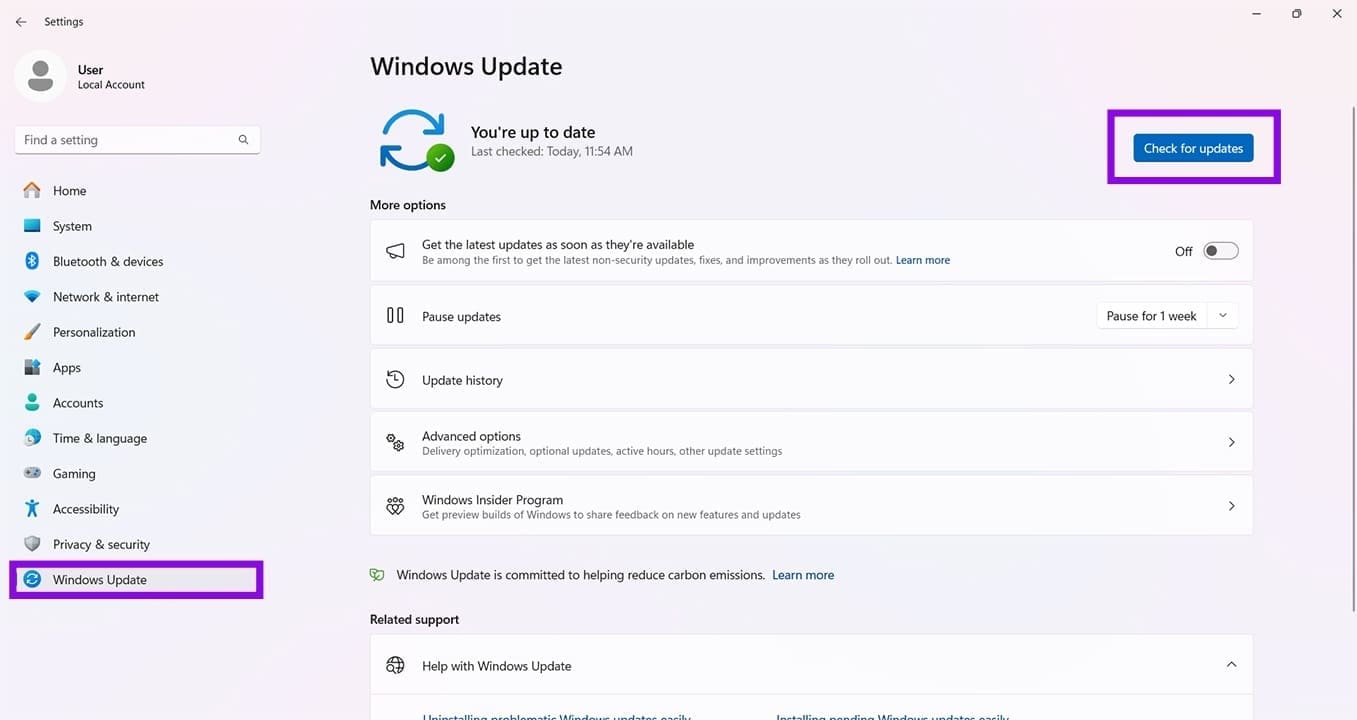
Step 2. Click the “Check for updates” button and install any that appear.
Have Your BitLocker Key Handy
If you keep your BitLocker key locally, it’s good to know that you can find it elsewhere, i.e., via your Microsoft Account on any browser. Here’s where to locate it if you’re ever stuck like this again:
Step 1. Head to your Microsoft account on any browser and device and log in to your profile.
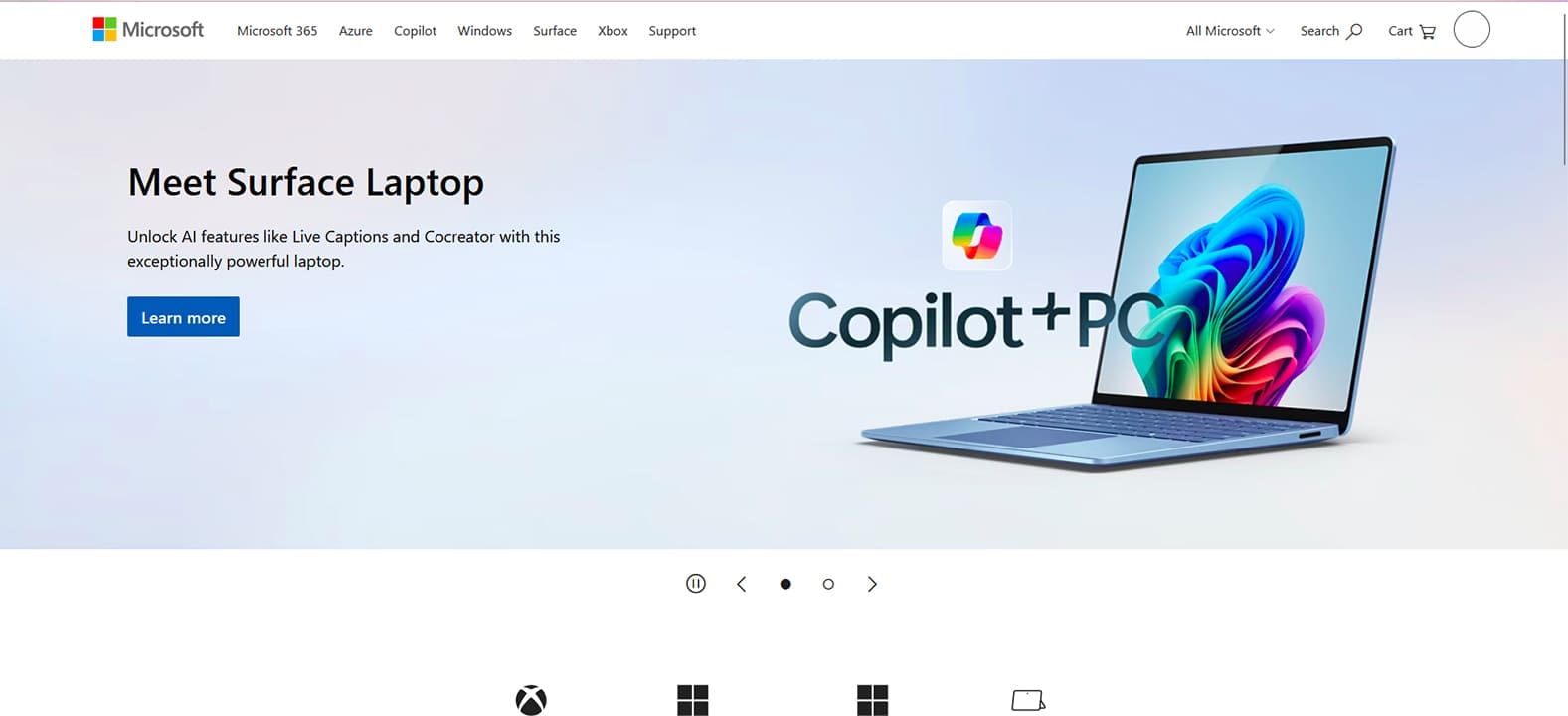
Step 2. Click on your profile icon and then on “View account.”
Step 3. Click “Devices” in the sidebar.
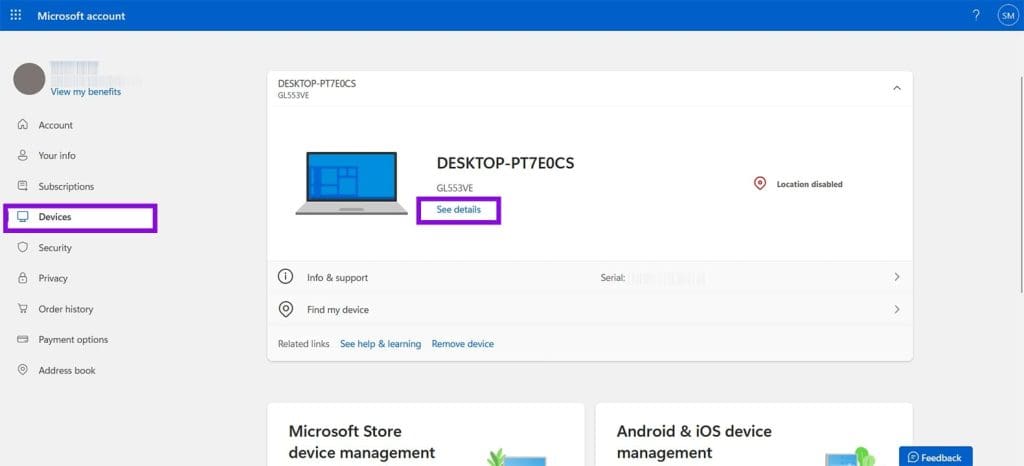
Step 4. Click “See details” under your device name.
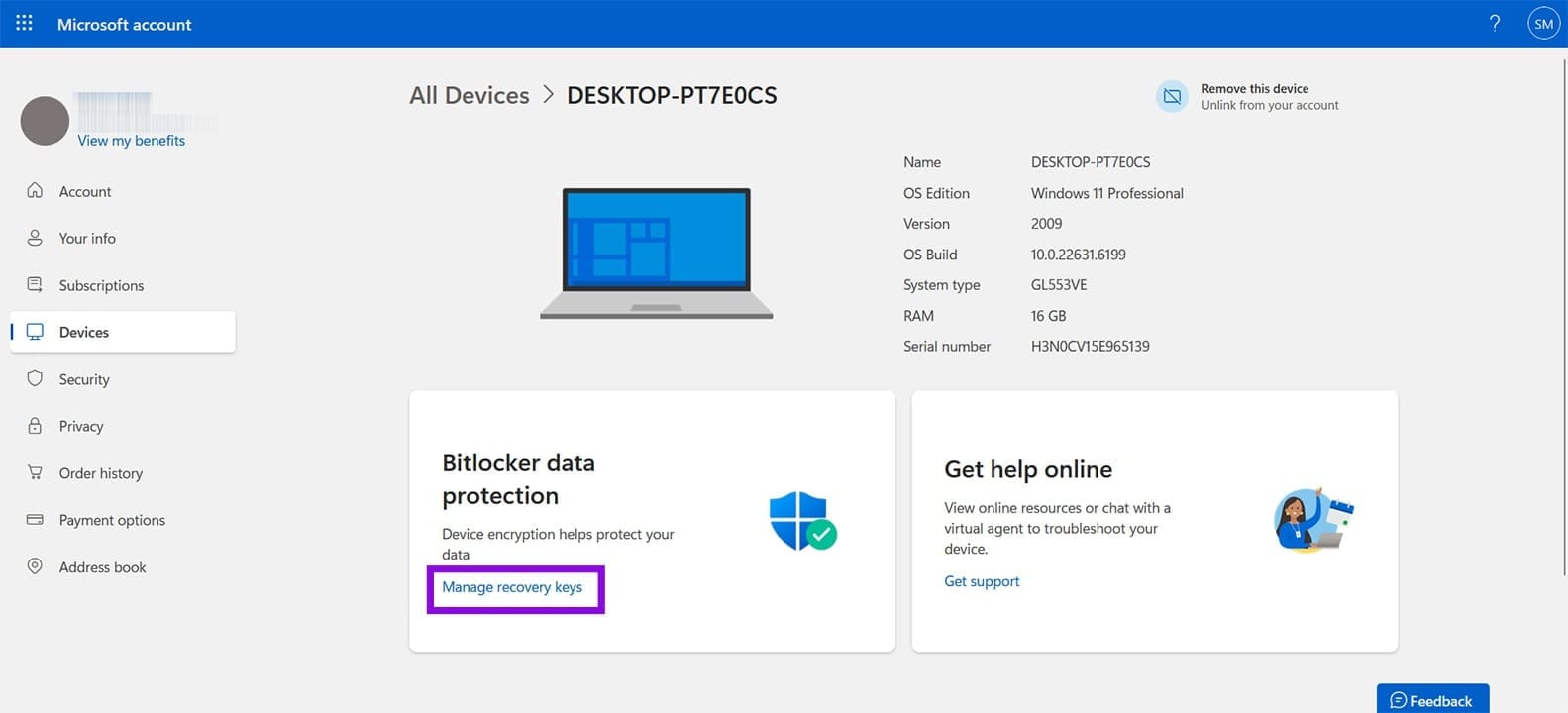
Step 5. Click “Manage recovery keys” under “BitLocker data protection,” and you’ll find your recovery key stored there. You might be required to provide extra security confirmation.
If part of an organization, you’ll need to request your recovery key. But the odds are your IT department or resident technical expert will already be aware of the situation.
Was this helpful?
Last updated on 23 May, 2026
Read Next
 How to Fix BitLocker Keeps Asking for Recovery Key
BitLocker is an excellent security feature to protect your files, but it can be a bit odd if you get an issue where BitLocker keeps asking for recovery key out
How to Fix BitLocker Keeps Asking for Recovery Key
BitLocker is an excellent security feature to protect your files, but it can be a bit odd if you get an issue where BitLocker keeps asking for recovery key out
 How to Install and Use BitLocker on Windows 11
BitLocker is the built-in full-disk encryption tool for Windows and one of the most reliable ways to protect laptops from losing data.
How to Install and Use BitLocker on Windows 11
BitLocker is the built-in full-disk encryption tool for Windows and one of the most reliable ways to protect laptops from losing data.
 Reviewing the Free EaseUS Data Recovery Software For Windows
Till date, we have talked about quite a few file recovery tools that help us to restore files that are deleted accidentally from our computer.
Reviewing the Free EaseUS Data Recovery Software For Windows
Till date, we have talked about quite a few file recovery tools that help us to restore files that are deleted accidentally from our computer.
 GT Explains: Difference Between Recovery Drive and System Image in Windows 10
Windows offers multiple ways to take a backup of your precious data on your computer.
GT Explains: Difference Between Recovery Drive and System Image in Windows 10
Windows offers multiple ways to take a backup of your precious data on your computer.
 How to Create and Use a Recovery Drive on Windows 11
How to Create a Windows 11 USB Recovery Drive Microsoft bundles the Recovery Drive app in Windows 11 to help you create a recovery disk.
How to Create and Use a Recovery Drive on Windows 11
How to Create a Windows 11 USB Recovery Drive Microsoft bundles the Recovery Drive app in Windows 11 to help you create a recovery disk.
 5 Ways to Fix ‘We Can’t Create a Recovery Drive’ Error in Windows 11
Basic Fixes Close and restart the Recovery Drive app: Launch the Task Manager app by pressing Ctrl + Shift + Esc.
5 Ways to Fix ‘We Can’t Create a Recovery Drive’ Error in Windows 11
Basic Fixes Close and restart the Recovery Drive app: Launch the Task Manager app by pressing Ctrl + Shift + Esc.
 Windows 11 Keeps Assigning Drive Letter to Recovery Partition
You might be used to Windows swapping the names of your external hard drives and USBs, but what happens when your recovery partition, which should only be used in emergencies,
Windows 11 Keeps Assigning Drive Letter to Recovery Partition
You might be used to Windows swapping the names of your external hard drives and USBs, but what happens when your recovery partition, which should only be used in emergencies,
 Microsoft Support and Recovery Assistant (SaRA) Removed From Windows 11 – What Does This Mean?
With Microsoft’s steady march into the future, some products and services will invariably get left behind.
Microsoft Support and Recovery Assistant (SaRA) Removed From Windows 11 – What Does This Mean?
With Microsoft’s steady march into the future, some products and services will invariably get left behind.
The article above may contain affiliate links which help support Guiding Tech. The content remains unbiased and authentic and will never affect our editorial integrity.