Method 1: Reduce Photo Size Using the Gallery App (Samsung)
You can use the default Gallery app on Galaxy phones to edit media files, create collages, and even resize them. Follow the steps below to reduce photo size using the Gallery app on Galaxy phones. Here’s how.
Step 1: Open the Gallery app on your Samsung phone and open the relevant image.
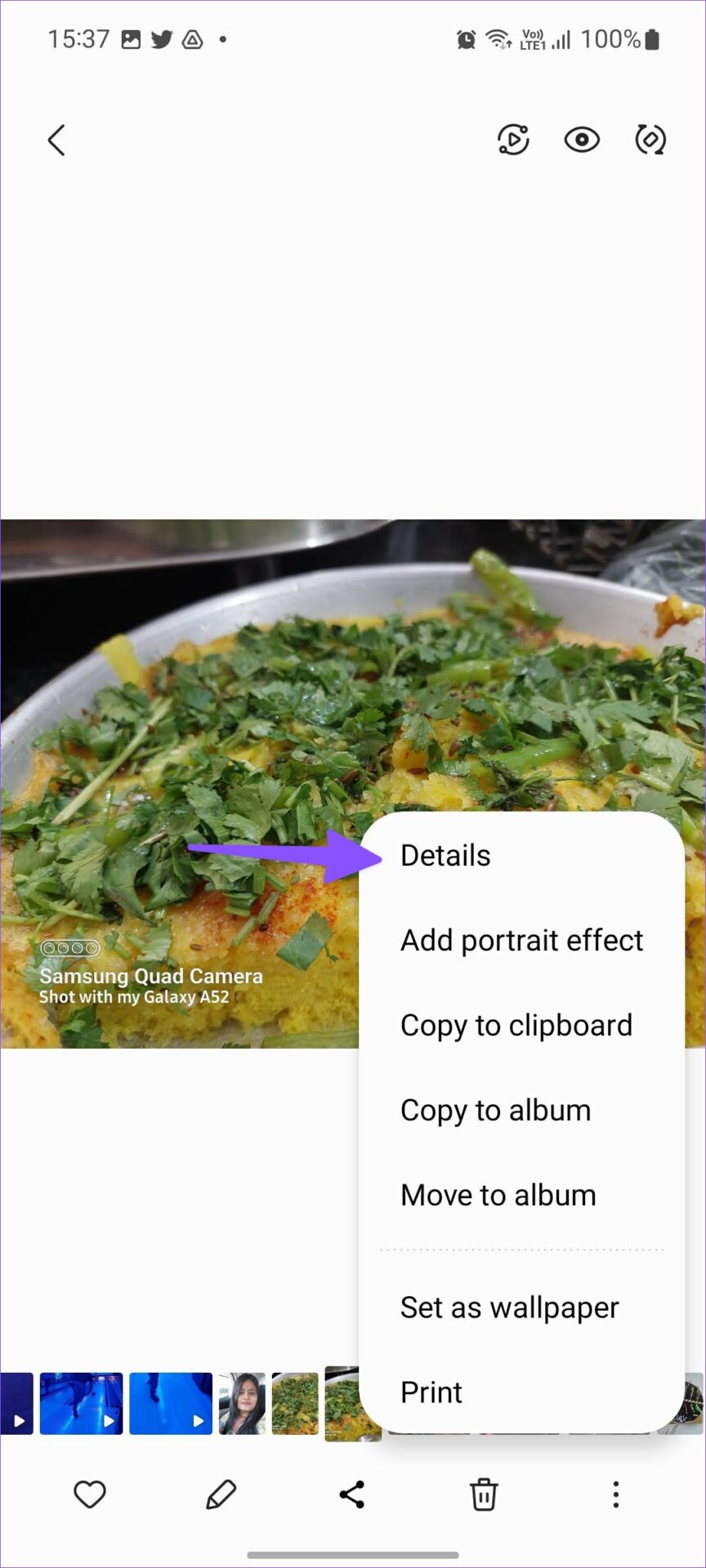
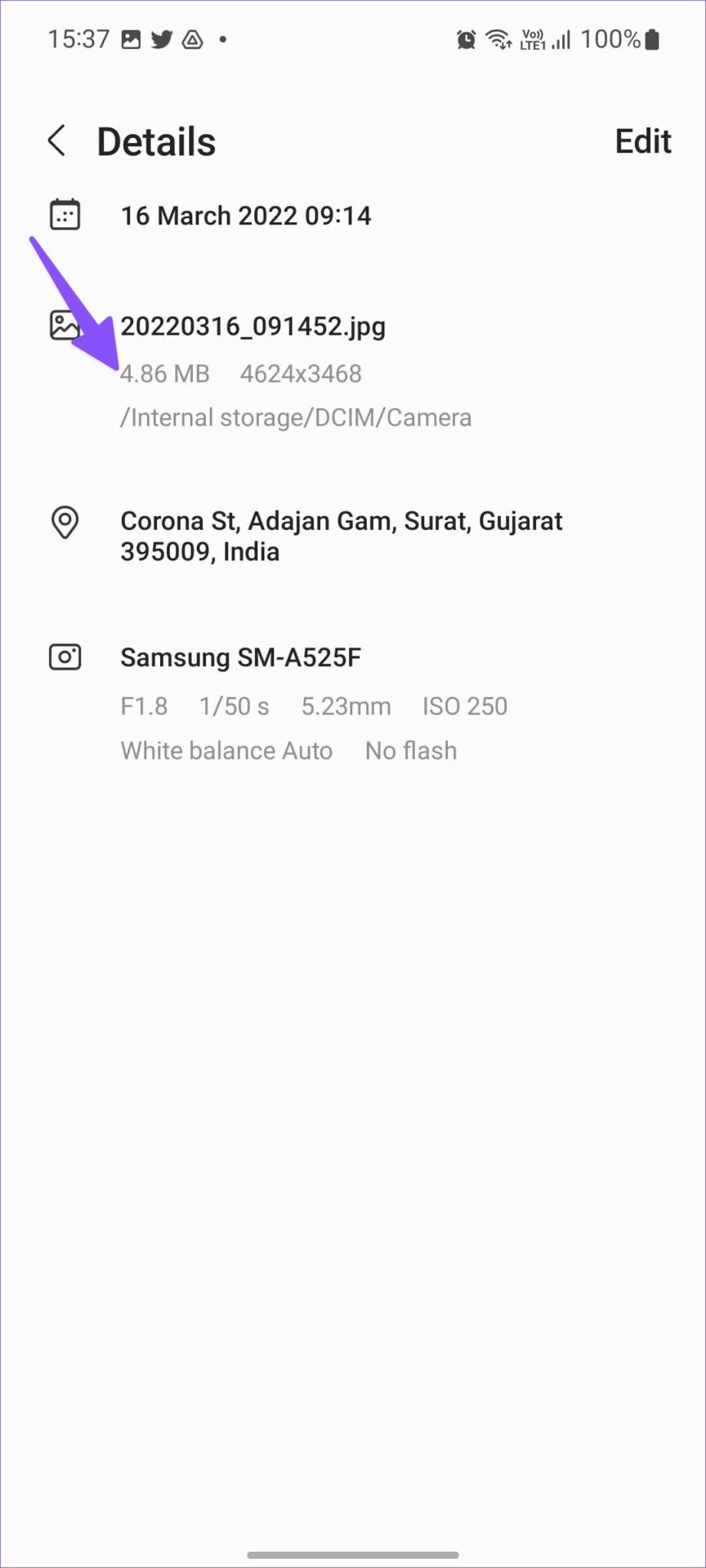
Step 2: Tap the three-dot menu and select Details. Check the current image size.

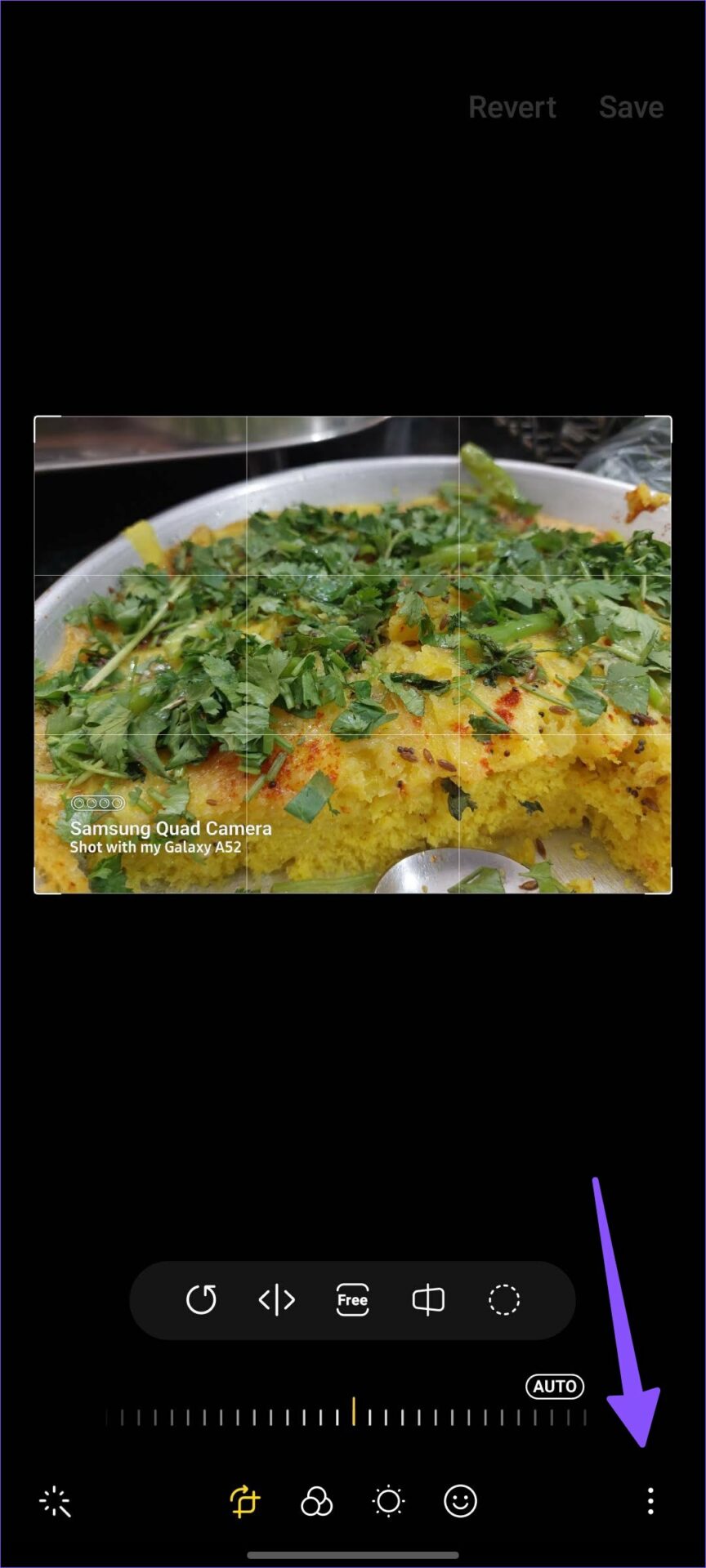
Step 3: Select the edit button to open the image editor. Tap the three-dot menu.
Note: Certain One UI versions might have the three-dot menu located in the top-right corner.

Step 4: Tap on Resize and select your preferred size. Then, tap Done.
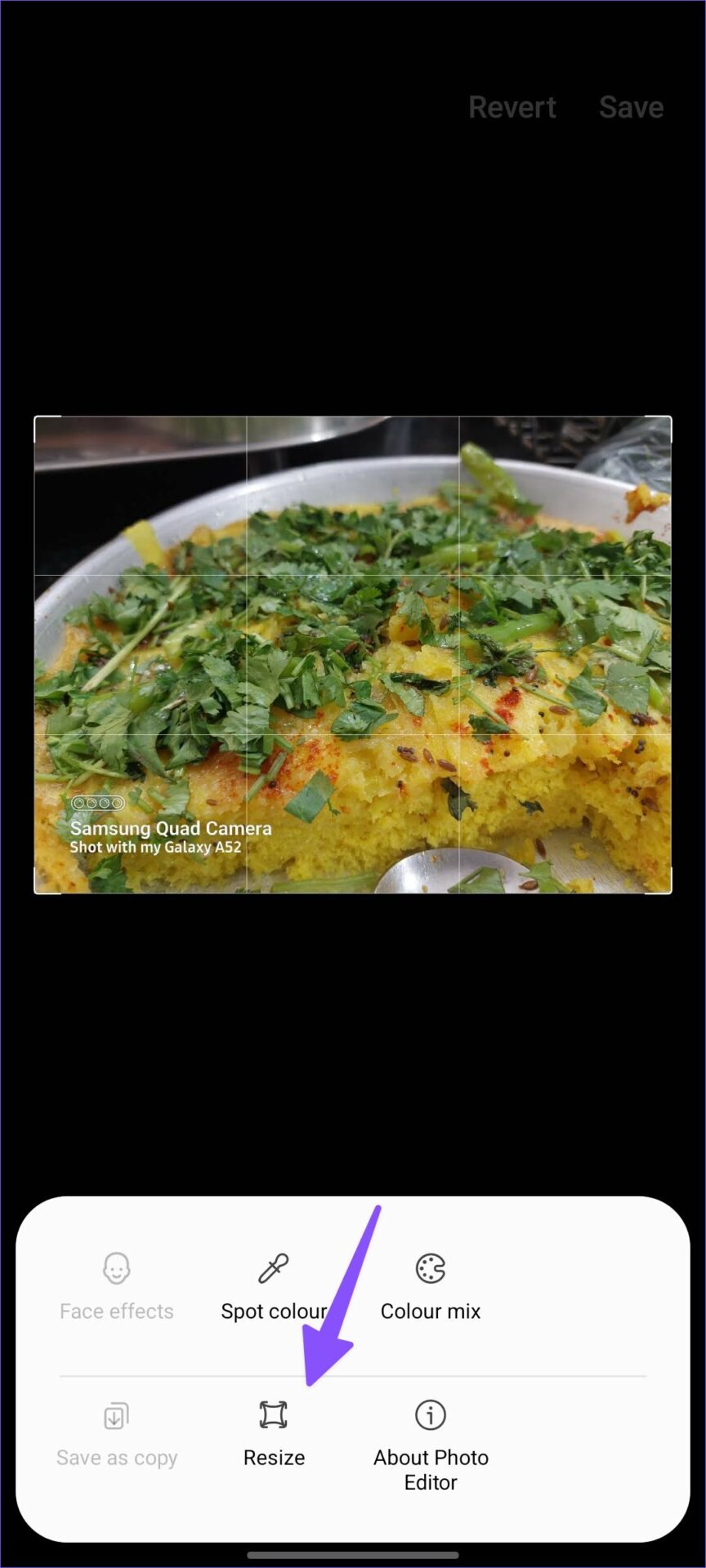
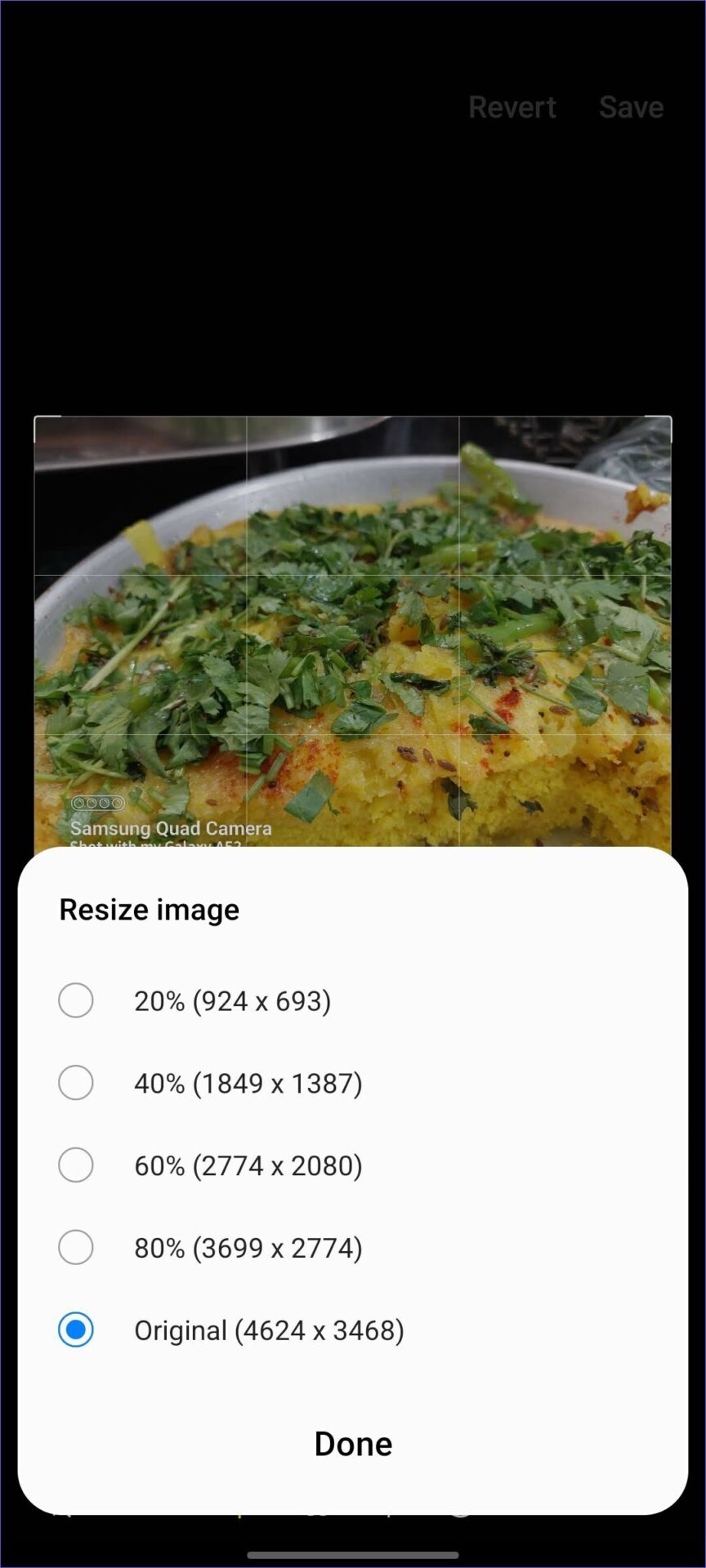
Tap on Save in the top-right corner to confirm your changes and save the reduced image on your Samsung phone.
Method 2: Using the Photo Compressor App
Photo Compressor is your all-in-one tool to compress, resize, crop, rotate, and convert photo format on Android. So, download the Photo Compressor app on your Android phone and give it all the relevant permissions. Then, follow the steps below to reduce the photo size.
Step 1: Open the Photo Compressor app and select Compress photos.
Step 2: Select the relevant images and hit Next.


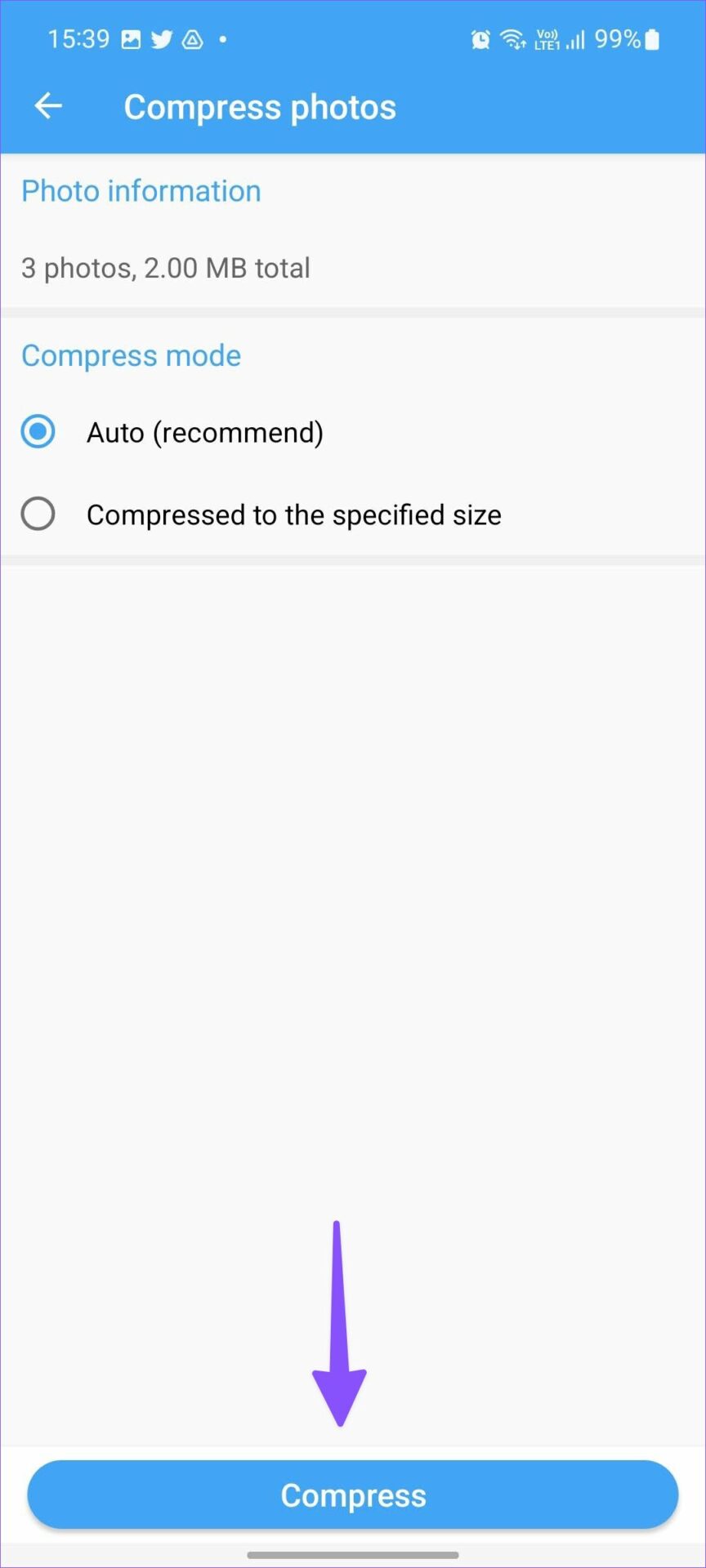
Step 3: Check the number of photos and sizes from the following menu.
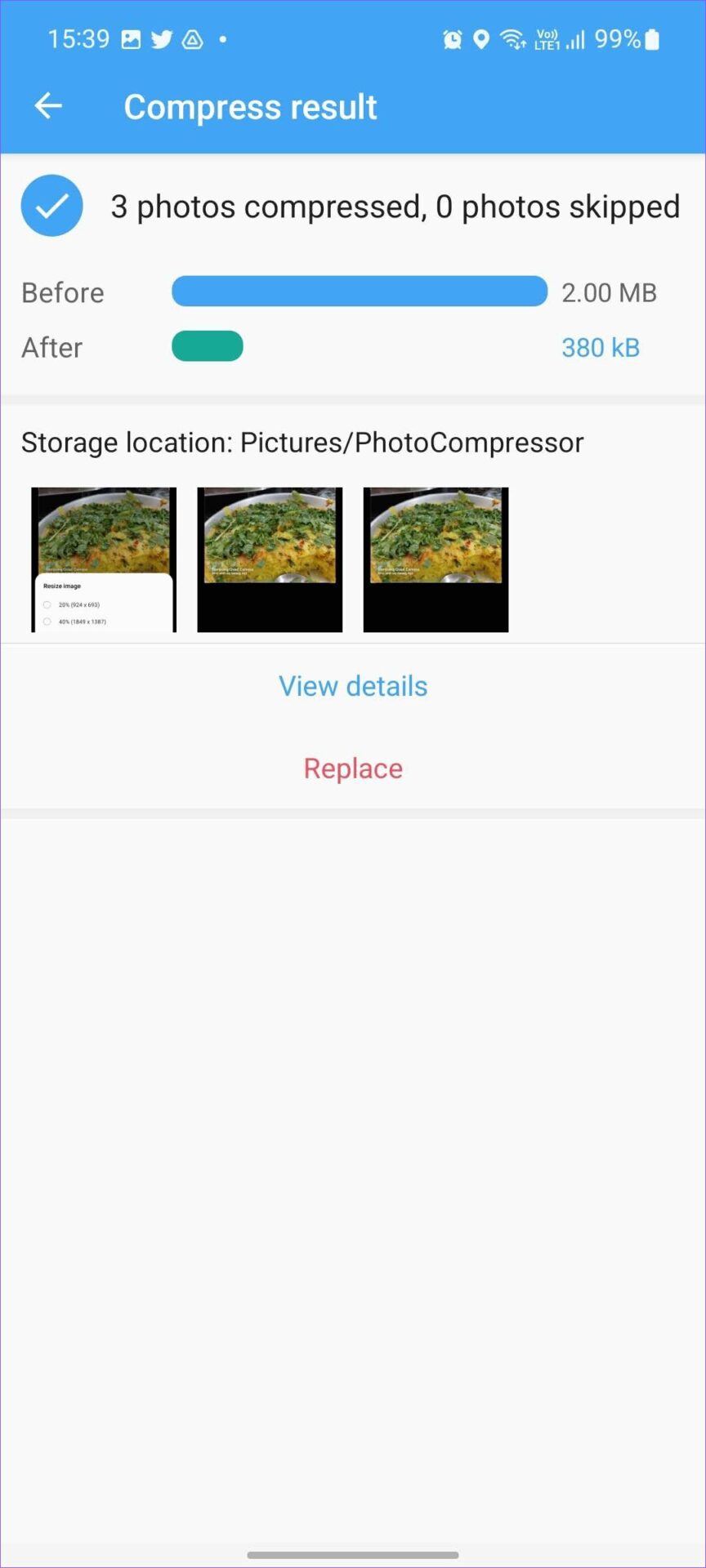
Step 4: Select the relevant Compress mode and tap Compress. Then, check the image size.
Method 3: Compress Images Using WhatsApp
When you share a large image over WhatsApp, the service compresses and reduces the file size. And since WhatsApp now lets you chat with yourself, you can use your self-chat to compress and save images. Here’s how to do it.
Step 1: Open the gallery app and select the relevant images. Tap the Share icon.
Step 2: Here, select WhatsApp and tap on the relevant group or chat.

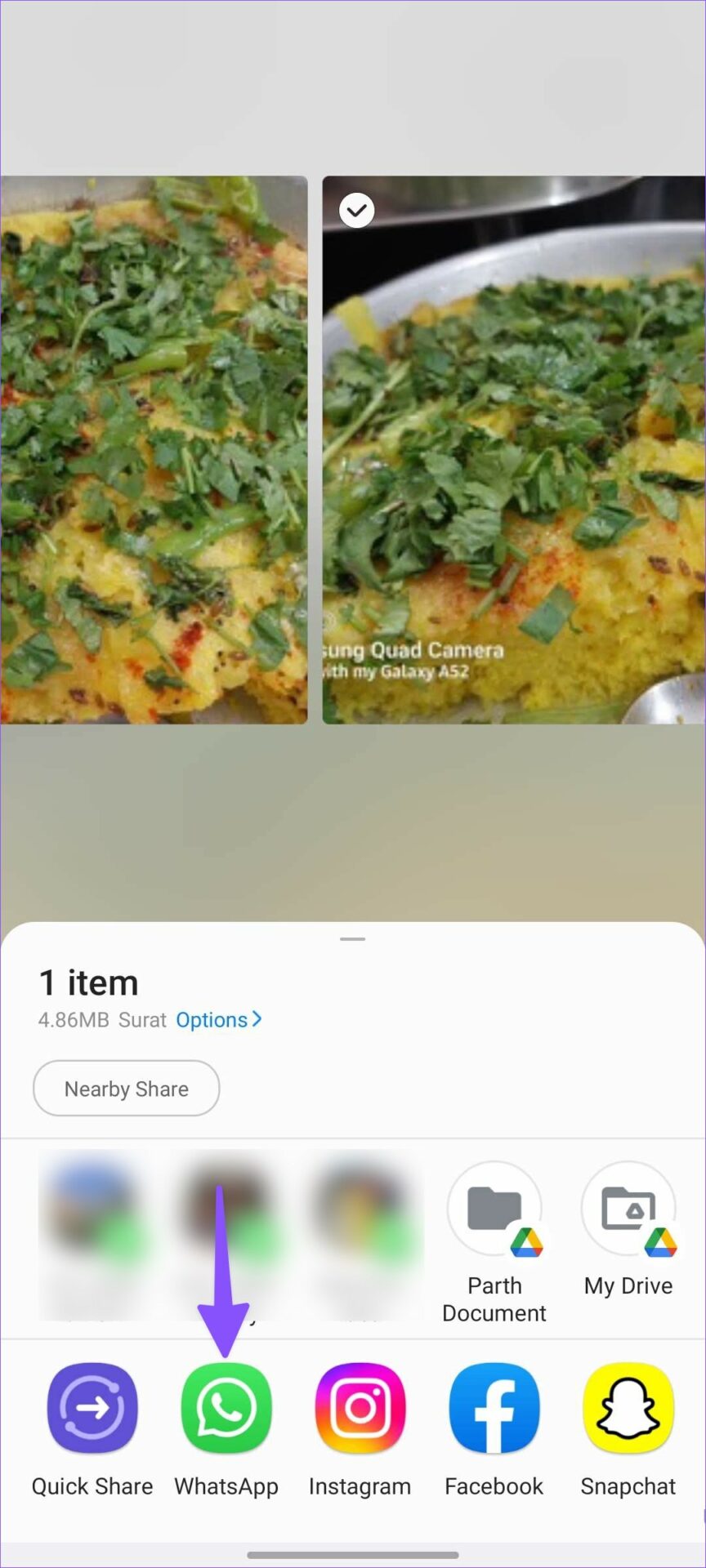
Step 3: Wait for the image to be sent. Then, tap on the image.
Step 4: Here, tap on the three-dot menu at the top and select Save.
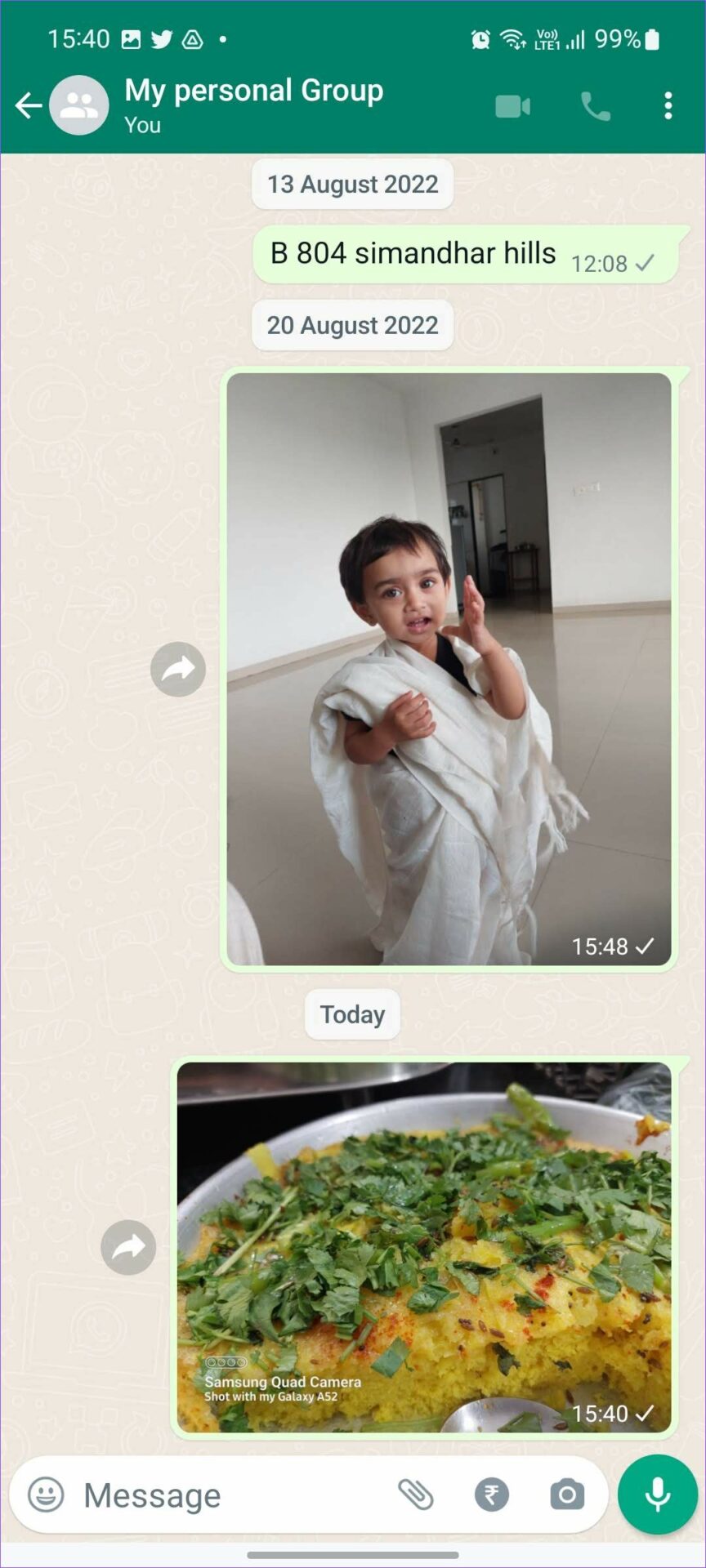

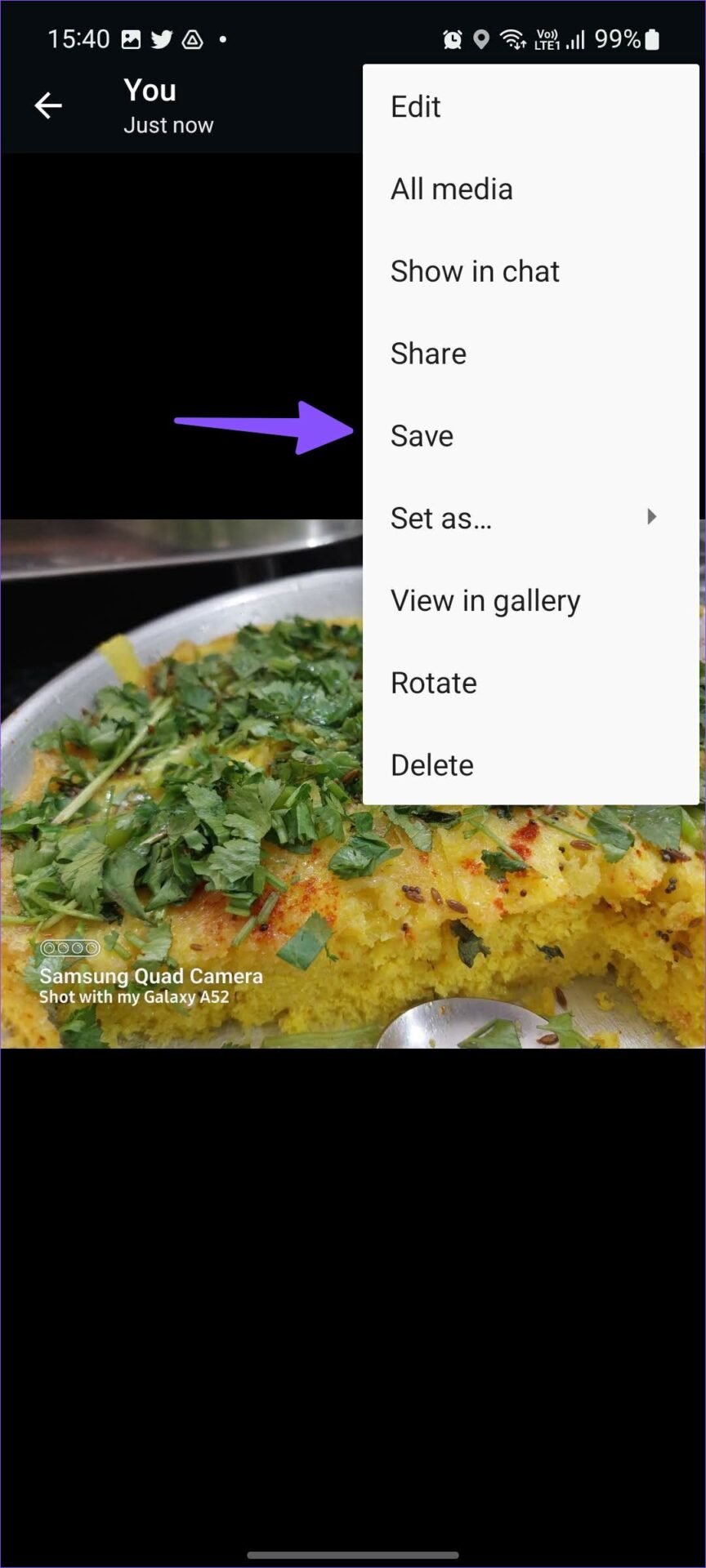
Now, check your phone’s storage to locate the WhatsApp folder. Once you find the image, compare the image size to check if it’s been compressed.
Method 4: Downsize Pictures on Android Using Telegram
Like WhatsApp, Telegram comes with a default Saved Messages group to chat with yourself. If you prefer Telegram over WhatsApp, use the steps below to compress images in no time.
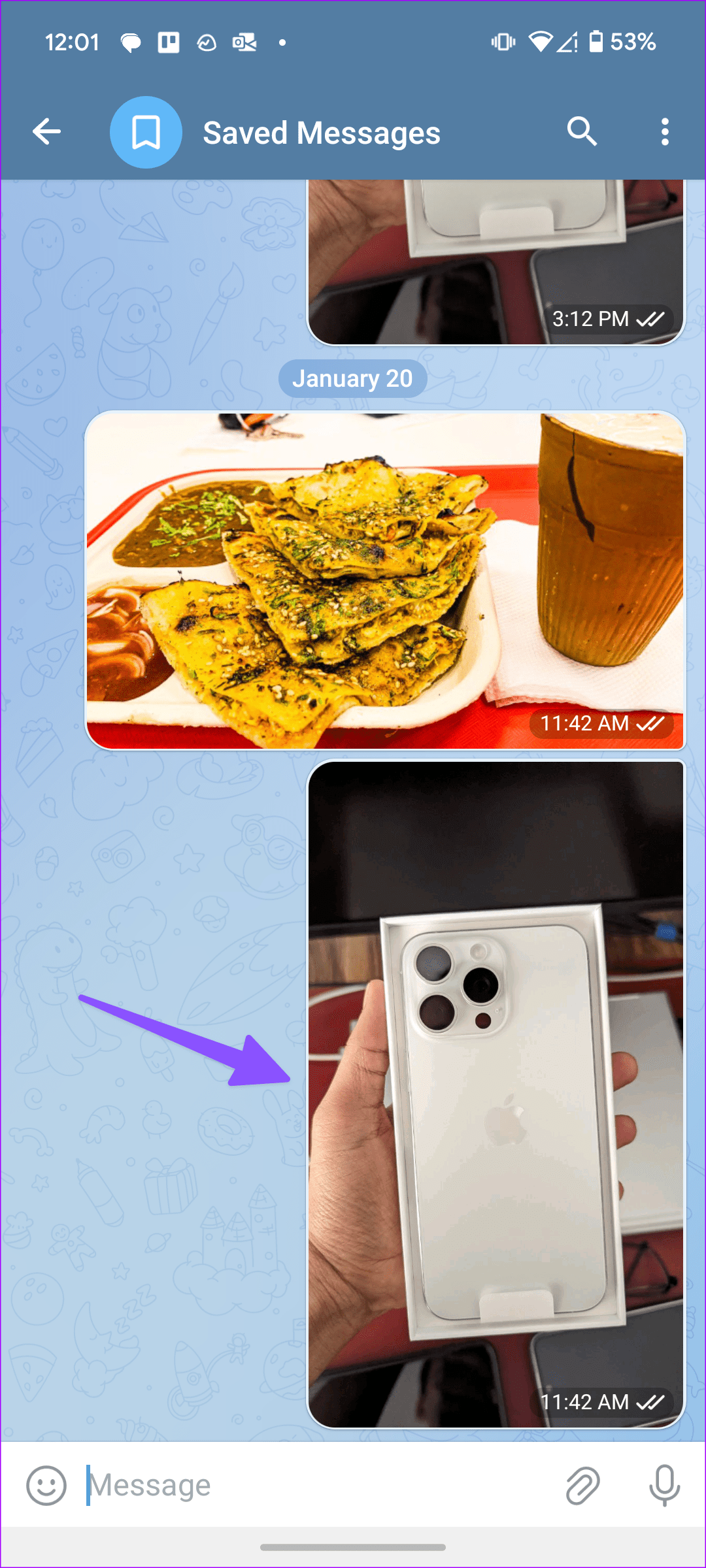
Step 1: Open the Saved Messages conversation in Telegram.
Step 2: Tap the pin icon and select images. Hit the send icon.
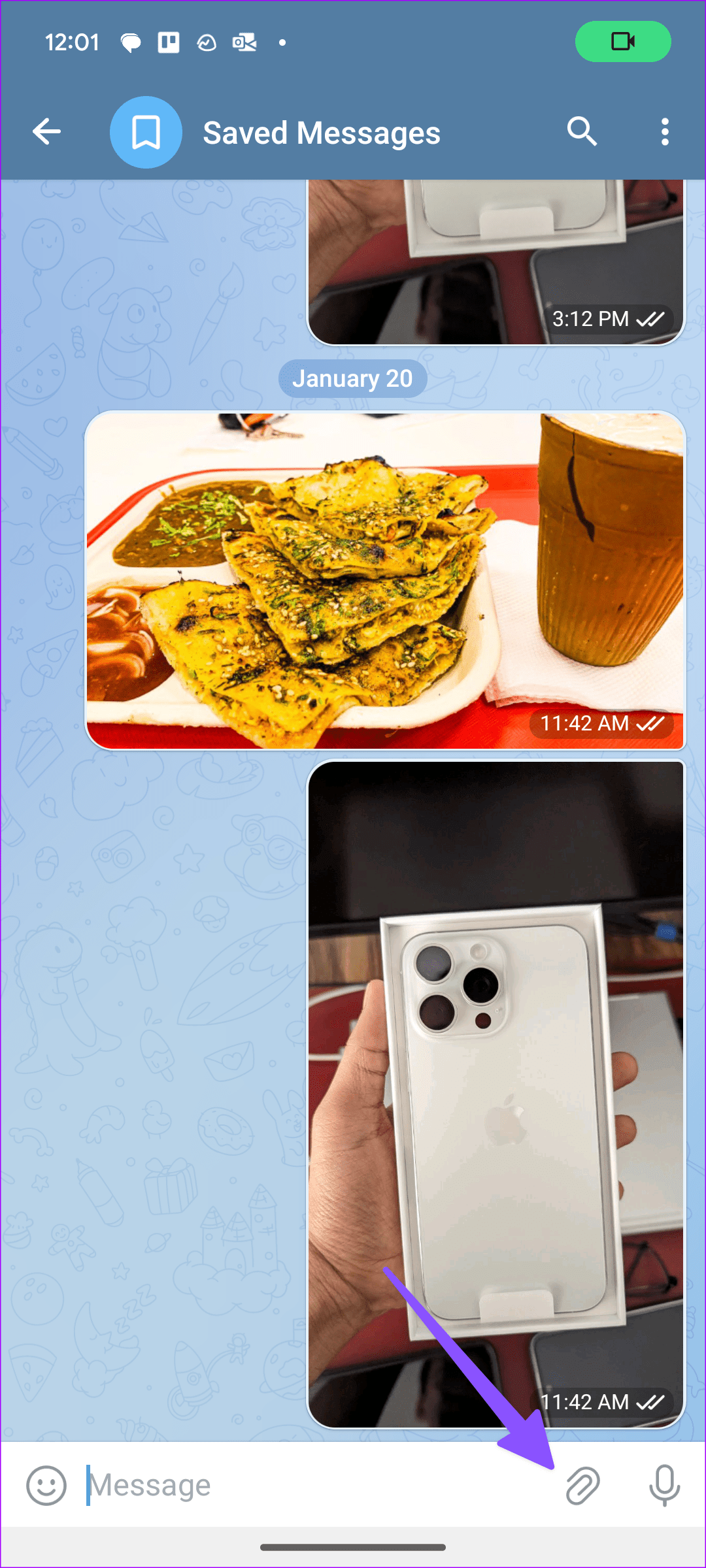

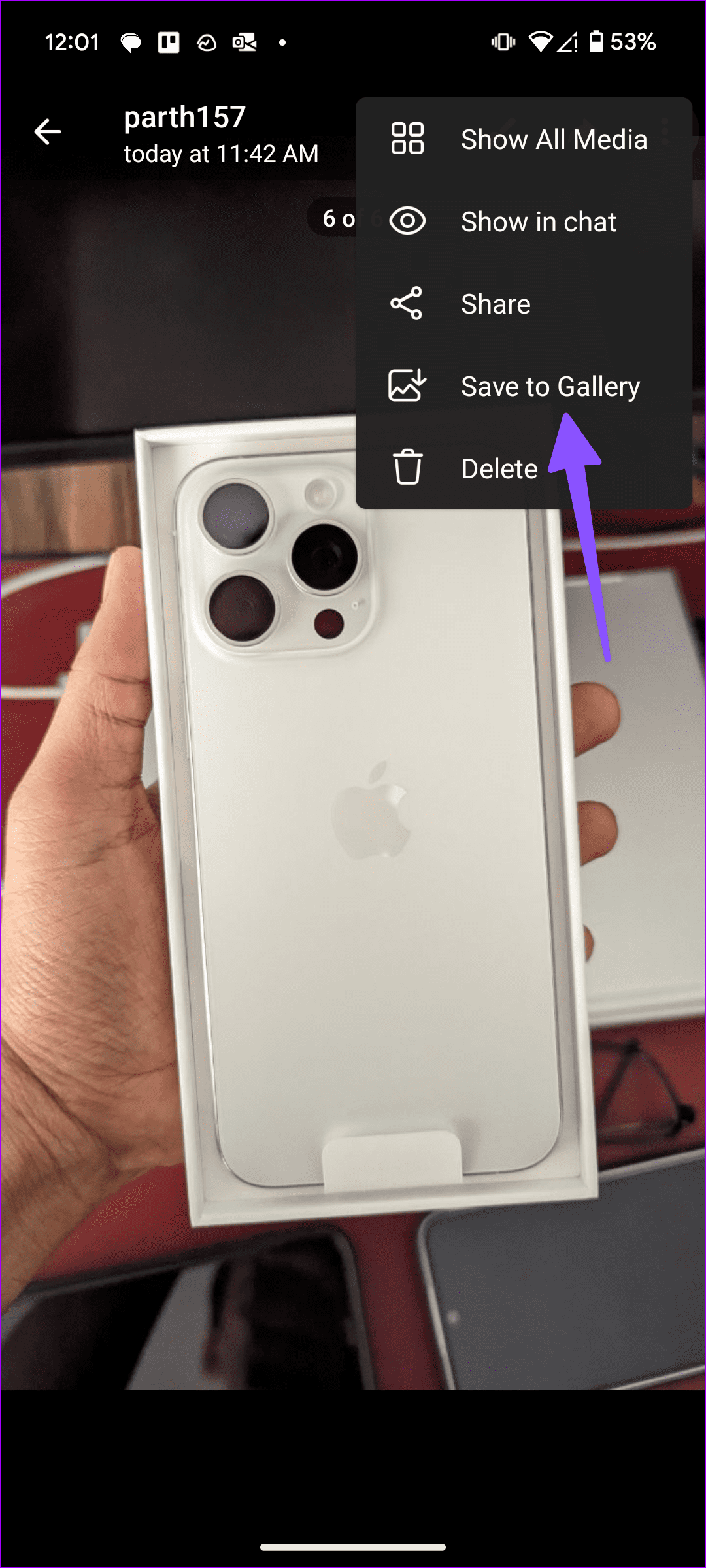
Step 3: Open the image. Tap the three-dot menu at the top and hit Save to Gallery.
Also Read: How to find Telegram downloaded files on Android, iPhone, and Mac
Method 5: Via the Image Compressor App
Image Compressor is another effective third-party app you can use to compress several images at once. So, download and open the Image Compressor app on your Android phone and follow the below steps to use it.
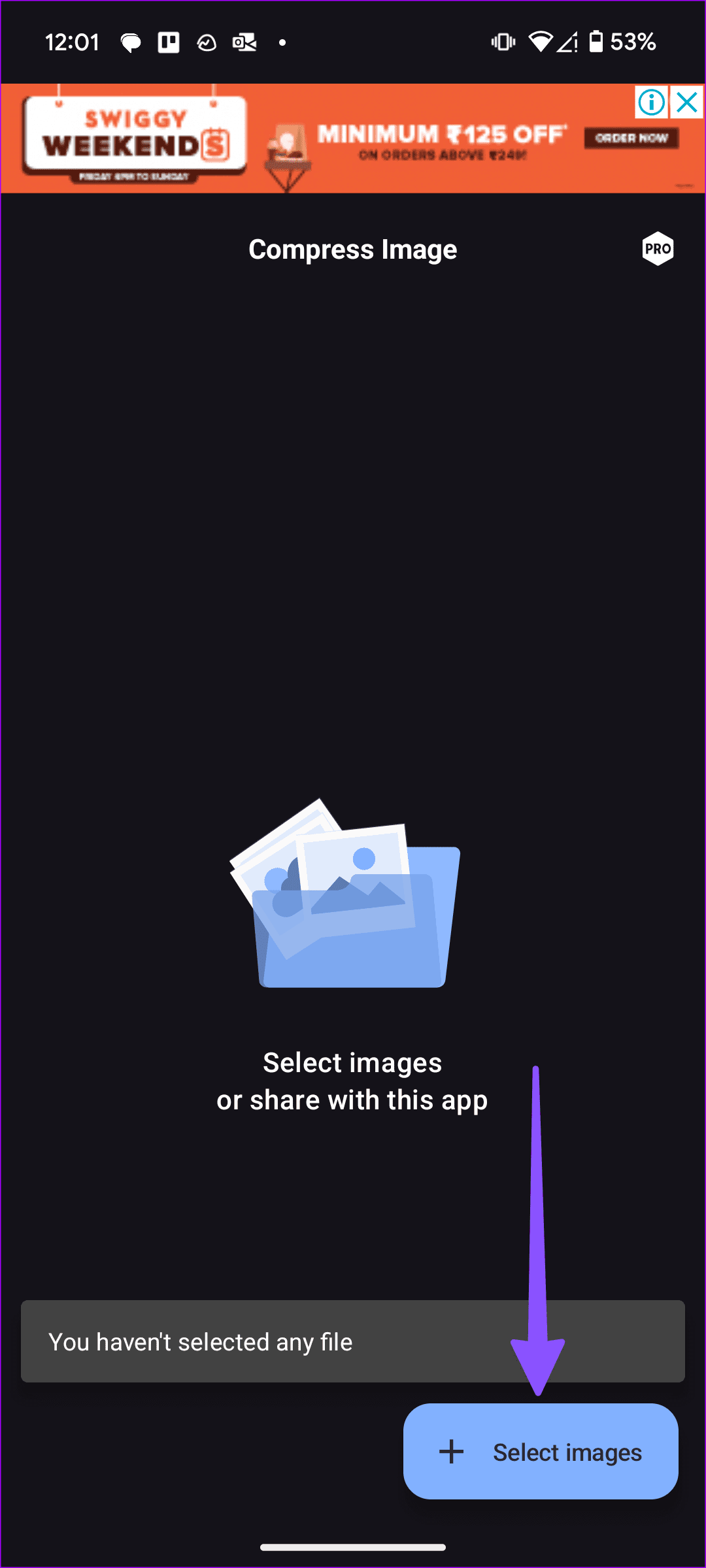
Step 1: Tap Select images. Once the file picker menu opens, long-press the images to select them.
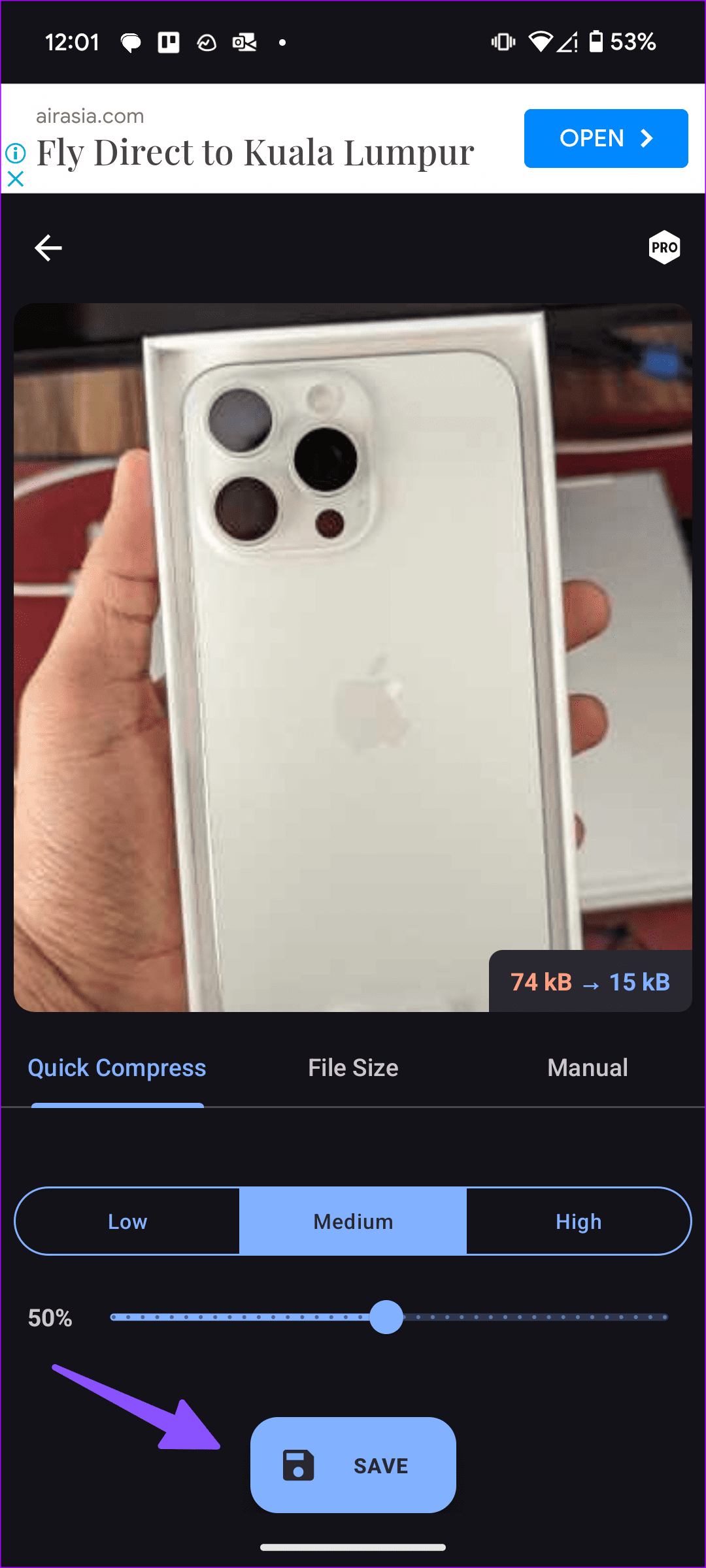
Step 2: Use the slider or templates to compress image size. You can also manually resize the image.
Step 3: Check the final image size at the top and hit Save. This will save the compressed image.
Also Read: How to reduce video size on Android
Method 6: Use Online Image Size Reducer Tools
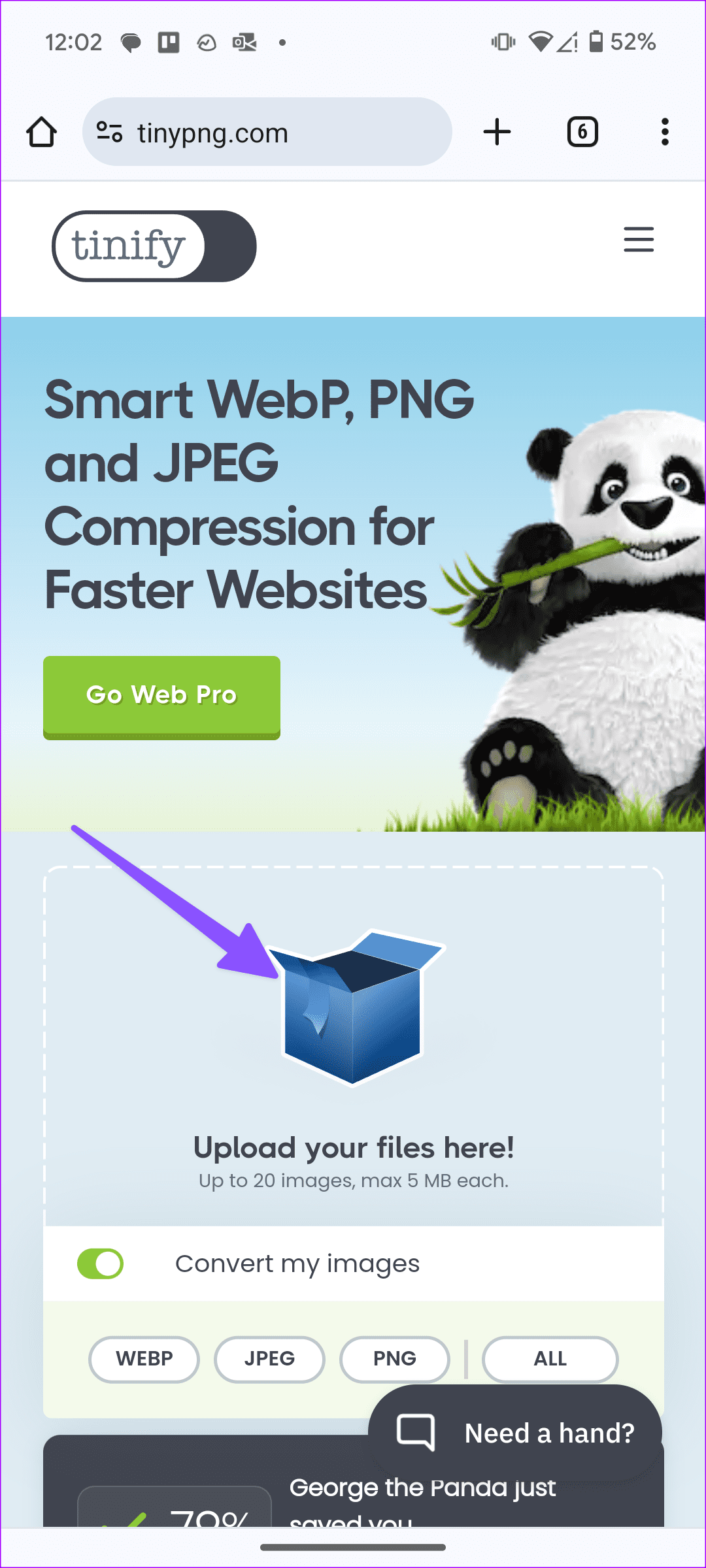
If you don’t want to use third-party apps, go with web tools to compress high-resolution pictures. TinyPNG is one such web solution to reduce image size on Android. Here’s how to use it.
Step 1: Open TinyPNG on any web browser. Tap Upload your files here.
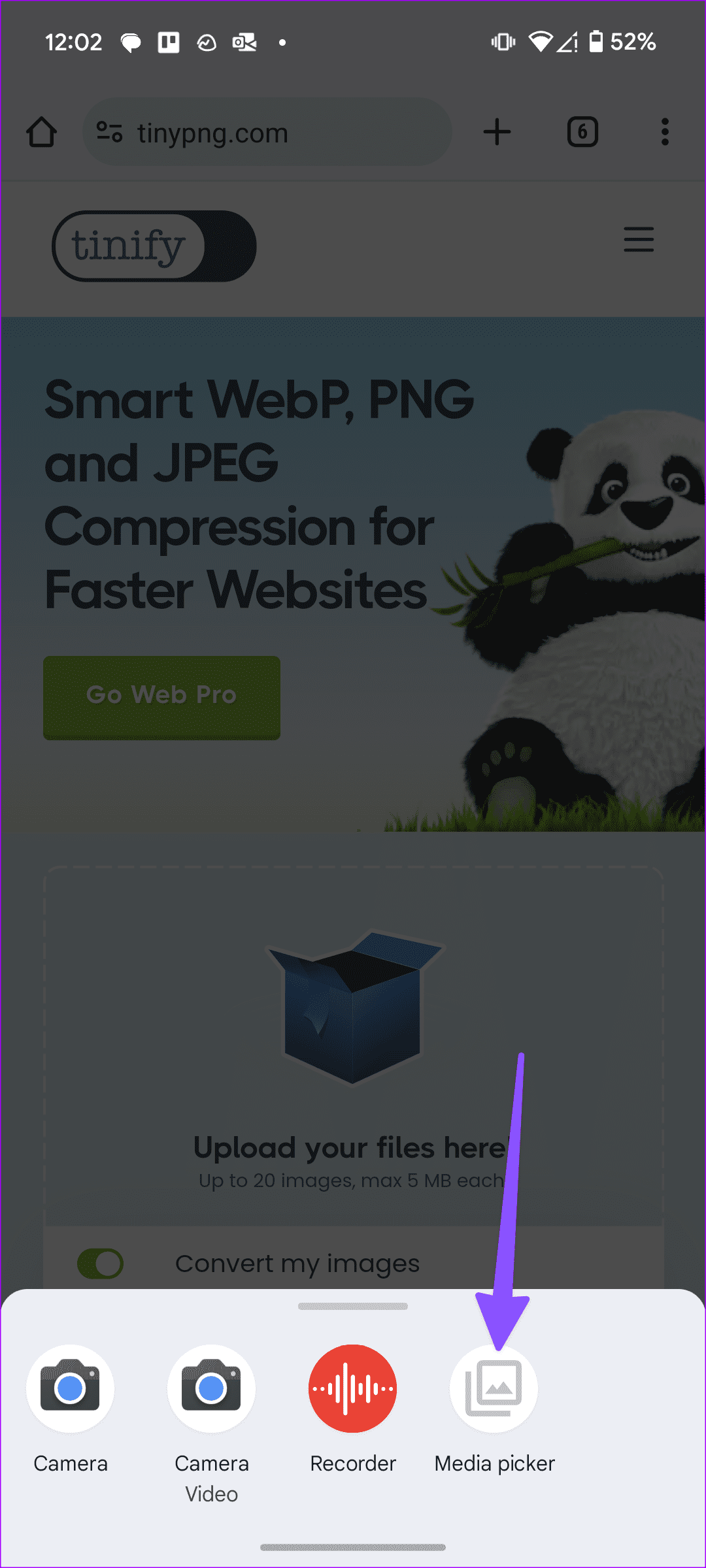
Step 2: Open the media library. Select and upload the images to the web.
Step 3: Convert your image to the relevant format and tap on Download all.
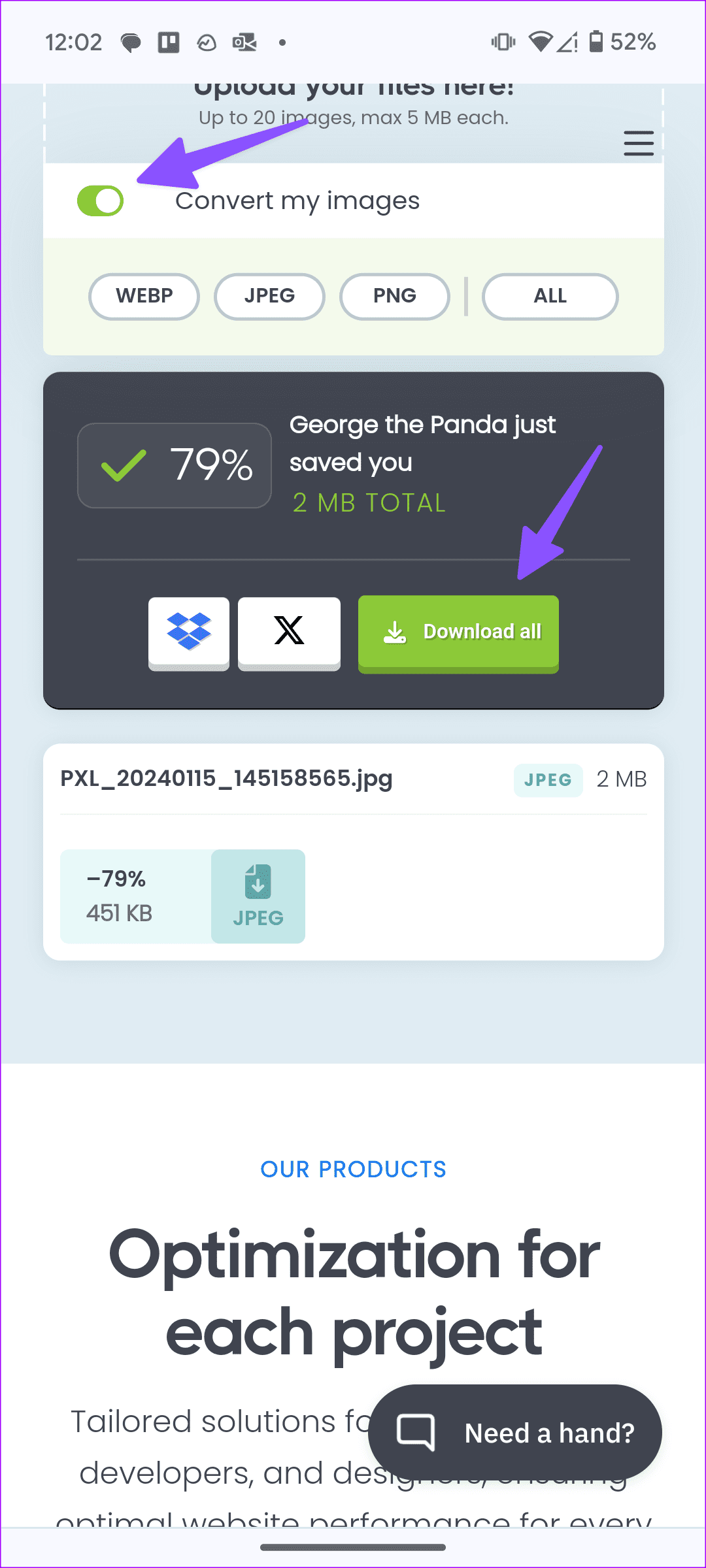
Once done, it will compress the selected images and download them onto your Android phone’s storage in the selected format.
Was this helpful?
Last updated on 11 July, 2024
Read Next
 5 Ways to Reduce Photo Size on Windows
Method 1: Using Microsoft Photos App The default Photos app on Windows has several editing features.
5 Ways to Reduce Photo Size on Windows
Method 1: Using Microsoft Photos App The default Photos app on Windows has several editing features.
 2 Ways to Reduce PDF File Size on Windows 11
Method 1: Using Adobe Acrobat Pro Adobe Acrobat is part of the Adobe Creative Suite.
2 Ways to Reduce PDF File Size on Windows 11
Method 1: Using Adobe Acrobat Pro Adobe Acrobat is part of the Adobe Creative Suite.
 3 Ways to Reduce Video Size on Android
Method 1: Use Google Photos to Compress Video Size When you select Storage Saver or Express, Google Photos compresses your videos to high- or standard-definition resolution.
3 Ways to Reduce Video Size on Android
Method 1: Use Google Photos to Compress Video Size When you select Storage Saver or Express, Google Photos compresses your videos to high- or standard-definition resolution.
 How to Add Photo Cutout Sticker to Another Photo on iPhone
Method 1: Using Markup Editor In this method, first, you need to add the sticker to the sticker gallery.
How to Add Photo Cutout Sticker to Another Photo on iPhone
Method 1: Using Markup Editor In this method, first, you need to add the sticker to the sticker gallery.
 4 Ways to Reduce Fire TV Stick Data Usage
Basic Ways Force close apps when not in use: Go to Settings > Applications > Manage Installed Apps > select the app you want to close > Force Stop.
4 Ways to Reduce Fire TV Stick Data Usage
Basic Ways Force close apps when not in use: Go to Settings > Applications > Manage Installed Apps > select the app you want to close > Force Stop.
 7 Ways to Reduce How Much Data Your Windows 10 PC Uses
https://youtu.be/RsUvBsjgi5k 1.
7 Ways to Reduce How Much Data Your Windows 10 PC Uses
https://youtu.be/RsUvBsjgi5k 1.
 4 Ways to Reduce Video Size on iPhone
Method 1: Reduce Size Using iMovie You can reduce the size of a video on the iPhone's built-in video editor, iMovie.
4 Ways to Reduce Video Size on iPhone
Method 1: Reduce Size Using iMovie You can reduce the size of a video on the iPhone's built-in video editor, iMovie.
 6 Ways to Reduce Microsoft Teams Memory Usage in Windows 10 or 11
Fix 1: Disable GPU Hardware Acceleration in Teams GPU hardware acceleration is enabled by default in Microsoft Teams for smooth performance.
6 Ways to Reduce Microsoft Teams Memory Usage in Windows 10 or 11
Fix 1: Disable GPU Hardware Acceleration in Teams GPU hardware acceleration is enabled by default in Microsoft Teams for smooth performance.
The article above may contain affiliate links which help support Guiding Tech. The content remains unbiased and authentic and will never affect our editorial integrity.