Basic Fixes
- Check your network connection: Ensure your phone has a robust internet connection. I recommend an internet speed of at least 5 Mbps to download and play WhatsApp videos without errors.
- Check WhatsApp server status: Visit Downdetector to check an active WhatsApp server outage.
- Enable and disable the Airplane Mode: Swipe down from the top-right corner of your iPhone to open the Control Centre, and tap the Airplane Mode toggle to enable it. Wait a few seconds and tap again to turn it off. Repeat the step on Android to enable and disable the Airplane Mode from the notification panel.
- Inspect your device storage: Ensure your phone has ample space to download WhatsApp videos.
- Download the entire video: WhatsApp doesn’t play incomplete video downloads. Ensure that you download the entire video before playing it.
- Update WhatsApp: Open the Apple App Store or Google Play Store, search WhatsApp, and tap Update (if available).
- Update the system software: An existing system glitch may prevent WhatsApp from playing videos. Update your iPhone or Android phone to the latest version to fix the video playback issues.
Fix 1: Save the WhatsApp Video Manually
If WhatsApp’s default video player is broken or corrupt, save the video on your phone and use the built-in video player in the Photos/Gallery app to play it.
iPhone
Step 1: Open WhatsApp and select your desired chat containing the video.
Step 2: Long-tap the video and select Save. Once saved, open the Photos app and try playing your WhatsApp video.


Android
Step 1: Go to your desired conversation in WhatsApp and tap a received video to download it.
Step 2: Select the video, tap its three-dot menu at the top right, and pick Save. Head to the Gallery/Google Photos app to locate and play it.


Fix 2: Enable Auto-Save in WhatsApp
Saving each video manually in WhatsApp can be tedious. Instead, you can enable the auto-save feature in WhatsApp to automatically download and save videos on your phone.
Note: Enabling the auto-save feature may open floodgates for all the irrelevant media files you receive on WhatsApp.
iPhone
Step 1: Open WhatsApp, tap Settings at the bottom right, and select Storage and data.
Step 2: Select Video under ‘Media auto-download‘ and enable ‘Wi-Fi and cellular‘. WhatsApp now auto-downloads all incoming video files.


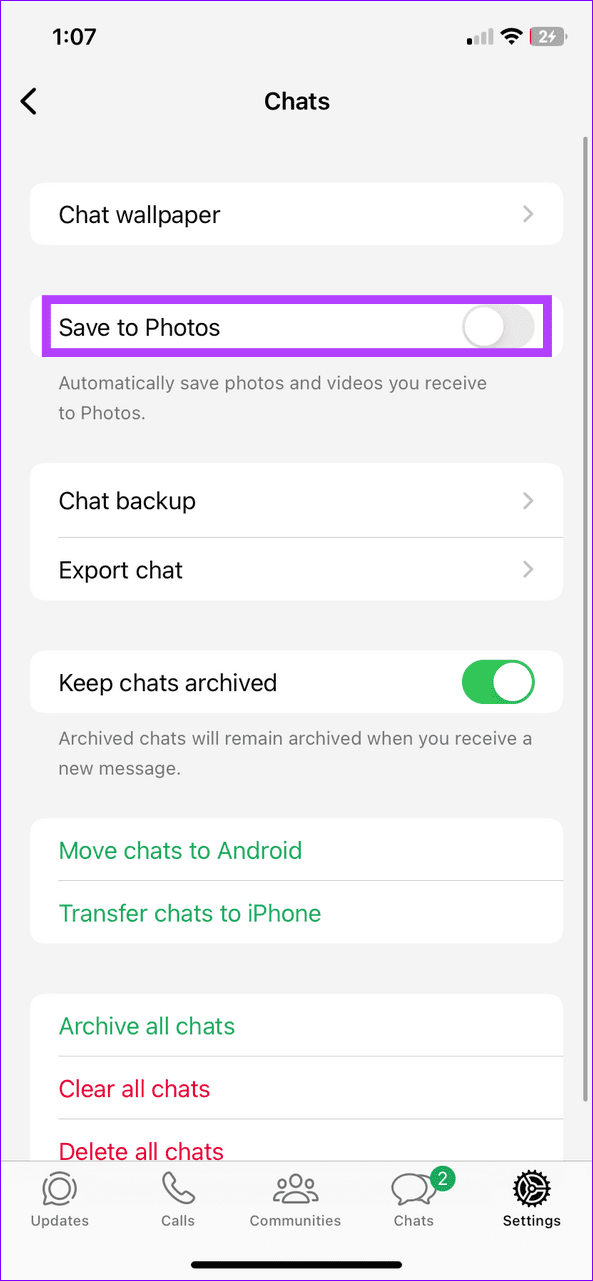
Step 3: Go back to Settings, select Chats, and toggle on ‘Save to Photos‘. This saves all downloaded videos to the Photos app.

Android
Step 1: Launch WhatsApp, tap its three-dot menu at the top right, and select Settings > Storage and data.

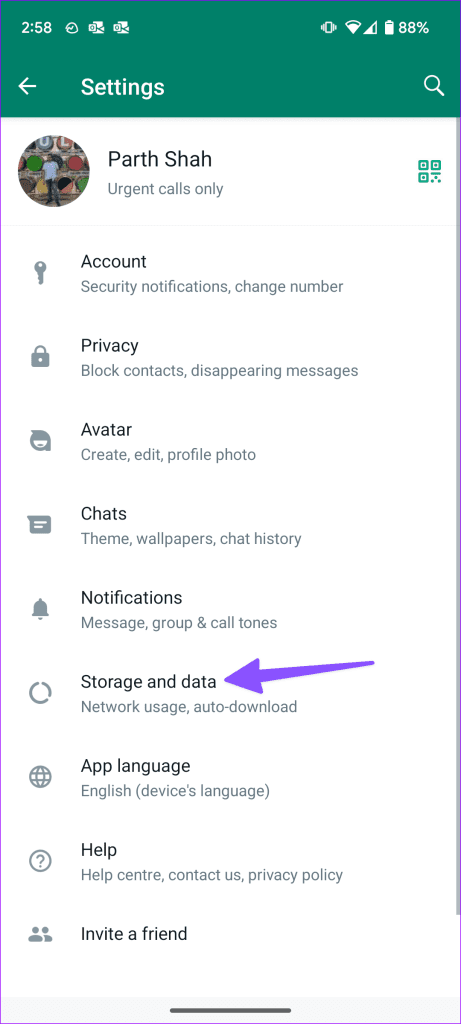
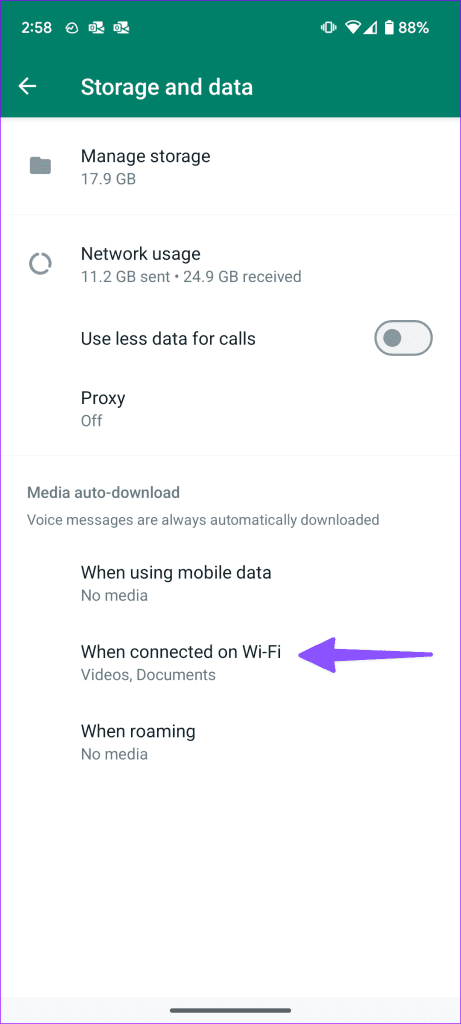
Step 2: Tap ‘When connected on Wi-Fi‘ under Media auto-download and enable Videos. Repeat the same for ‘When using mobile data‘ and ‘When roaming‘.

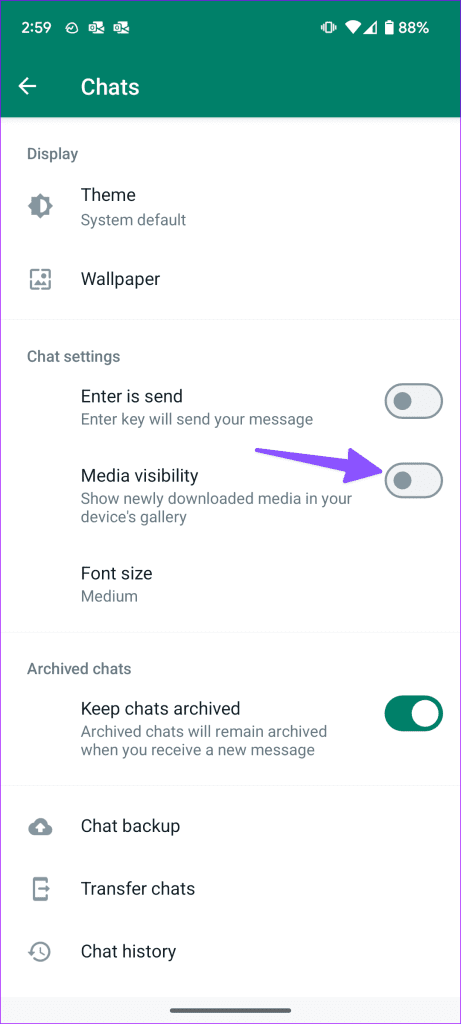
Step 3: Head back to Settings, select Chats, and toggle on Media visibility to view downloaded videos in your phone’s Gallery app.

Fix 3: Clear the WhatsApp Cache (Android)
A corrupt cache can malfunction WhatsApp on your Android phone, preventing it from playing videos. Clear it manually and retry playing the downloaded video.
Step 1: Long-tap the WhatsApp app icon and tap ‘i‘ to open its App info.
Step 2: Select Storage and cache, and tap Clear cache.


Fix 4: Use VLC Media Player to Play Incompatible Video Formats
If the built-in WhatsApp media player or your device’s default video player app can’t play a downloaded video, use the VLC player app to play unsupported video formats.
Step 1: Install the VLC media player from the Google Play Store or Apple App Store.
Step 2: Open the WhatsApp chat, select the received video file, and open it with VLC.
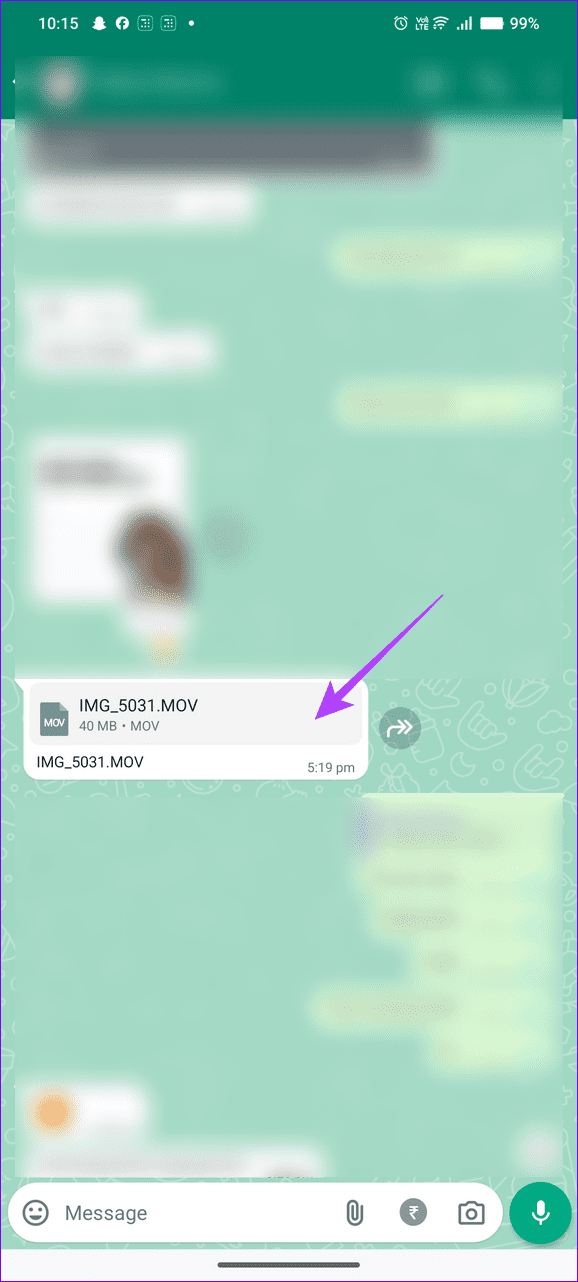

Step 3: Tap OK and provide the necessary file access permission to play it (if prompted).


Old WhatsApp Videos Not Playing? Causes and Fixes
Are you struggling to play an old WhatsApp video but it only previews as a thumbnail in your chat? This occurs when the video isn’t included in your WhatsApp backup, resulting in its permanent loss.
You can request the sender to resend the video and ensure that videos are included in your WhatsApp backups to avoid this issue in the future. Follow these easy steps to include videos in your WhatsApp backups.
Note: Including videos in your WhatsApp chat backup bumps its size significantly, consuming more storage on your Google account/iCloud.
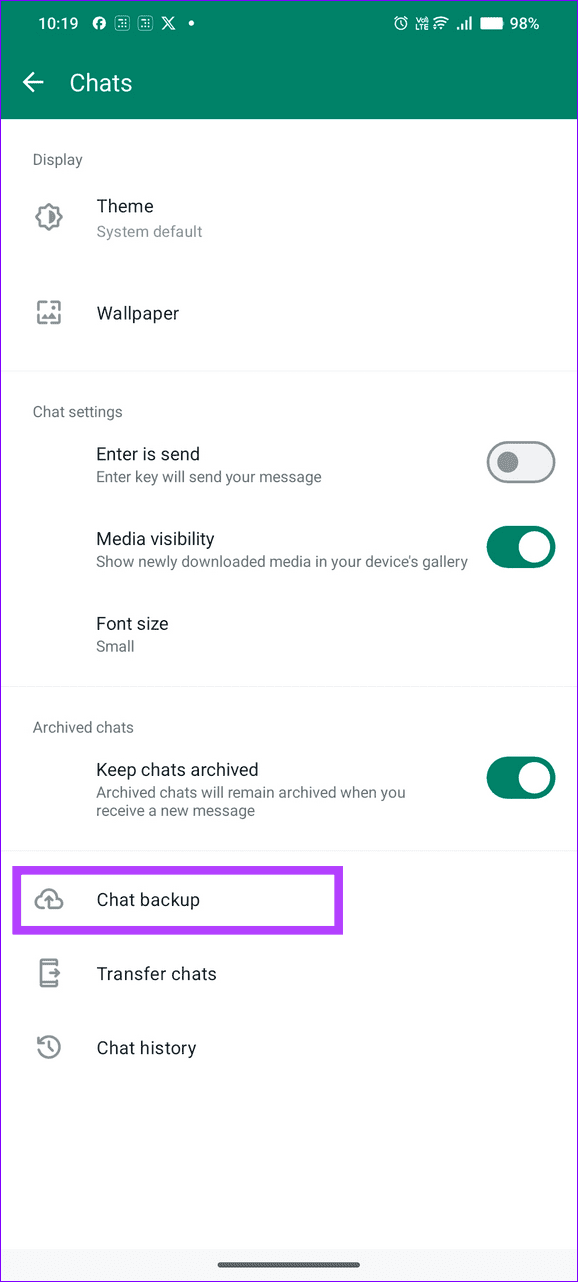
Step 1: Tap the three-dot menu at the top right corner of WhatsApp and select Settings > Chats.


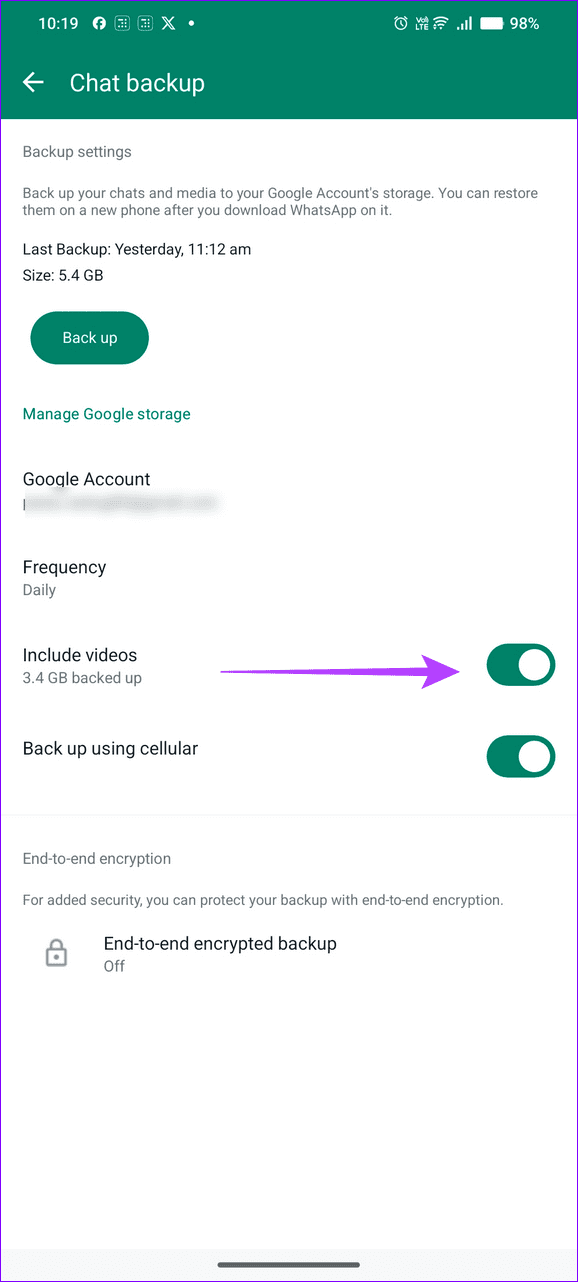
Step 2: Select Chat backup and toggle on Include videos to make them part of your WhatsApp backups.
Was this helpful?
Last updated on 22 August, 2024
Read Next
 4 Ways to Fix Telegram Videos Not Playing on Android
https://youtu.be/vJeVqA9FFzA Method 1: Make Sure to Download the Full Video Step 1: Open Telegram on Android and go to the Telegram group or channel.
4 Ways to Fix Telegram Videos Not Playing on Android
https://youtu.be/vJeVqA9FFzA Method 1: Make Sure to Download the Full Video Step 1: Open Telegram on Android and go to the Telegram group or channel.
 3 Ways to Fix Videos Not Playing in iPhone Photos App
Basic Fixes: Cool down your phone: Your iPhone might get warm during graphics-intensive gaming, video streaming, or video recording.
3 Ways to Fix Videos Not Playing in iPhone Photos App
Basic Fixes: Cool down your phone: Your iPhone might get warm during graphics-intensive gaming, video streaming, or video recording.
 5 Ways to Fix Safari Not Playing Videos on iPhone
Fix 1: Disable Extensions Using third-party extensions in Safari can occasionally interfere with its video playback functionality.
5 Ways to Fix Safari Not Playing Videos on iPhone
Fix 1: Disable Extensions Using third-party extensions in Safari can occasionally interfere with its video playback functionality.
 3 Ways to Fix Snapchat Not Playing Videos on Android and iPhone
Try Basic Fixes Check if Snapchat is down: At times, server congestion or other related issues can impact Snapchat’s performance and trigger various errors.
3 Ways to Fix Snapchat Not Playing Videos on Android and iPhone
Try Basic Fixes Check if Snapchat is down: At times, server congestion or other related issues can impact Snapchat’s performance and trigger various errors.
 4 Ways to Fix iPad Not Playing or Streaming Videos
Fix 1: Resolve App-Specific Problems Check app server status: Issues with the backend can affect app functions.
4 Ways to Fix iPad Not Playing or Streaming Videos
Fix 1: Resolve App-Specific Problems Check app server status: Issues with the backend can affect app functions.
 Top 5 Ways to Fix Google Photos Not Playing Videos
Basic Fixes Check Network Connection: If you're trying to stream content backed up to the cloud, then you’ll need to use high-speed internet to sync and stream it.
Top 5 Ways to Fix Google Photos Not Playing Videos
Basic Fixes Check Network Connection: If you're trying to stream content backed up to the cloud, then you’ll need to use high-speed internet to sync and stream it.
 5 Fixes for X (Twitter) Videos Not Playing on iPhone and Android
Basic Fixes Check network connection: If there's a problem with your Wi-Fi or cellular connection, X may be unable to play the video.
5 Fixes for X (Twitter) Videos Not Playing on iPhone and Android
Basic Fixes Check network connection: If there's a problem with your Wi-Fi or cellular connection, X may be unable to play the video.
 5 Ways to Fix Videos Not Playing on Android TV
Common Fixes Restart the Android TV: Long-press the power button on your Android TV remote and select Restart in the pop-up menu.
5 Ways to Fix Videos Not Playing on Android TV
Common Fixes Restart the Android TV: Long-press the power button on your Android TV remote and select Restart in the pop-up menu.
The article above may contain affiliate links which help support Guiding Tech. The content remains unbiased and authentic and will never affect our editorial integrity.