


Try Basic Fixes
- Make sure your fingers are dry and clean: Capacitive and optical fingerprint scanners cannot read your fingers if they are wet or dirty. Wipe your fingers clean by patting them on a dry cloth or a tissue. After that, use them again to unlock your phone.
- Remove the screen protector and clean the fingerprint scanner surface: If your phone has an in-display fingerprint scanner, it’s best to remove any screen protector. It’s also essential for the fingerprint scanner to be free from any sort of dirt or grime. Take a microfiber cloth and rub it gently on the surface of the fingerprint scanner to clean it.
- Install Android updates: All hardware components on your phone, including the fingerprint scanner, are controlled by software. If something goes wrong with your phone’s software or if there are bugs, it can affect the fingerprint scanner’s performance. To avoid this, it’s best to install any pending updates on your Android phone.
Fix 1: Unregister and Re-Register Your Fingerprints
Though cumbersome, this is one of the straightforward ways to make the fingerprint scanner work. Registering your fingerprints again might help you bring your fingerprint scanner back to life. Here’s how you can do it.
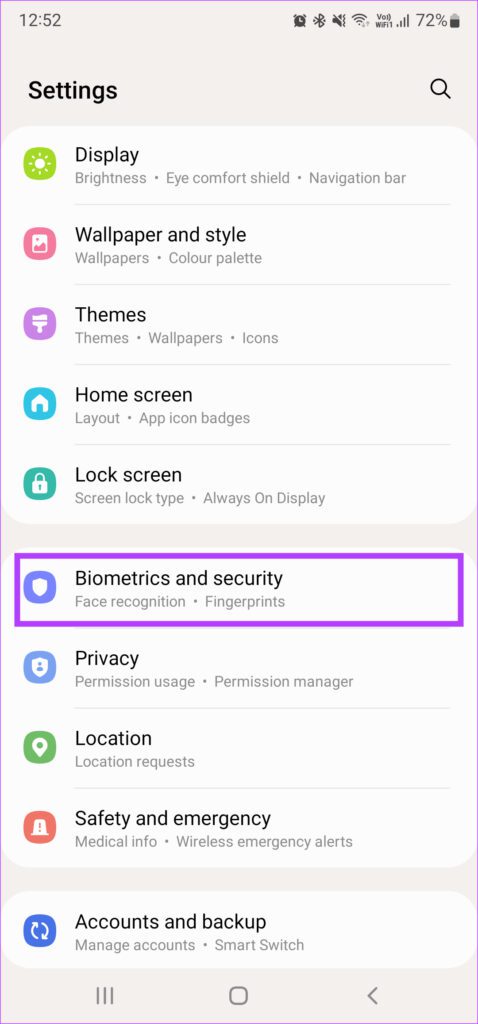
Step 1: Open the Settings app on your Android and select Biometrics and Security. This option name might be different on various Android phones.
Step 2: Tap on the Fingerprints option.
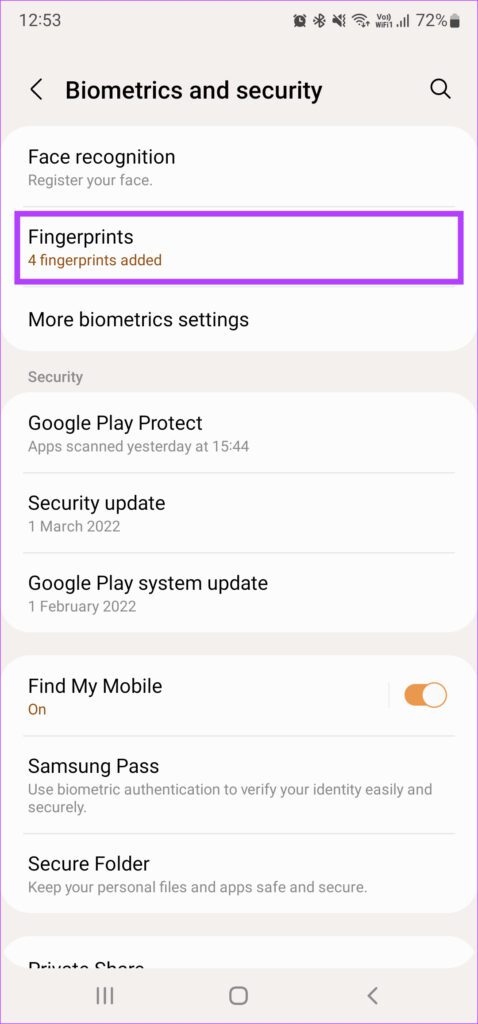
Step 3: Enter your PIN. You can now access your registered fingerprints.
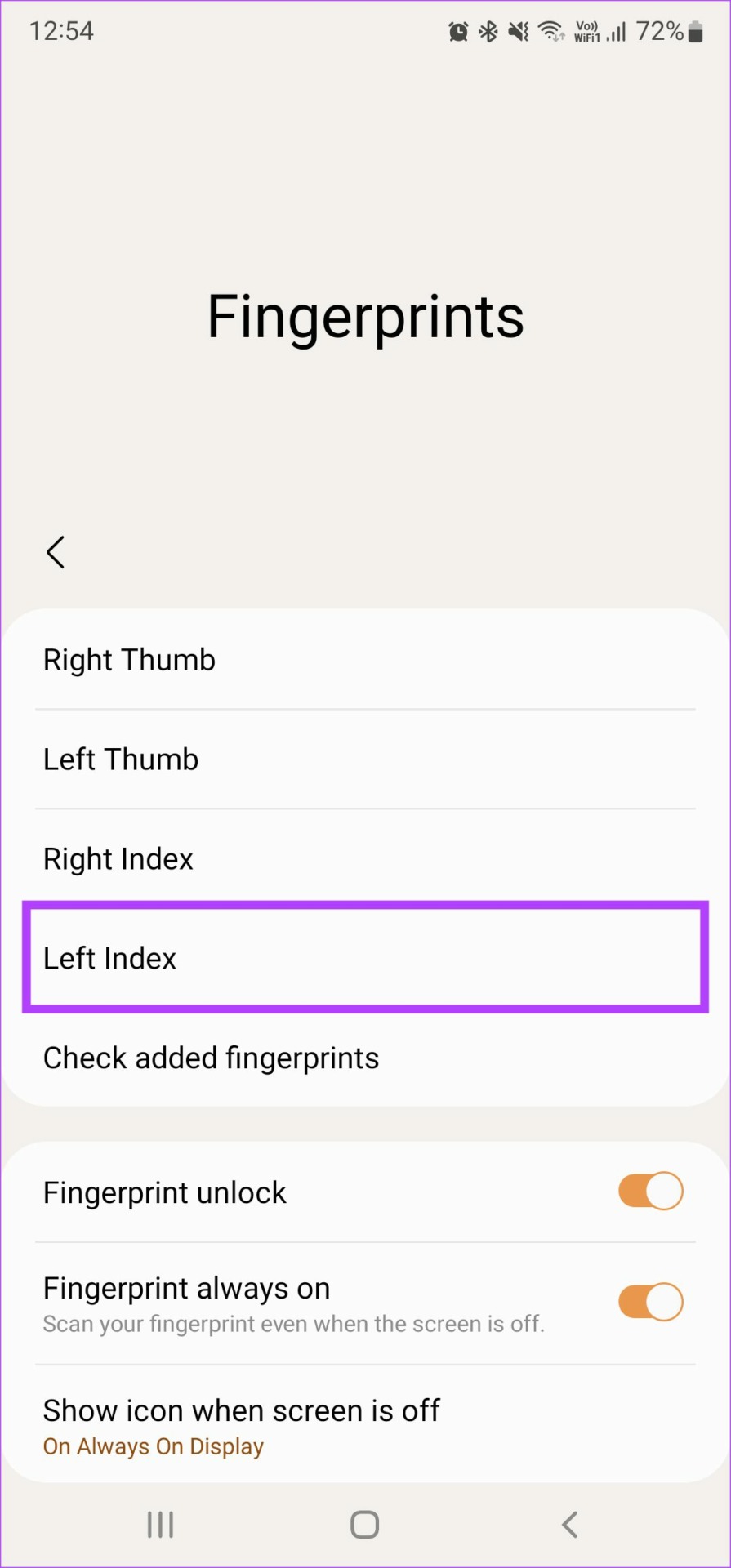
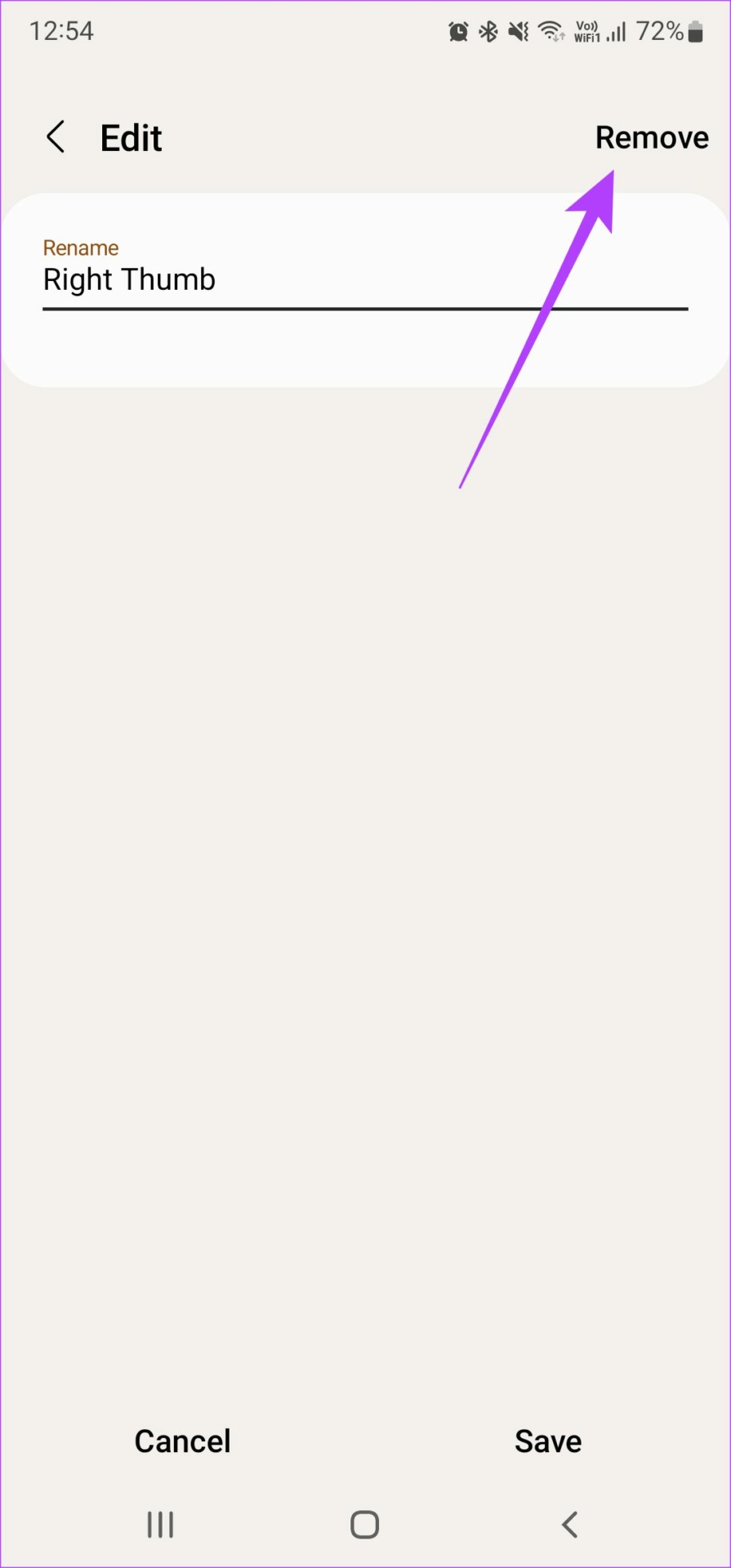
Step 4: Select a registered fingerprint and tap the Remove option. Repeat the process for all the registered fingerprints.
Step 5: Choose the Add fingerprint option and register all your fingerprints one at a time.

Some Android phones have a fingerprint scanner that’s not very fast or accurate. If that’s the case with your phone too, you can try adding the same fingerprint twice to improve the accuracy.
Fix 2: Enable Increased Touch Sensitivity for In-Display Fingerprint Scanners
If you want to continue using a screen protector on your phone, try increasing the display’s touch sensitivity to get the in-display fingerprint scanner to work. Unfortunately, this option isn’t present on all Android phones. You will find it mostly on Samsung and Google Pixel phones. Check the Display settings on your device to see if there’s a similar option available.
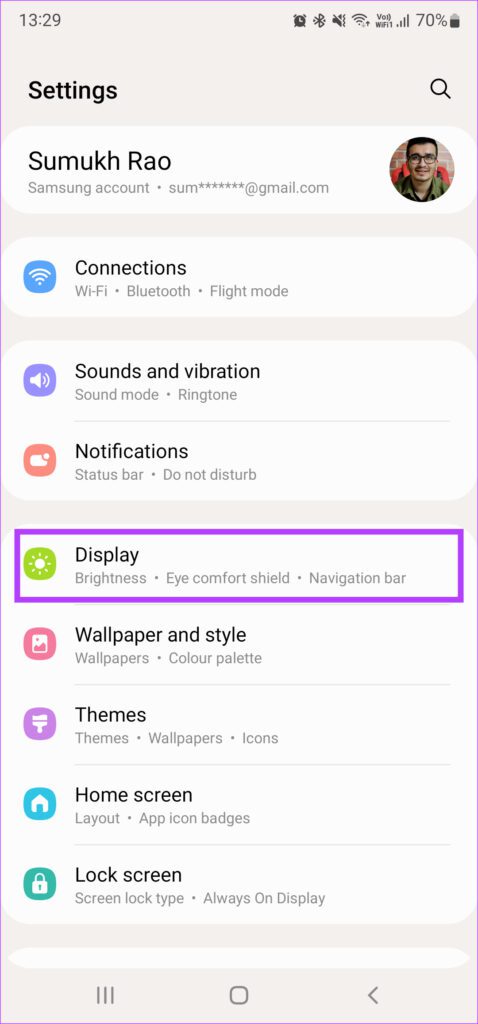
Step 1: Open the Settings app on your Android phone and navigate to the Display section.
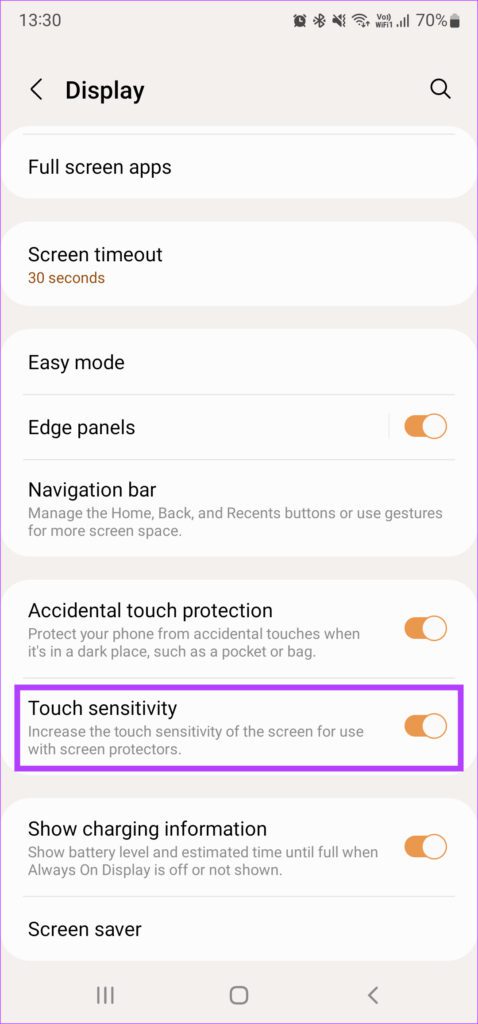
Step 2: Scroll down and find the Touch Sensitivity option. Enable the toggle next to it.
Fix 3: Turn Off Face Unlock
Most phones nowadays come with both fingerprint scanning and face unlock for unlocking. Depending on your preference, you may have enabled face unlock as well for convenience. In such a case, your fingerprint scanner may not work as expected.
Try turning off face unlock and only enable fingerprint scanning. This should allow you to use your fingerprint scanner every time you want to unlock your phone.
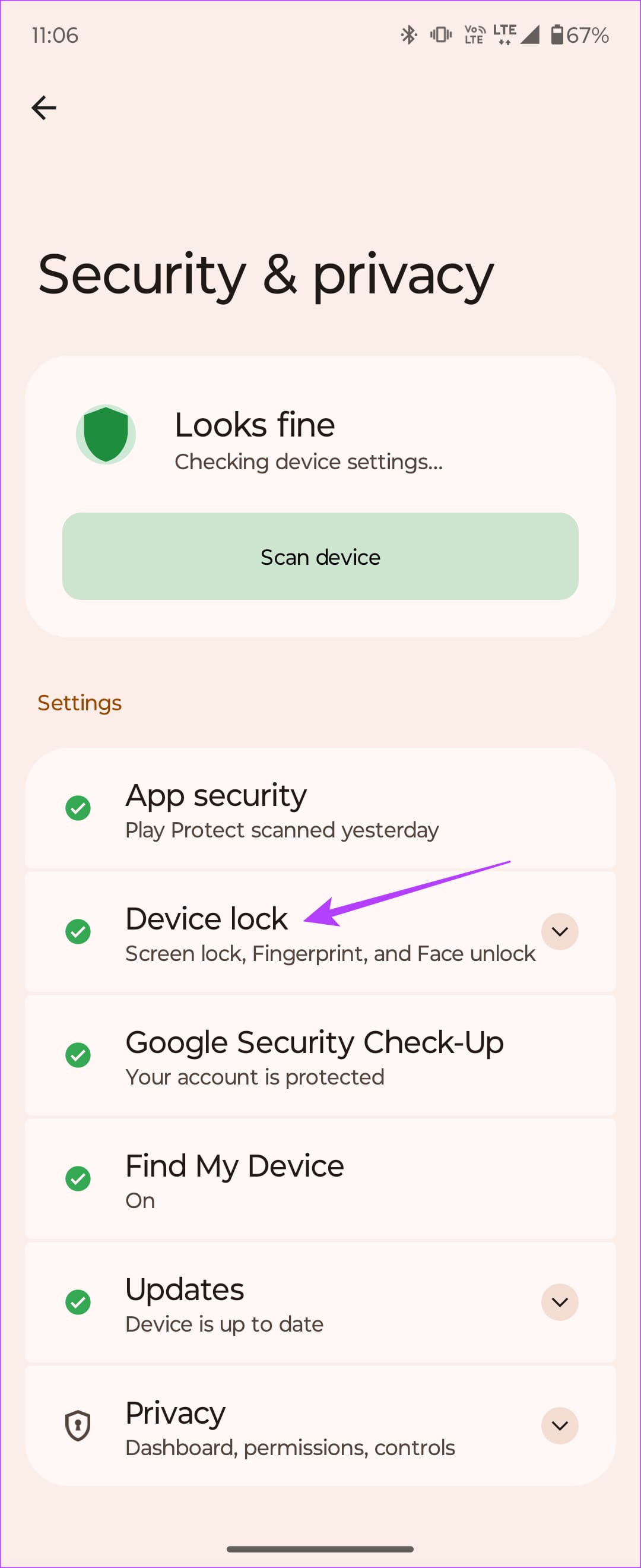
Step 1: Open the Settings app and navigate to Security & privacy. Then, tap on Device lock.

Step 2: Select the Screen lock setting. Ensure Face unlock isn’t enabled. If it is, delete the registered face.


Fix 4: Factory Reset Your Phone
If none of these solutions work, resetting your phone to factory settings is your last resort. Take a complete backup of your Android phone before proceeding, as this will erase all the data.
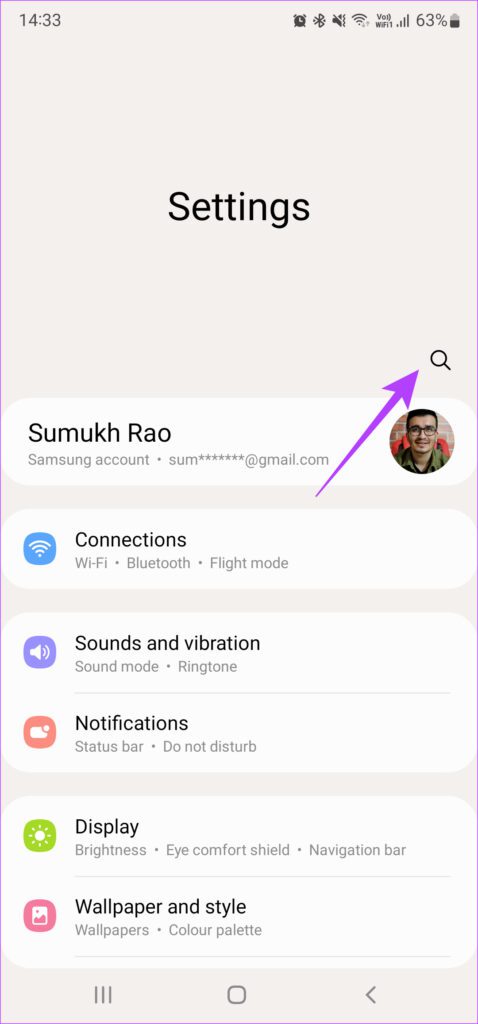
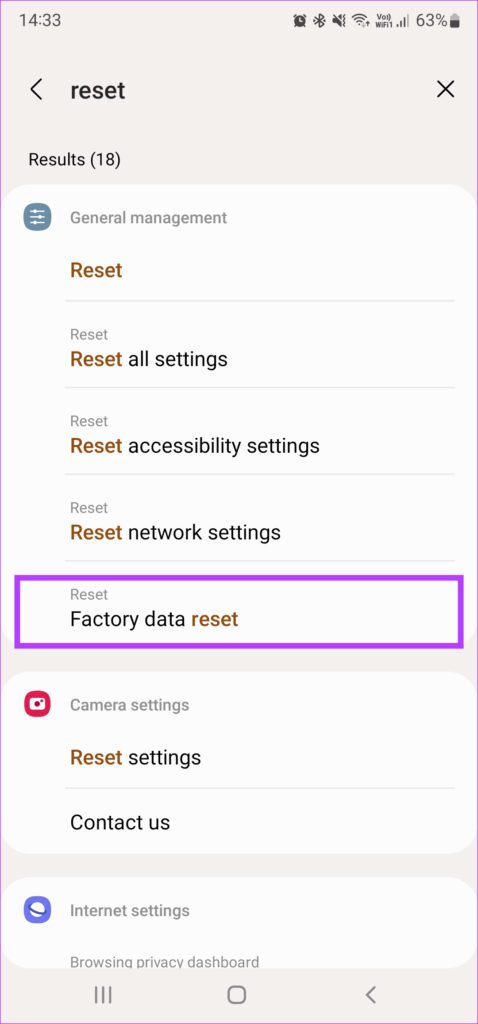
Step 1: Open the Settings app, tap the search icon, and type reset.
Step 2: Select Factory data reset from the results.
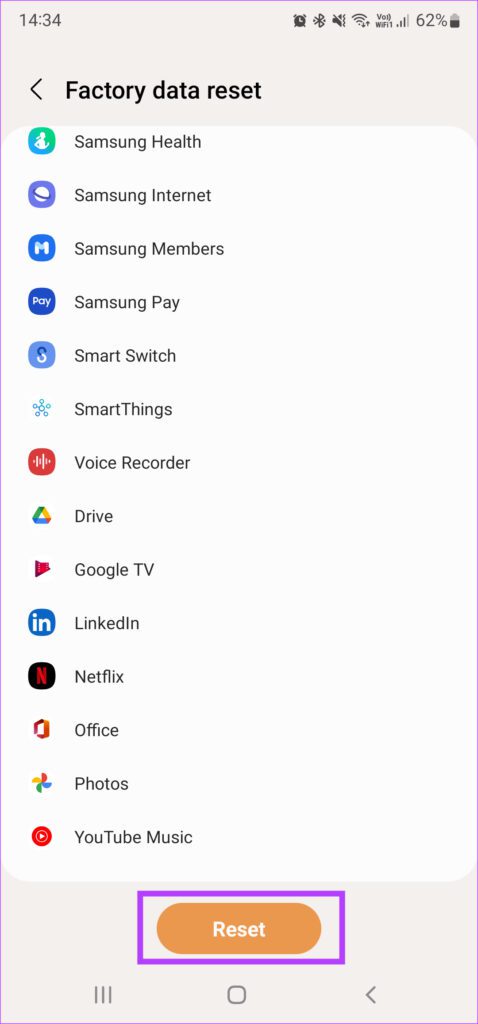
Step 3: Tap on Reset to begin the process. When prompted, enter the PIN or password to let your phone commence the process.
Was this helpful?
Last updated on 03 September, 2024
2 Comments
Leave a Reply
Read Next
 Top 8 Ways to Fix Proximity Sensor Not Working During Calls on Android
There are several components that contribute to the basic functioning of a smartphone.
Top 8 Ways to Fix Proximity Sensor Not Working During Calls on Android
There are several components that contribute to the basic functioning of a smartphone.
 6 Ways to Fix Windows Hello Fingerprint Option Unavailable or Not Working
Basic Fixes Restart PC: Restart your PC to fix any temporary bugs and glitches.
6 Ways to Fix Windows Hello Fingerprint Option Unavailable or Not Working
Basic Fixes Restart PC: Restart your PC to fix any temporary bugs and glitches.
 6 Best Motion Sensor Lights for Closets
Imagine a scene where you open your closet door, and the closet magically lights up to reveal everything.
6 Best Motion Sensor Lights for Closets
Imagine a scene where you open your closet door, and the closet magically lights up to reveal everything.
 How to Lock WhatsApp With Face ID or Fingerprint on iPhone and Android
How to Lock WhatsApp on Android Step 1: Launch WhatsApp on your Android phone.
How to Lock WhatsApp With Face ID or Fingerprint on iPhone and Android
How to Lock WhatsApp on Android Step 1: Launch WhatsApp on your Android phone.
 5 Best Windows Hello USB Fingerprint Readers for Your PC
A Windows Hello USB fingerprint reader can make the mundane task of logging in to your Windows PC an easy and convenient affair.
5 Best Windows Hello USB Fingerprint Readers for Your PC
A Windows Hello USB fingerprint reader can make the mundane task of logging in to your Windows PC an easy and convenient affair.
 5 Ways to Fix Alarm Not Working on Android Phones
Basic Fixes: Restart your phone: Restarting your phone can help remove any temporary bugs or glitches that can cause your Android phone's alarm not to ring.
5 Ways to Fix Alarm Not Working on Android Phones
Basic Fixes: Restart your phone: Restarting your phone can help remove any temporary bugs or glitches that can cause your Android phone's alarm not to ring.
 5 Ways to Fix Samsung Keyboard Not Working on Galaxy Phones
Fix 1: Update the Samsung Keyboard App Running an outdated version of the Samsung Keyboard app can cause it to malfunction and stop working on your phone.
5 Ways to Fix Samsung Keyboard Not Working on Galaxy Phones
Fix 1: Update the Samsung Keyboard App Running an outdated version of the Samsung Keyboard app can cause it to malfunction and stop working on your phone.
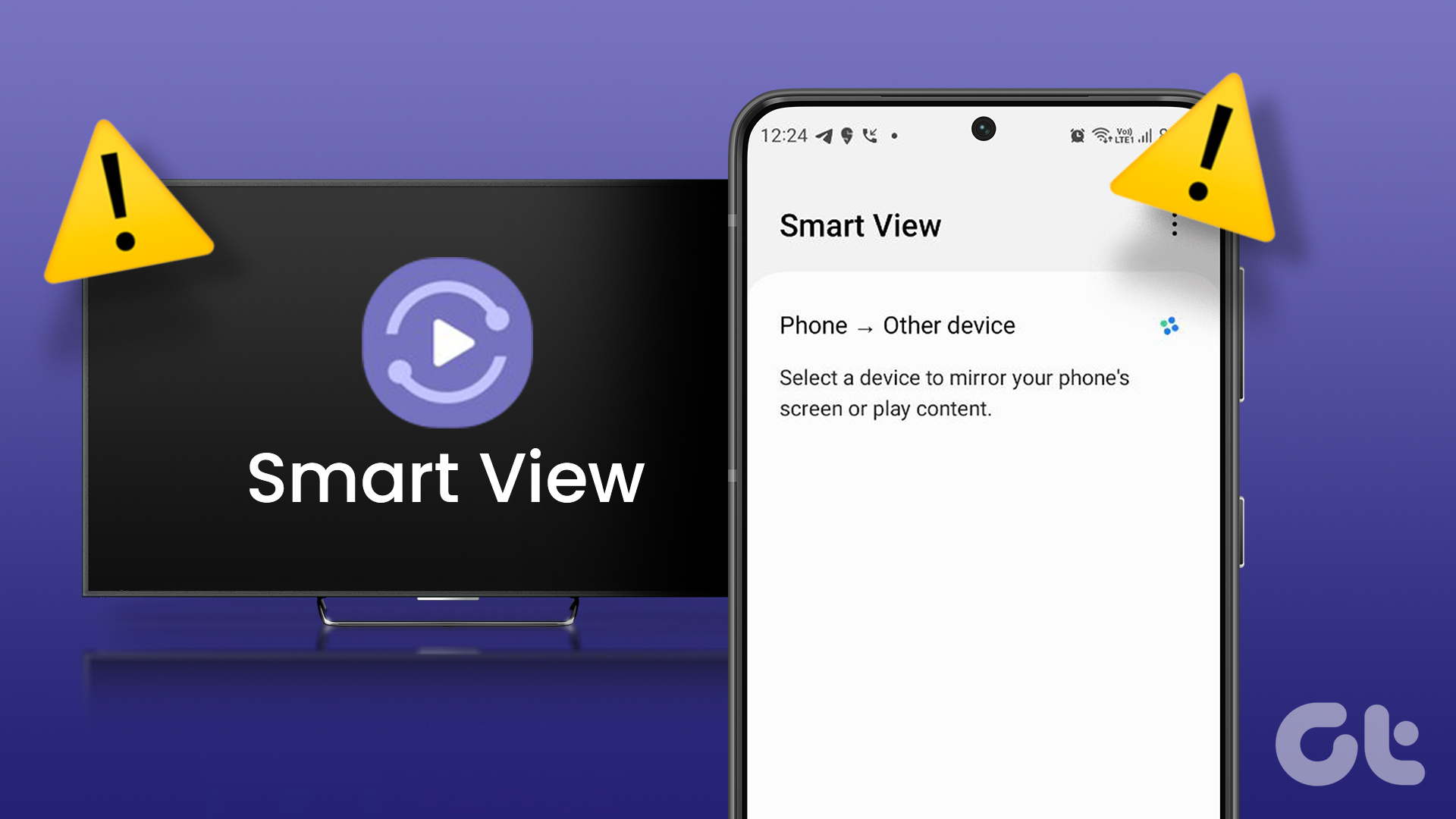 4 Best Ways to Fix Smart View Not Working on Samsung Galaxy Phones
Basic Fixes: Restart devices: If the Smart View feature isn’t working on your Samsung Galaxy phone, the first thing you must do is restart it.
4 Best Ways to Fix Smart View Not Working on Samsung Galaxy Phones
Basic Fixes: Restart devices: If the Smart View feature isn’t working on your Samsung Galaxy phone, the first thing you must do is restart it.
The article above may contain affiliate links which help support Guiding Tech. The content remains unbiased and authentic and will never affect our editorial integrity.

I am fed up with website like this answering different problem altogether even though the question is different. On the title it says”how to fix the fingerprint problem “yet the answer is how to change /add new fingerprint. Why?
If fingerprint is not working it doesn’t allow you to deregister the old ones and add the new ones. Simply can’t get access to fingerprint option to change them. The answer it should be” How on earth do you fix that, when fingerprint is not working and you can’t deregister old ones.
I tried restarting my phone several times, reset, vipe cache to no avail.
So tell us about this “fingerprint not working and no access”, not different solution.
Change phone man