How to Lock WhatsApp on Android
Step 1: Launch WhatsApp on your Android phone.
Step 2: Tap on the three dots at the top right and select Settings.
Step 3: In the Settings menu, tap on Privacy > App lock.
Step 4: Toggle on Unlock with biometrics.
You can also choose when WhatsApp should lock itself:
- Immediately: This requires biometric authentication whenever you open WhatsApp.
- After 1 minute: This locks WhatsApp after 1 minute of inactivity.
- After 30 minutes: This locks WhatsApp after 30 minutes of inactivity.

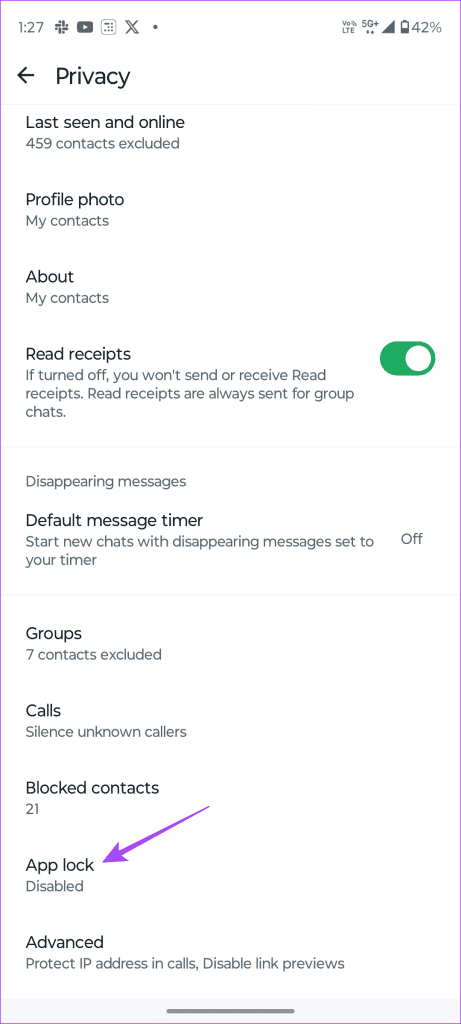

Now, you have successfully enabled biometric authentication for WhatsApp on your Android device. The next time you open WhatsApp, it will prompt you to use your fingerprint to unlock the app.
Note: For this feature to work, ensure your device has the fingerprint lock enabled. If your fingerprint sensor isn’t working, read this guide.
How to Lock WhatsApp on iOS
Step 1: Open WhatsApp on your iPhone.
Step 2: Tap on the Settings tab at the bottom right corner.
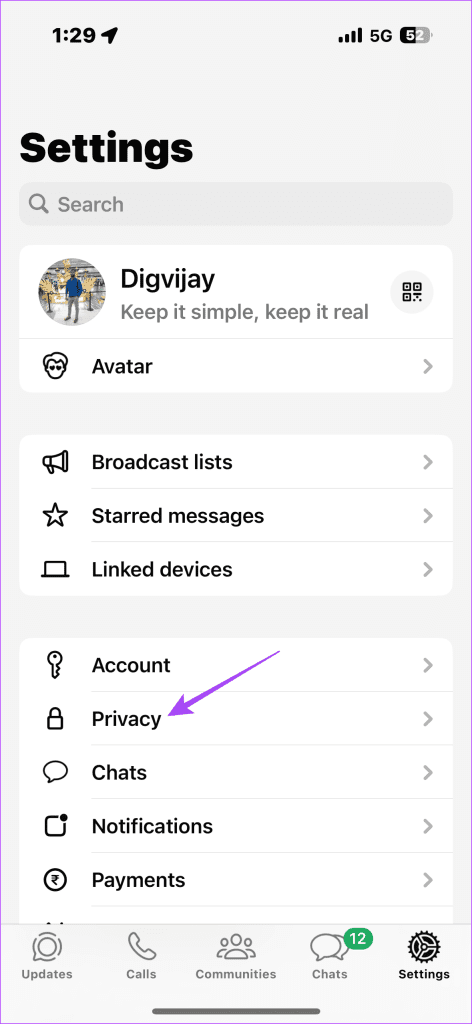
Step 3: Head to Privacy > App lock.
Step 4: Toggle on Require Face ID.
Now, you can only access WhatsApp with Face ID. If Face ID protection isn’t working in WhatsApp, check out this guide.


FAQs
If your fingerprint sensor stops working, you can still unlock WhatsApp using your PIN or passcode.
No, PIN or passcode is not an option for biometric authentication on WhatsApp. You must repair your Face ID to continue using this feature.
Was this helpful?
Last updated on 01 August, 2024
Read Next
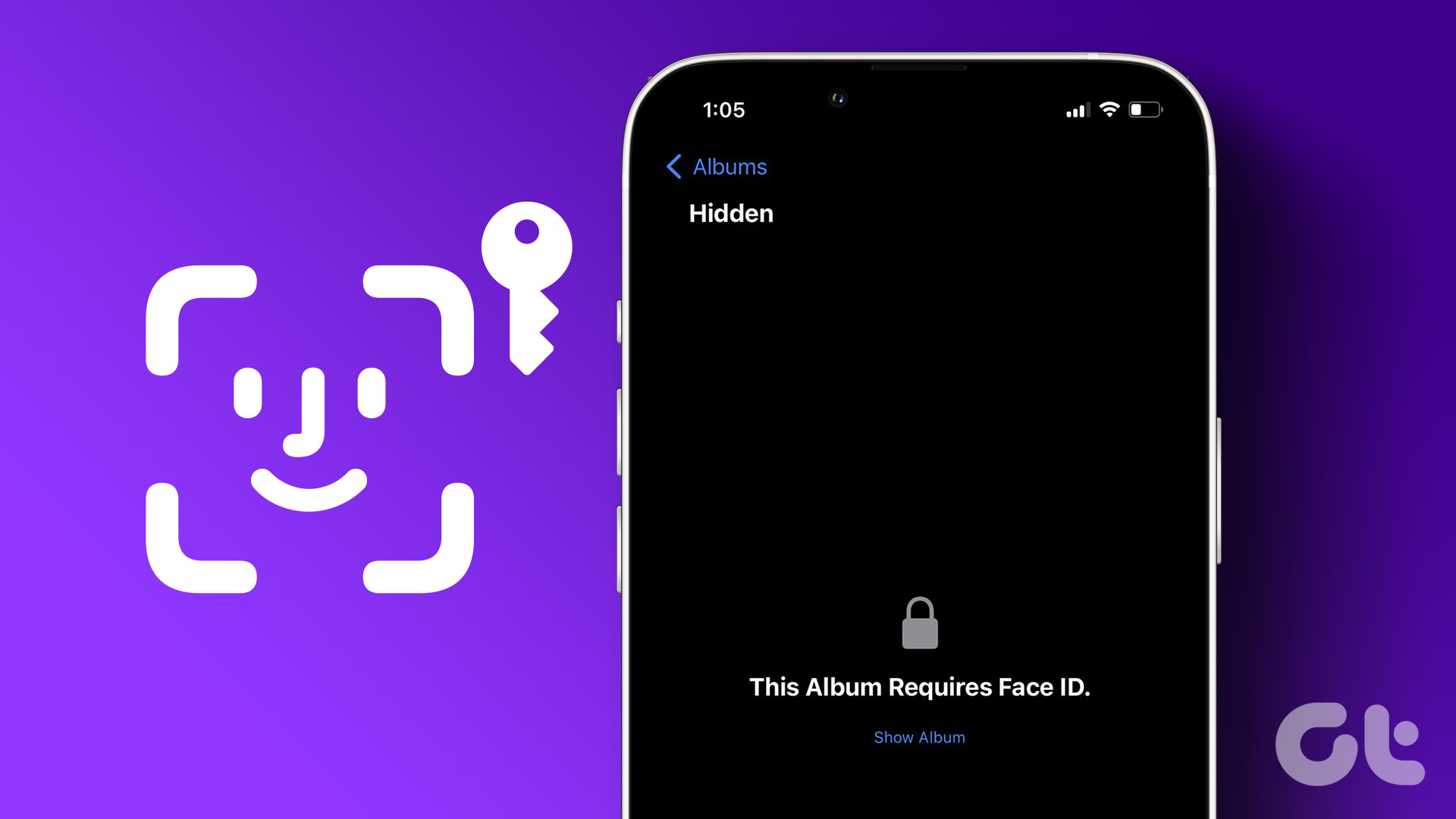 3 Ways to Lock Photos with Face ID on iPhone and iPad
https://youtu.be/SgCXehRoriI Method 1: Use Hidden Album to Lock Photos With Face ID on iPhone Step 1: Tap Select at the top and select the photos and videos you want to
3 Ways to Lock Photos with Face ID on iPhone and iPad
https://youtu.be/SgCXehRoriI Method 1: Use Hidden Album to Lock Photos With Face ID on iPhone Step 1: Tap Select at the top and select the photos and videos you want to
 4 Ways to Fix Fingerprint Sensor Not Working on Android Phones
Try Basic Fixes Make sure your fingers are dry and clean: Capacitive and optical fingerprint scanners cannot read your fingers if they are wet or dirty.
4 Ways to Fix Fingerprint Sensor Not Working on Android Phones
Try Basic Fixes Make sure your fingers are dry and clean: Capacitive and optical fingerprint scanners cannot read your fingers if they are wet or dirty.
 5 Ways to Fix Google Photos Face Recognition Not Working on Android and iPhone
https://youtu.be/UbhXaGftf4s Try Basic Fixes Update the app: Such issues with the facial recognition feature can occur due to a bug within the Photos app.
5 Ways to Fix Google Photos Face Recognition Not Working on Android and iPhone
https://youtu.be/UbhXaGftf4s Try Basic Fixes Update the app: Such issues with the facial recognition feature can occur due to a bug within the Photos app.
 5 Best Windows Hello USB Fingerprint Readers for Your PC
A Windows Hello USB fingerprint reader can make the mundane task of logging in to your Windows PC an easy and convenient affair.
5 Best Windows Hello USB Fingerprint Readers for Your PC
A Windows Hello USB fingerprint reader can make the mundane task of logging in to your Windows PC an easy and convenient affair.
 6 Ways to Fix Windows Hello Fingerprint Option Unavailable or Not Working
Basic Fixes Restart PC: Restart your PC to fix any temporary bugs and glitches.
6 Ways to Fix Windows Hello Fingerprint Option Unavailable or Not Working
Basic Fixes Restart PC: Restart your PC to fix any temporary bugs and glitches.
 3 Fixes for Face ID Not Working in Telegram on iPhone
Basic Fixes Clean the true depth camera area: The Face ID feature works due to the TrueDepth Camera system.
3 Fixes for Face ID Not Working in Telegram on iPhone
Basic Fixes Clean the true depth camera area: The Face ID feature works due to the TrueDepth Camera system.
 How to Lock Individual and Group Chats in WhatsApp on iPhone
Things to Remember Before proceeding with the steps, we want to highlight some important aspects.
How to Lock Individual and Group Chats in WhatsApp on iPhone
Things to Remember Before proceeding with the steps, we want to highlight some important aspects.
 Best Ways to Fix iPhone Face ID Not Working
A flagship feature since the iPhone X, Apple’s Face ID makes tasks like unlocking your iPhone, locking applications like WhatsApp, autofill passwords, and authorizing payments more convenient.
Best Ways to Fix iPhone Face ID Not Working
A flagship feature since the iPhone X, Apple’s Face ID makes tasks like unlocking your iPhone, locking applications like WhatsApp, autofill passwords, and authorizing payments more convenient.
The article above may contain affiliate links which help support Guiding Tech. The content remains unbiased and authentic and will never affect our editorial integrity.