Copilot is an AI assistant that comes as standard in most Microsoft 365 subscriptions. By default, it’s enabled in your Office apps, like Word, Excel, and PowerPoint. Many people find features like summarizing text and content generation useful. However, if you prefer to work without AI augmentation, there are ways to disable Copilot in Office 365.
Read on to discover how to disable Copilot in Office 365 apps and even remove it from your Microsoft 365 Subscription entirely. Note: If you’re making changes to your Microsoft 365 subscription, you’ll need admin access or need to contact someone who has.
Disable Copilot in Office 365: Step-by-Step Guide
Step 1. Open any Office 365 app. For this example, we’re looking at Word.

Step 2. Click File, then Options, which should be near the bottom of the left-hand menu.

Step 3. A new window will open showing all your available options. Copilot will appear between “Proofing” and “Save” in the left-hand menu. If you don’t see it, it means you don’t have access to Copilot features and can carry on without making any further changes.

Step 4. If you can see the Copilot option, click here. You’ll now see a screen labeled, “Options for working with Copilot in Word.” If the “Enable Copilot” box is ticked, you can untick it to remove Copilot features from Word.
In order to successfully disable Copilot in Office 365 apps other than Word, follow the same process for each app. You may need to include:
- Microsoft Excel
- Microsoft PowerPoint
- Microsoft Access
If you use Microsoft Teams for business, you’ll need to get your company’s IT administrator to turn off any AI features.
You may also be able to opt for an AI-free version of Microsoft 365. In some regions, Microsoft is offering a “Classic” plan, which doesn’t include any Copilot functionality. To check if you’re eligible, go to the Microsoft website, log in with your credentials, and select Subscriptions. From here, find Microsoft 365 and click Cancel subscription.
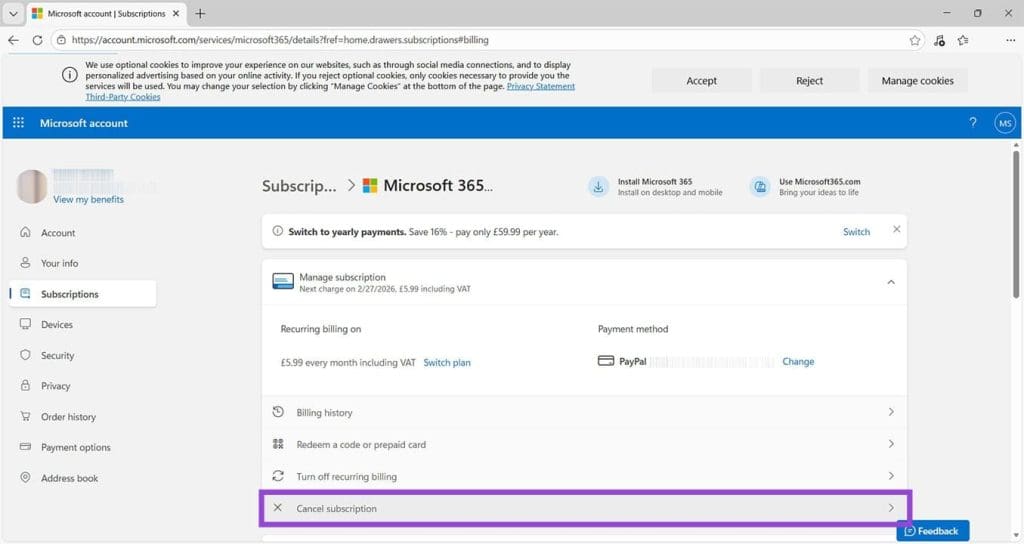
If you’re eligible, you’ll see an offer to move to a less expensive, Classic version, which doesn’t include Copilot.

Was this helpful?
Last updated on 27 February, 2026
Read Next
 5 Best Copilot AI Alternatives for MS Office
Microsoft Copilot is the tech giant’s proprietary AI tool that works as both a chatbot and document editor.
5 Best Copilot AI Alternatives for MS Office
Microsoft Copilot is the tech giant’s proprietary AI tool that works as both a chatbot and document editor.
 How to Fix Copilot Not Working in Microsoft Office Apps
Microsoft has leaned hard into integrating its AI assistant Copilot into as many of its subscription-based apps as possible, not to mention its operating system.
How to Fix Copilot Not Working in Microsoft Office Apps
Microsoft has leaned hard into integrating its AI assistant Copilot into as many of its subscription-based apps as possible, not to mention its operating system.
 How to Create and Manage Rules in Outlook 365 Webmail
Managing emails is an arduous task.
How to Create and Manage Rules in Outlook 365 Webmail
Managing emails is an arduous task.
 What to Do When You Encounter Error Code AADSTS50034 in Microsoft 365
If you’re trying to sign into your Microsoft 365 account or access a connected application, and suddenly see an error message, you might be perplexed.
What to Do When You Encounter Error Code AADSTS50034 in Microsoft 365
If you’re trying to sign into your Microsoft 365 account or access a connected application, and suddenly see an error message, you might be perplexed.
 How to Fix Microsoft 365 Error 70003: Your Organization Has Deleted This Device
Microsoft 365 is an integral part of many businesses, enterprises, and education sections.
How to Fix Microsoft 365 Error 70003: Your Organization Has Deleted This Device
Microsoft 365 is an integral part of many businesses, enterprises, and education sections.
 How to Remove Copilot and Disable Other AI Features on Windows 11
AI is an increasingly prominent part of modern life, and it’s becoming a bigger feature on computers and other devices, too.
How to Remove Copilot and Disable Other AI Features on Windows 11
AI is an increasingly prominent part of modern life, and it’s becoming a bigger feature on computers and other devices, too.
 How to Remove Copilot From Microsoft Edge
Method 1.
How to Remove Copilot From Microsoft Edge
Method 1.
 Three Ways You Can Get More Accurate Responses From Microsoft Copilot
We love Microsoft Copilot but there’s also an uncomfortable truth you’ve probably seen yourself – it doesn’t always give the best results to prompts.
Three Ways You Can Get More Accurate Responses From Microsoft Copilot
We love Microsoft Copilot but there’s also an uncomfortable truth you’ve probably seen yourself – it doesn’t always give the best results to prompts.
The article above may contain affiliate links which help support Guiding Tech. The content remains unbiased and authentic and will never affect our editorial integrity.