Basic Fixes
- Restart your Android TV: A simple restart can sometimes help fix such issues.
- Replace the Android TV remote batteries: Your Android TV remote might need replacing.
Fix 1: Check if the IR Emitter Is Working Under a Camera
If your Android TV has a traditional IR remote, there is a quick way to check if the IR emitter on your remote is working. You will need your smartphone to perform this step.
Step 1: Open the camera app on your smartphone. Point the camera at the IR transmitter on the remote. It is generally located on the top portion of the remote.
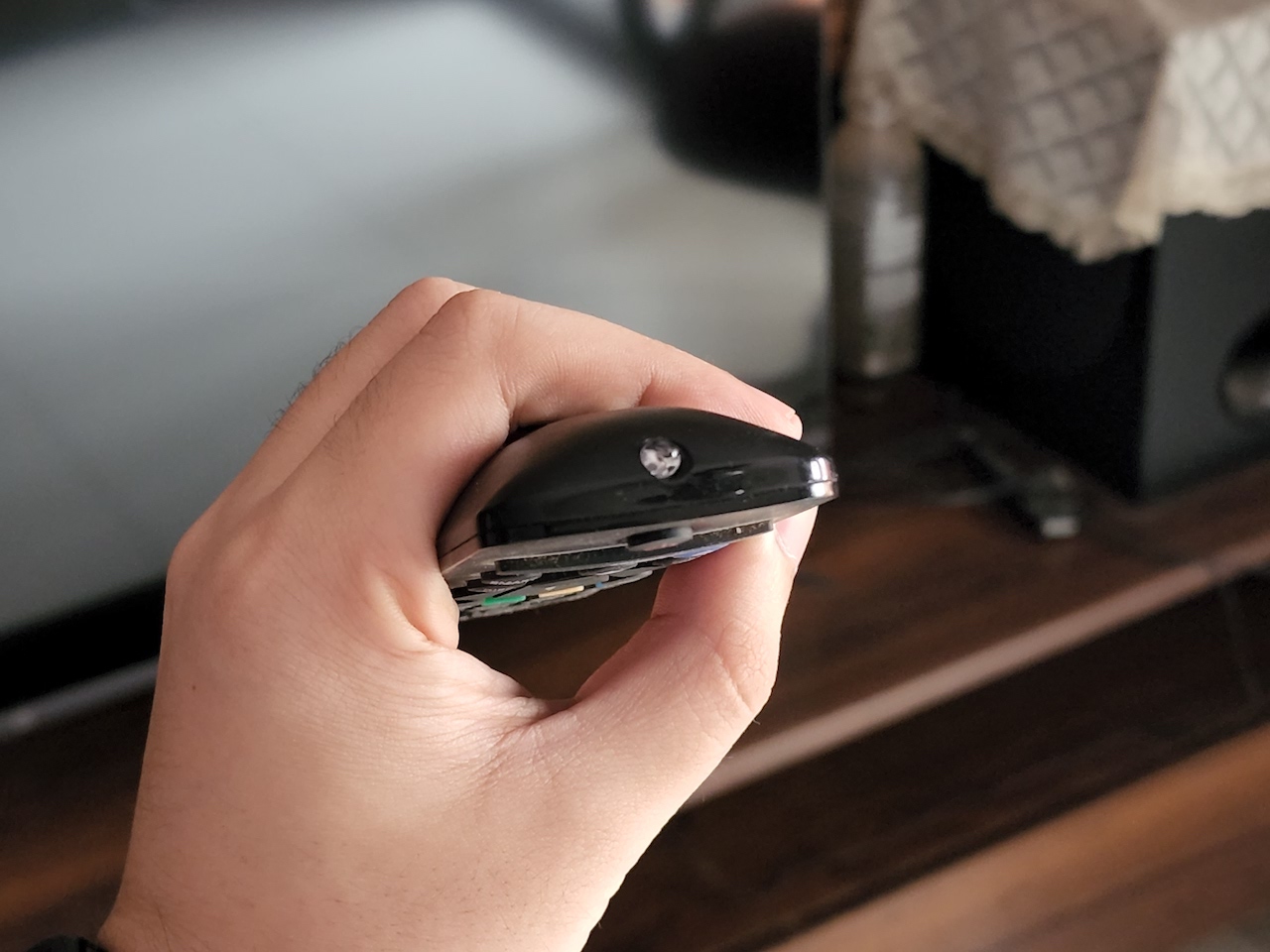
Step 2: Press any button on the remote, and you should see a light blink in your smartphone’s camera viewfinder.
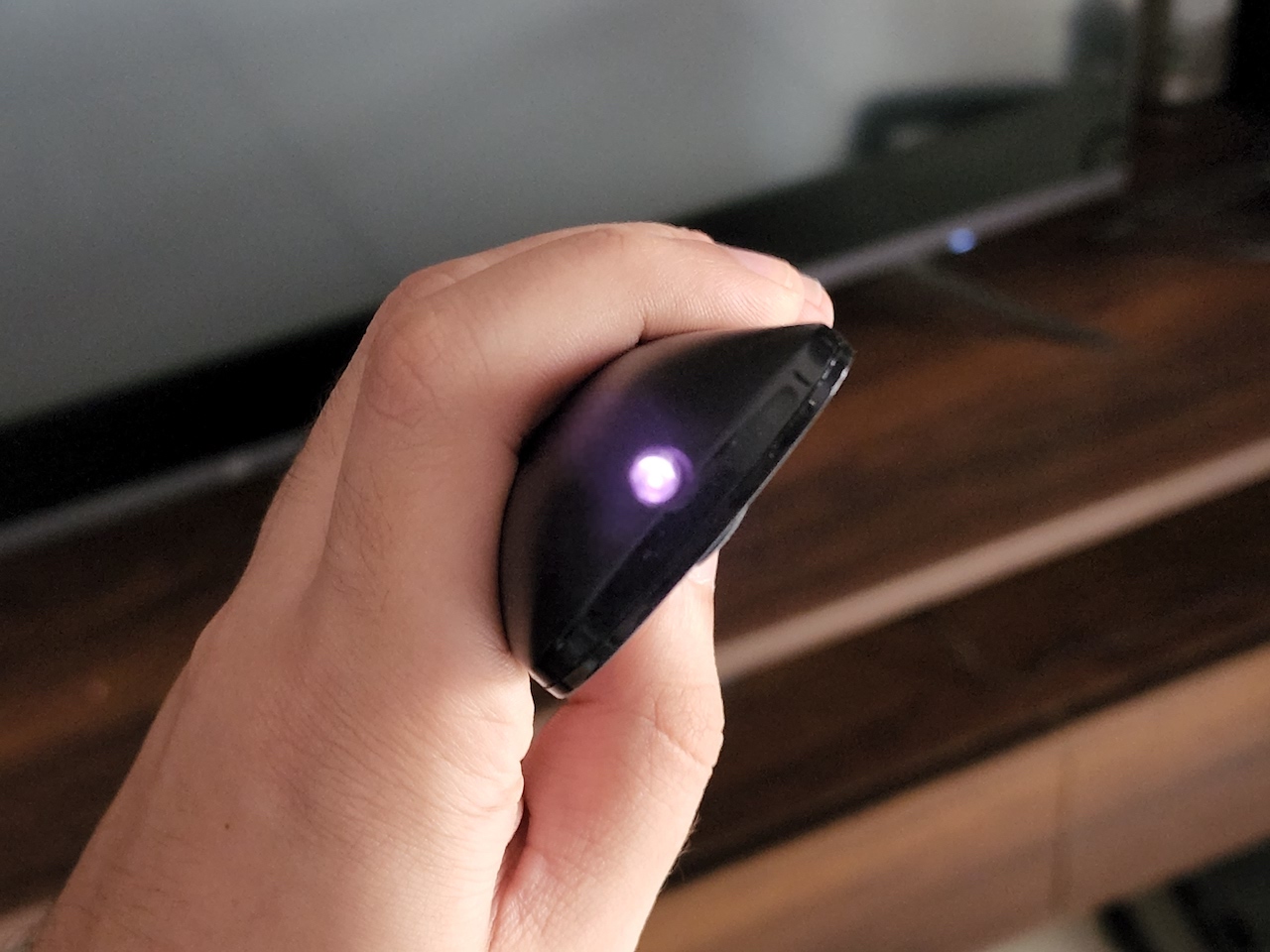
If you see a light blink, the remote works fine, and the issue might be with something else. If you do not see the LED blinking, it might indicate a problem with the hardware on your remote.
Fix 2: Use Mouse or Any Other Input Device to Re-Pair the Remote
Once you’ve connected the mouse, pair your remote again with the TV via the settings menu.
Step 1: Connect a mouse or keyboard to your Android TV using one of the USB ports.
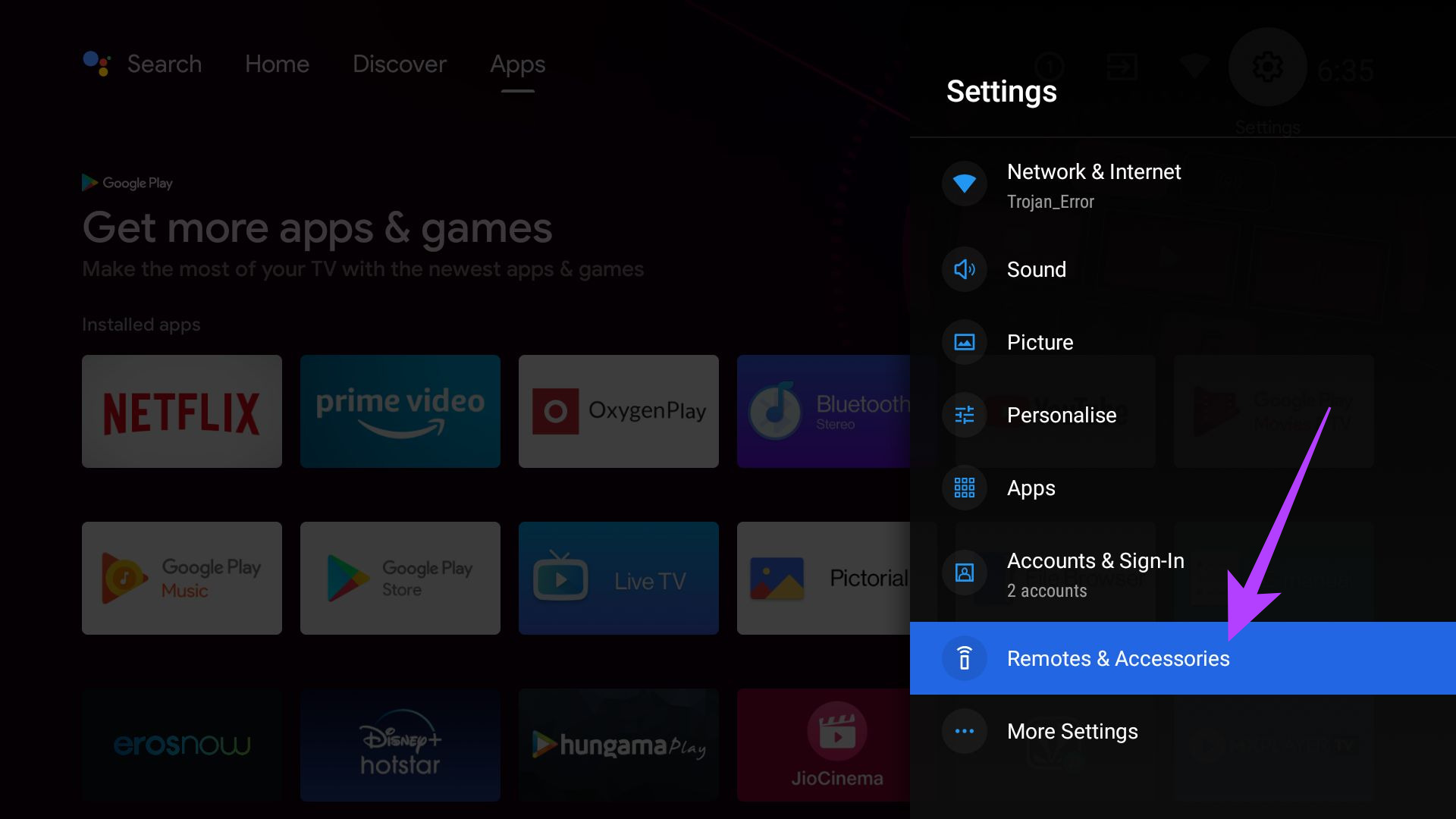
Step 2: Click on the Settings icon at the top-right corner > select Remotes & Accessories.
Step 3: Click on Remote Control > select Add remote control.
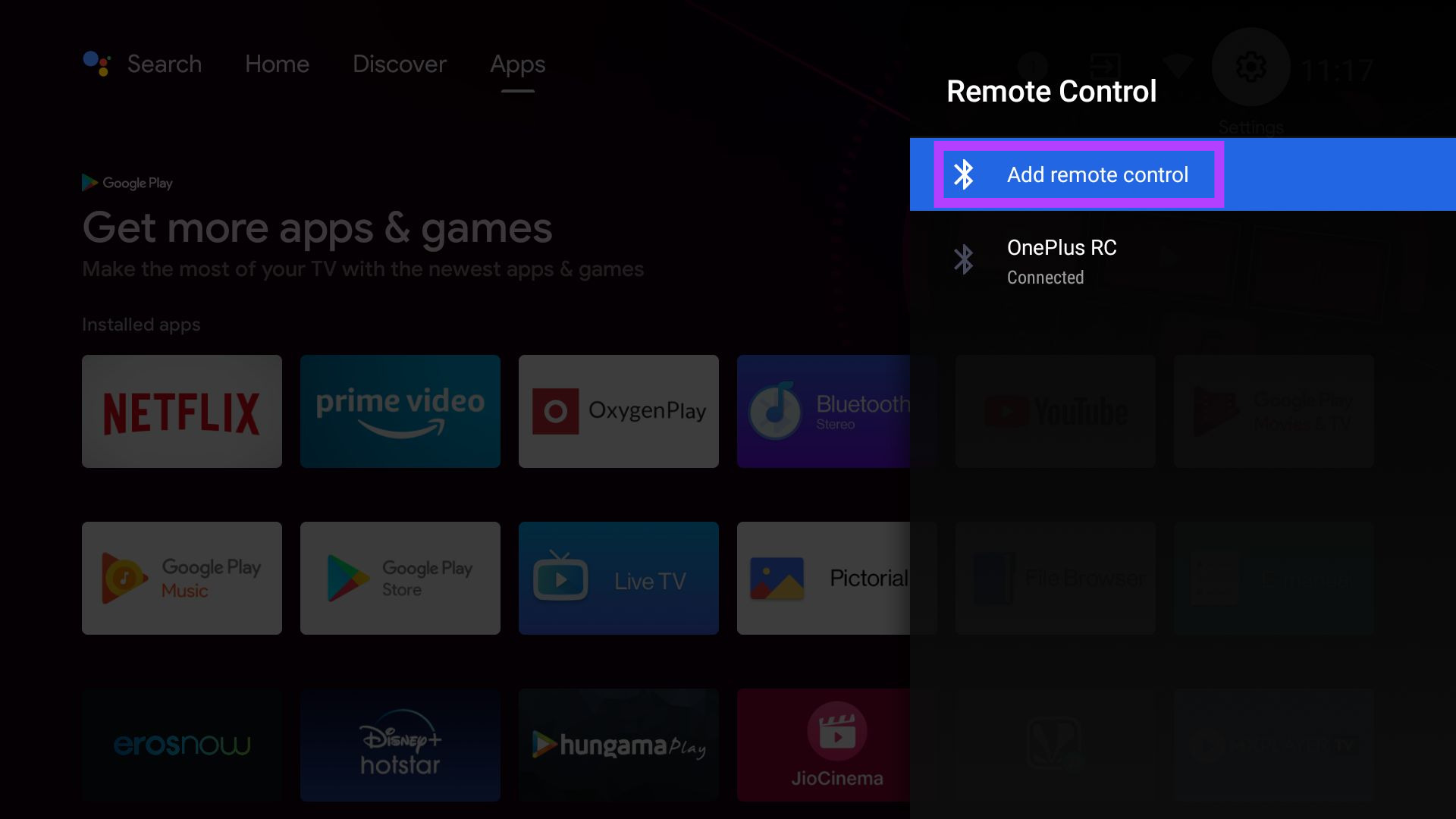
Now, follow the steps on the screen to pair your remote with the TV again.
Fix 3: Use the Google TV App as a Remote
If all fails, your last resort is to use the Google TV app as a remote for your TV. You can also download the app for your iPhone.
Step 1: Open the Google TV app on your smartphone and select the TV remote option at the bottom right corner.
Step 2: When prompted, tap on Allow to grant permission to the app.
Step 3: Select the Android TV you want to control. A code will now be displayed on your TV screen. Enter it on the phone and tap on Pair.
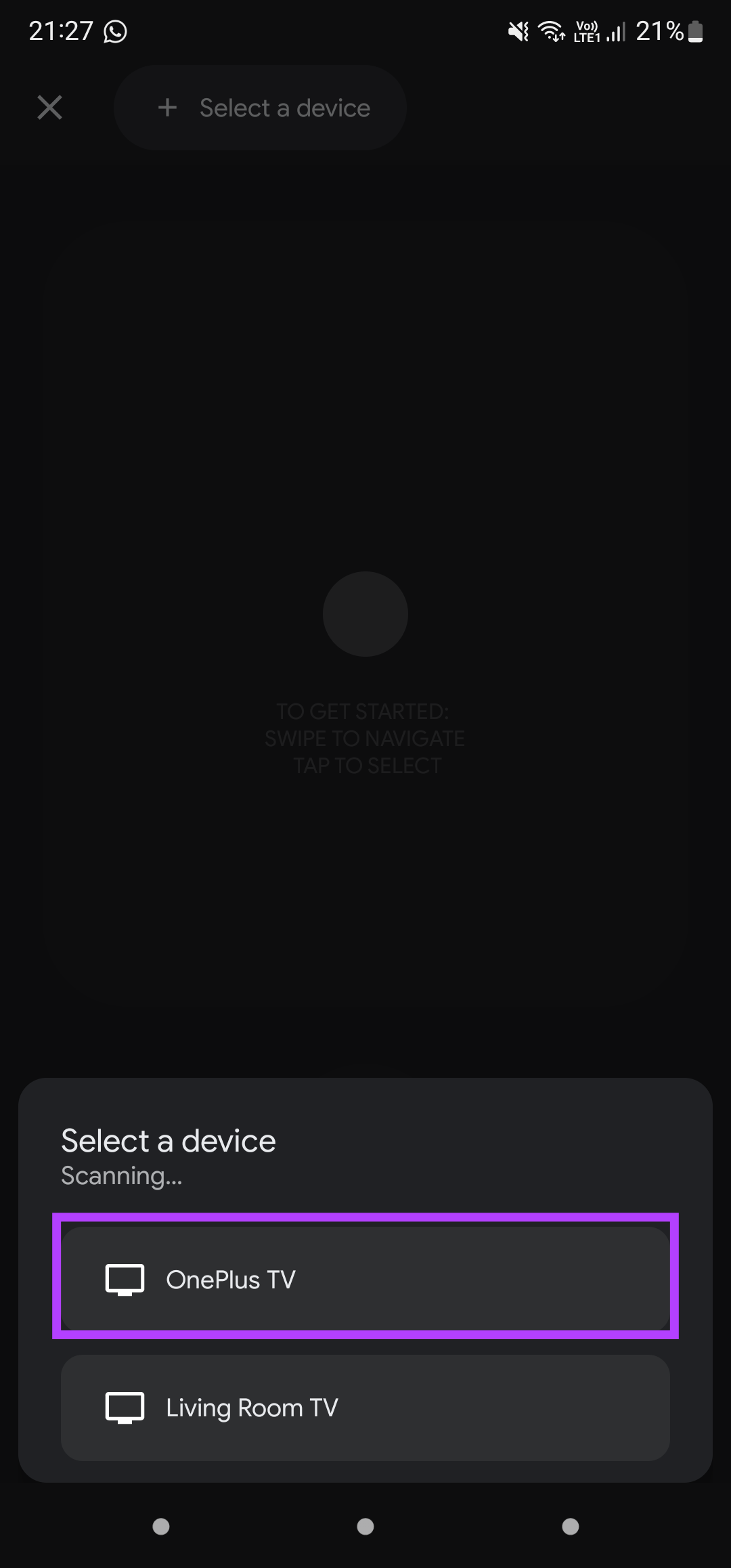

Your smartphone will pair with your TV, and you can now use your phone as a remote with the Android TV.
You can also refer to our posts if your Chromecast (Google TV) Remote is not working or your Samsung TV remote is not working.
Was this helpful?
Last updated on 06 May, 2024
Read Next
 3 Ways to Fix Fire TV Stick Remote Volume Not Working
Basic Fixes: Check the remote batteries: Fire TV Stick relies on batteries to work properly.
3 Ways to Fix Fire TV Stick Remote Volume Not Working
Basic Fixes: Check the remote batteries: Fire TV Stick relies on batteries to work properly.
 2 Ways to Fix Samsung TV Remote Not Working
Basic Fixes: Restart the TV: Unplug your Samsung TV and plug it back in.
2 Ways to Fix Samsung TV Remote Not Working
Basic Fixes: Restart the TV: Unplug your Samsung TV and plug it back in.
 4 Ways to Fix Fire TV Stick Remote Not Working
Basic Fixes Ensure the remote is within range: The usual range of a Fire TV Stick's remote is around 10 feet.
4 Ways to Fix Fire TV Stick Remote Not Working
Basic Fixes Ensure the remote is within range: The usual range of a Fire TV Stick's remote is around 10 feet.
 3 Ways to Fix Fire TV Stick Remote Not Pairing After Factory Reset
Basic Fixes Replug your Fire TV Stick: Unplug it from the connected device and plug it in again to restart it.
3 Ways to Fix Fire TV Stick Remote Not Pairing After Factory Reset
Basic Fixes Replug your Fire TV Stick: Unplug it from the connected device and plug it in again to restart it.
 2 Fixes for Apple TV Remote App Not Working on iPhone
Basic Fixes Restart your router: A simple restarting of your internet router can fix the issue once you reconnect to your network.
2 Fixes for Apple TV Remote App Not Working on iPhone
Basic Fixes Restart your router: A simple restarting of your internet router can fix the issue once you reconnect to your network.
 5 Ways to Use Fire TV Stick if Your Remote Is Lost
Method 1: Control Fire TV Stick Using the Phone App The easiest way to control your Fire TV Stick without a remote is by pairing it with the Fire TV
5 Ways to Use Fire TV Stick if Your Remote Is Lost
Method 1: Control Fire TV Stick Using the Phone App The easiest way to control your Fire TV Stick without a remote is by pairing it with the Fire TV
 4 Fixes if Chrome Remote Desktop Is Not Working on Windows 11
Fix 1: Disable PIN-Less Authentication Chrome Remote Desktop lets you pair your trusted devices with your computer.
4 Fixes if Chrome Remote Desktop Is Not Working on Windows 11
Fix 1: Disable PIN-Less Authentication Chrome Remote Desktop lets you pair your trusted devices with your computer.
 5 Fixes for Remote Desktop Copy-Paste Not Working on Windows
Fix 1: Configure Remote Desktop Connection Settings A common reason you may be unable to copy and paste data during a Remote Desktop session is if you have previously disabled
5 Fixes for Remote Desktop Copy-Paste Not Working on Windows
Fix 1: Configure Remote Desktop Connection Settings A common reason you may be unable to copy and paste data during a Remote Desktop session is if you have previously disabled
The article above may contain affiliate links which help support Guiding Tech. The content remains unbiased and authentic and will never affect our editorial integrity.