
Adobe Firefly is my pick for editors who want a sharp, short insert they can take straight into Premiere Pro. Google Flow followed the motion in my prompt most clearly, and Runway Gen-4.5 is the option I’d try for a shot that needs a specific duration or a different framing.
All three made a usable red-mug shot from the same text. The differences showed up in the steam, the moving shadow, and whether the mug actually looked matte.
Tested in November 2026 on macOS 26.5.1 with the Firefly Video model in Adobe Firefly (Chrome), Gen-4.5 in Runway (Safari), and Gemini Omni 1.2 Flash in Google Flow (Safari).
How I Tested the Text-to-Video AI Generators
I generated one widescreen clip per platform from the same text, without reference images or prompt enhancement. I reviewed the original MP4 exports without upscaling or color correction. Firefly and Runway ran for five seconds and Flow for eight. This was a single-prompt comparison, so the results describe these three clips.
A locked-off close-up of a matte red ceramic mug on a pale wooden table in soft morning light. A thin ribbon of steam rises from the mug as a leaf shadow slowly crosses the table. The mug stays still. One continuous shot, no text.
I chose a stationary subject so I could judge the two moving elements independently. I watched the rim and handle for changes, then looked at how the steam and shadow moved across the shot. This is the kind of insert I’d use to establish a mood between two live-action shots.
Adobe Firefly Video
Firefly gave me the tightest framing of the three, with a muted red glaze, visible ceramic texture and a deep shadow to the right. The mug and handle held their shape. The foliage shadow moved visibly across the table, especially early in the clip. I had to look closely to see the faint steam against the dark background. I’d use the shot as a cutaway in a morning routine or café edit. If the steam had to tell the story, I’d specify backlighting in the next prompt.

In Firefly, I opened Video > Generate video, selected Firefly Video, and set it to 1080p, 16:9 and five seconds. The clip came out at 1920 × 1080. Firefly’s native model also gives you camera and shot controls in the Generate Video workflow. (Learn more here: Adobe Firefly text-to-video guide.)
Runway Gen-4.5
Runway framed the mug centrally with a bright rim and softly blurred chairs in the background. The silhouette held up well, and the sunlight looked warm and directional. The glaze read as glossy, and the steam was subtle. The foliage-shaped shadow near the handle stayed more localized than I expected from “slowly crosses the table.” I’d use this take as a warm product insert where the highlight on the rim works for the edit.

I selected Gen-4.5 in the Video model picker, entered the prompt and shortened the duration to five seconds. Gen-4.5 accepts text alone and supports clips from two to ten seconds. My five-second generation used 60 credits.
Google Flow
Google Flow made the steam the most legible. It curled above the cup throughout the shot, with a recognizable foliage shadow across the pale wood. The steam occasionally looked more like a theatrical wisp of smoke than the thin ribbon I asked for. The wider composition also put more emphasis on the table. That extra space would work for a title or graphic, and I’d trim to a quieter part of the clip if the steam pulled too much attention from the product.
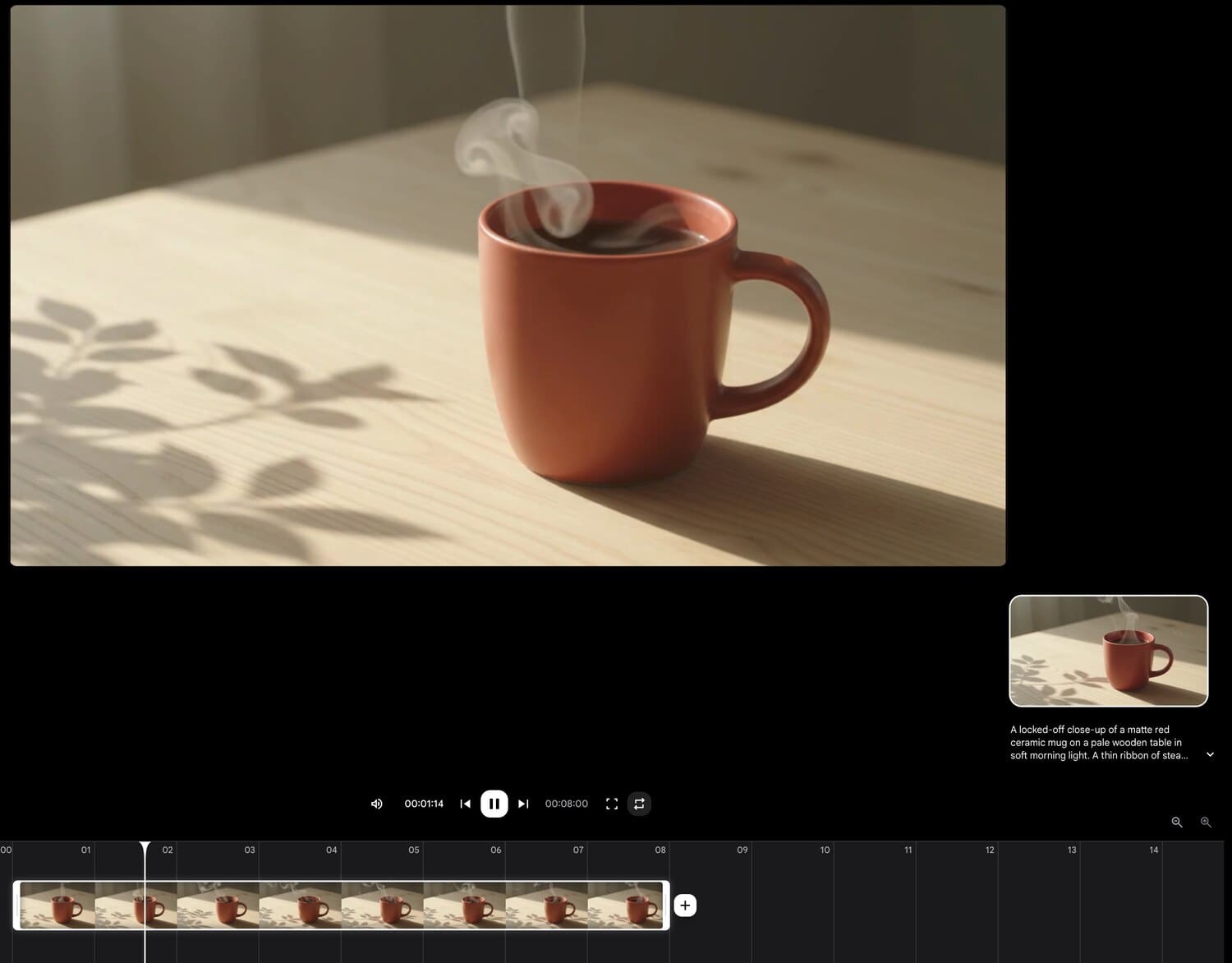
I switched off Flow Agent to use the direct composer, set the output to Video, selected Omni 1.2 Flash, and set the output count to one. The eight-second 720p generation costs 24 credits at Google’s published rate. Flow’s download menu showed 720p as the original and listed higher resolutions as upscale options.
Text-to-Video AI Generators Compared
Listed prices are in US dollars, checked in November 2026. Generation credits are specific to each platform. Upscaling depends on the plan, and the table lists the original resolution of the clips above.
| Tool and model | Original test clip | Creative controls | Pricing | Commercial use |
|---|---|---|---|---|
| Adobe Firefly Video | 1920 × 1080, 5 seconds | Shot size, camera angle and movement, aspect ratio, resolution and optional reference inputs. Available controls depend on the selected mode. | Standard is $9.99/month with 2,000 credits. Adobe lists up to 20 five-second videos on that plan. Adobe pricing. | Adobe describes the native Firefly Video model as designed for commercial use. Review the terms for your account and any partner model you select. Adobe guidance. |
| Runway Gen-4.5 | 1280 × 720, 5 seconds | 2–10-second duration, camera direction through prompting, and image-to-video when a starting frame matters. Aspect ratio options depend on the input mode. | Standard is $15 monthly or $12/month billed annually, with 625 monthly credits. Gen-4.5 costs 12 credits per second. Runway pricing. | Runway states you retain rights to your generations as between you and Runway and may use them commercially. Runway usage rights. |
| Google Flow with Gemini Omni 1.2 Flash | 1280 × 720, 8 seconds | Duration, 360p or 720p generation, widescreen or portrait, optional visual inputs and prompt-based editing. Paid plans offer higher upscale options. | Google AI Pro is $19.99/month. Flow also has access for eligible users without a subscription. Omni 1.2 Flash costs 3 credits per second at 720p for clips up to ten seconds. Google AI pricing. | Google says it makes no ownership claim over original generated content. Its Flow help directs commercial users to the applicable terms. Google Flow usage guidance. |
For client work, check the rights to any reference material and clear identifiable people, brands or music as applicable. Check the client’s disclosure requirements before sending the cut.
How to Use Adobe Firefly-Generated Video in Premiere Pro
AI-generated footage can complement live-action video by providing supporting visuals, establishing shots, product inserts and cutaways. For professional editors working in Adobe Creative Cloud, footage generated in Firefly can be incorporated into an existing Premiere Pro project.
- In Firefly’s generation view, choose Download next to the finished clip and keep the original MP4 with your project media.
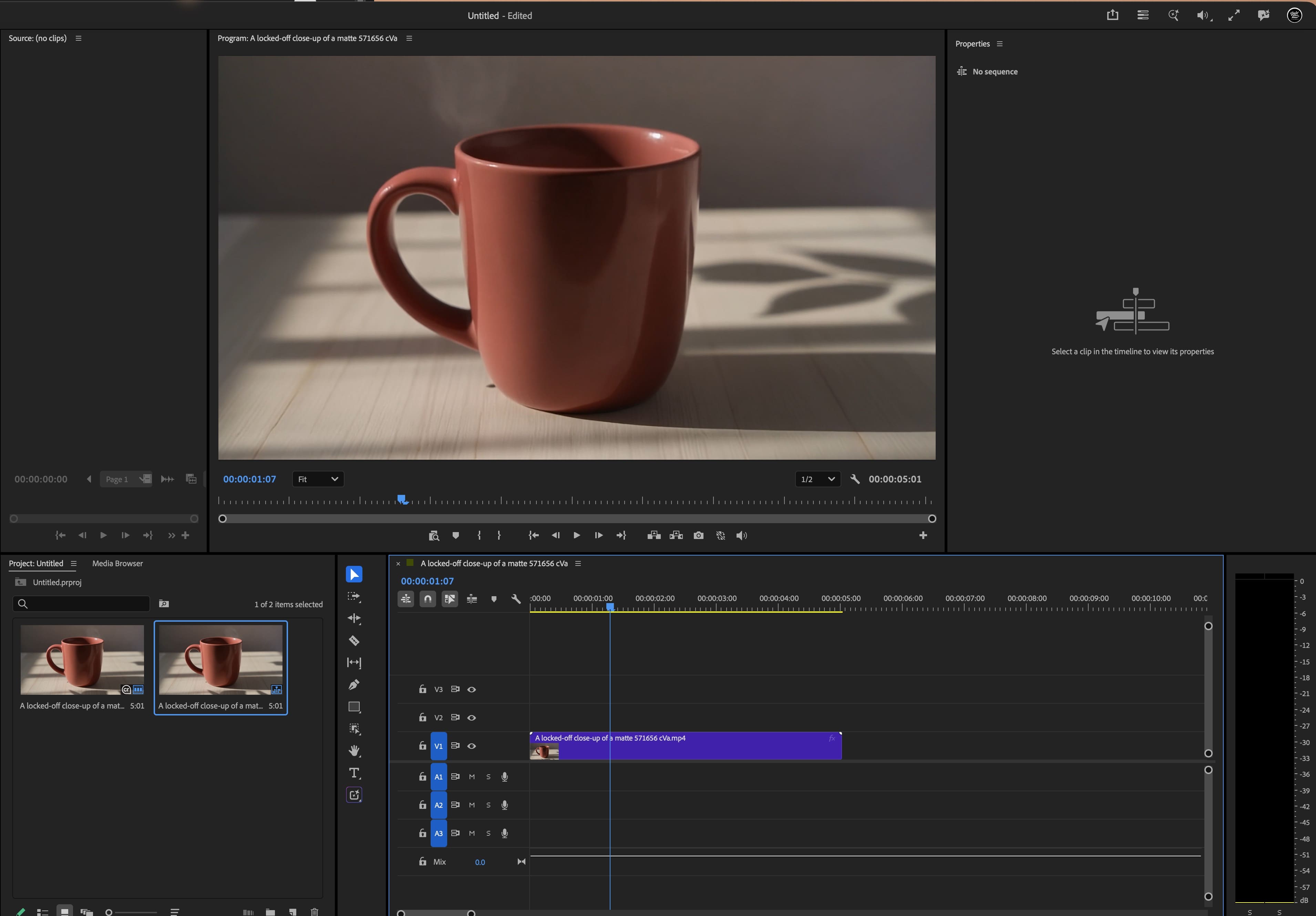
- In Premiere Pro, choose File > Import (Cmd+I on Mac or Ctrl+I on Windows) and select the MP4. It appears in the Project panel.
- Drag the clip from the Project panel to a video track in your existing sequence. For a standalone test sequence, right-click the imported clip and choose New Sequence From Clip.
- Play through the cut and trim to the section that works with the surrounding footage. For this mug shot, I’d start with the first couple of seconds while the leaf shadow changes most clearly.
With more than 40 years of experience developing creative technology, Adobe continues to build tools around the needs of professional creators. The ability to generate video footage in Firefly and incorporate it into Premiere Pro allows editors to experiment with new creative possibilities while maintaining control over timing, color grading, composition and final delivery.
Firefly gives you a shot to try, and Premiere Pro puts the timing, grade and final decision in the editor’s hands.
FAQs
Which text-to-video AI generator is best for professional video editing?
Adobe Firefly is a strong option for professional editors working within Adobe Creative Cloud. Its generated video clips can be imported into Premiere Pro for trimming, color grading and incorporation into larger video projects. In my comparison, Firefly also produced the highest-resolution original clip of the three tested.
Can AI-generated video footage be used commercially?
Commercial use depends on the platform, selected AI model and applicable licensing terms. Creators should also ensure they have the necessary rights to any reference images, footage or other materials used during generation.
Can I import AI-generated videos into Adobe Premiere Pro?
Yes. AI-generated videos exported as compatible MP4 files can be imported into Premiere Pro and edited alongside live-action footage, graphics, audio and other production assets.
What is the difference between Adobe Firefly, Runway and Google Flow?
The platforms differ in generation resolution, clip duration, creative controls, pricing and available AI models. In my single-prompt comparison, Firefly produced the highest-resolution original clip, Runway offered flexible clip duration, and Google Flow produced the most visible steam movement.
Can text-to-video AI replace traditional video production?
Text-to-video AI can help professional creators generate supporting footage, concept visuals and short inserts. However, traditional production and editing remain important when precise creative direction, continuity and consistent results are required.
Final Thoughts
Adobe Firefly, Runway and Google Flow each offer different advantages for professional creators exploring text-to-video AI generation.
In my testing, Adobe Firefly produced the highest-resolution original clip, Runway offered flexibility over clip duration, and Google Flow made the steam movement most visible. The right choice will depend on the creative requirements of your project, the level of control you need and your generation budget.
For professional creators already working in Premiere Pro, Adobe Firefly offers a practical way to generate supporting footage and incorporate it into an established editing workflow while maintaining creative control over the finished production.
Explore Adobe Firefly to generate custom video footage for your next professional creative project.
This article is sponsored by Adobe and contains affiliate links. We may earn a commission if you make a purchase through these links, at no additional cost to you. All opinions and testing observations are our own.
Was this helpful?
Last updated on 27 November, 2026
Read Next
 Best Virtual Machines Compared: Performance, Features, and Best Use Cases
If you’re an enthusiastic systems developer, nostalgic game enthusiast, or just want an OS sandbox to play in that’s different from your own, a virtual machine can be a great
 YouTube and Jasmine: iPhone YouTube Apps Compared
As you surely know, YouTube is by far the most popular video sharing website out there, with its popularity only increasing even more with the arrival of mobile devices like
 iPhone 15 Pro Max vs Samsung Galaxy S23 Ultra: Cameras Compared
Despite being a year old, the Samsung Galaxy S23 Ultra is still a very good phone to buy.
 Best Proxy Providers to Buy From in 2026: Tested & Compared
Choosing a proxy provider used to be straightforward.
 Best PDF Editors in 2026: Free vs Paid Options Compared
I don’t need a PDF editor every day, but when I do, I want it to handle the job without turning a small change into a half-hour project.
 How to Extract a High-Quality Image From Video on Android
Method 1: Use the Gallery App Some Android devices have an inbuilt feature to extract still images from video.
 How to Change Amazon Prime Video Streaming Quality on Any Device
Most streaming services these days offer the best quality possible.
 How to Fix Poor Video Call Quality in WhatsApp for Android and iPhone
Try Basic Fixes Disable battery and data saver mode: Enabling battery and data saver mode can affect WhatsApp's ability to use the internet freely and result in poor video call
The article above may contain affiliate links which help support Guiding Tech. The content remains unbiased and authentic and will never affect our editorial integrity.