
I don’t need a PDF editor every day, but when I do, I want it to handle the job without turning a small change into a half-hour project.
The right choice of software to edit your PDF docs depends on what “editing” means to you – adding a signature or rearranging a few pages is very different from correcting text in a scanned contract, redacting sensitive details, or sending a form around for signatures.
For people who regularly work with PDFs, Adobe Acrobat Pro is one of the most comprehensive options in 2026. It offers tools for editing text and images, making scanned documents editable with OCR, permanently redacting sensitive information, and managing e-signatures. For occasional tasks, free alternatives like Apple Preview and PDFgear may be all you need.
Here’s how I’d choose among the leading free and paid PDF editors in 2026.
Best PDF Editors in 2026: At-a-Glance Comparison
| PDF editor | Platform | Free option | US paid price | Edit text | OCR | Redaction | Compare files | Best for |
|---|---|---|---|---|---|---|---|---|
| Adobe Acrobat Pro | Windows, Mac, web, mobile | Reader + Pro trial | $19.99/mo* | Yes | Yes | Yes | Yes | Best overall |
| Foxit PDF Editor | Windows, Mac, web; mobile with Editor+ | Free Reader + 14-day trial | From $129.99/yr | Yes | Yes | Yes; advanced tools in Editor+ | Yes | Best Acrobat alternative |
| PDF-XChange Editor | Windows | Free version | From $62 one-time | Yes | Yes; enhanced in Plus | Yes | Plus only | Best value for Windows |
| Smallpdf | Web, desktop, mobile | Limited free tier | Paid Pro plan; check current price | Pro | Yes | Yes | No dedicated comparison tool confirmed | Best browser-based editor |
| PDFgear | Windows, Mac, mobile | Fully free | Free | Yes | Yes | Not confirmed | Not confirmed | Best free desktop editor |
| Apple Preview | Mac | Included with macOS | Free | Markup and text boxes only | Text recognition | Yes | No dedicated comparison tool | Best for Mac basics |
*Acrobat price is for an annual plan billed monthly. Prices and advertised features checked November 15, 2026. Feature availability may depend on the plan or platform.
Adobe Acrobat: Best All-Rounder (Editing, OCR, Redaction, and Signing)
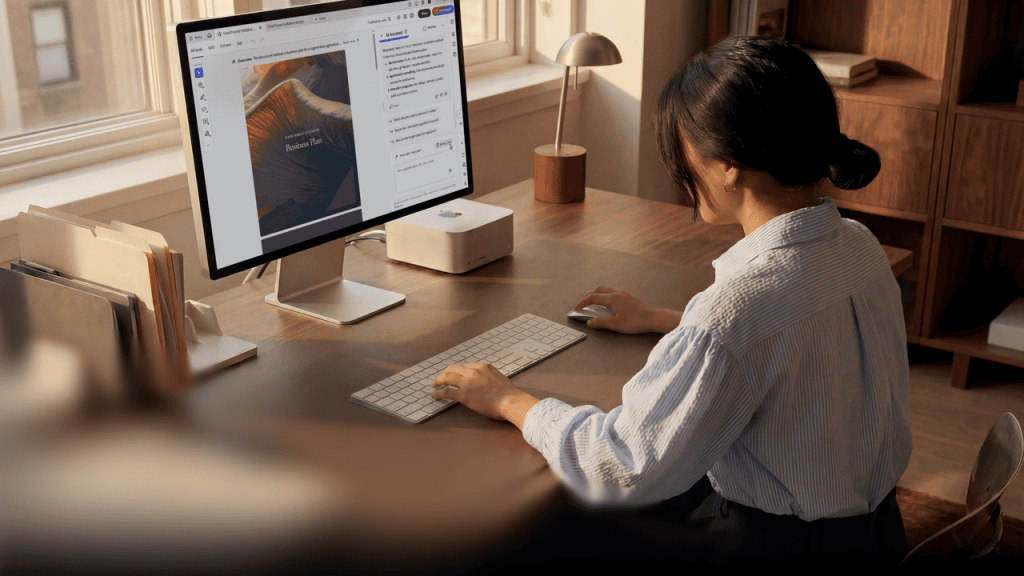
If I needed one editor to cover most PDF jobs, I’d start with Adobe Acrobat. The free Acrobat Reader is a solid choice for opening, printing, sharing, commenting on, and signing documents. For editing text and images, converting files, or working with more advanced document tools, you’ll need a paid plan.
Acrobat Pro makes the most sense for people who regularly work with PDFs. Its Edit PDF tool lets you change text and images directly, while Export PDF converts documents to Word, Excel, or PowerPoint.
You can also password-protect files, redact sensitive information, collect e-signatures, and use Compare Files to identify changes between document versions.
With desktop, mobile, and web access, it’s particularly useful when documents move between several people. For example, a colleague can review a contract and add comments on their phone, while the document owner accesses that feedback and makes edits in the desktop app before sending the final version for e-signature.
I have to say that Acrobat’s range can feel like a lot if you only want to add a signature now and then, so I’d suggest you match the plan to the work.
Acrobat Standard covers everyday PDF tasks, including editing text and images, converting files, organizing pages, and collecting e-signatures. Acrobat Pro adds more advanced tools, such as OCR for turning scanned documents into editable PDFs, permanent redaction of sensitive information, and Compare Files for identifying changes between document versions.
Features and prices vary by region, so check Adobe Acrobat’s plan comparison for details.
Best for: Frequent PDF work, document reviews, forms, signatures, and people who want a broad toolset in one place.
Foxit PDF Editor: A Strong Professional Alternative

Foxit PDF Editor is the paid option I’d compare most closely with Acrobat. It covers the core jobs professionals expect, including editing text and images, converting files, OCR, forms, document comparison, and security features. Its plans are available for Windows and Mac, and there’s also a 14-day trial so you can try before you buy.
Foxit may suit people who want a feature-rich editor but prefer its interface or licensing options over the other offerings here.
There’s also a perpetual licence for its desktop software, which is popular if you’d rather make a one-time purchase than keep a subscription. However, you’ll need to check the feature list carefully: some extras, including mobile apps and advanced e-signature features, sit in the higher tier. See Foxit’s plans.
Best for: Professionals who want strong editing and document tools and a one-time purchase option.
PDF-XChange Editor: Good Value for Windows Users
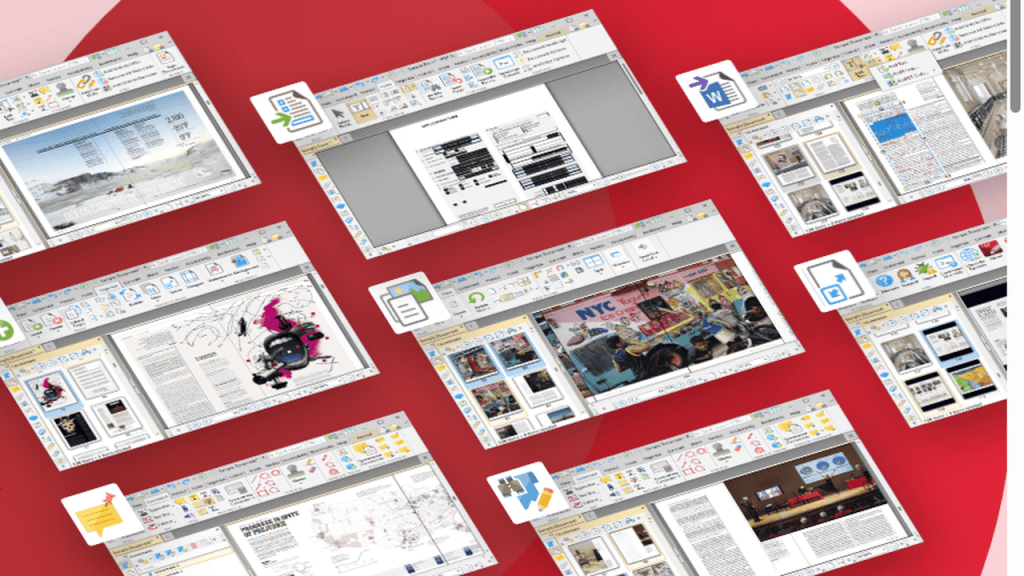
PDF-XChange Editor stands out for its mix of a capable free version and reasonably priced paid options – PDF-XChange states that more than 70% of the editor’s features don’t require a licence. That makes it worth a look if you don’t need every advanced tool, but be prepared for a rather busy interface.
There’s a catch to understand before using it for work: some licensed features used without a licence can add watermarks to output. Also, the software is Windows-only, so Mac users will need another option.
As of November 2026, a paid single-user Editor licence is listed at US$62, with perpetual licensing and optional maintenance. Check the licensing details.
Best for: Windows users who want lots of desktop features and are happy to check which ones are free before exporting a finished document.
Smallpdf: Easiest for Occasional Online Jobs

When I only need to compress a PDF, convert a file, or make a quick change in a browser, Smallpdf is a convenient place to start. It offers a collection of online tools, with a free plan that has limited downloads. Its Pro plan removes those limits and adds features such as text editing and OCR.
The browser-based approach is handy when I’m switching computers or don’t want to install an app.
However, free usage limits may be restrictive for regular work, and it’s worth considering privacy when uploading sensitive documents. For confidential contracts, a desktop PDF editor with redaction and password protection tools, such as Adobe Acrobat Pro, may be a better choice if you want to keep files stored locally.
Before using any online editor, check its data-handling and retention policies (see Smallpdf’s privacy policy).
Smallpdf also offers desktop and mobile access. Compare Smallpdf plans.
Best for: Quick, occasional PDF tasks and people who prefer a browser-based workflow.
PDFgear: A Generous Free Option
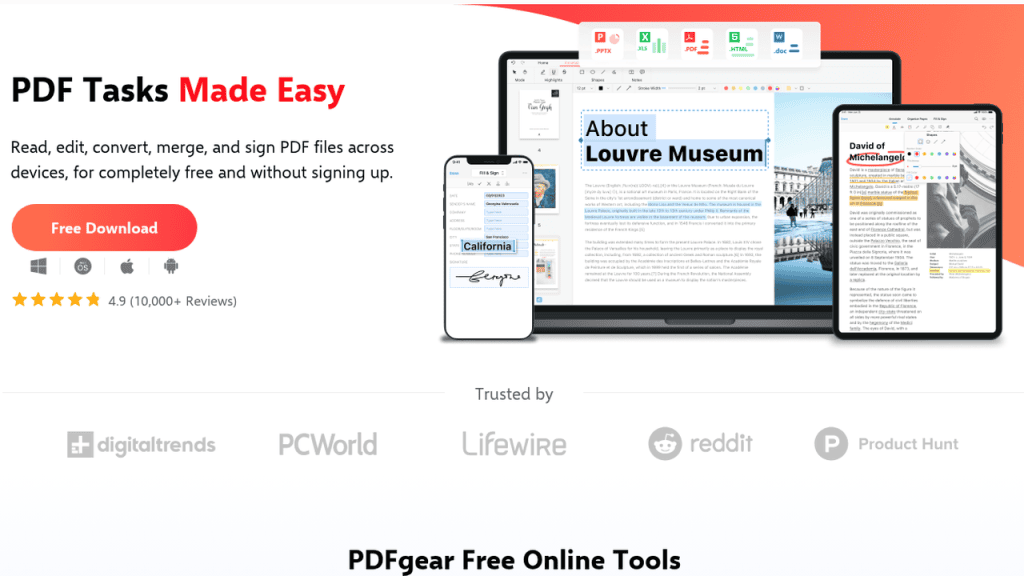
PDFgear is one of the more ambitious free editors. Its desktop app advertises text editing, conversion, OCR, annotation, signing, and page organisation without a paid tier. It’s available for Windows and Mac, with mobile apps too.
That makes PDFgear a tempting starting point if you want more than a basic reader without committing to a subscription. However, I’d recommend you try it with copies of documents first, especially for complex layouts or important work.
During my testing, I found that PDF editing can shift spacing or formatting, particularly when the original file uses unusual fonts or structure. As a result, I had to make additional adjustments to restore the original layout.
For everyday PDF editing, PDFgear offers a useful range of features at no cost. Just be prepared to double-check the results when working with more complex documents. Explore PDFgear.
Best for: People looking for a full-featured free desktop editor for everyday tasks.
Apple Preview: Enough for Many Mac Users
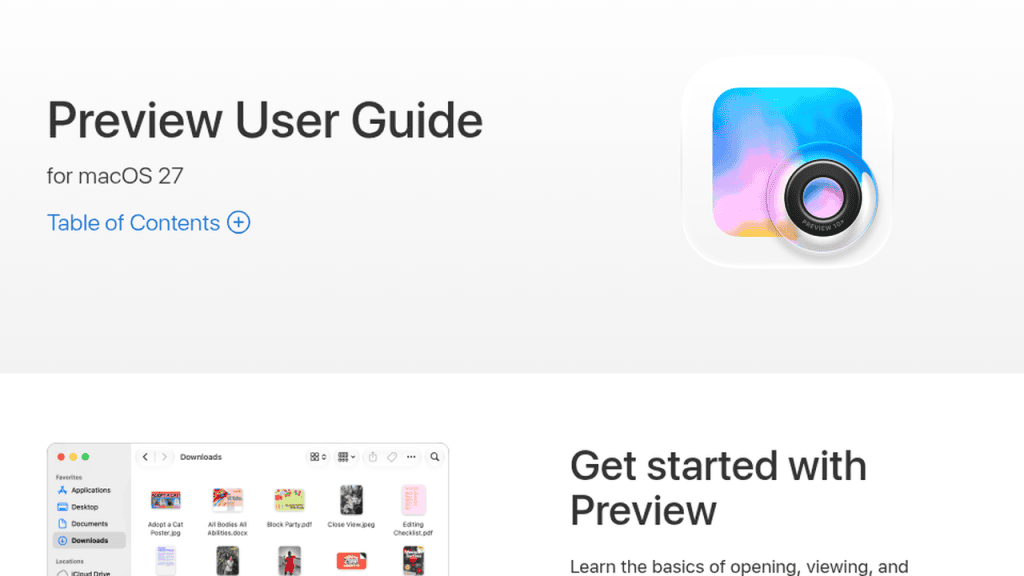
Mac users already have a useful PDF tool built in. Preview handles viewing, markup, notes, form filling, and signatures, which covers many everyday needs without a download or subscription. However, it doesn’t edit the existing text in a PDF, so it’s not a replacement for a full editor when you need to rewrite content.
For reviewing a document, adding comments, or signing a form, I’d definitely recommend Preview before shopping around. Then, if the job turns into editing paragraphs, OCR, or document workflows, move up to a dedicated editor. Apple’s Preview guide explains its PDF markup tools.
Best for: Mac users who mostly annotate, fill, and sign PDFs.
Free vs Paid PDF Editors: Which Should You Choose?
Acrobat Pro is the most well-rounded professional option here for people who need editing, conversion, signing, and collaboration tools in one place. You can try Acrobat Pro for free to see whether its features justify the subscription.
For everyday tasks like reading, commenting, filling out forms, signing, and making simple page changes, a free PDF editor is usually enough. I’d recommend starting with Preview if you own a Mac or PDFgear if you need a free desktop editor.
Just be aware that free options can get a bit clunky when you need reliable editing of existing text, OCR for scans, secure redaction, or repeatable workflows for clients and colleagues.
Ultimately, there’s little reason to pay for features you won’t use. But if editing PDFs is a regular part of your workflow, investing in a more capable tool like Acrobat Pro could save you considerable time and hassle.
Disclosure: This article was produced in partnership with Adobe Acrobat. Product comparisons and recommendations reflect the author’s editorial assessment.
Was this helpful?
Last updated on 17 November, 2026
Read Next
 Best Proxy Providers to Buy From in 2026: Tested & Compared
Choosing a proxy provider used to be straightforward.
 9 Free Online WYSIWYG HTML Editors
1.
 How to Get Paid Apps for Free from Google Play Store Legitimately
Google Play Store is loaded with Android apps and games.
 5 Best Tools to Extract RAR Files on Windows 11 (Free and Paid)
1.
 8 Best AI Comic Makers (Free and Paid)
1.
 9 Pet Care Apps in 2024 [Free and Paid]
1.
 Where Your Paycheck Should Actually Live: 6 Everyday Bank Accounts Worth Switching To in 2026
Most people pick a bank once and never look back, even as fees and interest rates have changed underneath them.
 iPhone 15 Pro Max vs Samsung Galaxy S23 Ultra: Cameras Compared
Despite being a year old, the Samsung Galaxy S23 Ultra is still a very good phone to buy.
The article above may contain affiliate links which help support Guiding Tech. The content remains unbiased and authentic and will never affect our editorial integrity.