Basic Fixes:
- Check internet access: For apps to access your location, you require internet access on your mobile.
- Keep Telegram running in the background: We suggest keeping Telegram running in the background on your device so that your location always stays updated.
- Update or reinstall Telegram: Install the latest version of the app on your iPhone or Android to fix the issue.
Fix 1: Check if Telegram Is Allowed Location Access
An app to share your Live Location should be allowed location access on your iPhone or Android. This is like how you need to allow Microphone access to answer calls. The first solution we recommend is checking if Telegram has been allowed location access on your iPhone or Android.
On iPhone
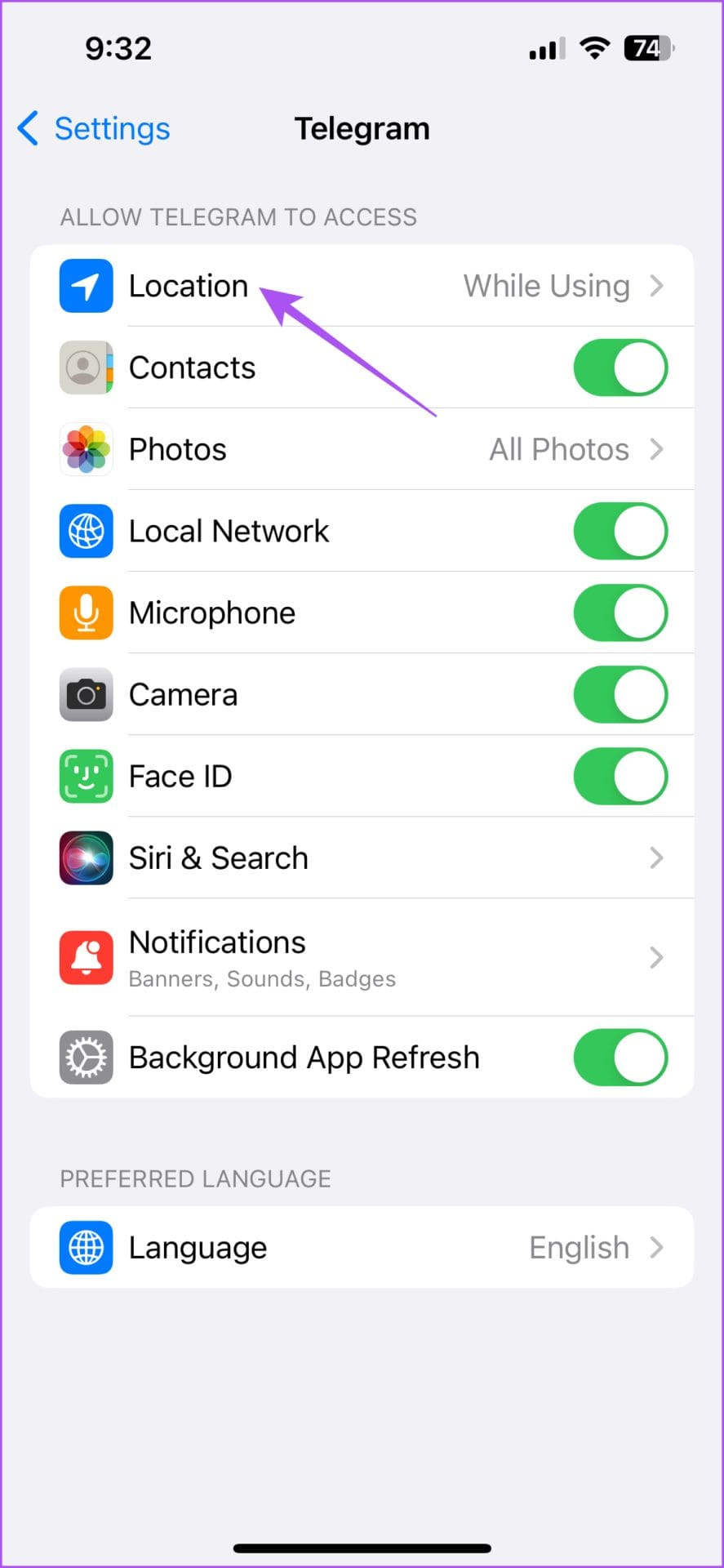
Open Settings > Telegram > Location > select While Using the App or Always.
We suggest enabling Precise Location.

On Android
Open Telegram App Info > Permissions > Location > tap on Allow All The Time or Allow only while using the app.


Fix 2: Disable Low Power Mode
Low Power Mode or Power Saving Mode is recommended when your phone runs out of juice. But this also impacts your Live Location from being updated in the Telegram app. We suggest turning off the Low Power Mode on your device.
Turn off Low Power Mode on iPhone
Open Settings > Battery > turn off Low Power Mode.
Turn off Battery Saver on Android
Open Settings > Battery > disable Use Battery Saver.
Fix 3: Enable Background App Refresh (iPhone) or Unrestricted Data Usage (Android)
On iPhone
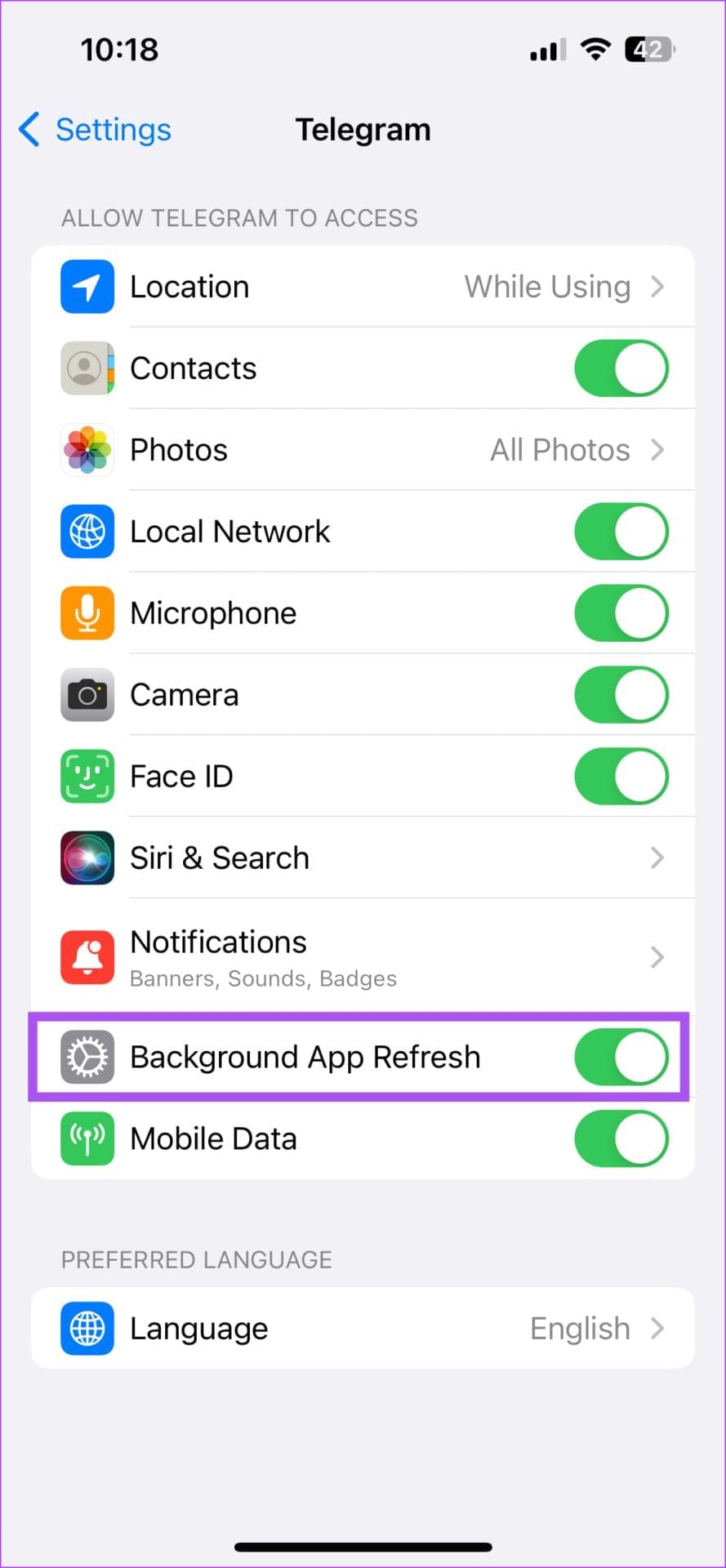
Background App Refresh ensures that apps running in the background on your iPhone remain updated when you switch between them. So, when sharing your Live Location using Telegram, check if Background App Refresh has been enabled for the app.
Open Settings > Telegram > enable Background App Refresh.

On Android
If you use Data Saver on your Android phone, you might need to update your location due to a lack of data usage. We suggest enabling unrestricted data usage for Telegram on your Android phone.
Open Telegram App Info > Mobile data & Wi-Fi > enable Unrestricted Data Usage.


Fix 4: Reset Location Settings
The last resort is to reset your device’s location settings and then enable location permissions again for Telegram.
On iPhone
Open Settings > General > Transfer or Reset iPhone > Reset > Reset Location and Privacy.


On Android
Open Settings > Location > Location services > Google Location Accuracy > disable and then enable it again.

Was this helpful?
Last updated on 22 August, 2024
Read Next
 5 Ways to Fix Live Location Not Updating on Android and iPhone
Fix 1: Ensure Location Services Are Enabled Enabling location services on your phone is the most basic step before you can share your live location.
5 Ways to Fix Live Location Not Updating on Android and iPhone
Fix 1: Ensure Location Services Are Enabled Enabling location services on your phone is the most basic step before you can share your live location.
 5 Ways to Fix WhatsApp Live Location Not Updating on Android and iPhone
Try Basic Fixes Update WhatsApp: An outdated app version can also cause performance issues, especially if you haven't updated it in a long time.
5 Ways to Fix WhatsApp Live Location Not Updating on Android and iPhone
Try Basic Fixes Update WhatsApp: An outdated app version can also cause performance issues, especially if you haven't updated it in a long time.
 4 Fixes for Location Not Updating in Weather App on Samsung Galaxy Phones
Basic Fixes Switch to 5G: To get the most accurate weather data, we suggest switching to 5G network on your Samsung phone.
4 Fixes for Location Not Updating in Weather App on Samsung Galaxy Phones
Basic Fixes Switch to 5G: To get the most accurate weather data, we suggest switching to 5G network on your Samsung phone.
 5 Ways to Fix Location Sharing Not Updating in Google Maps on Phone
Common Fixes Check your internet connection - Google Maps will fail to update the location if your internet is unstable.
5 Ways to Fix Location Sharing Not Updating in Google Maps on Phone
Common Fixes Check your internet connection - Google Maps will fail to update the location if your internet is unstable.
 4 Fixes for Weather Widget Not Updating on Android
Basic Fixes Disable data saver: Open Settings > Network and internet > Disable Data saver.
4 Fixes for Weather Widget Not Updating on Android
Basic Fixes Disable data saver: Open Settings > Network and internet > Disable Data saver.
 5 Ways to Fix Telegram Stuck on Updating or Connecting
Basic Fixes Check Telegram servers: If the Telegram servers are down, you can’t use any app’s services on your phone.
5 Ways to Fix Telegram Stuck on Updating or Connecting
Basic Fixes Check Telegram servers: If the Telegram servers are down, you can’t use any app’s services on your phone.
 4 Fixes for Apple Watch Weather Not Showing or Updating
Basic Fixes Check Apple Watch connectivity: Ensure your Apple Watch is connected to Wi-Fi and your iPhone via Bluetooth.
4 Fixes for Apple Watch Weather Not Showing or Updating
Basic Fixes Check Apple Watch connectivity: Ensure your Apple Watch is connected to Wi-Fi and your iPhone via Bluetooth.
 3 Fixes for Roblox Not Updating on Windows
Try Basic Fixes Check if Roblox is down: At times, server-related issues can prevent Robox from launching or updating on your Windows PC.
3 Fixes for Roblox Not Updating on Windows
Try Basic Fixes Check if Roblox is down: At times, server-related issues can prevent Robox from launching or updating on your Windows PC.
The article above may contain affiliate links which help support Guiding Tech. The content remains unbiased and authentic and will never affect our editorial integrity.