

Basic Fixes
- Blocked by recipient: You might have been blocked by the contact on Telegram.
- Recipient not connected to the Internet: Your contact needs to be connected to either 5G or a 5GHz Wi-Fi network.
- Check internet speeds: Check whether you are getting strong internet speeds for Telegram on your mobile.
- Disable battery saver: Disable the battery saving feature on your iPhone or Android. That might be the reason why the calls are not connecting.
- Force quit and relaunch the app: This will give the app a fresh start on your device.
- Update Telegram: Install the latest version of the app to get rid of bugs and glitches.
Fix 1: Disable Less Data Use for Telegram Calls
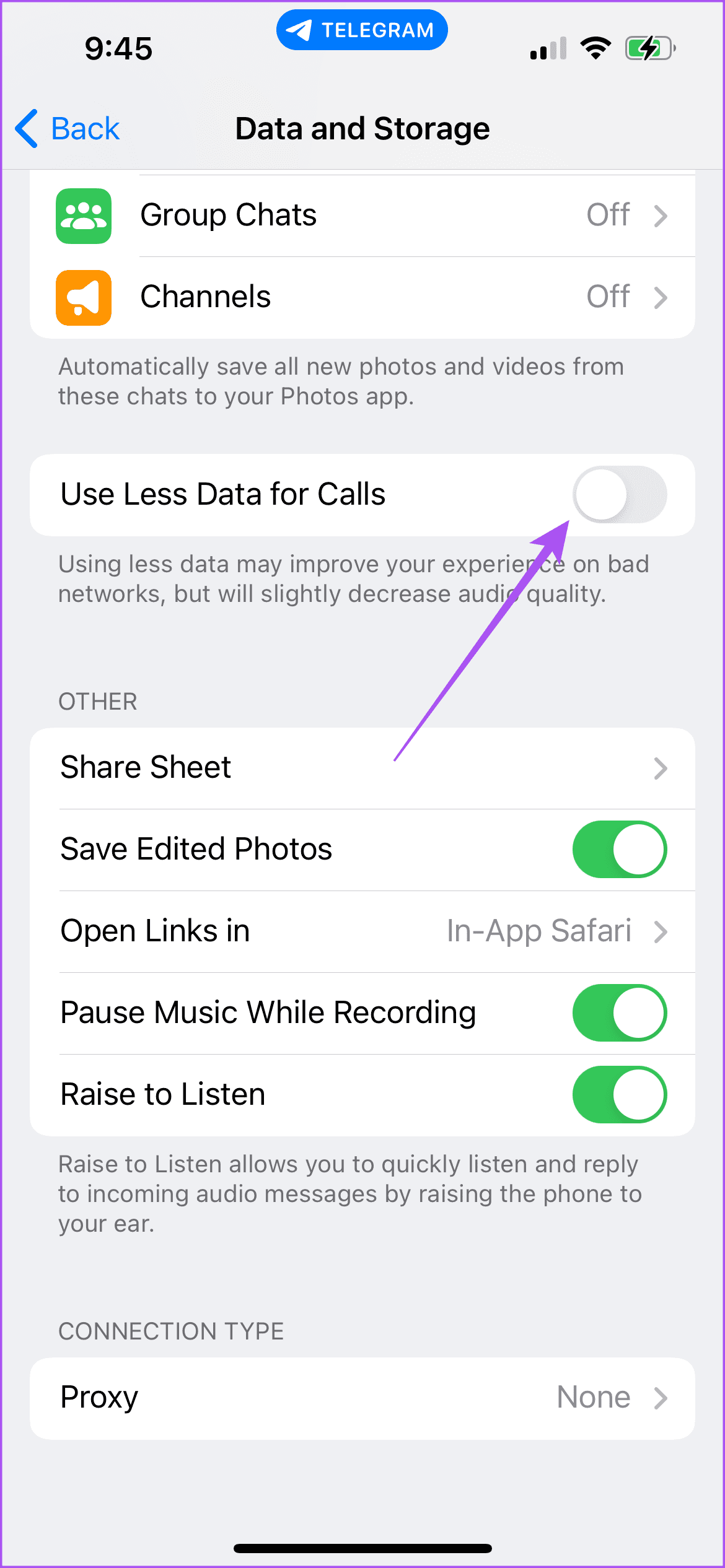
The Telegram app allows you to limit data usage while taking voice or video calls. This is helpful, especially for mobile data users. But if Telegram calls are not working on your phone, here’s how to disable the feature.
Open Telegram > Settings > Data and Storage > disable Use Less Data for Calls.

Fix 2: Disable Low Data Mode or Data Saver
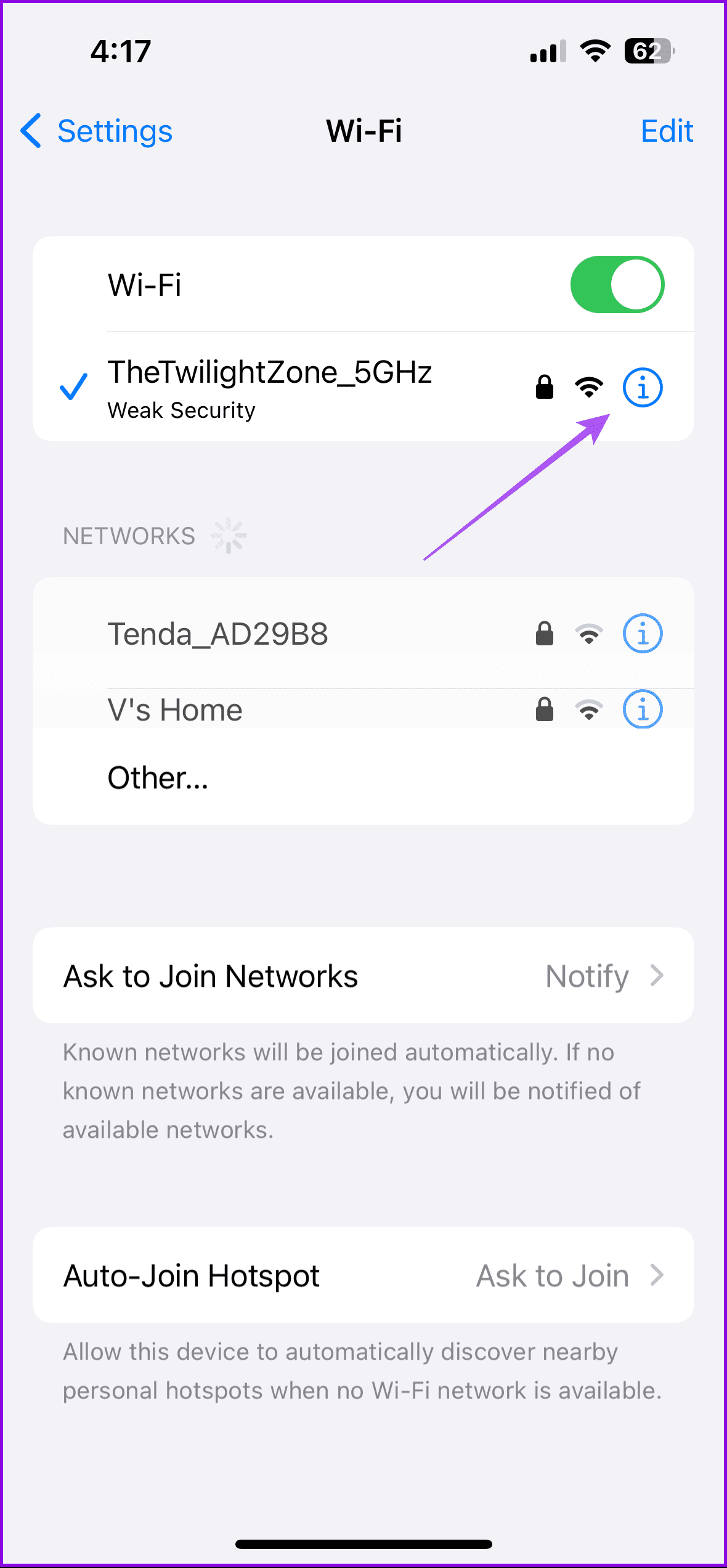
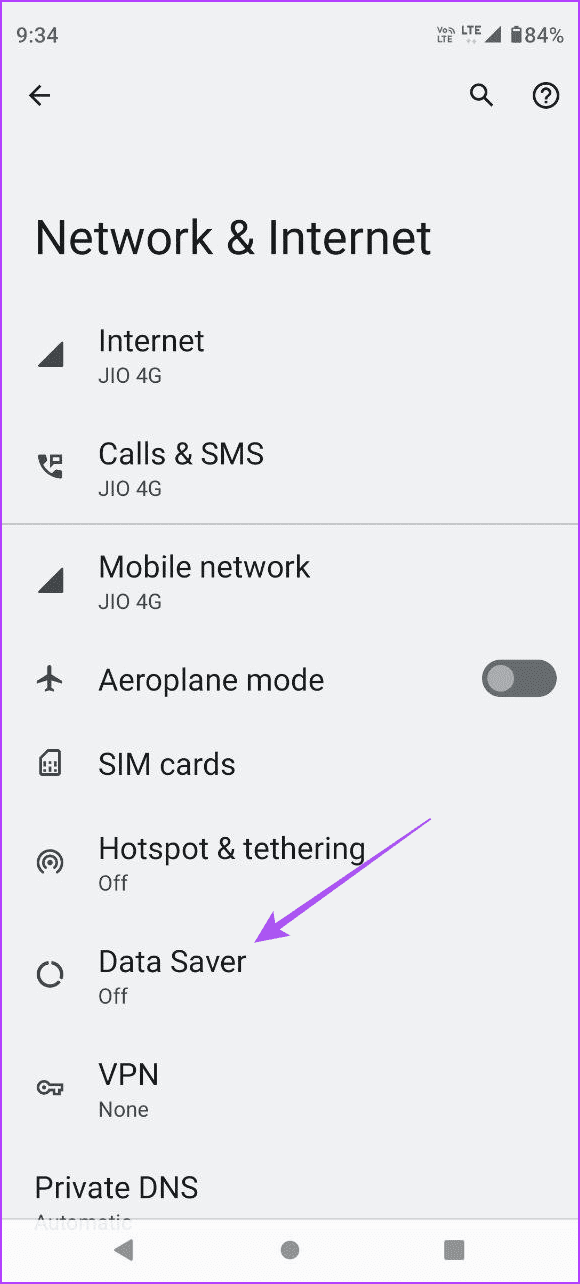
To help you save data, your Android and iPhone phone packs an option to limit data usage while using apps like Telegram. You can check if that feature is enabled, as it might be why Telegram calls are not connecting.
On iPhone
Open Settings > Wi-Fi > Info icon next to the connected network name > disable Low Data Mode.

On Android
Open Settings > Network and internet > Data Saver > disable Data Saver.

Fix 3: Check App Permissions
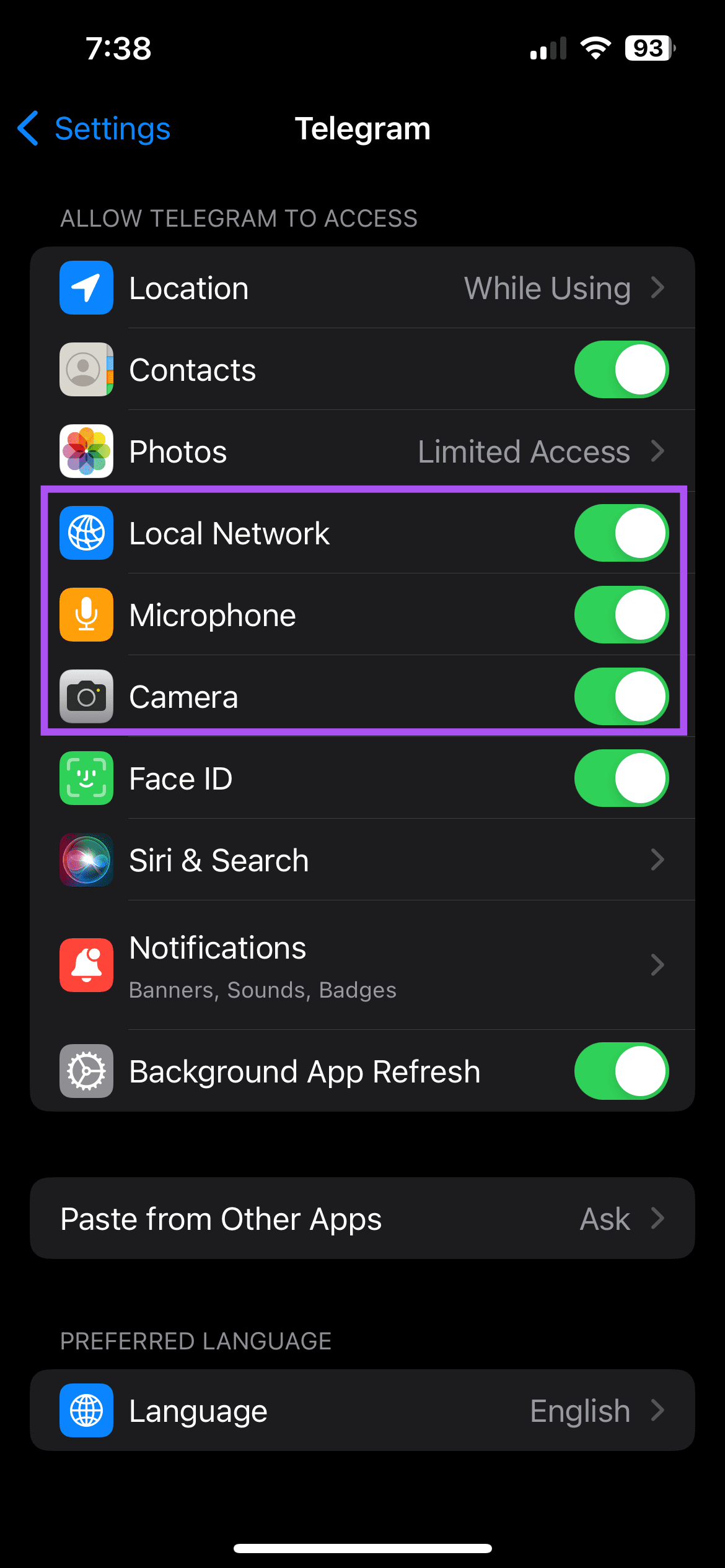
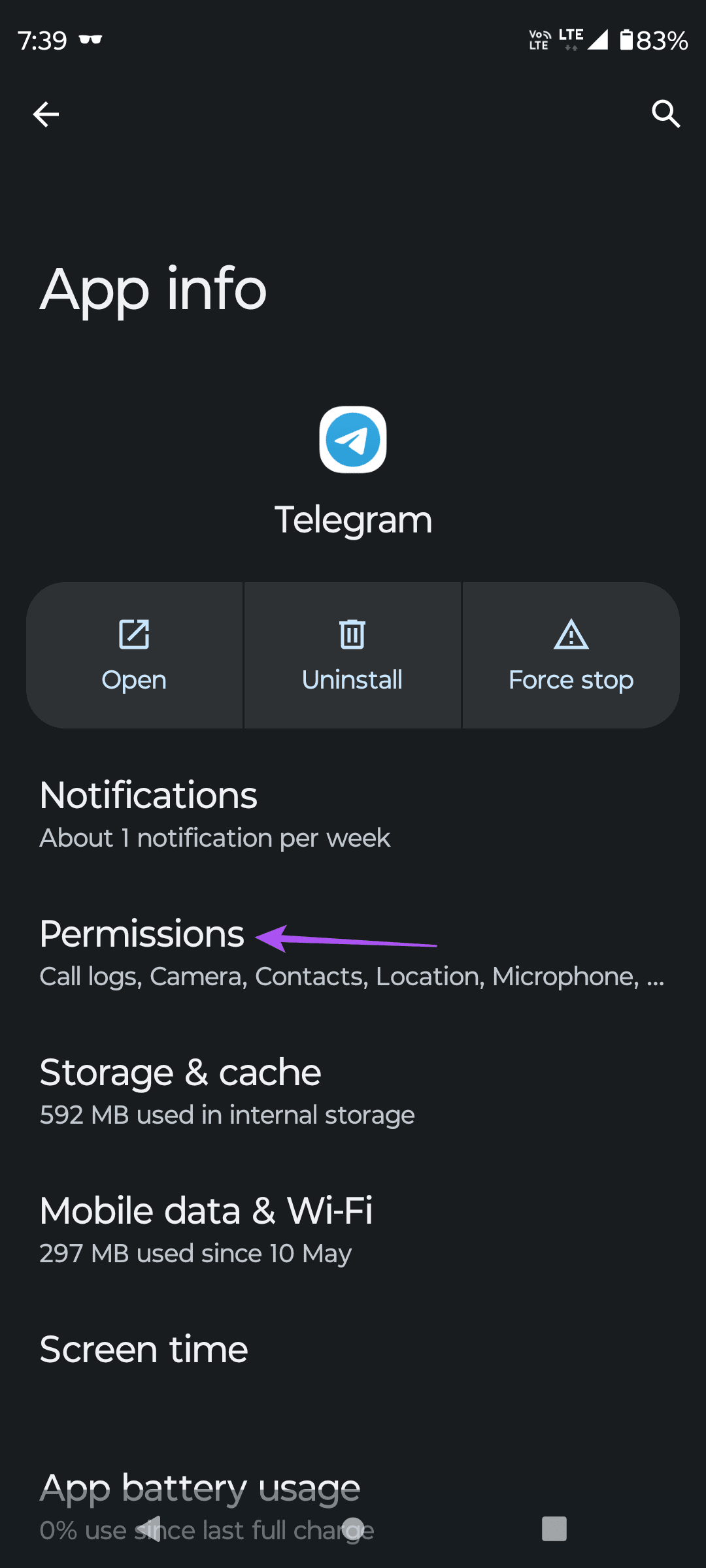
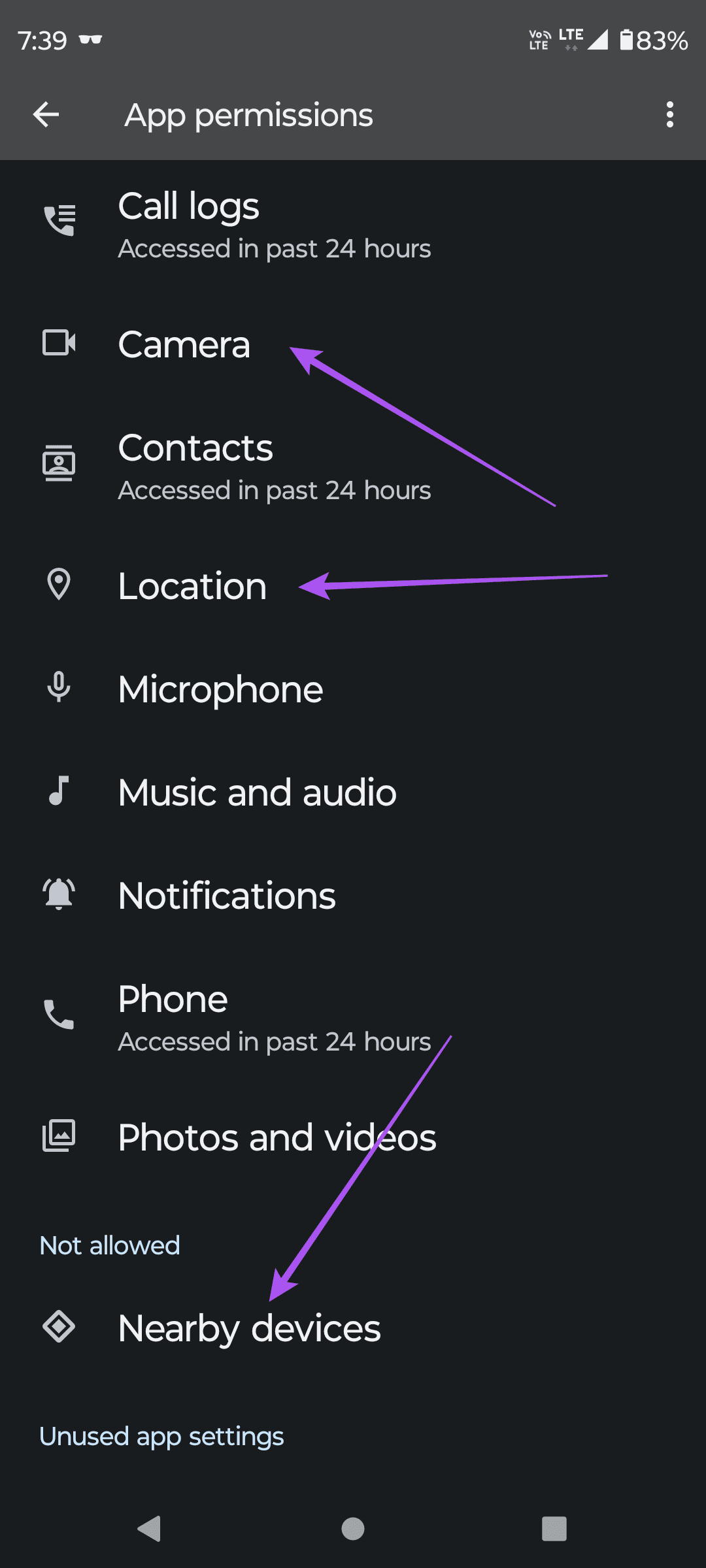
Before moving to the last solution, check whether the Telegram app has the permission to use the Camera, Microphone, and Nearby Device access on Android and iPhone. You can follow the steps:
For iPhone
Open Settings > Telegram > enable permissions for Microphone, Camera, and Local Network.

On Android
Open Telegram App Info > Permissions > enable permissions for Camera, Microphone, and Nearby Devices.
Tip: If you no longer intend to chat or call a few people, read our post on how to delete Telegram contacts.
Fix 4: Clear Telegram App Cache
Clearing the app cache will remove all preferences for Telegram from your iPhone or Android.
On iPhone
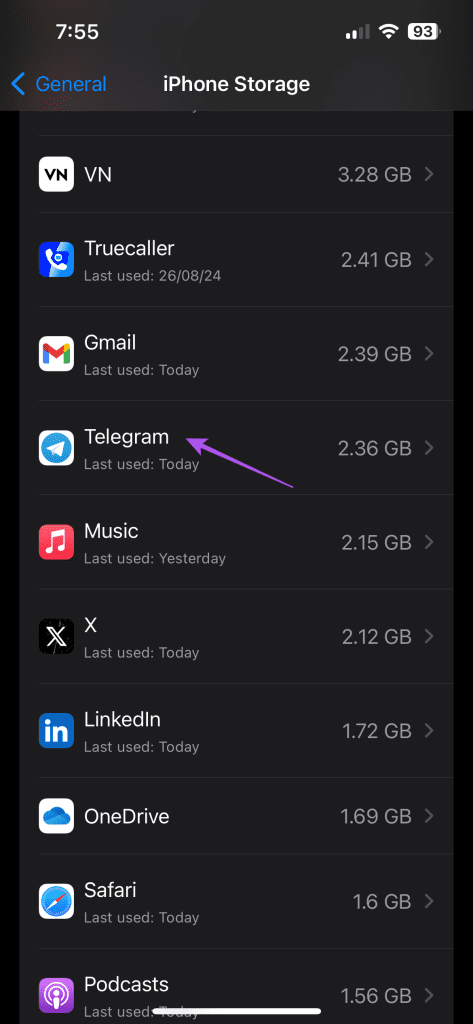
Open Settings > General > iPhone Storage > Telegram > Offload App.

On Android
Open Telegram app info > Storage and cache > Clear cache.


Was this helpful?
Last updated on 30 August, 2024
2 Comments
Leave a Reply
Read Next
 5 Ways to Fix Telegram Stuck on Updating or Connecting
Basic Fixes Check Telegram servers: If the Telegram servers are down, you can’t use any app’s services on your phone.
5 Ways to Fix Telegram Stuck on Updating or Connecting
Basic Fixes Check Telegram servers: If the Telegram servers are down, you can’t use any app’s services on your phone.
 Top 9 Ways to Fix Telegram Connecting Problems on iOS and Android
Telegram is jumping the popularity charts on both iOS and Android.
Top 9 Ways to Fix Telegram Connecting Problems on iOS and Android
Telegram is jumping the popularity charts on both iOS and Android.
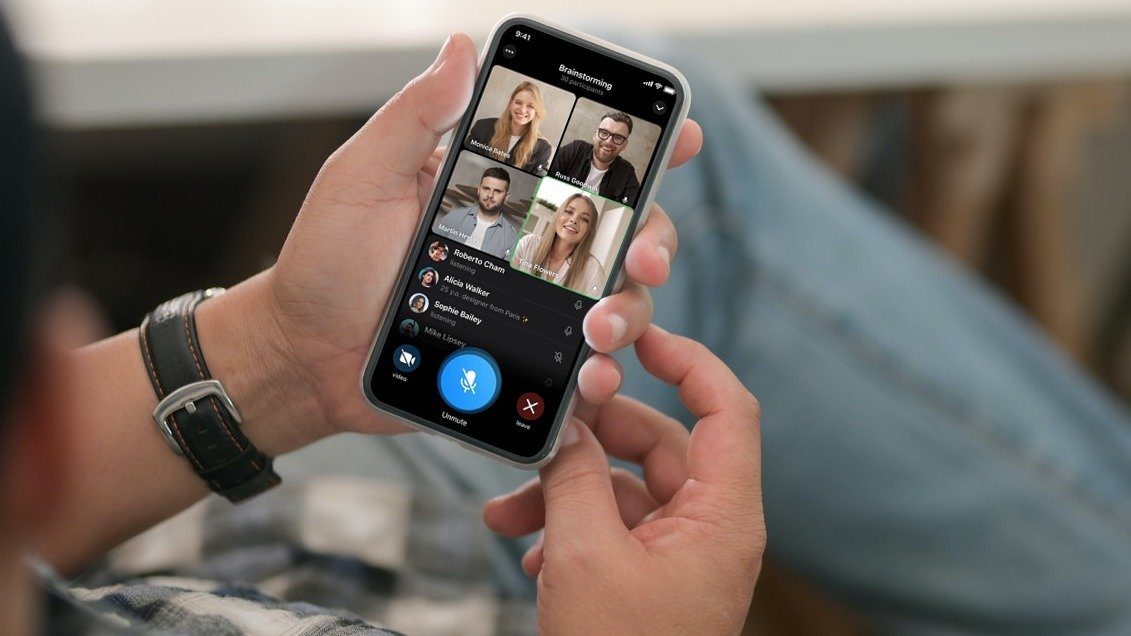 How to Make Group Video Calls on Telegram
Make a Group Video Calls on Telegram on Android & iOS Step 1: Open your Telegram Android app's existing group.
How to Make Group Video Calls on Telegram
Make a Group Video Calls on Telegram on Android & iOS Step 1: Open your Telegram Android app's existing group.
 3 Fixes for No Sound in Facebook Messenger Video Calls
Basic Fixes Check volume levels: Check whether you have optimum volume levels on your iPhone or Android phone.
3 Fixes for No Sound in Facebook Messenger Video Calls
Basic Fixes Check volume levels: Check whether you have optimum volume levels on your iPhone or Android phone.
 5 Fixes for No Sound in WhatsApp Video Calls on iPhone and Android
Basic Fixes Force quit and relaunch WhatsApp: This will reload the app and give it a fresh start on your iPhone or Android phone.
5 Fixes for No Sound in WhatsApp Video Calls on iPhone and Android
Basic Fixes Force quit and relaunch WhatsApp: This will reload the app and give it a fresh start on your iPhone or Android phone.
 6 Ways to Fix Telegram Calls Not Ringing on iPhone
Basic Fixes: Allow anyone to call you: Telegram offers excellent privacy and security options.
6 Ways to Fix Telegram Calls Not Ringing on iPhone
Basic Fixes: Allow anyone to call you: Telegram offers excellent privacy and security options.
 3 Ways to Fix Telegram Calls Not Switching to Speaker on iPhone
Common Fixes Check volume levels - Go to Settings > Sounds & Haptics and maximize the Ringtone and Alerts volume slider.
3 Ways to Fix Telegram Calls Not Switching to Speaker on iPhone
Common Fixes Check volume levels - Go to Settings > Sounds & Haptics and maximize the Ringtone and Alerts volume slider.
 4 Fixes for Google TV or Android TV Not Connecting to Wi-Fi
Fix 1: Change the DHCP Configuration Settings Step 1: Open Settings on your Android TV or Google TV.
4 Fixes for Google TV or Android TV Not Connecting to Wi-Fi
Fix 1: Change the DHCP Configuration Settings Step 1: Open Settings on your Android TV or Google TV.
The article above may contain affiliate links which help support Guiding Tech. The content remains unbiased and authentic and will never affect our editorial integrity.

Tip number 1. delete Telegram and never use it for calls. It is just buggy and unreliable.
Meet and talk with eye contact. All these things were invented for only one purpose – to keep track of you.