Basic Fixes
- Switch to 5GHz Wi-Fi: If you have a dual-band router, you can connect to a 5GHz frequency band for faster internet speeds.
- Force quit and relaunch: This will give the app a fresh start especially if it has been running in the background for quite some time now.
- Subscribe to the Podcast again: You can subscribe again and wait for some time to see all the episodes in your library.
- Check internal storage: If there isn’t enough internal storage on your iPhone, you won’t be able to download episodes and use the app.
- Update iOS to update the Podcasts app: Open Settings > General > Software Update.
Fix 1: Enable Mobile Data Usage For Downloads
Let’s start with solutions for when you prefer using the Podcasts app mostly on Mobile Data. So firstly, you’ll need to check where the Podcasts app has the permission to use Mobile Data on your iPhone. It’s natural to download the episodes on Wi-Fi to listen to them offline. But if you like to listen on the go, then you’ll have to permit the app to use mobile data. Here’s how to check and allow the Podcasts app to use mobile data.
Step 1: Open the Settings app on your iPhone.
Step 2: Scroll down and then tap on Podcasts.
Step 3: Check if Mobile Data is enabled. If not, turn on the toggle next to Mobile Data.
You also get the option to allow Automatic Downloads over Mobile Data. Please don’t use this feature if you have daily data limits on your Mobile Data plan.


Step 4: Close Settings and open Podcasts to check if the problem persists.
Fix 2: Turn Of Low Data Mode for Wi-Fi
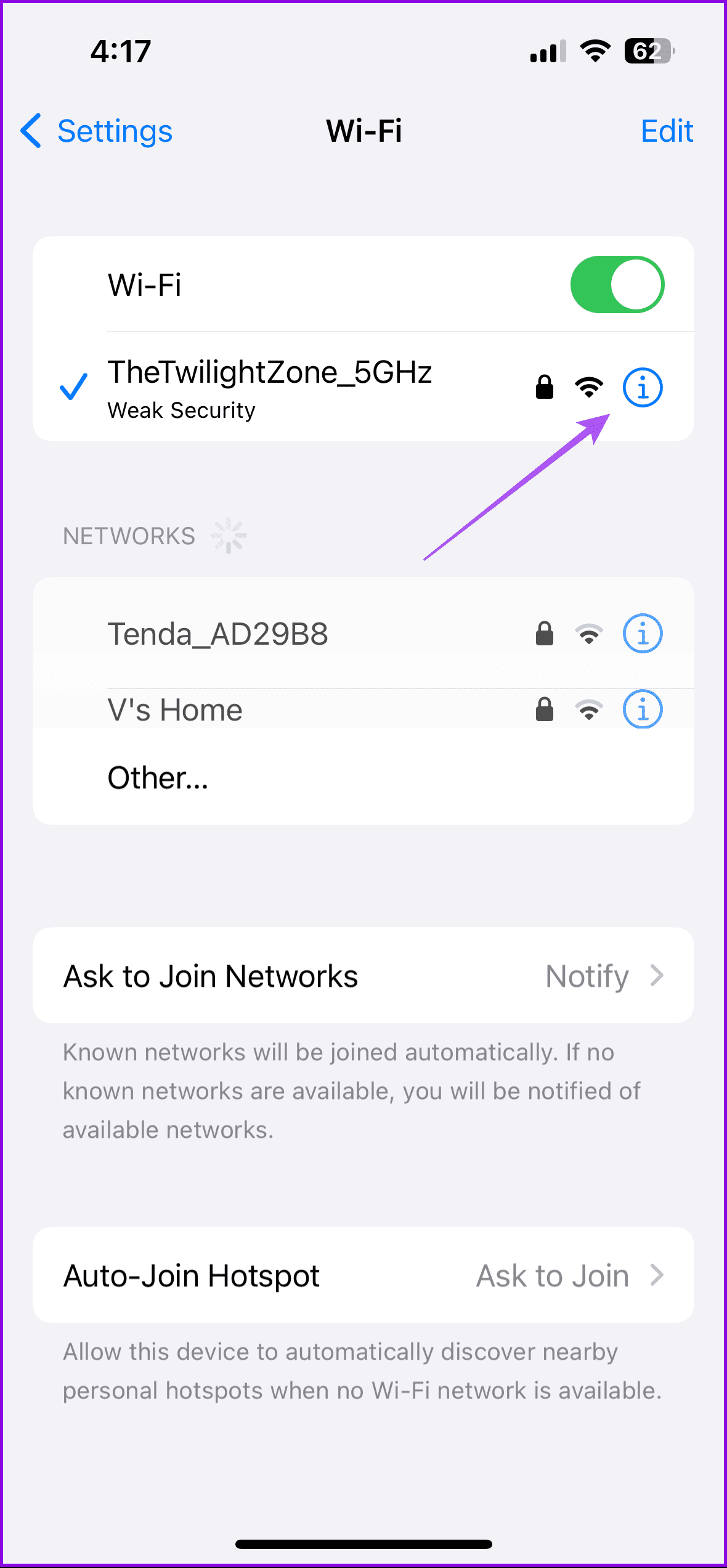
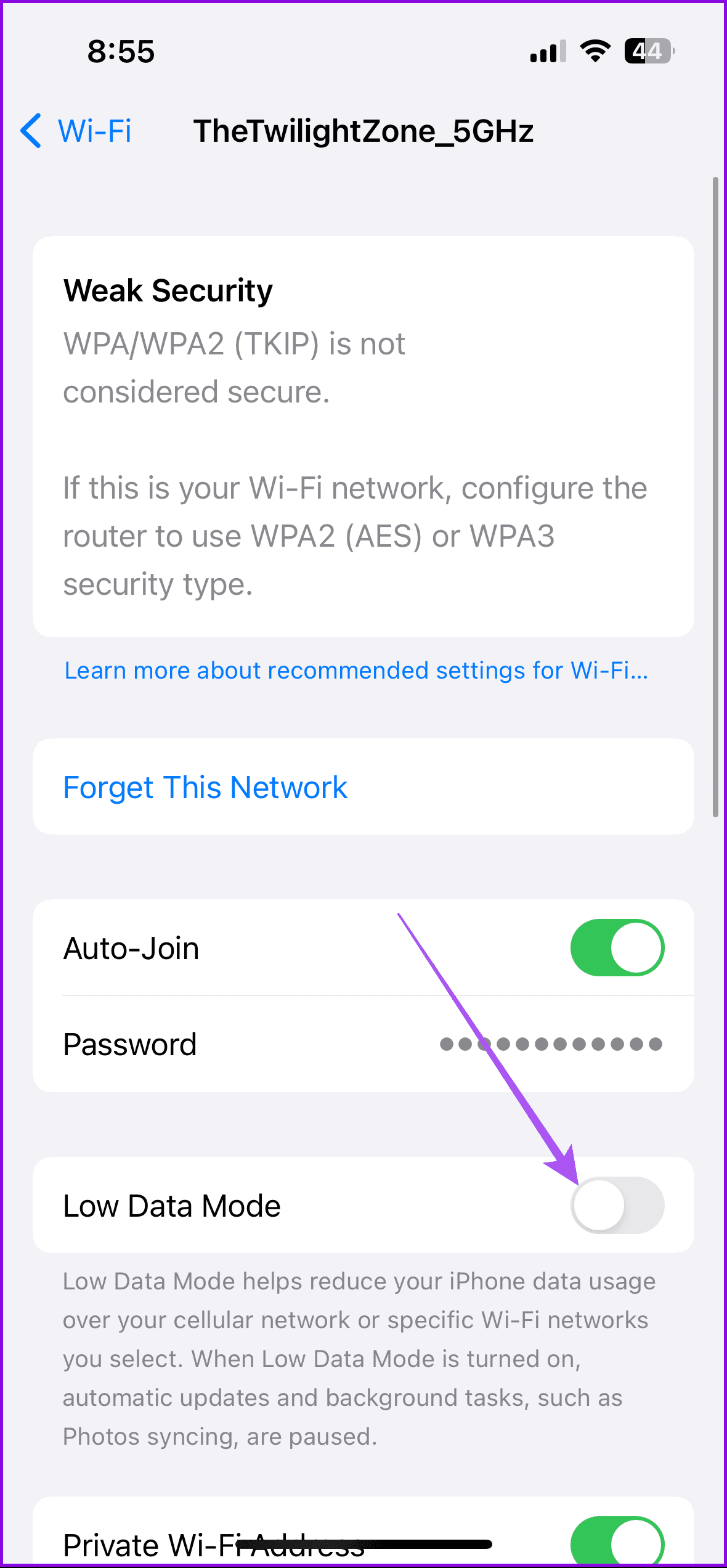
Besides conserving data usage while on mobile data, iPhone packs an option to reduce data usage on Wi-Fi network. But in the case of the Podcasts app not working on your iPhone, you can try turning off Low Data Mode for Wi-Fi by following these steps.
Step 1: Open the Settings app on your iPhone.
Step 2: Tap on Wi-Fi.
Step 3: Tap the Info icon next to the connected Wi-Fi network.
Step 4: Check if Low Data Mode is disabled. If not, turn off the toggle next to Low Data Mode.
Fix 3: Sync Podcasts Library Again to iCloud
If you subscribed to a podcast on another Apple device but can’t see it on your iPhone, you can try syncing your library again to iCloud.
Open Settings > Podcasts > Disable Sync Library > Wait for some time and enable again.


Fix 4: Clear Podcasts App Cache
Clearing outdated app cache can also help in resolving the issue. Once done, sign in again using your Apple account and check if the problem is solved.
Open Settings > General > iPhone Storage > Podcasts > Offload App > Reinstall the app.


Fix 5: Reset Network Settings
This is an advanced solution and it will reset all the Network Settings related to Wi-Fi, Mobile Data and Bluetooth on your iPhone. Do note that this step will remove all the details of Wi-Fi, Mobile Data, and Bluetooth devices from your iPhone. That means, you’ll have to add those details again.
Open Settings > General > Transfer or Reset iPhone > Reset > Reset Network Settings.

Ensure that you enable the sync in the Podcasts app so that you can continue listening where you left off on your iPad or Mac. Also, check our post if Apple Podcasts are not downloading.
Was this helpful?
Last updated on 19 July, 2024
Read Next
 4 Ways to Fix Apple Podcasts Not Downloading
Basic Fixes Check storage: Ensure your iPhone has enough storage space left to accommodate new downloads from the Podcasts app.
4 Ways to Fix Apple Podcasts Not Downloading
Basic Fixes Check storage: Ensure your iPhone has enough storage space left to accommodate new downloads from the Podcasts app.
 Top 7 Fixes for Background App Refresh Not Working on iPhone
Several iPhone apps rely on background app refresh to fetch the latest data.
Top 7 Fixes for Background App Refresh Not Working on iPhone
Several iPhone apps rely on background app refresh to fetch the latest data.
 3 Fixes for Mail App Notifications Not Working on iPhone
Basic Fixes Enable Mail app notifications: Open Settings > Mail > Notifications > Customize Notifications > enable alerts.
3 Fixes for Mail App Notifications Not Working on iPhone
Basic Fixes Enable Mail app notifications: Open Settings > Mail > Notifications > Customize Notifications > enable alerts.
 2 Fixes for Apple TV Remote App Not Working on iPhone
Basic Fixes Restart your router: A simple restarting of your internet router can fix the issue once you reconnect to your network.
2 Fixes for Apple TV Remote App Not Working on iPhone
Basic Fixes Restart your router: A simple restarting of your internet router can fix the issue once you reconnect to your network.
 3 Fixes for the Translate App Not Working on iPhone
Basic Fixes Enable or disable On-Device mode: Open Settings > Translate > Disable On-Device Mode.
3 Fixes for the Translate App Not Working on iPhone
Basic Fixes Enable or disable On-Device mode: Open Settings > Translate > Disable On-Device Mode.
 3 Fixes for Stickers Not Working in iMessage on iPhone
Basic Fixes Disable Low Power Mode: Open Settings > Battery > Disable Low Power Mode.
3 Fixes for Stickers Not Working in iMessage on iPhone
Basic Fixes Disable Low Power Mode: Open Settings > Battery > Disable Low Power Mode.
 4 Fixes for Discord App Not Working on Android and iPhone
Try Basic Fixes Force close and reopen the app: Discord may sometimes encounter issues while opening or running on your phone, causing it to malfunction.
4 Fixes for Discord App Not Working on Android and iPhone
Try Basic Fixes Force close and reopen the app: Discord may sometimes encounter issues while opening or running on your phone, causing it to malfunction.
 2 Fixes for iPhone Not Ringing When Facebook App Is Open
Basic Fixes Turn off Silent mode: If your iPhone is not ringing but vibrating when the Facebook app is open, turn off the Silent mode, and it should do the
2 Fixes for iPhone Not Ringing When Facebook App Is Open
Basic Fixes Turn off Silent mode: If your iPhone is not ringing but vibrating when the Facebook app is open, turn off the Silent mode, and it should do the
The article above may contain affiliate links which help support Guiding Tech. The content remains unbiased and authentic and will never affect our editorial integrity.